Yes, you can upgrade from Windows 11 23H2, 22H2 or Windows 10 to Windows 11 26H2 in one step, but only PCs already on 24H2 or 25H2 get the small enablement package with a single restart; everything older needs a full upgrade.
This guide maps each starting version to its path, shows the steps for each, and explains how to confirm the PC ended up on 26H2.
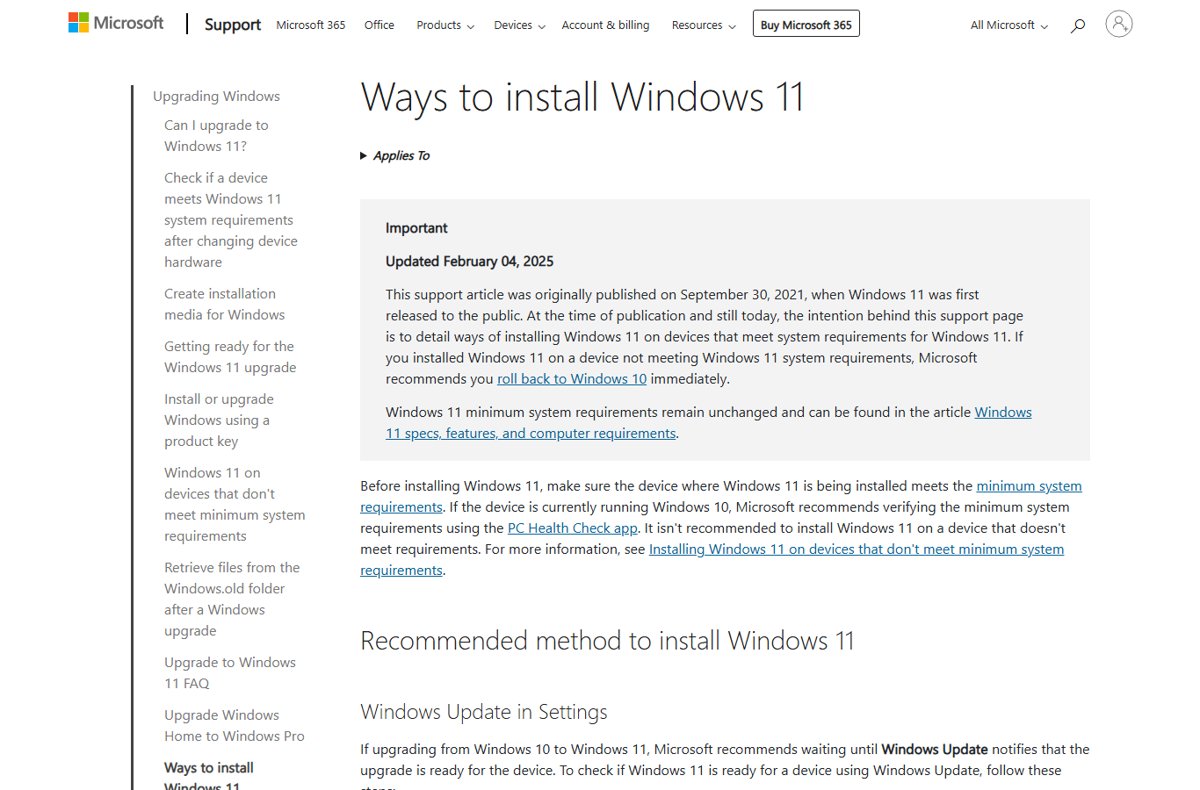
Windows 11 26H2 upgrade paths
Find the version shown in Settings > System > About under Windows specifications, then follow its row. If you are unsure which version you run, the steps to check your Windows 11 version take under a minute.
| You are running | Path to 26H2 | What installs | Restarts |
|---|---|---|---|
| Windows 11 25H2 (build 26200) | Windows Update | Enablement package KB5121794 | One |
| Windows 11 24H2 (build 26100) | Windows Update | Enablement package KB5121794 | One |
| Windows 11 23H2 (build 22631) | Installation Assistant or ISO | Full Windows Setup | Several |
| Windows 11 22H2 (build 22621) or 21H2 | Installation Assistant or ISO, straight to 26H2 | Full Windows Setup | Several |
| Windows 10, version 2004 or later | Installation Assistant, ISO or the Windows 11 offer in Windows Update | Full Windows Setup, if the PC meets Windows 11 requirements | Several |
| Windows 11 26H1 (build 28000) | None yet | Microsoft says 26H1 devices get a path in a future release | Not applicable |
Microsoft is rolling 26H2 out in phases over the next few months, so a 24H2 or 25H2 PC may not see the offer on day one.
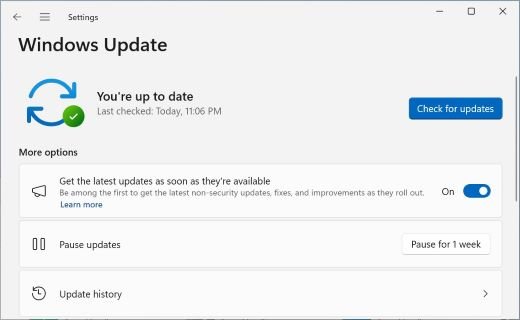
9. Same hardware requirements
26H2 does not raise the bar. Microsoft's Windows 11 requirements page, updated in July 2026, applies to every Windows 11 version and lists these minimums. A PC already running any Windows 11 version on supported hardware meets them.
| Requirement | Minimum |
|---|---|
| Processor | 1 GHz or faster, two or more cores, compatible 64-bit processor or SoC |
| Memory | 4 GB |
| Storage | 64 GB; the Installation Assistant also needs 9 GB free to download |
| Firmware | UEFI, Secure Boot capable |
| TPM | Trusted Platform Module version 2.0 |
| Graphics | DirectX 12 or later with a WDDM 2.0 driver |
| Starting OS for a direct upgrade | Windows 10 version 2004 or later with the September 14, 2021 security update or later |
| Snapdragon 850 PCs | Supported, but 26H2 is the last version that will support them |
Microsoft has not published a separate 26H2 processor list as of September 30, 2026. The full 26H2 system requirements cover TPM and Secure Boot checks.
3. Enablement package-based installation
This is the path for Windows 11 24H2 and 25H2. Those versions already carry the 26H2 code in a dormant state, delivered by monthly cumulative updates, so the enablement package only switches it on.
Install the September 22, 2026 preview update KB5124010, or a later cumulative update, before the package can apply.
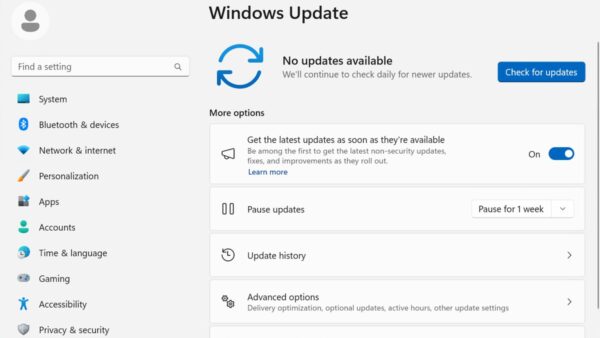
- Open Settings and select Windows Update.
- Turn on Get the latest updates as soon as they're available.
- Select Check for updates and install any pending cumulative update, then restart if asked.
- When Windows 11, version 26H2 is available appears, select Download & install.
- Restart the PC when Windows asks. The single restart completes the move to 26H2.
The KB5121794 enablement package has no standalone download. Organisations get the same package through WSUS, Windows Autopatch or the Microsoft 365 admin center.
Upgrading from Windows 11 23H2 or earlier
Windows 11 23H2 and 22H2 run on an older core, build 22631 and 22621, so the enablement package cannot bridge the gap. Microsoft names only 24H2 and 25H2 as eligible for the package.
Home and Pro editions of 23H2 stopped receiving updates in November 2025, and 22H2 in October 2024. Enterprise and Education editions of 23H2 get updates until November 10, 2026.
- Back up personal files to OneDrive or an external drive.
- Confirm the drive has at least 9 GB free.
- Open Microsoft's Download Windows 11 page and, under Windows 11 Installation Assistant, select Download Now.
- Run the downloaded file and allow it through User Account Control.
- Select Accept and install.
- Select Restart now when prompted, and leave the PC on while it restarts several times.
- Sign in when the Windows sign-in screen returns.
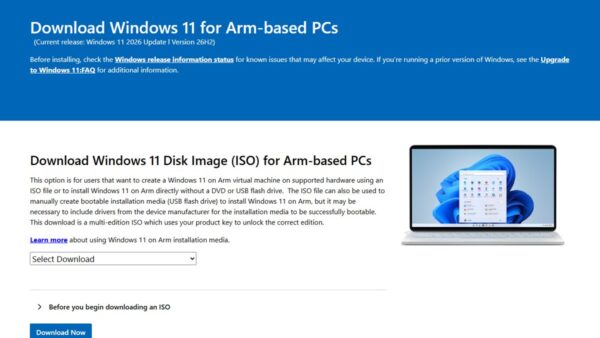
The Installation Assistant runs only on x64 PCs. On Arm-based PCs, use the Arm64 ISO linked from the same Microsoft page.
6. Direct upgrade from older versions
There is no need to install 23H2, 24H2 or 25H2 on the way. Microsoft's download page lists its current release as Windows 11 2026 Update, version 26H2, so the Installation Assistant, media creation tool and ISO all land on 26H2 directly.
| Starting point | One-step jump to 26H2? | Condition |
|---|---|---|
| Windows 11 23H2 | Yes | Run the Installation Assistant or ISO setup |
| Windows 11 22H2 or 21H2 | Yes | Same tools; no intermediate version required |
| Windows 10, version 2004 or later | Yes | PC meets Windows 11 hardware requirements and has the September 14, 2021 security update or later |
| Windows 10 older than version 2004 | No | Update Windows 10 first, or boot from Windows 11 media and clean install |
| Windows 11 26H1 | No | 26H1 uses a different Windows core; Microsoft promises a path in a future release |
Upgrading from Windows 10
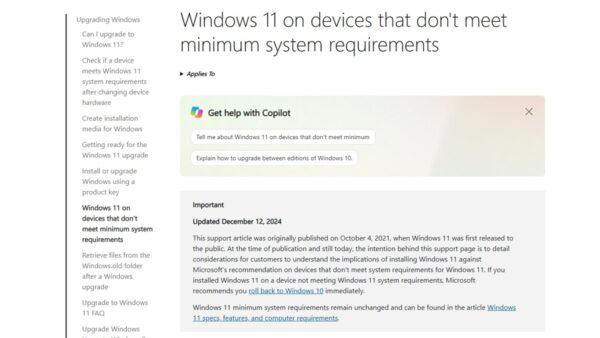
Windows 10 support ended on October 14, 2025, and the upgrade to Windows 11 is free on eligible hardware. Microsoft recommends checking the PC with the PC Health Check app before upgrading.
- Select Start > Settings > Update & Security > Windows Update.
- Select Check for updates and install every pending Windows 10 update, then restart.
- If Windows Update shows that Windows 11 is ready, select Download and install, then Accept and install.
- If no offer appears, run the Windows 11 Installation Assistant instead and select Accept and install.
- If the Installation Assistant asks for more information, run PC Health Check, then select Refresh in the Installation Assistant.
- Select Restart now and let the PC restart several times until the sign-in screen appears.
Files move to Windows 11 by default, but Microsoft still recommends a backup first. If the PC fails the check, the options are covered in running 26H2 on an older PC.
4. Full reinstallation upgrade
Installation media give two routes. Running setup from inside Windows is an in-place upgrade that can keep files and apps. Booting from the media installs a fresh copy and erases the drive.
- Create Windows 11 installation media with the media creation tool, or download the multi-edition ISO for x64 devices.
- Sign in to the PC you are upgrading and connect the USB drive, or open the ISO.
- Select Run setup.exe. If no pop-up appears, open File Explorer > This PC, right-click the media and select Install or run program from your media.
- Step through Windows 11 Setup until the Ready to install page.
- Select Change what to keep and pick Keep personal files and apps, Keep personal files only or Nothing.
- Finish the Setup pages to start the upgrade.
To start clean instead, boot from the bootable USB drive through the PC's boot menu, usually one of the F1 to F12 keys or Del. That wipes every file on the drive.
7. Upgrade tools trigger a full feature update
The enablement package comes only through Windows Update, WSUS and Microsoft's managed deployment services. The download-page tools run the full Windows Setup instead.
| Tool | What it does | Best for |
|---|---|---|
| Windows Update on 24H2 or 25H2 | Installs the small enablement package with one restart | Every eligible 24H2 and 25H2 PC |
| Windows 11 Installation Assistant | Downloads the latest feature update and runs Setup; the PC restarts several times | 23H2, 22H2 and Windows 10 PCs on x64 hardware |
| Media creation tool | Builds a bootable USB or DVD for an in-place upgrade or clean install | Several PCs, or a clean install |
| Multi-edition ISO | Same Setup as the media, mountable or bootable | Virtual machines, Arm64 PCs through the separate Arm64 ISO, offline installs |
Microsoft has not said whether the Installation Assistant switches to the enablement package when it runs on a 24H2 or 25H2 PC. On those versions, Windows Update is the faster route.
Why Microsoft uses different upgrade methods
The split comes down to shared code. Microsoft's KB5121794 article states that 24H2, 25H2 and 26H2 share a common core operating system with an identical set of system files.
| Fact | What it means for the upgrade |
|---|---|
| 1. Same operating system platform | 24H2, 25H2 and 26H2 sit on one servicing branch, so 26H2 is build 26300 on the same core as 26200 and 26100 |
| 2. Same set of features and improvements | Microsoft's release health page says 26H2 contains all recently announced 24H2 and 25H2 features; monthly updates delivered them already |
| Dormant code | The 26H2 features sit inactive on 24H2 and 25H2 PCs until the enablement package activates them |
| Different core on 23H2 and Windows 10 | No shared code to switch on, so Setup must replace the whole operating system |
| Different core on 26H1 | 26H1 is newer but separate, so it cannot take the 26H2 package either |
The shared core is also why the same September preview update, KB5124010, is build 26300.9550 on 26H2, 26200.9550 on 25H2 and 26100.9550 on 24H2.
Why some PCs upgrade faster than others
Starting version decides the size of the job, and rollout decides the timing.
| Factor | Effect |
|---|---|
| Starting on 24H2 or 25H2 | Install is similar to a monthly update: small download, one restart |
| Starting on 23H2, 22H2 or Windows 10 | Full download and Setup, which Microsoft says takes longer than a typical feature update |
| Toggle for the latest updates turned on | Eligible PCs are offered 26H2 first |
| Safeguard hold | A PC with a known compatibility issue is held back until Microsoft resolves it |
| Managed by IT | The PC waits for approval in WSUS, Autopatch or update rings; Microsoft notes downloads in the Microsoft 365 admin center may be delayed |
Microsoft does not publish a download size or install time for either path.
10. Rollout strategy will be gradual
Microsoft uses a controlled feature rollout for 26H2. It states the rollout is phased and will expand over the next few months.
| Date | Stage |
|---|---|
| August 27, 2026 | Build 26300.9278 reaches the Release Preview Channel for Windows Insiders |
| September 29, 2026 | General availability for 24H2 and 25H2 PCs with the latest-updates toggle turned on |
| Next few months | Availability expands to more eligible PCs; safeguard holds apply where issues are detected |
| Now, for older versions | The Installation Assistant and ISO already install 26H2 without waiting for the rollout |
If a 24H2 or 25H2 PC still shows nothing after weeks, work through the 26H2 not showing in Windows Update fixes.
8. Reasons to upgrade to version 26H2
The strongest reason is support. Installing 26H2 resets the clock to 24 months for Home and Pro and 36 months for Enterprise and Education.
| Version | Home and Pro end of updates | Enterprise and Education end of updates |
|---|---|---|
| 26H2 | 2028-10-10 | 2029-10-09 |
| 25H2 | 2027-10-12 | 2028-10-10 |
| 24H2 | 2026-10-13 | 2027-10-12 |
| 23H2 | Ended | 2026-11-10 |
| 22H2 | Ended | Ended |
26H2 also brings new features like administrator protection (off by default), built-in Sysmon, the redesigned Start menu and a taskbar that moves to the top, left or right.
How to confirm the PC is on 26H2
- Select the search box on the taskbar, type
winverand select winver. - Check that the dialog shows Version 26H2.
- For more detail, open Settings > System > About.
- Under Windows specifications, confirm Version reads 26H2 and OS build starts with 26300.
A build starting with 26200 means the PC is still on 25H2, and 26100 means 24H2.
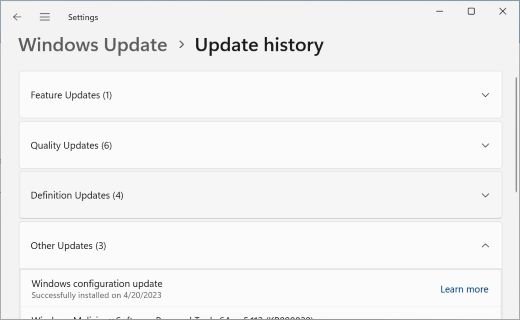
How to go back after a full upgrade
After a full upgrade from Windows 10 or an older Windows 11 version, Windows keeps the previous installation for a limited time, in most cases 10 days.
- Open Settings and select System > Recovery.
- Select Go back if the option is available.
- Follow the prompts; personal files stay, but apps and drivers installed after the upgrade are removed.
The option disappears if the windows.old or $windows.~bt folders are deleted, or if new user accounts were added after the upgrade. Other ways to remove the update are covered in uninstalling 26H2 safely.
Fix a 26H2 upgrade that will not start
These are the messages Microsoft documents for upgrades that stall. Current 26H2 bugs are tracked in the 26H2 known issues list.
Windows Update never offers 26H2 on a 24H2 or 25H2 PC
The PC is still waiting in the phased rollout, lacks KB5124010 or later, or sits behind a safeguard hold.
- Open Settings > Windows Update and select Check for updates.
- Install every pending cumulative update and restart.
- Turn on Get the latest updates as soon as they're available.
- Check again after a few days; a safeguard hold lifts only when Microsoft fixes the issue.
Installation Assistant says "This PC doesn't meet the minimum system requirements"
The hardware fails a Windows 11 check such as TPM 2.0, Secure Boot or the processor.
- Run PC Health Check and select Check now to see which requirement fails.
- Turn on TPM or Secure Boot in the UEFI settings if the hardware supports them.
- Select Refresh in the Installation Assistant after the change.
A "What needs your attention" message stops the upgrade
Setup found a requirement the PC does not meet, or an app known to block the upgrade.
- Read the item listed on the message and act on it, for example by uninstalling the named app.
- Run Setup or the Installation Assistant again.
- If the message names hardware, confirm the PC meets Windows 11 requirements with PC Health Check.
Error codes and rollbacks during Setup are covered in why 26H2 keeps failing to install.
Frequently Asked Questions
Can you upgrade from 23H2 to Windows 11 26H2?
Yes. A Windows 11 23H2 PC can move straight to 26H2 with the Windows 11 Installation Assistant or the 26H2 ISO from Microsoft's download page. It is a full upgrade with several restarts, because the one-restart enablement package works only on 24H2 and 25H2.
Can you go from 22H2 to Windows 11 26H2 in one step?
Yes. Microsoft's download page installs the current release, version 26H2, so a Windows 11 22H2 PC does not need 23H2, 24H2 or 25H2 first. Run the Installation Assistant or setup from the ISO and choose to keep files and apps.
Can Windows 10 upgrade directly to Windows 11 26H2?
Yes, if the PC meets Windows 11 hardware requirements and runs Windows 10 version 2004 or later with the September 14, 2021 security update. The Installation Assistant or ISO installs 26H2 directly, and the upgrade is free.
Do I need to install 24H2 or 25H2 before 26H2?
No. Installing 24H2 or 25H2 first only matters if you want the small enablement package. From 23H2, 22H2 or Windows 10, the full upgrade to 26H2 does the whole job in one pass.
How many restarts does the 26H2 upgrade need?
From 24H2 or 25H2, one restart completes the enablement package. A full upgrade from 23H2, 22H2 or Windows 10 restarts the PC several times while Setup finishes, according to Microsoft's installation instructions.
Can Windows 11 26H1 upgrade to 26H2?
No. Microsoft states that 26H1 devices cannot take the second-half 2026 feature update because 26H1 runs on a different Windows core. Microsoft says these devices will get an update path in a future Windows release.
Does 26H2 change the Windows 11 hardware requirements?
No. The Windows 11 minimums stay the same: TPM 2.0, UEFI with Secure Boot, 4 GB of memory, 64 GB of storage and a compatible 64-bit processor. Snapdragon 850 PCs are supported, but 26H2 is their last version.
Will upgrading to 26H2 delete my files?
Not by default. The enablement package leaves everything in place, and a full upgrade keeps personal files and apps unless you choose otherwise on the Ready to install page. Booting from installation media for a clean install erases the drive.
More resources
- How to get the Windows 11 2026 Update — Microsoft's announcement of 26H2 availability and the enablement package
- KB5121794 feature update to Windows 11, version 26H2 — Prerequisites and channels for the enablement package
- Windows 11, version 26H2 known issues and notifications — Rollout status and safeguard holds
- Download Windows 11 — Installation Assistant, media creation tool and ISO
- Ways to install Windows 11 — Microsoft's steps for each upgrade route
What this means for you
On 24H2 or 25H2, wait for Windows Update to offer 26H2; on 23H2, 22H2 or Windows 10 with supported hardware, use the Installation Assistant to jump straight to 26H2. The enablement package is the fastest and least disruptive route, but only 24H2 and 25H2 can use it. Older versions gain nothing by stepping through 24H2 or 25H2 first, and 23H2 and 22H2 Home and Pro PCs no longer get security updates.
If you are still deciding whether to move at all, whether to install 26H2 now weighs the known issues against the support dates.

How to upgrade to Windows 11 26H2 - Techdows
[…] Each branch is broken down further in the 26H2 upgrade paths explainer. […]
Windows 11 26H2 for enterprise: WSUS, Intune and deployment - Techdows
[…] guide covers each route, the upgrade path for every starting version, the lifecycle dates, the three known issues that matter to enterprises, and how to track a pilot […]
How to download and install Windows 11 26H2 - Techdows
[…] Windows 11 23H2 Home and Pro already reached end of updates, and the enablement package refuses to install on it. The Windows 11 Installation Assistant performs the full upgrade on x64 PCs, including Windows 10 PCs that meet the requirements. […]