To get help with Notepad in Windows 10, open Microsoft's Help in Notepad page for how-to answers, use the Get Help app for troubleshooters and support, and use Help > Send Feedback inside Notepad to report a bug.
Below: every official help route, the everyday Notepad tasks people ask about most, and fixes for garbled text, saving errors and a missing Notepad.
How to Get Official Help for Notepad
Microsoft keeps one support article for Notepad, and it answers the two questions it gets most: printed headers and footers, and log files. Everything else goes through Get Help or Feedback Hub.
- For a how-to question, open Help in Notepad on Microsoft Support.
- For a problem, select Start, type get help, and select Get Help from the results.
- Type your issue in the Get Help search box, for example Notepad won't open, and run any troubleshooter it offers by selecting Start.
- To reach a person, sign in to Get Help with your Microsoft account and submit a support request.
- To report a Notepad bug, open Notepad and select Help > Send Feedback. Feedback Hub opens with the Notepad category already selected.
For help with Windows as a whole rather than Notepad, see how to get help in Windows.
Which Notepad help option should you use?
Use this quick decision guide to pick one route before you start clicking. Each option solves a different kind of problem.
| Your situation | Use this | Why |
|---|---|---|
| You want to know how a Notepad feature works | Help in Notepad and the sections below | Microsoft's own answers for page setup, headers and log files |
| Notepad crashes, won't open or won't print | Get Help troubleshooters | They check your configuration and suggest a fix without contacting support |
| You found a bug or want a feature | Feedback Hub (Win + F), category Apps > Notepad | Feedback reaches the Notepad team; Get Help does not route it there |
| You need a person to look at your screen | Quick Assist, only with Microsoft Support or your own IT staff | You started the contact, so the helper is who they claim to be |
| Several apps fail, not only Notepad | DISM and SFC, then a disk check | The fault is in Windows or the drive, not Notepad itself |
Check whether Notepad is installed
Start here, because Notepad is not the same component on every PC. On Windows 10, version 2004 and later, Notepad ships as a Feature on Demand, which means it can be removed and added back like any optional feature.
| Your Windows | What Notepad is | Where to check or manage it |
|---|---|---|
| Windows 10, version 2004 or later | The Notepad Feature on Demand (capability Microsoft.Windows.Notepad~~~~0.0.1.0) |
Settings > Apps > Optional features, or run ms-settings:optionalfeatures |
| Windows 11 | A preinstalled app updated through the Microsoft Store | Settings > Apps > Installed apps |
| Windows 11 without the Store app | Notepad (system), the classic Notepad as a Feature on Demand | Settings > System > Optional features |
| Any version, from a command line | Every Feature on Demand and its state | Run DISM /online /get-capabilities in an elevated Command Prompt |
Windows 10 Home and Pro reached end of support on October 14, 2025. Notepad keeps working, but it no longer receives free fixes through Windows Update.
How to Open Notepad (5 Methods)
| # | Method | What to do |
|---|---|---|
| 1 | Windows search | Select Start, type Notepad, then select Notepad from the results. |
| 2 | Run dialog | Right-click Start, select Run, type notepad, and select OK. |
| 3 | Command Prompt | Type notepad and press Enter. Add a file path after it to open that file. |
| 4 | PowerShell | Run Start-Process -FilePath "notepad". Add -WindowStyle Maximized to open it full size. |
| 5 | From an open Notepad window | Press Ctrl + Shift + N to open a second, empty Notepad window. |
If none of these finds Notepad, it has been removed. Add it back from Optional features, as shown in the uninstall section below.
Save, Save As, and Open Notepad Within Notepad
An asterisk (*) before the file name in the title bar means the document has unsaved changes. It disappears once the file is saved.
- Type or paste your text in Notepad.
- Select File > Save As, or press Ctrl + Shift + S.
- Type a name in the File name box and choose a folder.
- Select Save and check that the asterisk has gone from the title bar.
- To start another document within Notepad, press Ctrl + Shift + N for a new window.
- To close the current window, press Ctrl + W.
Understanding Notepad Menus in Windows 10
Press F10 or Alt to move focus to the menu bar without a mouse, then press the underlined letter of a command.
| Menu | Commands people use most | What they do |
|---|---|---|
| File | Save As, Page Setup | Save under a new name or encoding; set paper, headers and footers before printing |
| Edit | Find, Replace, Search with Bing | Search inside the document, or send selected text to a Bing search |
| View | Zoom, Status Bar | Change text size and show line, column, zoom, line ending and encoding |
| Help | Send Feedback | Opens Feedback Hub with the Notepad category selected |
Essential Notepad Keyboard Shortcuts
These are the common shortcut keys that work in Notepad. The first group is Microsoft's standard Windows text-editing set; the second group was added to Notepad itself.
| Shortcut | Action |
|---|---|
| Ctrl + A | Select all text |
| Ctrl + C / Ctrl + X / Ctrl + V | Copy, cut, paste |
| Ctrl + Z / Ctrl + Y | Undo, redo |
| Ctrl + F | Find text |
| Ctrl + H | Find and replace text |
| Ctrl + Backspace | Delete the previous word |
| Ctrl + Plus / Ctrl + Minus | Zoom in, zoom out (or Ctrl + mouse wheel) |
| Ctrl + 0 | Reset zoom to the default |
| Ctrl + Shift + N | Open a new Notepad window |
| Ctrl + Shift + S | Open the Save As dialog |
| Ctrl + W | Close the current Notepad window |
Copy, Paste, Find/Find and Replace, Select All
Find, Replace and the clipboard use the same shortcuts as other Windows apps. The Find dialog remembers what you typed last time and the state of its checkboxes.
- Press Ctrl + A to select all text, or drag across the part you need.
- Press Ctrl + C to copy it, then click where it should go and press Ctrl + V to paste.
- To find a word, select it first and press Ctrl + F. Notepad fills the search box with your selection.
- Tick the wrap-around option if the search should continue from the top after reaching the end.
- To replace text, press Ctrl + H, enter the new text, and replace one match or all of them.
- To look a phrase up online, select it, right-click, and choose Search with Bing.
Go To jumps to a line number. Line and column positions also show in the status bar, even when word wrap is on.
Word Wrap, Status Bar, Font, and Zoom
These four settings change how text looks on your screen, never what is saved. A .txt file stores no fonts, so a font style or size you change applies to every file you open in Notepad, not to the document.
| Setting | How to change it | What to expect |
|---|---|---|
| Word wrap | Toggle Word Wrap on the menu bar | Long lines fold to the window width; the file itself keeps its original lines |
| Status bar | View > Status Bar to add or remove it | Shows line and column, zoom level, line ending type and encoding; on by default |
| Font, font style and size | Change the font in Notepad's font settings | Affects display and printing only; the text file keeps no formatting |
| Zoom in or zoom out | View > Zoom, Ctrl + Plus / Ctrl + Minus, or Ctrl + mouse wheel | Current zoom percentage appears in the status bar |
| Reset zoom | Press Ctrl + 0 (the keypad 0 works too) | Returns text to 100% |
Change Page Setup and Print in Notepad
Notepad prints the file name at the top and the page number at the bottom by default (&f and Page &p). Header and footer changes are not saved, so enter them again each time you print.
- Open the document and select File > Page Setup.
- Choose paper size, orientation and margins.
- In the Header and Footer boxes, type the codes you want, or leave a box empty to print nothing there.
- Put the alignment code first:
&lTitle textprints a left-aligned title; without a leading code the header is centered. - Select OK, then print the document from the File menu.
- To print a text file without opening it, run
Start-Process -FilePath "notes.txt" -Verb Printin PowerShell.
Header and footer codes: &l left-align, &c center, &r right-align, &d date, &t time, &f file name, &p page number. If printing fails, open Get Help and search printer troubleshooter.
Create a Log File and Add a Time/Date Stamp
Notepad has a built-in log mode that adds a date and time stamp every time you open the file. Nothing needs to be installed.
- Open Notepad with an empty document.
- Type
.LOGon the first line in capitals, then press Enter. - Select File > Save As, give the file a descriptive name, and save it.
- Close the file and open it again.
- Type your entry under the date and time Notepad has added at the end.
Each reopen appends a fresh time/date line, so the file becomes a dated journal or change log.
Change Encoding in Notepad
The status bar shows the current encoding of the open file. New Notepad files use UTF-8 without a byte order mark, which works well with the web and stays compatible with ASCII.
- Open the file and read the encoding shown in the status bar.
- Select File > Save As.
- Choose the encoding you need in the encoding list of the Save As dialog, for example UTF-8.
- Save the file, replacing the old copy or using a new name.
- Check the status bar again; it should now show the encoding you picked.
Avoid ANSI for text in other alphabets. Characters that ANSI cannot store turn into question marks once saved, and they cannot be restored from that copy.
Encoding, Line Endings, and Special Characters
| What you see | What it means | What to do |
|---|---|---|
| Windows (CRLF) in the status bar | Standard Windows line endings; new files use them | Nothing |
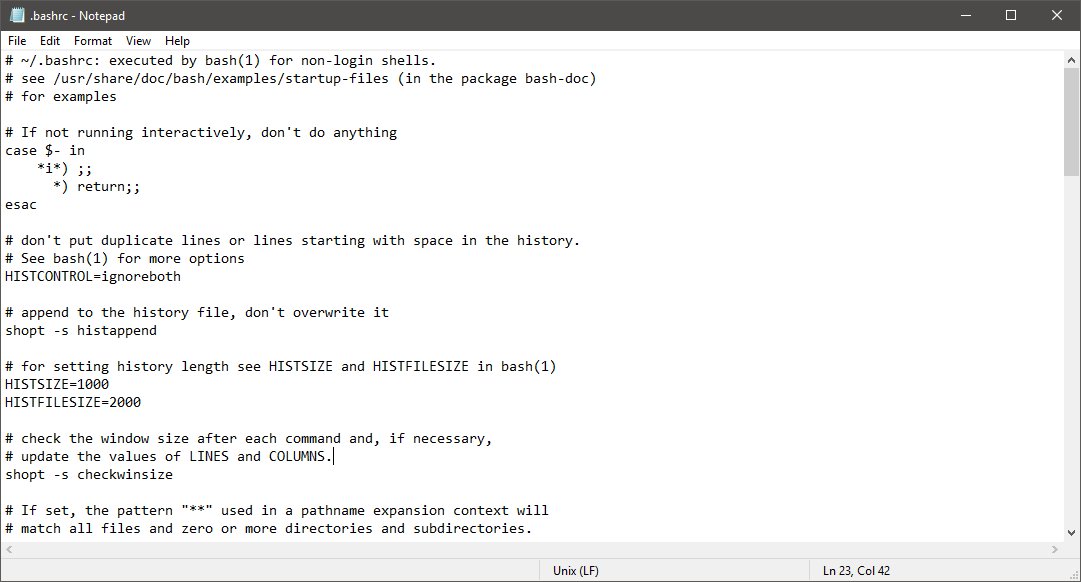
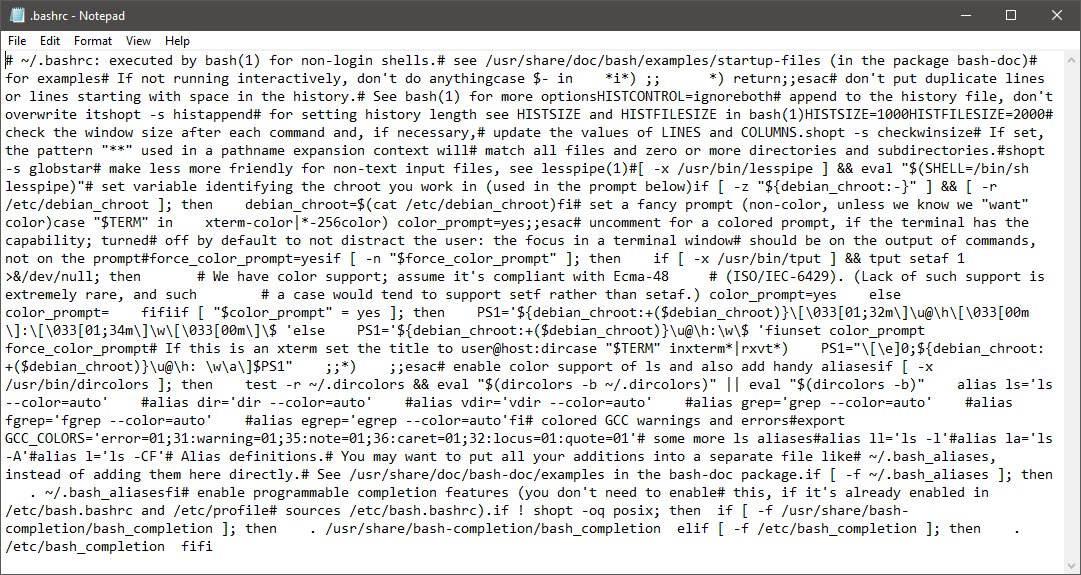
| Unix (LF) or Macintosh (CR) | File made on Linux or macOS; Notepad keeps that format when you save | Edit normally; the line ending is preserved |
| Text runs into one long line | An old Notepad build that reads only CRLF | Update Windows; LF and CR support arrived in 2018 builds |
| Accented letters show as ? after saving | The file was saved as ANSI | Retype the characters and save as UTF-8 |
| Special characters break in markup | Markup files made in Notepad must be UTF-8 | Save XML, XAML and HTML as UTF-8 |
Spell Check in Notepad
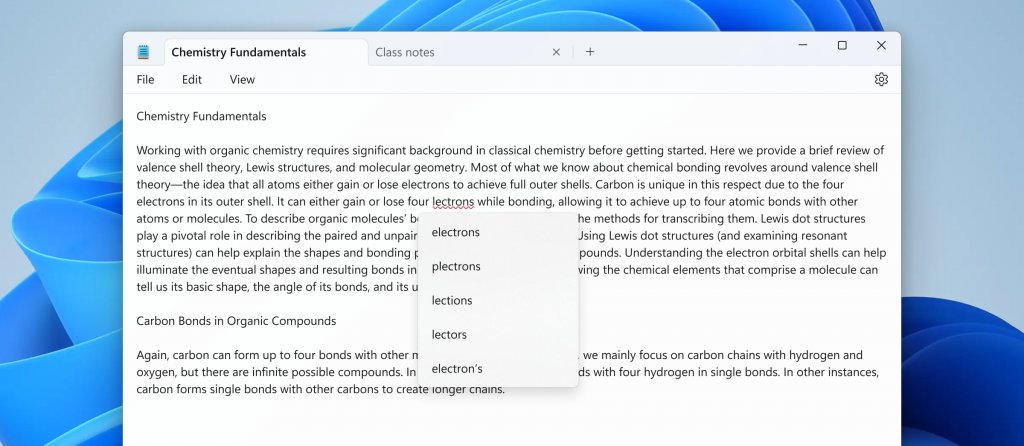
Spellcheck arrived in the Windows 11 Notepad app in 2024 (version 11.2402), with autocorrect beside it. Microsoft announced it for Windows 11 only, so the Notepad in Windows 10 does not flag spelling.
| Question | Answer |
|---|---|
| How are mistakes shown? | Misspelled words are underlined in red |
| How do I fix one? | Click the word, or press Shift + F10 on it, and pick a suggestion |
| Can I keep a word? | Yes, ignore it for this document or add it to the dictionary |
| Is it on for every file? | No, it is off by default for log files and code file types |
| Where do I switch it off? | Notepad app settings, globally or per file type, or from the right-click menu for the current file |
How to Use Notepad for Logs, Code, and Simple Scripts
Notepad saves exactly the characters you type, which makes it a simple tool to create XML, HTML and script files. The extension you type decides what the file becomes.
| Goal | What to type as the file name | Tip |
|---|---|---|
| Create an XML file | data.xml |
Start with <?xml version="1.0" encoding="UTF-8"?> and save as UTF-8 |
| Save Notepad as an HTML file | index.html |
Double-click the saved file to open it in your browser |
| Write a batch script | backup.bat or backup.cmd |
Run it from Command Prompt to see any error output |
| Keep a log | worklog.txt with .LOG on line 1 |
Notepad stamps date and time on every open |
| Read a Linux config file | Open it directly | Line endings stay LF when you save |
If the saved file ends up as index.html.txt, rename it in File Explorer and remove the .txt part. For syntax highlighting or tabs of code, a dedicated editor such as Notepad++ fits better.
Uninstall Notepad from Windows 11 or Windows 10, and Reinstall It
Try Repair before Reset, and Reset before a reinstall. Repair keeps app data; Reset clears it.
| Task | Windows 10 | Windows 11 |
|---|---|---|
| Repair | Not offered for the Notepad feature; use DISM and SFC instead | Settings > Apps > Installed apps > More (…) next to Notepad > Advanced options > Repair |
| Reset | Not offered for the Notepad feature | Same page, select Reset if Repair did not help |
| Uninstall | Run ms-settings:optionalfeatures, find Notepad under installed features, expand it, select Remove |
Installed apps > More (…) > Uninstall, or remove Notepad (system) from Optional features |
| Reinstall | Optional features > View features next to Add an optional feature, tick Notepad, select Next > Add | Install Windows Notepad from the Microsoft Store |
| Update | Arrives through Windows Update | Arrives through the Microsoft Store |
Adding an optional feature downloads it through Windows Update, so the PC must be online. The Store listing is in the Windows Notepad download guide.
Why Control Panel may not show Notepad
Look in Optional features on Windows 10 and Installed apps on Windows 11, not in Control Panel. Programs and Features in Control Panel lists desktop programs that offer Repair or Change. Notepad is a Windows feature on Windows 10 and a Store app on Windows 11, so its repair and removal controls live in Settings.
Repair Windows system files
Run this when Notepad fails along with other Windows features, or when Windows freezes or shows system errors. Open Command Prompt as administrator: type cmd in search, right-click Command Prompt, and select Run as administrator.
DISM.exe /Online /Cleanup-image /Restorehealth
sfc /scannow
DISM repairs the Windows component store from Windows Update first, then sfc /scannow checks every protected system file and replaces damaged ones. Do not close the window until verification reaches 100%.
You should see: "Windows Resource Protection did not find any integrity violations" or "found corrupt files and successfully repaired them".
If SFC reports it could not perform the operation, run it again in safe mode.
Check the disk when storage errors are suspected
Run a disk check when Notepad failures accompany storage errors: files that will not save, vanish, or open as garbage on the same drive. Use an elevated Command Prompt.
chkdsk C: /f/f fixes file-system errors on the drive. Windows must lock the drive; if it cannot, chkdsk asks whether to check the drive the next time you restart. Use /r instead to also locate bad sectors and recover readable data; it takes much longer.
You should see: A report that Windows scanned the file system and found no problems, or that it made corrections.
Without /f, chkdsk only reports errors and fixes nothing.
Use Get Help correctly
Get Help works best when you search for the right troubleshooter by its name rather than describing Notepad in general terms.
- Select Start, type get help, and open Get Help.
- If Notepad misbehaves after a Windows change, search Run the Windows Program Compatibility troubleshooter.
- If printing from Notepad fails, search printer troubleshooter.
- Select Start on the troubleshooter and consent to diagnostics if asked.
- Read the findings and apply the suggested fix, then test Notepad again.
- If nothing helps, sign in and contact support from the same app.
Get Help is also reachable from Settings > System > Troubleshoot > Other troubleshooters. For a Windows 11 walk-through, see how to get help in Windows 11.
Fix Common Notepad Problems in Windows 10
First, identify the Notepad problem: is it one file, Notepad itself, or several apps? Then jump to the matching symptom.
Notepad is missing from search and Start
The Notepad optional feature has been removed.
- Run
ms-settings:optionalfeaturesfrom the Run dialog. - Check the installed features list for Notepad.
- If it is absent, select View features, tick Notepad, and select Next > Add while online.
A Notepad file displays incorrectly or looks garbled
The file uses an encoding or line ending the current copy of Notepad reads differently.
- Check the encoding and line ending shown in the status bar.
- If lines run together, install pending updates through Windows Update; current builds read LF and CR endings.
- If letters became question marks, find an older copy of the file, then save it as UTF-8.
Saving fails or you get a file-access error
The folder is protected, the file is open elsewhere, or the drive has errors.
- Use Save As and save to your Documents folder to test whether the original folder is the problem.
- Close any other app that has the file open, then retry saving.
- If saves fail on every folder of that drive, run
chkdskwith/fas shown above.
Notepad crashes or will not open at all
Damaged Windows files, or a problem introduced by a recent change.
- Restart the PC and run Windows Update.
- Run the Windows Program Compatibility troubleshooter in Get Help.
- Run DISM, then
sfc /scannow, from an elevated Command Prompt. - On Windows 10, remove the Notepad feature, restart, and add it back.
Printed pages show the wrong header or footer
Page Setup does not keep header and footer text between print jobs.
- Select File > Page Setup.
- Re-enter the codes, or clear the boxes to print none.
- Print again.
How to Recover Unsaved or Deleted Notepad Files
Microsoft documents no recovery store for unsaved text in Windows 10 Notepad, so recovery depends on backups. File History restores deleted or overwritten files only if it was turned on before the loss.
A saved Notepad file was deleted
The file is gone from its folder but may exist in a backup.
- Check the Recycle Bin and restore the file from there if it is listed.
- Otherwise open File Explorer and go to the folder that held the file.
- Right-click the folder and select Restore previous versions.
- Pick a version from before the deletion and select Open in File History to preview it.
- Expand Restore and choose Restore to to save it somewhere new.
You saved over a Notepad file by mistake
The earlier content exists only in a previous version.
- Right-click the file itself and select Restore previous versions.
- Choose a version dated before the overwrite.
- Use Restore to so the current copy is not replaced; a restore over it cannot be undone.
Notepad closed before you saved
Unsaved text lived only in memory.
- Check other open Notepad windows and the clipboard (Win + V if clipboard history is on) for the text.
- From now on, save the moment you create a file and watch for the asterisk in the title bar.
Use Windows recovery only as a last resort
Notepad problems almost never justify reinstalling Windows. Microsoft's own recovery order starts with the least disruptive step.
| Order | Recovery option | Available on | Effect |
|---|---|---|---|
| 1 | Run a troubleshooter | Windows 10 and 11 | No data touched |
| 2 | Fix problems using Windows Update (repair reinstall) | Windows 11, version 22H2 or later only | Reinstalls Windows but keeps files, apps and settings |
| 3 | Uninstall a recent update | Windows 10 and 11 | Files and apps kept |
| 4 | Point-in-time restore | Windows 11, version 24H2 or later | Loses changes made after the restore point |
| 5 | Reset this PC | Windows 10 and 11 | Removes apps and settings; files kept only with Keep my files |
On Windows 11, try Windows Update's repair reinstall before Reset this PC. On Windows 10 that option does not exist, so back up your files before any reset.
Notepad Limitations in Windows 10
| Limitation | What to use instead |
|---|---|
| No bold, italics or images; plain text only | WordPad-style or word-processor documents |
| No spell check in the Windows 10 version | A word processor, or Notepad on Windows 11 |
| Headers and footers reset after each print | Re-enter them in Page Setup every time |
| No syntax highlighting or code tabs | A code editor such as Notepad++ |
| No free fixes after October 14, 2025 | Windows 11, where Notepad updates through the Store |
Useful Notepad checks before major repairs
Run these quick checks before any repair. Each one tells you whether the problem is the file, Notepad, or Windows. These are also the most useful Notepad tips for everyday work.
- Open a new blank window with Ctrl + Shift + N, type a line, and save it to Documents. If that works, Notepad is fine and the problem is the original file or folder.
- Look at the status bar for the encoding and line ending of the problem file.
- Check the title bar for an asterisk, which means changes are not yet saved.
- Press Ctrl + 0 if text looks too large or small; zoom is often the only thing wrong.
- Open the same file in another app. If it fails there too, the file or drive is damaged.
Frequently Asked Questions
How do you update Notepad in Windows?
On Windows 10, Notepad updates arrive through Windows Update, so select Check for updates there. On Windows 11, Notepad is a Microsoft Store app, so updates arrive through the Microsoft Store.
How do you repair Notepad in Windows 11?
Open Settings > Apps > Installed apps, select the More button next to Notepad, choose Advanced options, then select Repair. Repair keeps your Notepad data. If it does not help, use Reset on the same page.
When should you reset Notepad?
Reset Notepad on Windows 11 only after Repair fails, because Reset clears the app's data and settings. Windows 10 does not offer Reset for Notepad; remove and re-add the Notepad optional feature instead.
How do you reinstall Notepad?
On Windows 10, open Optional features, remove Notepad, restart, then add it back through View features while online. On Windows 11, uninstall it from Installed apps and install Windows Notepad from the Microsoft Store.
How do you use Get Help for Notepad problems?
Open Get Help from Start, then search the exact troubleshooter name, such as the Windows Program Compatibility troubleshooter or the printer troubleshooter. Run it, apply the suggested fix, and sign in to contact support if nothing works.
When should you use Feedback Hub instead of Get Help?
Use Feedback Hub to report a Notepad bug or request a feature, because it goes to the Notepad team. Use Get Help when you need a fix today, since it runs troubleshooters and connects you to support.
Is Quick Assist safe for Notepad support?
Quick Assist is safe only when you started the contact with Microsoft Support or your own IT staff. Never enter a Quick Assist security code for someone who called you or appeared in a pop-up, because that is a tech support scam pattern.
What should you avoid when Notepad needs help?
Avoid resetting Windows for a Notepad fault, saving non-English text as ANSI, and letting unsolicited callers connect with Quick Assist. Also avoid 'fix-it' downloads from unknown sites; Get Help, DISM and SFC are built in.
What is the shortest Notepad troubleshooting path?
Test a new file first, then check the status bar encoding, run Windows Update, run the Get Help compatibility troubleshooter, reinstall Notepad, and only then run DISM, SFC and chkdsk. Stop at the first step that fixes it.
Does Notepad in Windows 10 have spell check?
No. Spellcheck and autocorrect were added to the Windows 11 Notepad app in 2024, version 11.2402. On Windows 10, run the text through a word processor's spelling check and paste it back.
Can Notepad save a file as HTML?
Yes. Type your markup, select File > Save As, and give the file a name ending in .html, such as index.html. Save it as UTF-8 so special characters display correctly in the browser.
How do I print from Notepad with a custom header?
Select File > Page Setup, type codes in the Header box, such as &l for left-aligned text or &d for today's date, then print. Notepad does not keep these settings, so enter them again next time.
The Bottom Line
Use Help in Notepad for how-to questions, Get Help for faults, and Help > Send Feedback for bugs. Most Notepad problems in Windows 10 come down to encoding, a removed optional feature or a damaged Windows file, and each has a built-in fix that never requires a reset.