The Google Cloud CLI download is free from Google. Windows 11 and Windows 10 get GoogleCloudSDKInstaller.exe or a self-contained zip, and Macs get a tar.gz built for Apple silicon or Intel.
Installing it puts the gcloud , bq and gsutil commands on your machine, so you can run a Google Cloud project from a terminal instead of the browser console.
This guide covers the right file for your machine, the Windows setup, silent deployment, checksum checks, the Mac archives, updates, install fixes and a clean removal.
Which Google Cloud CLI download do you need?
Google ships two routes on Windows: a small guided installer that fetches components as it runs, and a versioned archive that already contains everything. Match your row and take that file.
| Your computer | Download this | Size |
|---|---|---|
| Windows 11 or 10, you want a guided setup | GoogleCloudSDKInstaller.exe | 261 KB, then downloads the rest |
| Windows 64-bit, offline or scripted install | google-cloud-cli-windows-x86_64.zip | 76.6 MB |
| Windows 64-bit with no Python installed | Windows x86_64 archive with bundled Python | 103.1 MB |
| Windows 32-bit | google-cloud-cli-windows-x86.zip | 76.5 MB |
| Linux on Intel or AMD | google-cloud-cli-linux-x86_64.tar.gz | 88.0 MB |
| Linux on Arm | google-cloud-cli-linux-arm.tar.gz | 53.3 MB |
Not sure which Windows build you run? Open Settings, then System and About, and read System type.
Download the Google Cloud CLI from the official Google pages
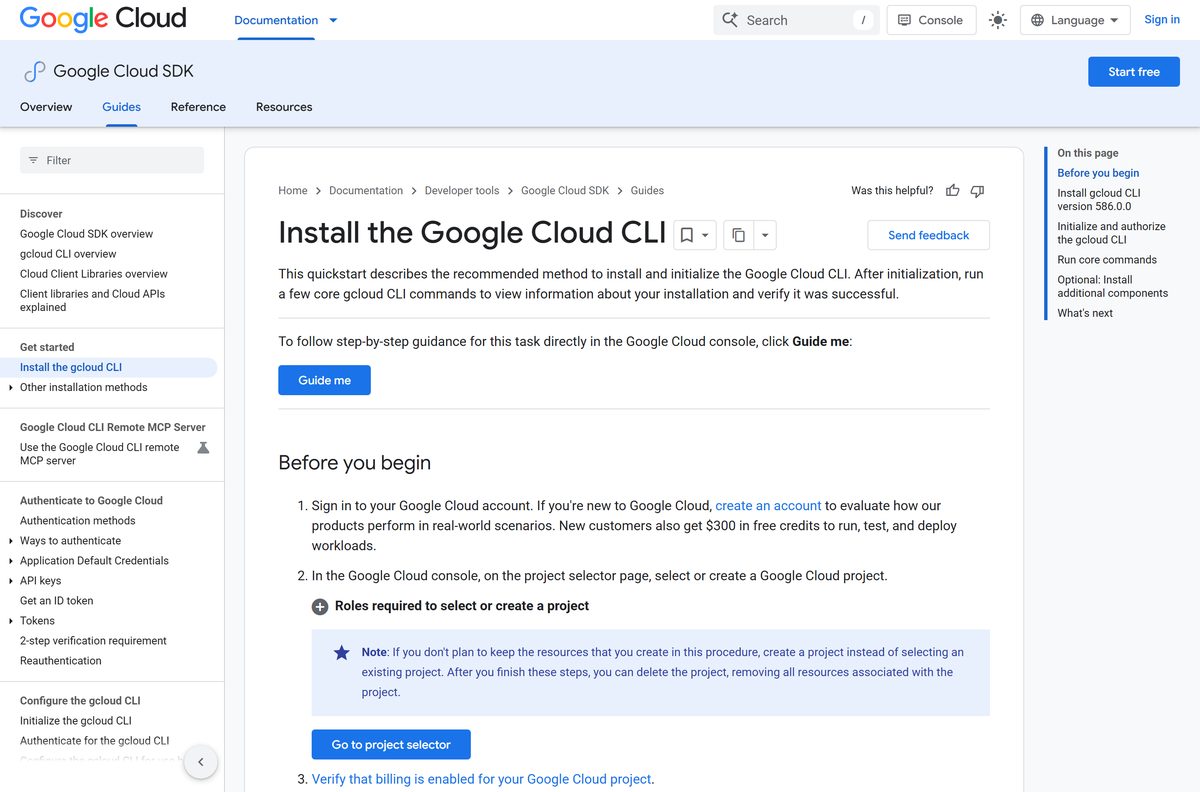
Google hosts every file on dl.google.com and links them from two documentation pages: the install guide for the interactive route, and the versioned archives page for the fixed-version files.
- Install the gcloud CLI (Google Cloud documentation) — Windows installer, macOS and Linux archives, per-platform steps
- Versioned archives, sizes and SHA256 checksums — self-contained zip and tar.gz files for every platform
- Interactive installer instructions — the Windows executable and the macOS or Linux shell script
- Release notes — every release, newest first, with breaking changes flagged
- Google Cloud SDK product page — what the SDK covers beyond the command line
How to install the Google Cloud CLI on Windows 11 and 10
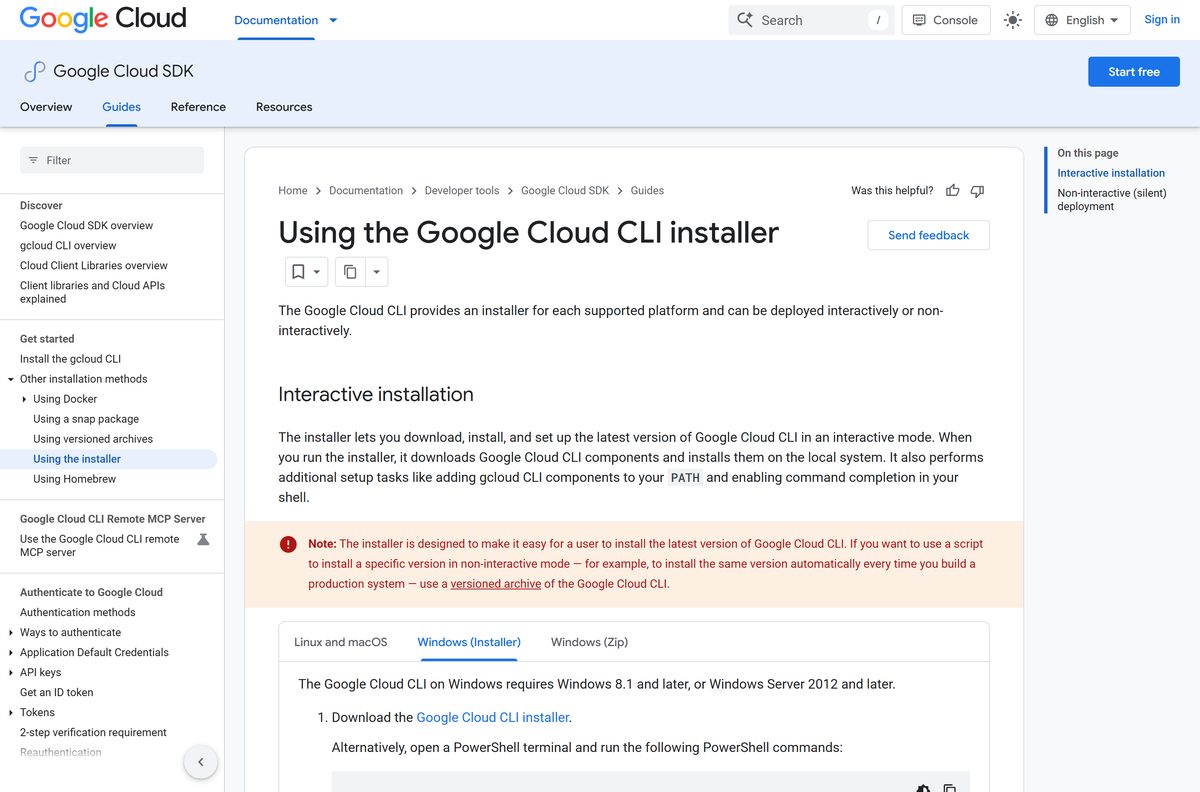
The interactive installer handles Python for you and adds gcloud to your PATH. Windows 8.1 and later is supported, so both Windows 11 and Windows 10 qualify.
- Open the install guide and select the Windows tab.
- Click Google Cloud CLI installer to download GoogleCloudSDKInstaller.exe .
- Open your Downloads folder and double-click the file. The installer is signed by Google LLC.
- Accept the terms and choose Single User or All Users. An all-users install needs an administrator prompt.
- Leave Install Bundled Python ticked unless you want the CLI to use a Python 3.10 to 3.14 install you already manage.
- Wait while setup pulls the components, then clear the Start Google Cloud CLI checkbox on the final screen.
- Open Command Prompt from the Start menu and run gcloud version to confirm the install.
- Run gcloud init , sign in to your Google Account in the browser tab that opens, and pick a default project.
Using a screen reader? Tick Turn on screen reader mode during setup so gcloud reports progress as text instead of spinners.
Install the Google Cloud CLI with Homebrew, snap or Docker
There is no Microsoft Store listing and no winget package from Google. On Mac and Linux, three package routes exist, and each one changes how updates work.
- On a Mac, run brew update && brew install –cask gcloud-cli . Google points at a community-maintained cask, not a package it publishes.
- Update a Homebrew install with gcloud components update , not with brew upgrade .
- On Ubuntu or another snap-capable distribution, run sudo snap install google-cloud-cli –classic .
- Remove the older google-cloud-sdk snap first if it is present, because both claim the same command aliases.
- For a container image, follow the Docker instructions and pull the image from Artifact Registry.
- After any of these, run gcloud init to authorise the CLI against your Google Account.
An apt or yum install disables the component manager. Add components with the matching google-cloud-cli-* package.
How to install the Google Cloud CLI silently on many machines
The Windows executable accepts NSIS-style switches, so it drops into a deployment script without a single click.
GoogleCloudSDKInstaller.exe /S /allusers /nostartmenu /nodesktop /D=C:\gcloud /S runs setup with no interface and /allusers installs for every account on the PC. Use /singleuser for a per-profile install, and keep /D= last because it takes the rest of the line as the path. Google lists the full switch set on the interactive installer page.
Behind a proxy or a locked-down firewall, this executable stalls because it fetches components mid-install. Push the versioned archive instead and run install.bat .
How to verify the Google Cloud CLI archive you downloaded
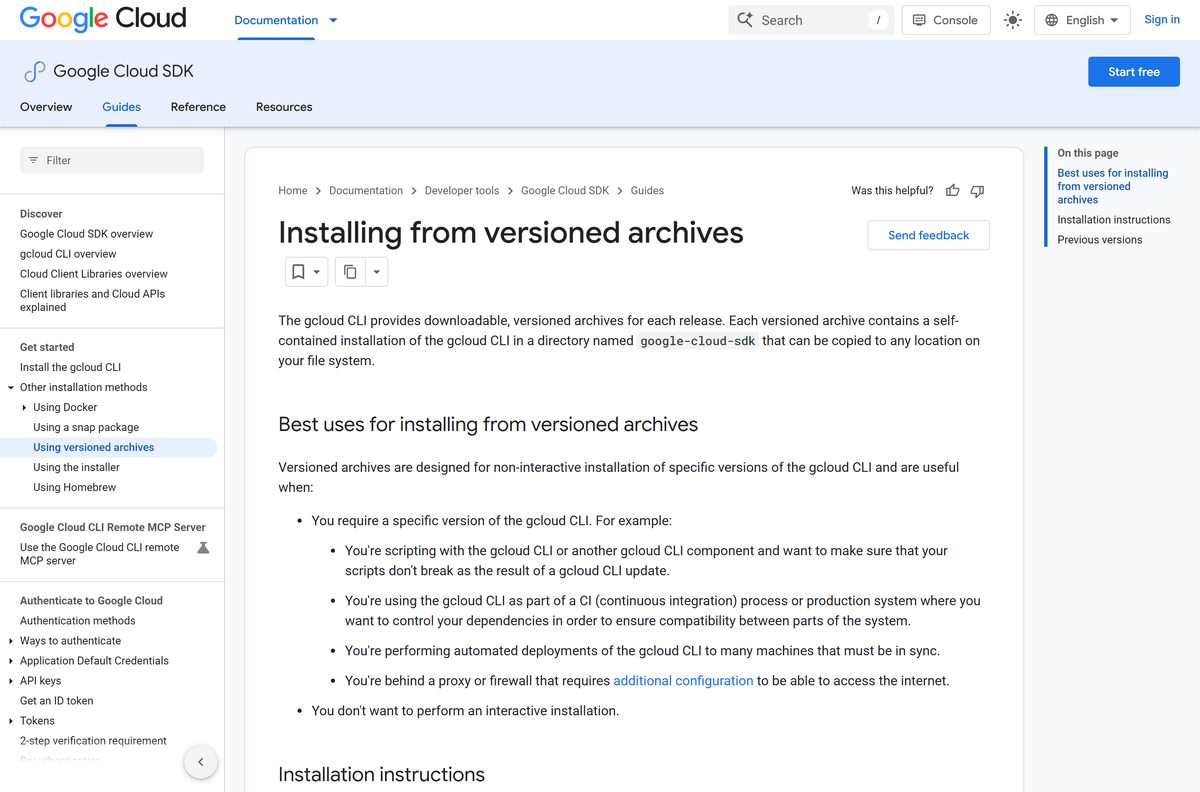
Google publishes a SHA256 hash beside every versioned archive. Comparing it takes one command and rules out a truncated or swapped file.
- Open the versioned archives page and find the row for the file you took.
- Copy the SHA256 Checksum value from that row.
- On Windows, open PowerShell in your Downloads folder and run Get-FileHash .\google-cloud-cli-windows-x86_64.zip -Algorithm SHA256 .
- On a Mac or Linux, run shasum -a 256 google-cloud-cli-darwin-arm.tar.gz in the same folder.
- Compare the output with the value you copied. Character case does not matter, but every character does.
- Delete the file and download it again from the Google page if the two strings differ.
The hash changes with every release, so read it from the table rather than reusing an old value.
Run the Google Cloud CLI without the installer
A versioned archive is the whole CLI in one folder. Nothing is written to the registry, so it suits a locked-down account, a build agent or a pinned version in a CI job.
- Download google-cloud-cli-windows-x86_64.zip, or the bundled-Python archive if the machine has no supported Python.
- Right-click the zip, choose Extract All, and pick a folder your account can write to.
- Open Command Prompt, change into the extracted folder and run .\google-cloud-sdk\install.bat .
- Answer Y when the script offers to add the CLI to your PATH.
- On a Mac or Linux, extract with tar -xf FILE_NAME and run ./google-cloud-sdk/install.sh instead.
- Close the terminal, open a new one, and run gcloud version to confirm the command resolves.
Pin a build by downloading that version’s archive and skipping gcloud components update on the machine.
Which Google Cloud CLI download do you need for your Mac?
Check the chip first: open a terminal and run uname -m . The answer tells you which of the three macOS archives to take.
uname -m says |
Download this | Size | |
|---|---|---|---|
| arm64 (M1, M2, M3 or M4) | google-cloud-cli-darwin-arm.tar.gz | 53.3 MB | |
| x86_64 (Intel Mac) | google-cloud-cli-darwin-x86_64.tar.gz | 53.4 MB | |
| i386 or x86 (very old Mac) | google-cloud-cli-darwin-x86.tar.gz | 51.8 MB | |
| You prefer one command | [curl https://sdk.cloud.google.com | bash](https://docs.cloud.google.com/sdk/docs/downloads-interactive) | downloads as it runs |
Extract the archive in your home folder, run ./google-cloud-sdk/install.sh , then open a new terminal so the PATH change takes effect. The script installs its own Python if the Mac has none in the supported range.
Is the Google Cloud CLI free?
Every installer and archive sits behind an open link on Google’s documentation. No account, key or trial stands between you and the file.
Yes, the Google Cloud CLI is free to download and free to run. Google charges for the cloud resources your commands create, such as a Compute Engine instance or a storage bucket, never for the tool. Any site asking for a payment or a licence key before it hands over the installer is not Google.
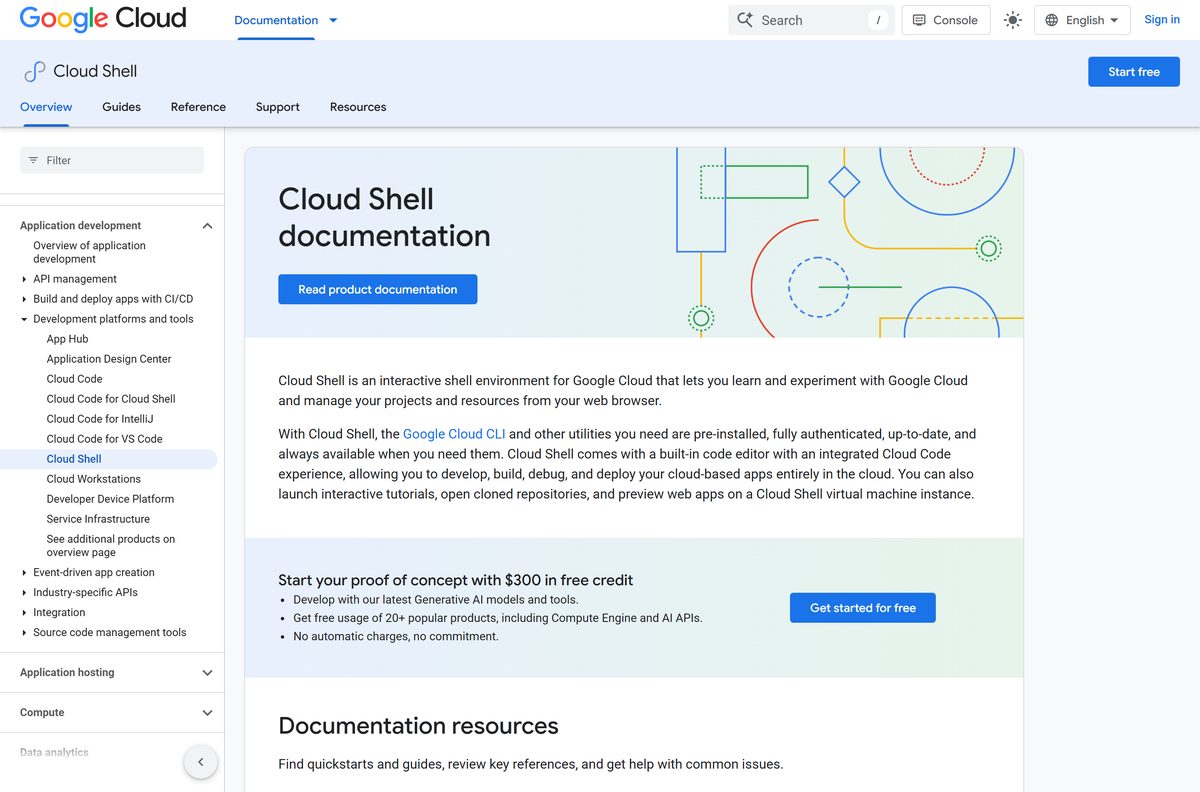
Cloud Shell in the browser already includes the CLI, so a quick task needs no download at all.
Should you download the archive with bundled Python or without?
The CLI runs on Python, and the two Windows archives differ only in whether that runtime travels with them.
Take the bundled-Python archive unless the machine already runs Python 3.10 to 3.14. The plain archive is 76.6 MB and expects a supported Python on the PATH; the bundled build is 103.1 MB and carries its own interpreter, which keeps the CLI working when someone upgrades or removes the system Python later.
The interactive Windows installer makes the same choice through its Install Bundled Python checkbox, ticked by default.
How to check your Google Cloud CLI version and update it
The CLI updates itself through its own component manager. A package-manager install is the exception, and it warns you when the manager is switched off.
- Open Command Prompt, PowerShell or a Mac terminal.
- Run gcloud version to list the installed release and every component version.
- Run gcloud components update to move all installed components to the newest release.
- Move your terminal out of the google-cloud-sdk folder first, or the update fails on locked files.
- On Windows, open the terminal as an administrator if the CLI was installed for all users.
- Run gcloud components list to see what else is available, then gcloud components install kubectl to add one.
- Roll back with gcloud components update –version 585.0.0 if a new release breaks a script.
An apt, yum or snap install ignores these commands. Update through that package manager instead.
Check the Google Cloud CLI system requirements before you download
Python and the Windows build number are the only two things worth checking first.
| Item | Detail |
|---|---|
| Software | Google Cloud CLI (gcloud CLI) |
| Developer | Google LLC |
| Latest version | 586.0.0 |
| License / Price | Free download, no trial and no paid edition |
| File size | 76.6 MB Windows 64-bit archive; the guided installer is 261 KB |
| Supported OS | Windows 8.1 and later, Windows Server 2012 and later, macOS and Linux |
| Architecture | x86_64, Arm and 32-bit x86 builds per platform |
| Runtime | Python 3.10 to 3.14, supplied by the installer if needed |
| Offline installer | Yes, the versioned archives; the guided installer needs the internet |
| Official download source | docs.cloud.google.com |
| Last verified | 2026-09-22 |
What the Google Cloud CLI installs on your machine
Four components land by default. Everything else, from emulators to kubectl , is an opt-in download through the component manager.
| Component ID | What it does | Installed by default |
|---|---|---|
gcloud |
Manages projects, compute, networking, IAM and the rest of Google Cloud | Yes |
core |
Shared libraries every command depends on | Yes |
bq |
Runs BigQuery queries and loads data from the command line | Yes |
gsutil |
Legacy Cloud Storage tool, now replaced by gcloud storage |
Yes |
kubectl |
Talks to Google Kubernetes Engine clusters | No |
alpha, beta |
Pre-release commands that sit outside General Availability | No |
cloud-firestore-emulator, pubsub-emulator |
Run Firestore or Pub/Sub locally for tests | No |
Add any of them with gcloud components install COMPONENT-ID and drop one with gcloud components remove COMPONENT-ID .
Fix the Google Cloud CLI not installing on Windows 11 or 10
Each of these has one cause and one fix, and all four come from Google’s own troubleshooting notes.
Setup stops with a ‘find’ command error
The installer calls the Windows find utility, and your PATH no longer points at the folder holding it.
- Press Windows + R, type sysdm.cpl and press Enter.
- Open the Advanced tab and click Environment Variables.
- Select Path under system variables and click Edit.
- Add C:\WINDOWS\system32 if it is missing, then click OK.
- Run the installer again.
The installer fails while unzipping
Setup cannot write to the target folder under your current rights.
- Close the failed installer.
- Right-click GoogleCloudSDKInstaller.exe and choose Run as administrator.
- Pick All Users when setup asks about the install scope.
- Let it finish, then run gcloud version in a new Command Prompt.
Reinstalling fails straight after an uninstall
The removal leaves file handles in place until the machine restarts.
- Restart Windows.
- Sign back in and run the installer before opening anything else.
- Confirm the old google-cloud-sdk folder is gone if setup still objects.
Setup hangs behind a company proxy
The guided installer pulls components over the network as it runs.
- Cancel the installer.
- Download the versioned archive for your platform instead, because it carries every component already.
- Extract it and run install.bat on Windows or install.sh on macOS and Linux.
- Point the CLI at your proxy with gcloud config set proxy/type http , then set proxy/address and proxy/port .
- Add proxy/username and proxy/password when the proxy asks for credentials.
‘gcloud’ is not recognized after a successful install
The terminal you are typing in still holds the PATH it had before setup ran.
- Close every open Command Prompt, PowerShell and terminal window.
- Open a fresh one and run gcloud version again.
- On a Mac, run exec -l $SHELL to reload the shell profile.
- Re-run install.bat or install.sh and answer Y to the PATH question if it still fails.
How to uninstall the Google Cloud CLI
Windows ships an uninstaller inside the install folder. On macOS and Linux, removal is a matter of deleting two directories and tidying your shell profile.
- On Windows, open the gcloud CLI installation folder and run uninstaller.exe .
- On macOS or Linux, run gcloud info –format=’value(installation.sdk_root)’ to print the install directory.
- Run gcloud info –format=’value(config.paths.global_config_dir)’ to print the configuration directory.
- Delete both directories.
- Open .bashrc or your equivalent shell file and remove the lines that source completion.bash.inc and path.bash.inc .
- Edit ~/.boto and delete the [GoogleCompute] and [GSUtil] sections.
- Clear the cache with find ~/Library/Caches/ -type d -name “google-cloud-sdk” | xargs -I {} rm -r “{}” on a Mac.
- Restart the machine before you install the CLI again.
Which Google Cloud CLI alternative should you use instead?
A download is not always the right answer. Three official options cover the same ground from the browser, the editor or a container.
| Option | Best for | What it costs |
|---|---|---|
| Cloud Shell | One-off commands with the CLI already installed and authorised | Free, with 5 GB of persistent disk |
| Cloud Code | Working inside VS Code or IntelliJ instead of a terminal | Free extension |
| Google Cloud CLI Docker image | Build pipelines that need a fixed CLI version per job | Free image from Artifact Registry |
| Versioned archive | Machines with no internet access during setup | Free download |
Install the CLI locally when you script against Google Cloud daily. Stay on Cloud Shell when the work is occasional.
Frequently asked questions
Is the Google Cloud CLI free to download?
Yes. Google publishes the installer and every archive as an open download with no purchase, trial or licence key. Charges apply only to the Google Cloud resources your commands create, such as a Compute Engine instance or storage bucket.
Where is the official Google Cloud CLI download page?
The official page is the install guide at docs.cloud.google.com, titled Install the gcloud CLI. It links the Windows installer, the macOS and Linux archives and the shell script. A second page lists versioned archives with sizes and checksums.
Does the Google Cloud CLI work on Windows 11?
Yes. Google supports Windows 8.1 and later, and Windows Server 2012 and later, so Windows 11 and Windows 10 both qualify. Run the installer, or extract a versioned archive and run install.bat if you cannot use setup.
How big is the Google Cloud CLI download?
The 64-bit Windows archive is 76.6 MB, and the version with Python bundled is 103.1 MB. The guided installer itself is only 261 KB, because it pulls the components it needs while it runs.
Is there an offline installer for the Google Cloud CLI?
Yes. The versioned archives are self-contained, so you can copy one to a machine with no internet access and run install.bat or install.sh. The guided installer and the curl script both need a connection during setup.
Is there a Google Cloud CLI download for Mac?
Yes. Google ships three macOS archives: one for Apple silicon, one for Intel and one for old 32-bit Macs. Run uname -m in a terminal to see which applies, then extract the archive and run install.sh.
Is there a 32-bit or Arm version of the Google Cloud CLI?
Yes to both. Windows and Linux each have a 32-bit x86 archive, Linux has an Arm build, and macOS has an arm64 build for Apple silicon. The guided Windows installer picks the right architecture for you.
Is the Google Cloud CLI safe to download?
Yes, when the file comes from the links on Google’s install pages. The Windows installer is signed by Google LLC, and every versioned archive carries a published SHA256 checksum you can compare before extracting it.
What is the latest Google Cloud CLI version?
The current release is 586.0.0, published on September 22, 2026, one week after 585.0.0. Google posts each release to its release notes page and flags the breaking changes at the top of the entry.
Why does gcloud say it is not recognized after I install it?
The terminal still holds the PATH it had before setup ran. Close every command prompt and open a new one. On a Mac, run exec -l $SHELL, or re-run install.sh and answer Y when it offers to update your PATH.
How do I update the Google Cloud CLI?
Run gcloud components update from a folder outside the installation directory. On Windows, use an administrator terminal if the CLI was installed for all users. An apt, yum or snap install updates through that package manager instead.
Do I need Python to install the Google Cloud CLI?
The CLI needs Python 3.10 to 3.14, but you rarely supply it. The Windows installer and the macOS install script both offer to install their own interpreter, and one Windows archive ships with Python already bundled.