Xbox Accessories download is free from the Microsoft Store for Windows 11 and Windows 10, and the app is already built into Xbox Series X|S and Xbox One consoles. Install it in a minute, then remap buttons, build controller profiles and update controller firmware.
This guide covers the official Store link, the winget command, the console menu path, what each controller can change, and fixes for an install or connection that fails.
Check your PC against the Xbox Accessories requirements
Open Settings, then System, then About to read your Windows version and build.
| Field | Detail | |
|---|---|---|
| Software | Xbox Accessories (package Microsoft.XboxDevices) | |
| Developer | Microsoft Corporation | |
| Latest version | 2506.2505.28001.0 | |
| License / Price | Free | |
| Download size | 50.2 MB | |
| Installed size | 80.7 MB | |
| Windows | Windows 10 version 2004 (build 19041) or later, or Windows 11 | |
| Xbox consoles | Built in on Xbox Series X | S and Xbox One |
| Architecture | x64 package; no ARM64 or 32-bit package listed | |
| macOS | Not available | |
| Official download source | Microsoft Store | |
| Offline installer | No | |
| Last verified | 2026-09-24 |
The Store rates the app 2.6 from 18,062 ratings, and it has been listed since September 2015.
Which Xbox Accessories download do you need?
Every Windows PC gets the same Store package. Consoles need nothing extra.
| Your device | What to do | Size | |
|---|---|---|---|
| Windows 11 PC | Xbox Accessories on the Microsoft Store | 50.2 MB | |
| Windows 10 version 2004 or later | Xbox Accessories on the Microsoft Store | 50.2 MB | |
| Windows 10 older than build 19041 | Update Windows, then use the Store | Not supported until updated | |
| Xbox Series X | S or Xbox One | Open it from Settings on the console | Built in |
| Mac | Apple’s game controller settings | Built into macOS 13 or later |
Download Xbox Accessories from the official Microsoft pages
Microsoft Corporation publishes the Store listing, product ID 9NBLGGH30XJ3. A site offering an Xbox Accessories .exe is not Microsoft.
- Xbox Accessories on the Microsoft Store — 50.2 MB · Windows 11 and Windows 10, free
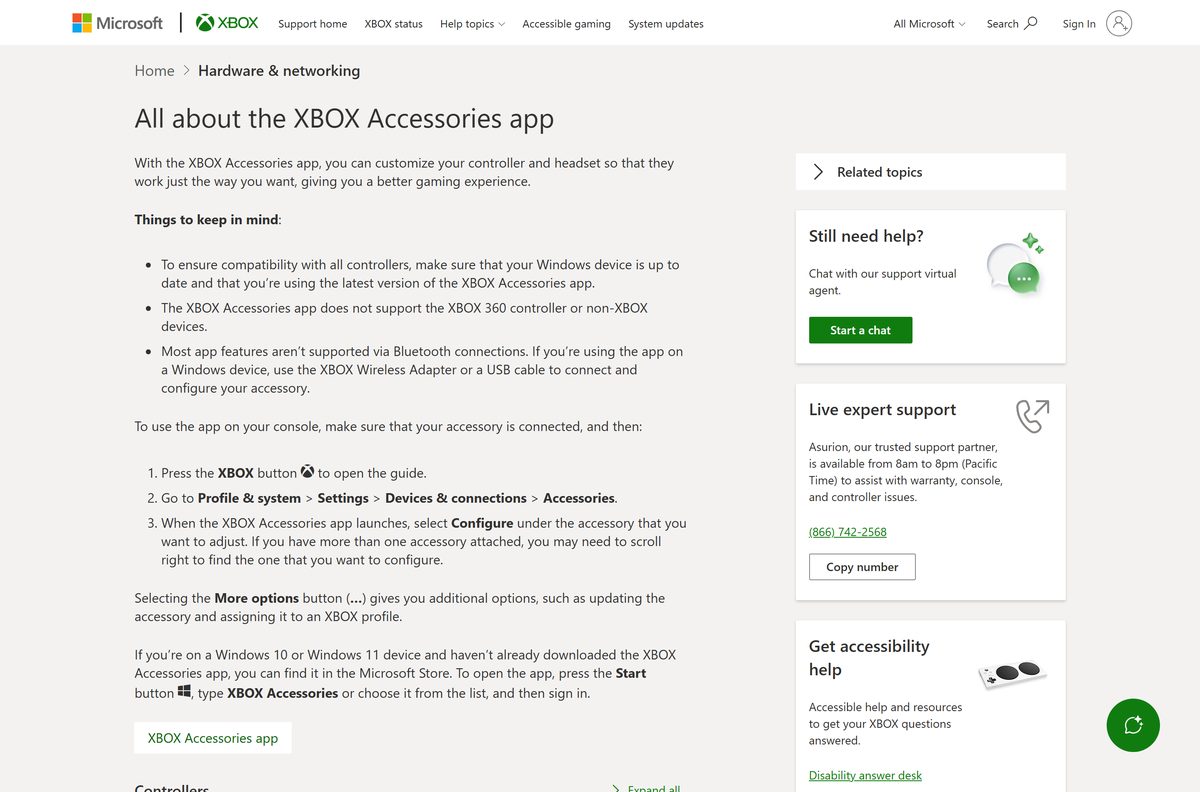
- All about the Xbox Accessories app (Xbox Support) — supported accessories and console steps
For games, Game Pass and the PC store, install the separate Xbox app for Windows instead.
How to install Xbox Accessories on Windows 11 and 10
Sign in with the Microsoft account you use on Xbox, so profiles follow you.
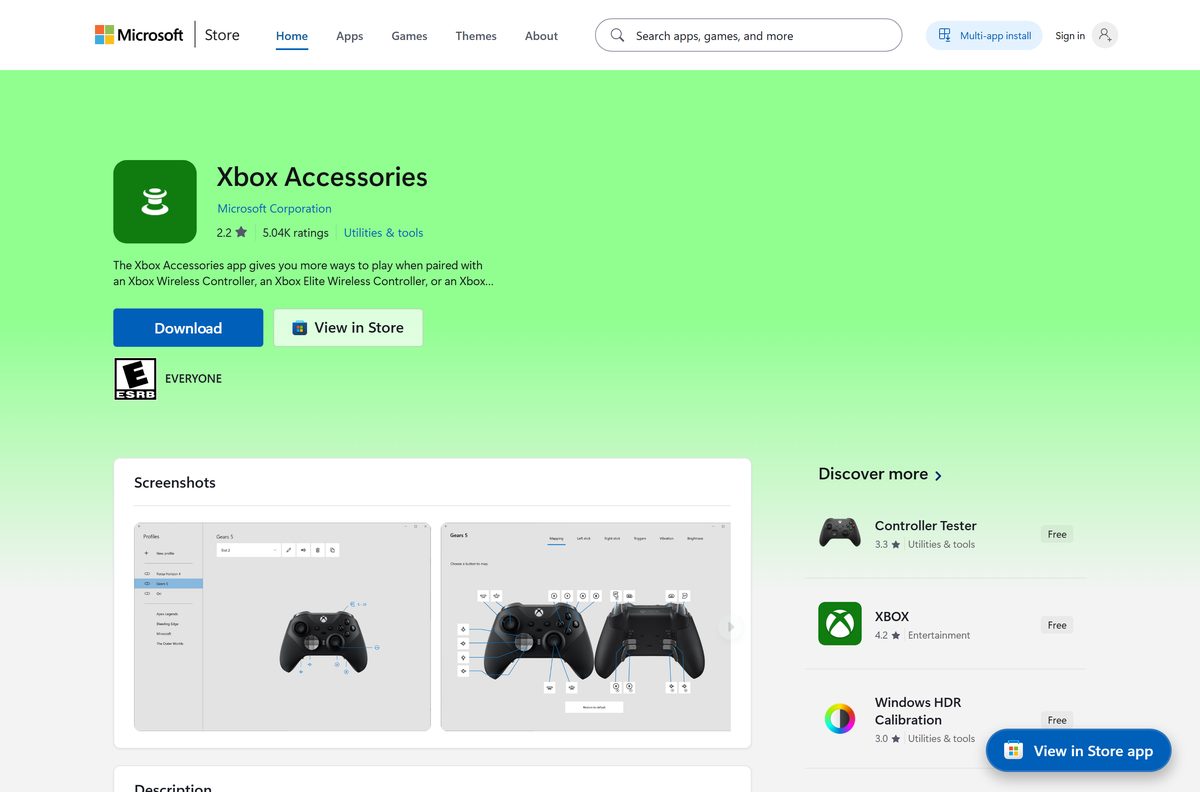
- Open the Xbox Accessories Store listing in your browser.
- Select Get and let the browser open the Microsoft Store app.
- Select Get or Install in the Store app.
- Wait for the 50.2 MB package to download and install.
- Connect your controller with a USB cable or the Xbox Wireless Adapter.
- Press Start, type Xbox Accessories, and open the app.
- Sign in when asked, then select your controller to configure it.
Install Xbox Accessories with winget from a terminal
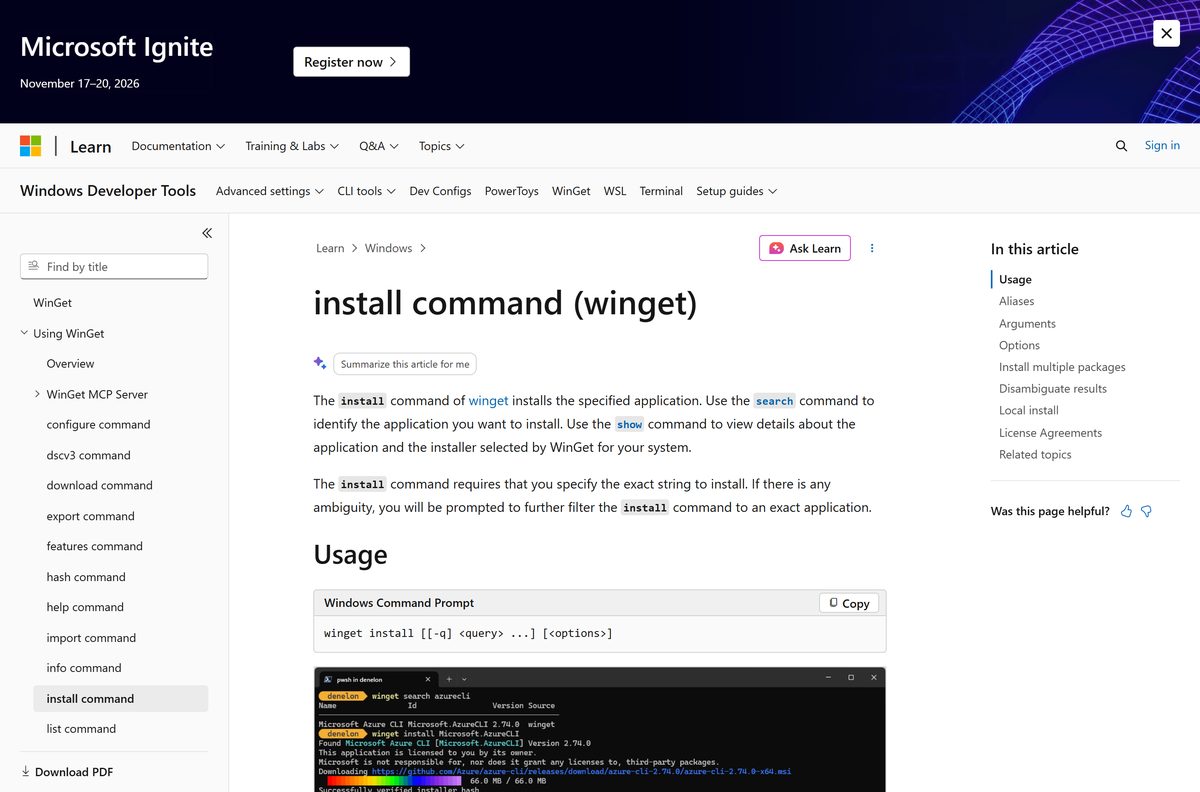
Use winget when the Store app will not open, or to script the install on several PCs.
- Open Windows Terminal or PowerShell from the Start menu.
- Run winget install –id 9NBLGGH30XJ3 –source msstore .
- Accept the Microsoft Store agreement prompt that winget shows.
- Open Xbox Accessories from the Start menu once the install completes.
Microsoft documents every install option on Microsoft Learn.
What to use instead of Xbox Accessories on a Mac
Microsoft ships Xbox Accessories for Windows and Xbox only. macOS has its own controller settings.
| Your goal on the Mac | What to use | Where |
|---|---|---|
| Pair an Xbox controller | Apple’s game controller guide | Hold the pairing button, then pick it in Bluetooth settings |
| Remap controller buttons | Game Controllers settings | Apple menu, System Settings, Game Controllers (macOS 13 or later) |
| Update controller firmware | Update on a PC or Xbox | Use the Windows app or an Xbox console |
Is Xbox Accessories free?
The Microsoft Store lists Xbox Accessories at $0.00, with no paid tier.
Install Xbox Accessories free from the Microsoft Store and pay nothing for any of its features. Microsoft charges nothing for the app. The hardware it configures is sold separately, and the Xbox Wireless Adapter is an optional purchase.
What you can change on each Xbox controller
Features depend on the accessory. Xbox Support confirms the app does not support the Xbox 360 controller or non-Xbox devices.
| Accessory | What Xbox Accessories changes | |
|---|---|---|
| Xbox Wireless Controller (Xbox One, Series X | S) | Button remapping, stick and trigger swap, vibration, firmware updates, Copilot mode |
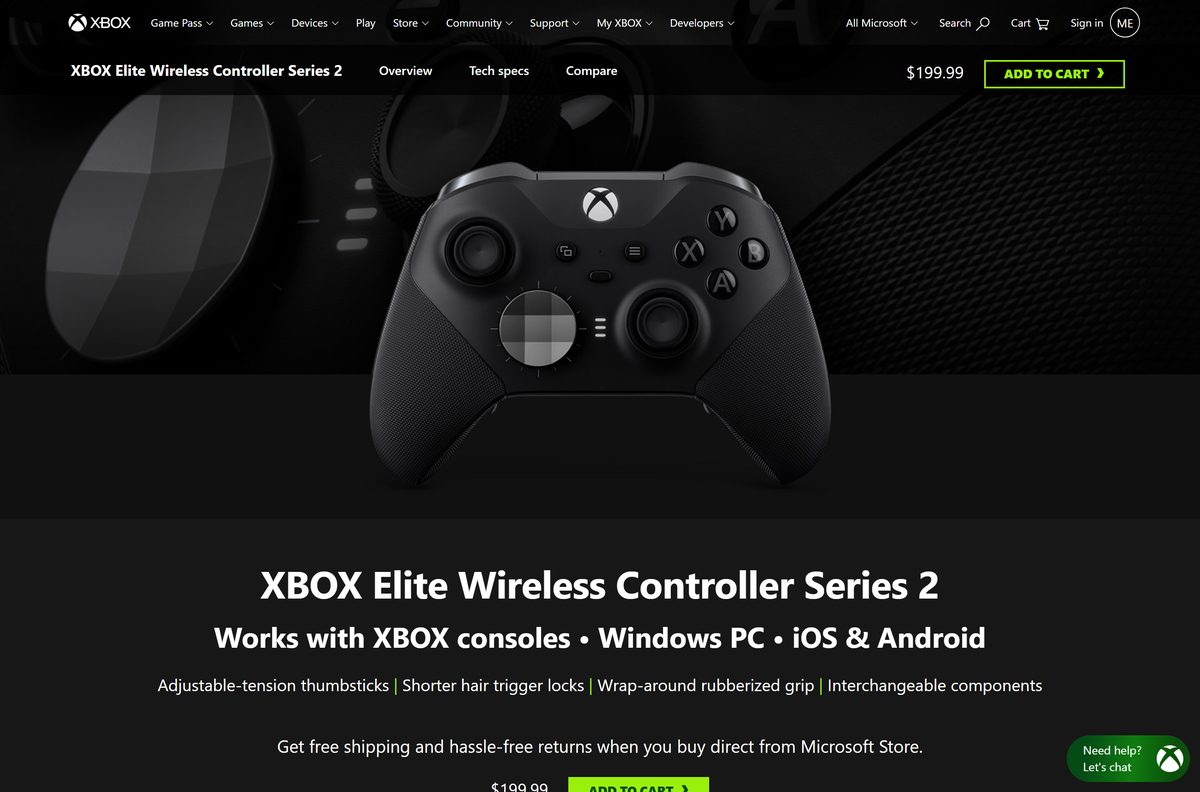
| Xbox Elite Wireless Controller Series 2 | Paddle remapping, thumbstick curves, trigger dead zones, Xbox button brightness, profiles saved on the controller | |
| Xbox Adaptive Controller | Profiles saved on the controller, Shift inputs, thumbstick X and Y axis swap | |
| Xbox Adaptive Joystick | Supported; configure it from the app’s controller list | |
| Xbox Wireless Headset | Supported; configure it from the app’s headset section | |
| Xbox 360 controller | Not supported |
The app stores up to 256 configurations. The Elite Series 2 also holds 3 custom profiles and 1 default profile on the controller itself.
How to update Xbox Accessories and your controller firmware
The Store updates the app. The app updates the controller.
- Open Microsoft Store, select Library, then Get updates.
- Connect the controller with a USB cable or the Xbox Wireless Adapter.
- Open Xbox Accessories and select your controller.
- Select More options (…) under the controller.
- Select the update option when a firmware update is offered.
- Keep the controller connected until the update finishes.
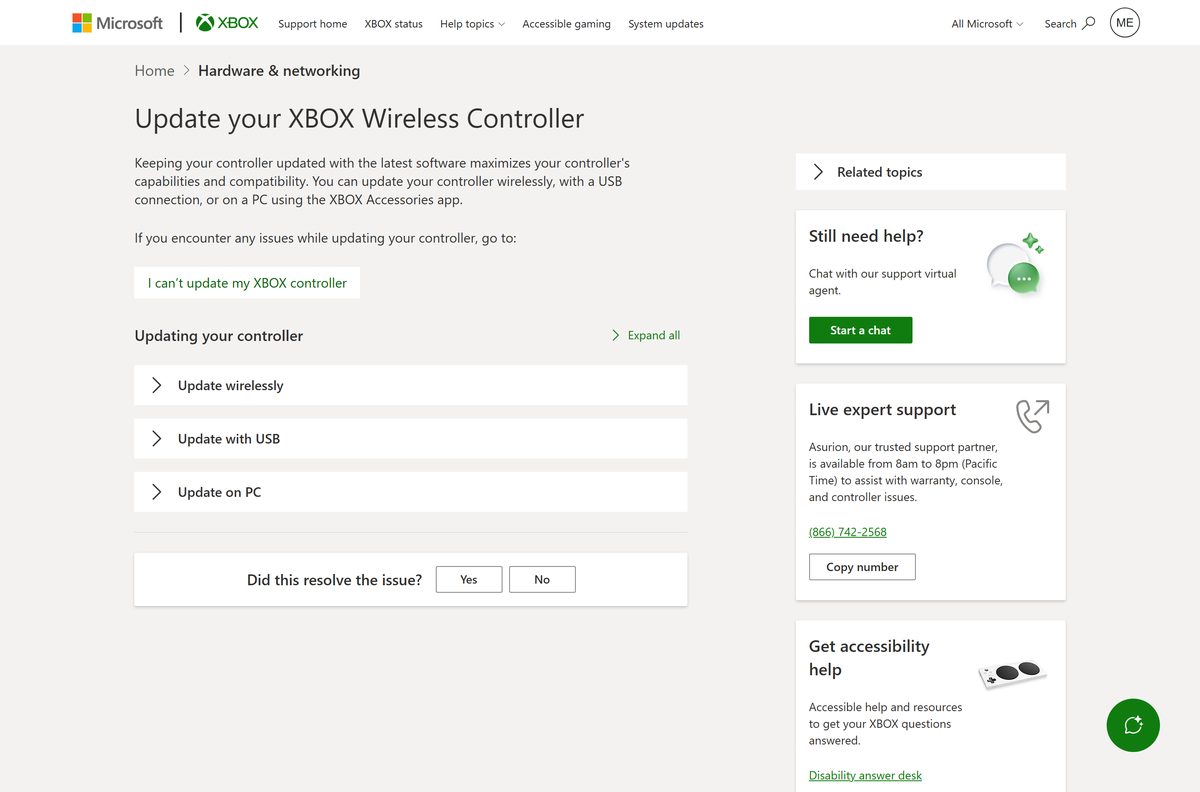
Xbox Support also lists wireless and USB update methods on the controller update page.
Fix Xbox Accessories not installing or not finding your controller
Match the symptom and work through its fixes in order.
The Store says the app does not work on this device
Windows 10 is older than build 19041.
- Select Start, Settings, Update & Security, Windows Update, Check for updates.
- Install every update offered and restart.
- Open the Store listing again and select Get.
The download stalls or fails in the Store
An outdated Store app or pending Windows updates.
- Open Microsoft Store, select Library, then Get updates.
- Sign out of the Store and sign back in.
- Follow Microsoft’s Store app fixes, then retry or use the winget command.
The app opens but shows no controller
The controller is paired over Bluetooth, which most features do not support.
- Remove the controller from Settings, Bluetooth & devices.
- Connect it with a USB cable or the Xbox Wireless Adapter, as described on the connect to PC page.
- Reopen Xbox Accessories and select the controller.
A new controller is not recognised
Windows or the app is out of date.
- Run Windows Update and install every update offered.
- Update Xbox Accessories from the Store Library.
- Reconnect the controller and open the app again.
How to uninstall Xbox Accessories
Removing the app does not erase profiles already saved on an Elite or Adaptive controller.
- Select Start, then Settings, then Apps, then Installed apps.
- Find Xbox Accessories in the list.
- Select More (…), then Uninstall, and confirm.
- On Windows 10, use Settings, Apps, Apps & features instead.
- Or right-click Xbox Accessories in the Start menu and select Uninstall.
Microsoft covers every removal method on its uninstall apps page.
Choose the right Microsoft app for your Xbox gear
Xbox Accessories only configures hardware. Other jobs need a different app.
| Your goal | Use | Where | |
|---|---|---|---|
| Remap a controller or update its firmware on a PC | Xbox Accessories | Windows 10 and 11 | |
| Do the same on a console | Built-in Accessories settings | Xbox Series X | S and Xbox One |
| Play PC Game Pass and buy PC games | Xbox app for Windows | Windows 10 and 11 | |
| Pair and remap a controller on a Mac | Game Controllers settings | macOS 13 or later |
Frequently asked questions
Is the Xbox Accessories download free?
Yes. The Microsoft Store lists Xbox Accessories at $0.00, and every feature inside it is free. Microsoft sells no paid edition, so a site charging for it is not Microsoft.
Where is the official Xbox Accessories download?
The official source is the Microsoft Store listing, product ID 9NBLGGH30XJ3, published by Microsoft Corporation. Xbox Support sends Windows 10 and Windows 11 users to that same listing.
Does Xbox Accessories work on Windows 11?
Yes. Xbox Accessories installs from the Microsoft Store on Windows 11 and on Windows 10 version 2004, build 19041, or later. Keep Windows updated so newer controllers are recognised.
How big is the Xbox Accessories download?
The Store package for Xbox Accessories version 2506.2505.28001.0 is 50.2 MB to download and takes 80.7 MB once installed on the PC.
Is there an Xbox Accessories offline installer?
No. Microsoft distributes Xbox Accessories for Windows through the Microsoft Store only. The winget command installs the same Store package from a terminal if the Store app will not open.
Can I get Xbox Accessories on a Mac?
No. Xbox Accessories runs on Windows 10, Windows 11 and Xbox consoles only. On macOS Ventura 13 or later, open System Settings and select Game Controllers to customize a paired Xbox controller.
Does Xbox Accessories run on ARM64 PCs?
The Microsoft Store catalog lists only an x64 package for Xbox Accessories, with no native ARM64 or 32-bit build. Check the Store listing on your own device before you rely on it.
Do I need to download Xbox Accessories on my Xbox console?
No. Xbox Series X|S and Xbox One consoles already include it. Press the Xbox button, then go to Profile & system, Settings, Devices & connections, Accessories.
Does Xbox Accessories support the Xbox 360 controller?
No. Xbox Support states that the Xbox Accessories app does not support the Xbox 360 controller or any non-Xbox device. It covers Xbox One, Series X|S, Elite, Adaptive controllers and the Xbox Wireless Headset.
Why does Xbox Accessories not see my controller over Bluetooth?
Most Xbox Accessories features are not supported over Bluetooth. Connect the controller to the PC with a USB cable or the Xbox Wireless Adapter, then open the app again.
Is Xbox Accessories safe to install?
Yes, when you install it from the Microsoft Store listing published by Microsoft Corporation. Avoid any site offering an Xbox Accessories .exe, because Microsoft publishes no standalone installer.
What is the latest Xbox Accessories version?
The Microsoft Store currently delivers Xbox Accessories version 2506.2505.28001.0. The Store updates it automatically, or you can pull the update from the Library page.
Why won’t Xbox Accessories install?
The usual cause is Windows 10 older than build 19041 or a stuck Microsoft Store. Install all Windows updates, update the Store from Library, then select Get on the listing again.