To access RD Web, open the URL your administrator gave you, usually https://<server FQDN>/RDWeb, sign in as DOMAIN\username and select the app or desktop you want to start.
Below are the classic portal and the HTML5 web client, the feed URL for Remote Desktop apps, a check that access works, and fixes for sign-in, certificate and connection errors.
Step-by-step guide to access RD Web Access
RD Web Access is a sign-in page published by your organization's Remote Desktop Services (RDS) deployment. Every organization has its own address, so the first step always starts with your IT team.
- Step 1: Obtain the URL from your administrator. The portal is normally
https://<server FQDN>/RDWeb, and the web client ishttps://<server FQDN>/RDWeb/webclient/index.html. - Step 2: Open your web browser, such as Microsoft Edge, Google Chrome, Safari or Firefox, and type the full URL into the address bar.
- Step 3: Log into the portal. Enter your domain and user name as DOMAIN\username, enter your password and select Sign in.
- On the classic portal, choose This is a private computer on your own work PC, or This is a public or shared computer on a shared one.
- Step 4: Select your remote resources. The web client opens on the All Resources tab, with apps and desktops grouped under headings such as Work Resources.
- Step 5: Launch the remote session. Select the app or desktop, enter the same user name and password if prompted, then select Submit.
- Select Allow on the dialog that asks to use your clipboard and printer, or clear the ones you do not want redirected.
- Wait for the connection to open, then work in the app or desktop as you would on a local PC.
End the session with Sign Out in the web client toolbar, or by closing the browser window. On the classic portal, a selected resource opens through the Remote Desktop client on your device instead of inside the browser tab.
RD Web Access portal vs web client vs Windows App
One RDS deployment can be reached three ways. The URL, the device you are on and whether you can install software decide which one fits.
| Your situation | Use this | Why |
|---|---|---|
| Any Windows, macOS, ChromeOS or Linux PC, no install allowed | Web client at /RDWeb/webclient/index.html |
Apps and desktops run inside an HTML5 browser tab |
Admin sent the classic /RDWeb link |
RD Web Access portal | Lists your resources and opens each one in the Remote Desktop client on your device |
| Mac, iPhone, iPad or Android device | Windows App with the feed URL or your work email | Windows App connects to RDS on these platforms; the web client does not support mobile devices |
| Windows PC that connects every day | Remote Desktop client with the feed URL | Windows App does not connect to RDS on Windows, so the Remote Desktop client remains the installed option |
| Phone or tablet browser only | Ask for app access instead | The web client does not support mobile devices |
Prerequisites for accessing RD Web
Users need four of these items; the server-side items are what your administrator sets up before the link works.
| Requirement | What it means | Who provides it |
|---|---|---|
| 1. Valid user account | A domain account allowed to use the RDS collection, entered as DOMAIN\username | Active Directory administrator |
| 2. Compatible web browser | Microsoft Edge, Google Chrome, Apple Safari or Mozilla Firefox 55 or later for the web client | You |
| 3. Network connectivity | Outbound HTTPS on TCP 443 to the RD Web Access and RD Gateway servers | Your network and the RDS team |
| 4. Valid SSL certificate | A publicly trusted certificate whose name matches the FQDN in the URL, on both RD Web Access and RD Gateway | RDS administrator |
| 5. Appropriate client software | None for the web client; the Remote Desktop client or Windows App for the classic portal and feed | You or your IT team |
| 6. User permissions and security settings | Membership of the collection's user groups, or a RemoteApp's user assignment, plus the Allow logon through Remote Desktop Services right | RDS administrator |
For the web client, the deployment also needs RD Gateway, RD Connection Broker and RD Web Access on Windows Server 2016 or later, plus per-user client access licenses (CALs). Microsoft warns that per-device CALs are all consumed by the web client.
What is RD Web Access?
Remote Desktop Web Access (RD Web Access) is the RDS role that shows users their published desktops and RemoteApp programs on a web page. It runs on Internet Information Services (IIS) and works over HTTPS.
| Term | What it is |
|---|---|
| RD Web Access | The web portal where you sign in and pick a desktop or app |
| Remote Desktop web client | An HTML5 client published on the same server that runs sessions inside the browser |
| RemoteApp | A single program that runs on the server but behaves like a local window, with its own taskbar entry |
| RD Gateway | The server that carries encrypted RDP traffic from the internet to the internal session hosts |
| RD Connection Broker | Sends each user to an available session host and reconnects interrupted sessions |
| Feed URL | The /RDWeb/Feed/webfeed.aspx address that Remote Desktop apps subscribe to |
RD Web Access URL and login page addresses
The server name in every address must match the name on the RD Web Access certificate, which is usually the server's fully qualified domain name (FQDN).
| What you want | URL format | Opens in |
|---|---|---|
| Classic RD Web Access login page | https://<server FQDN>/RDWeb |
Browser; resources launch in the Remote Desktop client |
| Remote Desktop web client | https://<server FQDN>/RDWeb/webclient/index.html |
Browser tab |
| Web client test build | https://<server FQDN>/RDWeb/webclient-test/index.html |
Browser tab, before an update goes live |
| Feed for Remote Desktop apps | https://<server FQDN>/RDWeb/Feed/webfeed.aspx |
Windows App or the Remote Desktop client |
| Azure Virtual Desktop feed (not RDS) | https://rdweb.wvd.microsoft.com/api/arm/feeddiscovery |
Windows App |
An rdweb.wvd.microsoft.com link belongs to Azure Virtual Desktop, not to an on-premises RD Web Access server.
How to access RDP from a web browser with the RD Web client
The web client needs no installation. It runs on Windows, macOS, ChromeOS and Linux PCs, but not on phones or tablets.
- Open the web client link, for example
https://rdweb.contoso.com/RDWeb/webclient/index.htmlwith your own server name. - Sign in with DOMAIN\username and your password, then select Sign in.
- Open the Settings panel before connecting if you use a non-US keyboard, and pick a layout under Select Remote Keyboard Layout.
- Select a desktop or app on the All Resources tab.
- Re-enter your credentials if asked and select Submit.
- Select Allow to redirect the clipboard and printer, or clear them first.
- Use Sign Out in the top toolbar when you finish.
Some organizations force resources to download as an .rdp file instead of opening in the browser. In that case, open the file with the Remote Desktop client on your PC.
Subscribe to the RD Web Access feed in Windows App or Remote Desktop
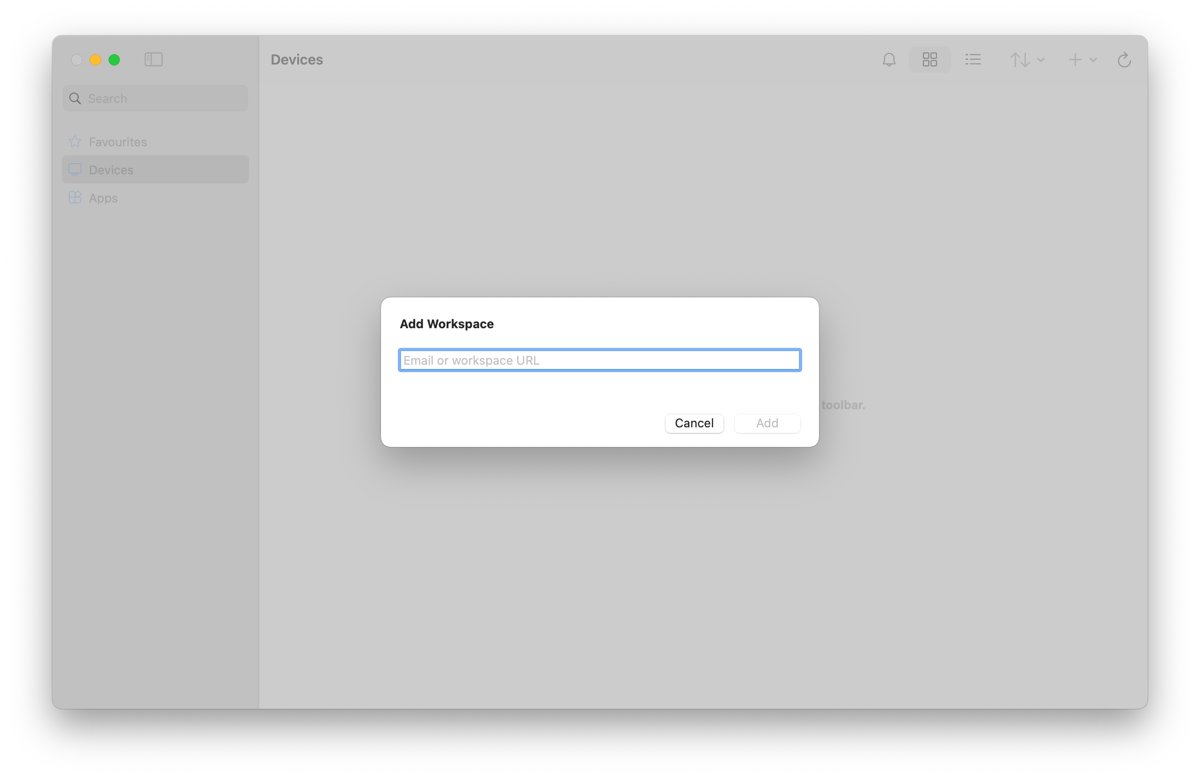
A subscription puts your work apps in a Remote Desktop app, so you skip the browser. Windows App handles RDS on macOS, iOS, iPadOS and Android; on Windows, use the Remote Desktop client.
- Ask your administrator for the feed URL, usually
https://<server FQDN>/RDWeb/Feed/webfeed.aspx, or check whether your work email address works instead. - In Windows App, open the Devices tab, select the plus (+) icon and select Add Workspace.
- In the Remote Desktop client, select + Add and then Workspaces.
- Enter the feed URL or email address, then select Next or Find feeds.
- Sign in with your RDS user account when prompted.
- Open a desktop or app from the workspace that appears.
The Microsoft Store version of the Remote Desktop app for Windows reached end of support on May 27, 2025. Its block on Azure Virtual Desktop and Windows 365 connections does not affect Remote Desktop Services.
How to check RD Web Access is working
- Open the URL and confirm the browser shows a padlock with no certificate warning.
- Sign in and confirm the All Resources tab, or the classic resource list, shows at least one app or desktop.
- Launch one resource and confirm the session opens and shows the remote desktop or app window.
- Copy a line of text locally and paste it into the session with Ctrl+V to confirm clipboard redirection.
- Sign out, then sign in again to confirm your credentials are accepted a second time.
If resources appear but none will launch, the fault sits at RD Gateway or the session host rather than at the RD Web Access page.
Additional tips for RD Web Access: shortcuts, printing and file transfer
The web client replaces several Windows shortcuts that a browser would otherwise capture, and it routes printing and files through virtual devices.
| Task | How to do it in the web client |
|---|---|
| Send Ctrl+Alt+Del | Ctrl+Alt+End on Windows, fn+control+option+delete on macOS |
| Press the Windows key | Alt+F3 |
| Switch apps (Alt+Tab) | Alt+Page up, or Alt+Page down for the reverse order |
| Choose Remote Desktop Virtual Printer; the browser creates a PDF you print locally | |
| Upload a file | Select the upload icon; files land in Remote Desktop Virtual Drive > Uploads |
| Download a file | Copy it to Remote Desktop Virtual Drive > Downloads, then select Confirm; 255 MB limit |
| Copy and paste | Text only, with Ctrl+C and Ctrl+V |
| Sharper text on high-DPI screens | Settings > Enable native display resolution > On |
| Change an expired password | Use the link on the sign-in page if your admin enabled it; otherwise press Ctrl+Alt+End in a session and select Change a password |
RD Web Access not working: Troubleshooting common access issues
The RD Web page does not load at all
The PC cannot reach the server, or TCP 443 is blocked on the way.
- Verify network connectivity: open another HTTPS site, then retry the RD Web URL.
- Connect to your organization's VPN if the portal is internal only.
- Ask IT to confirm inbound TCP 443 is open to RD Web Access and RD Gateway; an Azure-hosted server also needs a public port 443 endpoint.
The browser shows a certificate or security warning
RD Web Access is not using a publicly trusted certificate, or the URL name differs from the certificate name.
- Check that the URL uses the server's full FQDN, not an IP address or short name.
- Do not click through the warning on a public network.
- Ask the administrator to bind a publicly trusted certificate to RD Web Access and RD Gateway in Edit Deployment Properties > Certificates.
"The user name or password that you entered is not valid"
A wrong user name, a wrong password or a locked account; all three show the same message.
- Ensure correct URL and credentials: type the user name as DOMAIN\username.
- Check that Caps Lock is off and retype the password.
- Ask your Active Directory administrator to reset the password or unlock the account.
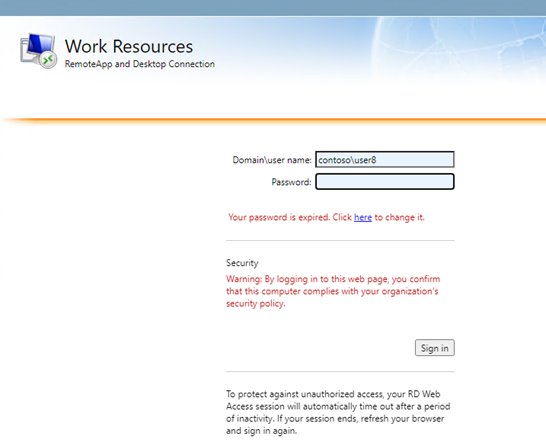
"Your password is expired"
The domain password has passed its age limit.
- Select the change-password link if the page shows one, then enter the old and new passwords.
- If no link appears, contact your administrator; they can turn on PasswordChangeEnabled in IIS Manager under Sites > Default Web Site > RDWeb > Pages > Application Settings.
The web client page will not work in your browser
An unsupported browser, a mobile device or private browsing features in use.
- Check browser compatibility and settings: use Edge, Chrome, Safari or Firefox 55 or later on a PC.
- Leave private browsing if you need an Input Method Editor (IME) keyboard; the web client does not support IME input there.
- For the classic
/RDWebportal, try the web client URL at/RDWeb/webclient/index.htmlinstead.
Resources appear, but no app or desktop connects
RD Gateway is missing a trusted certificate or the KB4025334 update, or a firewall blocks the gateway.
- Review firewall and security settings: RD Gateway needs inbound TCP 443 and UDP 3391.
- Confirm the RD Gateway certificate is publicly trusted and that KB4025334 or a later cumulative update is installed.
- On error "unexpected server authentication certificate was received", export the current RD Connection Broker certificate as a
.cerfile and runImport-RDWebClientBrokerCert <path>on the RD Web Access server.
Sign-in works, but no RemoteApp programs are listed
Your account is not in the collection's user groups, or the domain blocks RD Web Access from reading group membership.
- In Server Manager, open Remote Desktop Services > Collections, select the collection and check User Groups.
- For a single app, right-click it under RemoteApp Programs and select Edit Properties > User Assignment.
- If domain users see nothing but local accounts do, add the RD Web Access computer account to the Windows Authorization Access Group.
"Access is denied" or "User is not authorized" after launch
The account lacks the right to sign in through Remote Desktop Services.
- Check membership of the Remote Desktop Users group.
- Open Computer Configuration > Policies > Windows Settings > Security Settings > Local Policies > User Rights Assignment > Allow logon through Remote Desktop Services and add the user's group.
- Have the user reconnect after Group Policy refreshes.
"Your session will be disconnected in 60 minutes"
Check server and service status: RD Licensing is unreachable or misconfigured, so soft license enforcement applies.
- Open services.msc on the license server and start the Remote Desktop Licensing service if it is stopped.
- In Server Manager, select Remote Desktop Services > Overview > Tasks > Edit Deployment Properties > RD Licensing and confirm the mode and license server.
- Confirm the Remote Desktop Services service is running on each RD Session Host.
For anything else, record a log: select the ellipsis in the web client, open About, select Start recording under Capture support information, repeat the fault, then select Stop recording. The browser saves RD Console Logs.txt for your IT team.
Security best practices for RD Web Access
RD Web Access and RD Gateway face the internet, so they are the parts of an RDS deployment that need the most care.
| Practice | How to apply it |
|---|---|
| 1. Use strong authentication methods | Add multifactor authentication at RD Gateway with Network Policy Server and the Microsoft Entra ID NPS extension, or publish RD Web through Microsoft Entra application proxy with pre-authentication |
| 2. Keep software and systems updated | Install cumulative updates on every RDS server and run Install-RDWebClientPackage then Publish-RDWebClientPackage -Type Production -Latest when a new web client ships |
| 3. Limit access permissions | Assign collections to specific groups and use RemoteApp User Assignment so each user sees only what they need |
| 4. Secure network connections | Serve RD Web Access and RD Gateway only over HTTPS with publicly trusted certificates that match their FQDNs |
| 5. Configure proper firewall rules | Allow inbound TCP 443 to RD Web Access, and TCP 443 plus UDP 3391 to RD Gateway; keep RDP on 3389 internal behind the gateway |
| 6. Enable session timeout and idle disconnects | Set limits in the collection's Session properties, in Group Policy Session Time Limits, or on the RD Gateway authorization policy Timeouts tab |
| 7. Monitor and log access activity | Use the MFA audit log of sign-in attempts, and the web client console log for individual faults |
Users can help too: choose This is a public or shared computer on shared machines, so the portal asks for a password every time, and always sign out when finished.
Set RD Web Access session timeout and idle limits
RD Web Access ends a portal session after a period of inactivity that the administrator sets. Remote sessions themselves follow the collection and policy limits below.
- On the RD Connection Broker, open Server Manager > Remote Desktop Services > Collections and select the collection.
- Select Tasks > Edit Properties and open Session.
- Set how long idle and disconnected sessions last before they end, then select OK.
- To enforce limits by policy, open gpmc.msc and go to Administrative Templates > Windows Components > Remote Desktop Services > Remote Desktop Session Host > Session Time Limits.
- Enable Set time limit for active but idle Remote Desktop Services sessions and choose a limit.
- Ask users to sign out and back in so the new limits apply.
Group Policy settings override the collection defaults. An idle disconnect shows the message that the session ended because the remote computer did not receive any input.
Publish the RD Web client with PowerShell
If users only see the classic /RDWeb page and need browser sessions, the administrator publishes the web client on the RD Web Access server from an elevated PowerShell prompt.
Install-Module -Name RDWebClientManagement
Install-RDWebClientPackage
Import-RDWebClientBrokerCert <.cer file path>
Publish-RDWebClientPackage -Type Production -Latest
The first line installs the management module from the PowerShell Gallery. The second downloads the latest web client. The third imports the RD Connection Broker certificate exported as a .cer file. The last publishes the client for all users.
You should see: https://<server FQDN>/RDWeb/webclient/index.html opens the web client sign-in page.
On Windows Server 2016, run Install-Module -Name PowerShellGet -Force first and restart PowerShell. A warning about per-device CALs can be ignored when the deployment uses per-user CALs.
Additional tips and resources for accessing RD Web
- Get started with the Remote Desktop web client — User guide: sign-in, shortcuts, printing and file transfer
- Set up the Remote Desktop web client for users — Admin requirements, PowerShell publishing and fixes
- Remote Desktop Web Access troubleshooting — Sign-in, password and public computer questions
- Connect to Remote Desktop Services — Which app works on which platform
- Ports used by RDS — Firewall ports for each role
RD Web Access FAQ
How do I access RD Web Access?
Open the link your administrator gave you, usually https://<server FQDN>/RDWeb, in Edge, Chrome, Safari or Firefox. Sign in as DOMAIN\username with your password, then select an app or desktop. Only your organization can give you the exact address.
What is RD Web Access?
RD Web Access is a Remote Desktop Services role that shows your published desktops and RemoteApp programs on a web page. It runs on IIS over HTTPS, and it can also host the HTML5 web client that runs sessions inside the browser.
What is the RD Web Access URL?
The classic portal is https://<server FQDN>/RDWeb and the web client is https://<server FQDN>/RDWeb/webclient/index.html. The server name must match the certificate, so use the exact FQDN your administrator sends rather than an IP address.
How do I access RDP from a web browser?
Use the Remote Desktop web client at /RDWeb/webclient/index.html on your organization's server. It runs in Edge, Chrome, Safari or Firefox 55 and later on Windows, macOS, ChromeOS or Linux. Mobile browsers are not supported.
How do I sign in to the RD Web Access login portal?
Enter your user name as DOMAIN\username, then your domain password, and select Sign in. On the classic page, pick This is a private computer on your own PC. The same message appears for a wrong password and a locked account.
How do I open RD online without installing anything?
Use the web client link, which runs apps and desktops in a browser tab with nothing to install. The classic /RDWeb portal, by contrast, hands each resource to the Remote Desktop client installed on your device.
Why is RD Web Access not working?
The most common causes are a wrong URL or user name format, an expired or locked password, a certificate name mismatch, and blocked TCP 443 or UDP 3391. If resources list but will not launch, RD Gateway or the session host is the problem.
Can I use RD Web Access on a phone or tablet?
Not through the browser, because the web client does not support mobile devices. Install Windows App on iOS, iPadOS or Android instead and add the RD Web feed URL, https://<server FQDN>/RDWeb/Feed/webfeed.aspx, or your work email as a workspace.
How do I add RD Web Access to the Remote Desktop app?
Add a workspace and enter the feed URL ending in /RDWeb/Feed/webfeed.aspx, or your work email if your organization set up email discovery. Sign in with your RDS account, and your apps and desktops appear in the app.
How do I log out of RD Web Access?
Select Sign Out in the web client toolbar, or close the browser window. Portal sessions also end on their own after a period of inactivity set by your administrator, after which you need to sign in again.
Which way to access RD Web should you use?
Use the web client link on any PC where you cannot install software, and subscribe to the feed in a Remote Desktop app for daily use. The web client needs only a supported browser and the right URL, while a feed subscription keeps your apps one click away and works on Mac, iPhone, iPad and Android where the browser route does not.