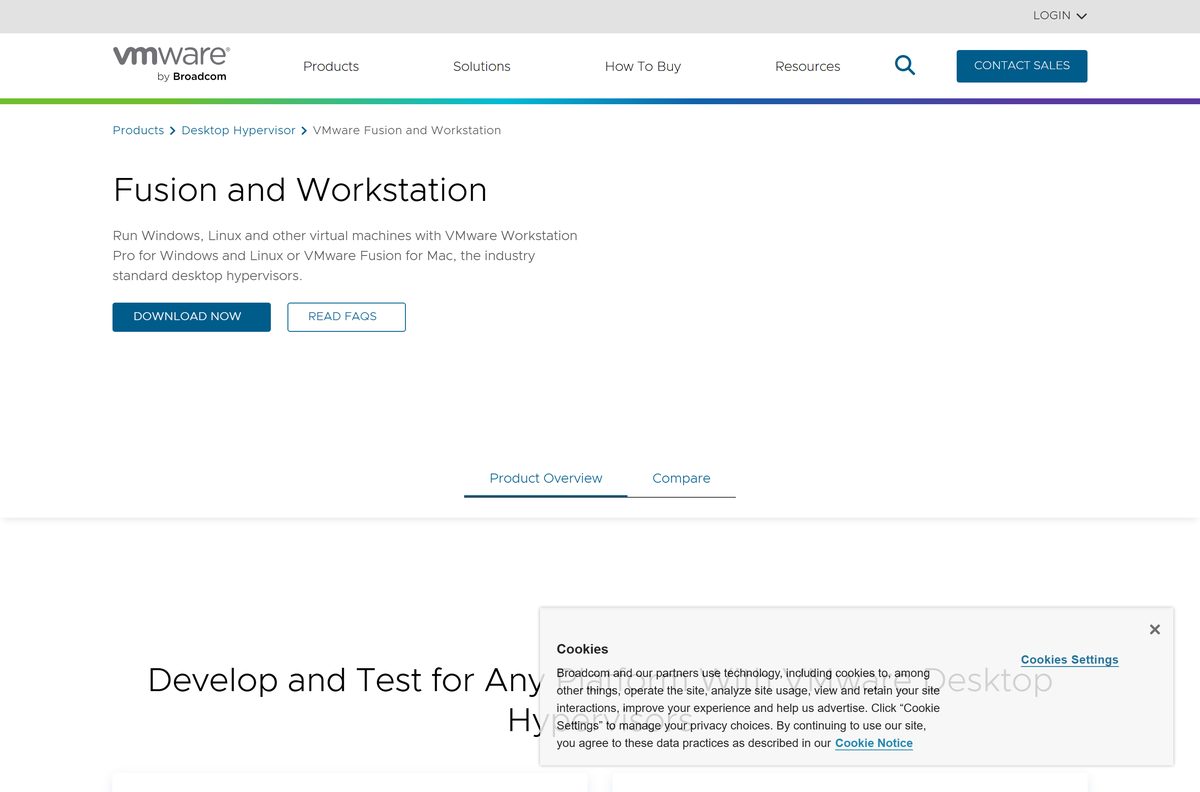
The VMware Workstation Pro download is free for personal, educational and commercial use, with 64-bit installers for Windows 11, Windows 10 and Linux. Sign in to a free Broadcom Support Portal account, open the Workstation Pro downloads and pick the build for your PC.
Workstation Pro is VMware’s desktop hypervisor. You run Windows, Linux and other operating systems as virtual machines on one PC, take snapshots, build virtual networks and connect to remote vSphere or ESX servers.
This guide covers which installer fits your machine, the sign-in route to the download, installation, the Mac option, system requirements, setup fixes and removal.
Which VMware Workstation Pro download do you need?
Broadcom publishes one Workstation Pro installer for Windows and one for Linux, and both run on 64-bit Intel or AMD processors only. Match your computer to a row.
| Your computer | Download | What it needs |
|---|---|---|
| Windows 11 or Windows 10 PC with an Intel or AMD processor | VMware Workstation Pro for Windows (.exe) | Windows 10 20H1 or later, or Windows 11; 64-bit x86/AMD64 CPU from 2011 or later |
| Linux PC (Ubuntu, Fedora, SUSE, openSUSE and others) | VMware Workstation Pro for Linux (.bundle) | A supported 64-bit Linux host and root access |
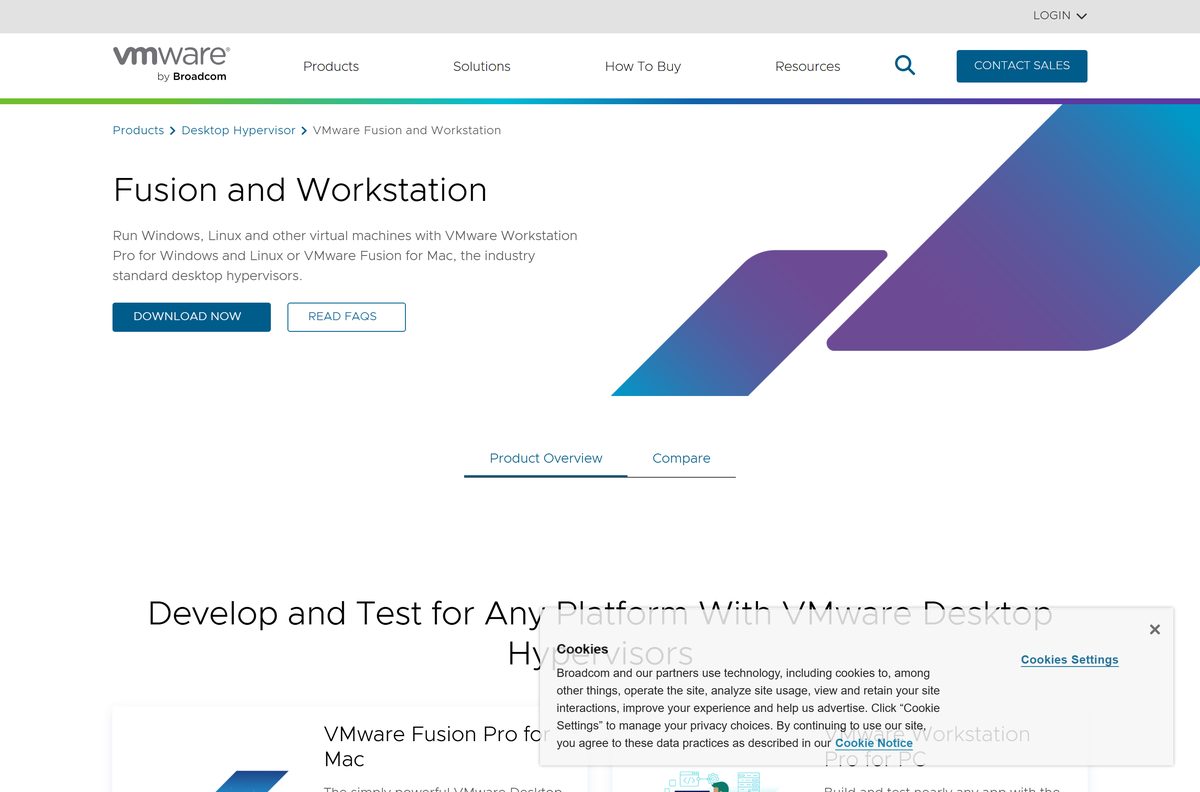
| Mac with Apple silicon or an Intel chip | VMware Fusion Pro for Mac | Workstation Pro has no Mac build; Fusion Pro is the Mac edition |
| Windows 11 PC with a Snapdragon (ARM) processor | No Workstation Pro build | Broadcom requires a 64-bit x86/AMD64 processor |
Not sure what you have? On Windows 11, open Settings > System > About and read System type and Processor. A processor name starting with Snapdragon means an ARM PC.
Download VMware Workstation Pro from the Broadcom Support Portal
Broadcom hosts the Workstation Pro installers on its Support Portal. The download link sends you to the Broadcom sign-in page first, so create a free account if you do not have one.
New accounts register as a Basic User. Broadcom screens downloads for export compliance, so fill in your email, address and country accurately and complete the Trade Compliance form when asked.
- VMware Workstation Pro free downloads — Windows and Linux installers; Broadcom sign-in required
- Broadcom Support Portal registration guide — How to create the free account
- Download and license VMware Desktop Hypervisor — Broadcom’s own download walkthrough for Workstation Pro and Fusion Pro
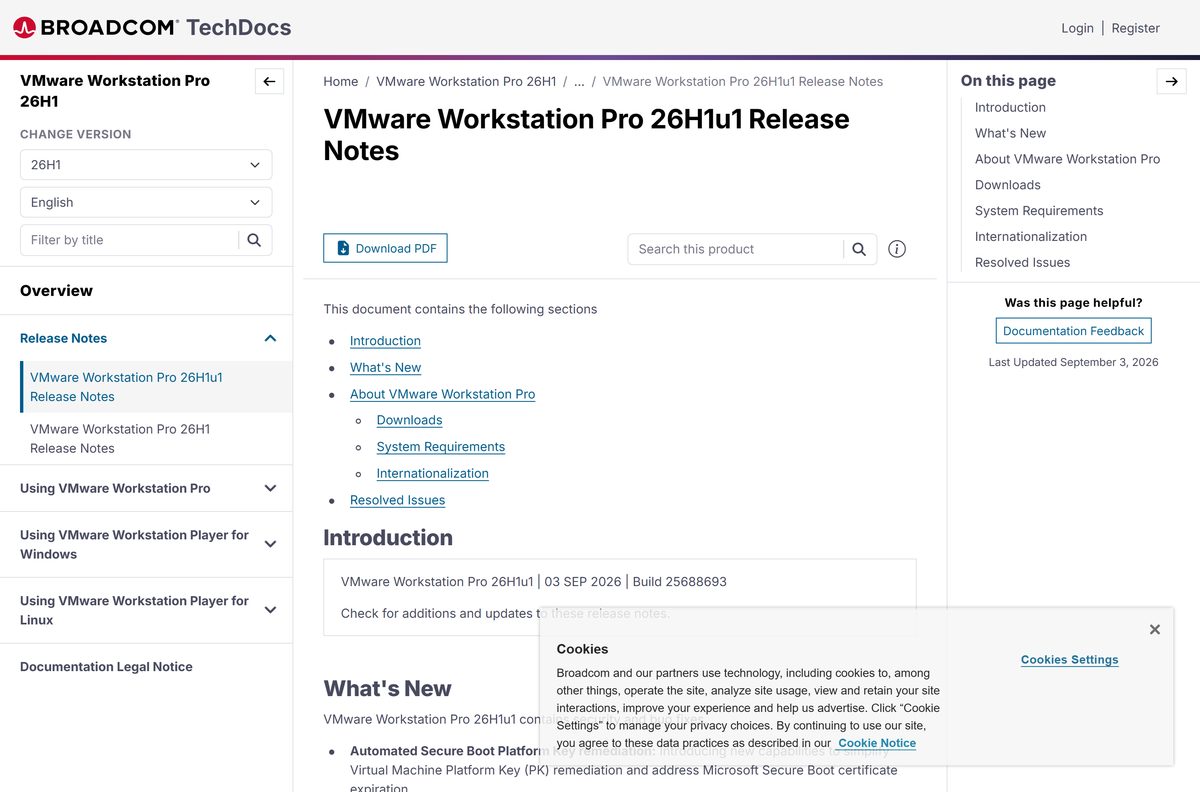
- VMware Workstation Pro 26H1u1 release notes — Released 3 September 2026, build 25688693
Skip any site offering a Workstation Pro setup file without a Broadcom sign-in. That file does not come from Broadcom, and you have no way to confirm it is untouched.
How to install VMware Workstation Pro on Windows 11 and 10
You need administrator rights on the PC. Setup also stops if an incompatible VMware product is already installed, so remove that first.
- Open the Workstation Pro downloads and sign in with your Broadcom account.
- Pick the newest Workstation Pro release for Windows.
- Click the Terms and Conditions link, then tick the checkbox to agree.
- Download the installer, named like VMware-workstation-xxxx-xxxxxxx.exe.
- Sign in to Windows as an administrator, then double-click the installer.
- Follow the prompts in the setup wizard to finish the installation.
- When setup asks for a license key, select FINISH (For free version).
- Restart the PC if the installer asks you to.
- Open VMware Workstation Pro from the Start menu and create your first virtual machine.
On Linux, download the .bundle file instead. Open a terminal in its folder, switch to root with su root , and run sh VMware-Workstation-xxxx-xxxxxxx.x86_64.bundle . Add –console for a text-only install, then start Workstation Pro as your regular user, not root.
Install VMware Workstation Pro silently on many PCs
IT teams can push the Windows installer without any prompts. Broadcom documents these switches for an unattended installation.
VMware-workstation-full-x.x.x-xxxxxx.exe /s /v”/qn EULAS_AGREED=1 AUTOSOFTWAREUPDATE=1″ Run it from an elevated Command Prompt in the installer’s folder, with your downloaded file name in place of the placeholder. /s hides the setup screens, and everything after /v goes to the Windows Installer engine. To choose the install folder, add INSTALLDIR=C:\path inside the quotes. Test on one machine before a wide rollout. Broadcom lists every property in its unattended installation guide.
Which VMware download do you need for your Mac?
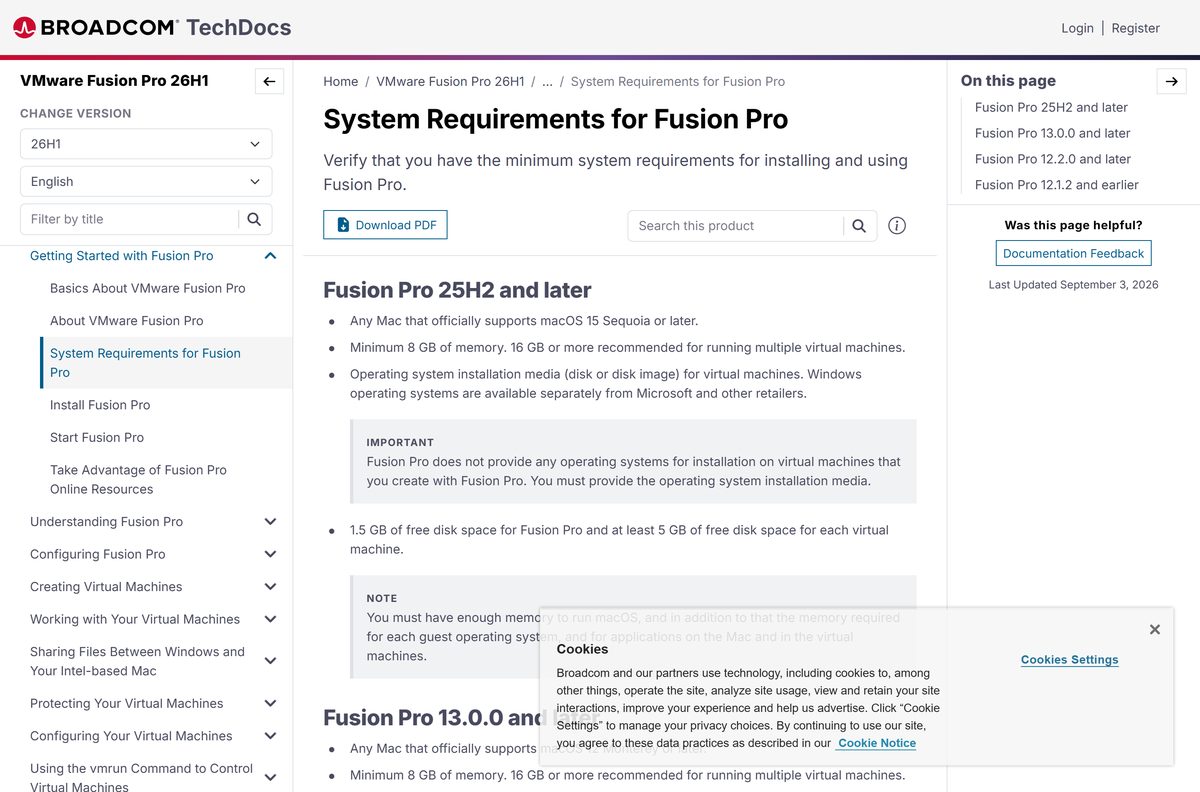
Workstation Pro runs on Windows and Linux only. On a Mac, VMware Fusion Pro does the same job, and it is free under the same terms.
| Your Mac | Download | What it needs |
|---|---|---|
| Mac with Apple silicon (M-series chip) | VMware Fusion Pro | macOS 15 Sequoia or later, 8 GB of memory |
| Mac with an Intel processor | VMware Fusion Pro | macOS 15 Sequoia or later, 8 GB of memory |
| Mac that cannot run macOS 15 Sequoia | Current Fusion Pro does not install | Fusion Pro 25H2 and later need a Mac that supports macOS 15 |
Fusion Pro 26H1u1, build 25689522, shipped on 3 September 2026. It needs 1.5 GB of free disk space plus at least 5 GB for each virtual machine, and Broadcom recommends 16 GB of memory for running several machines at once.
Is VMware Workstation Pro free?
Yes. Since 11 November 2024, Workstation Pro and Fusion Pro have been free for commercial, educational and personal users alike. Broadcom stopped selling the paid versions, and the app no longer asks for a license key.
The trade-off is support. Free users are not entitled to Broadcom’s Global Support team, and get help through the Broadcom community forums, documentation and knowledge base instead. The free licence covers Workstation Pro 17.5.2 and later.
Yes, it is free for everyone. Download it only from support.broadcom.com. Broadcom’s release notes state Workstation Pro is free for commercial, educational and personal use with no license key. A site charging for it, or selling a Workstation Pro key, is not Broadcom.
How to check your VMware Workstation Pro version and update it
Workstation Pro 17.6 and later cannot update itself. You download each new release from the Broadcom Support Portal and install it over the old one.
- Open Settings > Apps > Installed apps in Windows 11 and find VMware Workstation to see its version.
- Compare it with the newest release on the Workstation Pro downloads page.
- Shut down or suspend every running virtual machine, then close Workstation Pro.
- Download the new installer and double-click it as an administrator.
- Click Uninstall when setup offers to remove the previous version.
- Restart the PC and sign in as an administrator again.
- Follow the prompts to finish the upgrade, and restart once more if asked.
Check the VMware Workstation Pro system requirements for your PC
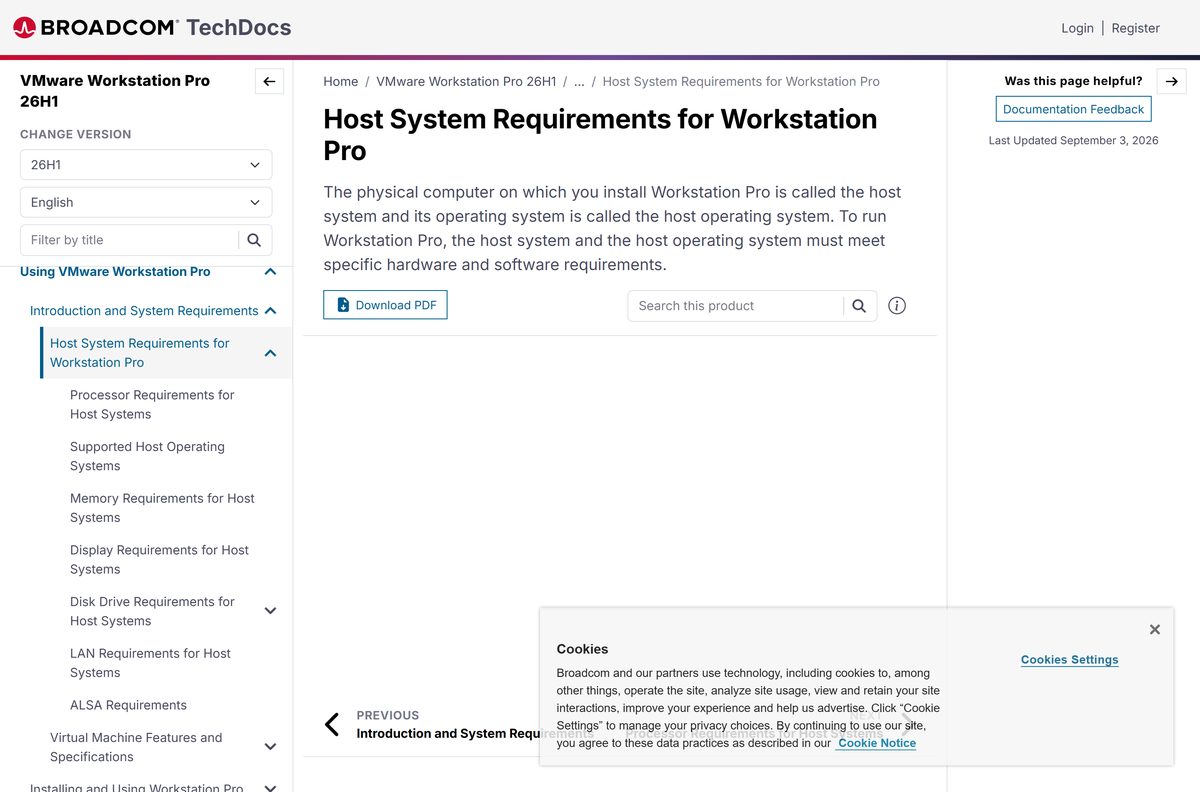
Workstation Pro installs on Windows and Linux hosts. Every virtual machine you run needs its own memory and disk space on top of these figures.
| Field | Value |
|---|---|
| Software | VMware Workstation Pro |
| Developer | Broadcom Inc. (VMware) |
| Latest version | 26H1u1, build 25688693, released 3 September 2026 |
| Licence | Free for commercial, educational and personal use; no license key |
| Windows | Windows 11; Windows 10 20H1 or later; Windows Server 2025 and 2022 |
| Linux | Supported 64-bit distributions, including Ubuntu 26.04 LTS, Fedora 43 and 44, SUSE Linux Enterprise 16 and openSUSE 16.0 |
| Mac | Not available; use VMware Fusion Pro |
| Processor | 64-bit x86/AMD64 CPU launched in 2011 or later; AMD-V or Intel VT-x for 64-bit guests |
| Memory | 2 GB minimum, 4 GB or more recommended |
| Disk space | About 2.5 GB to install, plus at least 1 GB per guest operating system |
| Display | 16-bit or 32-bit display adapter |
| Download size | Not published by Broadcom; the installer is only served after sign-in |
| Offline installer | Yes: full .exe for Windows and .bundle for Linux |
| Official download source | Broadcom Support Portal |
| Last verified | 2026-09-19 |
Check your own PC in Settings > System > About. The Installed RAM and System type lines show whether you meet the memory and 64-bit requirements.
Fix VMware Workstation Pro download and install problems
Find the message or symptom you see, then work through the fix under it.
The download link opens a sign-in page
Broadcom shows the downloads only to signed-in Support Portal users.
- Sign in with your Broadcom account, or register a free Basic User account first.
- Complete your profile with an accurate address and country.
- Open the Workstation Pro downloads link again after sign-in.
The portal says Not Entitled
You picked a release older than 17.5.2, which the free licence does not cover.
- Go back to the release list for Workstation Pro.
- Pick the newest release instead of an older one.
- Accept the Terms and Conditions and download again.
The download will not start after you accept the terms
Your profile has not passed Broadcom’s export compliance screening.
- Open your Broadcom profile and check your email, address and country.
- Fill in the Trade Compliance form if the portal asks for it.
- Sign out, sign back in, and retry the download.
A 64-bit virtual machine will not install
Intel VT-x or AMD-V is switched off in the PC’s firmware.
- Restart the PC and open the BIOS or UEFI setup.
- Turn on the Intel VT-x or AMD-V virtualization setting. Its name varies by PC maker.
- Save the setting, boot Windows and start the virtual machine again.
Virtual machines run slowly with Hyper-V or Windows security features on
With Hyper-V active, Workstation Pro runs virtual machines through the Windows Hypervisor Platform, which has fewer capabilities.
- Confirm you run Windows 10 20H1 build 19041.264 or newer, which Workstation Pro needs on a Hyper-V host.
- Confirm the processor is Intel Sandy Bridge or AMD Bulldozer or newer.
- If you do not need Hyper-V, open Turn Windows features on or off, clear Hyper-V and Windows Hypervisor Platform, and restart.
Setup stops and reports an incompatible VMware product
Another VMware desktop product is already installed on the PC.
- Open Settings > Apps > Installed apps.
- Uninstall the other VMware product the installer named.
- Restart the PC and run the Workstation Pro installer again.
How to uninstall VMware Workstation Pro
Broadcom removes Workstation Pro through the same setup program that installed it.
- Close Workstation Pro and shut down every virtual machine.
- Sign in to Windows as an administrator.
- Double-click the VMware-workstation-xxxx-xxxxxxx.exe installer for your version.
- Click Next on the Welcome screen, then click Remove.
- Tick the checkbox if you want to keep your Workstation Pro configuration for a later reinstall.
- Click Next to begin uninstalling, then restart if asked.
Without the installer file, open Settings > Apps > Installed apps, click the … menu beside VMware Workstation and choose Uninstall.
Frequently asked questions
Is VMware Workstation Pro free?
Yes. VMware Workstation Pro is free for commercial, educational and personal use, and it no longer needs a license key. Broadcom made it free for everyone on 11 November 2024 and stopped selling the paid version.
Where is the official VMware Workstation Pro download?
The official download is on the Broadcom Support Portal at support.broadcom.com. Sign in with a free Broadcom account, open the VMware Workstation Pro free downloads, accept the Terms and Conditions and pick the Windows or Linux installer.
Do I need a Broadcom account to download VMware Workstation Pro?
Yes. The download page redirects to the Broadcom sign-in page. Register a free Basic User account, complete your profile with an accurate address and country, and the Workstation Pro installers become available.
Does VMware Workstation Pro work on Windows 11?
Yes. Broadcom lists Windows 11 as a supported host for the current Workstation Pro release, along with Windows 10 20H1 or later and Windows Server 2025 and 2022. You need a 64-bit Intel or AMD processor.
How big is the VMware Workstation Pro download?
Broadcom does not publish a download size, and the installer is only served after sign-in. Plan for about 2.5 GB of free disk space for a basic installation, plus space for every virtual machine you create.
Is there a VMware Workstation Pro offline installer?
Yes. The Windows download is a full .exe installer and the Linux download is a .bundle file. Keep the file to reinstall later, and use the Windows one for silent installation across many PCs.
Is VMware Workstation Pro available for Mac?
No. Workstation Pro runs on Windows and Linux only. On a Mac, install VMware Fusion Pro, which is free under the same terms and runs on Apple silicon and Intel Macs with macOS 15 Sequoia or later.
Does VMware Workstation Pro run on ARM or 32-bit PCs?
No. Broadcom requires a 64-bit x86/AMD64 processor launched in 2011 or later. There is no ARM build for Snapdragon Windows PCs and no 32-bit build, and the current Windows version runs as a fully 64-bit app.
What is the latest version of VMware Workstation Pro?
The latest version is VMware Workstation Pro 26H1u1, build 25688693, released on 3 September 2026. It fixes security issues and adds automated Secure Boot Platform Key remediation for virtual machines.
Is VMware Workstation Pro safe to download?
Yes, when you download it from the Broadcom Support Portal after signing in. Avoid sites offering the installer without a Broadcom account or selling license keys, because those files and keys do not come from Broadcom.
Does VMware Workstation Pro update automatically?
No. Since version 17.6, Workstation Pro cannot update itself. Download each new release from the Broadcom Support Portal, run it as an administrator and let it uninstall the previous version.
Why won’t VMware Workstation Pro install?
Check that you are signed in as an administrator, that no older VMware desktop product is installed, and that the PC has a 64-bit Intel or AMD processor with about 2.5 GB of free disk space.