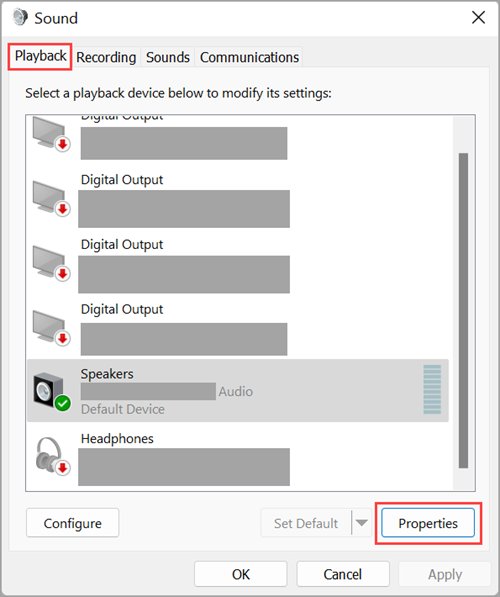
Press Windows key + R, type control mmsys.cpl and press Enter to open the Windows multimedia control panel, the classic Sound window with its Playback, Recording, Sounds and Communications tabs.
Below: every way to open it on Windows 11 and Windows 10, how to set default speakers and microphones, how to change system sounds and call ducking, and symptom-by-symptom audio fixes.
The fastest way to open the Sound control panel
The Run box works the same way on Windows 11 and Windows 10, from the desktop or with any app open.
- Press Windows key + R to open the Run box.
- Type
control mmsys.cpl. - Press Enter or select OK.
- The Sound window opens on the Playback tab. Select another tab at the top to manage microphones, system sounds or call behaviour.
What Is mmsys.cpl in Windows?
mmsys.cpl is the Control Panel module behind the Sound item. Microsoft's developer documentation calls it the Windows multimedia control panel, and its Control Panel reference lists the module as %SystemRoot%\System32\mmsys.cpl with the canonical name Microsoft.Sound.
Windows 11 still ships it. The Settings app links straight to it from System > Sound > More sound settings, because several device options exist only here. It is one of several .cpl modules still in Windows, alongside appwiz.cpl for Programs and Features.
| Tab | What it controls | Typical job |
|---|---|---|
| Playback | Every output device: speakers, headphones, HDMI monitors, Bluetooth audio | Pick the default speakers, enable a disabled device, change the output format |
| Recording | Every input device: built-in, USB and headset microphones | Pick the default microphone, check that a mic is enabled |
| Sounds | The sound scheme: the sound Windows and programs play for each event | Change or silence a notification, such as New Mail Notification |
| Communications | What happens to other audio when a call starts on the communication device | Stop music fading during calls, or mute it completely |
| Canonical name | Microsoft.Sound |
Open the panel with control /name Microsoft.Sound |
How to Open mmsys.cpl Step by Step
Every route below lands on the same Sound window. Pick the one that matches where you already are.
| Route | What to do | Best when |
|---|---|---|
| Method 1: Open mmsys.cpl from the Run dialog | Windows key + R, type control mmsys.cpl, press Enter |
Your hands are on the keyboard |
| Method 2: Open it from Windows 11 Settings | Start > Settings > System > Sound, scroll to Advanced and select More sound settings | You are already in Settings and need a tab it does not have |
| Method 3: Open it from Command Prompt, PowerShell, or Windows Terminal | Type control mmsys.cpl or control /name Microsoft.Sound and press Enter |
You are at a prompt or writing a script |
| Method 4: Open it through Control Panel | Type control panel in the taskbar search box, open it, then select Hardware and Sound > Sound | You prefer the mouse and Category view |
| Open it from Windows Search | Select Start, type sound and select Change system sounds | You want the Sounds tab first |
| Open it from Task Manager | Ctrl + Shift + Esc, File > Run new task, type control mmsys.cpl |
The taskbar or Start menu is not responding |
The Microsoft reference gives the full form as %systemroot%\system32\control.exe /name Microsoft.Sound, which is useful as a desktop shortcut target. For every other way into Control Panel itself, see 12 Ways to Open the Control Panel in Windows 10/11.
Managing Playback Devices and Default Speakers
The Playback tab lists every output device Windows knows about. The default device is the one apps use unless they pick their own output.
If an external monitor without speakers is set as the default, you hear nothing. Microsoft calls this out as a common cause of silent HDMI setups.
- Open the Sound window with
control mmsys.cpland stay on the Playback tab. - Right-click the speakers or headphones you want and choose the option that sets them as the default device.
- To send calls to a headset while music stays on the speakers, right-click the headset and set it as the Default Communication Device.
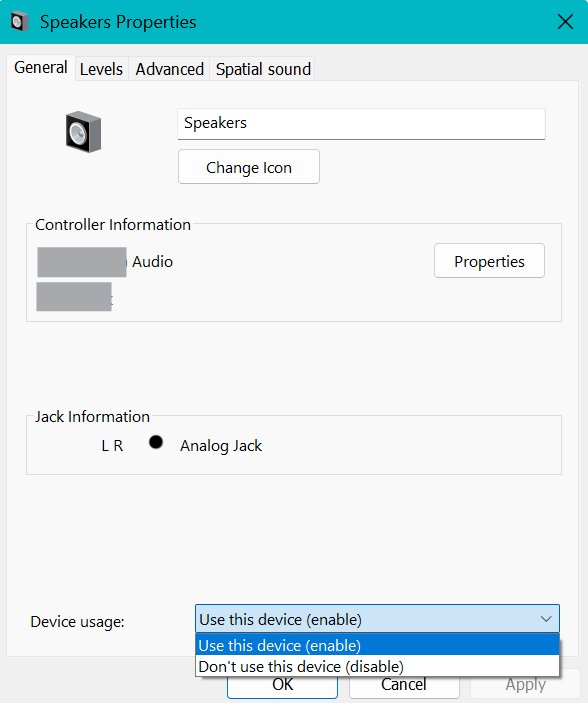
- To check a device is switched on, select it and select Properties. Next to Device usage, choose Use this device (enable).
- On the Advanced tab of the same Properties window, change Default Format if audio is silent or distorted, select OK and test again.
- On the Advanced tab, clear Enable audio enhancements under Signal Enhancements if the device sounds wrong, then select OK.
- Select OK to close the Sound window and play a video or song to test.
On Windows 11 the quick alternative is Settings > System > Sound: selecting a device under Output also makes it the default. To give one app its own device or volume, see how to adjust volume for individual programs in Windows 11/10.
Configuring Recording Devices and Microphones
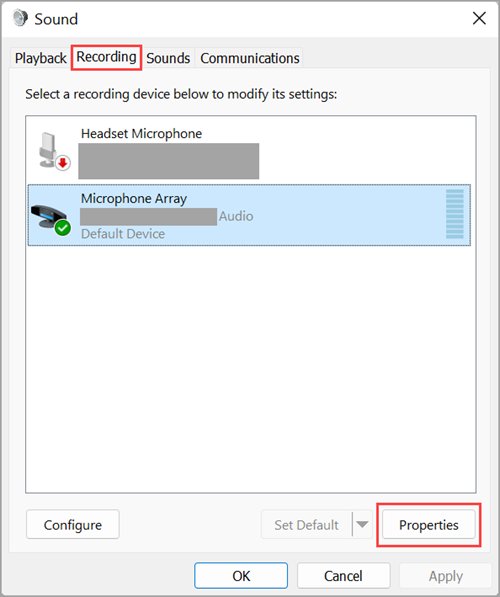
The Recording tab mirrors the Playback tab for input devices. Chat and dictation apps use the default recording device unless you pick one inside the app.
- Connect the microphone or headset, then open
control mmsys.cpland select the Recording tab. - Right-click the microphone you want and set it as the default device.
- For calling apps, right-click the headset microphone and set it as the Default Communication Device.
- Select the microphone and select Properties. Next to Device usage, make sure Use this device (enable) is chosen.
- If a USB headset sounds processed or echoes, open the Advanced tab and clear Enable audio enhancements, then select OK.
- Test the microphone on Windows 11 in Settings > System > Sound: under Input, select the microphone, select Start test, speak, then select Stop test and Play.
- Adjust the Input volume slider on that same page if the recording is too quiet.
Windows also blocks microphones through privacy settings. If apps still hear nothing, check Settings > Privacy & security > Microphone, covered in the troubleshooting section below.
Adjusting System Sounds and Communications Settings
The Sounds tab holds the sound scheme, which Microsoft defines as a collection of sounds for common program events such as signing in or receiving new email. Programs that register their own events appear in the same list.
Only .wav files can be assigned to an event. Other formats such as .mp3 or .aac do not work.
- Open
control mmsys.cpland select the Sounds tab, or search for Change system sounds from Start. - Under Program Events, select the event to change, for example New Mail Notification under Windows.
- Open the Sounds drop-down and pick a different sound, or choose the no-sound entry at the very top of the list to silence that event.
- To use your own file, select Browse and pick a
.wavfile. - Select OK to keep the change.
- To change call behaviour, select the Communications tab.
- Choose whether Windows lowers other sounds during a call (80% is the default reduction), mutes all other sounds, or does nothing, then select OK.
The Communications setting only applies to calls on the device chosen as the default communication device. When every call stream closes, Windows restores the volume of the sounds it lowered.
Sound control panel or Windows 11 Settings: which one to use
Settings handles everyday switching, but several jobs still exist only in mmsys.cpl. Use this table to go straight to the right window.
| Job | Windows 11 Settings | Sound control panel (mmsys.cpl) |
|---|---|---|
| Set the default speakers | System > Sound > select a device under Output | Playback tab, right-click the device |
| Set the default microphone | System > Sound > Input > Choose a device for speaking or recording | Recording tab, right-click the device |
| Separate device for calls | Not available | Default Communication Device on the Playback and Recording tabs |
| Enable or disable a device | Device properties page | Properties > Device usage |
| Turn off audio enhancements | Device page > Advanced settings > Audio enhancements set to Off | Properties > Advanced > Enable audio enhancements |
| Change the output format | Not listed on Microsoft's steps | Properties > Advanced > Default Format |
| Change event sounds | Not available | Sounds tab > Program Events |
| Lower other audio during calls | Not available | Communications tab |
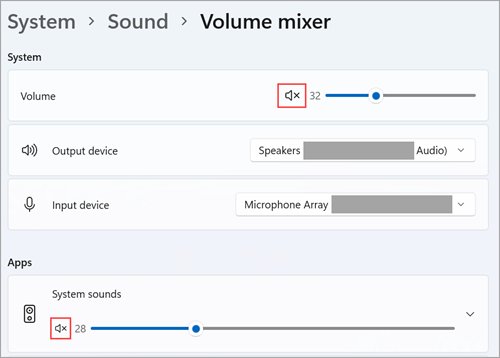
| Per-app volume | Volume mixer (ms-settings:apps-volume) |
Not available |
| Open by command | ms-settings:sound |
control mmsys.cpl |
How to check your sound settings took effect
- Reopen
control mmsys.cpl. On the Playback tab, the device you chose should be marked as the default device. - Play a video or song. Sound should come from that device without changing anything in the app.
- For a microphone, open Settings > System > Sound, select it under Input, select Start test and speak. Stop test and Play should replay your voice.
- For a system sound, trigger the event, such as a new email arriving. You should hear the new sound, or nothing if you silenced it.
- For call behaviour, start a call on the communication device while music plays. The music should drop, mute or stay the same, matching your Communications choice.
Troubleshooting Common Audio Problems with mmsys.cpl
Start with Microsoft's automated check on Windows 11: Start > Settings > System > Troubleshoot > Other troubleshooters, then select Run next to Audio. Work through the symptom that matches yours if that does not fix it.
No sound, or sound plays from the wrong device
The wrong device is the default, or the device is muted or disabled.
- Check cables and power, and unplug headphones in case they are taking over from the speakers.
- Open
control mmsys.cpl, and on the Playback tab set your speakers or headphones as the default device. - Select the device, select Properties, and set Device usage to Use this device (enable).
- Select the Speakers icon on the taskbar and make sure the volume is up and not muted. Some speakers and apps also have their own volume controls.
- If an external monitor without speakers was the default, choose a different output device.
The microphone does not appear in mmsys.cpl
Windows has not detected the device, usually because its driver is missing or not loading.
- Reconnect the microphone, or try a different USB port. Pair a Bluetooth headset again if needed.
- Right-click Start and select Device Manager, then expand Sound, video and game controllers.
- Select View > Show hidden devices, then Action > Scan for hardware changes.
- If the device is listed but disabled, right-click it and select Enable device.
- If it is still missing, right-click the audio device, select Uninstall device, tick Attempt to remove the driver for this device, select Uninstall and restart. Windows reinstalls the driver on restart.
The microphone is listed but apps cannot hear you
Microphone privacy settings block access, or another microphone is the default.
- Check the headset's own Mute button.
- Select Start > Settings > Privacy & security > Microphone and turn on Microphone access.
- Turn on Let apps access your microphone, then Let desktop apps access your microphone for desktop programs.
- In
control mmsys.cpl, set the microphone as the default device on the Recording tab. - Test it in Settings > System > Sound > Input with Start test.
No sound after a Windows update
An updated audio driver misbehaves, or an update is waiting for a restart.
- Select Start > Power. If Update and restart appears, select it to finish pending updates.
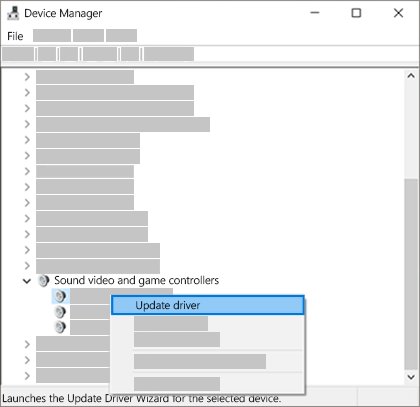
- Open Device Manager, expand Sound, video and game controllers, right-click the audio device and select Properties.
- On the Driver tab, select Roll Back Driver and follow the prompts.
- If roll back is unavailable, select Update driver > Browse my computer for drivers > Let me pick from a list of available drivers on my computer and choose High Definition Audio Device.
- Reopen
control mmsys.cpland confirm the right device is still the default.
Audio is distorted, quiet or crackling
Audio enhancements or the output format do not suit the device.
- In
control mmsys.cpl, select the device on the Playback tab and select Properties. - On the Advanced tab, clear Enable audio enhancements and select OK.
- Under Default Format, pick a different setting, select OK and test. Try another format if it does not help.
- Restart the audio services: search for services, right-click Windows Audio and Windows Audio Endpoint Builder in turn, and select Restart.
If none of these work, install the latest audio driver from your PC or sound card maker's own support site.
Frequently Asked Questions
Is mmsys.cpl safe to run on Windows?
Yes. mmsys.cpl is the Windows Sound control panel module, listed in Microsoft's Control Panel reference at %SystemRoot%\System32\mmsys.cpl under the canonical name Microsoft.Sound. Opening it changes nothing on its own; settings change only when you confirm them with OK.
How do I open mmsys.cpl from Run or Command Prompt?
Press Windows key + R, type control mmsys.cpl and press Enter. The same command works in Command Prompt, PowerShell and Windows Terminal. You can also run control /name Microsoft.Sound, which uses the canonical name from Microsoft's Control Panel reference.
How do I set my headphones or speakers as the default playback device?
Open control mmsys.cpl, right-click the headphones or speakers on the Playback tab and set them as the default device. On Windows 11 you can also go to Settings > System > Sound and select the device under Output, which sets it as the default.
What should I do if my microphone does not appear in mmsys.cpl?
Reconnect it, then open Device Manager, select View > Show hidden devices and Action > Scan for hardware changes. Enable the device if it is disabled. If it is still missing, uninstall the audio device with its driver and restart so Windows reinstalls it.
Can mmsys.cpl fix no sound after a Windows update?
Partly. mmsys.cpl confirms the right device is the default and enabled. If the update changed the audio driver, the fix is in Device Manager: open the audio device's Properties, select the Driver tab and choose Roll Back Driver, then restart.
Where is the Sound control panel in Windows 11?
Open Start > Settings > System > Sound, scroll to Advanced and select More sound settings. That link opens the same Sound window as control mmsys.cpl, with the Playback, Recording, Sounds and Communications tabs.
Why does Windows lower my music during calls?
The Communications tab in mmsys.cpl tells Windows to reduce other sounds by 80% by default when a call uses the communication device. Change it to mute other sounds or to do nothing, then select OK. Windows restores the volume when the call ends.
How do I turn off a Windows notification sound?
Open control mmsys.cpl and select the Sounds tab. Select the event under Program Events, open the Sounds drop-down and choose the no-sound entry at the very top of the list, then select OK. That event then plays no sound.
Bottom Line
Use Settings > System > Sound for quick device switching, and keep control mmsys.cpl for everything Settings cannot do. Only the Sound control panel sets a separate communication device, changes event sounds, controls call ducking and exposes the Default Format list. control mmsys.cpl opens it in one step on every current Windows 11 and Windows 10 PC.