To upgrade Windows 11 Home to Pro, open Settings > System > Activation, then either buy Pro through Upgrade your edition of Windows or enter a Windows 11 Pro product key under Change product key.
This guide covers both Microsoft routes step by step, what Pro adds, what it costs, how to confirm the upgrade worked, and how to fix the activation errors that stop it.
The fastest way to upgrade Windows 11 Home to Pro
Microsoft calls the Microsoft Store route the best way to upgrade. It works when you do not already own a Pro product key.
- Select Start, then open Settings > System > Activation.
- Check that the edition next to the Windows logo reads Windows 11 Home and that Activation state shows Windows is activated.
- Expand Upgrade your edition of Windows.
- Next to Upgrade in the Microsoft app, select Open Store.
- Sign in with your Microsoft account in the Microsoft Store and complete the Windows 11 Pro purchase.
- When prompted, install Windows 11 Pro and restart the PC.
Already have a 25-character Windows 11 Pro key? Skip the Store and use Change product key on the same page, as shown in Method 2.
Which upgrade route fits your situation?
| Your situation | Use this | Why |
|---|---|---|
| Activated Windows 11 Home, no Pro key | Method 1: Microsoft Store | You buy a Pro digital license linked to your Microsoft account |
| You bought a Windows 11 Pro key from Microsoft or an authorized retailer | Method 2: Change product key | The key upgrades the edition and activates it in one pass |
| You own a Windows 10 Pro key | Method 3: try the key, fall back to the Store | Microsoft's upgrade steps ask for a Windows 11 Pro key |
| You want a fresh system, or the in-place upgrade keeps failing | Method 4: clean install | Setup asks for the key and installs Pro directly |
| Windows 11 Home is not activated | Activate Home first | Microsoft's manual steps apply only to an activated Home installation |
| The PC runs Windows 11 Home in S mode | Decide on S mode first | Upgrading the edition keeps S mode; switching out is a separate step |
| A "generic" or shared Pro key found online | Do not use it | Not a Microsoft route; activation needs a key unique to your device |
The rival's generic-key method is left out on purpose. Microsoft's activation-error page says a key used on multiple devices is marked not valid, so a shared key cannot give you a lasting, legitimate Pro license.
Windows 11 Home vs Pro: What You Gain
Home already includes Windows Security, Windows Hello, Find my device and device encryption on capable hardware. Pro adds the features below.
| Feature | Windows 11 Home | Windows 11 Pro | What it does |
|---|---|---|---|
| BitLocker Drive Encryption and BitLocker To Go | No (device encryption only) | Yes | Encrypt chosen drives and removable drives manually |
| Remote Desktop host | Can connect out only | Yes | Lets other devices connect to this PC |
| Domain join and Microsoft Entra ID join | No | Yes | Joins the PC to a work network or organization |
| Hyper-V | No | Yes | Runs full virtual machines |
| Windows Sandbox | No | Yes | Opens a disposable desktop for testing untrusted apps and files |
| Windows Hello for Business | No | Yes | Passwordless sign-in for work accounts |
| Microsoft Information Protection integration | No | Yes | Helps stop accidental data leaks on managed devices |
If none of these rows matter to you, Home is the right edition and the upgrade is money spent on nothing.
What You Need Before You Upgrade
| Requirement | How to check | If it fails |
|---|---|---|
| Your current edition is Home | Settings > System > Activation, edition shown next to the Windows logo | Already on Pro? There is nothing to upgrade |
| Home is activated | Activation state on the same page | Activate Home first, or fix the error it shows |
| An administrator account | Settings > Accounts > Your info shows Administrator under your name | Sign in as an administrator; the key change asks for admin approval |
| A Microsoft account for Store purchases | An email address appears above Administrator on Your info | Add one under Activation with Add an account |
| A Pro license you may already own | Your Microsoft account order history, the confirmation email, or the key card from the retailer | No key? Use Method 1 |
| Your files backed up | Copy important files to OneDrive or an external drive | Back up before any edition change or clean install |
| Power and internet | Plug in a laptop and confirm you are online | Activation fails offline with errors such as 0xC004FC03 |
A PC that once ran activated Windows 10 Pro and upgraded to Windows 11 for free may already hold a Pro digital license. If you reinstalled Home on it, the Activation troubleshooter can spot that license, as covered in the troubleshooting section below.
Method 1: Upgrade Through the Microsoft Store
When you upgrade through the Store, Windows detects whether your Home installation is activated and guides you from there. The purchase gives you a digital license rather than a product key.
- Open Settings > System > Activation.
- Expand Upgrade your edition of Windows.
- Select Open Store next to Upgrade in the Microsoft app. You can also press Win + R, type
ms-windows-store://windowsupgrade/and select OK. - Confirm you are signed in to the Microsoft Store with your Microsoft account.
- Follow the on-screen purchase instructions for Windows 11 Pro.
- After the purchase is confirmed, select the option to install Windows 11 Pro.
- Save your work and let the PC restart to finish the upgrade.
The confirmation email goes to the Microsoft account you bought with, and that account holds the Pro digital license. Keep it; you need the same account to reactivate after a hardware change.
Method 2: Upgrade With a Windows 11 Pro Product Key
Use this when you have a 25-character Windows 11 Pro key from Microsoft, a boxed copy, a digital copy from an authorized retailer, or your organization.
- Open Settings > System > Activation. The shortcut
ms-settings:activationin the Run box opens the same page. - Next to Change product key, select Change.
- If User Account Control appears, enter an administrator's credentials and select Yes.
- In the Change Product Key window, type the 25-character Windows 11 Pro key.
- Select Next to start the upgrade to Windows 11 Pro.
- Follow the prompts and restart when asked.
Where the key is depends on how you bought it. A digital copy's key is in the confirmation email; a boxed copy's key is on a card inside the box. Microsoft keeps a record of the key only when you bought from its online store.
Method 3: Upgrade With a Windows 10 Pro Key
Microsoft's Home-to-Pro instructions ask for a Windows 11 Pro key and do not state that a Windows 10 Pro key upgrades Windows 11 Home. Trying one costs nothing, and Windows tells you straight away if it refuses.
- Find the Windows 10 Pro key in the confirmation email, the retailer's digital locker or the card in the box.
- Open Settings > System > Activation and select Change next to Change product key.
- Type the key and select Next.
- If the upgrade starts, restart when prompted and check Activation state afterwards.
- If Windows reports the key is for a different version or edition (for example error 0xC004F034), stop and use Method 1 or a Windows 11 Pro key instead.
A key that was already used on another PC can fail with 0xC004C008 or 0xC004C003. Each device needs its own license. If the PC itself still runs Windows 10, the Windows 10 upgrade guide covers that side first.
Method 4: Clean Install Windows 11 Pro
A clean install erases the drive and installs Windows 11 Pro from scratch. Microsoft's multi-edition installation media uses your product key to unlock the matching edition, and you need a valid Pro key to install Pro on a PC that had Home.
- Back up every file you want to keep; the clean install removes them.
- Go to Microsoft's Download Windows 11 page and use Create Windows 11 Installation Media to make a bootable USB drive on an x64 PC.
- Start the PC from the USB drive and begin Windows Setup.
- When setup asks for a product key, enter your Windows 11 Pro key.
- Finish setup and sign in; Windows activates online after installation.
- Open Settings > System > Activation and confirm the edition reads Windows 11 Pro.
Do not choose I don't have a product key and then pick Pro unless you own a Pro license for this PC. Installing an edition you are not licensed for ends in error 0xC004F212 or 0xC004F210.
The generic-key method from other guides is not included here; see the decision table above for why.
How Long the Upgrade Takes
Microsoft does not publish a duration for the Home-to-Pro upgrade. Its edition-upgrade table does confirm that Home to Pro is supported but needs a restart, so plan for one reboot.
| Stage | What happens | What can slow it |
|---|---|---|
| Store purchase or key entry | Windows checks the license online | No internet, wrong date and time, busy activation servers |
| Edition upgrade | Windows switches the installed edition to Pro | Pending Windows updates |
| Restart | Required for Home to Pro | Unsaved work in open apps |
| Activation | Pro activates with the digital license or key | Server delays; retry later if errors 0xC004C012 to 0xC004C014 appear |
| Clean install (Method 4 only) | Full Windows setup from USB | Drive speed, restoring apps and files afterwards |
How to Confirm Windows 11 Pro Features Are Available
- Open Settings > System > Activation. The edition next to the Windows logo should read Windows 11 Pro.
- Check Activation state. It should say Windows is activated, ideally with a digital license linked to your Microsoft account.
- Open Settings > System > About and confirm Edition under Windows specifications shows Windows 11 Pro.
- Check BitLocker: select Start, type BitLocker and select Manage BitLocker. The Control Panel page should open.
- Check Remote Desktop: open Settings > System > Remote Desktop and confirm the Remote Desktop switch is available.
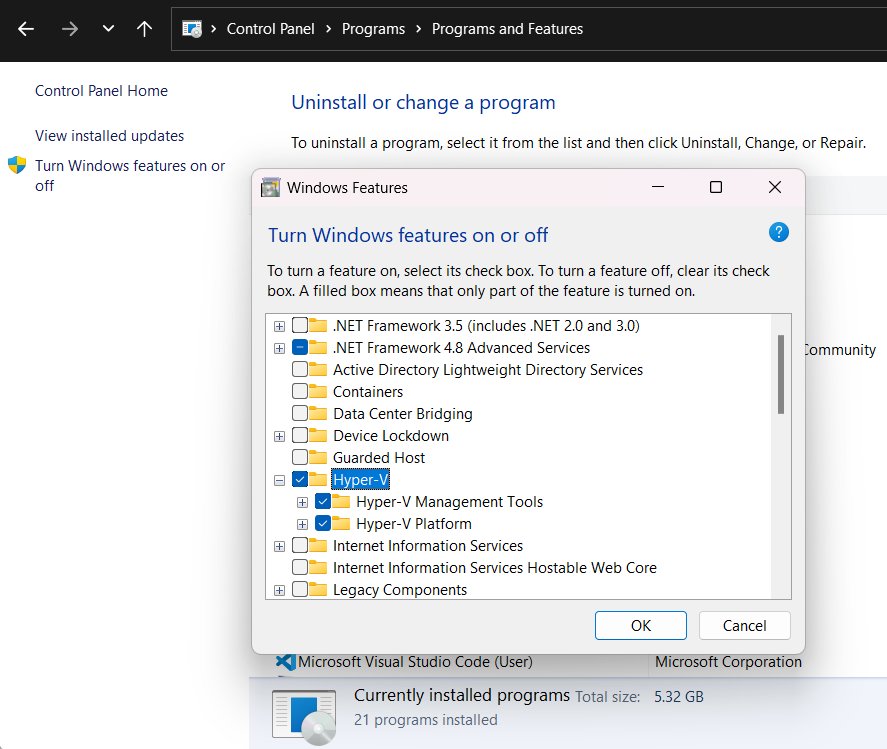
- Check Windows Sandbox: search for Turn Windows features on or off and look for Windows Sandbox in the list.
If Sandbox is listed but greyed out, the PC does not meet its hardware needs, such as virtualization enabled in the BIOS and at least 4 GB of RAM. That is a hardware limit, not an edition problem.
Troubleshooting Common Upgrade Problems
Why can't I upgrade Windows 11 Home to Pro? "Upgrade your edition of Windows" is missing
The PC is already on Pro, or edition upgrade is not available for this installation, often because Home is not activated.
- Open Settings > System > Activation and read the edition name next to the Windows logo.
- If it already says Pro, stop here; nothing needs upgrading.
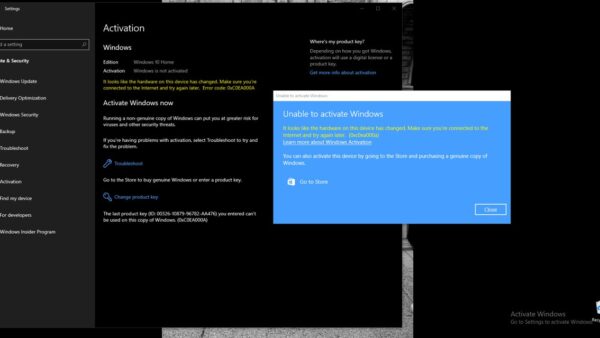
- If Activation state shows Windows is not activated, fix Home's activation first.
- Select Troubleshoot on the Activation page to run the Activation troubleshooter.
- If the section is still missing, use Change product key with a Windows 11 Pro key instead.
The Microsoft Store upgrade fails or gets stuck
A licensing service or activation server error, often shown as 0x87e10bc6, or a connection problem.
- Wait a few minutes, then open Settings > System > Activation and select Troubleshoot.
- When the troubleshooter finishes, select Go to Microsoft Store.
- If the Store shows a problem, select Try again.
- Check Settings > Time & language > Date & time; a wrong clock causes 0x80072F8F.
- Confirm you are online; 0xC004FC03 and 0x8007267C mean Windows cannot reach the activation service.
Windows 11 Pro is installed but not activated
The key or license does not match the installed edition, or the activation servers were busy.
- Open Settings > System > Activation and note the exact error code.
- Select Troubleshoot. If it finds a digital license for a different edition, follow its instructions to install that edition.
- If you have a Pro key, select Change product key and enter it again.
- For 0xC004C012, 0xC004C013 or 0xC004C014, wait; Windows activates when the server is back.
Error code 0xC004C003
The Pro key is not valid, usually because it was used or tried on more than one device.
- Run Troubleshoot on the Activation page.
- Check for a paper copy of your 25-character key and enter it with Change product key.
- If a reseller sold you the key, contact that reseller for a valid one.
- If none of that works, buy Pro through Upgrade your edition of Windows instead.
Windows says the product key is invalid or for a different edition
Errors 0xC004F034, 0xC004F210, 0xC004E016 and 0xC004F00F mean the key belongs to another version or edition, such as Enterprise.
- Check the key's source: an Enterprise key cannot activate Home or Pro.
- Retype the key in Change product key, checking each of the 25 characters.
- If it is a Windows 10 Pro key and Windows rejects it, use Method 1 or a Windows 11 Pro key.
The PC stays in S mode after upgrading
Upgrading the edition from Windows 11 Home in S mode keeps S mode; leaving it is a separate, one-way switch.
- Open Settings > System > Activation.
- Under Switch to Windows 11 Pro, select Go to the Store. Do not use the link under Upgrade your edition of Windows for this step.
- On the Switch out of S mode page in Microsoft Store, select Get and confirm.
- Know that switching out of S mode is free but cannot be undone.
Can You Downgrade from Windows 11 Pro Back to Home?
Not in place. Microsoft's supported downgrade table marks Pro to Home as not supported, so the only way back to Home is a clean install with a Home license.
- Back up all files, because a clean install erases the drive.
- Create Windows 11 installation media from Microsoft's Download Windows 11 page.
- Start the PC from the USB drive and install Windows 11.
- Enter a Windows 11 Home key when asked, or install Home on a PC whose firmware carries an embedded Home key.
- Check Settings > System > Activation afterwards to confirm Home is activated.
Entering a Home key in Change product key on a Pro PC does not count as a supported downgrade. Choose Pro only when you are sure you want to keep it.
How Much Does the Upgrade Cost?
| What you buy | Price | Source |
|---|---|---|
| Windows 11 Pro full license (download) on the Microsoft Store website | $199.99 (US) | Microsoft Store product page |
| Home-to-Pro upgrade inside the Microsoft Store app | Shown in the Store app at checkout for your region | Opened from Upgrade your edition of Windows |
| Switching out of S mode | Free | Microsoft S mode FAQ |
| Using a Pro license you already own | No new purchase | Your key or Microsoft account digital license |
Microsoft's upgrade support page does not list the in-app upgrade price, so check the figure in the Store before you confirm. The $199.99 product is meant for PCs that need a new Windows license, not specifically for upgrading an activated Home PC.
Do You Need Windows 11 Pro for BitLocker?
You need Pro, Enterprise or Education for BitLocker Drive Encryption, but not for basic encryption: Windows 11 Home includes device encryption on supported hardware. Device encryption turns on BitLocker automatically for the system drive and fixed drives when you sign in with a Microsoft account, and its recovery key is saved to that account. Check it in Settings > Privacy & security > Device encryption. Pro adds manual control: choosing which drives to encrypt and BitLocker To Go for removable drives.
Do You Need Windows 11 Pro for Remote Desktop?
Only on the PC you connect to. The device you connect from can run Home, Pro, macOS, iOS or Android.
| Role | Home | Pro | What to use |
|---|---|---|---|
| Connecting from this PC to another PC | Yes | Yes | Remote Desktop Connection from the taskbar search |
| Letting others connect to this PC | No | Yes | Settings > System > Remote Desktop, then turn on Remote Desktop |
| Connecting from a Mac or iPhone | Not applicable | Not applicable | Windows App from the Microsoft Store or Apple App Store |
| Connecting from Android | Not applicable | Not applicable | The Remote Desktop app from Google Play |
Tips for a Smooth Upgrade
| Tip | Why it matters |
|---|---|
| Link your Microsoft account on the Activation page before and after upgrading | It lets the Activation troubleshooter reactivate Pro after a motherboard change |
| Buy with the same Microsoft account you sign in with | The Store ties the Pro digital license to the purchasing account |
| Keep the confirmation email | It holds the order record, or the product key for online Microsoft Store purchases |
| Install pending Windows updates first | Microsoft's activation guidance starts with confirming Windows is up to date |
| Save your work before starting | Home to Pro needs a restart |
| Buy keys only from Microsoft or authorized retailers | Keys used on several PCs are marked not valid and fail with 0xC004C003 |
| Leave S mode only if you need non-Store apps | The switch is free but permanent |
Frequently Asked Questions
How do I upgrade Windows 11 Home to Pro?
Open Settings > System > Activation. Expand Upgrade your edition of Windows and select Open Store to buy Pro, or select Change next to Change product key and enter a Windows 11 Pro key. Restart when prompted, then confirm the edition reads Windows 11 Pro.
Can I upgrade Windows 11 Home to Pro for free?
Only if you already own a Pro license. Microsoft's upgrade page lists two routes: enter a Windows 11 Pro product key or buy Pro in the Microsoft Store. A PC that had activated Windows 10 Pro and upgraded free to Windows 11 may already hold a Pro digital license.
Can I upgrade Windows 11 Home to Pro with CMD?
No. Microsoft's edition-upgrade table marks the command-line tool as not supported for Home to Pro. The supported way is entering a product key manually in Settings > System > Activation > Change product key, or buying the upgrade in the Microsoft Store.
Where do I enter a Windows 11 Pro key?
Open Settings > System > Activation and select Change next to Change product key. Approve the User Account Control prompt, type the 25-character Pro key in the Change Product Key window and select Next to start the upgrade.
Why can't I upgrade Windows 11 Home to Pro?
The usual causes are an unactivated Home installation, a key for the wrong edition, or a key already used on another PC. Microsoft's manual steps apply only to activated Home. Run Troubleshoot on the Activation page, then check the error code against Microsoft's activation-error list.
How do I upgrade Windows 11 Home Single Language to Pro?
Use the same Activation page. If Upgrade your edition of Windows appears, select Open Store; if you have a Pro key, use Change product key. Microsoft notes that when the upgrade option is missing, edition upgrade might not be available for that installation.
Can I upgrade Windows 11 Home to Enterprise?
Not directly. Microsoft's edition-upgrade table lists Home to Pro, Pro for Workstations, Pro Education and Education, but no Home to Enterprise path. Enterprise upgrades start from Pro, and an Enterprise key entered on Home fails with errors such as 0xC004F00F.
Is there a Windows 11 Business edition to upgrade to?
No edition is called Business. Microsoft's business comparison covers Home, Pro and Pro for Workstations, and only Pro and above add BitLocker and business management features. Home can also move to Pro for Workstations by manually entering that edition's product key.
Why upgrade from Windows 11 Home to Pro?
Upgrade when you need a Pro-only feature: BitLocker Drive Encryption, hosting Remote Desktop, joining a domain or Microsoft Entra ID, Hyper-V or Windows Sandbox. If you need none of them, Home already includes Windows Security and device encryption.
Will a Windows 10 Pro key work on Windows 11 Home?
Microsoft's Home-to-Pro instructions ask for a Windows 11 Pro key and do not promise a Windows 10 Pro key will work. You can try it under Change product key; if Windows reports a key for a different version, buy Pro in the Store instead.
Can I go back to Windows 11 Home after upgrading?
Not with an in-place change. Microsoft marks Pro to Home as an unsupported downgrade path, so returning to Home requires a clean install with a Home license, after backing up your files.