To find the AppData folder in Windows 11 or Windows 10, press Windows + R, type %UserProfile%\AppData, and press Enter. This opens the main AppData folder for your current Windows account. To open only the Roaming folder, use %AppData%; for the Local folder, use %LocalAppData%.
| Folder you need | Command | Default location |
|---|---|---|
| Main AppData folder | %UserProfile%\AppData |
C:\Users\YourName\AppData |
| Roaming | %AppData% |
C:\Users\YourName\AppData\Roaming |
| Local | %LocalAppData% |
C:\Users\YourName\AppData\Local |
| LocalLow | %UserProfile%\AppData\LocalLow |
C:\Users\YourName\AppData\LocalLow |
AppData is hidden by default, but you do not need to reveal hidden files before opening it with one of these commands.
How Do I Access My AppData Folder?
You can open AppData through the Run dialog, File Explorer’s address bar, or by making hidden folders visible. The first method is usually the fastest.
Method 1: Use the Run Command
- Press Windows + R to open Run.
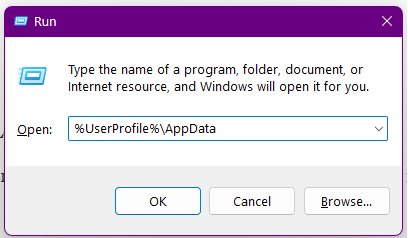
- Enter
%UserProfile%\AppData. - Press Enter or click OK.
File Explorer will open the main AppData folder containing the Local, LocalLow, and Roaming subfolders.
You can also enter %AppData% when a guide specifically asks you to open AppData\Roaming. However, this command does not open the AppData root, despite frequently being described that way.
Method 2: Use the File Explorer Address Bar
- Press Windows + E to open File Explorer.
- Click the address bar at the top of the window.
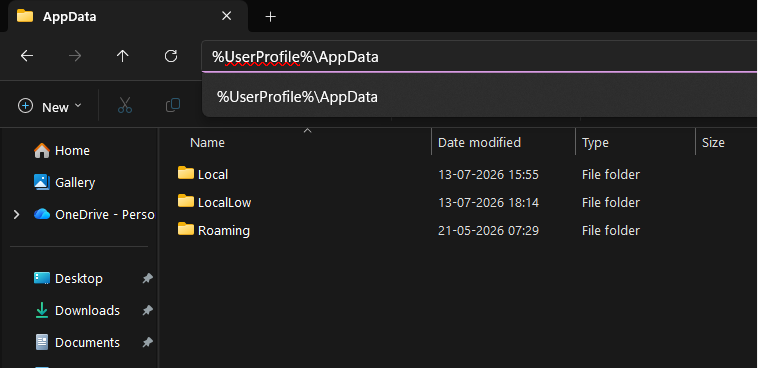
- Enter
%UserProfile%\AppData. - Press Enter.
The same address bar accepts %AppData%, %LocalAppData%, and complete folder paths. This is useful when you have already opened File Explorer and do not want to use the Run dialog.
Method 3: Navigate to AppData Manually
The default AppData location is:
C:\Users\YourUsername\AppData
Replace YourUsername with the name of your Windows user-profile folder.
- Open File Explorer.
- Open This PC.
- Open the drive where Windows is installed, normally Local Disk (C:).
- Open the Users folder.
- Open the folder for your Windows account.
- Open AppData.
If AppData is not visible, enable hidden items using the steps below.
Show the AppData Folder in Windows 11
- Open File Explorer.
- Select View from the toolbar.
- Open Show.
- Select Hidden items.
AppData and other hidden files will appear slightly faded to indicate that they are normally hidden.
Show the AppData Folder in Windows 10
- Open File Explorer.
- Select the View tab on the ribbon.
- Enable the Hidden items checkbox.
You can turn the setting off again after finding the folder. Hiding AppData does not delete it or prevent applications from using it.
Method 4: Open AppData from Command Prompt or PowerShell
You can open the folder from Windows Terminal, Command Prompt, or PowerShell with:
explorer "%UserProfile%\AppData"To open Roaming or Local instead, use:
explorer "%AppData%"
explorer "%LocalAppData%"
This method is useful when you are already following command-line troubleshooting instructions.
What to Do If the AppData Folder Is Missing
AppData is normally present for every Windows user profile. If you cannot see it, the folder is usually hidden rather than missing.
Try these checks:
- Enter
%UserProfile%\AppDatadirectly into Run or File Explorer. - Enable Hidden items in File Explorer.
- Confirm that you opened your own profile under
C:\Users. - Check the spelling of the path, including the backslashes.
- Sign in to the Windows account whose application files you need.
Searching for “AppData” from the Start menu is not reliable because Windows Search may exclude hidden system locations. Using the Run command or File Explorer address bar is faster and more dependable.
Why does %AppData% open Roaming?
%AppData% is a Windows environment variable whose value points specifically to the current account’s Roaming folder:
C:\Users\YourUsername\AppData\Roaming
It is not a shortcut to the main AppData directory. Use %UserProfile%\AppData when you need to choose between Local, LocalLow, and Roaming.
Why do I get an access denied message?
You should normally be able to open the AppData folder belonging to your current account. Access may be denied when you try to open another person’s profile, a protected application folder, or files currently locked by an app.
Do not take ownership of the entire AppData folder or broadly change its permissions. Doing so can cause application, Microsoft Store, profile, and sign-in problems. Sign in to the correct account or follow the troubleshooting instructions supplied by the affected app.
Understanding the AppData Folder Structure
Applications use AppData to store information specific to your Windows account. This may include settings, browser profiles, saved sessions, caches, local databases, game files, logs, temporary files, and authentication data.
| Folder | What it normally contains | Example uses |
|---|---|---|
| Local | Data intended to remain on the current computer | Large caches, temporary files, local databases and Microsoft Store app data |
| LocalLow | Data written by apps or processes running with more restricted permissions | Some games, browser components and sandboxed applications |
| Roaming | Smaller user settings historically designed to follow roaming Windows profiles | Application preferences, templates, profiles and configuration files |
The name Roaming does not mean everything in that folder is automatically synchronized through your Microsoft account or OneDrive. Roaming profiles are mainly used in managed business environments, and each application decides what it stores there.
Microsoft Store applications commonly store user-specific data under:
%LocalAppData%\Packages
The folder names may use internal package identifiers rather than the familiar names displayed in the Start menu.
FAQs
Where is the AppData folder in Windows 11?
It is normally located at C:\Users\YourUsername\AppData. Press Windows + R, enter %UserProfile%\AppData, and press Enter to open it directly.
Where is the AppData folder in Windows 10?
Windows 10 uses the same default location: C:\Users\YourUsername\AppData. The folder is hidden unless you enable Hidden items in File Explorer.
What is the AppData folder used for?
Applications use it to store settings, profiles, caches, temporary data, local databases, saved sessions, and other files associated with an individual Windows account.
Why is the AppData folder hidden?
Windows hides AppData because applications manage most of its contents automatically. Accidental changes can erase settings, corrupt profiles, or stop apps from working.
What is the shortcut for opening AppData?
Press Windows + R and use %UserProfile%\AppData for the main folder, %AppData% for Roaming, or %LocalAppData% for Local.
Does %AppData% open the main AppData folder?
No. %AppData% opens AppData\Roaming. Use %UserProfile%\AppData to open the parent folder containing Local, LocalLow, and Roaming.
How do I open AppData\LocalLow?
Press Windows + R, enter %UserProfile%\AppData\LocalLow, and press Enter.
Can I unhide AppData permanently?
Yes. Enable Hidden items from File Explorer’s View menu. This displays all hidden files and folders, not just AppData.
Can I delete the AppData folder to free storage?
No. Deleting AppData can damage installed applications and remove important local information. Use Windows Storage settings or an application’s own cache-clearing option instead.
Is AppData shared between Windows accounts?
No. Each Windows user has a separate AppData folder inside their own profile. One account’s application settings are normally kept separate from another account’s settings.
Why is my AppData folder so large?
Browser caches, games, communication apps, Microsoft Store packages, temporary files, local email, and application databases can consume significant space. Use a storage analyser to identify the responsible folder, then clean it through the related application where possible.
Can I delete files from AppData?
You should not delete the entire AppData folder. Applications and Windows components rely on files stored there, and removing them can reset settings, erase local data, sign you out, or stop an app from working.
Deleting a specific cache is sometimes safe when the application’s official troubleshooting instructions tell you to do so. Close the app first and remove only the named folder or file.
For general disk cleanup, use Settings > System > Storage > Temporary files instead of manually deleting unfamiliar AppData folders.
Can I back up AppData?
Yes, but it is better to back up selected folders belonging to applications whose local settings or profiles you need. Close the application before copying its data to avoid capturing files while they are being changed.
Some apps provide their own export, synchronization, or backup option. Use that method when available because it is more reliable than copying internal databases manually.