To get help in Windows 11, open the Start menu, type Get Help, and launch the app. Describe the problem or enter the exact error code, and Get Help will suggest instructions or run an automated troubleshooter. If the problem remains, select Contact Support when available to see Microsoft’s support options.
You can also use Windows Search for quick answers, Quick Assist for remote help from someone you trust, or Microsoft’s Windows support website when the PC’s built-in tools are not working.
| Help option | Best used for | How to open it |
|---|---|---|
| Get Help | Guided troubleshooting and Microsoft support | Open Start and search for Get Help |
| Windows Search | Finding settings, apps, error information, and support pages | Press Windows + S |
| Quick Assist | Letting a trusted person view or control your PC remotely | Press Ctrl + Windows + Q |
| Windows troubleshooters | Audio, network, printer, update, camera, and other common problems | Search for the issue in Get Help |
| Microsoft Support | Official documentation, account help, chat, and other support options | Visit Microsoft’s support website |
| Windows recovery tools | Repairing serious system or startup problems | Open Settings > System > Recovery |
1. Use Windows Search
Windows Search is the fastest option when you know the setting, feature, or error you need help with.
- Press Windows + S or select the Search box on the taskbar.
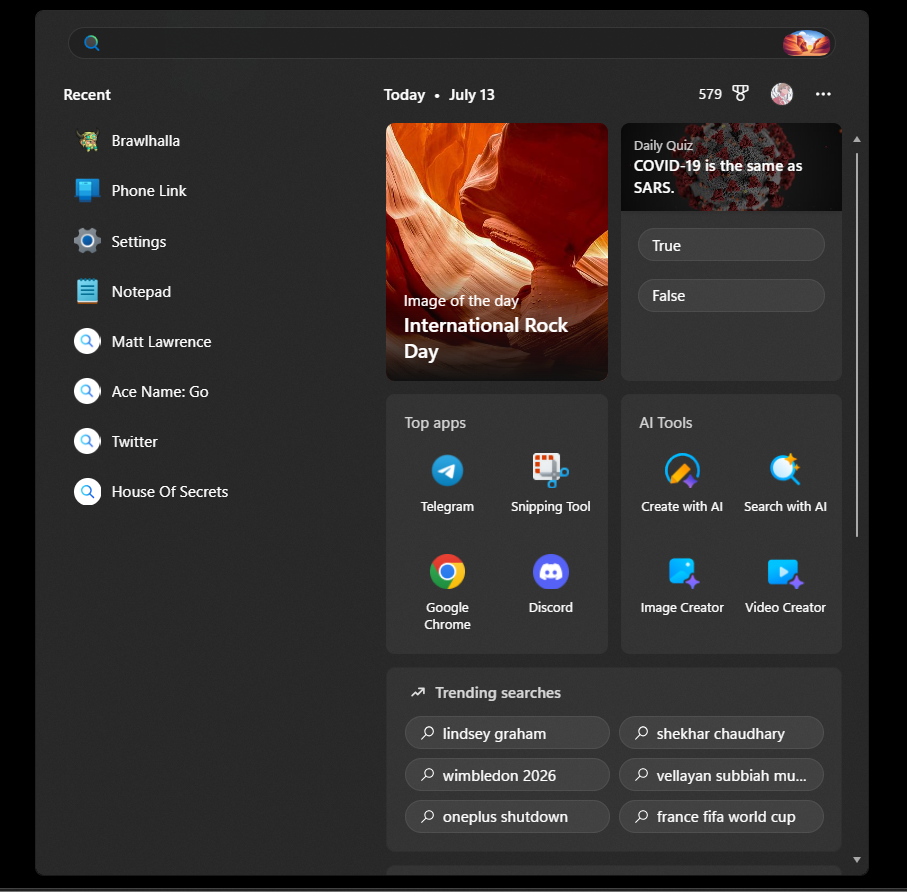
- Enter the name of the feature or problem.
- Select a matching setting, app, or support result.
Use specific searches such as:
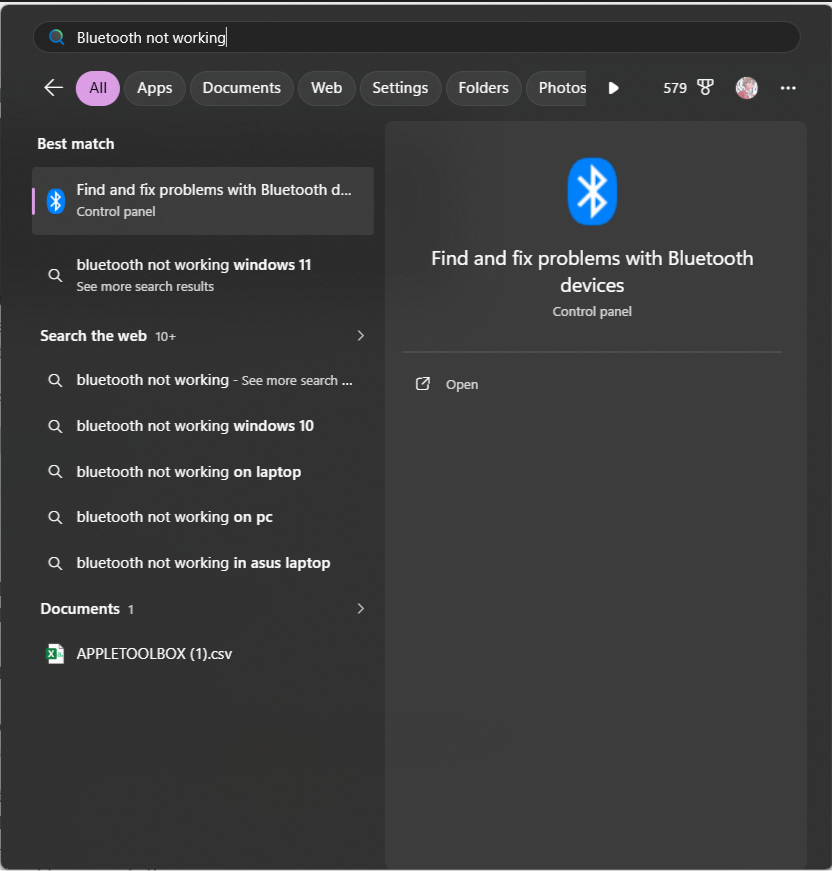
Bluetooth not workingChange default browser0x80070002Printer offlineWindows Update troubleshooter
When Windows displays an error code, search for the complete code rather than entering only a general description. Error codes usually identify the affected Windows component more accurately.
2. Open the Get Help App
Get Help is Microsoft’s central support app for Windows 11. It provides support articles, guided instructions, automated diagnostics, community results, and access to Microsoft support when that option is available for the issue.
- Open the Start menu.
- Type Get Help.
- Select the Get Help app.
- Describe the problem or paste the error message.
- Follow the suggested steps or start the recommended diagnostic test.
Describe one problem at a time. For example, enter Bluetooth headphones connect but have no sound instead of simply typing Bluetooth.
Contact Microsoft through Get Help
If the suggested instructions do not resolve the problem, Get Help may display a Contact Support option.
- Sign in with your Microsoft account if requested.
- Select the Microsoft product or Windows category related to the problem.
- Describe the issue and confirm the suggested category.
- Select one of the support methods offered to your account.
Available options can vary by product, account, country, time, and the type of problem. They may include live chat, a callback, community support, or additional self-help instructions. A callback or live agent is not offered for every Windows question.
If Get Help will not open, use the official Microsoft Support contact page from a browser.
3. Use the Get Started App
The Get Started app explains Windows 11 features and helps you finish setting up the device. It is useful for learning about personalization, Microsoft accounts, OneDrive, Microsoft 365, phone integration, and other Windows features.
- Open Start.
- Search for Get Started.
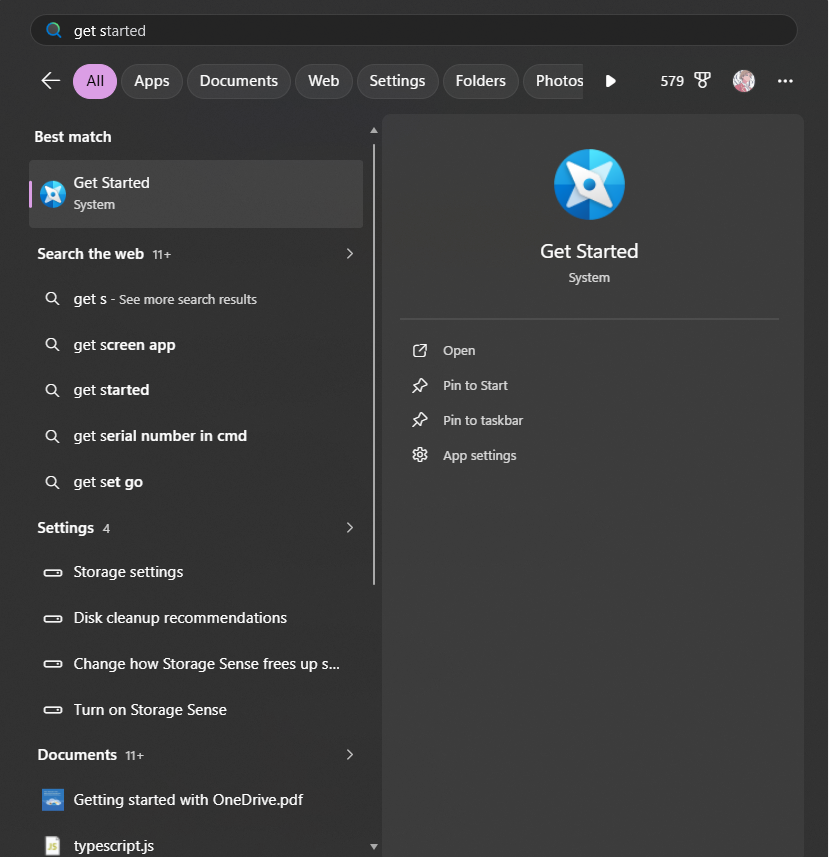
- Open the app and select the area you want to configure or learn about.
Get Started is primarily an onboarding and feature-discovery app. Use Get Help or a troubleshooter when you are trying to fix an error, hardware failure, or broken Windows component.
4. Use Quick Assist for Remote Help
Quick Assist allows a trusted person to view your screen and, with separate permission, control your Windows PC remotely. It is useful when a friend, family member, administrator, or support technician needs to see the problem directly.
Receive help through Quick Assist
- Press Ctrl + Windows + Q, or search for Quick Assist from Start.
- Ask the person helping you to generate a security code from their Quick Assist app.
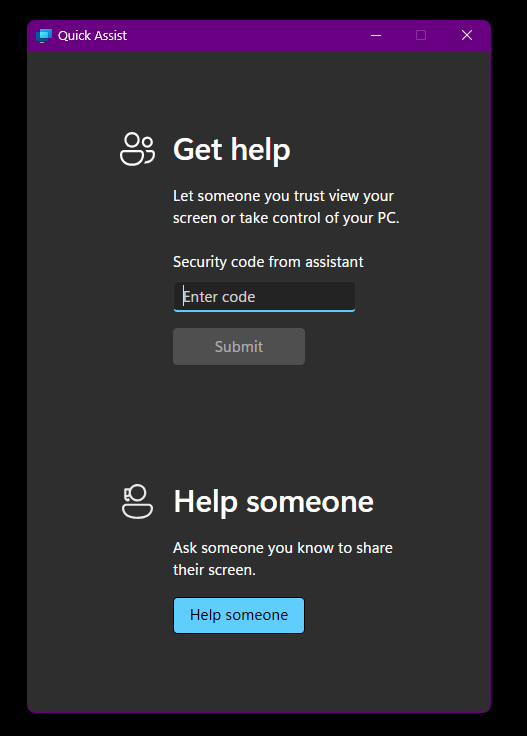
- Enter the six-digit code under Get help.
- Select Submit.
- Confirm the person’s identity and select Allow to share your screen.
- Approve full control only when it is necessary and you trust the person.
You can cancel control or end the session at any time. The helper cannot connect without the temporary code and your approval.
Security warning: Never allow remote access because of an unsolicited phone call, pop-up, email, or message claiming that your PC is infected. Microsoft does not unexpectedly contact people and ask them to open Quick Assist.
5. Run Windows Troubleshooters
Windows 11 includes automated diagnostics for common problems. Microsoft has moved many of these troubleshooters into the Get Help app, although some can still be started from Settings.
Run a troubleshooter from Get Help
- Open the Get Help app.
- Enter the relevant problem, such as
audio troubleshooterorWindows Update troubleshooter. - Select the suggested troubleshooter.
- Allow the app to run diagnostics when prompted.
- Apply the recommended fix and restart the PC if required.
Get Help includes diagnostics for issues involving:
- Audio and microphones
- Bluetooth devices
- Network and internet connections
- Printers
- Cameras
- Windows Update
- Microsoft Store apps
- Microsoft 365 activation and setup
Open troubleshooters from Windows Settings
- Open Settings.
- Go to System > Troubleshoot.
- Select Other troubleshooters.
- Find the affected component and select Run.
Depending on the troubleshooter, Windows may open Get Help to complete the diagnostic process.
6. Use Microsoft’s Online Support and Community
The Windows Help and Learning website contains official instructions for Windows installation, updates, drivers, networking, security, recovery, storage, and hardware.
When searching online, include:
- The complete error message or error code
- Your Windows version
- The name and model of the affected device
- What changed before the problem began
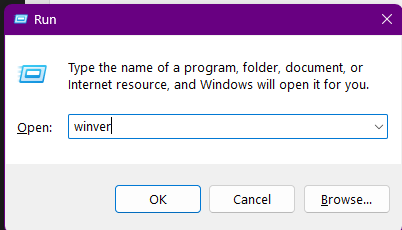
Press Windows + R, enter winver, and press Enter to check your Windows 11 version and OS build.
You can also ask for help through Microsoft Community or a relevant manufacturer’s support forum. Before posting screenshots or logs, hide email addresses, licence keys, BitLocker recovery keys, serial numbers, IP addresses, and other personal information.
7. Use Windows Recovery Tools for Serious Problems
Recovery tools should be used after normal troubleshooting fails. Back up important files and make sure you can access your BitLocker recovery key before making major system changes.
Reinstall Windows through Windows Update
Windows 11 can reinstall its current version while preserving installed apps, personal files, and settings. This is useful when Windows components are damaged but the PC can still open Settings.
- Open Settings > System > Recovery.
- Find Fix problems using Windows Update.
- Select Reinstall now.
- Follow the instructions and allow Windows to restart.
This option downloads and reinstalls the current Windows version. It is generally less disruptive than resetting the PC, although it may not appear on every managed computer or Windows installation.
Use System Restore
System Restore can reverse recent driver, registry, and application changes without deleting personal documents.
- Search for Create a restore point.
- Open it and select System Restore.
- Choose a restore point created before the problem began.
- Review the affected programs and complete the restore.
This option works only when a suitable restore point exists.
Reset the PC
Use Reset this PC only when other repair methods have failed.
- Open Settings > System > Recovery.
- Select Reset PC.
- Choose Keep my files or Remove everything.
- Select cloud download or local reinstall.
- Review the list of changes before continuing.
Keep my files preserves personal files but removes installed applications and resets many settings. Back up important data before beginning either type of reset.
FAQs
What is the quickest way to get help in Windows 11?
Open Start, search for Get Help, and describe the issue. The app can suggest instructions, run diagnostics, or show Microsoft support options.
Is the Windows 11 Get Help app free?
Yes. The app, support articles, and built-in diagnostics are free. Some support options may depend on the Microsoft product, warranty, subscription, account, or region involved.
What is the difference between Get Help and Quick Assist?
Get Help provides instructions, automated diagnostics, and Microsoft support options. Quick Assist lets another person remotely view or control your PC after you enter their temporary code and approve the connection.
Why does a help page keep opening by itself?
A stuck or accidentally pressed F1 key can repeatedly open help in some Windows apps. Disconnect or test the keyboard, check for debris around the key, and try another keyboard. Also check whether a macro or keyboard-remapping utility is sending F1.
How do I get help when Windows 11 will not start?
Open the Windows Recovery Environment by selecting Shift + Restart from the sign-in screen. If Windows cannot reach the sign-in screen, interrupting startup several times may trigger automatic recovery. From Windows Recovery Environment, select Troubleshoot > Advanced options to access Startup Repair, System Restore, Uninstall Updates, and other recovery tools.
Why is Contact Support missing from Get Help?
Get Help normally presents self-service instructions first. Direct support options depend on the issue, account, product, region, and availability. Use the Microsoft Support contact website if the app does not offer a suitable option.
What should I include when asking for Windows help?
Provide the exact error message, error code, Windows version and build, device model, and the steps that cause the problem. Mention any update, driver, app, or hardware change made immediately before the issue began.
Should I reset Windows whenever troubleshooting fails?
No. Try Get Help, the relevant troubleshooter, Windows Update, driver updates, System Restore, or the Windows Update reinstall option first. Reset this PC removes applications and should usually be treated as a last resort.