To log in to Gmail, open mail.google.com, enter your Google Account email address or phone number, select Next, and enter your password. Complete any passkey or two-step verification request, and Gmail will open your inbox.
Official Gmail login page: Open your Gmail inbox
Security warning: Check that the address belongs to google.com before entering your password. Do not sign in through links in unexpected emails, pop-ups, advertisements, or messages claiming that your Gmail account will be closed.
How to Login to Gmail
You can access Gmail from a computer browser, a phone or tablet browser, or the Gmail mobile app. Your Gmail address and password are also your Google Account credentials, so the same login may be used for services such as YouTube, Google Drive, Google Photos, and Google Calendar.
1. Login to Gmail on Desktop
- Open Chrome, Microsoft Edge, Firefox, Safari, or another current browser.
- Go to mail.google.com.
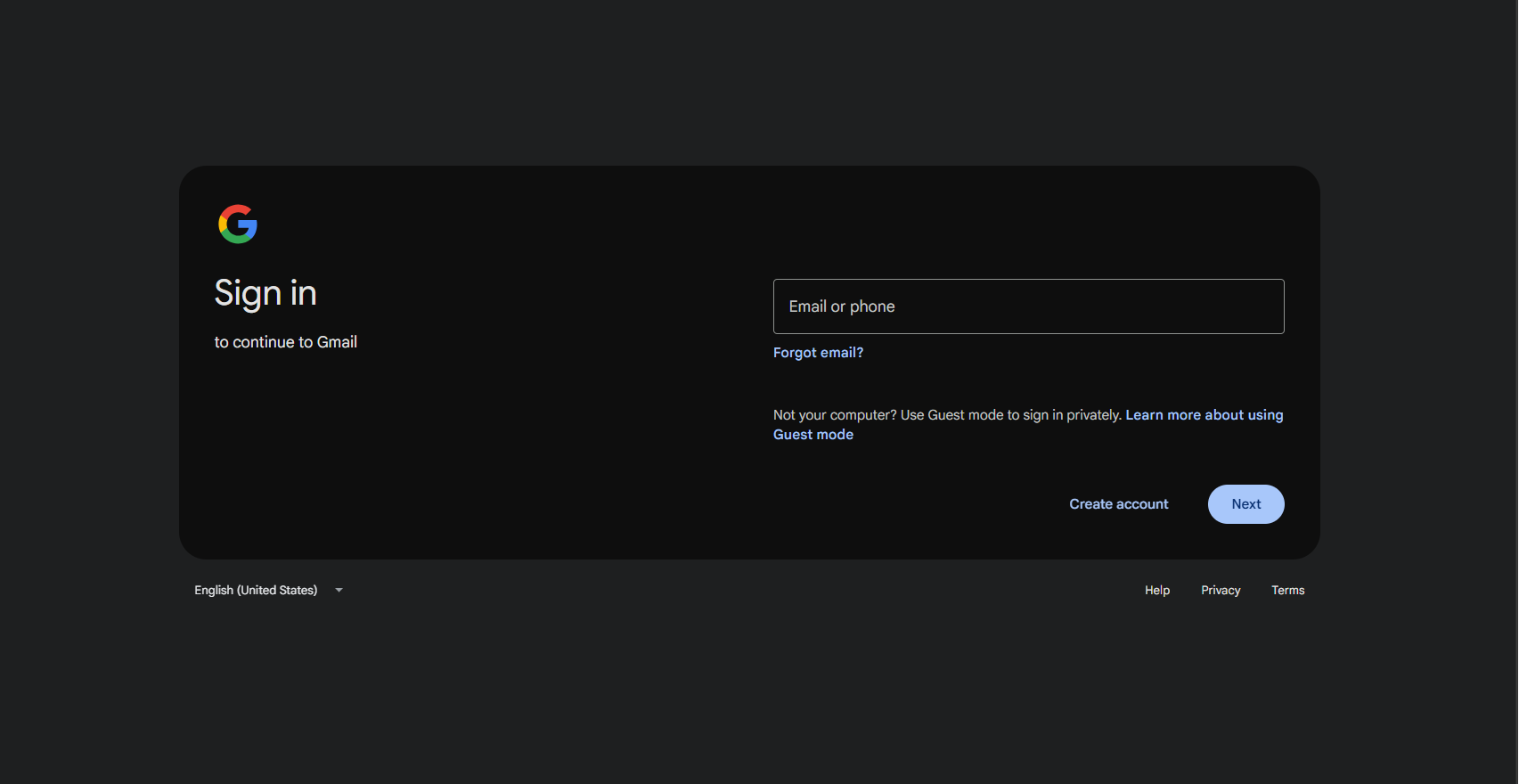
- Enter your Gmail address, Google Account email address, or linked phone number.
- Select Next.
- Enter your password and select Next.
- Complete two-step verification or use your passkey if requested.
If Google displays a page describing Gmail instead of the inbox, select Sign in in the upper-right corner.
If another person’s email address already appears, select Use another account and enter your own details. After signing in, Gmail will open the inbox associated with that Google Account.
Login to Another Gmail Account on the Same Computer
Google allows you to remain signed in to several accounts and switch between them without entering the password each time.
- Open Gmail.
- Select your profile picture in the upper-right corner.
- Select Add another account.
- Enter the other account’s email address and password.
- Complete verification if required.
To switch accounts later, select the profile picture and choose the account you want to open. Keep personal, work, and school accounts clearly separated because Google may use the currently selected account when you open Drive, Calendar, or another service.
2. Login to Gmail on a Mobile Browser
You can check Gmail from a phone or tablet without installing the app:
- Open Chrome, Safari, Firefox, Edge, or another mobile browser.
- Visit mail.google.com.
- Enter your Google Account email address or phone number.
- Select Next.
- Enter your password.
- Complete any verification request.
The mobile website provides access to your inbox, search, folders, attachments, and basic email controls. The Gmail app is generally more convenient when you need notifications, offline access, or regular background synchronization.
3. Login to the Gmail App on Android or iPhone
The Gmail app is normally preinstalled on Android. On an iPhone or iPad, download the official Gmail app from Apple’s App Store and confirm that Google LLC is listed as the developer.
Add a Gmail Account on Android
- Open the Gmail app.
- Tap your profile picture in the upper-right corner.
- Select Add another account.
- Choose Google.
- Enter your Gmail address or linked phone number.
- Enter your password and complete verification.
Adding the account to Android may also make it available to other Google apps on the device, depending on your synchronization settings.
Add a Gmail Account on iPhone or iPad
- Open the Gmail app.
- Tap your profile picture in the upper-right corner.
- Select Add another account.
- Choose Google.
- Select Continue if iOS asks for permission to open Google’s sign-in page.
- Enter your email address and password.
- Complete verification when requested.
After setup, tap your profile picture to switch between accounts or select All inboxes to view messages from multiple accounts together.
How to Sign In with a Passkey
Google may offer a passkey instead of asking for your password. A passkey lets you confirm your identity using a fingerprint, face scan, screen lock, security key, or another device where your Google Account is already signed in.
- Enter your Google Account email address.
- Select Next.
- Choose the displayed passkey option.
- Complete the fingerprint, facial recognition, PIN, or device-confirmation request.
If the passkey is unavailable, select Try another way to use your password, verification code, security key, or another configured sign-in method.
How to Log In to Gmail on a Shared or Public Computer
Google normally keeps an account signed in until you sign out. On a library, hotel, workplace, school, or shared family computer, use a private browsing window instead of a normal browser session.
- Open an Incognito, InPrivate, or private browsing window.
- Go to mail.google.com.
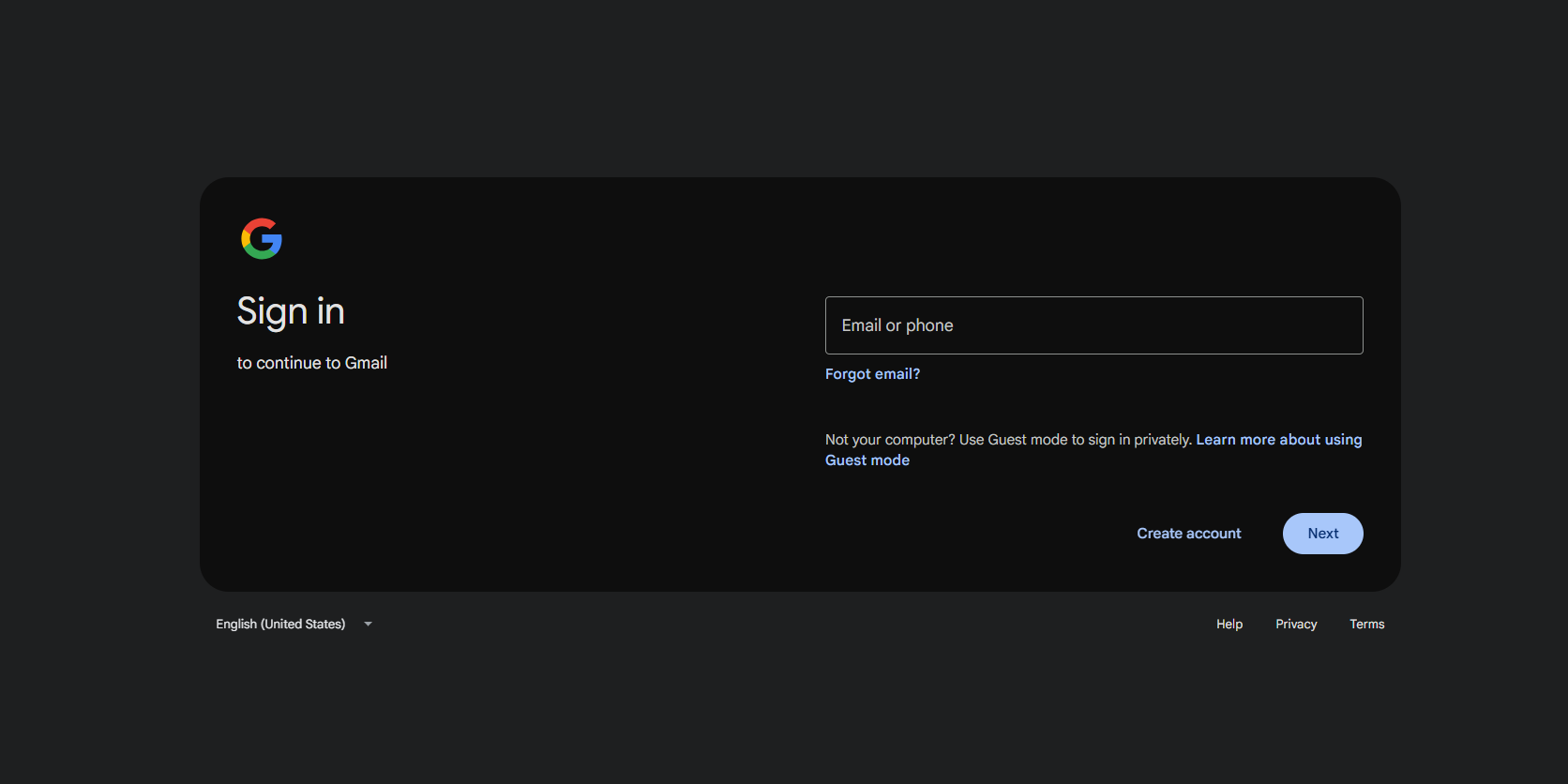
- Sign in and use Gmail normally.
- When finished, close every private browsing window.
Closing all private windows ends the private session and signs you out. Do not save the password, enable browser synchronization, or add the account to a browser profile on a computer you do not control.
Troubleshooting Gmail Login Issues
| Problem | What to do |
|---|---|
| You forgot the password | Use Google Account Recovery and answer the verification questions as accurately as possible. |
| You forgot the Gmail address | Use Google’s username-recovery option with a recovery phone number or email address. |
| The password is correct but is rejected | Check the complete email address, Caps Lock, keyboard layout, and whether the browser inserted an outdated saved password. |
| A verification code does not arrive | Confirm the recovery phone or email shown, check spam, wait before requesting another code, or select another verification method. |
| Google does not recognize the device | Try signing in from a familiar device, browser, location, and Wi-Fi network previously used with the account. |
| The sign-in page keeps reloading | Allow Google cookies, clear cookies for Google, disable extensions temporarily, or test a private browser window. |
| Gmail opens the wrong account | Select the profile picture, choose the correct account, or select Add another account. |
| You suspect the account was hacked | Use Account Recovery, change the password, review signed-in devices, and remove recovery details or apps you do not recognize. |
FAQs
What is the official Gmail login page?
The official Gmail inbox is available at mail.google.com. Google may redirect the sign-in process through an accounts.google.com address.
Can I login to Gmail without the app?
Yes. Open Gmail in any supported browser on a computer, phone, or tablet and enter your Google Account credentials.
Can I login using my phone number?
Yes, when the phone number is connected to your Google Account and Google accepts it as a sign-in identifier.
Can I use Gmail on multiple devices?
Yes. The same Gmail account can remain signed in on several computers, phones, and tablets. You can review and remove devices from your Google Account security settings.
Can I login to more than one Gmail account?
Yes. Select your profile picture and choose Add another account. You can then switch between accounts without signing out.
Why does Gmail keep signing me out?
The browser may be deleting or blocking cookies, operating in private mode, or using an extension or cleanup tool that removes session data. Google may also request another sign-in after detecting a security concern.
Why is Google asking me to verify that it is me?
Google may request additional verification after detecting a new device, browser, network, location, or unusual activity. Use one of the recovery or verification methods already connected to the account.
Can I sign in to Gmail without a password?
Yes, when you have configured a passkey or another passwordless sign-in method. Google may let you verify using a fingerprint, face scan, screen lock, security key, or trusted device.
What should I do if I no longer have my recovery phone?
Select Try another way and use another available method. If none works, complete Google Account Recovery from a familiar device and location.
Can Google support tell me my Gmail password?
No. Google cannot disclose an existing password. You must verify ownership through the official account-recovery process and create a new password.
How do I know whether a Gmail login page is genuine?
Check that the web address belongs to google.com. Do not enter your password or verification code on a page reached through a suspicious email, advertisement, pop-up, or unsolicited message.