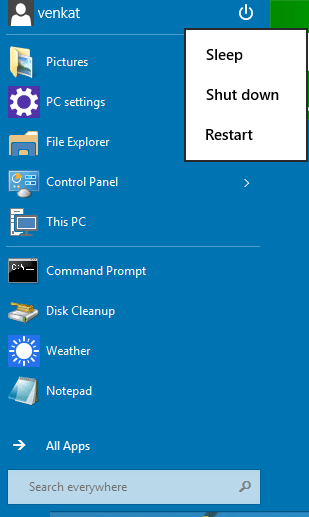
With the start screen in Windows 8, it was never easy to shutdown or restart the computer, now in Windows 10, if you’re using a desktop PC, there won’t be a start screen and Microsoft has added shut down, restart and sleep options on top of start the menu under ‘Power Options’ button.
Shutting down or restarting Windows 10 from the Start Menu
1. Click on start button to pen the Start Menu
2. On top of it, click on ‘Power Options’ button next to your name (check the screenshot below) and click on ‘Shut down’ or ‘Restart’, (Sleep option is also available, which you can use it, if you want).
Faster Ways for Windows 8 Shutdown or Restart
3. Easy, isn’t it?
Note: If Windows has already downloaded any updates for you, then, Shutdown and Restart buttons will be changed to ‘Update and Shut down’ and ‘Update and Restart’.
- Get Windows 7 Classic Shutdown Behavior for Windows 8 by disabling Hybrid Boot Setting
- How to Enable Hibernate Option in Windows 8
Other ways of doing it:
You can right click on the start button and access the Quick menu (also known as Win x Menu in Windows 8), which lets you not only shut down or restart Windows 10, but also lets you access other system tools too.
If no windows are open, you can use ‘Alt +F4′ to bring up the shutdown dialog and select the action you want to perform.
- Windows 10: How to Hide Favorites, Frequent Folders and Recent Files in File Explorer?
- How to Prevent Windows 10 Preview from Being installed Via Windows Update?