Steam saves every screenshot you take with F12 to its local screenshot library, which you open in the Steam client from View > Recordings & Screenshots.
This guide shows how to reach that library on Windows, through the overlay and on Steam Deck, how to sort it by game, how to get the image files into a folder you choose, and how to change the screenshot key.
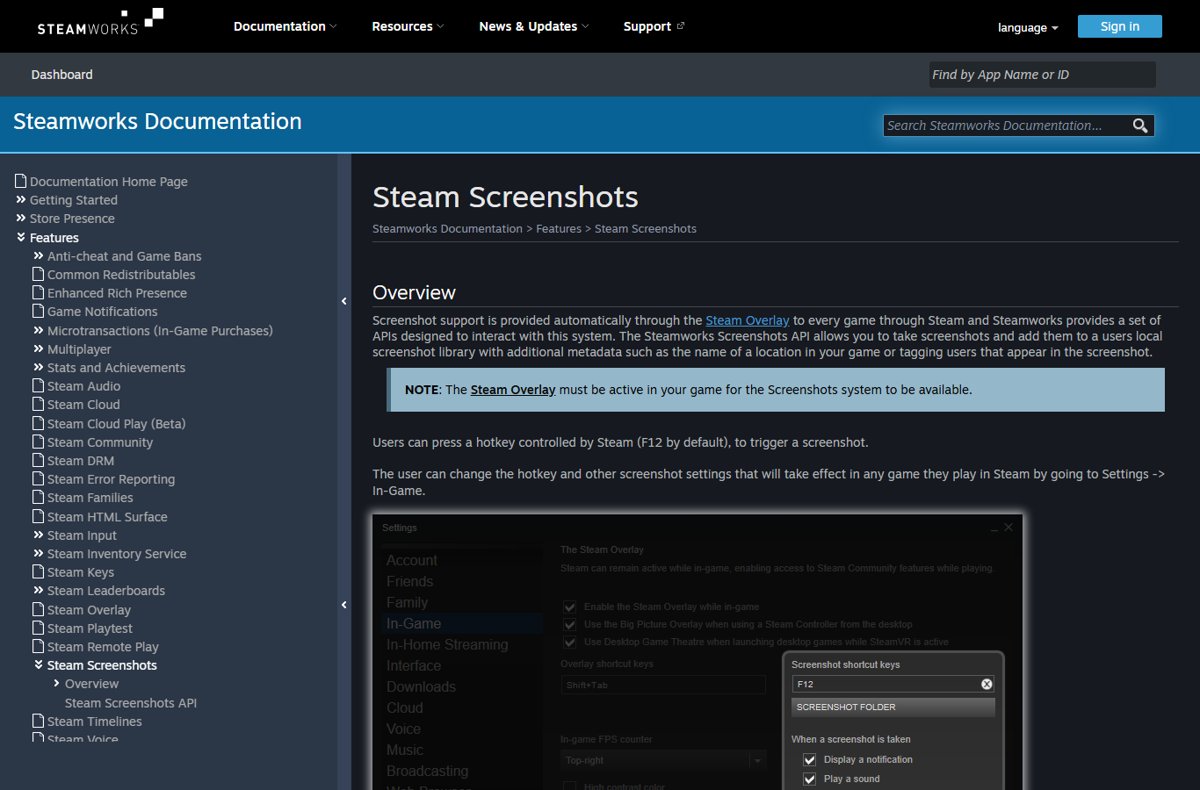
Where are Steam screenshots saved?
Steam keeps screenshots in its own library rather than in the Windows Pictures folder. The Recordings & Screenshots manager in the Steam desktop client is the official way to see them.
- Open the Steam desktop client.
- Click View in the menu bar at the top.
- Select Recordings & Screenshots.
- Browse the grid of screenshots, or pick a game from the filter dropdown.
Screenshots taken with Windows tools such as Win + Print Screen do not go here; they land in the Windows Screenshots folder instead.
What is the Steam screenshot folder?
The Steam screenshot folder is the local screenshot library Steam keeps for your account. Games add captures to it through the Steam Overlay, and Steam files each shot under the game it came from.
| Where a screenshot can live | What puts it there | How to open it |
|---|---|---|
| Steam's local screenshot library | F12 in a game, or a game that captures through the Steamworks Screenshots API | View > Recordings & Screenshots in the Steam client |
| Your Steam Community profile and the game's community hub | Screenshots you upload to Steam | Your profile's screenshots page in any browser |
| A folder you choose on your computer | Exporting a screenshot as a new file from the manager | File Explorer on Windows or Finder on Mac |
| The Windows Screenshots folder | Windows tools such as Win + Print Screen, not Steam | File Explorer, in the Windows Screenshots folder |
Access Steam screenshot folder on PC, overlay and Steam Deck
The same library is reachable from several places. Pick the row that matches where you are.
| Where you are | How to open your screenshots | What you get |
|---|---|---|
| Steam desktop client (Windows, macOS, Linux) | View > Recordings & Screenshots | Full manager with game filter, sharing and export |
| In a game | Press Shift + Tab to open the Steam Overlay, then open screenshots from the overlay | Quick look at shots from the current session |
| Steam Deck | Press the Steam button and select the Media tab | The same screenshots and recordings as the desktop manager |
| Any browser | Open your Steam Community profile and go to its screenshots | Only screenshots you uploaded to Steam |
Steam screenshots on Windows and on Mac are found the same way, because the desktop client uses the same View > Recordings & Screenshots menu on both. On Steam Deck, the Media tab replaces that menu.
How to find the Steam screenshot folder and save files to your PC
The manager can write any screenshot out as a normal image file in a folder you pick. This is the reliable way to get Steam screenshots into a folder you control, such as Pictures or Desktop.
- Open View > Recordings & Screenshots.
- Click a screenshot to open it, or multi-select several from the grid view.
- Open the share options for the selection.
- Choose the option to export as a new file on your computer.
- Pick the destination folder and confirm.
Valve does not publish the on-disk path of the screenshot library, so exporting is the dependable way to find your screenshots manually in File Explorer or Finder afterwards.
The same share options can also copy a screenshot to the clipboard, send it to a friend or chat group in Steam Chat, or send it to your phone through the Steam Mobile App.
How to navigate individual game folders in Steam screenshots
Steam files screenshots under the game they came from. The manager replaces browsing per-game folders with a filter.
- Open View > Recordings & Screenshots.
- Click the game filter dropdown at the top of the manager.
- Type part of the game's name to search the list.
- Select the game to show only its screenshots and recordings.
- Switch back to all games from the same dropdown when you are done.
You can also see a game's recent screenshots on its page in your Library. Since June 2025, screenshots uploaded to Steam from your other devices appear there too, not only local ones.
How to change the Steam screenshots folder and screenshot settings
Steam keeps its own copy in the screenshot library. To have your shots in another folder, export them as shown above, and use the screenshot settings to control how you take them.
- In the Steam client, click Steam > Settings.
- Select In Game in the left pane.
- Find the screenshot options: the screenshot shortcut key and the other screenshot settings apply to every game you play through Steam.
- Click the shortcut key field and press the new key you want to use, if F12 clashes with a game.
- Close Settings; then take a test screenshot in a game with the new key.
Game recordings are separate. Their storage folder is set in Steam > Settings > Game Recording, where you can also move them to a drive with more free space. If your library folders are on a second drive, add a new Steam library folder there first.
How to find and change the Steam screenshot folder: screenshots vs recordings
Steam handles screenshots and video differently, which is why a recording folder setting does not move your screenshots.
| Screenshots | Game recordings and clips | |
|---|---|---|
| Default key | F12 | Set in Game Recording settings; Ctrl + F12 drops a timeline marker |
| Where to view | View > Recordings & Screenshots | View > Recordings & Screenshots, plus the overlay timeline |
| Settings page | Steam > Settings > In Game | Steam > Settings > Game Recording |
| Choose storage folder in Settings | Not documented by Valve; export files instead | Yes, in Game Recording settings |
| Get a normal file | Export as a new file | Make a clip, then Export Video File (MP4) |
| Steam Deck | Media tab | Media tab |
On HDR displays, Steam can save uncompressed HDR screenshots in AVIF format, a feature added in the February 27, 2024 client update.
Fix Steam screenshot problems
Steam keeps taking screenshots on its own
F12 is Steam's default screenshot key, so any game control, macro or keyboard key mapped to F12 also fires a Steam screenshot.
- Click Steam > Settings > In Game.
- Click the screenshot shortcut key field.
- Press a key no game uses, such as a combination with Ctrl or Alt.
- Restart the game and check that new screenshots stop appearing.
Pressing F12 does nothing in a game
Steam screenshots run through the Steam Overlay, which only hooks games launched through Steam and does not work in software-rasterized games.
- Press Shift + Tab in the game to check whether the overlay opens.
- If it does not, quit the game and launch it from your Steam Library rather than a desktop shortcut or another launcher.
- Press F12 again once the overlay responds.
- If the game still does not support the overlay, use a Windows screenshot tool instead.
Screenshots are missing from Recordings & Screenshots
The manager filters by game, and older client builds had bugs that hid some games from the filter.
- Set the game filter dropdown back to all games.
- Exit Steam completely and start it again so it downloads and applies the latest client update.
- Open View > Recordings & Screenshots again and check the full list.
Steam screenshot folder FAQ
Where is the Steam screenshot folder?
Steam stores screenshots in its own screenshot library, not the Windows Pictures folder. Open it in the Steam client from View > Recordings & Screenshots, or from the Media tab on Steam Deck, then export any shot as a regular file.
How do I view my Steam screenshot folder?
Open Steam, click View in the top menu and select Recordings & Screenshots. The manager shows every screenshot in a grid, and the game filter dropdown narrows it to one title.
What folder do Steam screenshots go to?
They go to Steam's local screenshot library for your account, sorted by game. To put them in a folder you choose, such as Pictures, select them in Recordings & Screenshots and export them as new files.
How do I change my Steam screenshot folder?
Valve documents no setting that moves the screenshot library itself. Export screenshots as new files to the folder you want, and use Steam > Settings > In Game to change the screenshot key and other screenshot settings.
Why does Steam keep taking screenshots?
Something is pressing F12, Steam's default screenshot key. A game control, macro key or keyboard remap bound to F12 triggers Steam too. Change the screenshot shortcut key in Steam > Settings > In Game to stop it.
How do I see screenshots on Steam for one game?
Open View > Recordings & Screenshots and pick the game from the filter dropdown at the top. You can type part of the name to search the list. The game's Library page also shows recent screenshots.
Where are Steam Deck screenshots saved?
On Steam Deck, press the Steam button and open the Media tab. It shows the same screenshots and recordings as the desktop Recordings & Screenshots manager, with the same sharing options.
Where are Steam game recordings saved?
Game recordings use their own folder, which you choose in Steam > Settings > Game Recording. They are stored in a raw format, so make a clip and use Export Video File to get an MP4.

![Find passwords stored on this computer [3 ways]](https://techdows.com/wp-content/uploads/2026/10/Find-passwords-stored-on-this-computer-3-ways.jpg)