The real fix for fast iPhone battery drain is to open Settings > Battery, find the app or system activity using the most power, and then change that one setting instead of switching everything off.
This guide covers iPhone 12 through iPhone 18 Pro on iOS 26 and iOS 27: how to read the battery usage chart, ten fixes that cut drain, what is normal after an update, and when the battery itself needs replacing.
How to fix iPhone battery draining fast
Work through these in order. Most drain is solved by step 2 or step 3, and step 5 tells you whether the battery is simply worn out.
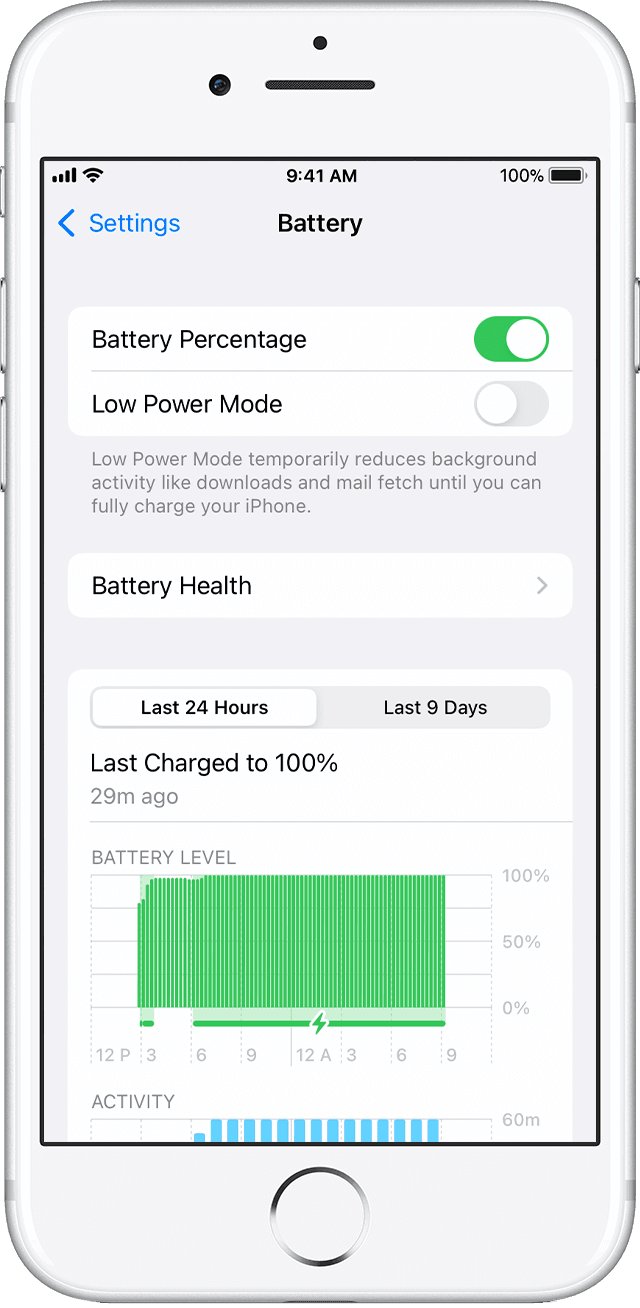
- Open Settings and tap Battery.
- Read any suggestion or Insight shown just above Daily Usage, and act on it; an Ongoing iOS Update Insight means the drain will settle on its own.
- Check the top three apps under the chart; for any app you barely opened, cut its background activity, location access or notifications.
- On iPhone 15 Pro or newer, confirm Adaptive Power is on in Settings > Battery > Power Mode.
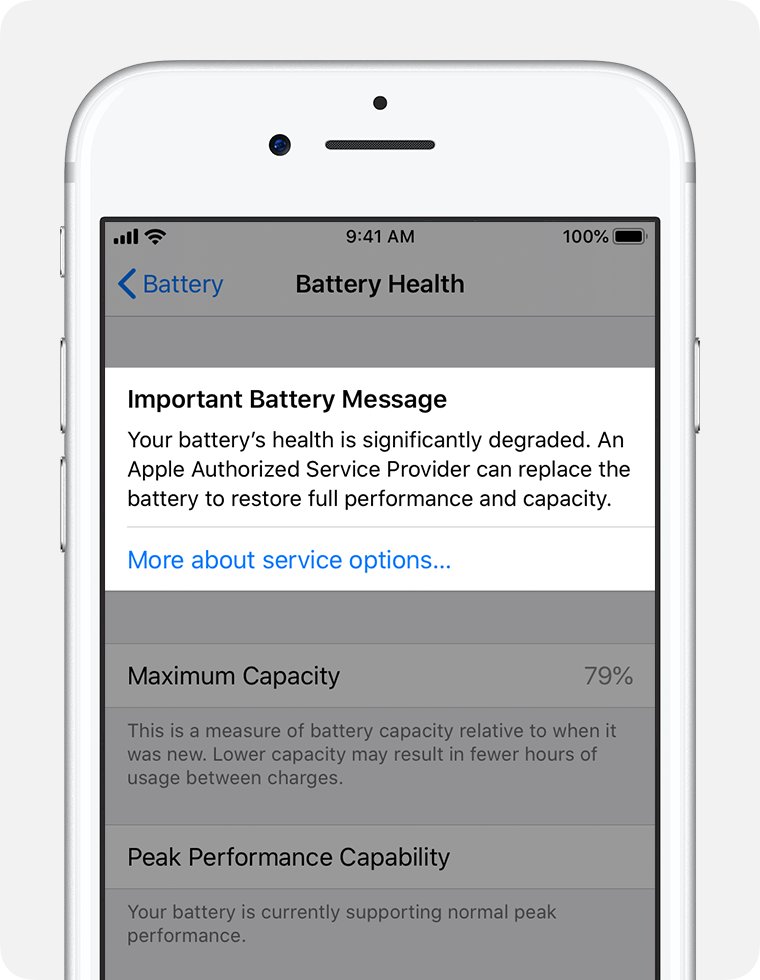
- Check Battery Health; if Service appears next to it, the battery needs replacing.
- Update iOS in Settings > General > Software Update, then wait a few days for background tasks to finish.
Why is your iPhone battery draining so fast?
Battery life depends on how much you use the phone and which apps you use. These are the causes iOS itself reports in the battery usage screen.
| Cause | How it shows up in Settings > Battery | What to change |
|---|---|---|
| A recent iOS update finishing in the background | Ongoing iOS Update Insight | Wait a few days; battery life returns to normal when the task ends |
| New phone still completing setup | Ongoing Device Setup Insight | Wait; setup tasks run in the background for a while |
| Apps working while you use other apps | Background Activity under an app | Turn off Background App Refresh for that app, or use it less |
| Weak cellular or Wi-Fi signal | No Mobile Coverage and Low Signal | Use Wi-Fi, move to a stronger signal, or turn on Airplane Mode in dead zones |
| Apps waking the screen | Notifications under an app | Reduce or turn off that app's notifications |
| Location tracking | Background location use by navigation or fitness apps | Limit Location Services for apps that do not need it |
| Bright screen or no Auto-Lock | Suggestions such as High Brightness or Enable auto-lock | Lower brightness, turn on Auto-Brightness, set a short Auto-Lock |
| Worn battery | Low maximum capacity or Service in Battery Health | Replace the battery |
How to check what's killing your iPhone battery
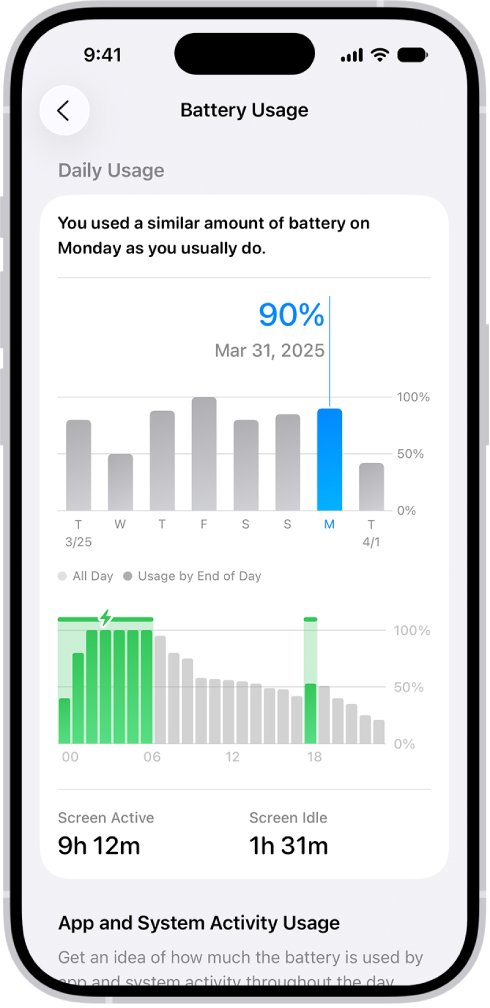
The Daily Usage chart needs iOS 26 or later. It compares today's battery use with the last seven days, so you can see whether today is actually unusual.
- Open Settings and tap Battery.
- Look at the Daily Usage chart: blue means similar or lower use than usual, orange means higher use.
- Read the top three apps or system activities listed under the chart.
- Tap View All Battery Usage, then tap a day to see every app and system activity for that day.
- Tap an app to see its usage labels, such as On screen, Background, Cellular coverage or Notifications.
- Fix the label that dominates: long on-screen time is normal use, while long background time or frequent notifications are settings you can change.
Connected to Charger means the app ran only while charging, so it did not cost battery.
10 ways to stop iPhone battery drain
Pick the fixes that match what the battery screen showed you. Each row lists the exact setting.
| Fix | Where to find it | Best when |
|---|---|---|
| 1. Turn on Adaptive Power | Settings > Battery > Power Mode | You have iPhone 15 Pro or newer and some days run heavier than others |
| Turn off Background App Refresh for unused apps | Settings > General > Background App Refresh | Apps show long Background time |
| 3. Limit Location Services | Settings > Privacy & Security > Location Services | Apps use your location when you are not using them |
| 4. Lower brightness and shorten Auto-Lock | Settings > Display & Brightness > Auto-Lock | iOS suggests High Brightness or Enable auto-lock |
| Update iOS and all apps to fix battery drain | Settings > General > Software Update; App Store | An app misbehaves or a fix is pending |
| 6. Set Mail to fetch on a schedule | Settings > Apps > Mail > Fetch New Data | Mail shows high background activity |
| 7. Reset network settings | Settings > General > Transfer or Reset iPhone > Reset | Drain comes from constant signal searching |
| 8. Check battery health | Settings > Battery > Battery Health | The phone is a few years old |
| 9. Use Wi-Fi and 5G Auto instead of full-time cellular | Settings > Wi-Fi; Cellular > Cellular Data Options > Voice & Data | You spend long periods on cellular data |
| 10. Erase and set up again | Settings > General > Transfer or Reset iPhone | Everything above failed and the battery is healthy |
Enable Adaptive Power on iPhone 15 Pro and newer
Adaptive Power predicts heavy days from your recent usage and trims brightness, background activity and performance to stretch the charge. It can also switch on Low Power Mode at 20 percent. It is on by default on supported models.
- Make sure the phone runs iOS 26 or later.
- Open Settings and tap Battery.
- Tap Power Mode.
- Turn on Adaptive Power.
- Optionally turn Adaptive Power Notifications off; Adaptive Power keeps working without them.
Supported models: iPhone 15 Pro, iPhone 15 Pro Max, iPhone 16 models, iPhone Air, iPhone 17 models and iPhone 18 Pro models.
Use Low Power Mode to save iPhone battery
Low Power Mode cuts Mail fetch, Hey Siri, Background App Refresh and some visual effects. On ProMotion iPhones it caps the display at 60 frames per second, and it turns off by itself once the battery charges past 80 percent.
- Open Settings and tap Battery.
- On iPhone 15 or later, tap Power Mode, then turn on Low Power Mode.
- On iPhone 14 or earlier, turn on Low Power Mode directly on the Battery screen.
- To toggle it faster, add the Low Power Mode control to Control Center.
Turn off Background App Refresh for unused apps
Background App Refresh lets suspended apps check for new content. Turning it off for apps you rarely open stops them waking up just to refresh.
- Open Settings and tap General.
- Tap Background App Refresh.
- Turn off the switch next to each app you do not need refreshed.
- To limit it globally, tap Background App Refresh at the top and choose Wi-Fi, Wi-Fi & Cellular Data or Off.
Swiping apps closed in the App Switcher does not help. Apple states that closing apps does not improve performance or battery life, because idle apps use power only when they are active or running a background task.
Disable iPhone Location Services for apps that do not need it
- Open Settings > Privacy & Security > Location Services.
- Look for apps with a recent-use indicator beside them.
- Tap an app and change its access so it no longer uses your location all the time.
- Turn off Precise Location for apps that only need your rough area.
- Tap System Services to review location-based suggestions and ads, and turn off the ones you do not use.
Leave Location Services itself on: Apple warns that turning it off entirely stops many important iPhone features from working.
Reduce iPhone screen brightness and shorten Auto-Lock
The display is one of the largest power draws. iOS flags this directly with High Brightness and Enable auto-lock suggestions in Settings > Battery.
- Open Control Center and drag the brightness slider down to a comfortable level.
- Go to Settings > Accessibility > Display & Text Size and turn on Auto-Brightness.
- Go to Settings > Display & Brightness > Auto-Lock and choose a short time.
- On models with an always-on screen, turn off Always On Display in Settings > Display & Brightness if you do not use it.
Update iOS and all apps to fix battery drain
- Back up the iPhone.
- Open Settings > General > Software Update.
- If an update is listed, tap Download and Install and follow the prompts.
- Open the App Store, tap your picture, then tap App Updates.
- Tap Update All.
Expect a short spell of extra drain after the update while iOS finishes background work.
Switch iPhone Mail from push to fetch
If Mail shows high background activity, a fetch schedule checks for messages at intervals instead of constantly.
- Open Settings and tap Apps.
- Tap Mail.
- Tap Fetch New Data.
- Set a longer fetch schedule for your email accounts, or choose to fetch manually.
Reset network settings to fix iPhone signal drain
When No Mobile Coverage and Low Signal dominates the battery screen, reset network settings to clear bad saved networks. You lose saved Wi-Fi networks and manually added VPN settings, but no data.
- Open Settings and tap General.
- Tap Transfer or Reset iPhone, then tap Reset.
- Tap Reset Network Settings and confirm.
- Rejoin your Wi-Fi network in Settings > Wi-Fi.
- On iPhone 12 or later, go to Settings > Cellular > Cellular Data Options > Voice & Data and choose 5G Auto.
5G Auto switches to LTE when 5G would not be noticeably faster. In places with no coverage at all, turn on Airplane Mode; a phone stuck showing SOS is searching constantly, which is why SOS on iPhone often comes with faster drain.
Factory reset iPhone as the last resort (with backup)
Erase the phone only when every fix above has failed and Battery Health shows no Service warning. Erasing removes all content, so back up first.
- Back up the iPhone to iCloud or a computer.
- Open Settings > General > Transfer or Reset iPhone.
- Try Reset > Reset All Settings first; it resets settings without deleting data or media.
- If drain continues, tap Erase All Content and Settings and follow the prompts.
- Set the phone up again, restoring from your backup.
Check iPhone battery health
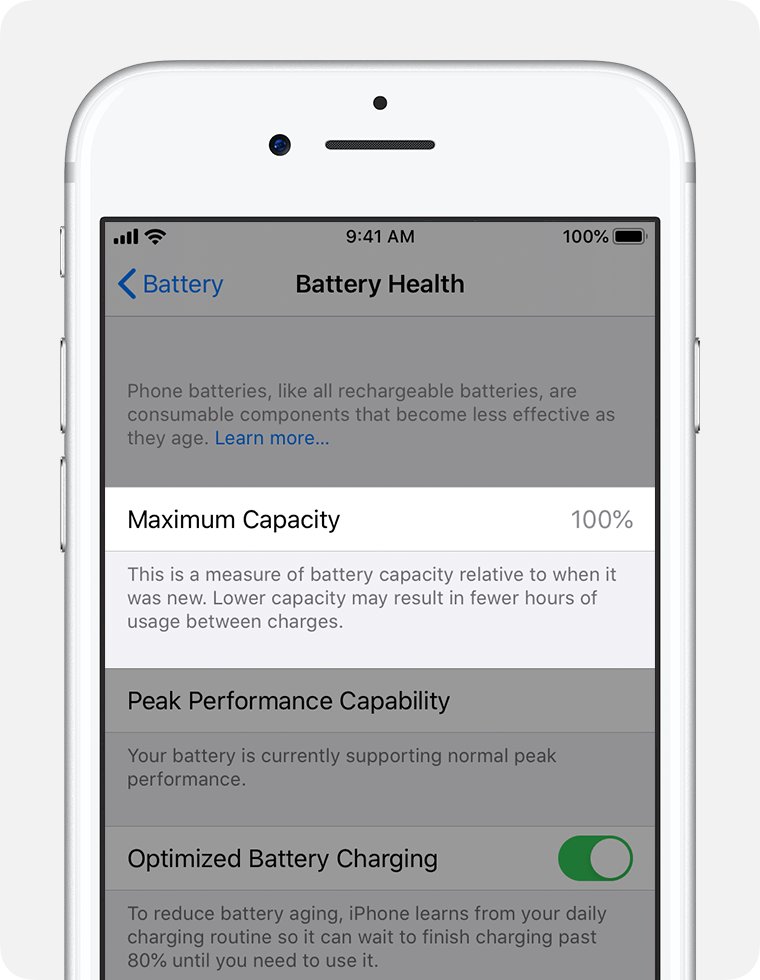
Battery Health shows maximum capacity relative to new. On iPhone 15 and later it also shows the cycle count, manufacture date and first use date.
- Open Settings and tap Battery.
- On iPhone 15 or later, tap Battery Health; on iPhone 14 or earlier, tap Battery Health & Charging.
- Read Maximum Capacity; iPhone 14 and earlier batteries are designed to keep 80 percent after 500 full cycles, iPhone 15 and later after 1,000.
- Check the Peak Performance Capability message; "Your battery is currently supporting normal peak performance" means no throttling is applied.
- Look for Service next to Battery Health or the message that health is significantly degraded; either means replacement will restore capacity.
iPhone battery draining after an iOS 26 or iOS 27 update: is it normal?
Yes, for a few days. Apple states that update-related tasks keep running in the background after you can use the phone, and they can affect battery life and heat.
| Question | Answer |
|---|---|
| What does Apple say about post-update drain? | Wait a few days and check again; background update tasks can temporarily reduce battery life and thermal performance |
| How do you know it is still running? | Settings > Battery shows the Ongoing iOS Update Insight (iOS 18 and later) |
| How long does it take? | Apple gives no fixed time; the Insight disappears and battery life returns to normal when the task finishes |
| What about a brand-new iPhone? | The Ongoing Device Setup Insight shows that setup steps are still finishing in the background |
| When is it not normal? | If drain persists after the Insight is gone, use the app-by-app checks and fixes above |
| What's new in iOS 27 that touches battery life? | Apple's iOS 27 page leads with Siri AI and AI photo editing and lists no new battery setting; it does say iPhone now picks the best available Wi-Fi or cellular connection more seamlessly, and Wi-Fi uses less power than cellular |
When should you replace your iPhone battery?
Batteries are consumables and lose capacity with chemical age. Replace it when Battery Health says so, not because of a single bad day.
| Sign | What it means | What to do |
|---|---|---|
| Service next to Battery Health | Capacity has dropped enough to affect performance | Book a battery service |
| "Your battery's health is significantly degraded" | Not a safety issue, but battery and performance problems become more noticeable | Replace through Apple or an Apple Authorized Service Provider |
| Unexpected shutdowns and performance management applied | The battery cannot deliver peak power | Replace the battery to remove the throttling |
| "Unable to verify" battery message (iPhone XS and later) | The installed battery could not be verified as genuine | Have it checked by Apple |
| Apple vs third-party replacement | Apple uses genuine parts and guarantees service for 90 days or the remaining warranty term | Get a model-specific quote on Apple's battery service page; authorized providers set their own fees |
| Warranty | Apple's limited warranty does not cover batteries that wear down from normal use | Check your coverage before paying out of pocket |
If the phone will not charge at all rather than draining quickly, the cause is usually the cable, adapter or port; an iPhone that is not charging needs different checks.
Which iPhone charging adapter, USB-C cable and MagSafe charger to use
A faster charger does not stop drain, but it gets a draining iPhone back to 50 percent in minutes. Match the adapter wattage to your model, and plug the charger into power before you set the phone on it.
| Accessory | What to know | Tip |
|---|---|---|
| Charging adapter (iPhone 18 Pro) | Apple 40W Dynamic Power Adapter with 60W Max, or a 60W-capable USB-PD 3.2 adapter with AVS, for 50 percent in around 15 minutes | Use the USB-C cable from the box |
| Charging adapter (iPhone 17, 17 Pro, Air, 17e) | 40W or higher for iPhone 17 and 17 Pro (50 percent in about 20 minutes); 20W or higher for iPhone Air and 17e (about 30 minutes) | Check the wattage printed on the top or bottom of the adapter |
| Charging adapter (iPhone 16 and earlier) | Apple 18W or greater USB-C Power Adapter, or a comparable USB-PD adapter | A 20W or higher Mac laptop adapter also fast charges an iPhone |
| The right USB-C cable | iPhone 15 and later use USB-C; earlier models use a USB-C to Lightning cable | Any cable that complies with the USB-C standard and USB Power Delivery works |
| MagSafe Charger | Up to 25W with a 30W or greater adapter on iPhone 16 Plus, 16 Pro Max, 17, 17 Pro and 18 Pro; 15W on iPhone 15 and earlier with a 20W adapter | Plug in first; if the phone went on before power, lift it, wait three seconds and put it back |
| MagSafe portable battery or battery case | Charges wirelessly, so nothing can sit between the phone and the pack | Remove thick, metal or battery cases if wireless charging is slow |
| 3-in-1 wireless charger | Choose a Qi-certified or MagSafe model; many Qi chargers deliver up to 7.5 watts | iPhone will not charge wirelessly while a USB cable is connected |
iPhone can get slightly warmer while it charges wirelessly. If the battery gets too warm, iPhone may hold charging at 80 percent until it cools, so move the phone and charger somewhere cooler.
iPhone battery drain problems by symptom
New iPhone 16 or iPhone 17 battery draining fast
A new phone finishes setup, photo syncing and restores in the background for a while.
- Open Settings > Battery and look for the Ongoing Device Setup Insight.
- Keep the phone on Wi-Fi and charging overnight for the first few days.
- Check again once the Insight is gone.
Battery drains faster after an iOS update
Update-related tasks still running in the background.
- Look for the Ongoing iOS Update Insight in Settings > Battery.
- Wait a few days before changing settings.
- Update all apps from the App Store, since older app versions can misbehave on a new iOS.
iPhone battery drains overnight
Apps refreshing, syncing or sending notifications while the phone sits idle.
- Tap View All Battery Usage and select the overnight day.
- Find apps with Background time or Notifications wake-ups during hours you were asleep.
- Turn off Background App Refresh or notifications for those apps.
Battery drains fast on cellular or in weak signal
The radio works harder in low signal and while searching for a network.
- Connect to Wi-Fi whenever it is available.
- Turn on 5G Auto in Settings > Cellular > Cellular Data Options > Voice & Data.
- Turn on Airplane Mode in areas with no coverage.
iPhone gets hot and drains while charging
Charging in high ambient temperatures or inside certain cases traps heat and can permanently reduce capacity.
- Take the iPhone out of its case while charging if it gets hot.
- Charge away from direct sun and heat sources; iPhone works best between 0 and 35 degrees C (32 and 95 degrees F).
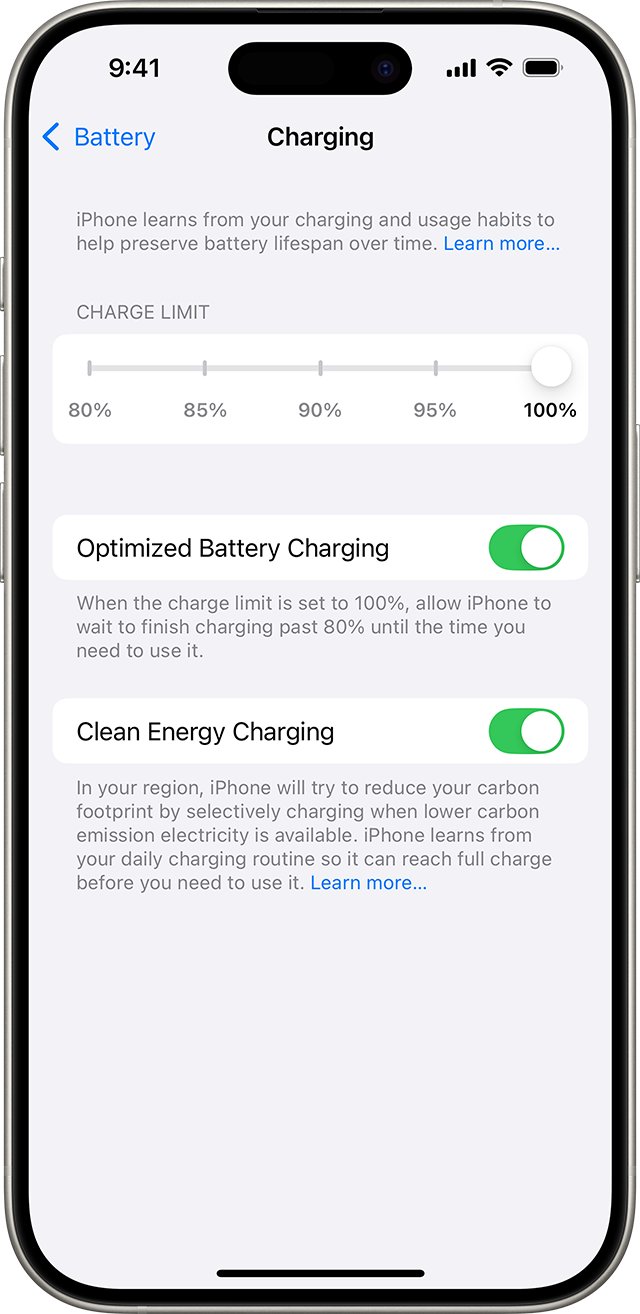
- Leave Optimized Battery Charging or a charge limit turned on in Settings > Battery > Charging (iPhone 15 and later).
Battery drains fast even with low screen time
Usually a worn battery rather than a setting.
- Check Battery Health for Service or a low maximum capacity.
- If health is fine, reset all settings before considering an erase.
- If health is poor, arrange a battery replacement.
FAQ: iPhone battery draining fast
Why is my iPhone 16 battery draining so fast?
Most iPhone 16 drain comes from background update or setup tasks, apps refreshing in the background, weak signal or high brightness. Open Settings > Battery to see the top apps and any Insight, and keep Adaptive Power turned on, which iPhone 16 models support.
Why is my iPhone 16 Pro or 16 Pro Max battery draining fast?
The causes match other models: background activity, location use, notifications, low signal and the always-on display. Check Settings > Battery for the app responsible, and turn off Always On Display in Display & Brightness if you do not need it.
Why is my iPhone 15 battery draining fast?
Check the app list in Settings > Battery first, then Battery Health, which on iPhone 15 shows the cycle count. iPhone 15 batteries are designed to keep 80 percent capacity after 1,000 full cycles, so heavy drain on a young phone usually points to a setting or app.
Why does my iPhone 14 or iPhone 13 battery drain fast?
Older batteries lose capacity with age. iPhone 14 and earlier batteries are designed to keep 80 percent after 500 full cycles, so check Settings > Battery > Battery Health & Charging and replace the battery if it shows Service.
Why does my iPhone 12 battery drain fast?
An iPhone 12 is likely past several hundred charge cycles, so check Battery Health first. Also turn on 5G Auto under Cellular Data Options, which drops to LTE when 5G would not be noticeably faster and saves power.
Is iPhone 17 battery drain normal right after setup?
Yes, briefly. A new iPhone completes setup tasks in the background, and Settings > Battery shows an Ongoing Device Setup Insight while they run. Battery life returns to normal once those tasks finish.
How do I check which app is draining my iPhone battery?
Open Settings > Battery and look below the Daily Usage chart for the top three apps. Tap View All Battery Usage, pick a day and tap an app to see whether its use was on screen, in the background or from notifications.
Does Low Power Mode actually save battery life?
Yes. Low Power Mode reduces or disables Mail fetch, Hey Siri, Background App Refresh and some visual effects, and limits ProMotion displays to 60 frames per second. It turns off automatically once the battery charges above 80 percent.
Is it normal for iPhone battery to drain overnight?
A small overnight drop is normal, but a large one usually means apps are refreshing or sending notifications while idle. Check View All Battery Usage for that night and turn off Background App Refresh or notifications for the apps responsible.
Does closing apps save iPhone battery?
No. Apple states that closing apps from the App Switcher does not improve battery life, because suspended apps use power only when active or running a specific background task. Closing them can even stop them refreshing before you reopen them.
When should I replace my iPhone battery?
Replace it when Settings > Battery > Battery Health shows Service or says health is significantly degraded. Apple and Apple Authorized Service Providers replace batteries with genuine parts, and Apple's battery service page gives a quote for your model.