Most EA Javelin anti-cheat kernel errors clear once TPM 2.0 and Secure Boot are on, Windows and CPU microcode are current, and no blocked driver or prohibited tool is loaded.
This guide walks through a 13-step setup check for Battlefield 6, EA SPORTS FC and other Javelin-protected games, then covers the Code Integrity log, a clean reinstall, safe removal and ban appeals.
Fix EA Javelin anti-cheat errors fast
These five checks resolve the bulk of Javelin launch failures. Run them in order and relaunch the game after each one.
- Open Settings > Windows Update, select Check for updates, install everything offered and restart.
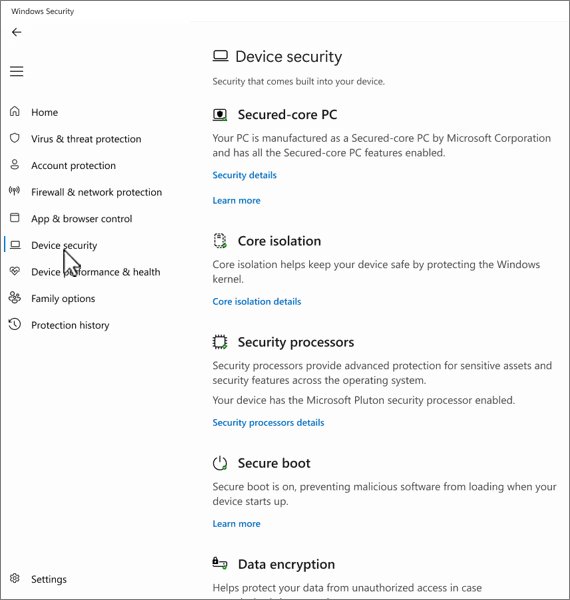
- Open Windows Security > Device security and confirm a Security processor section and a Secure boot section are both listed.
- Close macro and scripting tools such as AutoHotkey, and unplug input adapters such as XIM, Cronus Zen, Strikepack or Titan Two.
- Launch the game from the EA app, Steam or Epic Games Launcher so the game can install or update Javelin itself.
- If the error returns, uninstall every Javelin-protected game, restart, reinstall one game and launch it again.
If the game now reaches its main menu, Javelin is installed and running. The rest of this guide explains each check in depth.
What kernel-level anti-cheat actually does
EA describes Javelin as a kernel-mode anti-cheat and anti-tamper system built in-house by its Game Security team. It first shipped with FIFA 23 on PC in September 2022 as EA anticheat and was renamed EA Javelin Anticheat in 2025.
| Question | What EA states |
|---|---|
| Why the kernel? | Cheats moved into the kernel, where user-mode tools cannot see them |
| When does it run? | Only while a protected game is running; all processes shut down when the game closes |
| Does it start with Windows? | No, it does not run when your PC starts |
| What does it watch? | Processes that try to interact with the game, not browsing history or unrelated apps |
| Single-player modes? | Covered too, to stop cheat makers from reverse-engineering game files |
| Updates | Delivered separately from game patches |
| Performance | EA reports no discernible impact on gameplay from its own and independent testing |
Why studios keep switching anti-cheat vendors
EA replaced third-party protection in many of its PC games with its own system so that one team controls detection, updates and enforcement. Anti-cheat is still chosen per game, so some EA titles use kernel-mode protection, some use user-mode protection and some use none.
| Reason EA gives | What it means for you |
|---|---|
| Detection must reach kernel-level cheats | A kernel driver loads each time you start a protected game |
| Updates decoupled from game patches | Javelin can change without a game update, so a working setup can break after an EA-side update |
| Security requirements are configurable per game | Battlefield 2042 introduced Secure Boot requirements; Battlefield 6 added TPM 2.0 |
| Shared tooling across franchises | Javelin protected 14 titles by April 2025, including Battlefield, Madden, EA SPORTS FC, F1 and EA SPORTS WRC |
Prerequisites: what you need before you start
| Requirement | Why it matters | Where to check |
|---|---|---|
| Windows 10 or Windows 11, fully updated | EA lists Windows 10 as the minimum; Windows 10 lost free security updates on October 14, 2025 | Settings > System > About |
| TPM 2.0 enabled | Battlefield 6 enforces TPM 2.0 strictly from its Season 4 update | tpm.msc or Windows Security > Device security |
| Secure Boot on | Required by some Battlefield titles; EA thanks players who turned it on | Windows Security > Device security |
| UEFI boot mode, not Legacy/CSM | Secure Boot needs UEFI | PC firmware settings |
| An administrator account | Installing a kernel driver and changing firmware settings need admin rights | Settings > Accounts |
| The official launcher | The game installs Javelin on first launch | EA app, Steam or Epic Games Launcher |
Step 1: Confirm your Windows build number
Javelin enforces minimum Windows requirements before the game starts, and EA says the launcher now shows guidance instead of a cryptic error when you fall short.
- Right-click Start and select Settings.
- Select System, then About.
- Under Windows specifications, note the Edition, Version and OS build.
- If you run Windows 10, plan the move to Windows 11, because Windows 10 no longer receives free security fixes.
Step 2: Check Secure Boot and TPM status
Run both checks before you touch firmware. If either one fails, the fix is a firmware setting, not a reinstall.
- Press Win + R, type
tpm.mscand select OK. - Under TPM Manufacturer Information, confirm Specification Version reads 2.0. A "Compatible TPM cannot be found" message usually means the TPM is off in firmware.
- Right-click Start, select Terminal (Admin) and run
Confirm-SecureBootUEFI. True means Secure Boot is on; False means it is supported but off. - If either check fails, open Settings > System > Recovery and select Restart now next to Advanced startup.
- Select Troubleshoot > Advanced options > UEFI Firmware Settings > Restart.
- Turn on the TPM option, which may be labelled Security Device Support, TPM State, AMD fTPM switch, AMD PSP fTPM, Intel PTT or Intel Platform Trust Technology.
- Switch boot mode from Legacy/CSM to UEFI, enable Secure Boot, then save and exit.
Firmware menus differ by maker. Check your PC or motherboard maker's support page before you switch boot mode from Legacy to UEFI.
These requirements are about securing the PC ecosystem the game runs on, not just the game: EA made Secure Boot a configurable requirement starting with Battlefield 2042, and Battlefield 6 requires TPM 2.0.
![EA Javelin anti-cheat setup: fix kernel errors [2026]](https://techdows.com/wp-content/uploads/2026/10/EA-Javelin-anti-cheat-setup-fix-kernel-errors-2026-1.jpg)
Step 3: Update Windows, chipset, and firmware
EA traced a 2026 wave of Javelin client crashes to a conflict between certain CPU microcode and a Windows Insider update, and it advises installing the latest microcode and Windows updates to get the fix.
- Open Settings > Windows Update and select Check for updates.
- Select Download & install for everything listed and restart when asked.
- Visit your motherboard or PC maker's support page and install the latest BIOS/UEFI firmware, which carries CPU microcode updates.
- Install the latest chipset driver from the same support page or from AMD or Intel.
- If Windows Security > Device security > Security processor troubleshooting reports that a firmware update is needed for your TPM, install that firmware from your PC maker.
Step 4: Update GPU and peripheral drivers
Old or unsigned drivers are the usual reason a security feature refuses to load. Windows Update installs recommended drivers automatically but leaves optional driver updates for you.
- Open Settings > Windows Update > Advanced options.
- Make sure Receive updates for other Microsoft products is On.
- Under Additional options, select Optional updates.
- Select any listed driver updates and choose Download and install.
- Install the current graphics driver from NVIDIA, AMD or Intel.
- Update drivers for mice, keyboards, headsets and controllers from each maker's site, then restart.
Step 5: Temporarily close conflicting background software
Javelin shows a launch warning when it detects prohibited software or hardware, and EA has added previously allowed products to that list after review. Close the tool named in the warning rather than your security software.
- Read the launch warning and note the product it names.
- Exit that program from its tray icon, or end it in Task Manager under Processes. AutoHotkey is the example EA shows.
- Unplug input adapters EA prohibits: XIM, Cronus Zen, Strikepack and Titan Two.
- Keep accessibility hardware connected; the Xbox Adaptive Controller, PlayStation Access Controller and Steam Input are not prohibited.
- If the warning tells you to turn on Compatibility Mode in the product, do that; if it does not, the product is prohibited and must stay closed.
Step 6: Launch through the official client to trigger installation
Javelin has no separate installer you need to hunt for. A protected game tries to install it automatically when it is missing, and the launch process prompts you to reinstall it after a manual removal.
- Open the store where you own the game: the EA app, Steam or Epic Games Launcher.
- Install any pending game update first.
- Select Play and wait for the Javelin launcher to show its progress indicator.
- Accept any prompt to install or reinstall the anti-cheat.
- Wait for the game's main menu before you judge whether the install worked.
What to expect after the first launch: Javelin runs only while a protected game is open and does not start with Windows, so seeing no anti-cheat activity with the game closed is normal.
If the client cannot reach EA at all, fix the EA server connection first, because the anti-cheat check needs a working connection.
Step 7: Verify the driver and service registered correctly
Javelin only runs while a protected game is open, so check it with the game running. A healthy install shows no errors from Windows' driver-signing checks.
- Launch the game and confirm it reaches the main menu without a Javelin error dialog.
- Watch for a Program Compatibility Assistant banner saying a driver cannot load; none should appear.
- Open Event Viewer and go to Applications and Services Logs > Microsoft > Windows > CodeIntegrity > Operational.
- Sort by Date and Time and confirm no new event 3004 or 3033 appeared at the moment you launched the game.
- Close the game and confirm the anti-cheat processes no longer appear in Task Manager, since EA says they shut down with the game.
Step 8: Set safe, minimal antivirus exclusions
Add an exclusion only when your antivirus has quarantined or blocked the game's files, and keep it to the single game folder. Microsoft warns that any exclusion leaves those files unscanned in real time, so never exclude a whole drive.
- Open Windows Security, select Protection history and look for a blocked or quarantined game file.
- Select Virus & threat protection, then Manage settings under Virus & threat protection settings.
- Scroll to Exclusions and select Add or remove exclusions.
- Select Add an exclusion > Folder and choose the game's install folder only.
- Run Verify integrity of game files in Steam (Properties > Installed Files) or the repair option in your launcher to restore any file that was removed.
- With a third-party antivirus, use that vendor's exclusion page and add the same single folder.
Step 9: Handle VBS, Hyper-V, and memory integrity conflicts the right way
Do not turn off memory integrity to make a game start. EA lists virtualization-based security (VBS) and memory integrity (HVCI) among Javelin's requirements, present since Battlefield 6 launched and not yet enforced, and says it will warn players before enforcement begins.
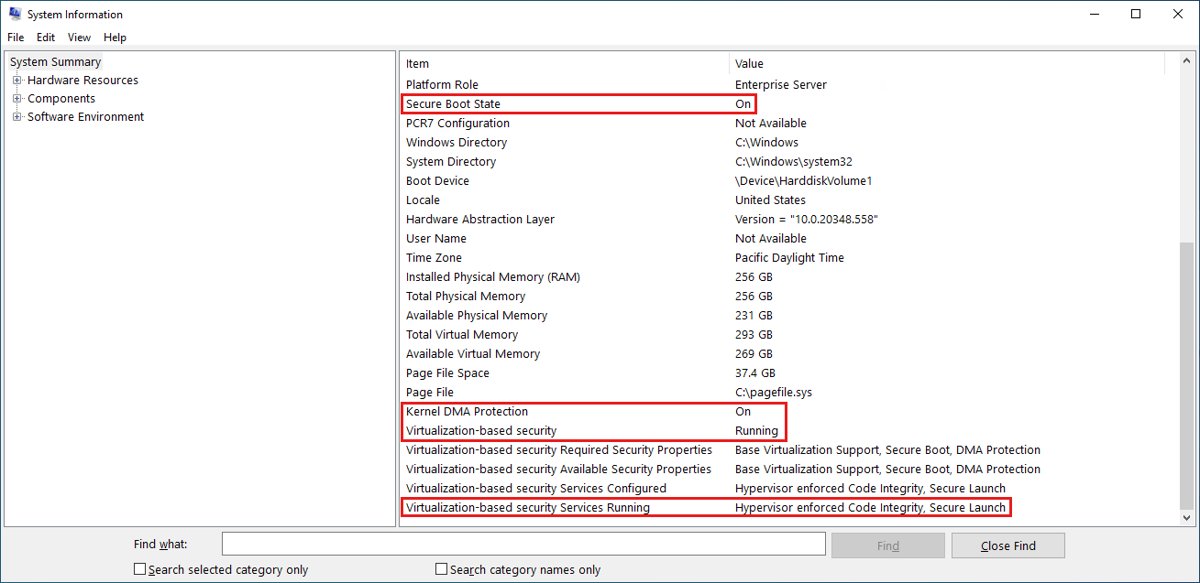
Memory integrity, VBS and Hyper-V all rely on hardware virtualization, which must be enabled in firmware. When memory integrity reports an incompatible driver, the fix is a newer driver or removing the device that uses it.
- Open Windows Security > Device security > Core isolation details.
- Turn Memory integrity On and restart.
- If Windows reports an incompatible driver, note the driver name it lists.
- Check that device maker's site for an updated driver and install it.
- If no compatible driver exists, uninstall the device or app that uses it, then turn Memory integrity on again.
- If memory integrity will not turn on, enable hardware virtualization in your UEFI/BIOS settings.
Step 10: Read the Windows Code Integrity log when something fails
The CodeIntegrity Operational log records drivers Windows refused to load, which tells you whether a failure is a signing problem or something else.
| Event ID | What it means | What to do |
|---|---|---|
| 3004 | A kernel driver tried to load with an invalid signature | Update or remove the driver named in the event; if it is a game file, verify or reinstall the game |
| 3033 | The file's signature is revoked, or it fails a code integrity requirement | Get a current driver from its maker; old cheat-adjacent or tuning drivers often land here |
| 3077 | An App Control policy blocked the file | On a work or school PC, ask the administrator; the policy is intentional |
| 3089 | Signature details for a blocked file | Match it to the 3004 or 3033 event with the same Correlation ActivityID |
Open the log at Event Viewer > Applications and Services Logs > Microsoft > Windows > CodeIntegrity > Operational, then filter by the time you launched the game.
Step 11: Perform a clean reinstall when nothing else works
EA states that Javelin removes itself once every protected EA game is uninstalled. That gives you a clean reinstall without touching driver files by hand.
- Open Settings > Apps > Installed apps.
- Uninstall every Javelin-protected EA game, including ones installed through Steam or Epic.
- Restart Windows.
- Reinstall one protected game from your launcher.
- Launch it and accept the prompt to install the anti-cheat.
- Wait for the main menu, then reinstall your other games.
Step 12: Harden your account, not just your system
EA has seen EA accounts taken over after attackers compromised the email address tied to them. A banned or hijacked account looks like an anti-cheat problem but is not one.
- Give the email account linked to your EA account a unique password and turn on its two-step sign-in.
- Use a unique password for your EA account itself.
- Never share account details with cheat sellers, "unban" services or boosting sites.
- If you think your account was taken over, use the hacked-account steps on EA Help at help.ea.com.
Step 13: Build an ongoing maintenance habit
Javelin updates independently of games, so a setup that works today can fail after a firmware, driver or Windows change. A short routine catches most of it.
| When | Check | Why |
|---|---|---|
| Monthly | Windows Update and optional driver updates | EA's 2026 crash fix arrived through Windows and microcode updates |
| After a BIOS update | TPM and Secure Boot still on | Firmware updates can reset settings to defaults |
| After new hardware | Memory integrity still on, no incompatible driver | New peripherals bring new drivers |
| Before a ranked or tournament session | Macro and overlay tools closed | EA may target VBS/HVCI enforcement at ranked modes and tournaments first |
| After joining Windows Insider | Launch a protected game early | Insider builds caused the 2026 crash wave |
Common installation errors and fixes
"EA Javelin anticheat encountered an error" at launch
Usually an outdated Windows build, a missing security requirement or a blocked driver.
- Install all Windows updates and the latest firmware, then restart.
- Recheck TPM 2.0 and Secure Boot with
tpm.mscandConfirm-SecureBootUEFI. - Look for event 3004 or 3033 in the CodeIntegrity Operational log and update the driver it names.
- Do a clean reinstall as in Step 11.
EA Javelin anticheat not working after a Windows or BIOS update
A firmware update reset TPM or Secure Boot, or a Windows build conflicts with older CPU microcode.
- Enter UEFI Firmware Settings and turn TPM and Secure Boot back on.
- Install the newest BIOS/UEFI version from your PC maker for the latest microcode.
- If you are on a Windows Insider build, install the latest Insider flight or leave the program for a release build.
Game crashes right after the anti-cheat migration
EA linked a rise in client crashes to certain CPU microcode combined with a Windows Insider update.
- Apply the latest Windows updates.
- Install the latest BIOS/UEFI firmware, which carries current microcode.
- Restart and launch the game again.
TPM requirement message in Battlefield 6
Battlefield 6 enforces TPM 2.0 strictly from the Season 4 update.
- Open
tpm.mscand confirm Specification Version is 2.0. - If no TPM is found, enable fTPM or Intel PTT in firmware.
- If Security processor troubleshooting says a firmware update is needed, install it from your PC maker.
Launch warning naming blocked software
Javelin found a product on EA's prohibited list.
- Close or uninstall the product named in the warning.
- Turn on Compatibility Mode only if the warning itself tells you to.
- Relaunch the game.
Kernel crash or blue screen while the game runs
A faulty driver or failing hardware, often surfaced by kernel-mode protection rather than caused by it.
- Update graphics, chipset and storage drivers.
- Check the CodeIntegrity log for blocked drivers.
- Work through the kernel mode heap corruption fixes if that stop code appears.
Troubleshooting checklist
| What you see | Check first | Fix |
|---|---|---|
| Error before the game window opens | Windows build and updates | Steps 1 and 3 |
| Requirement message about TPM or Secure Boot | tpm.msc and Confirm-SecureBootUEFI | Step 2 |
| Warning naming a product | Prohibited software and devices | Step 5 |
| "Driver cannot load" banner | CodeIntegrity log events 3004 and 3033 | Steps 4 and 10 |
| Game files missing or quarantined | Protection history in Windows Security | Step 8 |
| Memory integrity will not turn on | Incompatible driver list | Step 9 |
| Every check passes but launch still fails | Leftover install state | Step 11 |
5 pitfalls to avoid when troubleshooting kernel anti-cheat
| Pitfall | Why it backfires | Do this instead |
|---|---|---|
| Turning off memory integrity | EA lists VBS/HVCI as requirements and plans to enforce them | Update or remove the incompatible driver |
| Turning off antivirus or Secure Boot | Leaves the PC exposed, and Secure Boot is a Javelin requirement in some games | Add a single-folder exclusion only if files were quarantined |
| Downloading a "Javelin installer" from a third-party site | The game installs Javelin itself; outside files can carry malware | Launch the game from its official client |
| Deleting driver files by hand | Can leave the install half-removed | Uninstall all protected games so Javelin removes itself |
| Using TPM emulators or hardware spoofers | EA links most non-compliant hardware to spoofing, botting or cheating | Enable the real TPM in firmware |
Security and privacy considerations of kernel-level anti-cheat
Kernel drivers have deep access, which is the main concern players raise. EA's published answers address scope, timing and review.
| Concern | EA's stated position |
|---|---|
| Always-on access | Runs only while a protected game runs and does not start with Windows |
| Data collected | Only what anti-cheat needs; no browsing history or data about non-EA apps |
| Identifiers | Created by hashing, with the original information discarded |
| Outside review | Independent privacy and security firms reviewed it |
| Vulnerabilities | Report through EA's Coordinated Vulnerability Disclosure process or [email protected] |
| Removal | Uninstalls itself once no protected game remains; manual removal is allowed |
The trade-off EA makes is deep system access in exchange for catching cheats that also run at kernel level; it calls kernel mode a necessity and offsets it with the limits on timing, data and removal listed above.
EA Javelin vs other kernel-level anti-cheat systems
The biggest practical difference between kernel anti-cheat systems is when the driver loads. Riot Vanguard, used by VALORANT and League of Legends, is an example of the start-at-boot model.
| Feature | EA Javelin | Riot Vanguard |
|---|---|---|
| Kernel-mode driver | Yes | Yes |
| Starts with Windows | No, only with a protected game | Usually, unless Vanguard Pre-Check starts it on demand |
| Security features it checks | TPM 2.0 and Secure Boot per game; VBS/HVCI listed but not enforced | Turns on Secure Boot-like standards while running |
| Reinstall | Launching a protected game reinstalls it | Launching VALORANT or League of Legends reinstalls it |
| Removal | Automatic when the last protected game is uninstalled | Manual uninstall or disable |
Advanced tips: hardening your system without breaking anti-cheat
Every Windows protection below works alongside Javelin. Turning them on also moves you ahead of any future enforcement.
| Protection | Where to turn it on | Effect on Javelin |
|---|---|---|
| Memory integrity (HVCI) | Windows Security > Device security > Core isolation details | Listed as a Javelin requirement |
| Microsoft vulnerable driver blocklist | On automatically with memory integrity, Smart App Control or S mode | Blocks known-bad drivers that cheats abuse |
| Kernel-mode Hardware-enforced Stack Protection | Core isolation details, needs memory integrity and Intel CET or AMD Shadow Stack | Can flag old drivers that modify return addresses; update them |
| Secure Boot | UEFI Firmware Settings | Required by some Battlefield titles |
| TPM 2.0 | UEFI Firmware Settings | Required by Battlefield 6 |
Complete working example: a pre-launch health check script
Run this from Terminal (Admin) before a session. It checks the two requirements that cause most Javelin refusals.
Write-Host "Secure Boot enabled:" (Confirm-SecureBootUEFI); Get-Tpm | Select-Object TpmPresent, TpmReady, TpmEnabled, TpmActivatedConfirm-SecureBootUEFI returns True when Secure Boot is on and False when it is supported but off; on a Legacy BIOS PC it prints "Cmdlet not supported on this platform". Get-Tpm reports whether a TPM is present, ready, enabled and activated. Both need an elevated PowerShell window.
You should see: Secure Boot enabled: True, followed by True for TpmPresent, TpmReady, TpmEnabled and TpmActivated.
Any False value points you back to Step 2. Confirm the TPM version separately in tpm.msc, because Get-Tpm's basic output does not show the specification version.
Uninstalling anti-cheat drivers safely
EA supports removing Javelin at any time. Protected games will not run until it is reinstalled, and the game prompts you to reinstall it on the next launch.
- Close every EA game.
- Open Settings > Apps > Installed apps.
- Uninstall all Javelin-protected games; EA states the anti-cheat then removes itself.
- To keep the games, search the list for anticheat and select Uninstall on the EA anti-cheat entry if one is shown.
- Restart Windows to unload the driver.
What to do if you’re flagged incorrectly
EA runs an appeals process with manual review and has overturned enforcements that investigation showed were not warranted. Player reports alone are never treated as evidence.
- Note the exact ban or enforcement message and the date it appeared.
- Uninstall any tool Javelin has warned you about, even if it was not used in the game.
- Go to help.ea.com, sign in with the affected EA account and open a case for the game.
- Describe your setup factually, including any macro tools or input adapters you own.
- Wait for the manual review; EA says social media posts and DMs do not replace official support.
EA Javelin anti-cheat FAQ
How do I update EA Javelin anti-cheat?
You do not update Javelin by hand. EA delivers anti-cheat updates separately from game patches, and the protected game checks and installs what it needs when you launch it from the EA app, Steam or Epic. Keep Windows and the game updated as well.
How do I enable Javelin anti-cheat?
Launch a Javelin-protected game from its official client. The game installs the anti-cheat automatically if it is missing, and Javelin then runs only while that game is open. There is no separate switch to turn it on.
How do I remove Javelin anti-cheat?
Uninstall every EA game that uses Javelin and it removes itself automatically. EA also allows manual removal at any time, but protected games will not start until the anti-cheat is reinstalled on the next launch.
Is there a separate EA Javelin anti-cheat download?
You do not need one. Protected games install Javelin on first launch, and EA Help at help.ea.com covers manual installation. Avoid installers from third-party sites, because the official game client already handles it.
Does EA Javelin anti-cheat run all the time?
No. EA states Javelin runs only while a protected game is running, does not start when your PC boots, and shuts down all its processes when the game closes.
Does Battlefield 6 require TPM 2.0 and Secure Boot?
Battlefield 6 requires TPM 2.0, with strict enforcement from its Season 4 update. EA introduced configurable Secure Boot requirements starting with Battlefield 2042 and asks players to turn Secure Boot on.
Should I disable virtualization-based security to fix an anti-cheat error?
No. EA lists VBS and memory integrity among Javelin's requirements and plans to enforce them for some players or modes. Update or remove the incompatible driver instead of turning the protection off.
What Windows version do I need for EA Javelin?
EA lists Windows 10 as the minimum operating system for Javelin-protected games. Windows 10 stopped receiving free security updates on October 14, 2025, so a fully updated Windows 11 PC is the safer setup.
Is kernel-level anti-cheat safe to run?
EA says Javelin inspects only what anti-cheat needs, collects no browsing history or data about non-EA apps, and was reviewed by independent privacy and security firms. It also runs only while a protected game is open.
How many games does EA Javelin anti-cheat protect?
EA's April 2025 progress report put Javelin in 14 EA titles, including Battlefield, Madden, EA SPORTS FC, F1, EA SPORTS WRC and Plants vs. Zombies games.
Does EA Javelin work on Steam Deck?
No on native SteamOS. EA states EA SPORTS WRC stopped running on Steam Deck's SteamOS once its anti-cheat arrived, and the game has been listed as unsupported on Steam Deck since 2023.