Open My Activity in your Google Account and select YouTube History, or tap your profile photo in the YouTube app and choose Settings > Manage all history, to see every video you have watched.
The same page lets you delete one video, clear a date range or everything, set auto-delete, and pause history on a computer, phone, tablet, TV or game console.
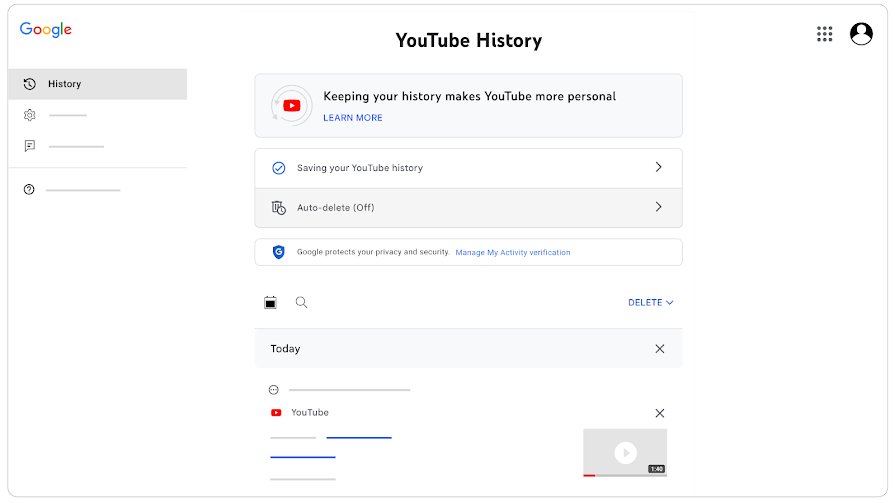
How to see your YouTube watch history
Watch history is saved to your Google Account, so this route works in any browser where you are signed in.
- Go to myactivity.google.com in your browser.
- Sign in to the Google Account you use on YouTube.
- Click YouTube History.
- Click Manage history to see the list of videos you have watched, newest first.
The list shows videos from every signed-in device, so a video watched on your phone or TV appears here too.
Which YouTube history control do you need?
| What you want | Use this | Where it is |
|---|---|---|
| Find a video you watched last week | Search or Calendar | Manage history on a computer, or Manage all history in the app |
| Remove one embarrassing or unwanted video | The X next to that video | Same history list |
| Wipe a day, a range or everything | DELETE, then pick a time frame | Same history list; also clears search history for that period |
| Keep history but stop it piling up | Auto-delete | My Activity > YouTube History > Manage history |
| Stop saving history from now on | Pause (turn off) watch history | Controls tab |
| Watch a few videos without saving them | Incognito in the YouTube app | Profile picture > Accounts > Turn on Incognito |
| Clear history on a smart TV or console | Clear watch history | Settings in the TV app's left-hand menu |
Understanding YouTube watch history
Watch history is a record of the videos you play while signed in. YouTube uses it to help you find recent videos and to pick recommendations.
| Fact | What it means for you |
|---|---|
| It is tied to your Google Account | It follows you across the website, the mobile apps and the TV app when you are signed in. |
| It feeds recommendations | Deleted videos stop influencing future recommendations on your homepage. |
| It feeds the Time watched profile | Your daily average and 7-day totals are built from it, and they disappear when history is paused. |
| It can include more than videos | The Controls tab lets you include videos you watch, searches on YouTube, and YouTube voice and audio activity. Comments are not part of it; your YouTube comment history has its own page. |
| Paused history has gaps | Videos watched while history is turned off never appear in the list, even after you turn it back on. |
| Deleting is a two-stage process | Google first removes the item from view and personalization, then starts deleting it from its storage systems. |
Google also says it may keep certain data for longer for limited business or legal purposes, so deletion removes history from your account view rather than from every record instantly.
See your watch history in the YouTube app on Android, iPhone and iPad
The steps are the same on Android phones, iPhones and iPads.
- Open the YouTube app and make sure you are signed in.
- Tap your profile photo.
- Tap Settings, then Manage all history.
- Scroll the list, or tap the Search icon to look for a specific video.
- Tap the Calendar icon to show history from a specific date range.
How to delete your YouTube watch history
On a computer, remove single videos or clear a whole period from the same My Activity list.
Using DELETE also removes your YouTube search history from the time frame you pick.
- Go to myactivity.google.com and sign in.
- Click YouTube History, then Manage history.
- To delete individual videos from your watch history, click the X next to each one.
- To delete more than one video at a time, click DELETE above the list.
- Pick the period to remove; choose All time to clear everything.
- Click Next, then Delete to finish deleting all watch history for that period.
Delete watch history in the YouTube mobile app
- Open the YouTube app and sign in.
- Tap your profile photo, then Settings > Manage all history.
- Tap the X next to a video to remove only that video.
- Tap DELETE to remove more than one video, then choose the time frame.
- Confirm the deletion; search history from that time frame goes too.
Automatically delete your YouTube history
Auto-delete keeps recent history for recommendations but removes anything older than the limit you set. You set it once and it keeps running.
- Go to myactivity.google.com and sign in.
- Click YouTube History, then Manage history.
- Click Auto-delete.
- Select how long to keep history: 3, 18 or 36 months.
- Click Next, then Confirm.
To stop automatic removal later, return to Auto-delete and choose Don't auto-delete activity.
Pausing your YouTube watch history
Pausing stops YouTube saving new videos to your history. Existing history stays until you delete it.
- On a computer, go to myactivity.google.com, click YouTube History, and open the Controls tab in the left sidebar.
- Select Turn off to pause watch history.
- In the Android or iOS app, tap your profile picture > Settings > Manage all history.
- Tap the Controls tab.
- Unselect Include the YouTube videos you watch.
For a short private session instead, tap your profile picture > Accounts > Turn on Incognito in the app. Your account's watch history will not reflect that session.
Resuming YouTube watch history
- Open the Controls tab: My Activity > YouTube History on a computer, or Settings > Manage all history in the app.
- Select Include the YouTube videos you watch again.
- Play any video, then reopen your history to confirm it now appears.
Videos watched while history was paused stay missing; resuming only records from that point on.
Pause or clear watch history on a TV, game console or while signed out
The YouTube app for TVs and consoles keeps its own controls in its menu. Signed-out viewing is controlled from the History page or app settings.
| Where you watch | To pause | To clear |
|---|---|---|
| TV or game console app | Left-hand menu > Settings > Pause watch history > Pause watch history button | Left-hand menu > Settings > Clear watch history > Clear watch history button |
| YouTube website, signed out | Go to YouTube > History > Pause watch history | Go to YouTube > History > Clear all watch history |
| YouTube mobile app, signed out | Profile picture > Settings > History & privacy > Pause watch history | Profile picture > Settings > History & privacy > Clear watch history |
Check how much time you spend watching YouTube
The Time watched profile in the mobile app shows your daily average plus totals for today, yesterday and the past 7 days.
- Open the YouTube app and sign in.
- Tap your profile picture.
- Tap Time management.
- Tap Time watched to see the figures.
The stats come from your watch history, so deleted videos and paused periods are not counted. YouTube Music and YouTube TV viewing is excluded, and Google notes that time watched on computers is currently reported incorrectly.
To limit viewing, turn on Remind me to take a break under Settings > General.
How to check YouTube watch history deletion worked
- Reopen YouTube History > Manage history in My Activity and confirm the removed videos or date range are gone.
- Open the YouTube app on your phone and check Settings > Manage all history shows the same result.
- If you paused history, play a short video and confirm it does not appear in the list.
- If you cleared everything, check the YouTube homepage; with no history and recommendations declined, homepage recommendations are removed.
The importance of regularly managing your YouTube watch history
A quick review every few months changes what YouTube shows you and what your account holds.
| Reason | What managing history does |
|---|---|
| Enhancing video recommendations | Deleting off-topic videos, such as a one-off tutorial or a child's cartoons, stops them shaping your homepage. |
| Protecting privacy | Removes a record of what you watched from your Google Account, which matters on a shared or work device. |
| Keeping search history in step | DELETE clears watch and search history together for the chosen period, so one action covers both. |
| Accurate time stats | Time watched is built from history, so keep history on if you rely on those figures. |
| Hands-off upkeep | Auto-delete at 3, 18 or 36 months keeps the list trimmed without manual reviews. |
YouTube search history is a separate list with its own controls, and search history on Google and other services is cleared separately again.
Why can't I see my watch history on YouTube?
Watch history is empty or missing recent videos
History was paused, you were signed out, or you watched in Incognito or a private window.
- Confirm you are signed in to the same Google Account on every device.
- Open the Controls tab and make sure Include the YouTube videos you watch is selected.
- Turn off Incognito in the app via your profile picture if the black Incognito bar shows at the bottom.
- Check Auto-delete has not removed older videos.
Deleted videos still show in history
A device was offline when you deleted, or the browser shows cached data.
- Connect the device to the internet; the items are removed once it syncs.
- Clear the browser's cache and cookies, then reload My Activity.
Time watched shows no figures
Time watched statistics are unavailable while watch history is paused.
- Resume watch history from the Controls tab.
- Watch videos while signed in; new figures build from that point.
YouTube watch history FAQ
How do I see my YouTube watch history?
Go to myactivity.google.com, sign in, click YouTube History and then Manage history. In the YouTube app, tap your profile photo, then Settings and Manage all history. Both show the videos watched on your account across devices.
How do I see my YouTube watch time?
In the YouTube mobile app, tap your profile picture, then Time management and Time watched. It shows your daily average and totals for today, yesterday and the past 7 days. The figures come from watch history, so paused history means no stats.
Can others see my YouTube watch history?
Your watch history sits in My Activity inside your Google Account, which needs your sign-in to open. Anyone using a device where you are signed in can open it, so pause or delete history on shared devices, or use Incognito in the app.
Can YouTube creators see who watched their videos?
YouTube Analytics gives creators counts and percentages such as views, unique viewers, watch time, monthly audience and the share of new, casual and regular viewers. The reports Google documents are aggregate metrics, not a list of named viewers.
Why can't I see my watch history on YouTube?
History may be paused, you may be signed out or in Incognito, or auto-delete removed older entries. Open the Controls tab, make sure Include the YouTube videos you watch is selected, and confirm you are signed in to the right account.
Does deleting watch history also delete my search history?
Deleting single videos with the X does not. Using the DELETE option for a time frame removes both watch history and YouTube search history from that period, so pick the range carefully if you want to keep your searches.
Does deleting watch history change my recommendations?
Yes. Google states YouTube will not base future recommendations on videos you delete from watch history. With no history at all and recommendations declined, the YouTube homepage stops showing recommendations.
How do I see watched videos on YouTube on my TV?
Signed-in TV viewing is saved to the same watch history, so open My Activity on a computer or Manage all history in the phone app to see it. The TV app's Settings also offers Pause watch history and Clear watch history.
Managing YouTube watch history: conclusion
Keep watch history on and set Auto-delete to 3 or 18 months, deleting individual videos only when one skews your recommendations. That keeps recommendations and Time watched working while stopping years of viewing from building up in your Google Account.
Review the list once or twice a year, even with auto-delete on, to remove single videos that skew your homepage.