To install Outlook in Windows 11, open the Microsoft Store, search for Outlook for Windows and install it free, or install classic Outlook through your Microsoft 365 or Office account.
This guide covers both versions, Office 2021 and 2024 installs, the web option, first-time setup, updates, fixes for failed installs and how to remove Outlook again.
The fastest way to install Outlook on Windows 11
The new Outlook is free and needs no product key. Many Windows 11 PCs sold since 2024 already have it, so check Start first.
- Select Start and type
Outlook. If Outlook appears, open it and skip to account setup. - If nothing appears, open the Microsoft Store from the taskbar or Start.
- Search for Outlook for Windows and open the listing published by Microsoft.
- Select Get or Install and wait for the download to finish.
- Select Open, enter your email address and follow the sign-in prompts.
Before you start: Know which Outlook you need
Windows 11 has two desktop apps called Outlook. The Start menu lists them as Outlook (the new app) and Outlook (classic). They can run side by side on the same PC.
| Your situation | Install this | Why |
|---|---|---|
| Personal Outlook.com, Hotmail, Gmail, Yahoo or iCloud mail | New Outlook from the Microsoft Store | Free, and it supports Microsoft, Gmail, Yahoo, iCloud and IMAP accounts |
| You have a Microsoft 365 Personal or Family subscription | Classic Outlook via Microsoft 365, plus new Outlook if you want it | Classic Outlook comes with the Microsoft 365 desktop apps |
| Your employer or school gave you a Microsoft 365 account | Classic Outlook from the Microsoft 365 apps page | Your organisation assigns the licence and may control which version you use |
| You bought Office 2021 or Office 2024 as a one-time purchase | Classic Outlook from your Microsoft account | The key is tied to your account and installs on one computer |
| You rely on COM add-ins, VBA macros, custom forms or PST archives | Classic Outlook | New Outlook does not support COM add-ins, VBA or custom forms, and only partly supports PST files |
| You only need mail on a shared or locked-down PC | Outlook on the web | Nothing to install; sign in from a browser |
Check whether Outlook is already installed
Starting in 2024, many new Windows devices come with new Outlook preinstalled and without classic Outlook. Check both places before you download anything.
- Use the Start menu: select Start, type
Outlookand look for Outlook and Outlook (classic) in the results. - Check installed apps: open Settings > Apps > Installed apps.
- Type
Outlookin the search box at the top of the list. - Look for Microsoft 365, Microsoft Office or an Office 2021/2024 entry too, because classic Outlook is installed as part of those suites.
- If you find a copy, open it and go to the account setup section below instead of reinstalling.
Option 1: Install the free new Outlook from the Microsoft Store
The Store listing is named Outlook for Windows, published by Microsoft and priced free. If the Store itself is missing or broken, reinstall the Microsoft Store app first.
- Open Microsoft Store and sign in with your Microsoft account if prompted.
- Type
Outlook for Windowsin the search bar at the top and press Enter. - Open the result published by Microsoft.
- Select Get or Install. If the Store says the app is already installed, select Open instead, because Windows shipped it with the PC.
- Select Open when the download finishes.
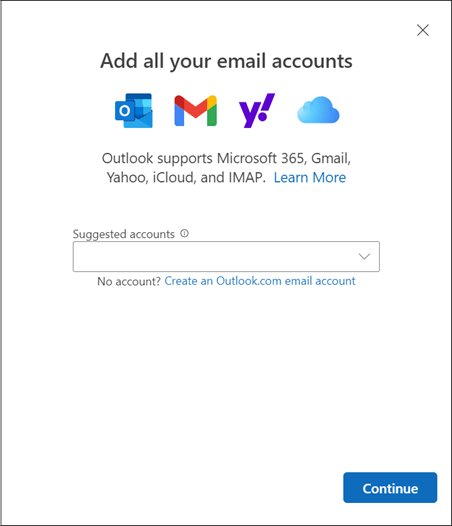
- Enter your email address on the welcome screen and select Continue, then finish the sign-in.
If you already use classic Outlook or the old Windows Mail app, a Try the new Outlook toggle in the upper-right corner downloads and opens new Outlook for you.
Option 2: Install classic Outlook with Microsoft 365
Classic Outlook installs with the other Microsoft 365 desktop apps. You need administrator rights on the PC. The default install is 64-bit unless a 32-bit Office is already present.
Install classic Outlook for a personal or family subscription
Use the Microsoft account that owns the subscription.
- Go to
m365.cloud.microsoft/appsand select Sign in. - Sign in with the Microsoft account linked to your subscription.
- Select Install apps, then Install.
- Select Run, Setup or Save File, depending on your browser, to start the installer.
- Select Yes at the User Account Control prompt.
- Wait for You're all set! Office is installed now, then select Close.
Install classic Outlook for a work or school account
Your organisation must have assigned you a Microsoft 365 licence.
- Go to
m365.cloud.microsoft/appsand sign in with your work or school account. - Select Install apps (select Apps in the left pane first if you do not see it).
- Choose Microsoft 365 apps and run the installer.
- Select Yes at the User Account Control prompt and wait for the finished message.
What if you do not see the Install apps button?
The signed-in account has no licence, or the subscription has expired.
- Confirm you signed in with the account that owns the subscription.
- For a work or school account, open the Microsoft 365 Software page at
aka.ms/office-install. - If it still shows no install option, ask your IT admin to assign a licence.
- For a personal plan, check your subscription status and renew it if it has lapsed.
Classic Outlook is also offered as a standalone download on Microsoft's Install or reinstall classic Outlook on a Windows PC support page. Choose your language, select Download and follow the prompts.
Option 3: Install Outlook from Office 2021 or Office 2024
One-time purchase versions install on only one computer. Before you start, confirm that the suite you bought lists Outlook among its apps, because not every Office edition includes it. Office 2021 reaches its retirement date on October 13, 2026, so pick Office 2024 or Microsoft 365 for a new purchase.
- If you have a new product key, go to
microsoft365.com/setup(Office 2024) oroffice.com/setup(Office 2021), sign in and enter the key. - For Office 2024, sign in at
m365.cloud.microsoft/appsand select Install apps > Install. - For Office 2021, open your Microsoft account dashboard, select Sign in, then Office apps, and select Install next to your product.
- Run the downloaded setup file and select Yes at the User Account Control prompt.
- Wait for You're all set! Office is installed now and select Close.
- Open Outlook (classic) from Start and accept the licence agreement to activate.
Moving Office to a new PC? Find the Office product key already installed on the old computer before you wipe it.
Option 4: Use Outlook through the web instead of installing
Personal accounts sign in at outlook.com. Work and school accounts sign in at outlook.office.com or through microsoft365.com. You can also install Outlook on the web as a PWA so it opens in its own window.
- Open Microsoft Edge and sign in to Outlook on the web or Outlook.com.
- Select Settings and more (the three dots at the top right).
- Select Apps > Install this site as an app and confirm.
- In Google Chrome instead, select Customize and control Google Chrome and choose Install Outlook.
- Right-click the new Outlook app in Start and select Pin to taskbar.
Set up Outlook after installation
Gmail, Yahoo and iCloud may require a change on the provider's own website first. If Outlook asks you to create an app password, generate one in your provider's account settings and paste it in place of your normal password.
Add an account in the new Outlook
The first account is added on the welcome screen; add more later from settings.
- Select View > View settings.
- Select Accounts > Your accounts.
- Under Email accounts, select Add account.
- Enter your email address and select Continue.
- Enter your password if asked and select Done.
Add an account in classic Outlook
Classic Outlook detects most server settings automatically.
- Select File > Add Account.
- Enter your email address and select Connect.
- Enter your password if asked, then select OK > Finish.
- For an account that needs manual settings, tick Let me set up my account manually, select Connect, choose IMAP and enter the incoming and outgoing server details.
No address yet? Create an Outlook.com email account in a browser first, then add it with the steps above.
Choose between new Outlook and classic Outlook
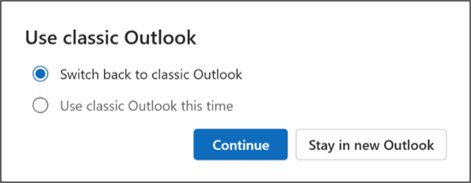
Both apps can stay installed. The toggle in the top-right corner of each app switches between them.
| Need | New Outlook | Classic Outlook |
|---|---|---|
| Price | Free from the Microsoft Store | Comes with Microsoft 365, Office 2021/2024 or the standalone download |
| COM add-ins and VBA macros | Not supported | Supported |
| Custom forms and voting buttons | Not available | Available |
| PST data files | Partially available | Full support |
| Snooze, Sweep, Undo send, pinned messages | Available | Not in classic |
| Copilot meeting scheduling from an email thread | Available with a qualifying work or school subscription | Not available |
| Public folders | Limited support | Full support |
When to use New Outlook: a personal account, several providers in one inbox, and no add-ins or macros to keep. When to use Classic Outlook: you depend on COM add-ins, VBA, custom forms, PST archives or public folders.
Pin Outlook to the taskbar or Start menu
- Select Start and type
Outlook. - Right-click Outlook or Outlook (classic) in the results.
- Select Pin to taskbar to pin Outlook to the taskbar.
- Right-click it again and select Pin to Start to pin Outlook to the Start menu.
- Repeat for the other version if you run both side by side.
Make Outlook the default email app in Windows 11
Setting the default makes mailto: links and .eml files open in Outlook instead of another mail app.
- Open Settings > Apps > Default apps.
- Under Set defaults for applications, search for and select Outlook (or Outlook (classic)).
- Select the MAILTO link type.
- Choose Outlook from the list and select Set default.
- Repeat for
.emland any other file types you want Outlook to open.
Update Outlook after installing
Update the new Outlook
The Store version updates through the Microsoft Store, and Store app updates are automatic by default.
- Open Microsoft Store.
- Go to your app library and select Check for updates.
- Let the Store install the Outlook update, then reopen Outlook.
Update classic Outlook
Classic Outlook updates with the rest of Office.
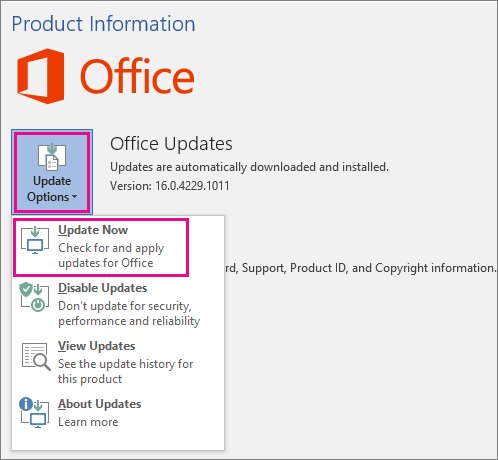
- Open Outlook (classic) and select File > Office Account.
- Under Product Information, select Update Options > Update Now.
- If Update Now is missing, select Enable Updates first.
- Close the confirmation window when the update finishes.
If Update Options is missing entirely, the PC uses a volume-licensed Office or a policy set by your organisation. Contact your IT help desk.
How to check Outlook installed correctly
- Select Start and type
Outlook; you should see Outlook, Outlook (classic) or both. - Open the app and confirm your inbox loads and a test message sends.
- In classic Outlook, select File > Office Account and confirm Product Information shows your licence as activated.
- In Settings > Apps > Installed apps, confirm the Outlook or Microsoft 365 entry is listed.
Troubleshooting Outlook installation problems
Problem: Microsoft Store will not install Outlook
A stale Store cache, a pending restart or the wrong signed-in account.
- Restart the PC if Windows installed updates recently.
- Press Win + R, type
wsreset.exeand select OK; the Store reopens after about 10 seconds. - Check that you are signed in to the Store with your own Microsoft account, not a restricted family account.
- Search for Outlook for Windows again and select Get or Install.
"We couldn't verify and install this because it is not available in the Microsoft Store"
This appears when classic Outlook is missing on a PC that shipped with new Outlook.
- Open Microsoft's Install or reinstall classic Outlook on a Windows PC support page.
- Choose your language and select Download.
- Run the file and follow the prompts.
- On a work or school account, contact your IT admin if the install still fails.
Problem: Microsoft 365 installer gets stuck
A slow connection, or another Office install or update running in the background.
- Check your internet connection and pause large downloads.
- Wait for any other Office install or update to finish, then run setup again.
- Run the setup troubleshooter from Microsoft's Troubleshoot installing Office page.
- If it still fails, use the uninstall troubleshooter from the same page, restart and reinstall.
Problem: Outlook is missing after installing Office
The suite you bought may not include Outlook, or the shortcut has not appeared in Start.
- Select Start, type
Outlookand look for Outlook (classic). - Check that your Office edition lists Outlook among its included apps.
- If it is not included, install new Outlook free from the Store or use the classic Outlook standalone download.
Problem: You installed the wrong Outlook
New Outlook and classic Outlook are separate apps with similar names.
- In new Outlook, select the toggle at the top right.
- Choose Switch back to classic Outlook or Use classic Outlook this time.
- If no toggle appears, classic Outlook is not installed; install it with Option 2 or 3.
- In classic Outlook, turn on Try the new Outlook to go the other way.
Problem: Outlook cannot add your email account
The provider requires an app password or a setting changed on its website.
- Sign in to your provider's website and create an app password for Outlook.
- Add the account again and paste the app password when asked.
- In classic Outlook, use Let me set up my account manually and choose IMAP if automatic setup fails.
Uninstall Outlook if you no longer need it
Uninstall the new Outlook
New Outlook is a Store app and uninstalls on its own.
- Select Start > All apps and find Outlook.
- Right-click it and select Uninstall, then confirm.
- Alternatively, open Settings > Apps > Installed apps, select More next to Outlook and choose Uninstall.
Uninstall classic Outlook
Classic Outlook installed with Microsoft 365 or Office is removed with the suite.
- Open Settings > Apps > Installed apps.
- Find the Microsoft 365 or Microsoft Office entry.
- Select More > Uninstall and confirm.
- Restart the PC when the removal finishes.
Installing Outlook on Windows 11: frequently asked questions
How do I install Outlook on Windows 11?
Open the Microsoft Store, search for Outlook for Windows and select Get or Install. That gives you the free new Outlook. For classic Outlook, sign in at m365.cloud.microsoft/apps with your Microsoft 365 or Office account and select Install apps.
Can I download Outlook for Windows 11 for free?
Yes. The new Outlook for Windows is free in the Microsoft Store and works with Outlook.com, Gmail, Yahoo, iCloud and other IMAP accounts. Classic Outlook needs a Microsoft 365 subscription, an Office licence that includes Outlook, or Microsoft's standalone classic Outlook download.
How do I install classic Outlook on Windows 11?
Sign in at m365.cloud.microsoft/apps, select Install apps and run the installer, which adds Outlook (classic) with the other Office apps. On a PC that shipped with only new Outlook, use the language-specific download on Microsoft's Install or reinstall classic Outlook support page.
How do I install the old Outlook on Windows 11?
The old Outlook is now called classic Outlook. Install it through Microsoft 365 or Office 2021/2024, or from Microsoft's classic Outlook download page. Once installed, it appears in Start as Outlook (classic) and can run alongside the new app.
How do I install the new Outlook on Windows 11?
Search for Outlook for Windows in the Microsoft Store and install it, or turn on the Try the new Outlook toggle in classic Outlook or the Windows Mail app. Many Windows 11 PCs sold since 2024 already have it installed.
How do I reinstall Outlook on Windows 11?
Uninstall the current copy from Settings > Apps > Installed apps, restart, then install it again. Reinstall new Outlook from the Microsoft Store, and classic Outlook from m365.cloud.microsoft/apps or the classic Outlook download page. Your mailbox data stays on the mail server for Microsoft and IMAP accounts.
How do I uninstall Outlook on Windows 11?
Open Settings > Apps > Installed apps, select More next to Outlook and choose Uninstall. Classic Outlook is removed by uninstalling the Microsoft 365 or Office entry, which also removes the other Office apps in that suite.
Why can't I install Outlook on Windows 11?
The usual causes are a stale Microsoft Store cache, a pending restart, an expired or unassigned licence, or no administrator rights. Run wsreset.exe for Store problems, check your subscription for Microsoft 365, and ask your IT admin if a work account shows no install option.
How do I use Outlook in Windows 11 without installing it?
Sign in at outlook.com for a personal account or outlook.office.com for a work or school account. In Edge, select Settings and more > Apps > Install this site as an app to give Outlook on the web its own window and taskbar icon.
Quick recommendation: Which Outlook installation method should you use?
Install the free new Outlook from the Microsoft Store unless you need COM add-ins, VBA macros, custom forms or full PST support; in that case install classic Outlook through Microsoft 365 or your Office 2021/2024 licence. New Outlook costs nothing and handles Microsoft, Gmail, Yahoo, iCloud and IMAP accounts, while classic Outlook is the only version that keeps legacy add-ins and data files working.

![How to appear offline on Steam [easy & quick guide]](https://techdows.com/wp-content/uploads/2026/10/Steam-Friends-List-in-a-browser-with-the-status-line-under-the-profile-name-600x338.jpg)