To make a copy of a Word document, open it and select File > Save As (or File > Save a Copy for files stored in OneDrive or SharePoint), give the copy a new name or folder, and select Save before you change anything.
This guide covers Windows, Mac, Word for the web, OneDrive, iPhone, iPad and Android, copying without opening Word, changing the format, and fixing a copy that overwrote the original.
How do you make a copy of a Word document on Windows?
These steps work in Word for Microsoft 365 and recent desktop versions of Word. Make the copy first and edit it second, because AutoSave writes every change to whichever file is open.
- Open the document you want to copy in Word.
- Select File > Save As, or press F12 to open the Save As dialog box directly.
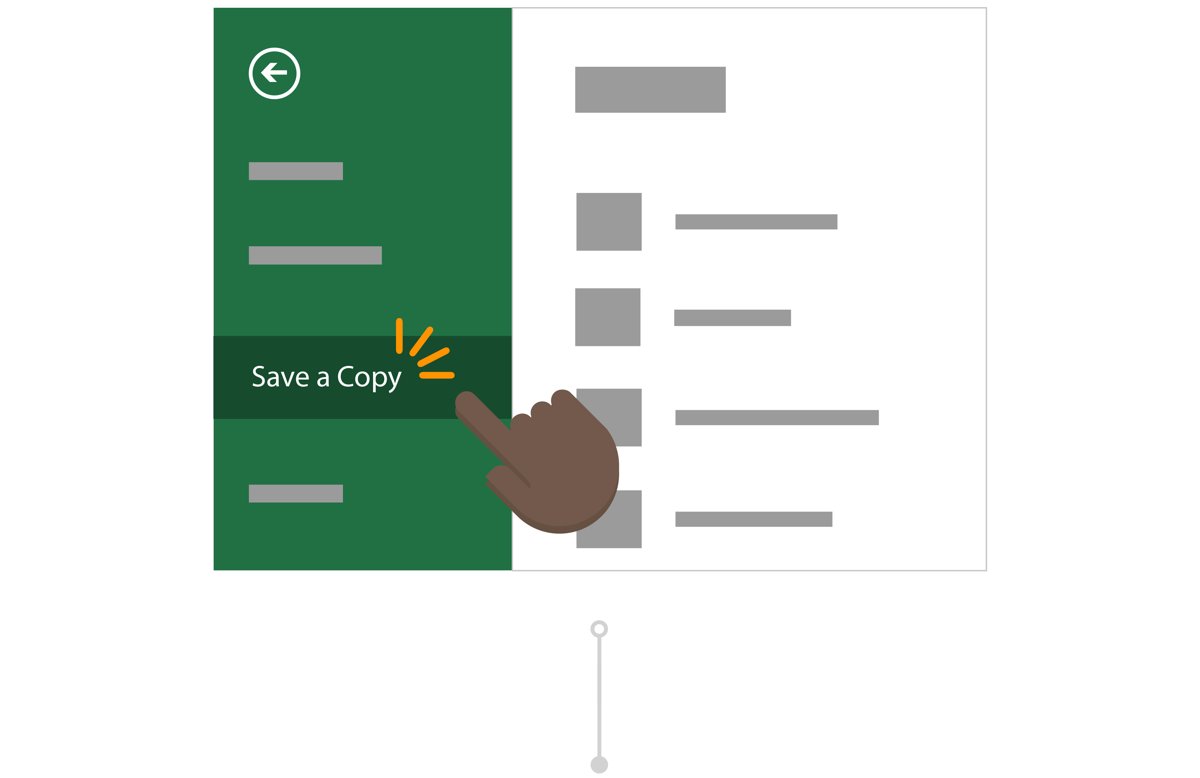
- If the file lives in OneDrive or SharePoint, select File > Save a Copy instead; it does the same job.
- Choose a location: select This PC and a folder, or Browse to pick one, such as your Documents folder.
- Type a new name in the File name box so the copy cannot replace the original.
- Select Save. Word now shows the copy, and the original stays closed and unchanged.
Quick reference: the right copy command
| Where you are | Use this command | Result |
|---|---|---|
| Word for Windows, local file | File > Save As or F12 | A new file under the name and folder you choose |
| Word for Windows or Mac, OneDrive or SharePoint file | File > Save a Copy | A separate copy; AutoSave keeps working on whichever file is open |
| Word for Mac, local file | File > Save As or Command + Shift + S | A new file under the name you choose |
| Word for the web | File > Create a Copy | Create a copy online in OneDrive, or Download a copy to your PC |
| OneDrive in a browser | … > Download, or Copy to in work or school OneDrive | A local copy, or a second cloud copy in another folder |
| iPhone or iPad | File > Save a Copy | A copy in the location you pick |
| Android | File menu > Save As | A copy on the device or in a connected cloud service |
| File Explorer or Finder | Ctrl + C, Ctrl + V or File > Duplicate | A copy made without opening Word |
What does “make a copy” mean in Word?
Making a copy creates a second, independent file. Edits to one file never reach the other, which is different from sharing a link or opening an older version.
| Action | Creates a new file? | What happens to the original |
|---|---|---|
| Save As / Save a Copy | Yes | Stays as it was when you made the copy |
| Copy and paste in File Explorer or Finder | Yes | Untouched; Word is not involved |
| Download from OneDrive or Word for the web | Yes, on your device | The cloud file keeps changing if others edit it |
| Share a link | No | Everyone works on the same file |
| Version History | No, it restores or opens an older state | Can be rolled back to an earlier version |
| Open a template (.dotx) | Yes, an untitled document | The template stays unchanged |
How do you make a copy of a Word document on a Mac?
Word for Mac shows Save As for files on your Mac and Save a Copy for files opened from OneDrive or SharePoint.
- Open the document in Word for Mac.
- Select File > Save As, or press Command + Shift + S.
- For a OneDrive or SharePoint file, select File > Save a Copy right away, before you type anything.
- Type a new name and choose a folder.
- Select Save, then make your changes in the copy that is now open.
How do you copy a Word document in Word for the web?
- Open the document in Word for the web at office.com or from OneDrive.
- Select File > Create a Copy.
- Select Create a copy online to save a second copy in OneDrive.
- Or select Download a copy to save the file on your computer; it lands in your Downloads folder.
- Rename the new copy so you can tell it apart from the original.
How do you download a Word document directly from OneDrive?
Downloading gives you a local copy without opening Word at all. You can download one document or several at once.
- Sign in to OneDrive in your browser and open the folder that holds the document.
- Hover over the document and select Show more actions for this item (…).
- Select Download.
- Open your Downloads folder to find the copy.
- Move or rename the downloaded file before you edit it, so it is not mixed up with later downloads.
How do you copy a Word document on iPhone, iPad, or Android?
The Word mobile apps save as you work, so save the copy before you change the document.
- iPhone or iPad: open the document and tap File > Save a Copy.
- iPhone or iPad: choose where to save it, enter a file name and tap Save a Copy.
- Android: open the document, open the file menu and tap Save As.
- Android: tap This device to keep the copy on the phone, or Add a place to sign in to OneDrive, Dropbox or another supported cloud service.
- Type a new name and save, then edit the copy that is now open.
How do you copy a Word file without opening Word?
Your file manager can duplicate a .docx file like any other file, using the usual copy and paste keyboard shortcuts. This is the fastest way to copy several documents at once.
- Windows File Explorer: select the document and press Ctrl + C, or right-click it and select Copy.
- Windows File Explorer: open the destination folder and press Ctrl + V, or right-click an empty area and select Paste.
- Windows File Explorer: if you paste into the same folder, Windows names the duplicate for you; press F2 to rename it.
- Mac Finder: select the document and choose File > Duplicate, or press Command + D, to copy it in the same folder.
- Mac Finder: to copy it into another folder, hold Option and drag the document to that folder.
Method 1: Copy & paste the document contents
Copying the text into a new document is useful when you want the content without the original file's name, properties or comments history.
- Open the original document and press Ctrl + A to select everything.
- Press Ctrl + C to copy the selection.
- Press Ctrl + N to start a new blank document.
- Press Ctrl + V to paste the contents.
- Check headers, footers and page layout, then press Ctrl + S and save the new document under its own name.
Method 2: Open as a copy in Word
The safe way to open a copy is to make it from the Open screen before any edit reaches the original.
- In Word, select File > Open, or press Ctrl + F12 to go straight to the Open dialog box.
- Find the document under Recent, This PC or Browse, and open it.
- Before typing anything, press F12 or select File > Save As (Save a Copy for cloud files).
- Give the copy a new name and select Save.
- Confirm the new name shows in the title bar, then start editing.
Method 3: Save to OneDrive
Saving the copy to OneDrive gives you AutoSave and Version History on the copy, and you can open it from any device.
- Open the document and select File > Save As (or Save a Copy).
- Select your OneDrive location; sign in with your Microsoft account if asked.
- Pick a folder, type a new file name and select Save.
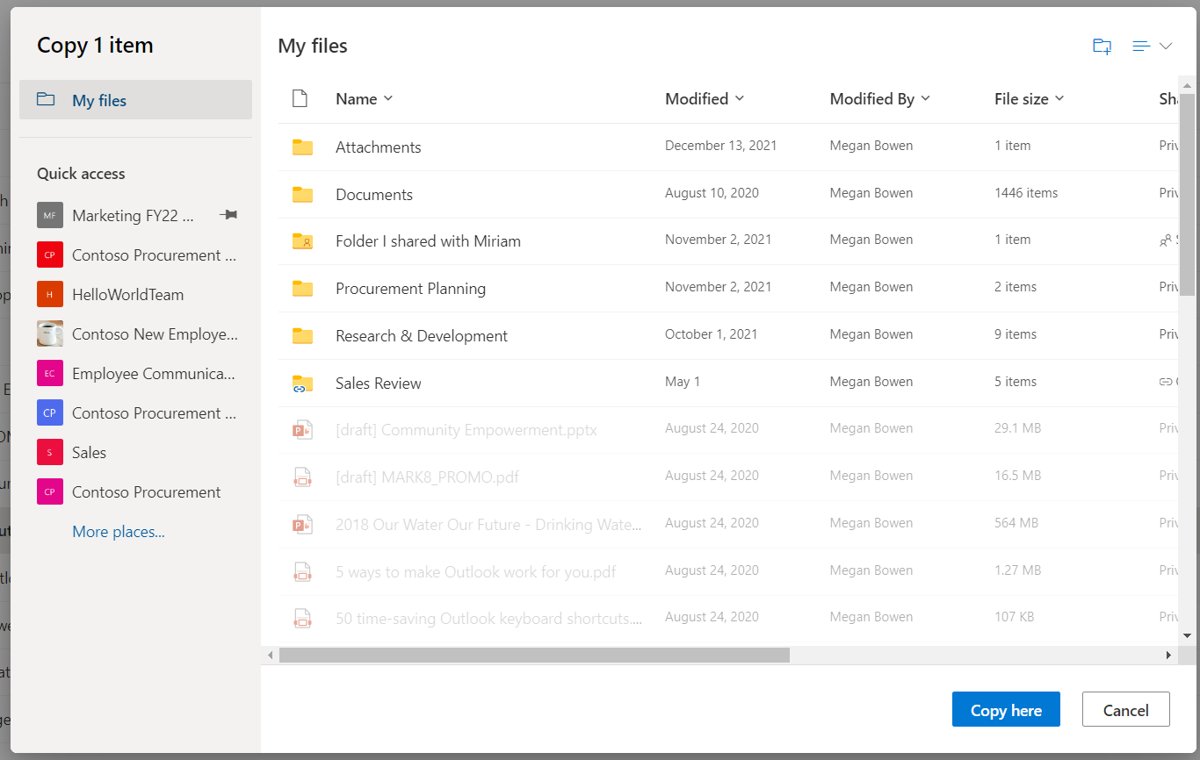
- In work or school OneDrive on the web, you can also select a file and choose Copy to, pick a folder and select Copy here to make a second cloud copy.
- Note that Copy to copies only the latest version, not the version history.
How do you make a copy and change the Word document format?
- Open the document and select File > Save As.
- Select Browse, pick a folder and type a file name.
- Open the Save as type list and pick the format you want, such as PDF, an earlier Word version or OpenDocument format.
- Select Save. The new file is a separate copy in the new format, and the original .docx stays as it was.
Should you create a normal copy or a Word template?
A template is a document type that creates a copy of itself when you open it. Use one when you start the same kind of document again and again.
| Choose | When | How |
|---|---|---|
| Normal copy (.docx) | You need one duplicate to edit, archive or send | File > Save As or Save a Copy |
| Word template (.dotx) | You reuse the same layout, such as a monthly report or a letterhead | File > Save As, then pick the Word template type in Save as type |
| Macro-enabled template (.dotm) | The reusable document contains macros | Pick the macro-enabled template type in Save as type |
| Where templates live | So they appear when you start a new document | The Custom Office Templates folder under Documents |
Should you copy, share, download, or use Version History?
| Your goal | Use | Why |
|---|---|---|
| Edit freely without touching the original | Copy (Save As / Save a Copy) | Two independent files |
| Let others work on the same document | Share a link | Everyone sees the latest version |
| Keep an offline or backup file | Download | A local file that stays fixed |
| Undo unwanted edits | Version History | Restores an earlier state without a second file; works only for OneDrive and SharePoint files |
| Send a fixed snapshot | Email a copy as an attachment | The recipient's edits never reach your file |
How can you confirm that the Word copy is independent?
- Look at the title bar: it should show the new file name, not the original one.
- Type a test word in the copy and save it.
- Close the copy and open the original from its folder or from File > Open.
- Check that the test word is not in the original.
- Delete the test word from the copy and save again.
- If the copy opens in Protected View, select Enable Editing, or make the Word document editable if it stays read-only.
What should you do if Save a Copy is missing?
Only Save As appears on the File menu
Word shows Save a Copy only for files opened from OneDrive or SharePoint; local files keep Save As.
- Use File > Save As or press F12; it makes the same copy.
- On a Mac, use File > Save As or Command + Shift + S.
Only Save a Copy appears and Save As is gone
The file is stored in OneDrive or SharePoint, where Save a Copy replaces Save As.
- Select File > Save a Copy and save under a new name.
- To get the old behaviour on this file, switch the AutoSave toggle off before editing.
What should you do if the copy overwrote the original?
This happens when you edit a cloud file with AutoSave on and only then use Save a Copy: the changes are saved in both files.
- Open the original document.
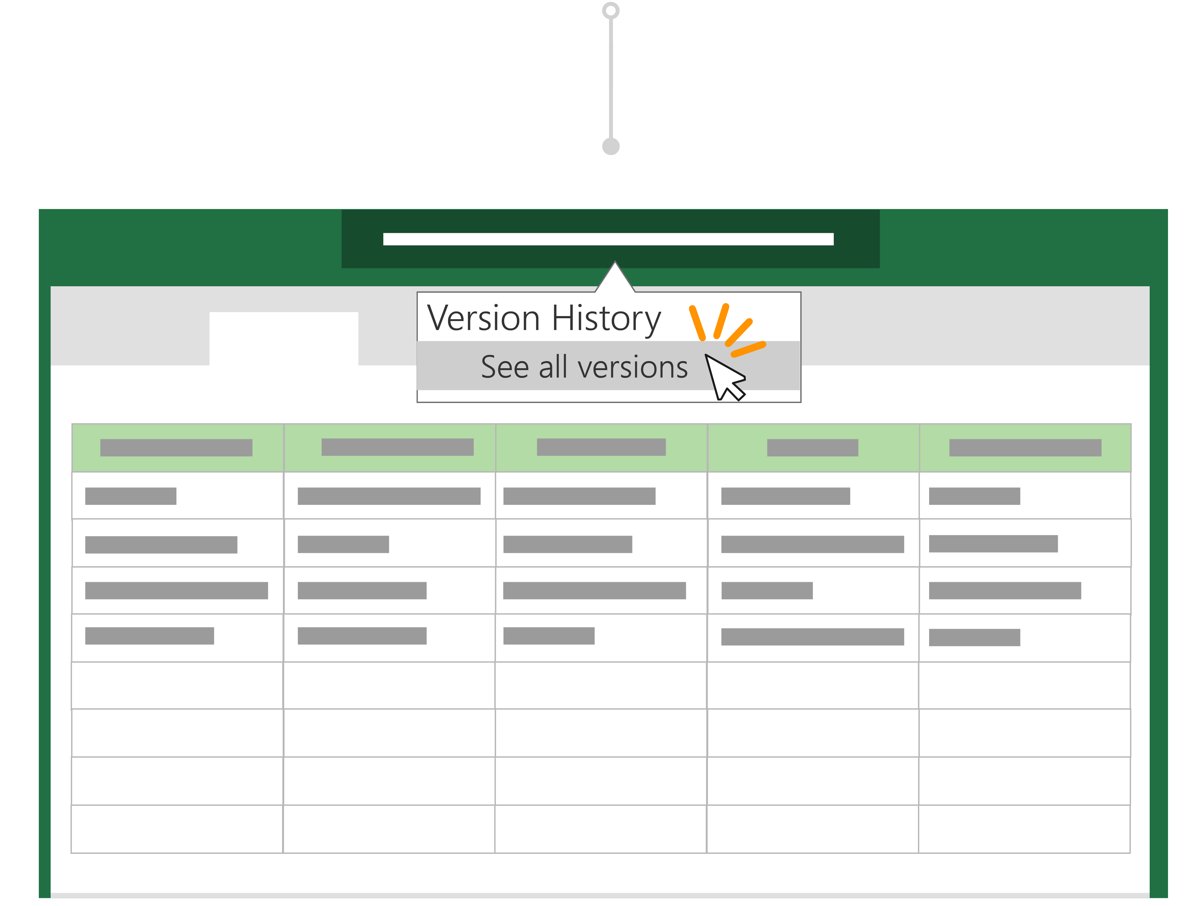
- Windows: select the file name at the top of the window, then Version History.
- Mac: select File > Browse Version History.
- Select a version from before your edits and open it.
- Select Restore. Personal Microsoft accounts keep the last 25 versions.
- For a local file, press Ctrl + Z in the still-open document to undo recent edits, then save.
Why does the copied document look different?
Formatting changed after copy and paste
A new blank document starts with its own page setup and styles, which the pasted text picks up.
- Make the copy with Save As or in File Explorer instead, which keeps the file exactly as it was.
- If you must paste, check headers, footers, margins and styles in the new document.
The copy was saved in another format
Formats such as PDF, OpenDocument or an earlier Word version cannot hold every Word feature.
- Open File > Save As and save again as a Word document (.docx).
- Keep the .docx as your master and export other formats from it.
The copy opens blank or shows no text
The copy is only as good as its source; a problem in the original carries over.
- Open the original and check whether it shows its text.
- If the original also opens empty, fix a Word document that opens blank before copying it.
What if the Word document is in OneDrive and keeps changing?
Edits keep appearing in the shared original
AutoSave saves every change to the cloud file, and other people with edit access see them within seconds.
- Select File > Save a Copy before you make any change, and edit only the copy.
- Or switch the AutoSave toggle off for that file while you try out changes.
- To stop AutoSave by default, select File > Options > Save and clear the AutoSave option.
- Ask the owner to set File > Info > Protect Document > Always Open Read-Only if the file should not change.
Word will not save the copy to OneDrive
OneDrive storage is full, so new files cannot be saved there.
- Select the OneDrive icon in the notification area and choose Manage storage to check free space.
- Free up space, or save the copy to This PC instead.
How do you email a copy instead of sharing the original?
An attachment is a fixed copy: the recipient's edits stay in their file. A shared link gives them the live document instead.
- Word for Windows: open the document and select File > Share.
- Choose to attach a copy instead of sharing a link, then pick the Word document or a PDF.
- Outlook opens a new message with the copy attached; add recipients and select Send.
- Word on iPhone or iPad: tap the three dots, tap Send a Copy and pick the app to send it with.
- For sensitive documents, put a password on the Word document before you attach it.
What if the source file is a PDF?
Word makes a copy of a PDF when it opens it, converts that copy to a Word document and leaves the original PDF unchanged.
- In Word, select File > Open and choose the PDF.
- Let Word convert it; the result is an editable Word copy.
- Select File > Save As and save it as a Word document under a new name.
- Check the layout: pages that are mostly charts or graphics may arrive as images, and footnotes may turn into ordinary text.
- Expect tables with cell spacing, tracked changes, frames, endnotes, PDF comments and font effects such as Glow or Shadow to convert poorly.
Do you need to buy Word to make a copy?
| Option | Cost | How to copy |
|---|---|---|
| File Explorer or Finder | Free, built in | Copy and paste, or File > Duplicate |
| Word for the web | Free with a Microsoft account, which includes 5 GB of OneDrive storage | File > Create a Copy |
| OneDrive in a browser | Free with a Microsoft account | Download, or Copy to in work or school OneDrive |
| Word desktop app | Paid Microsoft 365 or Office licence | File > Save As or Save a Copy |
Final notes on copying a Word document safely
| Note | Why it matters |
|---|---|
| Copy first, edit second | With AutoSave on, edits made before the copy are saved to the original too |
| Always rename the copy | Two files with the same name in different folders are easy to mix up |
| Read-only does not stop copying | Anyone who can open a read-only document can still save a new copy elsewhere |
| Copies do not carry version history | OneDrive Copy to and Save a Copy start the new file with no earlier versions |
| Downloads are snapshots | A downloaded copy does not update when the cloud file changes |
Frequently asked questions about copying a Word document
How do I make a copy of a Word document?
Open the document and select File > Save As, or File > Save a Copy if it is stored in OneDrive or SharePoint. Give the copy a new name or folder and select Save before you make any changes, so the original stays as it was.
Does saving a copy of a Word document change the original?
No, as long as you save the copy before editing. If AutoSave is on and you edit a cloud file first, those edits are saved to the original as well. Use Version History to restore the original if that happens.
What is the shortcut for copying a Word document?
Press F12 in Word for Windows to open the Save As dialog box, or Command + Shift + S in Word for Mac. In File Explorer, select the file and press Ctrl + C, then Ctrl + V in the destination folder.
How do I make a copy of a Word document without opening it?
Use File Explorer on Windows: select the file, press Ctrl + C, open a folder and press Ctrl + V. On a Mac, select it in Finder and choose File > Duplicate or press Command + D.
How do I copy a Word document from OneDrive to my computer?
In OneDrive in your browser, hover over the document, select Show more actions (…) and then Download. The copy is saved in your Downloads folder. In Word for the web, File > Create a Copy > Download a copy does the same.
How do I make a copy of an Excel file or a PowerPoint?
The same commands work in Excel and PowerPoint. Open the file and select File > Save As, or File > Save a Copy for files in OneDrive or SharePoint, then save it under a new name before you edit.
How do I make a copy of a PDF that I can edit?
Open the PDF in Word with File > Open. Word converts a copy of the PDF into an editable Word document and leaves the original PDF unchanged. Save the result as a .docx file under a new name.
How do I make a copy of a Google Doc?
Open the document in Google Docs and select File > Make a copy. Type a name, choose where to save it and click OK. Tick the option to copy comments and suggestions if you want them in the new copy.
Should I use Save As or Version History?
Use Save As or Save a Copy when you want a second, independent file. Use Version History when you want to roll the same file back to an earlier state; it works only for files stored in OneDrive or SharePoint.
The bottom line on making a copy of a Word document
Use File > Save As (or Save a Copy for cloud files) the moment you open the document, give the copy a new name, and only then start editing. It works on every Word app, keeps the original untouched even with AutoSave on, and avoids the Version History rescue that editing first can force on you.