To remove Yahoo search from Chrome, open Settings, select Search engine, select Change and pick Google as the new default.
This guide covers desktop Chrome on Windows and Mac, Android, iPhone and iPad, plus Yahoo homepages, startup pages, shortcuts and the extensions or policies that bring Yahoo back.
Replace Yahoo with Google in desktop Chrome
These steps work the same in Chrome on Windows 11, Windows 10, macOS and ChromeOS. The address bar starts sending searches to Google as soon as you pick it.
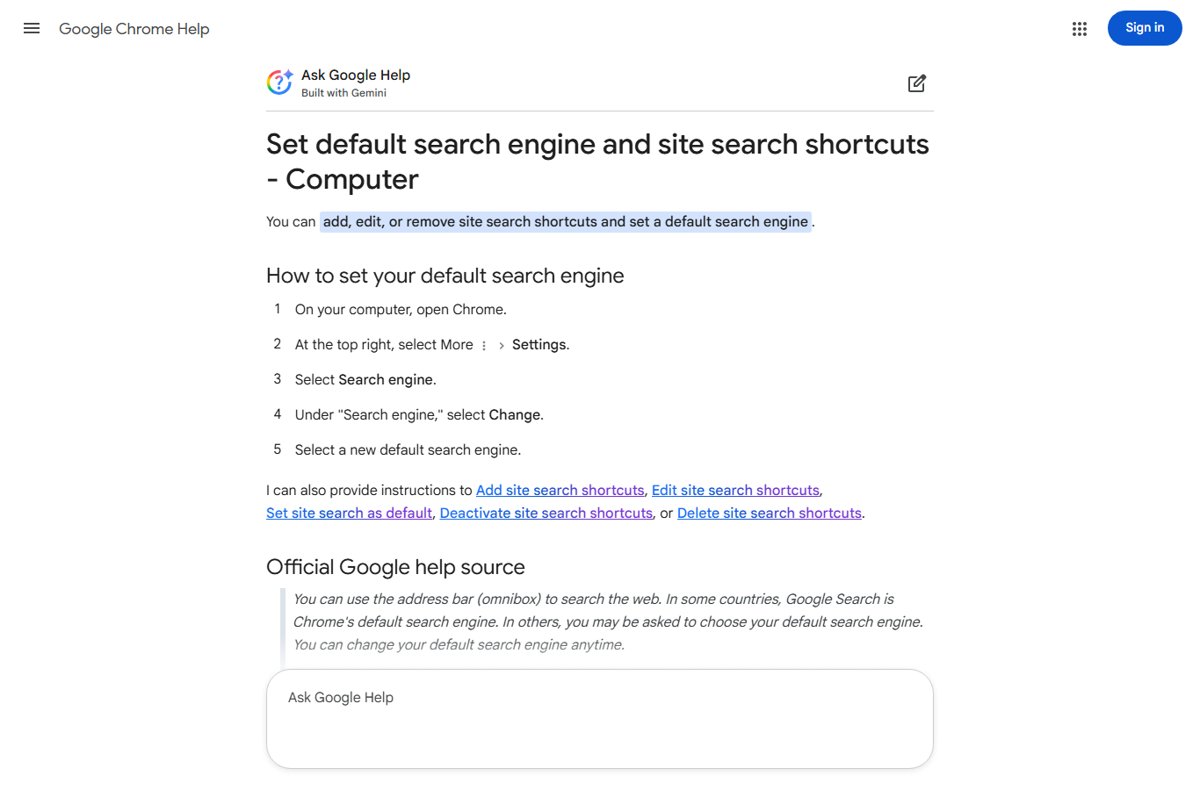
- Open Chrome on your computer.
- Select More (the three dots at the top right), then Settings.
- Select Search engine in the left pane.
- Under Search engine, select Change.
- Select Google as the new default search engine.
- Type a test search in the address bar and press Enter to confirm the results open on google.com.
If Google is already selected but searches still land on Yahoo, something else is overriding the setting. Jump to the section on Yahoo coming back.
Where Yahoo search hides in Chrome and which fix removes it
| What you see | Where Yahoo is set | Fix |
|---|---|---|
| Address bar searches open Yahoo results | Default search engine | Settings > Search engine > Change > Google |
| Chrome opens on a Yahoo page at launch | Startup page | Settings > On startup > Open the New Tab page |
| The Home button opens Yahoo | Homepage | Settings > Appearance > Show Home button > New Tab page |
| A Yahoo tile sits on the New Tab page | New Tab page shortcut | Hover the tile, select More > Remove |
| Settings says an extension controls search | Extension | Extensions > Manage Extensions > Remove |
| The menu shows Managed by your organization | Chrome policy | Check chrome://policy, then remove unwanted programs |
| Yahoo returns after every restart | Unwanted program on the PC or Mac | Uninstall the program, then reset Chrome settings |
Remove a Yahoo shortcut from Chrome
Yahoo can survive a search engine change as a New Tab page tile, a site search shortcut, a homepage or a startup page. Clear each one that applies.
- To remove a Yahoo tile, open a new tab, hover over the tile, select More at its top-right corner and choose Remove.
- To delete a Yahoo site search shortcut, go to Settings > Search engine > Manage search engines and site search, select More next to the Yahoo entry and choose Delete.
- To stop Yahoo opening at launch, go to Settings, select On startup and choose Open the New Tab page.
- To fix the Home button, go to Settings, find Appearance, keep Show Home button on and choose the New Tab page instead of a custom Yahoo address.
- Close every Chrome window, open Chrome again and check that no Yahoo page loads.
A shortcut you set to inactive moves to Inactive shortcuts instead of disappearing. Use Delete when you want it gone from the list.
Remove the Yahoo extension from Chrome
When Settings says an extension is controlling your search engine, changing the setting alone will not hold. Remove the extension first.
Yahoo has shipped its own Chrome extension that set the search provider and New Tab page; that Yahoo extension and look-alike search extensions are removed the same way.
- Select More at the top right of Chrome, then Extensions > Manage Extensions.
- Look for any extension you do not recognise, especially ones with search, new tab or Yahoo in the name.
- Select Remove on that extension.
- Select Remove again to confirm.
- Return to Settings > Search engine and check that Google is selected.
If the extension icon sits next to the address bar, right-click it and choose Remove from Chrome for a faster route.
Uninstall the program that sets Yahoo search on Windows or Mac
Google lists a search engine that keeps changing without permission as a sign of unwanted software. A desktop program can rewrite Chrome's settings each time it runs, so remove it before you reset Chrome.
- On Windows 11, select Start > Settings > Apps > Installed apps.
- Find a program you do not recognise or did not install on purpose, select More next to it and choose Uninstall.
- If an app cannot be removed there, open Control Panel, select Programs > Programs and Features, right-click the program and choose Uninstall or Uninstall/Change.
- On a Mac, open Finder and select Applications in the sidebar.
- Right-click any program you do not recognise and choose Move to Trash, then right-click the Trash and empty it.
- Restart the computer before you open Chrome again.
If you suspect the program came bundled with other software, run a full malware scan as part of removing a browser hijacker on the whole system.
Reset Chrome settings to remove Yahoo search
A reset puts the default search engine, homepage, startup tabs and New Tab page back to Chrome's defaults in one pass. Your bookmarks and saved passwords stay put.
- Open Chrome and select More > Settings.
- Select Reset settings.
- Select Restore settings to their original defaults.
- Select Reset settings to confirm.
- Open More > Extensions > Manage Extensions and turn back on only the extensions you trust.
- Check Settings > Search engine and select Google if Chrome asks you to choose.
The reset also clears pinned tabs, site permissions, cookies and site data, and it applies to every device where you are signed in to the same Chrome profile.
Change the search engine on Android
- Open Chrome on your Android phone or tablet.
- Tap More at the top right, then Settings.
- Under Basics, tap Search engine.
- Tap Google.
- Go back and run a test search from the address bar.
Search engines you visited recently are added to this list automatically, so a Yahoo entry may stay visible. It does nothing unless it is selected.
Change the search engine on iPhone or iPad
- Open Chrome on your iPhone or iPad.
- Tap More, then Settings.
- Tap Search engine.
- Tap Google.
- Close Settings and search from the address bar to confirm the results come from Google.
How to check Yahoo search is gone from Chrome
- Close every Chrome window and open Chrome again; it should open your New Tab page, not a Yahoo page.
- Type a search in the address bar and press Enter; the results page address should start with google.com.
- Open Settings > Search engine and confirm Google is shown with no note that an extension controls it.
- Select More and check the bottom of the menu; there should be no Managed by your organization line on a personal computer.
- Restart the computer and repeat the test search, because a returning program usually acts after a reboot.
Do not confuse the Chrome search engine with the default browser
Two different settings get called "default". Changing one leaves the other untouched, which is why some readers set Chrome as the default browser and still see Yahoo.
| Setting | What it controls | Where to change it |
|---|---|---|
| Default search engine | Which site answers searches typed in Chrome's address bar | Chrome Settings > Search engine |
| Default browser on Windows 11 | Which browser opens links from other apps | Start > Settings > Apps > Default apps > Google Chrome > Set default |
| Default browser on Windows 10 | Which browser opens links from other apps | Start > Settings > Apps > Default apps > Web browser |
| Default browser on Mac | Which browser opens links from other apps | Chrome Settings > Default browser > Make default |
| Homepage and startup page | Which page opens at launch or from the Home button | Chrome Settings > On startup and Appearance |
Why Yahoo may appear even after you select Google
| Cause | How to tell | What removes it |
|---|---|---|
| An extension overrides search | Settings names the extension under Search engine | Remove the extension |
| A Chrome policy sets the search engine | Managed by your organization in the menu; entries in chrome://policy |
Remove the program or account that set the policy |
| A program on the computer rewrites settings | Yahoo returns after each restart | Uninstall the program, then reset Chrome |
| Yahoo is still the startup page or homepage | Chrome opens on Yahoo but address bar searches use Google | Change On startup and the Home button |
| A Yahoo tile or site search shortcut remains | Yahoo appears only on the New Tab page or when typing a keyword | Remove the tile or delete the shortcut |
| Chrome restored a changed setting | A small notice appears on the search results page | Select Got it, then check Settings > Search engine |
Chrome checks for changed settings each time it launches and restores safe defaults when it finds tampering. The search results notice that follows is the same alert behind the older "Is this the search page you were expecting" prompt.
If Yahoo keeps coming back in Chrome
Why can't I remove Yahoo as my search engine?
An extension or a Chrome policy controls the setting, so the Change option is blocked or reverts.
- Open Settings > Search engine and read whether an extension is named as controlling it.
- Remove that extension from Extensions > Manage Extensions.
- Type
chrome://managementin the address bar and press Enter to see managed extensions. - Type
chrome://policyand press Enter to list policies set on this browser.
Chrome says it is managed by your organization on a personal computer
A work or school account, or an installed program, has applied Chrome policies.
- Check whether you are signed in to Chrome with a work or school account and sign out if it is not needed.
- Review
chrome://policyfor entries you do not recognise. - Uninstall unwanted programs from Settings > Apps > Installed apps.
- Remove extensions you do not recognise.
- Reset Chrome settings, then restart Chrome and the computer.
Yahoo search comes back after a restart
Unwanted software on the PC or Mac rewrites Chrome's search and startup settings.
- Uninstall unfamiliar programs on Windows or move them to the Trash on a Mac.
- Reset Chrome with Settings > Reset settings > Restore settings to their original defaults.
- Run a full scan with Microsoft Defender or the security software already on the computer.
- Restart and run the verification test again.
Chrome Settings will not open or the menu is missing
Chrome itself is damaged, often after unwanted software changed it.
- Close all Chrome windows.
- On Windows 11, go to Settings > Apps > Installed apps, select More next to Google Chrome and choose Uninstall.
- On Windows 10, select Also delete your browsing data only if you want local profile data removed too.
- Download Chrome again from google.com/chrome and install it.
- Sign in and set Google under Settings > Search engine.
If one Chrome profile stays stuck while others are clean, you can delete that Chrome profile and create a fresh one.
Remove Yahoo search from Chrome FAQ
How do I remove Yahoo search from Chrome?
Open Chrome, select More > Settings > Search engine, select Change and choose Google. If Yahoo returns, remove any unfamiliar extension, uninstall unwanted programs, then reset Chrome settings.
Do I have to delete Yahoo before choosing Google?
No. Selecting Google as the default search engine replaces Yahoo straight away. Yahoo can stay in the list of available engines without being used; delete it only if it also appears as a site search shortcut.
Why can't I remove Yahoo as my search engine?
An extension or a policy usually controls the setting. Settings names the controlling extension under Search engine, and chrome://policy lists any policy. Remove the extension or the program behind the policy, then change the engine again.
How do I remove Yahoo search from Chrome on Mac?
The Chrome steps are the same on a Mac: More > Settings > Search engine > Change > Google. If Yahoo keeps returning, open Finder > Applications, move unfamiliar programs to the Trash, empty it and reset Chrome.
How do I remove Yahoo search from my homepage?
In Chrome Settings, select On startup and choose Open the New Tab page. Under Appearance, set the Home button to the New Tab page rather than a Yahoo address.
How do I remove Yahoo search from Windows?
Yahoo search on Windows usually comes from a browser setting or an installed program. Uninstall unfamiliar programs from Start > Settings > Apps > Installed apps, then change the search engine in each browser you use.
How do I remove Yahoo search from Microsoft Edge?
To set Google as Edge's search engine, select Settings and more > Settings > Privacy, search, and services > Search and connected services > Address bar and search, then pick Google under Search engine used in the address bar.
Will resetting Chrome delete my bookmarks and passwords?
No. Resetting Chrome restores the search engine, homepage, startup tabs, New Tab page, pinned tabs, site settings, cookies and extensions to defaults. Saved bookmarks and passwords are not deleted or changed.
Does removing a suspicious extension automatically set Google as the search engine?
Removing the extension ends its control of the setting, but always check Settings > Search engine afterwards. If Yahoo is still selected, select Change and pick Google.
How do I change Yahoo to Google on my phone?
On Android, open Chrome > More > Settings > Search engine and tap Google. On iPhone or iPad, open Chrome > More > Settings > Search engine and tap Google.
How do I permanently remove Yahoo search from Chrome?
Set Google as the default, remove Yahoo from startup pages and shortcuts, delete unfamiliar extensions, uninstall unwanted programs and reset Chrome. Then restart the computer and confirm searches still open on google.com.
Bottom line: removing Yahoo search from Chrome
Change the default search engine to Google first, and move on to extensions, programs and a Chrome reset only if Yahoo returns. A one-off switch to Yahoo is fixed by one setting, while a Yahoo search that keeps coming back always has a controller, either an extension, a policy or a program, that has to be removed before the setting will stick.