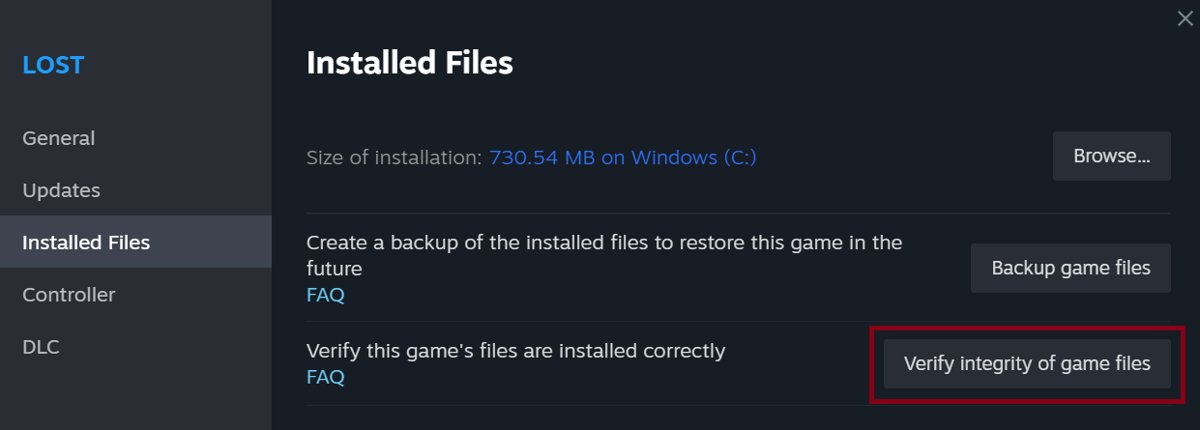
To install or repair Easy Anti-Cheat on Steam, run Verify integrity of game files on the game, then start it from Steam so its install script runs the Easy Anti-Cheat setup again.
This guide covers the Steam repair, the setup file inside the game folder, the correct way to launch afterwards, quarantine checks, platform limits and the errors that survive a repair.
Install Easy Anti-Cheat through Steam
There is no separate Easy Anti-Cheat download for Steam players. Each protected game ships its own copy in an EasyAntiCheat folder, and Steam installs the Windows service through the game's install script before the first launch.
Verifying the game's files clears the marker that tells Steam the script already ran, so the setup runs again on the next launch.
- Restart your computer, then open Steam.
- In your Library, right-click the game, or select the gear icon on the far right of the game's Library page.
- Select Properties.
- Open the Installed Files tab and select Verify integrity of game files.
- Wait for the check to finish. It can take several minutes on a large game.
- Select Play in Steam and approve the administrator prompt if Windows shows one.
A message that one or more files failed to verify is normal. Those are local configuration files that Steam deliberately leaves alone.
Which Easy Anti-Cheat repair should you use?
| Your situation | Do this | Why |
|---|---|---|
| Game says Easy Anti-Cheat is not installed | Verify integrity of game files, then launch from Steam | Verification makes Steam re-run the install script that creates the service |
| Game publisher posts its own EAC repair steps | Run EasyAntiCheat_EOS_Setup.exe from the game's EasyAntiCheat folder as the publisher describes | The setup file installs, repairs or uninstalls the anti-cheat service |
| Game opens, but online play is refused | Launch only through Steam's Play button | Starting the game executable directly skips anti-cheat protection |
| Windows Security removed an EAC file | Check Protection history, then verify files | A clean copy replaces the missing file |
| Account shows a ban | Contact the game's publisher | A ban is an account sanction, and a reinstall does not change it |
Fix "Easy Anti-Cheat is not installed"
This error means the Easy Anti-Cheat Windows service does not exist for that game. Epic documents one common cause on Steam: after an uninstall and reinstall, the game's install script can skip the service setup, so the service is never recreated.
Epic's stated recovery for players in that state is Steam's file verification.
- Close the game and any launcher it opened.
- Restart Windows so no half-installed service files stay locked.
- Open Steam, right-click the game and select Properties.
- On the Installed Files tab, select Verify integrity of game files.
- Do not verify other games or run a virus scan while the check runs.
- Select Play and accept the User Account Control prompt so the service can install.
The service install needs administrator rights only once. Later launches start the game without an elevation prompt.
Use the publisher's EAC repair procedure
Some publishers ask players to run the Easy Anti-Cheat setup file by hand. Epic's documentation names that file as the tool that installs, repairs or uninstalls the anti-cheat service on Windows.
Follow the publisher's own support page for the exact options, because the setup is configured per game.
- Open the game's install folder in File Explorer.
- Open the EasyAntiCheat folder in the game's root folder.
- Find EasyAntiCheat_EOS_Setup.exe. Older games may use a differently named setup file in the same folder.
- Run the file and approve the User Account Control prompt, because the service install requires administrator rights.
- Choose the install or repair option the publisher's support page specifies for that game.
- Close the setup and start the game from Steam.
If the setup reports a failure, the most common cause Epic lists is running it without administrator rights.
Launch the game correctly after repair
Protected games start through a small Easy Anti-Cheat launcher, called the bootstrapper, which loads the protection and then opens the real game. Starting the game's executable from its Binaries folder skips that step, and the game then cannot join protected online sessions.
- Remove any desktop shortcut that points at an executable inside the game's Binaries folder.
- Start the game from the Play button in your Steam Library.
- Wait for the Easy Anti-Cheat splash screen, which shows before the game window opens.
- Keep the game window open until you reach the main menu. The anti-cheat service starts with the game and stops when you exit it.
- Join an online match to confirm protected play works.
How to check Easy Anti-Cheat is working
Easy Anti-Cheat writes its own log files on Windows. A fresh timestamp after a launch proves the launcher ran.
- Start the game from Steam and reach the main menu.
- Press Win + R, type
%AppData%\EasyAntiCheatand press Enter. - Open anticheatlauncher.log and check that its last entries match the time you launched the game.
- Open service.log in the same folder to confirm the service started.
- Join an online session. Getting in without an anti-cheat error is the final proof.
The anti-cheat module itself downloads at each game start. A log that mentions a download failure points at the internet connection or a firewall rule, not at the install.
Easy Anti-Cheat files in a Steam game folder
| File | Location | What it does |
|---|---|---|
| EasyAntiCheat_EOS_Setup.exe | Game root\EasyAntiCheat | Installs, repairs or uninstalls the Easy Anti-Cheat Windows service |
| start_protected_game.exe | Game root | Prepares the anti-cheat, then starts the game with protection |
| EasyAntiCheat_EOS.exe | Installed as a Windows service | Lets the anti-cheat start its other components; runs only while the game runs |
| Settings.json | Game root\EasyAntiCheat | Tells the launcher which game executable to protect |
| SplashScreen.png and Localization | Game root\EasyAntiCheat | The splash image and translated launcher text |
Do not delete or edit these files. Settings.json in particular decides which executable gets protected, so a changed copy breaks the launch.
Platform-specific limitations
| Platform | Easy Anti-Cheat support | What it means for you |
|---|---|---|
| Windows 64-bit | Supported | Service install and repair apply; 32-bit games run if Windows itself is 64-bit |
| Windows on Arm, Beta and Insider builds | Supported with requirements | Secure Boot, TPM and HVCI must be turned on; Windows on Arm has them on by default |
| Steam Deck and Linux (Proton) | Per game | Works only if the developer activated the Linux module; otherwise online play is blocked |
| macOS | Per game | Uses a launcher app and no Windows service, so there is nothing to repair |
| Virtual machines | Not supported | The anti-cheat client refuses to run inside a VM |
| Consoles | Not used | Console versions rely on the platform's own security |
On Steam Deck, the Easy Anti-Cheat launcher log sits inside the game's Proton prefix under the Steam compatdata folder, which helps when a support team asks for it.
What to do when the game is stuck on "Preparing to Launch"
Steam runs a game's install-script programs, including the Easy Anti-Cheat setup, before the first launch. A stall at this stage usually traces back to that step.
Steam shows "Preparing to Launch" and nothing opens
The first-launch setup did not complete, often because an admin prompt was dismissed or another process held the files.
- Close Steam completely, then restart your computer.
- Open Steam and start only this game.
- Approve any User Account Control prompt that appears.
- If it stalls again, run Verify integrity of game files and try once more.
The Easy Anti-Cheat splash appears, then closes
The launcher could not load the anti-cheat module, for example after a failed download.
- Check that the PC is online and that a firewall is not blocking the game.
- Open
%AppData%\EasyAntiCheat\anticheatlauncher.logand read the last lines for the error. - Verify the game's files, then launch from Steam again.
Check antivirus or Windows Security quarantine
If a security product removed an Easy Anti-Cheat file, the game reports the anti-cheat as missing again after every repair. Keep protection on and check what was removed instead.
Easy Anti-Cheat breaks again right after a repair
Windows Security or another antivirus quarantined a file from the game's EasyAntiCheat folder.
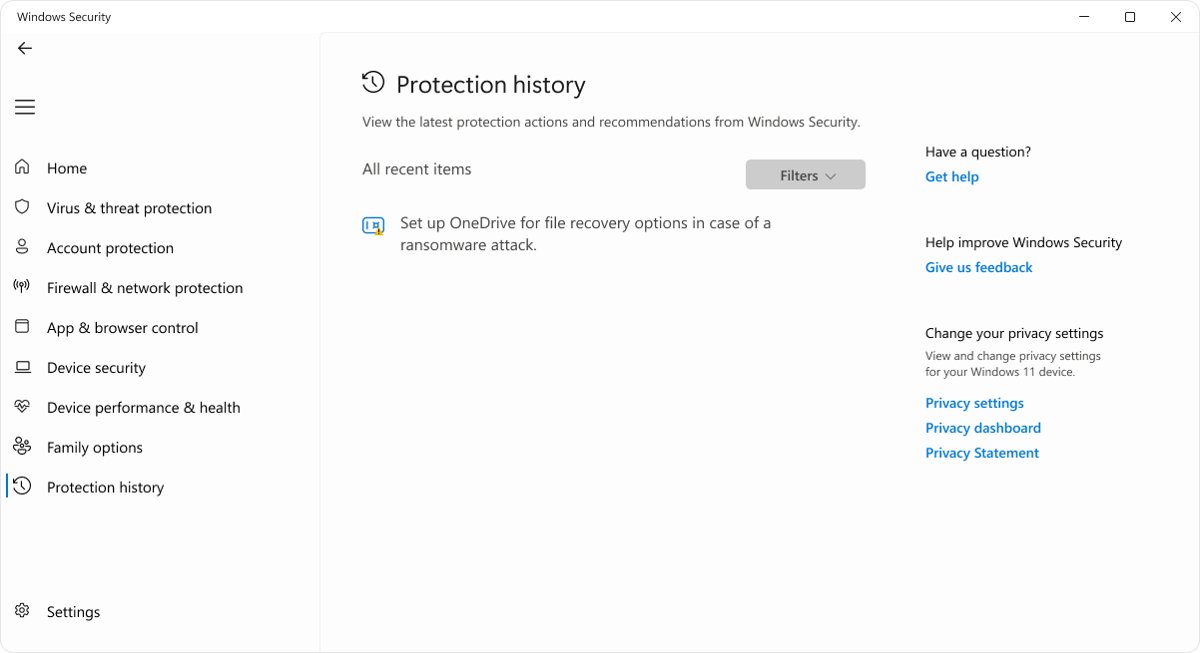
- Open Windows Security and select Protection history.
- Look for a Threat quarantined card that names a file inside the game's EasyAntiCheat folder.
- If the detection is not an Easy Anti-Cheat file from that game, leave it in quarantine.
- Run Verify integrity of game files in Steam so a fresh copy replaces the removed file.
- If the same file is quarantined again, report it to the game's publisher and your antivirus vendor as a possible false positive.
Another antivirus shows a block notice during the first launch
Third-party security suites keep their own quarantine list.
- Open the antivirus quarantine or history page.
- Check the full path of the blocked item.
- Submit it to the vendor as a false positive if it sits in the game's EasyAntiCheat folder, then verify the game's files.
Fix Easy Anti-Cheat errors that survive a repair
"Game Security Violation" error
A core anti-cheat component was closed, or a driver with a known vulnerability is loaded. RGB and hardware-control utilities are a common source.
- Update your RGB, fan or peripheral control software to its latest version.
- Contact that software's vendor if no fixed version exists.
- Restart the PC and launch the game from Steam.
Kicked from matches for an anti-cheat authentication timeout
The game started without the Easy Anti-Cheat launcher, or the connection drops anti-cheat traffic.
- Launch through Steam's Play button, never the game executable directly.
- Test a different network or restart your router.
- Verify the game's files if the error continues.
Easy Anti-Cheat refuses to start on a Windows Insider or Arm PC
Those builds require Secure Boot, TPM and HVCI.
- Check your PC maker's instructions for turning on Secure Boot and the TPM in the firmware settings.
- Turn on HVCI, which Windows labels memory integrity.
- Restart the PC and launch the game from Steam.
When to contact support
| Situation | Who to contact | What to send |
|---|---|---|
| Verify and relaunch did not fix "not installed" | The game's publisher | anticheatlauncher.log and service.log from %AppData%\EasyAntiCheat |
| Ban or account sanction | The game's publisher | Your account ID and the ban message |
| Steam download, verify or library problem | Steam Support | The game name and the error Steam shows |
| Repeated quarantine of an EAC file | The publisher and your antivirus vendor | The detection name and the file path |
| Steam Deck or Proton blocks online play | The game's publisher | Proton support depends on the developer enabling it |
Epic licenses Easy Anti-Cheat to developers, so the game's own support team handles player tickets.
Easy Anti-Cheat on Steam: frequently asked questions
Can I download Easy Anti-Cheat separately for Steam?
No. Each protected game ships its own Easy Anti-Cheat files in an EasyAntiCheat folder, and the setup is configured for that game. To reinstall it, verify the game's files in Steam and launch the game from Steam.
How do I install and repair Easy Anti-Cheat at the same time?
Verify integrity of game files in Steam, then launch the game. Verification restores missing files and makes Steam re-run the game's install script, which installs the Easy Anti-Cheat service if it is missing and leaves it alone if it already exists.
Where is the Easy Anti-Cheat installer located?
The installer sits in the EasyAntiCheat folder inside the game's root install folder. On current games it is named EasyAntiCheat_EOS_Setup.exe, next to Settings.json and the splash screen image.
Why does Steam say some files failed to validate after verification?
That message is normal for most Steam games. The files that fail are local configuration files, which verification is designed not to replace. Steam still restores any missing or damaged game files, including Easy Anti-Cheat files.
Should I disable antivirus to install EAC?
No. Keep your antivirus on. If it removed an Easy Anti-Cheat file, check its quarantine history, verify the game's files to restore a clean copy, and report a repeated detection to the antivirus vendor as a false positive.
Will reinstalling EAC remove a ban?
No. A temporary or permanent ban is a sanction placed on your account, not on the files on your PC. Reinstalling the game or Easy Anti-Cheat does not change it; only the game's publisher can review a ban.
Does Easy Anti-Cheat run all the time?
No. The Easy Anti-Cheat Windows service starts automatically when a protected game starts and stops when the game exits. It needs administrator rights only once, when the service is first installed.
Does Easy Anti-Cheat work on Steam Deck?
Only for games whose developer has enabled it. Proton supports Easy Anti-Cheat, but each developer must activate the Linux module for their game. Without that, the game may open but cannot join protected online sessions.
Does Easy Anti-Cheat work in a virtual machine?
No. The Easy Anti-Cheat client does not support virtual machines, so protected online play fails inside one. Run the game on the host Windows installation instead.
The bottom line on Easy Anti-Cheat repair for Steam
Verify integrity of game files in Steam and launch from the Play button; use the EasyAntiCheat setup file only when the publisher asks. Verification restores missing files and makes Steam re-run the install script that creates the anti-cheat service, which is the fix Epic itself gives for the not-installed error.