A laptop usually keeps freezing because an app or background task is exhausting its memory, CPU or disk, it is overheating, or a faulty driver, corrupted system file, bad RAM or failing drive stops the operating system from responding.
This guide shows how to tell which cause you have, the Windows and macOS tools that confirm it, and the fix for each, from a quick restart to a reset or repair.
Why does my laptop keep freezing?
Match what you see to a row, then go to the section that row names. Most freezes fall into one of these causes, and the pattern of the freeze points to the right one.
| What you notice | Most likely cause | Start here |
|---|---|---|
| Only one app hangs and shows Not Responding | That app, a plug-in or a browser extension | Check whether one app is responsible |
| Everything slows to a crawl before it stops, with many apps or tabs open | Memory, CPU or disk activity at 100% | Check RAM, CPU and disk activity |
| Freezes under load, the fan is loud and the base is hot | Overheating and thermal throttling | Rule out overheating |
| Freezes started after an update, a new driver or a new accessory | Driver, firmware or peripheral conflict | Roll back the driver or unplug the device |
| Freezes stop in Safe Mode or a clean boot | Startup app or third-party service | Use Safe Mode and a clean boot |
| Windows features fail or Windows stops responding at random | Corrupted system files | Run DISM and SFC |
| Freezes with a storage warning, clicking or slow file access | Drive errors or a worn-out SSD | Check storage errors and drive health |
| Random hard freezes or blue screens even when idle | Faulty memory or other hardware | Test laptop memory |
What kind of freeze is happening?
The type of freeze tells you how deep the problem goes. Test the keyboard, the pointer and the sound before you decide.
| Freeze type | What still works | What it usually means |
|---|---|---|
| App freeze | Pointer moves, other windows respond, Ctrl + Shift + Esc opens Task Manager | One program is stuck; Windows itself is fine |
| Temporary system stall | Everything recovers after seconds or minutes | Memory, CPU or disk is saturated, often by updates, scans or too many apps |
| Display freeze | Sound continues or the pointer moves, but the picture is stuck or black | Graphics driver or display problem |
| Hard freeze | Nothing responds, sometimes with a looping buzz from the speakers | Driver, memory, storage or heat problem below the app level |
| Freeze followed by a restart | The laptop shows a stop code and restarts | A hardware device, its driver or software caused a stop error |
What should you do immediately?
Work from the gentlest action to the most forceful. A forced shutdown loses unsaved work, so give the laptop a minute first.
- Wait 30 to 60 seconds, especially if the drive light is busy or a Windows update is installing.
- Press Ctrl + Shift + Esc to open Task Manager, select the frozen app on the Processes tab and select End task.
- If the screen is black or stuck but the laptop is on, press Windows key + Ctrl + Shift + B to wake the display.
- Press Alt + F4 to close the active window if Task Manager does not open.
- If nothing responds, press and hold the power button until the laptop turns off.
- Unplug USB drives, docks and other accessories, then turn the laptop back on.
- After it starts, save open work and restart once more from Start > Power > Restart.
How can you tell whether one app is responsible?
If the freeze always starts in the same app, the app is the suspect, not the laptop. Task Manager shows which process stopped responding.
- Press Ctrl + Shift + Esc and look at the Processes tab for an app marked Not responding.
- Note which app it is each time the laptop freezes; a repeat offender is the cause.
- Update that app; for a Microsoft Store app, check for updates in Microsoft Store.
- If updating does not help, select Start > Settings > Apps > Installed apps, select More options (…) next to the app and select Uninstall, then reinstall it.
- For a browser, close tabs and turn off extensions one at a time to find the one that stalls it.
Could RAM, CPU, or disk activity be exhausting the laptop?
When memory, the processor or the disk sits near 100%, Windows stalls until the load drops. Task Manager shows which resource is maxed out and what is using it.
- Press Ctrl + Shift + Esc to open Task Manager.
- On the Processes tab, select the CPU, Memory or Disk column header to sort by usage.
- Close apps you are not using: right-click each one and select End task.
- Open the Performance tab to see whether CPU, memory or disk stays near 100% when the laptop is idle.
- Select Startup apps, right-click apps you do not need at sign-in and select Disable.
- Stop background activity for an app: Settings > Apps > Installed apps > More options (…) > Advanced options, then set Let this app run in the background to Never.
- Free disk space: Settings > System > Storage > Temporary files, tick the items to delete and select Remove files. Keep 10% to 15% of the drive free.
If Antimalware Service Executable is the process at the top, the fix for Defender's high CPU and disk usage is different from closing apps.
Can overheating cause a laptop to freeze?
Yes. Heat makes the processor slow itself down, and past the safe limit a laptop shuts off to protect itself. Microsoft rates Surface laptops for use between 32°F (0°C) and 95°F (35°C); other laptops publish similar limits.
- Feel the base and listen to the fan while the laptop freezes; a hot base with a fan at full speed points to heat.
- Move the laptop onto a hard, flat surface with good ventilation, never a bed, sofa or lap blanket.
- Check that the intake and exhaust vents are not blocked by dust, a case or a wall.
- If the laptop shuts down or shows a thermometer icon, turn it off, move it somewhere cooler and let it cool for at least five minutes.
- Set Settings > System > Power & battery > Power mode back to a balanced option if it is on Best performance, which makes the laptop run warmer.
- If it still overheats with clear vents and normal use, contact the manufacturer for a fan or cooling service.
Could a driver, firmware update, or peripheral be causing the freeze?
A freeze that starts right after a driver update, a BIOS update or a new accessory usually traces back to that change. Device Manager can roll a driver back to the previous version.
- Disconnect every accessory except the charger, then use the laptop until it would normally freeze.
- Right-click Start and select Device Manager; look for devices marked with an exclamation point.
- Right-click the device you suspect, often under Display adapters, select Properties and open the Driver tab.
- Select Roll Back Driver, choose a reason and select Yes, then restart.
- If Roll Back Driver is greyed out, right-click the device, select Uninstall device, confirm and restart so Windows reinstalls it.
- Install recommended drivers from Settings > Windows Update > Advanced options > Optional updates.
- For BIOS and chipset updates, use only your laptop manufacturer's support site for your exact model.
Microsoft advises against drivers from any site other than the device manufacturer's. Windows Update and the steps to update drivers on Windows 11 cover most laptops.
How do you use Safe Mode and a clean boot in Windows?
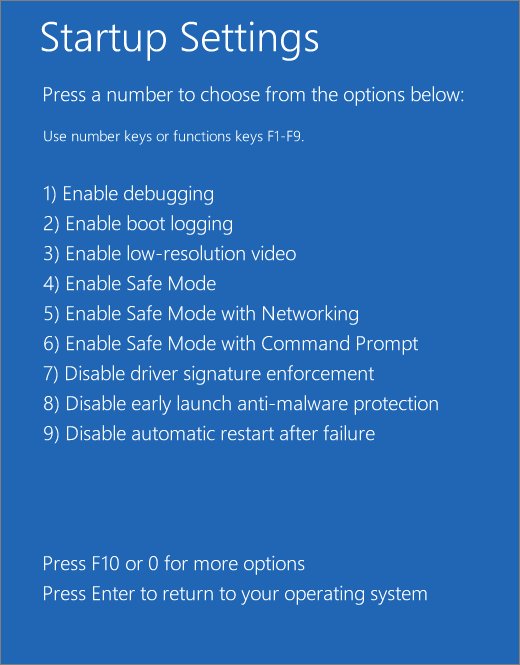
Safe Mode starts Windows with a limited set of files and drivers. A clean boot keeps normal drivers but turns off third-party services and startup apps. If the freezes stop in either, the cause is software that normally loads at startup.
Windows 11 Safe Mode
Use this when you need the most basic Windows to test in.
- Hold Shift while you select Start > Power > Restart.
- Select Troubleshoot > Advanced options > Startup Settings > Restart.
- Press 4 for Enable Safe Mode, or 5 for Safe Mode with Networking if you need the internet.
- Use the laptop for as long as it normally takes to freeze.
- Restart normally to leave Safe Mode.
Windows 11 clean boot
Use this to find which third-party service or startup app causes the freeze.
- Sign in as an administrator, search for msconfig and open System Configuration.
- On the Services tab, select Hide all Microsoft services, then Disable all and Apply.
- On the Startup tab, select Open Task Manager, disable every enabled item and note which ones you changed.
- Close Task Manager, select OK in System Configuration and restart.
- If the freezes stop, turn half of the services back on, restart and test; keep halving until one item remains.
- To go back to normal, open msconfig, select Normal startup on the General tab, select Enable all on the Services tab and re-enable your startup apps.
How do you repair corrupted Windows system files?
Microsoft lists Windows becoming unresponsive or freezing as a symptom of missing or corrupted system files. Run DISM first, because it supplies the files that SFC uses for repairs.
- Type cmd in the search box, right-click Command Prompt and select Run as administrator.
- Run
DISM.exe /Online /Cleanup-image /Restorehealthand wait for it to finish; it can take several minutes. - Run
sfc /scannowand keep the window open until verification reaches 100%. - Read the result: did not find any integrity violations means the files are fine, and found corrupt files and successfully repaired them means the repair worked.
- If you see could not perform the requested operation, start Windows in Safe Mode and run
sfc /scannowagain. - Restart the laptop after a successful repair.
Each tool has more options than these two lines, and each System File Checker result points to a different next step.
How do you check storage errors and drive health?
A failing or full drive makes Windows wait on every read, which looks like a freeze. Windows warns about NVMe SSD health, but it does not monitor SATA SSDs or hard drives this way.
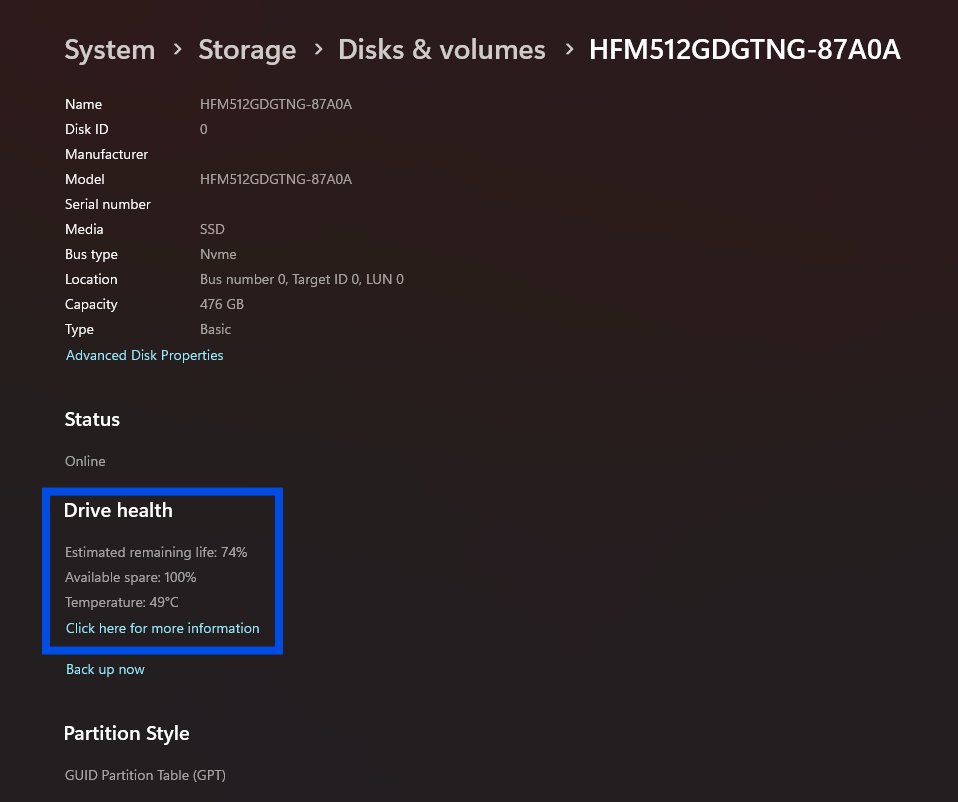
- Open Start > Settings > System > Storage > Advanced storage settings > Disks & volumes.
- Select Properties for the system drive and check Estimated remaining life, Available spare and Temperature.
- Treat Spare capacity is low, Reliability is degraded or Drive is set to read-only as a warning to back up now.
- Open File Explorer, select This PC, right-click Windows (C:) and select Properties.
- On the Tools tab, under Error checking, select Check and follow the prompts.
- For a deeper scan, run
chkdsk C: /ffrom an administrator Command Prompt and answer Y to schedule it at the next restart.
The /r switch also hunts for bad sectors, but it reads every sector and takes far longer on large hard drives.
How can you test laptop memory?
Faulty RAM causes random hard freezes and stop errors that no software fix cures. Windows includes a memory test that runs before Windows loads.
- Save your work and close all apps.
- Select the search box, type memory and select Windows Memory Diagnostic.
- Select Restart now and check for problems (recommended).
- Let the test run; the screen can look idle while it works.
- Wait for Windows to restart on its own when the test finishes, then read the result it reports.
Any reported memory error means the RAM needs replacing.
What should Mac users do when macOS keeps freezing?
On a MacBook, the same logic applies: free the stuck app, then test software with safe mode and hardware with Apple Diagnostics.
One app is frozen
The app stopped responding but macOS still works.
- Press Option + Command + Esc, or choose Force Quit from the Apple menu.
- Select the app and click Force Quit; for Finder, click Relaunch.
- If that fails, choose Restart from the Apple menu; if the Mac will not restart, hold the power button (or Touch ID) for up to 10 seconds.
macOS keeps freezing after restarts
A login item, extension or other startup software is a common cause.
- Install the latest macOS and app updates and unplug nonessential accessories.
- On Apple silicon, hold the power button until Loading startup options appears, select Macintosh HD, hold Shift and click Continue in Safe Mode.
- On an Intel Mac, hold Shift as the Mac starts until the login window appears.
- If freezes stop in safe mode and return after a normal restart, remove login items in System Settings.
- If freezes continue in safe mode, reinstall macOS; reinstalling does not remove personal files.
How do you run Apple Diagnostics?
Use this to test the hardware when software fixes do not help.
- Shut down the Mac and disconnect everything except the keyboard, mouse, display, Ethernet and power.
- On Apple silicon, hold the power button until Options appears, then press and hold Command + D.
- On an Intel Mac, hold D as the Mac starts, or Option + D if D does not work.
- Follow the prompts and note any reference code for Apple Support or a repair provider.
How do you run Disk Utility First Aid?
Use this when apps quit unexpectedly or files seem corrupted.
- For the startup disk, restart in macOS Recovery and open Disk Utility.
- Choose View > Show All Devices.
- Select each volume, click First Aid, then Run, then Done; repeat for each container and then the device itself.
- If Disk Utility says the disk is about to fail, back up and replace the disk.
Every way to force quit on a Mac works the same on a MacBook, iMac or Mac mini.
Should malware be part of the diagnosis?
Yes. Malware can use CPU and disk resources in the background, and Microsoft lists a sudden slowdown, shorter battery life and higher data use as warning signs.
- Select Start > Settings > Privacy & security > Windows Security > Virus & threat protection.
- Under Virus & threat protection updates, select Check for updates so the scan uses current definitions.
- Select Quick scan and let it finish.
- For a deeper check, select Scan options, choose a full scan and select Scan now.
- If the same threat keeps returning, save your work, open Scan options, choose the offline scan and select Scan now; the laptop restarts and scans outside Windows.
A Microsoft Defender full scan checks every file and takes longer than the quick scan.
When is a Windows reset or reinstall justified?
Reset Windows only after the earlier checks pass: no hot laptop, no memory errors, no drive warnings, and freezes that persist after DISM and SFC. A reset does not fix failing hardware, so test that first.
- Back up your files to an external drive or cloud storage, and find your BitLocker recovery key if the drive is encrypted.
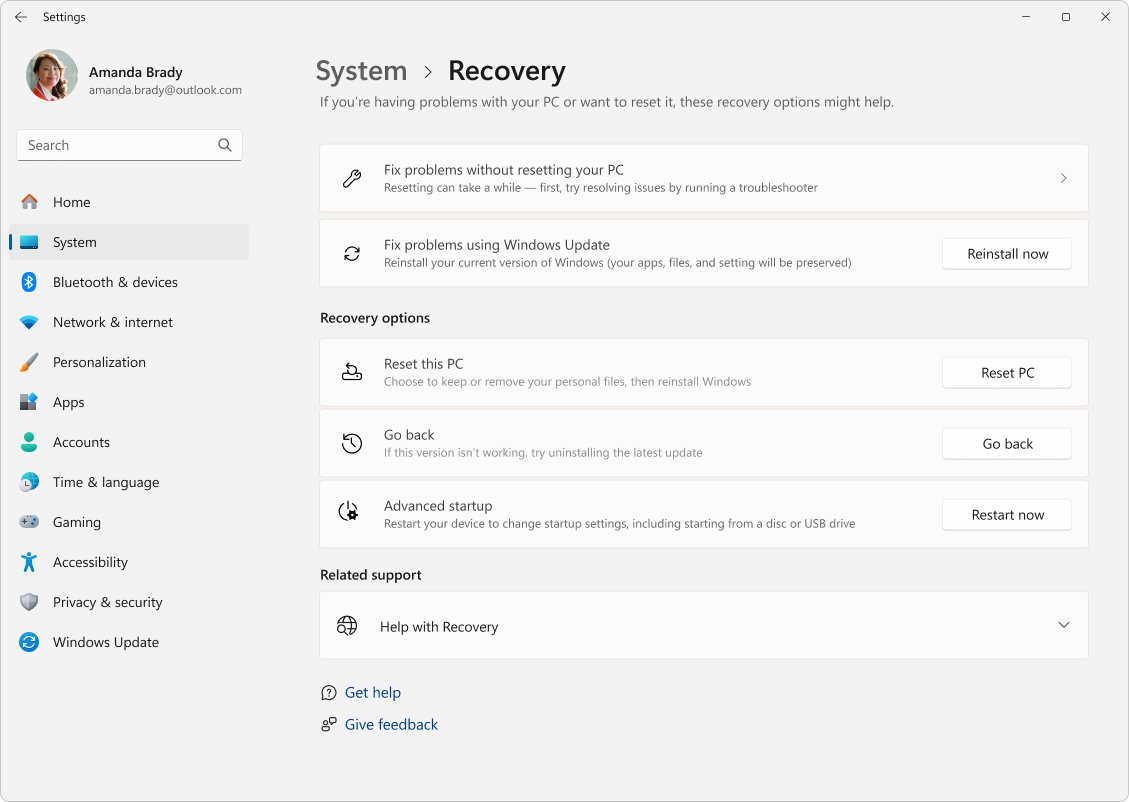
- Open Settings > System > Recovery.
- Under Recovery options, select Reset PC.
- Choose Keep my files to reinstall Windows and remove apps and settings, or Remove everything for a full clean start.
- Choose Cloud download if local system files are damaged, or Local reinstall on a slow connection.
- Follow the prompts and do not restart the laptop yourself; the screen can stay black for 15 minutes or more.
If Windows will not start, open Windows Recovery Environment and select Troubleshoot > Reset this PC. The factory reset steps for Windows 10 differ only in the Settings path.
How can you tell whether laptop hardware is failing?
Hardware is the likely cause when the freeze survives every software change. These signs point to a part that needs repair rather than a setting.
| Sign | Part it points to | What to do |
|---|---|---|
| Windows Memory Diagnostic reports errors | RAM | Replace the memory or send the laptop for repair |
| Windows shows a critical storage warning, or Disk Utility says the disk is about to fail | SSD or hard drive | Back up immediately and replace the drive |
| Freezes continue in Safe Mode and after a reset | Memory, storage, motherboard or cooling | Run the manufacturer's hardware diagnostics, then book a repair |
| Shutdowns with a thermometer icon, or heat with clear vents | Fan or cooling system | Arrange a cooling service under warranty if possible |
| Apple Diagnostics returns a reference code | The component the code names | Give the code to Apple Support or a repair provider |
| Repeated stop codes such as MEMORY_MANAGEMENT | A hardware device or its driver | Remove new hardware, update drivers, then test memory |
What should you do after the laptop becomes completely unresponsive?
Once the laptop has frozen solid and you have forced it off, use the next start to collect evidence and protect your files.
- Turn the laptop on with only the charger connected.
- Back up important files before you troubleshoot further.
- If Windows fails to start correctly several times, let it open Automatic Repair and select Advanced options.
- In Windows Recovery Environment, use Startup Repair, Uninstall Updates or System Restore if the freeze began after a recent change.
- If Windows starts, install updates from Settings > Windows Update > Check for updates.
What prevention measures reduce future freezes?
Most of these take seconds and remove the common triggers before they build up.
| Habit | Where to do it | Why it helps |
|---|---|---|
| Install Windows and optional driver updates | Settings > Windows Update | Updates carry stability fixes and current drivers |
| Keep 10% to 15% of the drive free | Settings > System > Storage > Storage Sense | Windows needs space for swap files and updates |
| Limit startup apps | Task Manager > Startup apps | Less background load after every sign-in |
| Restart at least every few days | Start > Power > Restart | Clears memory leaks and finishes pending updates |
| Keep vents clear and use a hard surface | Physical setup | Prevents thermal slowdowns and heat shutdowns |
| Run a malware scan monthly | Windows Security > Virus & threat protection | Catches hidden processes that eat resources |
What hardware purchases or services might actually help?
Spend money only after a test names the problem. Microsoft notes that older PCs with outdated hardware gain little from software fixes.
| Option | Helps when | Check first |
|---|---|---|
| Replacement SSD | Drive health warnings, errors, or an old hard drive at 100% disk use | Whether your model has a replaceable drive |
| More RAM | Memory stays near full in Task Manager during normal work | Whether the RAM is soldered or has a free slot |
| Replacement RAM | Windows Memory Diagnostic reports errors | Warranty status before buying parts |
| Manufacturer cooling service | Overheating with clear vents and normal workloads | Warranty or service plan coverage |
| Manufacturer or Apple repair | Diagnostics return error codes or freezes survive a reset | Back up your files before handing it over |
Skip third-party PC cleaners and driver updaters; Windows Update and the manufacturer's site supply what a laptop needs.
How to confirm your laptop no longer freezes
- Use the laptop for the same task that froze it before, for at least as long as it used to take.
- Open Task Manager's Performance tab and confirm CPU, memory and disk drop well below 100% when idle.
- Run
sfc /scannowagain and confirm it reports did not find any integrity violations. - Check Disks & volumes properties again and confirm no critical warning appears.
Laptop keeps freezing: fixes by symptom
Laptop keeps freezing and buzzing
A buzz that loops while the screen freezes means the whole system stopped, not one app.
- Hold the power button to turn the laptop off.
- Roll back or reinstall the audio and display drivers in Device Manager.
- Test memory and check drive health before anything else.
Laptop screen keeps freezing but sound continues
The graphics driver or display output stopped while Windows kept running.
- Press Windows key + Ctrl + Shift + B to wake the display.
- Roll back the driver under Display adapters if the problem started after an update.
- Install the graphics driver from Windows Update or the laptop manufacturer's site.
Laptop keeps freezing and crashing with a blue screen
A stop error from a hardware device, its driver or software.
- Remove any hardware you added just before the crashes started.
- Check Device Manager for devices with an exclamation point and update their drivers.
- Keep 10% to 15% of the drive free and install the latest Windows updates.
Laptop keeps freezing in Roblox or other games
Games push the GPU, CPU and cooling harder than anything else.
- Close other apps and browser tabs before you play.
- Update the graphics driver through Windows Update or the GPU maker.
- Lower the in-game graphics quality setting.
- Watch the fan and temperature; play on a hard surface with clear vents.
Laptop mouse pad keeps freezing
The touchpad driver or touchpad settings, not the whole laptop.
- Confirm the rest of the laptop responds by pressing Ctrl + Shift + Esc.
- Open Settings > Bluetooth & devices > Touchpad and check that Touchpad is on.
- In Device Manager, expand Mice and other pointing devices or Human Interface Devices, right-click the touchpad and select Uninstall device, then restart.
HP, Dell or ASUS laptop keeps freezing
Brand-specific drivers, BIOS and cooling profiles are common factors.
- Find your exact model number on the label under the laptop.
- Install the latest BIOS and chipset drivers for that model from the manufacturer's support site.
- Run the manufacturer's built-in hardware diagnostics and note any error code.
- Contact the manufacturer with the code if the laptop is under warranty.
Frequently asked questions
Why does my laptop keep freezing on Windows 11?
Windows 11 laptops freeze for the same core reasons as any PC: overloaded memory, CPU or disk, heat, faulty drivers, corrupted system files, bad RAM or a failing drive. Check Task Manager first, then roll back recent drivers and run DISM and SFC.
Why does my laptop keep freezing on Windows 10?
Windows 10 laptops freeze for the same reasons as Windows 11 ones, and the same tools apply. Microsoft ended free Windows 10 support on October 14, 2025, so missing fixes and drivers make problems more likely; upgrading to Windows 11 is the long-term fix.
Why does my laptop keep freezing randomly?
Random freezes that do not follow one app usually point to drivers, memory, storage or overheating. Run Windows Memory Diagnostic, check drive health under Disks & volumes, roll back any recently updated driver and make sure the vents are clear.
Why does my laptop keep freezing and buzzing?
A freeze with a buzz from the speakers means the whole system stopped responding, not just one app. Force the laptop off, then check audio and display drivers, test the memory and check the drive for errors.
Why does my HP, Dell or ASUS laptop keep freezing?
Brand laptops freeze for the same reasons as any other, but outdated BIOS and chipset drivers are common culprits. Download updates for your exact model from the manufacturer's support site and run its hardware diagnostics before you pay for a repair.
Can Safe Mode prove that my laptop hardware is fine?
No. Safe Mode proves that default settings and basic drivers are not the cause when the problem disappears there. It does not test RAM, storage or cooling, so run Windows Memory Diagnostic and drive checks separately.
Will SFC or CHKDSK fix a laptop that keeps freezing?
They fix freezes caused by corrupted system files or file system errors on the drive. They cannot repair faulty RAM, overheating or a worn-out SSD. Run DISM before SFC, and use chkdsk /f to repair drive errors.
Should I reset Windows if my laptop keeps freezing?
Reset Windows only after memory, drive health and temperature check out and DISM and SFC fail to stop the freezes. Choose Keep my files to keep personal data, and back up first in case the reset fails.
When should I stop troubleshooting a frozen laptop?
Stop and get a repair when memory tests report errors, Windows shows a critical storage warning, diagnostics return error codes, or the freezes continue after a full reset. At that point the fault is in the hardware.
The bottom line: how to stop a laptop from freezing
Start with Task Manager and the vents, roll back any driver that changed, then run DISM, SFC, a memory test and a drive health check before you reset Windows or buy parts. That order fixes the common software causes in minutes and only moves to a reset or repair once a test has ruled software out, so you never wipe a laptop that needed a driver rollback or pay for parts it did not need.