NET::ERR_CERT_AUTHORITY_INVALID means your browser cannot trace the site's HTTPS certificate back to a certificate authority it trusts, so fix it by checking your network, clock and security software as a visitor, or by installing a complete, publicly trusted certificate as the site owner.
This guide explains the causes, how to tell whose problem it is, the fixes for visitors, IT teams and website owners in Chrome, Edge and Firefox, and what never to do.
The fastest way to fix NET::ERR_CERT_AUTHORITY_INVALID
Most cases on a home PC come from the network you are on or software on your computer. Run these checks in order and stop when the page loads.
- If you are on hotel, airport or cafe Wi-Fi, open any address that starts with http:// to bring up the sign-in page, sign in, then reload the site.
- Open the site in an Incognito window (Chrome) or InPrivate window (Edge) to rule out extensions.
- Turn on Set time automatically in Settings > Time & language > Date & time.
- Update your browser and Windows or macOS, then restart the browser.
- Load the same address on another network, such as mobile data.
- If the error appears on every network and device, the certificate on the server is at fault; tell the site owner and do not enter passwords or card details there.
First identify the scope of the problem
Where the error appears tells you who can fix it. Match your case to a row before changing anything.
| What you see | Likely cause | Who fixes it |
|---|---|---|
| One site, on every device and network | The server sends a self-signed, private or incomplete certificate chain | The website owner |
| Many HTTPS sites, only on public Wi-Fi | The network's sign-in portal intercepts HTTPS | You: sign in through an http:// page |
| Many HTTPS sites, on any network, on one PC | Security software HTTPS scanning, a proxy or a wrong clock | You, or the software vendor |
| Many sites, only on a work or school computer | A company proxy such as ZScaler, Palo Alto Networks or Fortinet | Your IT administrator |
| Only on an old phone, tablet or operating system | The device's trusted roots are out of date | You: update the device |
| Your own router, NAS or test server | The device uses a self-signed or private CA certificate | You, as the owner of that device |
If the code under the warning ends in COMMON_NAME_INVALID instead, the certificate is trusted but issued for a different name; that case needs the steps to fix NET::ERR_CERT_COMMON_NAME_INVALID instead.
NET::ERR_CERT_AUTHORITY_INVALID fixes for visitors
These steps change nothing on the site and nothing about how your browser trusts certificates. They remove the local causes that Google lists for the Your connection is not private warning.
| Fix | What to do | Why it works |
|---|---|---|
| 1. Complete a public Wi-Fi sign-in | Open an http:// address, or select Connect if Chrome shows Connect to network, then sign in | The portal stops answering HTTPS requests with its own certificate |
| 2. Test without extensions | Open the page in an Incognito or InPrivate window; if it loads, turn extensions off one at a time | An extension that filters traffic can interfere with the connection |
| 3. Check antivirus HTTPS scanning | Update the security software, then review its HTTPS protection or HTTPS scanning setting with the vendor's support | Scanning HTTPS replaces the site's certificate with one the software issues |
| 4. Check VPN, proxy and company security software | Disconnect a personal VPN or proxy to test; on a work PC, contact IT instead of changing anything | A proxy that inspects HTTPS presents its own certificate authority |
| 5. Check the Windows clock | Turn on Set time automatically and Set time zone automatically | A wrong date makes valid certificates look invalid |
| 6. Update the operating system | Install pending Windows or macOS updates and restart | Updates refresh the trusted root certificates |
What causes NET::ERR_CERT_AUTHORITY_INVALID?
Every HTTPS certificate is signed by a certificate authority (CA). The browser follows the chain from the site's certificate through any intermediate certificates to a root it already trusts. The error appears when that chain does not end at a trusted root.
| Cause | What happens | Side |
|---|---|---|
| Self-signed certificate | The server signed its own certificate, so no trusted CA vouches for it | Website |
| Private or internal CA | A company or device CA issued the certificate, and your browser does not trust that CA | Website or IT |
| Missing intermediate certificate | The server sends only its own certificate, so the browser cannot link it to a root | Website |
| HTTPS interception | Antivirus, a proxy or a Wi-Fi portal replaces the certificate with its own | Visitor or IT |
| Outdated trusted roots | An old device does not have the newer root the certificate chains to | Visitor |
| Wrong system date and time | Certificates appear not yet valid or expired | Visitor |
Microsoft Edge, which is built on Chromium, shows the same NET::ERR_CERT_AUTHORITY_INVALID code on the same kind of warning page.
Chrome’s current certificate trust model
Chrome no longer relies only on the operating system to decide which certificate authorities are trusted. It uses its own built-in certificate verifier and the Chrome Root Store as the source of public trust.
| Point | What it means for this error |
|---|---|
| Chrome Root Store | Chrome's own list of publicly trusted root CAs decides which public certificates pass |
| Platform verifier removed | Support for the operating system's certificate verifier and roots ended in Chrome 113 on Windows and macOS |
| User-added certificates | Since Chrome 131, certificates you or IT add to the Windows or macOS trust store are still used, unless the CAPlatformIntegrationEnabled policy turns that off |
| Result | A public site must chain to a CA in the Chrome Root Store; a private CA works only if it is installed in the system trust store |
This is why a site can load in one browser and fail in Chrome: each browser checks the chain against its own list of trusted roots.
Trusting a legitimate private CA
Install a CA certificate only for a network or device you control, such as your own NAS or lab server, or when your IT team hands you the certificate. Google advises against installing a certificate on your own to get past a work proxy warning, because it is usually a security risk.
| Platform | Where the CA certificate goes | How |
|---|---|---|
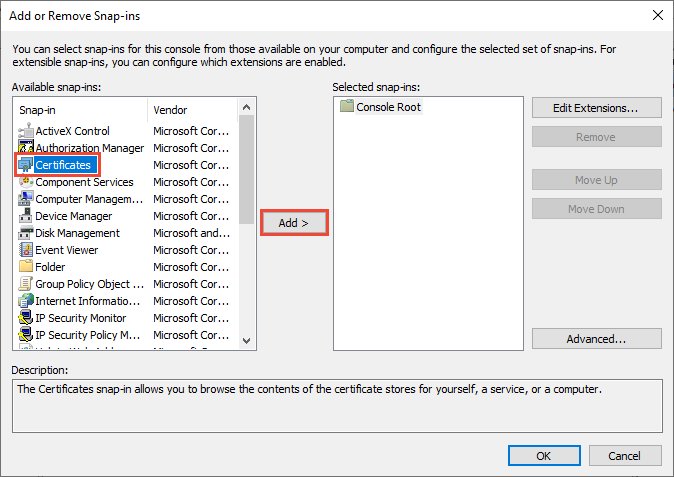
| Windows, your account only | Trusted Root Certification Authorities in Certificates – Current User | Press Win + R, run certmgr.msc, right-click the store, select All Tasks > Import and follow the Certificate Import Wizard |
| Windows, every user on the PC | Trusted Root Certification Authorities in Certificates – Local Computer | Run certlm.msc as an administrator and use All Tasks > Import |
| Windows, scripted | Cert:\CurrentUser\Root or Cert:\LocalMachine\Root | Use the Import-Certificate cmdlet with -FilePath and -CertStoreLocation in PowerShell |
| macOS | A keychain in Keychain Access | Double-click the certificate, click the show button next to Trust, and choose new trust settings from the pop-up menus |
| Managed fleet | Pushed by policy | IT deploys the CA certificate through device management, so users never install it by hand |
Remove the certificate from the same store, such as Certificate Manager on Windows, when you no longer use that device. A trusted root can vouch for any website, so treat it like a key to every HTTPS connection on the PC.
Firefox-specific behavior
Firefox keeps its own certificate store and does not use the operating system's store by default. A private CA that Chrome and Edge accept on Windows can therefore still fail in Firefox.
| Setting | What it does |
|---|---|
| security.enterprise_roots.enabled (about:config) | When set to true, Firefox imports CA certificates added to the Windows certificate store, or the macOS system keychain from Firefox 63 |
| ImportEnterpriseRoots (enterprise policy) | Makes Firefox trust root certificates in the system certificate store; Mozilla recommends it for private PKI |
| Certificates (Install) policy | Lets IT install specific CA certificates into Firefox from a certificate folder or a full path |
| Applying changes on Windows | Toggle the preference off and on, or restart Firefox, after the Windows store changes |
On a managed PC, these settings belong to IT. On a personal PC, change them only for a private CA you set up yourself.
One macOS issue documented by Google: an expired DigiCert root
Google documents a Mac-only fix for Chrome certificate warnings caused by an expired DigiCert root certificate left in the keychain.
- Open Spotlight, type Keychain Access, and open it.
- From the View menu, choose Show Expired Certificates.
- In the Certificates section, search for DigiCert High Assurance EV Root CA.
- Select the expired copy and press Delete.
- Quit and reopen Chrome, then load the site again.
Fixing the problem on a website you administer
If visitors on every network see the error, the certificate your server sends does not chain to a trusted root. Most often the intermediate bundle from the CA is missing, or the server still uses a self-signed or internal certificate.
Check what the server actually sends with OpenSSL from any computer that has it installed.
openssl s_client -connect www.example.com:443Connects to the server and prints the certificate chain it presents. Each certificate's issuer (i:) should be the subject (s:) of the next one, ending at a CA that browsers trust.
You should see: The Certificate chain section lists the server certificate as 0 followed by at least one intermediate. If only certificate 0 appears, the intermediate bundle is missing.
Replace a self-signed or internal certificate with one from a publicly trusted CA for any site the public visits.
On nginx, concatenate the server certificate first and the CA's bundle after it into one file, and point ssl_certificate at that file. The wrong order stops nginx from starting with a key values mismatch error.
On IIS, import the intermediate certificate into Intermediate Certification Authorities in the computer account store. On other servers, install the chain file your CA provides as the server's documentation describes, then run the command again.
When an older device is the problem
If the site loads on a current PC but fails on an old phone, tablet or operating system, the old device probably lacks the root certificate the site's chain now ends at.
- Install every available system update on the device; Windows downloads trusted root updates through the Microsoft Root Certificate Program when it can reach Windows Update.
- Update the browser, or install a current browser that ships its own trusted roots.
- Check that the device's date and time are set automatically.
- If the device no longer receives updates, use a supported device for sites that need sign-in or payment.
- As a site owner, check the chain with the command above; a complete chain from a widely trusted CA reaches the most devices.
How to confirm NET::ERR_CERT_AUTHORITY_INVALID is gone
- Close every tab for the site, then open the address in a new window.
- Confirm the page loads without Your connection is not private.
- Select the icon at the left of the address bar and confirm the connection is shown as secure.
- Open the same site in a second browser, such as Edge and Firefox, to rule out a browser-specific trust store.
- Test from mobile data as well, so a cached result or the local network cannot hide the problem.
Fix NET::ERR_CERT_AUTHORITY_INVALID in Chrome and Edge when it persists
NET::ERR_CERT_AUTHORITY_INVALID in Microsoft Edge on every site
Something on the PC or network is intercepting HTTPS, or the clock is wrong.
- Turn on Set time automatically in Settings > Time & language > Date & time.
- Disconnect any VPN or proxy you set up yourself and reload.
- Update your security software and check its HTTPS scanning setting with the vendor.
- On a work PC, contact IT about the proxy certificate.
NET::ERR_CERT_AUTHORITY_INVALID in Chrome on one site only
The site's certificate chain is incomplete, self-signed or from a private CA.
- Open the site from another device and network to confirm.
- Report the error to the site owner, including the code.
- Avoid signing in or paying on the site until the certificate is fixed.
The error appears only on public Wi-Fi
The network's captive portal answers HTTPS requests before you sign in.
- Open an http:// address to load the sign-in page.
- Sign in or accept the terms.
- Reload the HTTPS site.
Chrome shows a different network error after the certificate warning clears
The connection now fails for a reason other than certificate trust.
- Note the exact code shown under the message.
- If the code is ERR_CONNECTION_CLOSED, work through the steps to fix ERR_CONNECTION_CLOSED in Chrome.
- If the code is NET::ERR_CERT_DATE_INVALID, correct the date and time on the device.
Unsafe NET::ERR_CERT_AUTHORITY_INVALID fixes not to do
| Do not | Why |
|---|---|
| Click through the warning on a site you do not control | The browser cannot prove who runs the server, and an attacker on the network triggers the same warning |
| Install a certificate offered by the warning page or an unknown site | A trusted root can vouch for any website, including fake banking pages |
| Install a work proxy certificate on your own | Google calls this usually a security risk; IT should deploy it |
| Turn off antivirus or firewall protection to make the error go away | It leaves the PC unprotected and does not fix a server-side certificate |
| Expect clearing the cache to fix a server certificate | The certificate comes from the server on every visit |
| Use command-line switches or flags that ignore certificate errors | They switch off the protection for every site you visit |
NET::ERR_CERT_AUTHORITY_INVALID FAQ
Does NET::ERR_CERT_AUTHORITY_INVALID mean the website certificate is expired?
No. It means the browser does not trust the authority that issued the certificate. An expired certificate shows NET::ERR_CERT_DATE_INVALID instead. A wrong clock on your PC can trigger either error, so check the date first.
Why does the website work in one browser but not Chrome?
Each browser checks the certificate chain against its own trusted roots. Chrome uses the Chrome Root Store, Firefox keeps its own store, and a private CA trusted in one place may be missing in another. A missing intermediate certificate can also pass in a browser that cached it.
Should I install the certificate from the Chrome warning page?
No. Installing a root certificate makes your browser trust everything that CA signs, including fake sites. Install a CA certificate only for your own device or when your IT team provides it, and never from a site you do not control.
Can clearing Chrome’s cache fix this error?
Rarely. The server sends its certificate on every connection, so cached files do not change the result. Test in an Incognito window first; if the error appears there too, clearing the cache will not help.
Why does this happen on public Wi-Fi?
Hotel, airport and cafe networks often intercept web traffic until you sign in. Their sign-in page answers HTTPS requests with its own certificate. Open an http:// address to load the portal, sign in, then reload the site.
How can a website owner fix the error for visitors?
Install a certificate from a publicly trusted CA and serve the full chain, including the intermediate certificates. Check the result with openssl s_client and confirm the chain lists more than the server certificate alone.
How do I fix NET::ERR_CERT_AUTHORITY_INVALID in Microsoft Edge?
Use the same steps as Chrome: sign in to any Wi-Fi portal, test in an InPrivate window, set the clock automatically, update Windows and Edge, and check security software HTTPS scanning. If one site fails everywhere, the site owner must fix the certificate.
Is it safe to proceed past NET::ERR_CERT_AUTHORITY_INVALID?
Not on a site you do not control. The warning means the browser cannot confirm the server's identity. Proceed only on your own router, NAS or test server where you know which certificate it uses.
The bottom line on NET::ERR_CERT_AUTHORITY_INVALID
As a visitor, sign in to any Wi-Fi portal, fix the clock, update the system and check HTTPS scanning, then stop and report the site if the error follows you to every network; as a site owner, serve a complete chain from a publicly trusted CA. The error is a trust failure in the certificate chain, so a visitor can only remove local interference, while the lasting fix is a correct certificate on the server.