Turn VSync on in NVIDIA Control Panel when tearing bothers you on a fixed-refresh monitor, turn it off when input lag matters more, and on a G-SYNC display keep it on alongside G-SYNC with a frame cap below the refresh rate.
This guide shows where the Vertical sync setting lives in NVIDIA Control Panel and the NVIDIA app, what On, Adaptive and Fast each do, how G-SYNC and G-SYNC Compatible monitors change the answer, and how to fix stutter, lag and tearing.
Where to change VSync in NVIDIA Control Panel
NVIDIA's VSync switch is called Vertical sync and sits on the Manage 3D settings page. The Global Settings tab applies it to every Direct3D and OpenGL game at once. If the Control Panel is missing from your PC, get NVIDIA Control Panel from the Microsoft Store first.
- Right-click an empty area of the desktop and select NVIDIA Control Panel.
- In the left pane, under 3D Settings, select Manage 3D settings.
- Stay on the Global Settings tab.
- Scroll the feature list to Vertical sync and click the value next to it.
- Pick On, Off, Use the application setting, Adaptive, Adaptive 1/2 refresh rate or Fast from the drop-down.
- Select Apply at the bottom of the window, then restart any game that was already running.
NVIDIA notes that these values apply only to displays connected to the NVIDIA GPU. A monitor plugged into the motherboard's video output is not affected.
Change VSync for one game in NVIDIA Control Panel
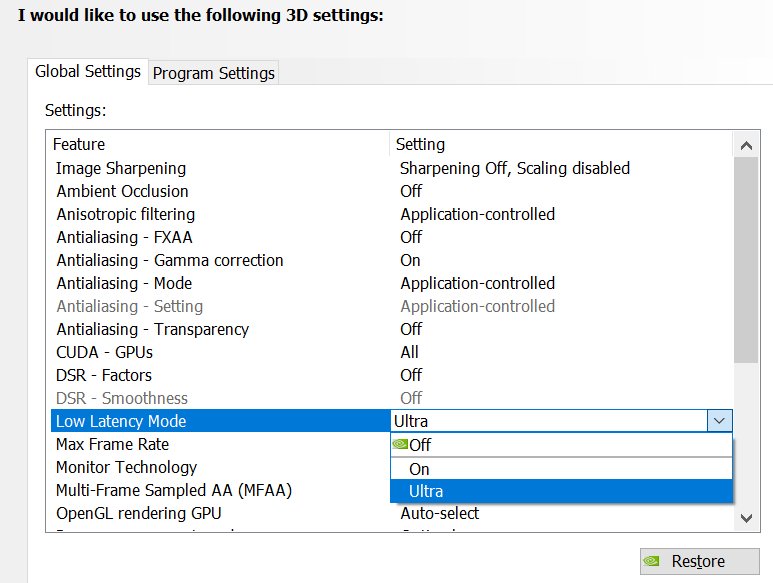
A per-game profile overrides the global value whenever that game launches. Use it when one title tears or lags while the rest are fine.
- Open NVIDIA Control Panel and select Manage 3D settings.
- Select the Program Settings tab.
- Under Select a program to customize, open the list and choose the game.
- If the game is missing, click Add, browse to its executable and click Open.
- In the settings box below the program list, set Vertical sync to the value you want.
- Click Apply.
To return one game to defaults, select it in the list and click the Restore button next to it. The Restore Defaults link at the top resets the whole Manage 3D Settings page instead.
Change Vertical sync in the NVIDIA app
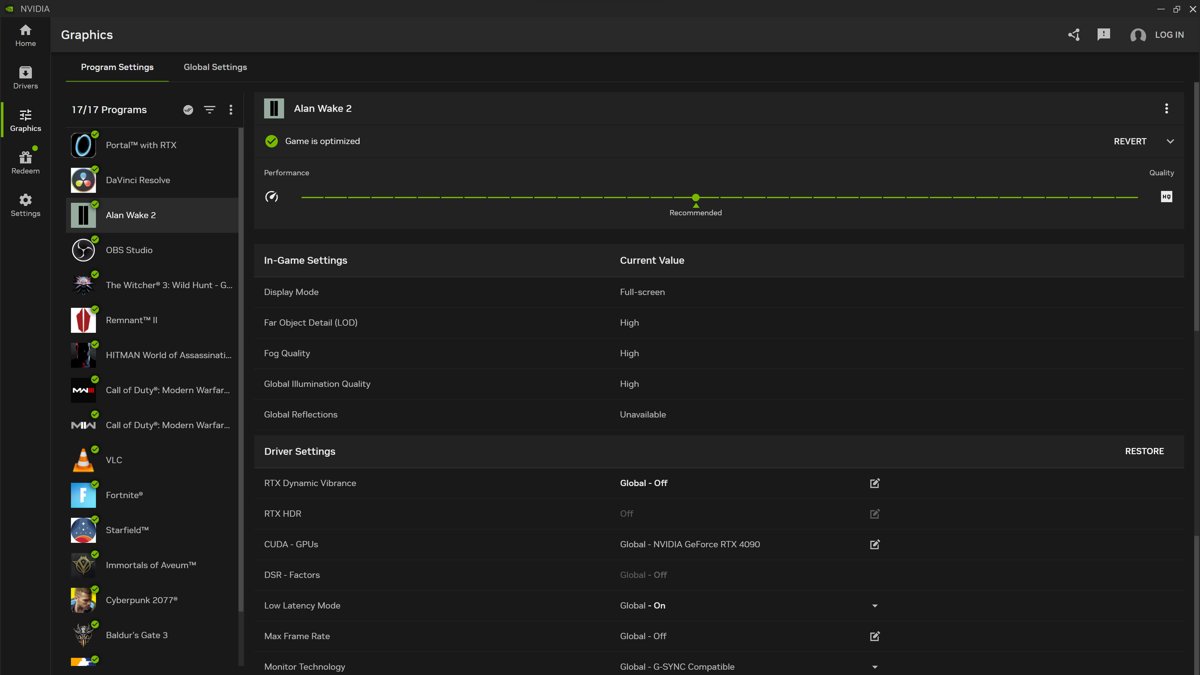
The NVIDIA app, which you can download free for Windows, brings the Control Panel's 3D settings into one window, with a global profile for every game and per-game profiles. Both apps change the same driver setting, so pick one and stick with it.
- Open the NVIDIA app from the Start menu.
- Select Graphics in the left sidebar.
- Use the global profile to change every game, or open Program Settings and select a single game.
- Under Driver Settings, find Vertical sync and choose a value.
- Close the game and launch it again so the new value loads.
NVIDIA has been moving Control Panel features into the NVIDIA app in stages, and NVIDIA Control Panel remains available. If a setting described here is not in your NVIDIA app yet, use the Control Panel route above.
What VSync actually does
VSync holds each finished frame until the monitor's next refresh, so the screen never shows halves of two frames at once. That removes tearing but ties the frame rate to the refresh rate.
| Situation | VSync off | VSync on |
|---|---|---|
| GPU renders faster than the refresh rate (120 fps on 60 Hz) | Horizontal tearing | Capped at the refresh rate, no tearing |
| GPU renders slower than the refresh rate | Frame rate varies freely | Can fall in steps, such as 60 to 45 or 30, which feels like stutter |
| Input latency | Lowest | Higher, because frames queue behind the display |
| Best for | Competitive shooters, latency tests | Single-player games on a fixed-refresh screen |
NVIDIA's own latency guide calls turning VSync off the oldest latency optimisation, because it creates back pressure from the display through the whole system. Windows itself has no global VSync switch; the VSync options in Windows 11 are set per game or through the GPU driver.
What each NVIDIA Vertical sync option means
The drop-down has six values. The descriptions below follow NVIDIA's Control Panel help.
| Value | What it does | Availability |
|---|---|---|
| Use the application setting | The game's own V-Sync option decides | Always |
| Off | No synchronisation; NVIDIA recommends it when performance matters more than image quality | Always |
| On | Locks frames to the refresh to eliminate tearing | Always |
| Adaptive | VSync on only while the frame rate is faster than the refresh rate; removes tearing at high fps and stutter at low fps | Only with Monitor Technology set to ULMB or Fixed Refresh Rate |
| Adaptive 1/2 refresh rate | VSync on only while the frame rate beats half the refresh rate, aimed at very low frame rates | Only with ULMB or Fixed Refresh Rate |
| Fast | Improves latency without introducing tearing | Pascal (GeForce GTX 10 series) and later GPUs, single-GPU systems |
Choosing the right setting for a fixed-refresh monitor
A fixed-refresh monitor runs at one rate, such as 60 Hz or 144 Hz, with no G-SYNC or variable refresh rate. Match your typical frame rate to a row.
| Your frame rate on this monitor | Vertical sync value | Reason |
|---|---|---|
| Always at or above the refresh rate | On | Tearing gone, and the cap never drops into stutter steps |
| Usually above, sometimes below | Adaptive | VSync switches off during dips instead of halving the frame rate |
| Often below half the refresh rate | Adaptive 1/2 refresh rate | Keeps sync on only above half the refresh |
| Well above the refresh rate and you want lower lag than On | Fast | Lower latency than On, still no tearing |
| Competitive play where every millisecond counts | Off | Lowest latency; accept some tearing |
Before choosing, confirm the monitor really runs at its rated refresh. NVIDIA's latency guide points to NVIDIA Control Panel > Change resolution > Refresh rate; a 144 Hz panel left at 60 Hz makes VSync cap games at 60 fps. You can also change the monitor refresh rate in Windows settings.
NVIDIA Fast Sync: useful, but narrowly targeted
Fast Sync is the Fast value in the Vertical sync list. NVIDIA describes it in one line: it improves latency without introducing tearing. Its limits are what make it a narrow tool.
| Question | Answer |
|---|---|
| Which GPUs support it? | Pascal (GeForce GTX 10 series) and later |
| Multi-GPU or SLI? | No; single-GPU configurations only |
| Does it remove tearing? | Yes, NVIDIA states it does not introduce tearing |
| Is it lower latency than VSync On? | That is its stated purpose; VSync Off remains NVIDIA's top latency tip |
| What about windowed games? | NVIDIA documents driver VSync On as fullscreen-only; use the game's own V-Sync for windowed play |
| Is it needed with G-SYNC? | No; G-SYNC with a frame cap below the refresh rate already gives tear-free, low-lag output |
Try Fast on a fixed-refresh monitor when a game runs far faster than the refresh rate and On feels sluggish. If it causes uneven motion in a particular game, set that game back to On or Adaptive under Program Settings.
How G-SYNC changes the VSync recommendation
G-SYNC makes the monitor refresh when the GPU delivers a frame, instead of the GPU waiting for the monitor. NVIDIA's latency guide says this gives no tearing below the refresh rate and no VSync latency.
| Setting | Recommended with G-SYNC | Why |
|---|---|---|
| Monitor Technology (Manage 3D settings) | G-SYNC | Turns variable refresh on for the selected game or globally; needs a G-SYNC capable display |
| Vertical sync | On in NVIDIA Control Panel, off in the game | Stops tearing when the frame rate reaches the top of the G-SYNC range |
| NVIDIA Reflex (in game) or Low Latency Mode Ultra | On | With VSync On, NVIDIA says this caps the frame rate below the refresh rate automatically and keeps latency low |
| Max Frame Rate | Optional, a few fps under the refresh rate | A manual cap does the same job in games without Reflex |
| Adaptive VSync | Not available | Only offered with ULMB or Fixed Refresh Rate selected |
NVIDIA adds two exceptions. VSync On in NVIDIA Control Panel only works for fullscreen applications, and laptops using Microsoft Hybrid graphics do not support it, so windowed players and those laptops should use the game's own VSync switch instead.
Competitive players who accept occasional tearing above the refresh rate can leave VSync off with G-SYNC and Reflex; NVIDIA notes the G-SYNC + VSync + Reflex combination costs slightly more latency than an uncapped frame rate with Reflex.
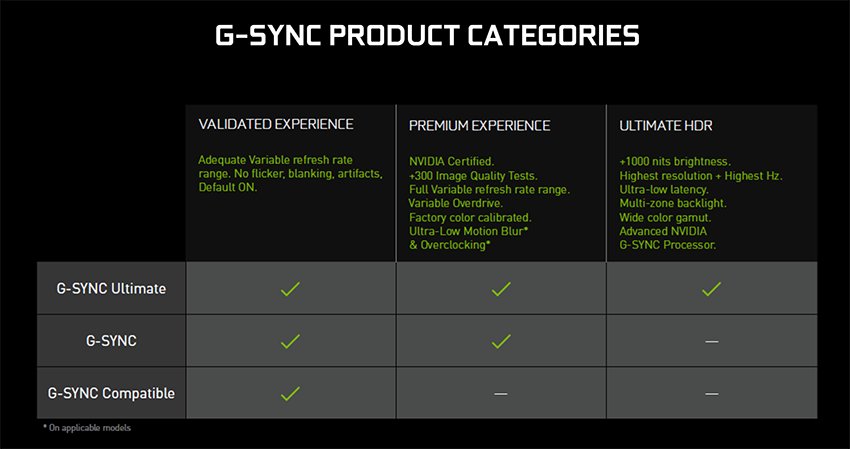
G-SYNC on Adaptive-Sync monitors that are not officially listed
NVIDIA's G-SYNC Compatible programme validates ordinary variable refresh rate (VRR) monitors and switches VRR on automatically for those that pass. Monitors that are not on the list can still be tried manually through an NVIDIA Control Panel option.
| Monitor type | What to expect | What to do |
|---|---|---|
| G-SYNC or G-SYNC Ultimate (built-in G-SYNC processor) | Full range from 1 Hz to the panel's maximum, tested against 300+ checks | Select G-SYNC under Monitor Technology |
| Validated G-SYNC Compatible | No blanking, pulsing, flicker or ghosting, and a VRR range of at least 2.4:1, such as 60 to 144 Hz | VRR turns on by default; confirm in NVIDIA Control Panel |
| VRR or Adaptive-Sync monitor not on NVIDIA's list | NVIDIA says it may work, may work partly, or may not work at all | Enable it manually in NVIDIA Control Panel, then test for flicker and blanking |
| Fixed-refresh monitor | No variable refresh | Use the fixed-refresh table above |
Check NVIDIA's G-SYNC monitor list before buying. Each entry shows the model's VRR range, its variable refresh input (most list DisplayPort) and whether a newer driver is needed. Turn on the monitor's own Adaptive-Sync or FreeSync option in its on-screen menu before testing an unlisted model.
NVIDIA VSync settings that are often misunderstood
Several nearby options on the Manage 3D settings page interact with VSync. These are the ones most often set with the wrong expectation.
| Setting | Common belief | What NVIDIA documents |
|---|---|---|
| Triple buffering | Smooths every game with VSync | Applies to OpenGL applications only; improves performance when Vertical sync is on |
| Global versus per-game profiles | The global value always wins | A Program Settings profile overrides the global value for that game |
| Low Latency Mode | A replacement for VSync | Limits frames the CPU queues: On keeps one, Ultra minimises them; NVIDIA Reflex overrides it when both are on |
| Max Frame Rate | Only for saving battery | Range 20 to 1000 fps; also reduces system latency in some cases |
| Preferred refresh rate | Always worth setting to Highest available | Disabled while variable refresh rate is enabled |
| Driver VSync in windowed games | Forces sync everywhere | VSync On from NVIDIA Control Panel only works for fullscreen applications |
Which NVIDIA VSync setting to use: a practical decision guide
Find your monitor and priority, then set Vertical sync and the related options in one pass.
| Your setup | Vertical sync | Also set |
|---|---|---|
| G-SYNC or G-SYNC Compatible, want no tearing | On (driver), off in game | Monitor Technology > G-SYNC; Reflex or Low Latency Mode > Ultra |
| G-SYNC, competitive shooter | Off | G-SYNC on, NVIDIA Reflex on |
| Fixed refresh, frame rate always above refresh | On | Triple buffering for OpenGL games |
| Fixed refresh, frame rate dips below refresh | Adaptive | Monitor Technology > Fixed Refresh Rate |
| Fixed refresh, very high fps, VSync On feels laggy | Fast | Pascal or later GPU, single GPU |
| Windowed or borderless game | Game's own V-Sync | Driver VSync On does not apply |
| Unsure, want each game to decide | Use the application setting | Nothing else |
How to check NVIDIA VSync is working
The frame rate tells you which mode is active. Turn on a counter first: the NVIDIA app overlay shows performance statistics with Alt + R.
- Launch the game in fullscreen and press Alt + R to show the NVIDIA performance overlay.
- With On or Adaptive, look for the frame rate holding at your refresh rate, such as 60, 144 or 165, and never above it.
- With G-SYNC, VSync On and Reflex, expect a frame rate that tops out a few fps under the refresh rate.
- With Off, expect a frame rate that climbs past the refresh rate whenever the GPU has headroom.
- Pan the camera quickly from side to side; horizontal tear lines should be gone in every mode except Off.
If the counter runs far above the refresh rate with On selected, a Program Settings profile or the game itself is overriding the driver value.
Reset NVIDIA VSync to the application setting
- Open NVIDIA Control Panel > Manage 3D settings.
- On Global Settings, set Vertical sync to Use the application setting.
- Open Program Settings, select each game you customised and click Restore next to the program list.
- Click Apply.
- To reset every 3D option at once, click the Restore Defaults link at the top of the page instead.
Common NVIDIA VSync problems and fixes
Frame rate jumps between 60, 45 and 30 with VSync on
Classic VSync drops to a lower step whenever the GPU cannot hold the refresh rate.
- Set Vertical sync to Adaptive in Manage 3D settings.
- If Adaptive is missing, set Monitor Technology to Fixed Refresh Rate first.
- On a G-SYNC capable display, select G-SYNC instead so the refresh follows the frame rate.
Input lag after turning VSync on
Frames queue behind the display, which NVIDIA calls VSync back pressure.
- Turn on NVIDIA Reflex in the game if it offers it; otherwise set Low Latency Mode to Ultra.
- On a fixed-refresh monitor with a Pascal or later GPU, try Vertical sync > Fast.
- Set Max Frame Rate a few fps below the refresh rate.
Tearing still visible with Vertical sync set to On
The game runs windowed, a per-game profile overrides the global value, or the monitor is not on the NVIDIA GPU.
- Switch the game to exclusive fullscreen, or turn on its own V-Sync if you play windowed.
- Check Program Settings for a profile that sets Vertical sync to Off.
- Plug the monitor into the graphics card, not the motherboard's video port.
G-SYNC option not showing in NVIDIA Control Panel
The display is not G-SYNC capable or validated, or the driver predates the monitor's support.
- Find the model on NVIDIA's G-SYNC monitor list and note its variable refresh input and driver note.
- Connect through the listed input, usually DisplayPort.
- Turn on Adaptive-Sync or FreeSync in the monitor's on-screen menu.
- Update the NVIDIA graphics driver, then reopen NVIDIA Control Panel.
Games capped at 60 fps on a high refresh rate monitor
Windows or the driver still runs the display at 60 Hz, so VSync caps at 60.
- Open NVIDIA Control Panel > Change resolution.
- Choose the native resolution and the highest Refresh rate listed.
- Click Apply and test the game again.
NVIDIA VSync FAQ
Should VSync be on or off in NVIDIA Control Panel?
Set it to On if you see tearing on a fixed-refresh monitor and your frame rate stays at or above the refresh rate. Set it to Off for competitive play where input lag matters most. On a G-SYNC display, NVIDIA recommends On in the Control Panel together with Reflex or Ultra Low Latency Mode.
Does NVIDIA Fast Sync work with DirectX 12 games?
NVIDIA's Control Panel help lists only two requirements for Fast: a Pascal or later GPU and a single-GPU system. It does not name an API restriction. If Fast has no visible effect in a DirectX 12 title, run the game in exclusive fullscreen or use the game's own V-Sync option.
Is Adaptive VSync the same as G-SYNC?
No. Adaptive VSync is a driver setting that switches VSync on above the refresh rate and off below it, on any fixed-refresh monitor. G-SYNC changes the monitor's refresh rate to match each frame and needs a G-SYNC capable display. Adaptive is not offered while G-SYNC is selected.
What VSync setting is best for G-SYNC?
Set Vertical sync to On in NVIDIA Control Panel, turn VSync off in the game, and enable NVIDIA Reflex or Low Latency Mode Ultra. NVIDIA says this caps the frame rate just below the refresh rate, removes tearing and keeps latency low.
Why is G-SYNC not showing in NVIDIA Control Panel?
G-SYNC appears only when a G-SYNC capable or G-SYNC Compatible display is connected to the NVIDIA GPU. Check that the monitor's Adaptive-Sync option is on, that it uses the input NVIDIA lists for it, usually DisplayPort, and that the graphics driver is current.
Can I force VSync for a windowed game from NVIDIA Control Panel?
No. NVIDIA states that VSync On in NVIDIA Control Panel works only for fullscreen applications. For windowed or borderless play, turn on V-Sync in the game's own graphics menu, or switch the game to exclusive fullscreen.
Does VSync reduce FPS on NVIDIA GPUs?
VSync caps the frame rate at the refresh rate, so a game that could run at 120 fps on a 60 Hz monitor shows 60. When the GPU cannot hold the refresh rate, classic VSync can drop to 45 or 30 fps, which Adaptive VSync avoids.
Do I need triple buffering with VSync on an NVIDIA card?
Only for OpenGL games. NVIDIA's Triple buffering setting affects OpenGL applications only and improves performance when Vertical sync is on. DirectX games handle buffering themselves, so the driver option has no effect on them.
Bottom line: should you turn VSync on or off in NVIDIA?
On a G-SYNC or G-SYNC Compatible monitor, set Vertical sync to On in NVIDIA Control Panel with Reflex or Low Latency Mode > Ultra; on a fixed-refresh monitor, use On or Adaptive for single-player games and Off for competitive play. VSync trades latency for a tear-free image, and G-SYNC removes most of that trade by matching the refresh to the GPU, so the right value depends on the monitor first and the game second.