1080p resolution is an image 1920 pixels wide and 1080 pixels tall, drawn progressively, and it is the same thing as Full HD (FHD).
This guide explains each part of the name, how 1080p compares with 720p, 1440p and 4K, how to check whether your own screen runs at 1080p, and when 1080p is still the right choice.
1080p resolution in one table
Use this table if you only need the numbers. Every value below follows directly from the 1920 x 1080 pixel grid.
| Question | Answer |
|---|---|
| What is 1080p in pixels? | 1920 x 1080: 1920 pixels across, 1080 pixels down |
| How many pixels is that in total? | 2,073,600 pixels, about 2.1 megapixels per frame |
| What shape is the picture? | 16:9 widescreen, because 1920 divided by 1080 is 16:9 |
| What does the "p" stand for? | Progressive scan: every line of the frame is drawn at once |
| Is 1080p the same as Full HD or FHD? | Yes. Full HD, FHD and 1080p are three labels for 1920 x 1080 |
| Is 1080p considered HD? | Yes. It is the top tier of HD; plain "HD" or "HD Ready" usually means 1280 x 720 |
| What resolution is above 1080p? | 1440p (2560 x 1440, QHD), then 4K UHD (3840 x 2160) |
What does 1080p mean?
The name 1080p packs two facts: the vertical pixel count and the scan method. The horizontal count of 1920 is implied by the 16:9 shape.
| Part of the name | Meaning | Example |
|---|---|---|
| 1080 | The number of horizontal lines of pixels, counted top to bottom | 1080 rows of pixels on the screen |
| p | Progressive: each frame holds every line, and the display draws the whole frame at once | A 60 Hz 1080p signal sends 60 complete frames per second |
| Implied width: 1920 | 16:9 aspect ratio x 1080 lines gives 1920 pixels per line | Windows lists it as 1920 x 1080 |
| Total pixels | 1920 x 1080 = 2,073,600 pixels | Each frame carries about 2.1 million pixels |
| What 1080p does not say | Screen size, refresh rate, panel type, HDR, colour accuracy or brightness | A 24-inch office monitor and a 65-inch TV can both be 1080p |
What do Full HD and FHD mean?
Full HD and FHD are marketing names for 1080p. Microsoft's own documentation uses "1080p (Full HD): 1920 x 1080 pixels" and labels 1280 x 720 as plain HD.
The trap is the word "HD" on its own. A box that says HD or HD Ready usually means 720p, not 1080p.
| Label on the box | Resolution | Common short name |
|---|---|---|
| HD / HD Ready | 1280 x 720 | 720p |
| Full HD / FHD / HD1080p | 1920 x 1080 | 1080p |
| WUXGA | 1920 x 1200 (16:10) | Slightly taller than 1080p |
| QHD / WQHD | 2560 x 1440 | 1440p |
| 4K UHD / QFHD | 3840 x 2160 | 2160p, exactly four 1080p frames |
WUXGA laptops are often listed beside FHD ones. They have the same width but 120 extra rows, so they are not 1080p panels.
1080p versus 1080i
Both have 1080 lines, but they draw them differently. Progressive video carries a complete frame each time. Interlaced video carries a field: only the odd rows, then only the even rows, alternating.
| 1080p (progressive) | 1080i (interlaced) | |
|---|---|---|
| What each update carries | A full 1920 x 1080 frame | One field: every other line (540 of the 1080 rows) |
| How the display shows it | Draws the whole frame at once | Alternates odd and even fields, shifted slightly in time |
| Motion | Clean edges on fast movement | Fast motion can show combing unless the device deinterlaces it |
| Where you meet it | PCs, game consoles, streaming apps, Blu-ray players | Content made for television playback |
| On a PC monitor | Native format | Must be deinterlaced first, which adds a processing step |
Microsoft's media documentation states that content meant only for a computer display should not be encoded as interlaced. If a TV or console offers both, pick 1080p.
How does 1080p compare with 720p and 4K?
Each step up multiplies the pixel count, and with it the data needed to stream it. The YouTube speeds below are the sustained connection speeds YouTube recommends for each resolution.
| Resolution | Pixels (width x height) | Total pixels | Compared with 1080p | YouTube recommended speed |
|---|---|---|---|---|
| 720p (HD) | 1280 x 720 | 921,600 | 0.44x | 2.5 Mbps |
| 1080p (Full HD) | 1920 x 1080 | 2,073,600 | 1x | 5 Mbps |
| 1440p (QHD) | 2560 x 1440 | 3,686,400 | 1.78x | Not listed separately |
| 4K UHD (2160p) | 3840 x 2160 | 8,294,400 | 4x | 20 Mbps |
So the resolution above 1080p is 1440p, and the common one above that is 4K. A 4K frame holds exactly four 1080p frames in a 2 x 2 grid, which is why 1080p video scales cleanly onto a 4K TV.
How to check if your screen is 1080p in Windows
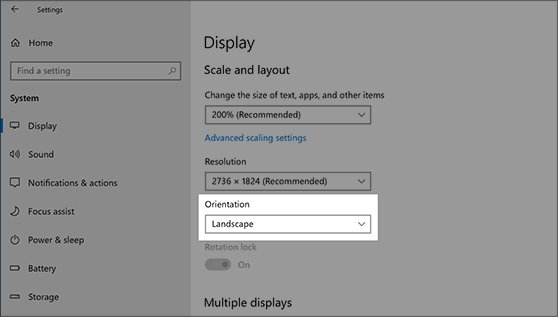
Windows marks the panel's native resolution as (Recommended). If that entry reads 1920 x 1080, your screen is a 1080p display.
- Select Start > Settings > System > Display.
- Scroll to Scale & layout in Windows 11, or Scale and layout in Windows 10.
- Read the value in the Display resolution row.
- Open the list and find the entry marked (Recommended); that is the native resolution.
- If the native entry is 1920 x 1080 but a lower value is selected, choose 1920 x 1080 and confirm the change.
With several monitors, select each screen at the top of the Display page first. Running below native resolution makes text look less sharp, and the picture can appear small with black edges or stretched. On Windows 10 you can set the resolution back to 1920 x 1080 from the same page.
Is 1080p good enough?
For most screens under about 27 inches, yes. Match your use to a row below.
| Your use | Is 1080p enough? | Reason |
|---|---|---|
| Office work on a 21 to 24-inch monitor | Yes | About 92 to 105 pixels per inch at normal desk distance looks sharp at 100% scaling |
| Laptop with a 13 to 16-inch screen | Yes | Microsoft's scaling table puts 15.4-inch FHD at 143 DPI and 125% scaling |
| Competitive gaming | Yes | Fewer pixels let a graphics card reach higher frame rates on high refresh rate monitors |
| Photo or video editing on 27 inches or larger | Borderline | About 82 pixels per inch shows visible pixels; 1440p or 4K shows more of the image at once |
| Living-room TV of 55 inches or larger | Borderline | Pixels are about 0.6 mm wide; most streaming and new TVs now target 4K |
| Video calls and webcams | Yes | Microsoft's web calling SDK supports 1080p at 30 fps; 720p is its default |
1080p does not specify refresh rate
Resolution is how many pixels each frame holds. Refresh rate is how many times per second the screen redraws, measured in Hz. A 1080p monitor can run at 60 Hz, 144 Hz, 240 Hz or more, and the label 1080p tells you nothing about which.
To see or change the refresh rate of a 1080p screen in Windows, use these steps.
- Select Start > Settings > System > Display > Advanced display in Windows 11, or Advanced display settings in Windows 10.
- In Windows 10 with several monitors, pick the screen under Choose display.
- Open the list next to Choose a refresh rate (Windows 11) or Refresh rate (Windows 10).
- Select the highest rate your display supports.
- Avoid rates marked with an asterisk (*); they do not support your current resolution, and Windows will change the resolution to reach them.
Dynamic Refresh Rate in Windows 11 needs a display that supports variable refresh rate and at least 120 Hz. Windows 10 does not support it.
What does 1080p say about image quality?
1080p sets the pixel count, not the sharpness you see. The same 1920 x 1080 grid looks crisp on a laptop and coarse on a large TV, because the pixels get bigger as the screen grows.
| 1080p screen size | Pixel density | What you notice |
|---|---|---|
| 13.3-inch laptop | About 166 pixels per inch | Very sharp; Windows usually scales text up |
| 15.6-inch laptop | About 141 pixels per inch | Sharp at arm's length |
| 24-inch monitor | About 92 pixels per inch | Sharp at desk distance, the classic 1080p size |
| 27-inch monitor | About 82 pixels per inch | Text edges look softer; individual pixels can be visible up close |
| 55-inch TV | About 40 pixels per inch | Fine from the sofa, coarse from close up |
Other factors matter as much as resolution: panel type, contrast, brightness, colour accuracy, HDR support and the quality of the source video. A compressed 1080p stream looks worse than a 1080p Blu-ray on the same screen.
Does a 1080p display always receive 1080p streaming?
No. A 1080p screen can show 1080p, but the stream decides what actually arrives. YouTube changes the quality of each stream based on viewing conditions, including connection speed, screen size, the original upload quality and the browser.
| What limits the stream | Effect on a 1080p screen | What to do |
|---|---|---|
| Connection below about 5 Mbps sustained | The player drops to 720p or lower | Use a wired connection or pause other downloads |
| Video uploaded below 1080p | No 1080p option exists for that video | Nothing; the source caps the quality |
| Player set to Auto or Data saver | Quality changes during playback | In the YouTube app, tap Settings > Quality and pick Higher picture quality or a resolution under Advanced |
| Service plan or app limits | Some subscriptions and browsers cap video below 1080p | Check the plan and supported devices on the service's help pages |
| 4K source on a 1080p screen | Downscaled to 1920 x 1080 | Expected; you see 1080p detail |
To set a default on the YouTube mobile app, tap your profile picture, then Settings > Video quality preferences, and choose separate settings for mobile networks and Wi-Fi.
What cable do you need for 1080p?
The cable does not choose the resolution. The PC, console or player and the display negotiate the best mode both support, based on the connector type and the display's capabilities.
| Basic 1080p connection checklist | What to check |
|---|---|
| Port on the source | HDMI, DisplayPort, DVI, or USB-C with display output |
| Port on the display | A matching input, or a matching adapter for USB-C |
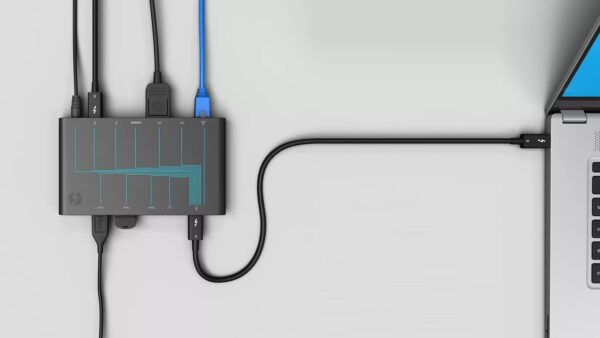
| Cable or adapter | Use the cable supplied with the device, or a known-good one; adapters can limit resolution and refresh rate, so check the adapter's specifications |
| Connection | Plug in directly first; docks, dongles and splitters can cause conflicts |
| Windows setting | Display resolution set to 1920 x 1080 (Recommended) on a native 1080p screen |
| Faulty cable test | If the picture drops out or there is no signal, swap the cable; if the new one works, the old one was faulty |
1080p monitor, TV, or projector?
The same 1080p signal works on all three, but each suits a different job. Choosing a native 1080p display matters most: a panel whose own pixel grid is 1920 x 1080 shows 1080p without any scaling.
| Device | Best for | Watch out for |
|---|---|---|
| 1080p monitor | PC work and gaming at a desk, usually 21 to 24 inches | Refresh rate and panel type vary widely between models |
| 1080p TV | Small bedrooms or kitchens, 32 to 43 inches | Larger TVs are now mostly 4K; check that the spec says 1920 x 1080, not just HD |
| 1080p projector | Large images in dark rooms | Supported input and native resolution are separate spec lines; check the native one says 1920 x 1080 |
| 1080p laptop screen | Portable work at 13 to 16 inches | WUXGA (1920 x 1200) is a different, taller panel |
1080p buying checklist
Run through these lines on any spec sheet before buying a 1080p screen.
| Spec line | What you want | Why |
|---|---|---|
| Native resolution | 1920 x 1080 | Confirms a true Full HD panel, not 720p sold as HD |
| Screen size | 24 inches or smaller for a monitor | Keeps pixel density above about 90 pixels per inch |
| Refresh rate | 60 Hz for office use, 120 Hz or higher for games | 1080p alone does not tell you this |
| Inputs | HDMI or DisplayPort matching your PC or console | Avoids adapters that can limit modes |
| Panel and brightness | Panel type, contrast and brightness figures listed | These shape image quality as much as resolution |
| Variable refresh rate | Listed if you game on Windows 11 | Needed for Dynamic Refresh Rate, with at least 120 Hz |
Common 1080p misunderstandings
| Misunderstanding | What is actually true |
|---|---|
| "HD" always means 1080p | No. HD on its own usually means 1280 x 720; look for Full HD, FHD or 1920 x 1080 |
| All 1080p screens look equally good | No. Size, panel type, contrast, brightness and colour make two 1080p screens look very different |
| 144 Hz makes a monitor higher resolution | No. Refresh rate counts frames per second; resolution counts pixels per frame |
| A 4K screen always shows 4K detail | No. A 1080p source on a 4K screen is upscaled; it cannot add detail that was never recorded |
| A more expensive HDMI cable improves sharpness | No. The source and display set the resolution; a cable either carries the signal or fails with dropouts or no picture |
| 1080i and 1080p are the same | No. 1080i sends alternating half-frames; 1080p sends full frames |
1080p and Full HD resolution FAQ
Is 1080p the same as Full HD?
Yes. 1080p, Full HD and FHD all describe a 1920 x 1080 pixel image. The "p" adds one detail: the picture is progressive, so every frame contains all 1080 lines.
What is 1080p resolution in pixels?
1080p is 1920 pixels wide by 1080 pixels tall. That is 2,073,600 pixels per frame, in a 16:9 widescreen shape.
Is 1080p considered HD?
Yes. 1080p is high definition, and it is the top HD tier, which is why it is called Full HD. Plain HD or HD Ready usually means the lower 1280 x 720 resolution.
What resolution is higher than 1080p?
The next common step is 1440p, or QHD, at 2560 x 1440 pixels. Above that comes 4K UHD at 3840 x 2160, which has four times the pixels of 1080p.
What size is 1080p?
1080p is a pixel count, not a physical size. A 1080p image is 1920 x 1080 pixels on any screen, from a 13-inch laptop to a 65-inch TV. Bigger screens just have bigger pixels.
Is 1080p better than 720p?
Yes. 1080p has 2.25 times as many pixels as 720p, so it shows finer detail on the same screen. It needs more bandwidth: YouTube recommends 5 Mbps for 1080p and 2.5 Mbps for 720p.
Is 1080p enough for gaming?
Yes, for most monitors up to 24 inches. Fewer pixels let a graphics card reach higher frame rates, which pairs well with a 144 Hz or 240 Hz 1080p monitor.
Can a 1080p monitor play 4K video?
Yes. A 1080p monitor can play a 4K video, but it scales the picture down to 1920 x 1080. You see 1080p detail, though a 4K source can still look cleaner than a lower-bitrate 1080p one.
What is the difference between 1080p and 1080i?
1080p sends complete frames with all 1080 lines. 1080i sends alternating fields, first the odd rows and then the even rows, which can blur or comb fast motion.
Do you need an expensive HDMI cable for 1080p?
No. The source device and the display decide the resolution, not the cable's price. If a cable is faulty, the picture drops out or disappears, and swapping the cable fixes it.
The bottom line on 1080p resolution
Buy 1080p for monitors up to 24 inches, laptops, small TVs and high refresh rate gaming; choose 1440p or 4K for 27-inch and larger monitors or living-room TVs. 1080p means 1920 x 1080 progressive pixels, and its sharpness depends on screen size. On small screens it looks crisp and needs less bandwidth and graphics power; on large screens its pixels become visible.