To close a Microsoft account, sign in on Microsoft's Close account page, tick the acknowledgements, choose a 30-day or 60-day reopen window, pick a reason and select Mark account for closure.
This guide covers what you lose, the backups and subscription cancellations to finish first, how to take the account off your Windows PC, how to reopen it, and fixes when the closure page refuses you.
Step-by-step guide to closing your Microsoft account
Closing happens in a web browser on any computer or phone. Windows Settings has no option that deletes the account itself; removing it from a PC only takes it off that device.
- Step 1: Back up your data and cancel your subscriptions first. The sections below cover email, OneDrive, BitLocker keys and billing.
- Step 2: Sign in to your account on the Close account page with the Microsoft account you want to close.
- Step 3: Verify your identity if prompted, usually by entering a security code sent to your recovery email or phone.
- Check that the page shows the correct Microsoft account, then click Next.
- Step 4: Review the consequences. Read the list and tick every checkbox to acknowledge each item.
- Choose whether the reopen window is 30 or 60 days.
- Step 5: Confirm your decision. Pick an explanation in the Select a reason drop-down list.
- Click Mark account for closure.
- Step 6: Finalize and wait. Do not sign in at account.microsoft.com and enter a security code until the reopen window has passed, because that reopens the account.
The account is marked for closure at once, not deleted at once. Microsoft deletes your data and content after the reopen window ends, as the Microsoft Services Agreement states.
Alternatives to closing your Microsoft account
Closing is permanent once the window ends. If your real goal is privacy, a cleaner PC or fewer charges, a smaller step does the job and keeps your purchases.
| What you actually want | Do this instead | Where |
|---|---|---|
| Disable account access on every device you have used | Sign out everywhere; it takes effect within 24 hours, except on an Xbox console | Advanced security options > Sign out everywhere > Sign out |
| Remove personal information Microsoft holds | Clear activity data on the privacy dashboard | account.microsoft.com privacy dashboard |
| Unlink the Microsoft account from devices and services | Remove the account from the PC and sign out of each app | Settings > Accounts > Other users > Remove |
| Stop Windows using a Microsoft account | Switch to a local account on that PC | Settings > Accounts > Other users > Add account |
| Stop paying | Cancel subscriptions and remove payment methods | Services & subscriptions and Payment options |
| Move to a different email address | Use an alternative email or service account, then close this one later | Any new account, after you move your contacts |
Preliminary steps before closing your Microsoft account
Microsoft's closure page has two goals: confirm it is really you, and make sure you are not leaving anything you will need later. Clear this checklist before you start.
| Check | Why it matters | What to do |
|---|---|---|
| You can sign in | The closure page requires a sign-in | Use the Microsoft Sign-in helper if sign-in fails |
| Security info not reset recently | After you reset all sign-in verification details, you must wait 60 days to close the account | Wait out the 60 days |
| Email and contacts saved | Outlook.com email and contacts are deleted and cannot be recovered | Export them (next section) |
| OneDrive files downloaded | OneDrive goes with the account | Download them to the PC or an external drive |
| BitLocker recovery keys saved elsewhere | Keys stored in the account become unreachable | Back up each key to a USB drive, a file or paper |
| Subscriptions cancelled | Time you let lapse while the account is pending closure does not come back | Cancel from Services & subscriptions |
| Store important passwords and credentials | Sites where this email is your username, and passwords synced under this account, stop being reachable | Change the login email on those sites and move saved passwords to another password manager |
| Account balance and purchases | Purchased content and any balance stay tied to this account | Spend the balance and accept that games, apps and media do not move |
If you redeemed a gift card on this account, spend the balance before you close it. The same applies to Minecraft if you moved your Mojang account to Microsoft.
Export Outlook.com emails and contacts before closing
How to back up your data and important information starts with the mailbox, because Outlook.com mail cannot be recovered after closure. Contacts export from the web; full email export needs classic desktop Outlook.
- In Outlook.com, select the People icon at the top of the side panel.
- On the toolbar, select Manage contacts > Export contacts.
- Choose All contacts or a single folder, then select Export. A .csv file lands in your Downloads folder.
- For email, open classic Outlook for Windows and add your Outlook.com address to it.
- Export the mailbox from classic Outlook to an Outlook data file (.pst) saved on your PC.
- Open the .pst in Outlook once to confirm your folders and messages are inside.
Classic Outlook comes with Microsoft 365. Microsoft points readers without it to the free 30-day Microsoft 365 trial for this export.
Download files from OneDrive before closing your account
- Sign in at onedrive.com with the account you are closing.
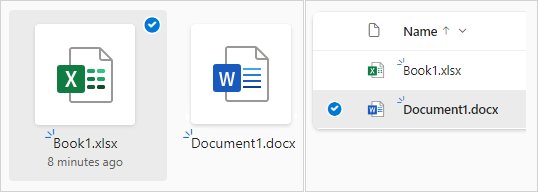
- Select the files or folders you want. To select everything in a folder, click the circle left of the header row or press Ctrl + A.
- Select Download in the top bar, or right-click an item and choose Download.
- Choose Save or Save As if the browser asks. Multiple items arrive as one .zip file.
- Save the download outside your OneDrive folder, for example on a second drive.
- Open shared files one by one and save a copy, because the Shared view has no download button.
OneNote notebooks do not download this way; the .zip holds a .txt error instead. Each .zip of compressed files is capped at 10GB and 20GB overall, so download very large libraries in batches.
Back up Windows settings, data and BitLocker recovery keys
Losing a BitLocker recovery key is the most serious side effect of closing a Microsoft account. Microsoft states that you lose access to any recovery keys saved in it.
- Open Start, search for BitLocker and select Manage BitLocker.
- Select Back up your recovery key next to each encrypted drive.
- Choose Save to a USB flash drive, Save to a file or Print the recovery key. Avoid Save to your Microsoft Account, since that account is going away.
- Select Finish.
- From another device, open aka.ms/myrecoverykey and copy any keys for older PCs you no longer have.
- Copy personal folders such as Documents, Pictures and Desktop to an external drive if OneDrive was backing them up.
- Verify the data backup: open a few files, the contacts .csv and the .pst from the drive before you close anything.
If this PC's Windows activation is tied to the account, link the digital license to your new account afterwards.
How to cancel subscriptions and services linked to your Microsoft account
Cancel every Microsoft 365, Xbox, OneDrive or Copilot subscription before you close. Remaining time is kept only if you reopen, and the days spent pending closure are not returned.
- 1. Sign in to your Microsoft account at account.microsoft.com and open Services & subscriptions, using the account that bought the subscription.
- 2. Review your subscriptions and their renewal dates.
- 3. Cancel your subscriptions: select Manage on each, then Cancel (it can read Upgrade or Cancel).
- For Microsoft 365, read the Please review section, then select I don't want my subscription.
- 4. Confirm cancellation: the subscription now shows Turn on recurring billing, which means it will expire and not charge again.
- 5. Remove payment methods (optional): open Payment options, select Remove next to a card, then select Remove again to confirm.
Subscriptions bought through Google Play, the Apple App Store or a retailer such as Amazon must be cancelled with that seller. Cancelling Microsoft 365 drops cloud storage to the free 5GB allowance for you and anyone you shared it with.
Switch to a local account and unlink Microsoft account from Windows
If Windows signs in with the account you are closing, create a local administrator first. Removing the Microsoft account from a PC deletes its sign-in information and data from that device only.
- Open Settings > Accounts > Other users.
- Under Add other user, select Add account.
- Select I don't have this person's sign-in information, then Add a user without a Microsoft account, and finish the setup.
- Select the new account, then Change account type next to Account options, choose Administrator and select OK.
- Sign out, then sign in with the new local account.
- Go back to Settings > Accounts > Other users, open the Microsoft account and select Remove next to Account and data.
Copy files out of the old profile before the last step, because removal deletes that profile's data on the PC. Then sign out of Office, Teams and the Xbox app on each device.
How to check a Microsoft account is marked for closure
Treat the Mark account for closure confirmation as your proof, and do not sign in to check. Signing in at account.microsoft.com during the 30-day or 60-day window, and entering the security code, reopens the account.
Implications of closing a Microsoft account: what you lose
Understanding the implications of closing a Microsoft account matters because one sign-in covers Windows, Outlook.com, OneDrive, Xbox and Microsoft 365. Closing one closes all of them.
| Service | What happens after closure |
|---|---|
| Outlook.com and Hotmail email | Email and contacts are deleted from Microsoft's servers and cannot be recovered |
| OneDrive | Files are no longer accessible |
| Xbox | Gamertag, Gamerscore and purchased games are lost once the window passes |
| Microsoft 365 and other subscriptions | Access ends; remaining time is lost after the window |
| BitLocker | Recovery keys saved to the account become unreachable |
| Rewards and purchased content | Points, apps, games and media go with the account |
| Windows sign-in | The account can no longer sign in to any PC |
Closing affects only the personal account you sign in with. It does not delete other accounts, and it cannot close a work or school account.
Post-closure considerations: the 30-day and 60-day reopen window
Post-closure considerations and troubleshooting both centre on the reopen window. Until it ends, the account is closed but still recoverable.
| Stage | Account state | What you can do |
|---|---|---|
| After Mark account for closure | Closed, pending deletion | Reopen by signing in and entering a security code |
| During the 30 or 60 days | Subscriptions, profiles and content kept | Reopen and keep any subscription time still remaining |
| After the window ends | Permanently deleted with its data | Nothing; the account cannot be reopened |
| Two years with no sign-in | Closed by Microsoft for inactivity | Nothing; an active subscription or balance keeps it active |
How to reopen a closed Microsoft account
- Go to account.microsoft.com and select Sign in before the 30-day or 60-day window ends.
- Enter the Microsoft account email and password.
- Choose where to receive the security code and enter it.
- Check that your subscriptions, rewards points, Xbox gamertag and purchased content are back.
- Repurchase any subscription you cancelled outright or that ran out while the account was pending closure.
Close Microsoft account for deceased family member
You do not need to tell Microsoft that someone has died. The route depends on whether you know the account's sign-in details.
| Situation | What happens |
|---|---|
| You have the sign-in details | Close the account with the steps above; it can be reopened within 60 days, then it is deleted |
| You do not have the sign-in details | The account closes automatically after two years of inactivity |
| You need the content | Microsoft generally cannot give information to non-account holders; it first requires a valid subpoena or court order, and even then help is not guaranteed |
| Subscriptions keep billing | Stop them by closing the payment card or telling the bank |
Troubleshooting common issues closing a Microsoft account
You cannot sign in to start the closure
The closure page only works for a signed-in account.
- Run Microsoft's Sign-in helper from the account help pages.
- Reset the password or recover the account if the helper finds a problem.
- Return to the Close account page once sign-in works.
The page will not let you close the account right after a security change
You reset all your sign-in verification details, which starts a 60-day wait.
- Wait 60 days from the security info reset.
- Use that time to export data and cancel subscriptions.
- Start the closure again after the wait ends.
No option to cancel a subscription before closing
It was bought elsewhere, through another account, or a payment is overdue.
- Check the seller: Google Play, the App Store and retailers handle their own cancellations.
- Sign in with the exact Microsoft account that bought the subscription.
- If you see Turn on recurring billing, it already will not renew.
- Pay any overdue amount; a subscription with money owing cannot be cancelled.
Still charged after cancelling
The cancellation was made two days or less before the billing date.
- Open Services & subscriptions and check the status of the charge's subscription.
- Request a refund through Microsoft Support if the cancellation was too late.
FAQs about closing a Microsoft account
Can I close a Microsoft account?
Yes. Any personal Microsoft account can be closed from Microsoft's Close account page, as long as you can sign in to it. Work and school accounts are managed by the organisation's IT admin instead.
How do I start the process of closing my Microsoft account?
Open Microsoft's Close account page and sign in with the account. Verify your identity if asked, confirm the account shown, tick each acknowledgement, choose a 30-day or 60-day window, pick a reason, then select Mark account for closure.
How do I close a Microsoft account permanently?
Mark it for closure and then do not sign in again. When the 30-day or 60-day window passes, Microsoft permanently deletes the account and its data, and it can no longer be reopened.
Can I close a Microsoft account immediately?
No. The shortest option is a 30-day reopen window. The account is closed straight away but is only deleted for good after that window ends.
How do I close a Microsoft account from a PC or computer?
Use a web browser on the PC and go to the Close account page. Windows Settings can remove the account from that computer, but removal does not close or delete the Microsoft account itself.
How do I close a Microsoft account that has Office 365?
Cancel the Microsoft 365 (formerly Office 365) subscription in Services & subscriptions first, then close the account. If you bought it from Google Play, Apple or a retailer, cancel it with that seller.
Can I reopen my Microsoft account after closing it?
Yes, within the 30-day or 60-day window you chose. Sign in at account.microsoft.com and enter the security code. Subscriptions, rewards points, your Xbox gamertag and purchased content come back.
What happens to my data when I close my account?
Microsoft deletes your data and content once the reopen window passes. Outlook.com email and contacts cannot be recovered, and BitLocker recovery keys saved to the account become inaccessible.
Will closing my account affect other services?
Yes. Outlook.com, OneDrive, Xbox, Microsoft 365 and any Windows PC that signs in with the account all lose access. Accounts at other companies are unaffected, unless this email is their login.
Are there any prerequisites before closing my account?
You must be able to sign in, and you cannot close it within 60 days of resetting all your security info. Back up email, OneDrive files and BitLocker keys, and cancel subscriptions first.
What should I do if I encounter issues during the closure process?
Use the Sign-in helper if you cannot sign in, and wait out the 60-day period after a security info reset. For anything else, contact Microsoft Support from the account help pages.
Does closing an Outlook.com account close the Microsoft account?
They are the same thing. Microsoft states that to permanently close an Outlook.com address, you close the Microsoft account it belongs to.
Should you close your Microsoft account or keep it?
Close the account only after your email, OneDrive files and BitLocker keys are saved elsewhere and every subscription is cancelled, and pick the 60-day window. The longer window costs nothing and gives you a second chance to retrieve something you forgot. If you only want privacy or fewer charges, signing out everywhere and switching Windows to a local account keeps your purchases intact.