To turn off McAfee antivirus temporarily, open the McAfee app from Start, go to its settings and switch off real-time scanning; to turn it off for good, uninstall McAfee so Microsoft Defender Antivirus takes over.
This guide covers pausing McAfee's real-time scanning and firewall on Windows 11 and Windows 10, checking in Windows Security which antivirus is active, turning McAfee back on, cancelling auto-renewal and removing McAfee when you no longer want it.
How to temporarily disable McAfee
Real-time scanning is the part of McAfee that checks files as they open, so it is the switch to pause when a trusted installer or game is blocked. The route is the same on Windows 11 and Windows 10.
- Select Start, type McAfee, and open your McAfee security app.
- Navigate to the app's settings and open the real-time scanning setting.
- Switch real-time scanning off. If the app asks when scanning should resume, pick the shortest time that fits your task.
- Finish the task that McAfee was blocking.
- Return to the same setting and switch real-time scanning back on.
- Open Windows Security > Virus & threat protection > Manage providers to confirm which antivirus is active.
McAfee renames menus between versions, so look for the real-time scanning setting by name rather than a fixed path. Leave it off only for the task that needs it.
Alternative solutions and tips for turning off McAfee antivirus
Switching off real-time scanning is one of several ways to stop McAfee getting in the way. Pick the narrowest option that solves your problem.
| Your situation | Use this | Why |
|---|---|---|
| An installer or file is blocked for a few minutes | Method 1 or 2: switch off McAfee real-time scanning, then back on | The shortest gap in protection |
| An app cannot connect to the network | Pause the McAfee firewall briefly, or allow that one app through the firewall | Leaves file scanning running while you test the connection |
| You no longer want McAfee at all | Method 3: uninstall McAfee | Microsoft Defender Antivirus switches back on automatically |
| A McAfee trial or subscription is ending | Cancel auto-renewal, then uninstall when the term ends | Avoids a charge and keeps you protected until the switch |
| You only want to know which antivirus is running | Check Manage providers in Windows Security | Nothing needs to be turned off |
Why turn off McAfee?
Most people pause antivirus for troubleshooting rather than as a long-term setting. Knowing when and why to disable antivirus software helps you pick the right switch.
| Reason | What to turn off | How long |
|---|---|---|
| A trusted installer is blocked or deleted as it runs | Real-time scanning | Until the install finishes |
| A game, VPN or app cannot connect | McAfee firewall | Long enough to test the connection |
| Two security tools conflict while you test | Real-time scanning | One test, then back on |
| You prefer Microsoft Defender Antivirus | Nothing: uninstall McAfee instead | Permanent |
Precautions before turning off McAfee
A few minutes of preparation keeps the unprotected window short. These precautions before disabling McAfee antivirus apply to every method in this guide.
| Precaution | Why it matters |
|---|---|
| Download the file you need from the vendor's own site before you pause scanning | Files you download while scanning is off are not checked as they arrive |
| Close your browser and email while protection is off | Stops new files arriving while nothing scans them |
| Pick a resume time if the app offers one | Protection returns even if you forget |
| Disconnect from public Wi-Fi before pausing the firewall | A firewall filters unwanted network traffic, which matters most on untrusted networks |
| Plan a scan for when protection is back | Catches anything that slipped through during the gap |
Method 2: Turning off real-time scanning
Microsoft documents that Windows can switch Microsoft Defender Antivirus back on when another antivirus stops providing real-time protection. Checking Windows Security right after you pause McAfee shows whether Defender has stepped in.
- Open your McAfee app from Start.
- Open the app's settings and switch real-time scanning off.
- Select Start, type Security, and open Windows Security.
- Select Virus & threat protection.
- Under Who's protecting me?, select Manage providers and read which antivirus is listed as turned on.
- When your task is done, switch McAfee real-time scanning back on.
Avoid any option that leaves scanning off with no end time. If you want McAfee off permanently, uninstalling it is cleaner than leaving it installed and idle.
Turn off McAfee firewall temporarily
The McAfee firewall is one of the additional shields beyond virus scanning. Disable it only when a network problem points at it, and only for as long as the test takes.
- Open your McAfee app from Start.
- Open the app's settings and find the firewall setting.
- Switch the firewall off. If the app asks when it should resume, choose a short time.
- Test the app or connection that was failing.
- Switch the McAfee firewall back on as soon as the test ends.
Microsoft recommends allowing a blocked app through the firewall instead of turning the whole firewall off. On a PC using Windows Defender Firewall, you can turn Windows Firewall on or off from Windows Security > Firewall & network protection.
Method 3: Uninstalling McAfee completely (if necessary)
If you want McAfee gone for good, removing it is cleaner than leaving it switched off. Windows then switches Microsoft Defender Antivirus back on automatically.
- Save your work and close open programs.
- On Windows 11, select Start > All apps; on Windows 10, select Start and scroll to McAfee.
- Right-click your McAfee product and select Uninstall.
- Follow the prompts until removal finishes.
- Restart your PC.
- Open Windows Security and confirm Microsoft Defender Antivirus is on.
Uninstalling does not cancel a paid subscription, so turn off auto-renewal separately. If the standard route fails, you can uninstall McAfee with the removal tool on Windows or Mac. If McAfee WebAdvisor also appears in your apps or browser, remove McAfee WebAdvisor too.
Check Microsoft Defender is protecting your PC while McAfee is off
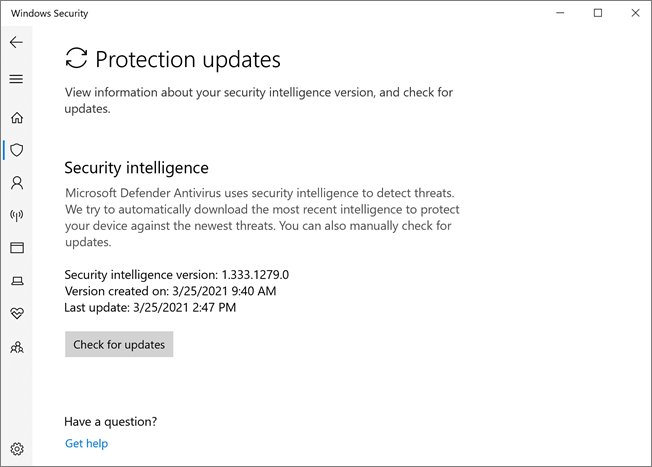
Windows turns Microsoft Defender Antivirus off while McAfee is the active antivirus. Microsoft documents that Defender switches back on automatically when the other product expires, is uninstalled or stops providing real-time protection, so check which one is active.
- Select Start, type Security, and open Windows Security.
- Select Virus & threat protection.
- Under Who's protecting me?, select Manage providers.
- Under Antivirus, read which product is turned on: McAfee, or Microsoft Defender Antivirus is turned on.
- If McAfee has been removed, open Virus & threat protection settings and make sure Real-time protection is On.
- For a second check, open Task Manager, select the Details tab and look for MsMpEng.exe, the Defender Antivirus process.
While McAfee is your main antivirus, Windows Security also shows a setting for limited periodic scanning, which lets Defender run occasional scans alongside McAfee. In PowerShell, Get-MpComputerStatus | select AMRunningMode reports Defender's mode as Normal, Passive or EDR Block Mode.
Pros and cons of temporarily disabling McAfee
Pausing protection solves a real problem for a few minutes, but every minute off has a cost. Weigh both before you switch anything off.
| Pros | Cons |
|---|---|
| Lets a blocked trusted installer or update finish | Files you open or download are not scanned by McAfee |
| Shows whether McAfee causes a crash, slowdown or connection problem | You must remember to switch protection back on |
| No reinstall needed afterwards | Turning off the firewall exposes the PC to unwanted connections |
| Windows Security shows whether Defender has stepped in | Anything that slipped in needs a manual scan to find |
Risks of leaving McAfee turned off
Never leave McAfee real-time scanning or its firewall off for longer than the task needs. With real-time scanning off, files are not checked as they open or download. If you want McAfee permanently off, uninstall it so Microsoft Defender Antivirus switches back on, instead of leaving an installed but idle product in charge.
When to re-enable McAfee antivirus and how to turn it back on
Re-enable McAfee as soon as the install, test or game session is over, and before you browse or open email again.
- Open your McAfee app from Start.
- Open the app's settings and switch real-time scanning back on.
- If you paused the firewall, switch it back on in the same settings area.
- Open Windows Security > Virus & threat protection > Manage providers and confirm McAfee is listed as turned on.
- Run a full scan to check anything that arrived while protection was off.
Safety reminder: always re-enable antivirus protection, even when the task failed. If you moved to Microsoft Defender instead, run a Microsoft Defender full scan once McAfee is uninstalled.
Best practices for managing antivirus settings
These important tips and caveats come from how Windows Security behaves alongside another antivirus.
| Practice | Practical advice |
|---|---|
| Use one main antivirus | Windows turns Defender off while McAfee is active, so running two real-time scanners is not needed |
| Narrow the scope before switching off | Allow one app through the firewall instead of turning the firewall off |
| Keep the Windows Security app enabled | Disabling it can stop Defender switching back on after McAfee is removed |
| Check Manage providers after every change | It shows which antivirus is protecting the PC right now |
| Scan after every pause | A quick or full scan catches anything that arrived during the gap |
| Cancel auto-renewal before removing McAfee | Uninstalling does not stop the subscription |
Turn off McAfee auto-renewal
Auto-renewal is a billing setting, not a protection setting, so turning it off does not stop McAfee protecting your PC. Your current term stays available until it ends.
- Go to myaccount.mcafee.com in your browser.
- Sign in with your McAfee account.
- Select Subscriptions.
- Select Cancel next to the subscription.
- Select Cancel Auto-Renewal.
If a retailer or other third party bills your subscription, cancel it with that provider instead.
How to turn off McAfee antivirus: troubleshooting common issues
Microsoft Defender does not turn on after McAfee is removed
Microsoft notes that disabling the Windows Security app can stop Defender switching back on after a third-party antivirus is uninstalled.
- Restart the PC once more after the uninstall.
- Open Windows Security > Virus & threat protection.
- Select Virus & threat protection settings and turn Real-time protection On.
- Check Manage providers and confirm Microsoft Defender Antivirus is turned on.
An app still cannot connect after you turn off the McAfee firewall
Another firewall, such as Windows Defender Firewall, may still be filtering the connection, or the problem is not the firewall at all.
- Switch the McAfee firewall back on.
- Open Windows Security > Firewall & network protection.
- Check which firewall is active for your network, and allow the app through it instead of turning it off.
- If your device is managed by work or school, ask the administrator, because changes may be blocked.
You want a McAfee trial off the PC
Switching scanning off leaves the trial installed; only uninstalling removes it.
- Uninstall McAfee from Start > All apps on Windows 11, or from the Start menu on Windows 10.
- Restart the PC.
- Open Windows Security > Virus & threat protection > Manage providers and confirm Microsoft Defender Antivirus is turned on.
McAfee antivirus turn off FAQ
How do I turn off McAfee antivirus temporarily?
Open the McAfee app from Start, go to its settings and switch off real-time scanning. If it asks when to resume, choose the shortest time that fits. Switch it back on as soon as your task is done.
How do I turn off McAfee antivirus on Windows 11?
Open McAfee from Start, switch off real-time scanning in its settings, and switch it back on when you finish. Afterwards, open Windows Security and check Manage providers to see which antivirus is active.
How do I turn off McAfee antivirus on Windows 10?
The steps match Windows 11: open McAfee and switch off real-time scanning in its settings. Only uninstalling differs, because Windows 10 lists McAfee directly in the Start menu instead of under All apps.
How do I turn off McAfee virus protection completely?
Uninstall McAfee rather than leaving it switched off. Removal lets Windows turn Microsoft Defender Antivirus back on automatically, so the PC stays protected. Cancel auto-renewal separately, because uninstalling does not stop the subscription.
Does Microsoft Defender turn on when McAfee is off?
Microsoft documents that Defender Antivirus re-enables automatically when a third-party product expires, is uninstalled or stops providing real-time protection. Check Windows Security > Virus & threat protection > Manage providers to see which antivirus is active right now.
How do I turn off McAfee auto renewal?
Sign in at myaccount.mcafee.com, select Subscriptions, select Cancel next to the subscription, then Cancel Auto-Renewal. The current term stays available, and subscriptions billed by a third party are cancelled with that provider.
How do I turn off a McAfee trial?
Uninstall the trial from Start > All apps on Windows 11 or the Start menu on Windows 10, then restart. Microsoft Defender Antivirus switches back on automatically once McAfee is removed. Confirm it in Windows Security under Manage providers.
How do I disable the McAfee firewall?
Open McAfee, find the firewall in its settings and switch it off for as short a time as the test needs. Avoid public Wi-Fi meanwhile, and allow the blocked app through the firewall rather than leaving it off.
Bottom line: should you turn off McAfee antivirus?
Switch off McAfee real-time scanning only for the task that needs it, and uninstall McAfee instead if you want it off for good. Uninstalling hands protection to Microsoft Defender Antivirus automatically, and Windows Security shows which product is active. Leaving McAfee installed but switched off is the one option that can leave the PC with no active antivirus.