To enable Remote Desktop on Windows 11, open Settings > System > Remote Desktop, turn on the Remote Desktop toggle and select Confirm.
The PC you connect to needs Windows 11 Pro, Enterprise or Education, and the sections below cover the Control Panel, Command Prompt and PowerShell routes, user access, firewall settings, other devices and fixes for failed connections.
Enable Remote Desktop on Windows 11
Turn on Remote Desktop in Settings first; it is the route Microsoft documents. You need an administrator account on the PC you want to reach.
- Select Start > Settings > System.
- Select Remote Desktop. You can also press Win + R, type
ms-settings:remotedesktopand press Enter to open the page directly. - Turn on the Remote Desktop toggle.
- Select Confirm in the pop-up dialog.
- Leave Require devices to use Network Level Authentication to connect selected.
- Write down the name shown under PC name. You type this name, or the PC's IP address, on the device you connect from.
Members of the local Administrators group can now connect. Any other account must be added to the allowed list first.
What Remote Desktop does on Windows 11 and Windows 10
Remote Desktop lets another device sign in to your PC and use its apps, files and network resources as if you were sitting at it. Understanding Remote Desktop in Windows 10 carries straight over, because Windows 11 uses the same protocol, client and allowed-users group.
| Part | What it is | Where it runs |
|---|---|---|
| Host (remote PC) | The PC you turn Remote Desktop on for and connect to | Windows 11 or Windows 10 Pro, Enterprise or Education |
| Client | The app you connect from | Any Windows edition, macOS, iOS, iPadOS or Android |
| Remote Desktop Protocol (RDP) | The protocol the session uses | Listens on port 3389 on the host by default |
| Remote Desktop Connection (mstsc.exe) | The client built into Windows | Windows 11 and Windows 10, Home editions included |
| Windows App | Microsoft's newer client | Windows, macOS, iOS/iPadOS, Android/ChromeOS, web browsers and Meta Quest |
Turning Remote Desktop on opens a listening port on the host. If you only use the PC in person, leave it off.
Check whether your Windows 11 PC can host Remote Desktop
Windows 11 Home can start Remote Desktop sessions but cannot accept them. Check the edition before you look for a toggle that is not there.
| Edition (Settings > System > About) | Can host Remote Desktop? | Can connect to other PCs? |
|---|---|---|
| Windows 11 Home / Windows 10 Home | No | Yes |
| Windows 11 Pro / Windows 10 Pro | Yes | Yes |
| Windows 11 Enterprise / Windows 10 Enterprise | Yes | Yes |
| Windows 11 Education / Windows 10 Education | Yes | Yes |
| Windows Server 2016 to 2025 | Yes | Yes |
To check yours, open Settings > System > About and read Edition under Windows specifications. On Home, either upgrade to Pro or use one of the alternatives listed further down.
Prerequisites for setting up Remote Desktop on Windows 11
Prepare your PC before enabling Remote Desktop, because most failed first connections trace back to one of these five items.
| Requirement | Why it matters | How to meet it |
|---|---|---|
| Administrator rights on the host | Only an administrator can change the Remote Desktop setting | Sign in with an admin account |
| Strong passwords | Every account with remote access becomes a way in | Give each allowed account a strong, unique password |
| The host stays awake | You cannot connect to a PC that is off, asleep or hibernating | Set the host's sleep and hibernation timers to Never |
| A trusted network | Enabling Remote Desktop makes the PC reachable from the local network | Use it on a home or work network set to Private network |
| A stable address | Port forwarding and saved connections break when the internal IP changes | Give the host a static IP address |
Which way to enable Remote Desktop on Windows 11 should you use?
| Your situation | Use this method | Why |
|---|---|---|
| You are at the PC and want the simplest route | Settings > System > Remote Desktop | One toggle, with the NLA and user options on the same page |
| You prefer the classic dialog or Settings will not open | System Properties > Remote tab | Same setting, with a Select Users button beside it |
| You are scripting several PCs or working in a terminal | Command Prompt (reg add and netsh) |
Two commands set the value and open the firewall rule |
| You manage PCs with PowerShell | Set-ItemProperty and Enable-NetFirewallRule |
Works locally or inside a remote PowerShell session |
Enable Remote Desktop from Control Panel
The classic Control Panel setting lives on the Remote tab of System Properties, which Control Panel's System item opens through its Remote settings link. The SystemPropertiesRemote.exe command opens that tab directly from the Run box.
- Press Win + R, type
SystemPropertiesRemote.exeand press Enter to open System Properties. - Check that the Remote tab is selected.
- Under Remote Desktop, select the option that allows remote connections to this computer.
- Keep the Network Level Authentication option checked so clients must sign in before a session starts.
- Select Select Users and add any non-administrator account that needs access.
- Select OK to save the change.
Choosing Don't allow connections to this computer on the same tab blocks everyone, even members of the Remote Desktop Users group.
Enable Remote Desktop from Command Prompt
Open Command Prompt as administrator: select Start, type cmd, right-click Command Prompt and select Run as administrator. Then run both lines.
reg add "HKLM\SYSTEM\CurrentControlSet\Control\Terminal Server" /v fDenyTSConnections /t REG_DWORD /d 0
netsh advfirewall firewall set rule name="Remote Desktop - User Mode (TCP-In)" new enable=yes
The first line sets fDenyTSConnections to 0, which allows Remote Desktop connections; a value of 1 blocks them. If reg asks whether to overwrite the existing value, confirm it. The second line switches on the built-in inbound firewall rule for Remote Desktop.
You should see: Run reg query "HKLM\SYSTEM\CurrentControlSet\Control\Terminal Server" /v fDenyTSConnections and look for 0x0. Then run qwinsta and check that rdp-tcp shows the state Listen.
When a Group Policy setting controls Remote Desktop, the value also exists under HKLM\SOFTWARE\Policies\Microsoft\Windows NT\Terminal Services and is rewritten at the next policy refresh. Change the policy itself, as the troubleshooting section shows.
Enable Remote Desktop from PowerShell
Open Windows PowerShell as administrator and run both lines.
Set-ItemProperty -Path 'HKLM:\SYSTEM\CurrentControlSet\Control\Terminal Server' -Name 'fDenyTSConnections' -Value 0 -Type DWord
Enable-NetFirewallRule -Name RemoteDesktop-UserMode-In-TCP
Set-ItemProperty writes 0 to fDenyTSConnections, which turns Remote Desktop on. Enable-NetFirewallRule switches on the built-in Remote Desktop inbound TCP rule by its internal name.
You should see: Get-ItemProperty -Path 'HKLM:\SYSTEM\CurrentControlSet\Control\Terminal Server' -Name 'fDenyTSConnections' returns 0, and Get-NetFirewallRule -Name RemoteDesktop-UserMode-In-TCP reports the rule as enabled.
The same commands work against another PC inside Enter-PSSession -ComputerName <name> when PowerShell remoting is already set up on it.
Add users who are allowed to connect to Remote Desktop
Choose who can connect before you test. Administrators get in automatically, while standard accounts must join the Remote Desktop Users group.
- Open Settings > System > Remote Desktop.
- Select Remote Desktop users. Older builds label it Select users that can remotely access this PC.
- Select Add.
- Type the account's user name and select OK. You can add more than one account at a time.
- To do the same from an admin Command Prompt, run
net localgroup "Remote Desktop Users" /add "<username>".
For a work account on a Microsoft Entra joined PC, add it as AzureAD\[email protected] and sign in with the [email protected] format.
Find your PC's IP address for Remote Desktop
Many home networks cannot resolve PC names, so the IPv4 address is the safer thing to type into the client.
- On the host PC, open Settings > Network & internet.
- Select Wi-Fi and then the network you are connected to, or select Ethernet for a wired connection.
- Read the address next to IPv4 address, for example 192.168.1.20.
- Alternatively, open Command Prompt, run
ipconfig /alland read the IPv4 address of the active adapter.
This internal address works only on the same network. From outside, you connect through a VPN or to your router's public IP, as covered below.
Connect from another Windows 11 or Windows 10 PC
The device you connect from can run any edition, including Home. Connecting to your Windows 10 PC remotely uses the same client, and you can connect to a Windows 10 PC with Remote Desktop using that version's host settings.
- On the local PC, select Start, type Remote Desktop Connection and open the app.
- In Computer, enter the host's PC name or IP address.
- Select Connect.
- Enter the user name and password of an allowed account on the host, then select OK.
- To skip the dialog next time, press Win + R and run
mstsc /v:<PC name or IP>.
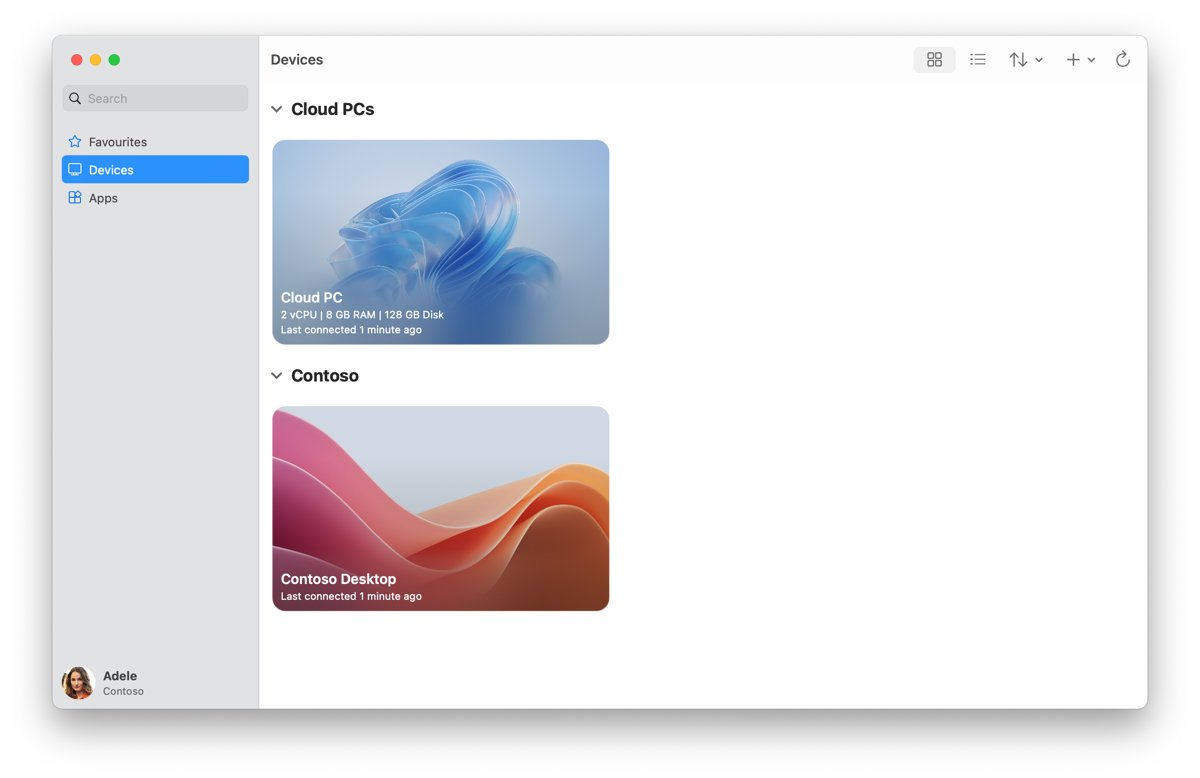
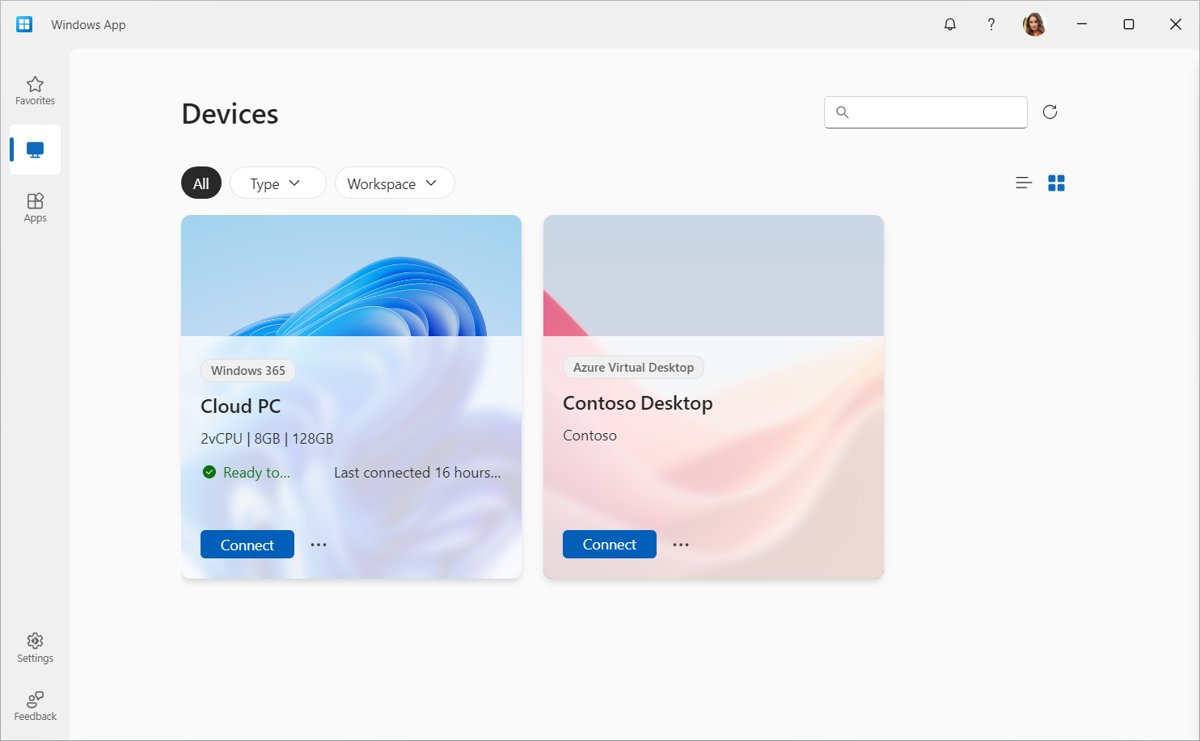
Windows App on Windows also connects to remote PCs, but Microsoft lists that support as preview. Remote Desktop Connection remains the generally available client.
Connect from a Mac, iPhone, iPad, or Android device
| Device | Install this | Then |
|---|---|---|
| Mac | Windows App from the Apple App Store | Add the PC name or IP address, then select the PC |
| iPhone or iPad | Windows App from the Apple App Store | Add the PC name or IP address, then select the PC |
| Android phone or tablet | Microsoft's Remote Desktop app or Windows App from Google Play | Add the PC name, select the PC and wait for the session to start |
| Chromebook | The Android/ChromeOS version of Windows App | Add the PC and sign in with an allowed account |
You do not need to sign in to Windows App to reach a remote PC. A work or school sign-in is only needed for Azure Virtual Desktop, Windows 365 and similar services.
Configure Windows Firewall and network profile settings for Remote Desktop
When the client cannot reach the PC, check the Windows Firewall exception for Remote Desktop and make sure the network profile is set to private.
- Select Start, type Windows Defender Firewall and open it.
- Select Allow an app or feature through Windows Firewall.
- Select Change settings and approve the admin prompt.
- Under Allowed apps and features, tick Remote Desktop and select OK.
- Open Settings > Network & internet, then select Wi-Fi and your network, or Ethernet.
- Under Network profile type, select Private network for your home or office network.
If you use a third-party firewall, allow inbound TCP port 3389, or the custom port you set, in that product instead.
Check if Remote Desktop is enabled and listening on Windows 11
Run these checks on the host first, then from a second PC on the same network.
- Open Settings > System > Remote Desktop and confirm the Remote Desktop toggle reads On.
- In Command Prompt, run
qwinsta. The list should include rdp-tcp with the state Listen. - On a second PC, open PowerShell and run
Test-NetConnection -ComputerName <PC name or IP> -Port 3389. - Check that TcpTestSucceeded shows True. False means a firewall, the network or a sleeping host is blocking the port.
- Open Remote Desktop Connection on the second PC and sign in. The host's desktop opens in the window.
Useful Remote Desktop features in Windows 11
Remote Desktop Connection takes switches that save clicks, and the Windows and Mac clients carry the same core features.
| Feature | How to use it | What it does |
|---|---|---|
| Full screen | mstsc /v:<PC> /f |
Starts the session in full-screen mode |
| All monitors | mstsc /v:<PC> /multimon |
Matches the session to your local monitor layout |
| Span | mstsc /v:<PC> /span |
Stretches one desktop across side-by-side monitors of the same resolution |
| Fixed window size | mstsc /v:<PC> /w:1920 /h:1080 |
Opens the session at a set width and height |
| Public mode | mstsc /v:<PC> /public |
Does not cache passwords or bitmaps on a shared computer |
| Remote Credential Guard | mstsc /v:<PC> /remoteGuard |
Keeps your credentials off the remote PC |
| Saved connections | mstsc /edit <file>.rdp |
Opens a saved .rdp file for editing |
| Remote audio | Show Options > Local Resources > Remote audio | Plays the host's sound locally and can record from your microphone |
| Device redirection | Windows App or Local Resources tab | Passes webcams, storage, printers and audio through to the session |
Use Remote Desktop safely over the internet
Remote Desktop makes a direct connection to the host, so reaching it from outside your network needs either a VPN or port forwarding on your router.
| Option | How it works | Risk | Use when |
|---|---|---|---|
| VPN to your home or office network | Your client joins the network and connects to the internal IP | Low: port 3389 stays closed to the internet | Always, if you can set one up |
| Port forwarding on the router | The router maps its public IP and port 3389 to the host's internal IP | High: the PC is exposed to the whole internet | Only with strong passwords and a source-IP restriction on the router |
| Dynamic DNS | A name that follows your changing public IP | Same as port forwarding | Your ISP changes your public IP |
| Changing the listening port | Moves RDP off 3389; you connect as PC:port |
The PC is still exposed; only the port number changes | In addition to the options above, never instead |
Microsoft's own guidance warns that opening the PC to the internet is not recommended and that a VPN is preferable.
Best practices to keep Remote Desktop secure on Windows 11
These settings cover enhancing security when using Remote Desktop day to day.
| Practice | Why |
|---|---|
| Keep Require devices to use Network Level Authentication to connect on | Users must authenticate before a session is created |
| Add only the accounts that need access | Every allowed account is a way in |
| Use strong, unique passwords on those accounts | Exposed RDP ports attract password guessing |
| Connect over a VPN rather than port forwarding | Keeps the port off the public internet |
| Restrict source IPs if you must forward the port | Only known networks can reach the PC |
Use /remoteGuard when connecting to a PC you do not fully trust |
Your credentials are not sent to that PC |
| Turn Remote Desktop off when you no longer need it | Closes the listening port |
How to turn off Remote Desktop on Windows 11
- Open Settings > System > Remote Desktop.
- Turn off the Remote Desktop toggle and confirm if asked.
- To do it from an admin Command Prompt, run
reg add "HKLM\SYSTEM\CurrentControlSet\Control\Terminal Server" /v fDenyTSConnections /t REG_DWORD /d 1and confirm the overwrite. - Remove accounts you no longer want in Remote Desktop users so they do not regain access if the feature is turned back on.
Setting fDenyTSConnections to 1 disables Remote Desktop connections.
Troubleshoot common Remote Desktop problems on Windows 11
Each fix below matches one error or symptom. For problems beyond these, fix Remote Desktop not working with the wider checklist, and black screens or scaling glitches are among the common Remote Desktop screen issues with their own fixes.
"Remote Desktop can't connect to the remote computer for one of these reasons"
Remote access is off, the host is off or asleep, or the network cannot reach it.
- Confirm the host is on and awake, and that its sleep timer is set to Never.
- On the host, confirm the Remote Desktop toggle is On.
- On the host, run
qwinstaand check for rdp-tcp in the Listen state. - From the client, run
Test-NetConnection -ComputerName <IP> -Port 3389and check TcpTestSucceeded.
The Remote Desktop option is missing from Settings
The PC runs Windows 11 Home, which cannot host sessions.
- Open Settings > System > About and read Edition.
- If it says Home, upgrade to Pro or use Quick Assist or another remote access tool.
The Remote Desktop toggle is greyed out or turns itself off
A Group Policy setting overrides the local setting.
- Open Command Prompt as administrator and run
gpresult /H c:\gpresult.html. - Open the report and find Allow users to connect remotely by using Remote Desktop Services under Computer Configuration > Administrative Templates > Windows Components > Remote Desktop Services > Remote Desktop Session Host > Connections.
- If it is Disabled, set it to Enabled or Not configured in the Group Policy editor, or ask the admin who owns that policy.
- Run
gpupdate /forceand check the toggle again.
You see the sign-in screen but your password is rejected
The account is not an administrator and not in the Remote Desktop Users group, or the user name format is wrong.
- On the host, add the account under Settings > System > Remote Desktop > Remote Desktop users.
- Sign in with the host's account name, not the client's.
- For a Microsoft Entra work account, use the [email protected] format.
The client cannot find the PC by name
The network cannot resolve the PC name, which is common on home routers.
- Find the host's IPv4 address under Settings > Network & internet.
- Type the IP address in Remote Desktop Connection instead of the name.
Port 3389 is blocked or already in use
A firewall blocks the port, or another program is listening on it.
- Tick Remote Desktop in Allow an app or feature through Windows Firewall, or open port 3389 in your third-party firewall.
- On the host, run
netstat -ano | find "3389"and note the PID that is listening. - Run
tasklist /svc | find "<PID>"to see which program owns the port. - If it is not Remote Desktop Services, move that program to another port.
Connection fails after you changed the RDP port
The client still uses 3389, or the firewall has no rule for the new port.
- Connect as
PCname:portorIPaddress:port, for example192.168.1.20:3390. - Add an inbound firewall rule on the host that allows the new port.
Remote Desktop alternatives for Windows 11 Home
Home editions cannot host Remote Desktop, so remote access to them needs a different tool. These alternative remote desktop solutions also suit Windows 10 Home. On a Home PC, Chrome Remote Desktop for Windows is one cross-platform option.
| Tool | Made by | Best for |
|---|---|---|
| Quick Assist | Microsoft (Microsoft Store, Ctrl + Win + Q) | One-off help from someone you trust, with the person at the PC present |
| Chrome Remote Desktop | Remote access to PCs that cannot host Remote Desktop | |
| Windows App with Windows 365 or Azure Virtual Desktop | Microsoft | Work or school Cloud PCs and virtual desktops |
| Upgrade to Windows 11 Pro | Microsoft | Using built-in Remote Desktop on the same PC |
Only let someone connect through Quick Assist if you started the contact yourself. Microsoft warns that tech support scammers use it.
Windows 11 Remote Desktop FAQ
Can you enable Remote Desktop on Windows 11 Home?
No. Windows 11 Home can connect to other PCs with Remote Desktop Connection, but it cannot accept incoming sessions. To host Remote Desktop, the PC needs Windows 11 Pro, Enterprise or Education, or you use a tool such as Quick Assist instead.
What port does Remote Desktop use on Windows 11?
Remote Desktop listens on TCP port 3389 by default. You can change it in the registry value PortNumber under the RDP-Tcp key, but you then connect as PCname:port and must add a firewall rule for the new port.
Do you need to enable Remote Desktop on the PC you connect from?
No. Only the PC you connect to needs Remote Desktop turned on. The device you connect from just needs a client, such as Remote Desktop Connection on Windows or Windows App on a Mac, iPhone, iPad or Android device.
Who can connect after Remote Desktop is turned on?
Members of the host's Administrators group can connect automatically. Any other account must be added under Settings > System > Remote Desktop > Remote Desktop users, which places it in the Remote Desktop Users group.
Can you use Remote Desktop over the internet?
Yes, through a VPN to the host's network or port forwarding on your router. Microsoft recommends the VPN, because port forwarding exposes the PC to the whole internet. If you forward the port, restrict it to known source IP addresses.
Can Remote Desktop wake a sleeping PC?
No. You cannot connect to a PC that is off, asleep or hibernating. Set the host's sleep and hibernation timers to Never before you rely on Remote Desktop.
What is Network Level Authentication in Remote Desktop?
Network Level Authentication makes users sign in before a remote session is created. It reduces the risk of unauthorized access, and Microsoft recommends keeping it on. Turn it off only temporarily for an old client that does not support it.
How do you enable Remote Desktop without opening Settings?
Set fDenyTSConnections to 0 under HKLM\SYSTEM\CurrentControlSet\Control\Terminal Server from an admin Command Prompt or PowerShell, then enable the Remote Desktop firewall rule. The Remote tab in System Properties is another route.
Bottom line: should you turn on Remote Desktop on Windows 11?
Turn on Remote Desktop from Settings on a Windows 11 Pro PC you need to reach regularly, keep Network Level Authentication on, and connect from outside only through a VPN. The Settings toggle handles the firewall rule and access list in one place, and a VPN keeps port 3389 off the public internet, which is the main risk Microsoft warns about.