To fix WHEA_UNCORRECTABLE_ERROR, return the CPU and RAM to stock settings, update the BIOS and drivers, then test memory and cooling, because stop code 0x124 means the hardware itself reported a fatal error.
This guide explains what the error means, its usual causes, every fix in the order to try it, and how to prove the blue screen is gone on Windows 11 and Windows 10.
Fastest WHEA uncorrectable error fix: reset overclocking to stock
Microsoft's bug check reference names overclocking first: if it is enabled, disable it. This takes five minutes and fixes a large share of these crashes on tuned gaming PCs.
- Close any CPU, GPU or memory tuning utility and set its profile back to default or stock.
- Open Settings > System > Recovery and select Restart now next to Advanced startup.
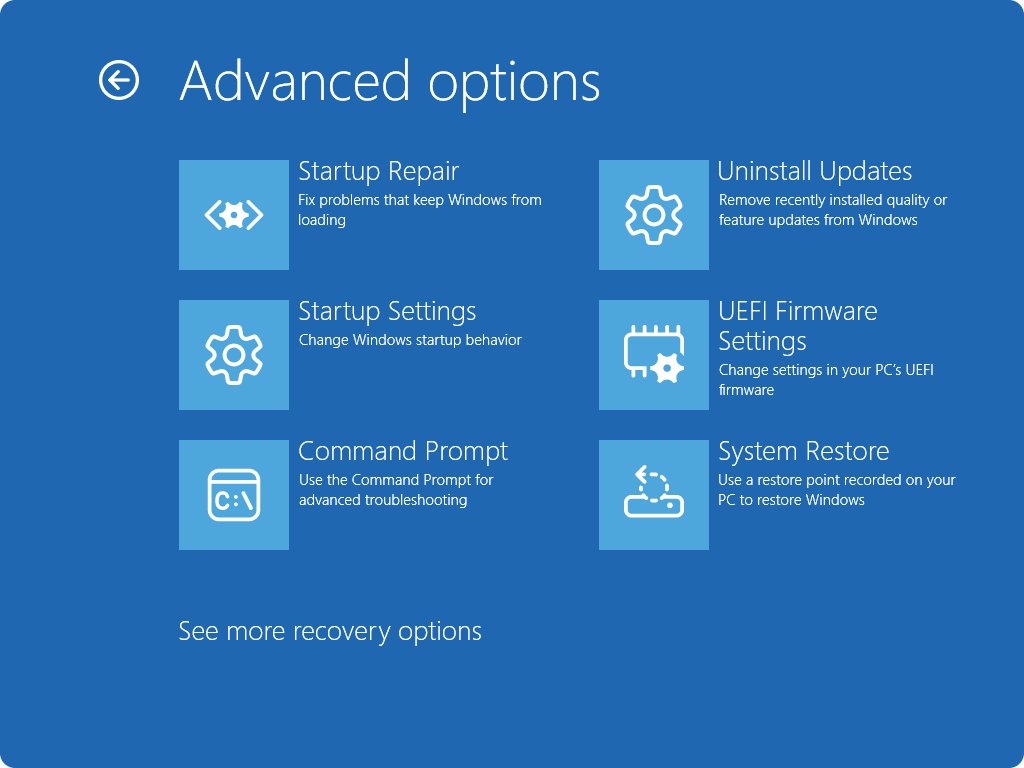
- Select Troubleshoot > Advanced options > UEFI Firmware Settings > Restart.
- Load the firmware's default settings (the option name varies by motherboard maker), then save and exit.
- Use the PC for the task that used to crash it. If the blue screen does not return, the overclock was the cause.
If the crash comes back on stock settings, work through the table under Steps to fix WHEA uncorrectable error below.
Understanding the WHEA uncorrectable error
WHEA_UNCORRECTABLE_ERROR is bug check 0x00000124. WHEA stands for Windows Hardware Error Architecture, the part of Windows that receives error reports from the processor, memory and PCI Express devices.
When a component reports an error it cannot correct, Windows stops the system rather than keep running on data it can no longer trust.
| Term | What it means for you |
|---|---|
| Stop code WHEA_UNCORRECTABLE_ERROR | Bug check 0x124. A fatal hardware error occurred, and Windows used the hardware's own error data to report it. |
| Parameter 1 = 0x0 | A machine check exception: the processor itself detected the error. Points at the CPU, its cache, power delivery or overclocking. |
| Parameter 1 = 0x4 | An uncorrectable PCI Express error. Points at a graphics card, NVMe drive or other expansion card, or its slot. |
| Parameter 1 = 0x3 | A nonmaskable interrupt (NMI) error, a hardware-level signal of a serious fault. |
| Parameter 1 = 0x5 | A generic hardware error with no more specific source. |
| WHEA error record | Windows writes the details to the System event log, so the crash leaves a trace you can inspect after restarting. |
| Related stop codes | PAGE_FAULT_IN_NONPAGED_AREA and CLOCK_WATCHDOG_TIMEOUT are different bug checks, though faulty RAM and unstable tuning can cause all three. |
Parameter values appear in a crash dump analysed with WinDbg, not on the blue screen itself. Most readers can skip them and go straight to the fixes.
Common causes of WHEA uncorrectable error
Microsoft says this bug check is typically related to physical hardware failure. A driver causing it is less likely but possible.
| Cause | Clue that points to it | Fix to try |
|---|---|---|
| Overclocking or undervolting | Crashes under load after tuning the CPU, GPU or RAM, or enabling a memory profile | Load firmware defaults and reset tuning tools |
| Heat | Crashes during gaming, rendering or long video calls; fans loud or not spinning | Clean dust and confirm every fan works |
| Defective or loose RAM | Random crashes with no pattern; memory test reports errors | Run Windows Memory Diagnostic, reseat or replace modules |
| A processor beginning to fail | Crashes continue on stock settings with good cooling and clean memory tests | Run the PC maker's diagnostics; warranty replacement |
| Outdated BIOS or firmware | New CPU or RAM in an older motherboard; crashes since a hardware upgrade | Update the BIOS or UEFI from the motherboard maker |
| A new or faulty expansion card | Crash started after adding a GPU, NVMe drive or capture card | Remove or reseat the card, update its driver |
| A driver pushing hardware into a fault | Crash started after a driver or Windows update | Roll back or update the driver |
Steps to fix WHEA uncorrectable error
Work down this table. The early rows are quick and safe; the last rows replace hardware or reinstall Windows.
| Your situation | Try this fix | Why |
|---|---|---|
| Crashed once, first time | Restart your computer and disconnect new devices | Rules out a one-off fault and recently added hardware |
| CPU, GPU or RAM is tuned | Revert overclocking settings | Microsoft's first recommendation for this stop code |
| A driver changed recently or is old | Update your drivers, or roll one back | A driver can push hardware into a fault |
| New CPU, RAM or upgraded parts | Update your BIOS/firmware | Firmware carries processor and memory compatibility fixes |
| Random crashes, no pattern | Run built-in Windows diagnostics tools on memory and disk | Defective memory is a named cause |
| Crashes under heavy load | Monitor hardware temperatures and check fans | Heat is a named cause |
| PC was moved or opened recently | Reseat RAM and graphics cards | A loose module or card can produce hardware errors |
| Other Windows errors too | Check system files with DISM and SFC | Repairs damaged Windows files that can mislead diagnosis |
| Crashes right after a cold start | Disable Fast Startup as a test | Rules fast startup in or out as a trigger |
| Worked last week, cause unknown | Perform a system restore | Reverts drivers and system files, keeps personal files |
| Software fixes failed | Reset Windows 10/11 | Replaces all software; a crash after that means hardware |
| Crash survives a reset on stock settings | Run a stress test with the maker's diagnostics, then replace hardware components or consult with professionals | Identifies the failing part for repair or warranty |
Boot into Safe Mode when WHEA uncorrectable error stops Windows loading
Safe Mode loads only basic drivers, so you can apply software fixes even when the crash happens at startup. Have your BitLocker recovery key ready if the drive is encrypted.
- If you can reach the sign-in screen, hold Shift while you select Power > Restart.
- If Windows never loads, hold the power button to force the PC off as the Windows logo appears; do this twice, and the third start opens Automatic Repair.
- Select Troubleshoot > Advanced options > Startup Settings > Restart.
- Press 4 or F4 for Safe Mode, or 5 or F5 for Safe Mode with Networking if you need to download a driver.
- Apply the fixes you need, then restart normally.
If the PC also crashes in Safe Mode, a software cause is unlikely. Go straight to the hardware checks below.
Restart the PC and check for hardware changes
A full power cycle clears a one-off fault. Microsoft lists any recent hardware change as a reason to contact the vendor, so remove anything new before testing further.
- Save your work and select Start > Power > Shut down.
- Unplug the power cable, and on a laptop disconnect the charger.
- Disconnect every external device except the keyboard and mouse: USB drives, docks, printers, webcams and external GPUs.
- If you recently installed an internal part, such as RAM, a drive or a graphics card, remove it or refit the old part.
- Reconnect power and start the PC, then use it normally.
- If the crash stops, add devices back one at a time and restart after each until the crash returns.
Update drivers to fix WHEA uncorrectable error
Microsoft rates a driver as a less likely cause of this stop code, but it is quick to rule out. Roll back a driver that changed just before the crashes began; update one that is old.
- Select Start > Settings > Windows Update > Check for updates and install everything offered.
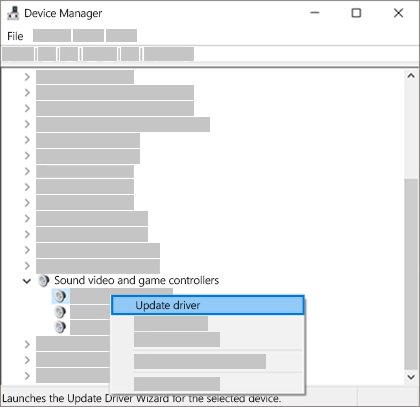
- In the search box on the taskbar, type device manager, then select it.
- Expand the category for the suspect device; display, storage and chipset drivers talk to the hardware that reports WHEA errors.
- To roll back: right-click the device, select Properties, open the Driver tab, and select Roll Back Driver.
- To update: right-click the device, select Update driver, then Search automatically for drivers.
- If Windows finds nothing newer, download the chipset and graphics drivers from the PC, motherboard or chip maker's own website.
- Restart and test. Never use a third-party driver updater; it can install the wrong driver.
Update BIOS firmware for WHEA uncorrectable error
Microsoft's stop-error checklist includes making sure the BIOS and firmware are up to date. Firmware controls how the motherboard drives the processor and memory, so an old version can produce hardware errors with newer parts.
- Note your PC or motherboard model from the label on the case or the box.
- Open that manufacturer's support page and find the BIOS or UEFI downloads for your exact model.
- Compare the newest version with the one shown in your firmware settings screen.
- Read the release notes; apply the update only if it is newer, and follow the maker's own instructions exactly.
- Keep a laptop plugged in to power and do not turn the PC off during the update.
- After the update, load the firmware defaults once, then test the PC.
Test RAM with Windows Memory Diagnostic for WHEA errors
Microsoft's bug check page says to run diagnostics to confirm the system memory is not defective. Save your work first, because the test restarts the PC.
- Select Start, type Windows Memory Diagnostic, and press Enter.
- Choose to restart and check for problems now.
- For a deeper pass, press F1 during the test, set Test Mix to Extended, and press F10.
- After Windows restarts, open Event Viewer, go to Windows Logs > System, and open the MemoryDiagnostics-Results entry.
- Check the drive too: in an administrator Command Prompt, run
chkdsk /fand type Y to schedule it for the next restart. - If the memory test reports errors, test one module at a time to find the bad stick, then replace it.
Check CPU temperatures and cooling fans for WHEA errors
Microsoft names heat as a cause and tells you to confirm that cooling systems such as fans are working. A processor that overheats can report an uncorrectable error before it shuts down.
- Shut down the PC and unplug it.
- Clean dust from the CPU cooler, graphics card fans, case fans and intake filters.
- Start the PC with the side panel off (desktop only) and confirm every fan spins.
- Check the CPU and system temperature readings in your firmware settings screen or the PC maker's own monitoring tool.
- Compare them with the maximum your processor maker publishes for your model.
- On a laptop, keep the vents clear and use it on a hard, flat surface.
Reseat RAM and graphics card to stop WHEA errors
A module or card that has worked loose can throw memory or PCI Express errors. Only open the case if you are comfortable doing so and it will not void your warranty.
- Shut down the PC, unplug the power cable, and press the power button once to drain remaining power.
- Touch a bare metal part of the case to discharge static electricity.
- Open the latches on each RAM slot, remove the modules, and press them back in firmly until the latches click.
- Remove the graphics card's power cables and screw, press the slot release, lift the card out, and reinsert it fully.
- Reconnect the power cables to the card, close the case, and start the PC.
Run DISM and SFC to check system files after a WHEA crash
Run DISM first, because it repairs the component store that SFC copies clean files from. Type cmd in Search, right-click Command Prompt, and select Run as administrator.
DISM.exe /Online /Cleanup-image /Restorehealth
sfc /scannow
DISM repairs the Windows image using Windows Update as its source and can take several minutes. SFC then scans protected system files and replaces damaged ones. Leave the window open until verification reaches 100%.
You should see: "Windows Resource Protection did not find any integrity violations" or "Windows Resource Protection found corrupt files and successfully repaired them."
Repeated hard crashes can damage system files, so this repairs side effects. It will not fix the hardware fault behind stop code 0x124.
Disable Fast Startup to test a WHEA uncorrectable error
Microsoft's bug check page does not name fast startup as a cause, so treat this as a test rather than a fix. It is worth trying when the crash appears just after power-on.
- Press Win + R, type
powercfg.cpl, and select OK. - Select Choose what the power buttons do on the left.
- Select Change settings that are currently unavailable.
- Under Shutdown settings, clear Turn on fast startup.
- Save the change, shut down, and start the PC again.
If the crashes continue, turn fast startup back on the same way; it was not the cause.
Perform a system restore for WHEA uncorrectable error
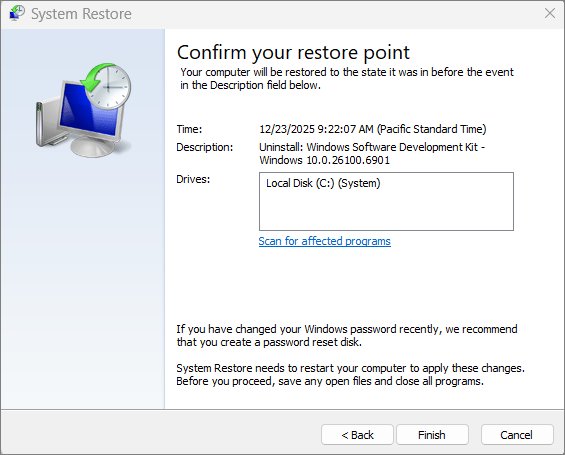
System Restore reverts system files, drivers and installed programs to an earlier point without touching your personal files. Use it when the crashes began after a driver or software change.
- Press Win + R, type
rstrui.exe, and press Enter. - In Restore system files and settings, select Next.
- Pick a restore point dated before the crashes began; tick Show more restore points if you need older ones.
- Select Next, then Finish. Windows restarts when the restore completes.
- If Windows will not start, open Troubleshoot > Advanced options > System Restore from the recovery screen instead.
Reset Windows 10/11 to rule out software
Reset replaces every piece of software on the PC. If WHEA_UNCORRECTABLE_ERROR survives a reset with stock firmware settings, a hardware component is at fault. Back up your files first.
- Open Settings > System > Recovery (Windows 10: Update & Security > Recovery).
- Under Recovery options, select Reset PC.
- Choose Keep my files to keep documents, or Remove everything for a clean start.
- Follow the prompts, then install drivers from Windows Update or the PC maker before adding other apps.
- If Windows cannot start, use Troubleshoot > Reset this PC from the recovery screen.
Check Event Viewer for WHEA hardware errors after the fix
Windows saves the error record for each WHEA hardware error in the System event log. A clean log is better proof than a quiet day.
- Press Win + R, type
eventvwr.msc, and press Enter. - Open Windows Logs > System.
- Look for critical errors and hardware error entries dated after you applied the fix.
- Open File Explorer and check
%SystemRoot%\Minidump: no new dump file since the fix means no new crash was recorded. - Repeat the heavy task that used to crash the PC for at least as long as it used to take to fail.
Hardware errors that keep appearing in the log, even without a blue screen, mean the fault is still there.
WHEA uncorrectable error still happening on Windows 11 or Windows 10
WHEA uncorrectable error on Windows 10 after every fix
A hardware fault remains, because software fixes cannot correct a failing part.
- Confirm the firmware is on defaults and no tuning tool starts with Windows.
- Run your PC maker's own hardware diagnostics, including the processor and memory tests.
- Test with one RAM module at a time if the PC has several.
Windows 11 WHEA uncorrectable error after an upgrade
A driver, firmware or tuning tool built for the older release no longer behaves correctly.
- Install every update in Settings > Windows Update.
- Update the BIOS and chipset drivers from the PC or motherboard maker.
- Uninstall tuning, monitoring or RGB utilities whose vendor has no version for your Windows release.
Stop code WHEA uncorrectable error during games
The CPU, GPU or power delivery cannot stay stable at full load, or the PC is overheating.
- Load firmware defaults and turn off any memory profile or automatic overclock.
- Clean the coolers and check that every fan is running.
- Update the graphics driver from the GPU maker, then reseat the graphics card and test the same game.
PC WHEA uncorrectable error even after a Windows reset
No software remains from before the reset, so a component is failing.
- Replace the part your diagnostics flagged, or swap in a known-good RAM module or graphics card to isolate it.
- If the PC is under warranty, contact the PC or motherboard maker and send them a file from
%SystemRoot%\Minidump. - Otherwise, consult a professional repair technician with the dump file and a list of what you have tried.
WHEA uncorrectable error FAQ
How do I fix WHEA uncorrectable error on Windows 10?
Load firmware defaults to remove any overclock, update Windows, the BIOS and your drivers, then test memory with Windows Memory Diagnostic and check that every fan works. If crashes continue after a Windows reset on stock settings, a hardware part is failing.
What does WHEA uncorrectable error mean?
It means a hardware component reported an error it could not correct, so Windows stopped to protect your data. WHEA is the Windows Hardware Error Architecture, and the error is bug check 0x124.
Is WHEA uncorrectable error a hardware problem?
Usually, yes. Microsoft says this bug check is typically related to physical hardware failure, including heat, defective memory or a failing processor. A driver can cause it, but Microsoft rates that as less likely.
What is stop code 0x124?
Stop code 0x124, or 0x00000124, is the numeric value of WHEA_UNCORRECTABLE_ERROR. Both names describe the same crash, and the fixes in this guide apply to either.
Can overclocking cause WHEA uncorrectable error?
Yes. Microsoft's first recommendation for this stop code is to disable overclocking if it is enabled. Load the firmware defaults and reset tuning utilities to stock, then test the PC again.
Can a BIOS update fix WHEA uncorrectable error?
It can, especially after a CPU or RAM upgrade. Microsoft lists up-to-date BIOS and firmware as a standard step for stop errors. Download the update only from your PC or motherboard maker and follow their instructions.
Is the WHEA uncorrectable error fix different on Windows 11?
No. The causes and fixes are the same on Windows 11 and Windows 10. Only some Settings paths differ: on Windows 11, Recovery is under Settings > System, while on Windows 10 it is under Update & Security.
Can bad RAM cause WHEA uncorrectable error?
Yes. Microsoft tells you to run diagnostics to confirm system memory is not defective. Run Windows Memory Diagnostic with the Extended test mix, then test one module at a time if errors appear.
Bottom line: is WHEA uncorrectable error fixable without new hardware?
Often, yes: start with stock firmware settings, the latest BIOS and drivers, clean cooling and a memory test before you buy anything. Stop code 0x124 is a hardware report, and overclocking, heat, loose modules and old firmware are fixable causes; only a crash that survives all of them and a Windows reset needs a replacement part.