To delay send in Outlook for all emails, create a rule in classic Outlook for Windows that applies to every message you send and uses defer delivery by a number of minutes, up to 120 minutes.
This guide covers that rule, the seconds-long Undo send delay in Outlook.com, new Outlook and Outlook for Mac, single-message delays, how to edit or cancel a held email, and fixes when delayed mail stays in the Outbox.
The best method: delay all emails in classic Outlook for Windows
This rule holds every outgoing message in the Outbox for the minutes you set, including replies and forwards. It works with any account you send from in classic Outlook.
- Select the File tab, then Manage Rules & Alerts, then New Rule.
- Under Start from a Blank Rule, select Apply rule on messages I send, then Next.
- Leave every condition clear and select Next. Select Yes when Outlook asks whether the rule should apply to every message you send.
- Select the defer delivery by a number of minutes check box.
- Select the underlined a number of in the lower box, enter the minutes (up to 120), then select OK and Next.
- Select any exceptions you want, then Next.
- Type a rule name, make sure Turn on this rule is selected, then select Finish.
From now on, each message sits in the Outbox for the set time before it goes out. Outlook must stay open, online and connected during that window.
Quick reference: which Outlook version supports delay send?
Only classic Outlook for Windows delays every message by minutes. The other versions offer a short Undo send hold or a per-message Schedule send.
| Your Outlook | Delay all emails | Delay one email | Longest hold |
|---|---|---|---|
| Classic Outlook for Windows | Rule with defer delivery by a number of minutes | Do not deliver before in Delivery options | 120 minutes per rule |
| New Outlook for Windows | Undo send delay, which Microsoft names for new Outlook | Send dropdown > Schedule send | Not stated by Microsoft |
| Outlook on the web and Outlook.com | Undo send under Settings > Mail > Compose | Send dropdown > Schedule send | 30 seconds |
| Outlook for Mac (Microsoft 365, 2024, 2021) | Undo Send delay under Outlook > Settings > Composing | Send dropdown > Schedule send | 120 seconds |
| Outlook for iPhone, iPad and Android | No delay setting documented | Not documented in the app | None |
What delay send means in Outlook
Outlook uses three different features that people call delay send. They differ in how long the message waits and where it waits.
| Feature | What it does | Where the message waits | Applies to |
|---|---|---|---|
| Defer delivery rule | Holds every sent message for a set number of minutes | Outbox on your PC | All mail sent from classic Outlook |
| Do not deliver before | Holds one message until a date and time you pick | Outbox on your PC | One message in classic Outlook |
| Schedule send | Sends one message at a chosen time | Drafts in your mailbox | One message in new Outlook, the web and Mac |
| Undo send | Holds every message for a few seconds so you can select Undo | Held briefly before sending | All mail in Outlook.com, new Outlook and Mac |
None of these pull back an email once it has left. After the hold ends, you need to recall a sent message, which works only inside one Microsoft 365 organization.
How to delay a single email in classic Outlook
Use this when only one message should wait, such as a reply you want to land the next morning.
- Select New Email and write the message.
- Select the Message Options arrow in the Tags group. On the simplified ribbon, select the Options tab, then More commands.
- Under Delivery options, select the Do not deliver before check box.
- Pick the delivery date and time.
- Select Close, then Send. The message waits in the Outbox until that time.
For more ways to time one message across every version, you can schedule an email in Outlook with the same Send dropdown.
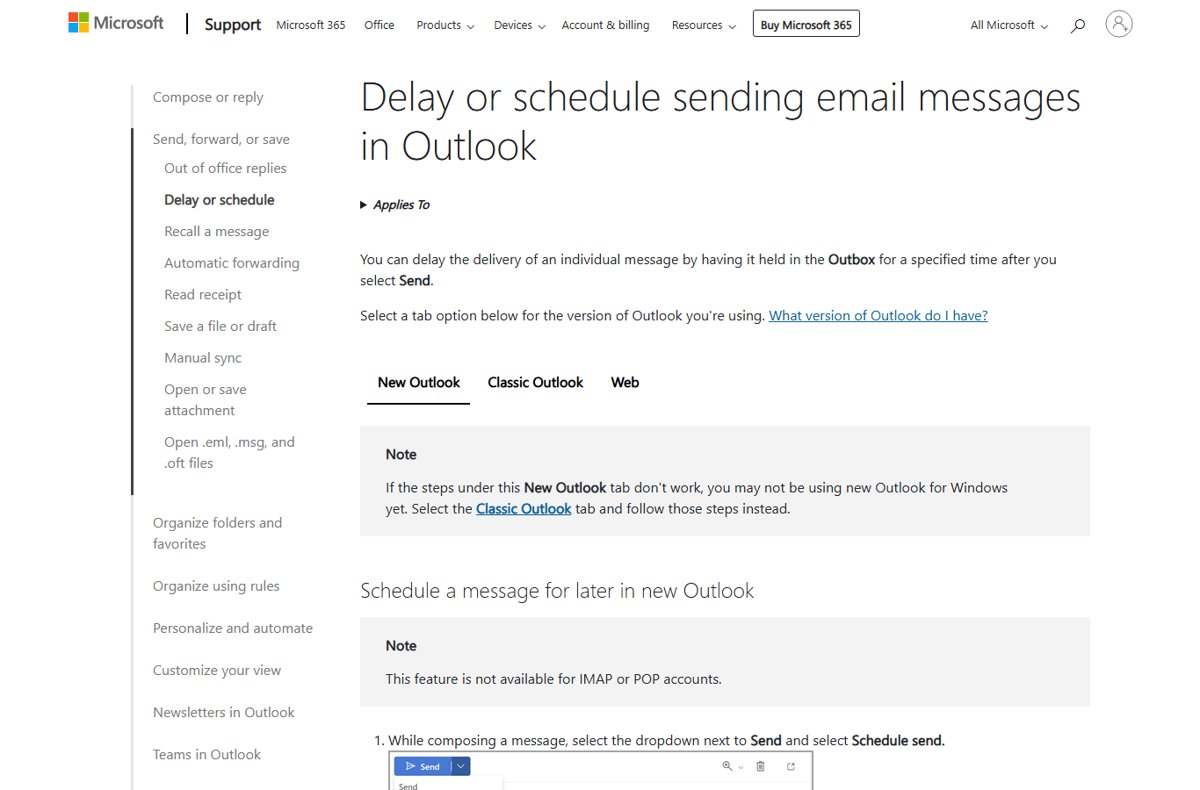
Can you delay all emails in the new Outlook for Windows?
Not by minutes. New Outlook has no defer delivery rule, so the only delay that covers every message is Undo send, which Microsoft lists for new Outlook and Outlook.com. Microsoft's support pages publish the setting's steps only for Outlook.com, so the path below follows the web version that new Outlook mirrors.
Since June 2025, new Outlook also lets you cancel a message after selecting Send while offline.
- Open Settings in new Outlook.
- Select Mail, then the compose settings page.
- Under Undo send, choose how long Outlook waits before sending.
- Select Save.
- For a longer delay on one message, select the arrow next to Send and choose Schedule send instead. It is not available for IMAP or POP accounts.
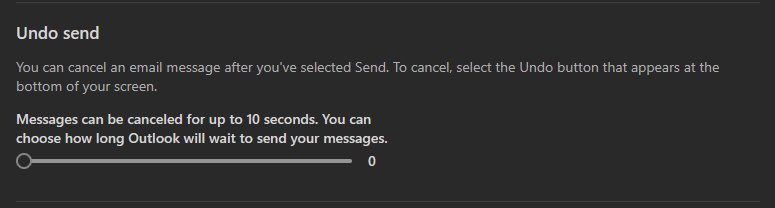
How to delay send in Outlook on the web
Outlook.com and Outlook on the web hold every message for up to 30 seconds with Undo send.
- Select Settings at the top of the page.
- Select Mail, then Compose.
- Under Undo send, choose how long Outlook waits to send, up to 30 seconds.
- Select Save.
- Send a message. An Undo prompt appears at the bottom of the message list for the time you set.
To hold one message for longer on the web, select the arrow next to Send, choose Schedule send, and pick a time. It waits in Drafts.
How to delay send in Outlook for Mac
Outlook for Microsoft 365 for Mac, Outlook 2024 and Outlook 2021 for Mac delay every message by 5 to 120 seconds. It works with Microsoft 365 and Outlook.com accounts.
- Select Outlook > Settings in the menu bar.
- Select Composing.
- Use the up or down button to set the delay, from 5 to 120 seconds.
- Close the settings window.
- Send a message, then select Undo in the prompt at the bottom of Outlook to stop it.
For a delay longer than two minutes on a Mac, use Send > Schedule send on that message. The Mac has no rule that defers all mail by minutes.
How to check, edit, or cancel a delayed email
A held message can still be changed until the delay ends. Where you find it depends on which feature is holding it.
| What is holding it | Find it in | To edit | To cancel | To send now |
|---|---|---|---|---|
| Classic Outlook defer rule | Outbox | Open the message, change it, then select Send | Delete the message from Outbox | Open it, select the Message Options arrow, clear Do not deliver before, Close, Send |
| Classic Outlook Do not deliver before | Outbox | Open the message, change it, then Send | Delete it from Outbox | Clear Do not deliver before, select Close, then Send |
| Schedule send in new Outlook or the web | Drafts | Open it and select Cancel send, then edit | Select Cancel send and delete the draft | Select Cancel send, then Send |
| Undo send (web, new Outlook, Mac) | Prompt at the bottom of Outlook | Select Undo before the timer ends | Select Undo before the timer ends | Wait for the timer to end |
Deleting a held message before its delay ends means nothing is delivered to anyone.
Important limits of the classic Outlook delay rule
| Limit | What it means for you |
|---|---|
| Outlook may need to stay open | The held message sits in the local Outbox. Microsoft says Outlook must be online and connected, and in Cached Exchange Mode the message waits until Outlook runs again |
| The maximum rule delay is 120 minutes | For a later time, use Do not deliver before on that message |
| The rule only exists in classic Outlook | Mail sent from new Outlook, the web, a Mac or a phone is not delayed by it |
| Rules can conflict | Another rule for sent mail, or an exception in this one, can let a message skip the delay |
| It is not the same as message recall | Once the delay ends, the message is delivered and normal sending rules apply |
How to choose the right delay time in Outlook
Pick the shortest hold that still gives you time to notice a mistake. A long hold slows urgent replies too.
| Delay | Where you can set it | Suits |
|---|---|---|
| 10 seconds | Undo send on the web, new Outlook or Mac | Catching a wrong recipient or a missing attachment right after Send |
| 30 seconds | Undo send on the web; Mac | Rereading the subject line once more |
| 1 minute | Classic Outlook rule | The shortest minutes-based delay for every message |
| 2 minutes | Classic Outlook rule; Mac up to 120 seconds | A good default: time to spot an error without delaying conversations |
| 5 to 10 minutes | Classic Outlook rule | Messages to clients or large groups you want to reread |
| Up to 120 minutes | Classic Outlook rule | Rare cases; consider Do not deliver before for one message instead |
Useful Outlook delay rule variations
The same rule wizard can narrow the delay with conditions and exceptions. Pick the row that matches what you want held.
| You want to | In the rule wizard | Result |
|---|---|---|
| Delay every message | Select no conditions and confirm with Yes | Every email, reply and forward waits |
| Delay all mail except some | Select no conditions, then pick an exception on the exceptions page | Matching messages go out at once |
| Delay only certain recipients or one account | Select a matching condition on the conditions page | Only matching messages wait |
| Pause the delay for a day | Clear the rule's check box in Rules and Alerts | Mail sends at once until you tick it again |
If you send to a fixed group often, you can create a distribution list in Outlook and point the delay rule's condition at it.
Can an administrator delay all emails for everyone in Outlook?
Not through a documented Microsoft 365 or Exchange Online setting. The delay options Microsoft documents are per user: a classic Outlook rule, Undo send or Schedule send. The defer rule lives in each person's classic Outlook and runs only while it is open and connected, so an organization that wants every user delayed has to set up the rule or Undo send on each mailbox.
How to check the Outlook delay send rule is working
- Select File > Manage Rules & Alerts and confirm the rule's check box is ticked.
- Send a test email to your own address.
- Open the Outbox and confirm the test message is listed there.
- Wait for the delay to pass, then open Sent Items and confirm the message has moved there.
- On the web or a Mac, send a test and confirm the Undo prompt appears for the time you set.
Troubleshooting: why your delayed Outlook emails are not sending
Match the symptom, then run only the fix under it.
Delayed emails stay in the Outbox after the delay ends
Outlook was closed, offline or asleep, or the account uses Cached Exchange Mode.
- Open classic Outlook and let it connect. The overdue message sends from the Outbox.
- Check that Outlook is not working offline.
- Keep Outlook open and the PC awake until each delay ends.
- For a message timed hours ahead, use Schedule send in Outlook on the web; it waits in Drafts, not on your PC.
Emails send immediately and the rule does nothing
The rule is turned off, has a condition or exception that excludes the message, or the message was sent from a different Outlook.
- Select File > Manage Rules & Alerts and tick the rule's check box.
- Select the rule, select Change Rule, and review its conditions and exceptions.
- Confirm you sent from classic Outlook; new Outlook, the web and phones ignore the rule.
- Send a test email to yourself and watch the Outbox.
Delay send settings are missing in new Outlook or the Outlook app
Defer rules exist only in classic Outlook, and Microsoft does not document a delay setting in the phone app.
- In new Outlook, set Undo send in Settings instead of a rule.
- For a longer hold on one message, use Send > Schedule send.
- On a phone, send from classic Outlook or the web when you need a delay.
The rule shows in red or reports an error
Outlook marks a rule it cannot run as broken.
- Open File > Manage Rules & Alerts.
- Tick the rule shown in red and select Change Rule.
- Fix the condition it names, or delete the rule and create it again.
How to turn off delay send in Outlook
- In classic Outlook, select File > Manage Rules & Alerts.
- To pause the delay, clear the check box next to the rule and select OK.
- To remove it, select the rule on the E-mail Rules tab, then Delete and OK.
- On the web, open Settings > Mail > Compose, set Undo send to its lowest value and select Save.
- On a Mac, open Outlook > Settings > Composing and lower the delay.
Best practices for using delay send in Outlook
| Practice | Why |
|---|---|
| Keep the rule at 1 to 5 minutes | Long enough to catch errors, short enough for normal replies |
| Add an exception for urgent mail | Messages that must go at once skip the hold |
| Leave classic Outlook open after sending | The Outbox only empties while Outlook is connected |
| Check the Outbox before shutting down | Anything still there waits until Outlook next runs |
| Turn on Undo send on every Outlook you use | Mail from the web or a Mac is not covered by the classic rule |
| Use Schedule send for exact times | A rule delays by minutes; it does not pick a delivery time |
If you want to know whether a held message was opened after delivery, turn on read receipts in Outlook for that message.
Outlook delay send FAQ
How do I delay send in Outlook?
In classic Outlook for Windows, create a rule under File > Manage Rules & Alerts that applies to messages you send and uses defer delivery by a number of minutes. On the web, new Outlook and Mac, turn on Undo send for a delay of seconds.
How do I delay send in Outlook 365?
It depends on the app. The classic Outlook for Microsoft 365 desktop app uses a defer delivery rule of up to 120 minutes. Outlook on the web for Microsoft 365 uses Undo send for a short hold and Schedule send for one message.
How do I delay send in Outlook by 1 minute?
In classic Outlook, create a sent-mail rule with defer delivery by a number of minutes, select the underlined a number of, enter 1 and finish the wizard. Every message then waits in the Outbox for one minute before it goes out.
How do I delay send in Outlook by 10 seconds?
Use Undo send, because the classic rule counts in minutes. On Outlook.com and the web, open Settings > Mail > Compose and choose a wait under Undo send. On a Mac, set 10 seconds under Outlook > Settings > Composing.
Can I delay send in the Outlook app on my phone?
Microsoft does not document a delay or undo send setting in Outlook for iPhone, iPad or Android. Send from classic Outlook with the defer rule, or from Outlook on the web with Undo send, when you need a hold.
Does the delay send rule apply to replies in Outlook?
Yes. A rule built on Apply rule on messages I send with no conditions covers every message you send from classic Outlook, including replies and forwards. Each one waits in the Outbox for the minutes you set.
Where is delay send in Outlook settings?
Classic Outlook has no single setting; the delay is a rule under File > Manage Rules & Alerts. Outlook.com uses Settings > Mail > Compose > Undo send. Outlook for Mac uses Outlook > Settings > Composing.
Does Outlook need to be open for delayed emails to send?
In classic Outlook, yes. Delayed messages wait in the local Outbox, and Microsoft says Outlook must be online and connected. In Cached Exchange Mode a deferred message is not delivered until Outlook runs again.
Conclusion: which Outlook delay send option to use
Use the classic Outlook rule with a 1 to 2 minute delay if you send most mail from classic Outlook for Windows, and turn on Undo send in every other Outlook you use. Only the classic rule delays all mail by minutes, and a short hold catches most mistakes without slowing replies. Undo send covers the web, new Outlook and Mac, where the rule does not run.