The 9 remote desktop clients that cover Windows, macOS and Linux are Microsoft Remote Desktop (Windows App and Remote Desktop Connection), TeamViewer, AnyDesk, Chrome Remote Desktop, Splashtop, Parsec, Zoho Assist, Citrix Workspace app and LogMeIn Pro.
Each entry lists the platforms you can connect from, the computers you can connect to, the free or paid tier, and who it suits, with every detail taken from the vendor's own pages.
Remote desktop clients for Windows, macOS and Linux compared
"Connect from" is the device you sit at. "Connect to" is the computer you control, which must run that vendor's host software or, for Microsoft, a Windows edition that accepts Remote Desktop.
| # | Client | Connect from | Connect to | Free option | Best for |
|---|---|---|---|---|---|
| 1 | Microsoft Remote Desktop (Windows App, Remote Desktop Connection) | Windows, macOS 12+, iOS/iPadOS, Android/ChromeOS; web browser for cloud PCs only | Windows Pro, Enterprise, Education and Windows Server | Remote Desktop Connection ships with Windows | Your own Windows Pro PC, or a work Cloud PC |
| 2 | TeamViewer | Windows, macOS, Linux, Android, iOS, ChromeOS, Raspberry Pi, browser | Any device running TeamViewer or QuickSupport | Free version for personal use only | Helping family across mixed operating systems |
| 3 | AnyDesk | Windows, macOS 11+, Linux, Android, iOS/iPadOS 16+, tvOS | Windows, macOS, Linux (Xorg), Raspberry Pi OS, Android | Free version with session time-outs | Quick ad hoc sessions and Raspberry Pi |
| 4 | Chrome Remote Desktop | Any computer through the web page; Android and iPhone/iPad apps | Windows, Mac and Linux | No price is listed on Google's help page | Reaching your own computers through a browser |
| 5 | Splashtop Remote Access | Windows, macOS, Linux, Chromebook, iOS, Android | Windows, macOS, Linux, Chromebook, Android | Free trial; Solo from $6/month billed annually | Unattended access to your work computers |
| 6 | Parsec | Windows 10+, macOS 10.15+, Ubuntu 22.04, Android, Chrome browser | Windows 10+ and macOS 10.15+ only | Personal Use plan, non-commercial | Low-latency 60 FPS gaming and creative work |
| 7 | Zoho Assist | Windows, macOS 11+, Linux, Android, iOS, ChromeOS, browsers | Windows, macOS, Linux, Android, ChromeOS | Free plan for basic support | IT and customer support teams |
| 8 | Citrix Workspace app | Windows, Mac, Linux, iOS, Android, ChromeOS, HTML5 browser | Virtual apps and desktops your organization hosts | Supplied through your employer's Citrix setup | Corporate virtual desktops |
| 9 | LogMeIn Pro | Browser, desktop app, iOS, Android | Windows PCs and Macs | None; Individuals plan from $30/month billed annually | Paid, always-available access to a few computers |
Which remote desktop client should you use?
| Your situation | Use this | Why |
|---|---|---|
| You reach your own Windows 11 Pro PC from a Mac | Windows App | It is Microsoft's own client, and remote PC connections need no sign-in |
| The PC you want to reach runs Windows 11 Home or Windows 10 Home | TeamViewer, AnyDesk, Chrome Remote Desktop or Splashtop | Home editions cannot host Remote Desktop, but these install their own host software |
| You sit at a Linux machine and need a Windows PC | AnyDesk, TeamViewer, Chrome Remote Desktop or Zoho Assist | Microsoft has no Linux app, and its web client does not do remote PC connections |
| The computer you control runs Linux | Chrome Remote Desktop, AnyDesk, Zoho Assist, Splashtop or TeamViewer | Each lists Linux as a host; Parsec hosts on Windows and macOS only |
| You need low latency for games, video or a drawing tablet | Parsec or Splashtop Performance | Parsec captures at 60 FPS with gamepad support; Splashtop Performance adds 4:4:4 color and 240 FPS capability |
| You help a relative once and leave | Chrome Remote Desktop support code or TeamViewer QuickSupport | The code works once, and QuickSupport needs no installation |
| You run a help desk | Zoho Assist, TeamViewer Business or AnyDesk Standard | Unattended device lists, session tools and multi-technician licences |
| Your employer gives you a virtual desktop | Citrix Workspace app or Windows App | Use whichever matches the platform your IT team runs |
Which Windows editions support Remote Desktop?
Microsoft's own client only reaches PCs that run a Windows edition able to host Remote Desktop. Every edition can connect out.
| Windows edition | Can host Remote Desktop | Can connect to other PCs |
|---|---|---|
| Windows 11 Pro, Windows 10 Pro | Yes | Yes |
| Windows 11 Enterprise, Windows 10 Enterprise | Yes | Yes |
| Windows Education editions | Yes | Yes |
| Windows Server 2016, 2019, 2022 and 2025 | Yes | Yes |
| Windows 11 Home, Windows 10 Home | No | Yes |
Enabling Remote Desktop opens a port on the PC, so Microsoft advises turning it on only on trusted networks such as your home network, with strong passwords on every allowed account.
1. Microsoft Remote Desktop client: Windows App and Remote Desktop Connection
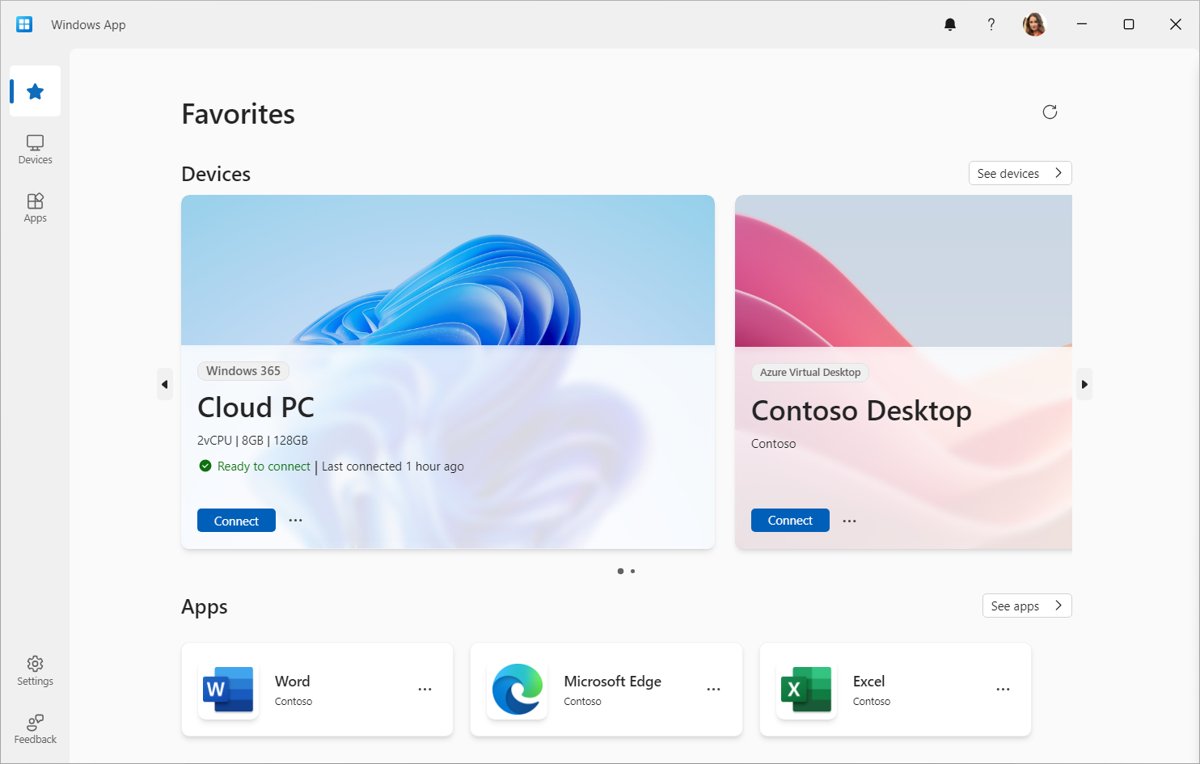
Microsoft now ships two clients. Remote Desktop Connection (mstsc) comes with Windows. Windows App replaces the older Remote Desktop client and runs on Windows, macOS 12.0 or later, iOS/iPadOS, Android/ChromeOS, web browsers and Meta Quest.
On Windows, remote PC connections in Windows App are still in preview, so Microsoft points you to Remote Desktop Connection for a generally available route. Signing in to Windows App needs a work or school account, but connecting to a remote PC does not need a sign-in at all.
To set up Remote Desktop on a Windows 10 PC with extra user accounts, add them under Remote Desktop users on the host.
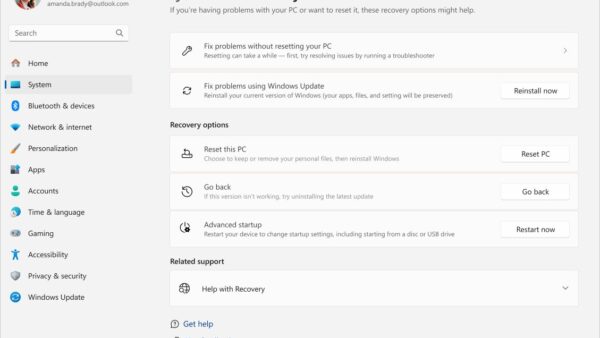
- On the PC you want to reach, select Start > Settings > System > Remote Desktop.
- Turn Enable Remote Desktop on, then select Confirm in the pop-up.
- On a Windows client, select Start, type Remote Desktop Connection and open the app.
- Enter the computer name or IP address of the remote PC, select Connect, enter your credentials and select OK.
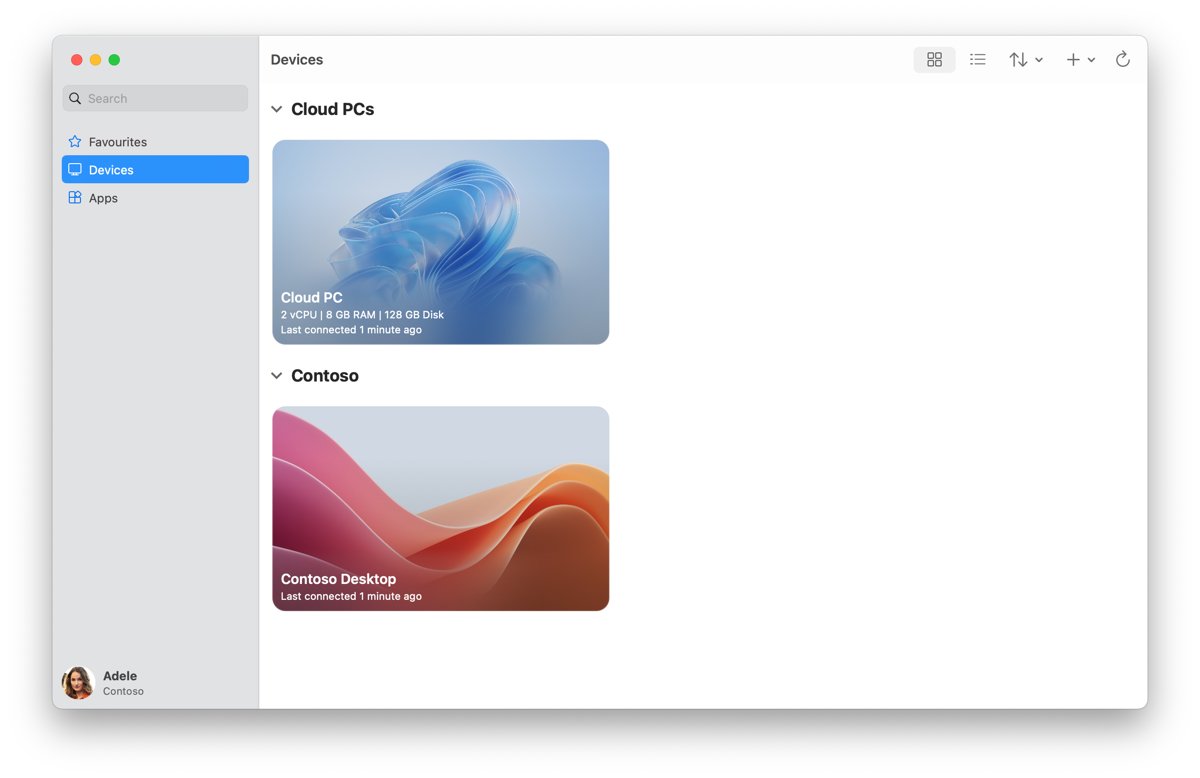
- On a Mac, install Windows App from the Mac App Store and open it.
- On the Devices tab, select the + icon, then Add PC.
- Enter the host name or IP address in PC Name, select Add, then double-click the PC to connect.
Windows App on Windows comes from the Microsoft Store; Microsoft also offers standalone .msix (Windows) and .pkg (macOS) installers on its What's new page.
2. TeamViewer remote desktop for Windows, macOS and Linux
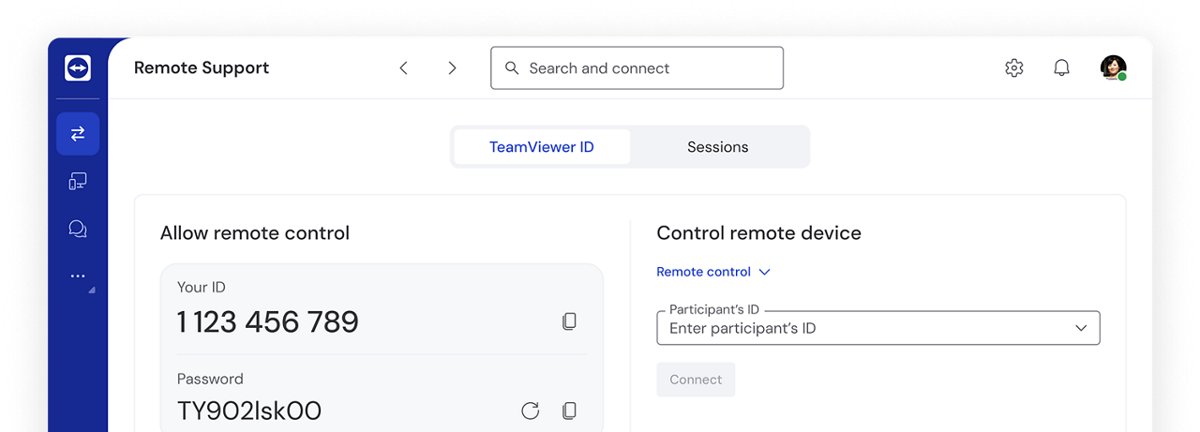
TeamViewer runs the same app on almost every platform, which makes it a common pick for supporting people whose operating system you do not know in advance.
| TeamViewer detail | What the vendor states |
|---|---|
| Platforms | Windows, macOS, Linux, Android, iOS, ChromeOS and Raspberry Pi |
| Browser use | A web app starts sessions from the browser, by saved contact, session link, code or TeamViewer ID |
| Full client vs QuickSupport | The full client controls and manages devices; QuickSupport needs no installation and gives temporary attended access |
| Free version | Personal use only: your own devices and helping friends and family |
| Paid licences | Remote Access (up to 3 unattended devices) and Business (up to 200 unattended devices, 30-day free trial) |
| Commercial use | Work, client support or monitoring business devices needs a commercial licence |
3. AnyDesk remote desktop client and supported operating systems
AnyDesk supports Windows XP SP2 and later, macOS 11 Big Sur and later, Ubuntu 18.04+, Debian 10+, RHEL 8+, openSUSE, Linux Mint 21+ and Raspberry Pi OS 12 (ARM64). On Linux, Wayland supports outgoing sessions only; incoming sessions need Xorg.
Only outgoing clients used commercially need a licence (Solo, Standard, Advanced or Ultimate). A device that only accepts connections needs none, and free-version sessions time out but can be restarted as often as needed.
- Open AnyDesk on both devices.
- Enter the remote device's AnyDesk Address or Alias in the Remote Desk field.
- Click Connect.
- Ask the remote user to accept the request, unless Unattended Access is already set up on that device.
AnyDesk cannot control iOS and iPadOS devices, ChromeOS devices are view-only, and connecting out from an iPhone or iPad needs a paid outgoing client. Android devices need a control plugin before they can be controlled.
4. Chrome Remote Desktop for Windows, Mac and Linux
Chrome Remote Desktop runs from a web page on your computer and from apps on Android, iPhone and iPad. It can host Mac, Windows and Linux computers; on Linux, Google supplies a 64-bit Debian package and a session chooser for your desktop environment.
On Windows and Mac you install Chrome Remote Desktop once from the access page, and every session after that is encrypted.
- On the computer you want to reach, open Chrome and go to
remotedesktop.google.com/access. - Under Set up Remote Access, click Download and follow the onscreen directions to install it.
- On the device you connect from, open
remotedesktop.google.com/accessand press Enter. - Click Access to select the computer you want.
- Enter the PIN for that computer and select the arrow to connect.
- To help someone else instead, go to
remotedesktop.google.com/support, enter their code under Give support and click Connect.
A support access code works only once, and the person sharing their screen is asked every 30 minutes to confirm they still want to share.
5. Splashtop Remote Access plans and supported platforms
Splashtop splits its software into the Business App, which you connect from, and the Streamer, which runs on the computer you connect into.
| Splashtop detail | What the vendor states |
|---|---|
| Business App (connect from) | Windows, macOS, Chromebook, Linux, iOS and Android |
| Streamer (connect into) | Windows, macOS, Linux, Chromebook and Android |
| Minimum versions | Windows 7, macOS 10.13, iOS 14, Android 5.0 |
| Solo | $6/month billed annually at $72, 2 computers, unattended access, file transfer, remote print |
| Pro | $8.25/month per user billed annually at $99, 10 computers, multi-monitor, session recording |
| Performance | $13/month per user billed annually at $149, 4:4:4 color, 240 FPS capability, USB passthrough |
| Enterprise | Custom quote, adds SSO, SIEM logging and an on-premises option |
6. Parsec remote desktop for Windows, macOS and Linux
Parsec connects from Windows, macOS, Linux, Android and a Chrome web client, but the computer you control must run Windows 10 or later or macOS 10.15 or later.
| Parsec detail | What the vendor states |
|---|---|
| Client apps | Windows 10+, macOS 10.15+ (Metal only), Ubuntu 22.04 LTS Desktop, Android, Google Chrome |
| Hosting | Windows 10+ and macOS 10.15+; a portable Windows app works without admin rights but cannot host |
| Core features | Low-latency 60 FPS desktop capture, keyboard, mouse and gamepad support, encrypted peer-to-peer connections |
| Personal Use | Free, non-commercial use only |
| Individuals (Warp) | $8.33 per user/month paid annually or $9.99 monthly; up to 3 monitors, 4:4:4 color, privacy mode, Wacom pressure and tilt |
| Teams and Enterprise | $30 and $45 per user/month paid annually; required for commercial use |
7. Zoho Assist remote support for Windows, Mac and Linux
Zoho Assist is built for technicians: you start a session from the web console under Remote Support > Start Now, and the other person joins through join.zoho.com or an emailed or texted link.
| Zoho Assist detail | What the vendor states |
|---|---|
| Technician side | Windows 10 and 11, macOS 11 Big Sur and later, every Linux variant including Raspberry Pi OS, Android 5.0+, iOS, ChromeOS and current browsers |
| Unattended computers | Windows, macOS 10.15 and later, Linux with the X Window system enabled, Android and ChromeOS |
| Bandwidth | 1 Mbps minimum, 3 Mbps recommended |
| Free plan | Covers basic support needs |
| Paid editions | Remote Support and Unattended Access, each in Standard, Professional and Enterprise; 15-day free trial with no credit card |
8. Citrix Workspace app for Windows, macOS and Linux
Citrix Workspace app is the client for virtual apps and desktops that an organization runs on Citrix. It replaced Citrix Receiver in August 2018 and stays backward compatible with Citrix infrastructure.
| Citrix detail | What the vendor states |
|---|---|
| Platforms | Windows, Windows (Store), Mac, Linux, iOS, Android, ChromeOS and HTML5 in a browser |
| What it opens | Virtual desktops, virtual apps, web and SaaS apps, with single sign-on |
| Release tracks | Current Release and Long Term Service Release (LTSR) |
| Who sets it up | Citrix advises end users to contact their IT help desk, which holds the setup details and any required version |
9. LogMeIn Pro remote access for PC and Mac
LogMeIn Pro reaches Windows PCs and Macs from a browser, a desktop app, or iOS and Android. It has no free tier; plans are priced by how many computers you can access.
| LogMeIn Pro plan | Price (billed annually) | Computers |
|---|---|---|
| Individuals | $30/month | Up to 2 |
| Power Users | $70/month | Up to 5 |
| Small Businesses | $129/month | Up to 10 |
| Included in every plan | Unlimited users, file transfer, remote printing, multi-monitor display, LogMeIn Antivirus | – |
Open Remote Desktop Connection with the mstsc command
Open Command Prompt or PowerShell, then type the command below. Replace computer1 with the remote PC's name or IP address.
mstsc /v:computer1 /fullscreen/v: names the remote computer, with an optional :port after it. /fullscreen (or /f) opens the session full screen. /admin connects to an administration session on a server.
You should see: The Remote Desktop Connection window opens and asks for the remote account's credentials.
Remote desktop client limits by platform
These vendor-documented limits explain most "it will not connect" surprises. If a Windows session still fails, fix Remote Desktop connection failures on the host before you switch clients.
| Client | Limit | What to do |
|---|---|---|
| Remote Desktop Connection, Windows App | Windows Home editions cannot host a session | Upgrade the host to Pro, or use a client with its own host software |
| Windows App in a web browser | No remote PC connections, only Azure Virtual Desktop, Windows 365 and Dev Box | Install Windows App or use Remote Desktop Connection |
| Windows App on Windows | Cannot connect to Remote Desktop Services; remote PC is in preview | Keep using Remote Desktop Connection |
| AnyDesk on Linux | Wayland supports outgoing sessions only | Run an Xorg session on the Linux host |
| AnyDesk on iOS/iPadOS and ChromeOS | Remote control of these devices is not supported; ChromeOS allows viewing | Control a Windows, macOS or Linux machine instead |
| Parsec | Linux and Android cannot host | Host from a Windows 10+ or macOS 10.15+ machine |
| Chrome Remote Desktop | Needs outbound UDP, TCP 443 and TCP/UDP 3478 | Allow that traffic in your firewall or security software |
| Zoho Assist on Linux | Unattended access needs the X Window system | Enable X on the Linux computer |
Black screens, frozen displays and scaling problems inside an RDP session are a separate set of Remote Desktop screen issues with their own fixes.
Acronis Cyber Protect Connect end of life dates
Acronis is discontinuing Acronis Cyber Protect Connect, its standalone remote desktop and monitoring product, and folding remote management into the Acronis Cyber Protect platform. Do not start a new deployment on it.
| Milestone | Date | What changes |
|---|---|---|
| End of Sales / End of Mainstream Support | July 1, 2026 | No new subscriptions or renewals; regular product updates stop; auto-renewal may be turned off |
| End of Extended Support | December 31, 2026 | Extended support ends under the Acronis lifecycle policy |
Remote desktop clients for Windows, macOS and Linux FAQ
What's new in the Remote Desktop client for Windows?
Windows App now replaces the Remote Desktop client, and Microsoft posts its release notes on the What's new in Windows App page. The public Windows release listed there is version 2.0.1482.0, and each update rolls out in phases over two weeks.
How do I install a remote desktop client?
On Windows, Remote Desktop Connection is already installed; type its name in Start to open it. Windows App comes from the Microsoft Store on Windows and the Mac App Store on macOS. Third-party clients such as TeamViewer, AnyDesk and Splashtop install from their vendors' download pages.
Which Windows supports Remote Desktop?
Windows 11 and Windows 10 Pro, Enterprise and Education editions, plus Windows Server, can host a Remote Desktop session. Windows Home editions cannot host one, but they can still connect out to other PCs that support Remote Desktop hosting.
Is Remote Desktop Connection needed on Windows?
Only if you connect to other PCs or want others to reach yours. Microsoft states there is no need to enable Remote Desktop if you only use the PC locally, and enabling it opens a port, so leave it off when you do not use it.
Do I need Microsoft Remote Desktop Connection to reach a Windows PC from a Mac?
No. On a Mac you use Windows App from the Mac App Store, which replaced the older Microsoft Remote Desktop client. It needs macOS 12.0 or later and connects to a remote PC without signing in to Windows App.
Do I need remote desktop software at all?
You need it only to control a computer you are not sitting at, such as your home PC from another location or a relative's laptop you are helping. Microsoft notes that a PC you only use locally does not need Remote Desktop enabled at all.
Is there a free remote desktop client for Windows?
Yes. Remote Desktop Connection ships with Windows, TeamViewer is free for personal use, AnyDesk has a free version with session time-outs, Parsec has a free Personal Use plan, and Zoho Assist has a free plan for basic support.
Can Windows 11 Home use a remote desktop client?
Yes, as the client. Windows 11 Home can run Remote Desktop Connection or Windows App to reach a Pro PC, but it cannot be reached by RDP itself. To control a Home PC, install TeamViewer, AnyDesk, Chrome Remote Desktop or Splashtop on it.
Best remote desktop client for Windows, macOS and Linux by use
Use Windows App or Remote Desktop Connection when the PC you control runs Windows Pro, and use AnyDesk or Chrome Remote Desktop when either end runs Linux or Windows Home. Microsoft's clients need no extra host software on Pro editions, while AnyDesk and Chrome Remote Desktop install their own host on Windows, Mac and Linux. Pick Parsec for games and creative work, Zoho Assist or TeamViewer Business for a help desk, and Citrix Workspace app only when your employer runs Citrix.