To update an Xbox controller on a Windows 11 PC, connect it with a USB cable, open the free Xbox Accessories app, select More options (…) under the controller and install the firmware update.
This guide covers the PC and console update routes, how to check the firmware version, how to roll back a bad update, and fixes when the update fails or the app cannot see the controller.
Method 1: Updating Xbox controller firmware using the Xbox Accessories app
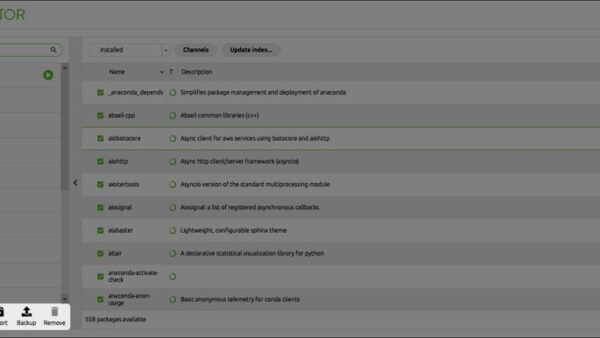
The Xbox Accessories app is the only way to update controller firmware on Windows 10 and Windows 11. It works with Xbox One, Xbox Series X|S, Xbox Elite Series 2 and Xbox Adaptive controllers.
- Open Microsoft Store, search for Xbox Accessories and install the app if it is not already on the PC.
- Plug a USB cable into the controller and into a USB port on the PC, or connect it through an Xbox Wireless Adapter.
- Select Start, type Xbox Accessories and open the app.
- Sign in with your Microsoft account when the app asks.
- Select your controller, then select More options (…).
- Select Firmware version and follow the prompts to install the update.
- Keep the cable connected and leave the controller alone until the app reports the update has finished.
The app will not detect a controller that is paired over Bluetooth. If it shows no controller, unpair it and reconnect with the cable.
Methods to update your Xbox controller on Windows 11
Xbox Support lists three update routes: wirelessly on a console, with a USB cable on a console, and on a PC with the Xbox Accessories app. The connection you use on the PC decides whether the app can reach the controller at all.
| Your situation | Update this way | Why |
|---|---|---|
| You only have a Windows 11 PC | Xbox Accessories app over a USB cable | USB gives the app full access to the controller |
| You use an Xbox Wireless Adapter for Windows, or the PC has Xbox Wireless built in | Xbox Accessories app over Xbox Wireless | The app detects controllers on Xbox Wireless without a cable |
| The controller is paired to the PC over Bluetooth | Switch to USB or the adapter first | The app does not detect controllers connected over Bluetooth |
| You also own an Xbox Series X|S or Xbox One | Console update, wireless or USB | The console runs the same Xbox Accessories app |
| The update keeps failing on the PC | Try the console route, or another USB cable | Xbox Support lists both as fixes for failed updates |
Why is updating your Xbox controller important?
Xbox Support says updates keep the controller at its full capabilities and compatibility. A pending firmware update can also be the reason attached peripherals stop responding on the Xbox Adaptive Controller.
| What an update can bring | Example from Xbox |
|---|---|
| New connection features | A 2021 firmware update added Bluetooth Low Energy to Xbox One controllers with Bluetooth, the Elite Series 2 and the Adaptive Controller |
| Faster switching between devices | The same update let those controllers remember one Bluetooth host and one Xbox Wireless host, switched with a double tap of the Pair button |
| Lower input latency | Dynamic Latency Input, which sends controller inputs to the console more efficiently |
| Better compatibility | Xbox Support ties wide controller compatibility to an up-to-date Windows device, Accessories app and controller |
| Fixes for misbehaving peripherals | Xbox Support says unresponsive peripherals on the Adaptive Controller can point to a pending update |
That is why an Xbox controller sometimes asks for an update: new firmware is waiting, and some features stay off until it is installed.
Understanding Xbox controller firmware and its updates
Firmware is the software that runs inside the controller itself. It is separate from the Windows driver, which Windows installs and updates through Windows Update when you connect the controller.
| Controller | Firmware update on PC | Firmware update on console | Notes |
|---|---|---|---|
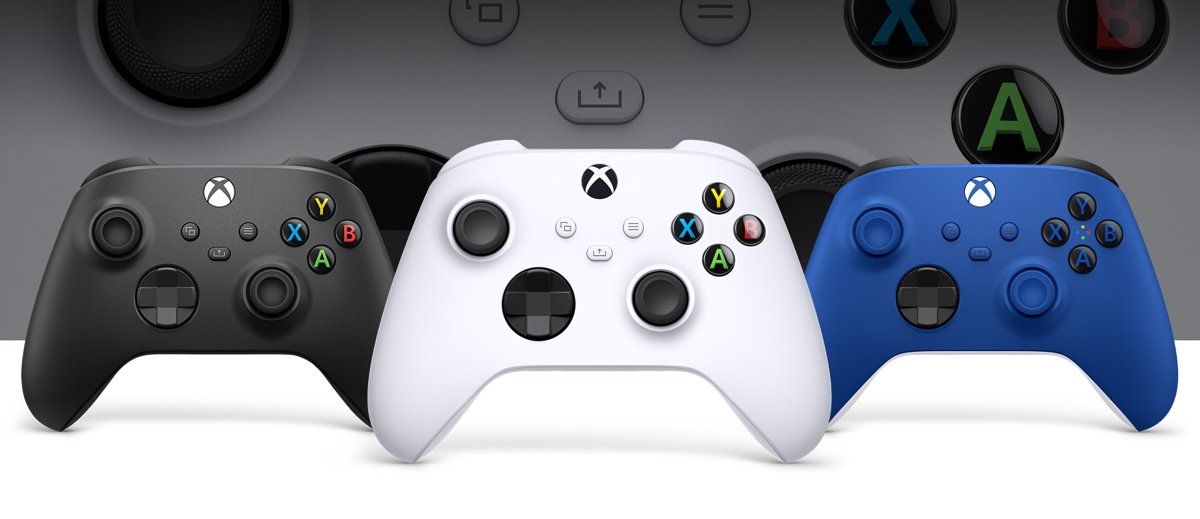
| Xbox Wireless Controller (Xbox Series X|S) | Yes, Xbox Accessories app | Yes | Button mapping on Windows needs a USB-C cable |
| Xbox One controller | Yes, Xbox Accessories app | Yes | Some older models may not offer firmware rollback |
| Xbox Elite Wireless Controller Series 2 | Yes, Xbox Accessories app | Yes | Profiles and mapping live in the same app |
| Xbox Adaptive Controller | Yes, Xbox Accessories app | Yes | Connect with Xbox Wireless or the included USB-C cable, not Bluetooth |
| Xbox 360 controller | No | No | The Xbox Accessories app does not support it |
| Non-Xbox controllers | No | No | Use the maker's own software |
For the driver side, the Xbox One controller driver on Windows 11 installs itself through Windows Update when you plug the controller in.
Additional tips for updating and maintaining your Xbox controller
Do these before you start the update. Each one removes a known reason for a failed or undetected update.
- Select Start > Settings > Windows Update > Check for Windows updates, then select Download & install if anything is listed.
- Open Microsoft Store and select Check for updates so the Xbox Accessories app is on its latest version.
- Use a USB cable that carries data, not a charge-only cable.
- Unplug any headset or other accessory from the controller.
- Put fresh AA batteries in the controller, or charge a rechargeable pack fully.
- Power cycle the controller: hold the Xbox button for 5-10 seconds until it turns off, wait a few seconds, then hold it again to turn it back on.
If you want Windows to stay current without checking by hand, adjust the Windows Update settings in Windows 11 so updates arrive automatically.
Method 2: Updating Xbox controller firmware via USB with Xbox hardware
An Xbox Series X|S or Xbox One console updates the same controller you use on the PC. A USB cable is the more reliable choice when a wireless update stalls.
- Connect the controller to the console with a USB cable.
- Press the Xbox button to open the guide.
- Go to Profile & system > Settings > Devices & connections > Accessories.
- Select your controller, then select More options (…).
- Select Firmware version.
- Select Update now if Update available is shown, then follow the prompts.
The controller keeps its new firmware when you move it back to the Windows 11 PC.
Method 3: Update Xbox controller wirelessly on an Xbox console
Use this when the controller is already paired to the console and no cable is to hand.
- Turn on the controller while it is paired to the console.
- Press the Xbox button and select My games & apps > See all > Apps.
- Open Xbox Accessories and select your controller.
- Select More options (…) and then Firmware version.
- Select Update now and keep the controller close to the console until the update completes.
How to check Xbox controller firmware version on PC
- Connect the controller with a USB cable or the Xbox Wireless Adapter.
- Open the Xbox Accessories app and select the controller.
- Select More options (…).
- Read the Firmware version entry. No update available means the controller is up to date.
- Press a few buttons and move both sticks in a game to confirm input still works after the update.
How to revert Xbox controller firmware on Windows 11
Xbox Support says the latest firmware may affect Bluetooth connections with some older non-Xbox devices. Revert only if the controller has frequent problems connecting to non-Xbox devices.
- Install the Xbox Accessories app on the PC if it is not already there.
- Open the Xbox Support article My Xbox controller has connection issues after the last update in a browser on the PC.
- Select Check your controller's firmware to open the firmware reversion screen in the Xbox Accessories app.
- Connect the controller with a USB cable.
- Follow the instructions in the app to install the earlier firmware.
Some older controller models do not show the option to revert. On a console, the same screen is under Profile & system > Xbox Support > Get help.
Troubleshooting common Xbox controller update issues on PC
Find the symptom that matches what you see. Power cycle the controller first, since Xbox Support lists it before every other fix.
The Xbox Accessories app does not detect your controller
The controller is on Bluetooth, the app or Windows is out of date, or the model is not supported.
- Remove the Bluetooth pairing and connect the controller with a USB cable or the Xbox Wireless Adapter.
- Update Windows and the Xbox Accessories app, then restart the PC.
- Confirm the controller is an Xbox One, Xbox Series X|S, Elite Series 2 or Adaptive model, not an Xbox 360 or third-party pad.
Xbox controller firmware update fails or gets stuck
A loose connection, an attached accessory, low batteries or a temporary fault in the controller.
- Hold the Xbox button for 5-10 seconds to turn the controller off, then turn it back on.
- Unplug any headset or accessory from the controller.
- Replace the batteries or fully charge the battery pack.
- Try a different data USB cable and a USB port directly on the PC.
- Run the update again from More options (…) > Firmware version, or update it on a console instead.
Xbox controller not recognized by Windows 11
A charge-only cable, a faulty port, or a missing driver update.
- Swap to a USB cable you know carries data.
- Select Start > Settings > Windows Update > Advanced options and turn on Receive updates for other Microsoft products.
- Select Optional updates, install any listed driver with Download and install, then restart.
Controller has connection issues after the last update
The latest firmware can affect Bluetooth with some older non-Xbox devices.
- Connect over USB or the Xbox Wireless Adapter to confirm the controller itself works.
- If the problem is Bluetooth only, revert the firmware with the steps in the section above.
Firmware is up to date but issues persist
A hardware fault the update cannot fix.
- Test the controller on another PC or a console with a USB cable.
- Check the warranty status and request a replacement through Xbox Support if the fault follows the controller.
When other devices in Device Manager also misbehave, it helps to update drivers on Windows 11 before blaming the controller.
Best practices for maintaining your Xbox controller
| Practice | Why it matters |
|---|---|
| Install controller updates when the Accessories app offers them | New firmware carries compatibility fixes and features such as Bluetooth Low Energy |
| Keep Windows and the Xbox Accessories app updated | Xbox Support names both as conditions for full controller compatibility |
| Replace batteries before they run flat | Low batteries can cause connection and functionality problems even while the controller still powers on |
| Power cycle before deeper troubleshooting | A 5-10 second hold on the Xbox button clears many temporary faults |
| Use USB or Xbox Wireless for setup work | Most Accessories app features do not work over Bluetooth |
| Revert firmware only for a real Bluetooth problem | Xbox Support limits rollback to frequent problems with non-Xbox devices |
Additional Xbox controller update resources from Xbox Support
- Update your Xbox Wireless Controller — Official wireless, USB and PC update routes
- I can't update my Xbox controller — Fixes for failed firmware updates
- My Xbox controller has connection issues after the last update — Firmware rollback for Bluetooth problems
- All about the Xbox Accessories app — What the app supports on Windows and console
- Update the Xbox Adaptive Controller — Firmware version check and update prompts
Xbox controller update on PC FAQ
Can I update an Xbox controller on PC?
Yes. Install the Xbox Accessories app from Microsoft Store, connect the controller with a USB cable or the Xbox Wireless Adapter, select More options (…) and then Firmware version, and follow the prompts.
Do Xbox controllers need updates?
Not to work, but Xbox Support recommends them. Updates keep the controller compatible and have added features such as Bluetooth Low Energy support and lower input latency.
Why does my Xbox controller need an update?
New firmware is available for it. Updates add features and fix compatibility, and on the Xbox Adaptive Controller a pending update can be why peripherals stop responding.
How do I update an Xbox Elite controller on PC?
The Xbox Elite Wireless Controller Series 2 updates the same way as a standard pad. Connect it by USB, open the Xbox Accessories app, select More options (…), then Firmware version.
How do I update an Xbox controller on PC through Steam?
Steam does not update Xbox controller firmware. Use the Xbox Accessories app on Windows; the updated controller then works in Steam games as before.
Can I update a wireless Xbox controller on PC without a cable?
Yes, through the Xbox Wireless Adapter for Windows or a PC with Xbox Wireless built in. The Xbox Accessories app does not detect a controller connected over Bluetooth.
What software do I need to update an Xbox controller on PC?
Only the free Xbox Accessories app from Microsoft Store. Windows itself handles the controller driver through Windows Update, so no separate driver download is needed.
How do I update an Xbox controller on my phone?
Xbox Support does not list a phone as an update route. Update the controller on a Windows PC with the Xbox Accessories app, or on an Xbox console.
Can I update an Xbox controller on a PS4?
No. The Xbox Accessories app runs only on Xbox Series X|S, Xbox One and Windows devices, so use one of those to install controller firmware.
How do I update an Xbox controller on Xbox?
Press the Xbox button, go to Profile & system > Settings > Devices & connections > Accessories, select the controller, then More options (…) > Firmware version > Update now.
Conclusion: the best way to update an Xbox controller on PC
Connect the controller with a data USB cable and update it in the Xbox Accessories app, and fall back to a console only when the PC route keeps failing. USB gives the app full access to every supported Xbox controller, while Bluetooth hides the controller from the app entirely.

![How to copy and paste on Chromebook [text & image shortcut]](https://techdows.com/wp-content/uploads/2026/10/Open-Chromebook-laptop-showing-its-keyboard-touchpad-and-ChromeOS-desktop-600x338.jpg)