To adjust display scale on Windows 11, press Windows logo key + I, select System > Display, and under Scale & layout pick a percentage from the Scale list.
This guide covers custom scaling, making only text larger, a different scale for each monitor, accessibility tools, and fixes for blurry or wrongly sized apps.
Steps to Adjust Display Scale Settings in Windows 11
Scale enlarges everything on the screen at once: text, apps, icons and images. Most changes apply immediately.
- Press Windows logo key + I, or select Start > Settings.
- Select System > Display.
- If you have more than one display, select the one to change at the top of the page.
- Scroll to Scale & layout.
- Open the Scale list and select a percentage. The value marked (Recommended) suits most screens.
- Sign out and back in if some apps still show the old size.
Display settings has other entry points too, so use whichever of the ways to open Display settings in Windows 11 suits you.
Which setting should you change?
| Your problem | Change this | Why |
|---|---|---|
| Everything looks too small on a high-resolution screen | Scale in Display settings | Enlarges text, apps and images together and keeps them sharp |
| Only menus, title bars and labels are hard to read | Text size in Accessibility | Makes text larger without changing the layout |
| You need a size between the preset steps | Custom scaling | Accepts any value from 100% to 500% |
| You need to zoom into part of the screen now and then | Magnifier | Opens and closes with a shortcut, leaving the scale alone |
| One monitor looks bigger than the other | Scale for each display | Every monitor keeps its own scale value |
Understanding Display Scaling
Scaling tells Windows how large to draw items without changing the screen's resolution. Keeping the recommended resolution and raising the scale gives larger items that stay sharp; lowering the resolution instead makes text look soft or stretched.
| Setting | What it changes | Range |
|---|---|---|
| Scale | Size of everything on one display | Preset percentages in the list |
| Custom scaling | Size of everything, to a value you type | 100% to 500% |
| Text size | Size of system text only, such as menus and icon labels | Slider in Accessibility settings |
| Display resolution | Number of pixels drawn; not a scaling control | Keep the (Recommended) value |
How to set a custom scaling size
Microsoft does not recommend custom scaling, because some apps do not handle uneven values well. Use it only when no preset fits.
- Open Settings > System > Display.
- Under Scale & layout, expand the Scale settings.
- Enter a custom scaling size between 100 and 500 percent.
- Confirm the value, then sign out of Windows and sign back in so it applies everywhere.
How to make only the text bigger
- Press Windows logo key + U to open Accessibility settings.
- Select Text size.
- Drag the Text size slider to the right until the sample text is comfortable.
- Select Apply; Windows rescales title bars, menus and icon text.
Working with Multiple Monitors
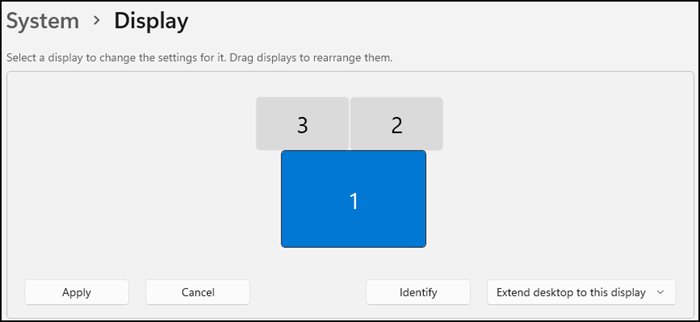
Each monitor has its own scale. A laptop screen often needs a higher value than a large external monitor.
- Open Settings > System > Display.
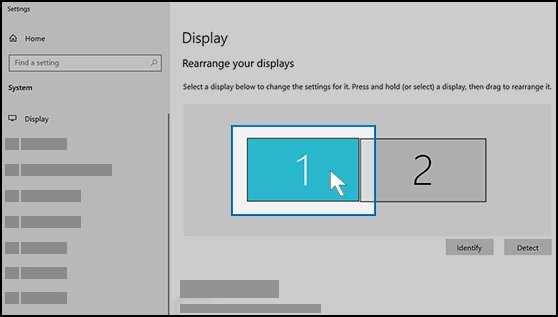
- If a monitor is missing, select Multiple displays > Detect.
- Select Identify; a number appears on each screen.
- Select the numbered display you want to change.
- Under Scale & layout, choose a Scale value for that display only.
- Repeat for the other display, then drag the displays into their real positions and select Apply.
If text in Microsoft 365 apps looks blurry on the second screen, set both monitors to the same scale, such as 125%, and sign out and back in.
Accessibility Considerations
Scaling is one of several tools for making Windows 11 easier to see. These work alongside it.
| Tool | How to use it | Best for |
|---|---|---|
| Magnifier | Press Windows logo key + Plus sign to open and zoom in, Windows logo key + Minus sign to zoom out, Windows logo key + Esc to close | Zooming into small details |
| Contrast themes | Settings > Accessibility > Contrast themes, pick Aquatic, Desert, Dusk or Night sky, then Apply | Low contrast between items |
| Mouse pointer size and color | Settings > Accessibility > Mouse pointer & touch | Losing track of the pointer |
| Color filters | Settings > Accessibility > Color filters, set to On | Telling colors apart |
| Narrator | Press Windows logo key + Ctrl + Enter | Having screen text read aloud |
How to check the new scale is applied
- Open Settings > System > Display and check the Scale list shows the value you picked for each display.
- Open File Explorer and a desktop app you use daily, and check that text and icons appear at the new size.
- Drag a window from one monitor to the other and check it looks the size you expect on both.
- Sign out and back in, then check that no app remains blurry or at the old size.
How to reset scaling to the default
- Open Settings > System > Display.
- Select the (Recommended) value in the Scale list for each display.
- Open Settings > Accessibility > Text size, drag the slider fully left and select Apply.
- Sign out and back in.
Troubleshooting Common Display Scaling Issues
Blurry text in apps after changing the scale
Some apps size themselves only when they start, so Windows stretches them after a scale change.
- Close and reopen the blurry app.
- If it is still blurry, sign out of Windows and sign back in.
- Avoid custom scaling and pick a preset Scale value instead.
Applications not scaling properly on a second monitor
Apps that scale only to the primary screen are stretched on monitors with a different scale.
- Set every monitor to the same Scale value, for example 125%.
- Sign out and back in.
- In Microsoft 365 apps, go to File > Options > General and, under When using multiple displays, select the compatibility option.
Screen flickering after a scale or display change
Microsoft names a display driver problem or an incompatible app as the usual cause.
- Press Windows logo key + Ctrl + Shift + B to reset the graphics driver.
- Press Ctrl + Shift + Esc; if Task Manager flickers too, the driver is at fault.
- Type device manager in the taskbar search, expand Display adapters, right-click the adapter and select Update driver.
- If the flicker began after a Windows update, select Properties > Driver > Roll Back Driver > Yes instead, then restart.
Some apps keep the old size
Certain apps only pick up a new scale after you sign in again.
- Save your work and sign out of Windows.
- Sign back in and reopen the app.
Frequently Asked Questions
How do I change my display scale in Windows 11?
Press Windows logo key + I, select System > Display, and choose a value from the Scale list under Scale & layout. The value marked Recommended suits most screens. Sign out and back in if some apps do not resize.
How do I change display scale on Windows 10?
Select Start > Settings > System > Display and, under Scale and layout, choose a value in Change the size of text, apps, and other items. More options are covered in this guide to Windows 10 display settings.
How do I adjust monitor scale for one monitor only?
Open Settings > System > Display, select Identify to see the display numbers, then select the monitor you want. Change its Scale value; the other monitors keep their own setting.
How do I adjust display scaling to a custom value?
In Settings > System > Display, expand the Scale settings and enter a custom size from 100% to 500%. Microsoft does not recommend it, and you need to sign out and back in for the value to apply.
How do I adjust screen scale without changing the resolution?
Use the Scale list in Display settings, not Display resolution. Scale makes everything larger while the resolution stays at its recommended value, so text remains sharp.
What scale should I use on Windows 11?
Start with the value Windows marks as Recommended for each display. Go one step higher if text is hard to read, or use Text size in Accessibility settings if only the text is too small.
Conclusion
Keep the recommended resolution and use the Scale list to make items bigger, one display at a time; reach for Text size or Magnifier when only text or small details are the problem. Scaling keeps text sharp, preset values work best with apps, and a quick sign-out fixes most blurry or wrongly sized windows.