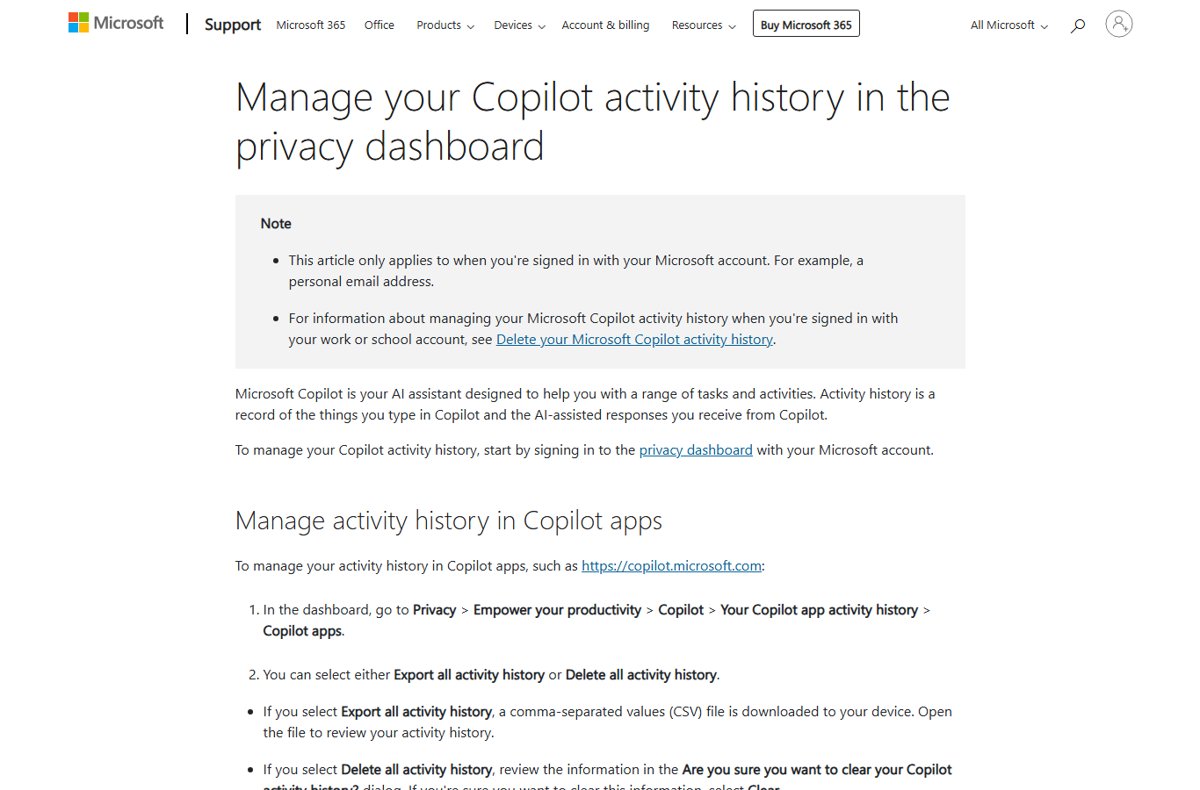
Your Copilot prompt history is the chat list on the left of copilot.microsoft.com and the Copilot apps, and you can export or wipe all of it from the Microsoft privacy dashboard under Copilot > Your Copilot app activity history.
This guide covers viewing history on the web, in Edge and on mobile, downloading it as a CSV file, deleting single chats or everything, and the separate route for work or school accounts.
The fastest way to view, download or delete Copilot history
| What you want | Personal Microsoft account | Work or school account |
|---|---|---|
| View past prompts | Open copilot.microsoft.com and look at the conversation list on the left | Open Copilot Chat signed in with your Microsoft 365 account and use the Chats list |
| Delete one chat | Select the three dots next to it, then Delete | Open the chat menu, then Delete |
| Download everything | account.microsoft.com/privacy > Copilot > Export all activity history | Ask your IT admin; no self-service export is documented |
| Delete everything | account.microsoft.com/privacy > Copilot > Delete all activity history | myaccount.microsoft.com > Data and Privacy > Data options > Copilot activity history > Delete |
What counts as Microsoft Copilot prompt history?
Microsoft defines activity history as the record of your prompts and Copilot's responses. Microsoft also states that prompts, responses and file contents in the Microsoft Copilot app are not used to train its foundation models.
| Item | Part of prompt history? | Where it is managed |
|---|---|---|
| Prompts you typed and Copilot's replies | Yes | Conversation list and privacy dashboard |
| Files you uploaded to a chat | Stored for no longer than 18 months, then deleted automatically | Removed with the conversation |
| Saved memories about you | No, a separate feature | Copilot Settings > Personalization > Saved memories |
| Edge browsing history and Bing searches | No, separate records | Edge history and the Microsoft privacy dashboard |
| Documents Copilot helped you edit and you saved | No | The file itself |
By default Microsoft stores Copilot conversation activity for 18 months, and you can delete it at any time before that.
Before you start: identify which Copilot account you used
History lives with the account you were signed in with, so a chat started under a work account never appears in your personal list, and the other way round.
| How you signed in | Account type | Where its history is managed |
|---|---|---|
| Personal email such as outlook.com, hotmail.com or live.com | Personal Microsoft account | account.microsoft.com/privacy |
| Company or school email issued by your organization | Work or school account | myaccount.microsoft.com and your IT admin |
| Apple ID in the Copilot app | Apple sign-in | In the app: Account > Privacy > Clear my history |
| Not signed in | No account | No saved history to manage |
How to view your Copilot prompt history on the web
- Go to copilot.microsoft.com and sign in with the account you used for the chats.
- Look at the left side of the screen, where conversation history appears by default.
- If the list is hidden, select the sidebar icon in the upper-left corner.
- Select any conversation to reopen it and scroll through the full prompt and reply thread.
- In the Windows or macOS Copilot app, the same list sits on the left with the same sidebar icon.
How to view Copilot history in Microsoft Edge
Copilot in Edge requires Edge to be signed in with your personal Microsoft account. Chats made there belong to that account, so the full list is easiest to read on the Copilot website.
- Open Edge and confirm the profile is signed in with your personal Microsoft account.
- Select the Copilot icon in the upper-right corner of Edge to open Copilot in Edge.
- Open a new tab, go to copilot.microsoft.com and sign in with the same account.
- Open the conversation list on the left to see chats tied to that account.
Edge's own browsing history is a different record from Copilot prompt history, so clearing one does not clear the other. Bing searches are separate again; you can delete Bing search history from the browser or your account.
How to view Copilot history on iPhone, iPad, and Android
- Open the Copilot app on your iPhone, iPad or Android device.
- Make sure you are signed in with the same account you use on the web.
- Open the menu.
- Select a conversation in the history list to reopen it.
How to download your Microsoft Copilot prompt history
Personal accounts can export history from the Microsoft privacy dashboard. The Copilot apps export arrives as a CSV file on your device.
- Sign in at account.microsoft.com/privacy with your personal Microsoft account.
- Select Privacy > Empower your productivity > Copilot > Your Copilot app activity history.
- Select Copilot apps, then Export all activity history to download a CSV file.
- For Word, Excel, PowerPoint, Outlook, OneNote and Teams, select Copilot in Microsoft 365 apps instead.
- Choose Export all Copilot in Microsoft 365 apps activity history or Export all Copilot Chat activity history.
- To keep a single conversation, use the share icon at the top right of the chat to create a link, or copy the text into a document.
Anyone with a shared link can open it, so do not share a chat that contains personal or confidential details.
How to delete individual Copilot conversations
| Where you are | Do this |
|---|---|
| copilot.microsoft.com | Select the three dots to the right of the conversation, then select Delete |
| Windows or macOS Copilot app | Right-click the conversation, then select Delete |
| iPhone, iPad or Android app | Open the menu, press the three dots next to the conversation, then Delete |
| Copilot Chat with a work account | Open the chat's menu in the Chats list and select Delete |
How to delete all or broader Copilot activity from a personal Microsoft account
- Sign in at account.microsoft.com/privacy.
- Select Privacy > Empower your productivity > Copilot > Your Copilot app activity history.
- Select Copilot apps, then Delete all activity history.
- When asked Are you sure you want to clear your Copilot activity history?, select Clear.
- Repeat under Copilot in Microsoft 365 apps if you used Copilot inside Word, Excel, PowerPoint, Outlook, OneNote or Teams with a personal account.
- If you signed in to the Copilot app with an Apple ID, open the app and select Account > Privacy > Clear my history instead.
The privacy dashboard also holds other activity, so a broader clean-up can include your search and browsing history as well.
How to manage Copilot history for work or school accounts
Work and school accounts do not use the personal privacy dashboard. What you can do yourself is view, rename and delete chats, and request deletion of your whole Copilot activity history.
- Open Copilot Chat and sign in with your Microsoft 365 work or school account.
- Use the Chats list on the left to reopen, Rename, Move to notebook or Delete a conversation.
- For a copy of all your work Copilot data, ask your IT admin, because Microsoft documents no self-service export for work accounts.
- To remove everything, follow the Microsoft 365 apps steps in the next section.
How to delete Copilot history in Microsoft 365 apps
- Go to myaccount.microsoft.com and sign in with your work or school account.
- Select Data and Privacy, then Data options.
- Open the Copilot activity history section and select Delete.
- In the confirmation dialog, tick the Microsoft Copilot checkbox.
- Select Delete to submit the request.
- Close and reopen any open Office apps so old activity stops showing.
This one request covers Word, Excel, PowerPoint, Outlook, OneNote, Teams, Forms, Loop, Planner, Whiteboard and Microsoft Copilot Chat together. There is no per-app option.
Can you turn off Copilot prompt history?
No. Microsoft offers no switch that stops personal Copilot from saving conversation history; you delete chats instead. What you can turn off is memory. In Copilot, Settings > Personalization > Saved memories stops Copilot saving new memories, though existing ones stay until you delete them. With a work account, turning off the chat history toggle in personalization settings stops Copilot Memory from using past chats, and inferences from earlier chats are deleted after 30 days. Microsoft also lets you control in Settings whether your conversations are used for training its generative AI models.
What deletion does and does not remove
| Deleted | Not deleted |
|---|---|
| The prompt and response records you selected | Content you saved in a file after Copilot helped, such as edited slides or document text |
| The conversation from your history list | Edge browsing history and Bing search history |
| Copilot activity in the privacy dashboard after Delete all activity history | Saved memories, which are managed under Personalization |
| Work Copilot history across all Microsoft 365 apps, after processing | Nothing app by app: the work request covers every app together |
Microsoft notes that full deletion of work Copilot history can take some time, and apps left open may keep showing old activity until they are restarted.
Best practices for keeping Copilot history under control
- Keep personal and work chats on their own accounts so each history stays where you expect it.
- Delete sensitive chats as soon as you are done with them rather than waiting for the 18-month retention period.
- Export your history before a full deletion if you may need old answers later.
- Review Settings > Personalization > Saved memories every few months.
- Avoid creating shared links for chats that contain personal, financial or confidential details.
How to check the history is gone
- Reload copilot.microsoft.com and confirm the conversation list on the left is empty or no longer shows the deleted chats.
- Reopen the privacy dashboard's Copilot page and confirm no activity is listed.
- Open the Copilot mobile app's menu and check the list there too.
- For a work account, close and reopen Word, Outlook or Teams and confirm earlier Copilot chats are gone.
Troubleshooting common Copilot history problems
Your Copilot history is missing
You are signed in with a different account from the one you used for the chats, or you were signed out.
- Check the account shown in Copilot's profile or settings.
- Sign out and sign in with the account you used originally.
- Open the sidebar icon in the upper-left if the list is simply hidden.
Deleted chats still appear in Office apps
Apps that were open during deletion can show old activity until they restart.
- Close Word, Excel, PowerPoint, Outlook and Teams completely.
- Reopen them and check again.
- Wait longer if needed, because full deletion can take some time.
The privacy dashboard does not show work Copilot activity
The dashboard at account.microsoft.com only covers personal Microsoft accounts.
- Go to myaccount.microsoft.com instead.
- Sign in with your work or school account.
- Open Data and Privacy > Data options > Copilot activity history.
Frequently asked questions
Where can I see my Copilot prompt history?
On copilot.microsoft.com and in the Windows and macOS Copilot apps, history appears on the left side of the screen; select the sidebar icon if it is hidden. In the mobile app, open the menu. Sign in with the same account you used for the chats.
How long does Microsoft keep Copilot conversations?
By default Microsoft stores Copilot conversation activity for 18 months. Files you upload are stored for no longer than 18 months and then deleted automatically. You can delete individual conversations or your whole history at any time before that.
Can I download my Copilot chat history?
Yes, for a personal Microsoft account. Open account.microsoft.com/privacy, go to Copilot, select Your Copilot app activity history, then Copilot apps, and choose Export all activity history. The export downloads to your device as a CSV file.
How do I delete all my Copilot history at once?
Sign in to the Microsoft privacy dashboard, open Copilot > Your Copilot app activity history > Copilot apps, select Delete all activity history, and confirm with Clear. Work or school accounts use myaccount.microsoft.com > Data and Privacy > Data options instead.
Does deleting Copilot history delete my documents?
No. Deleting work Copilot activity removes your prompts and Copilot's responses, but content Copilot helped create and that you saved, such as edited PowerPoint slides or Word text, stays in the file.
Is Copilot prompt history the same as Edge browsing history?
No. Edge browsing history records the pages you visit, while Copilot prompt history records your prompts and Copilot's replies. They are stored and deleted separately, so clearing Edge history leaves your Copilot chats untouched.
Can I rename a Copilot chat instead of deleting it?
Yes, in Copilot Chat with a Microsoft 365 work or school account. Open the chat's menu in the Chats list and select Rename. The same menu offers Move to notebook and Delete, so you can tidy the list without losing a useful conversation.
Does turning off Copilot memory delete my chats?
No. Turning off Saved memories under Settings > Personalization stops Copilot saving new memories, and it does not delete already saved memories or your conversations. Delete chats from the history list or the privacy dashboard.