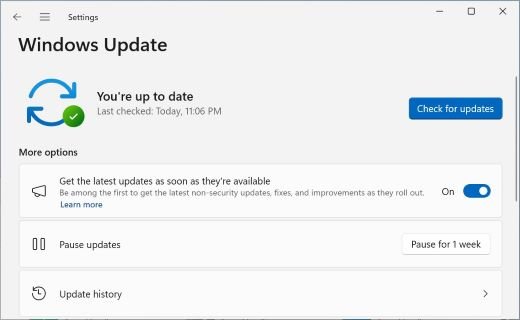
To pause updates in Windows 11 26H2, open Settings > Windows Update and pick an end date up to 35 days away; you can extend that date again as many times as you need, but Windows has no switch that stops all updates for good.
This guide covers the pause calendar, restarting without installing updates, metered connections, and the policies that hold back the Windows 11 26H2 feature update on Pro and business PCs.
The fastest way to pause updates in Windows 11 26H2
These steps come from Microsoft's current Pause updates instructions for Windows 11. They work the same way on version 26H2 and on 24H2 and 25H2 PCs that have the latest monthly updates.
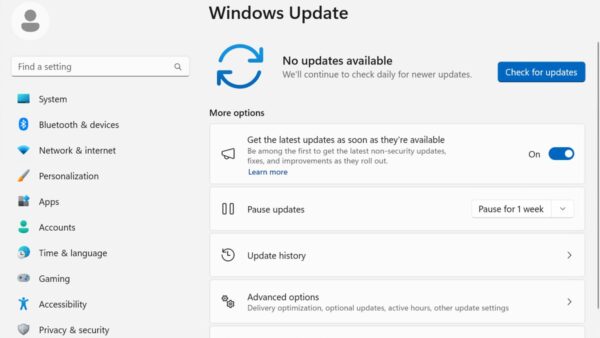
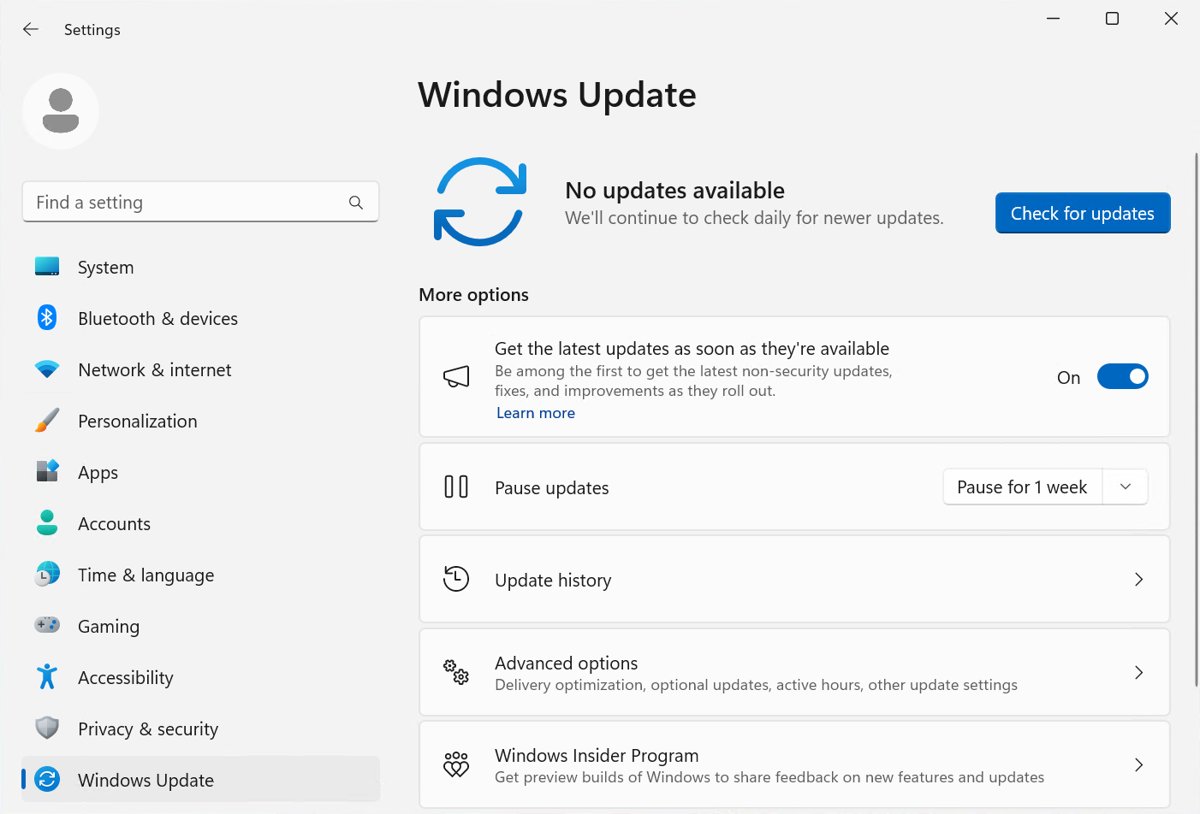
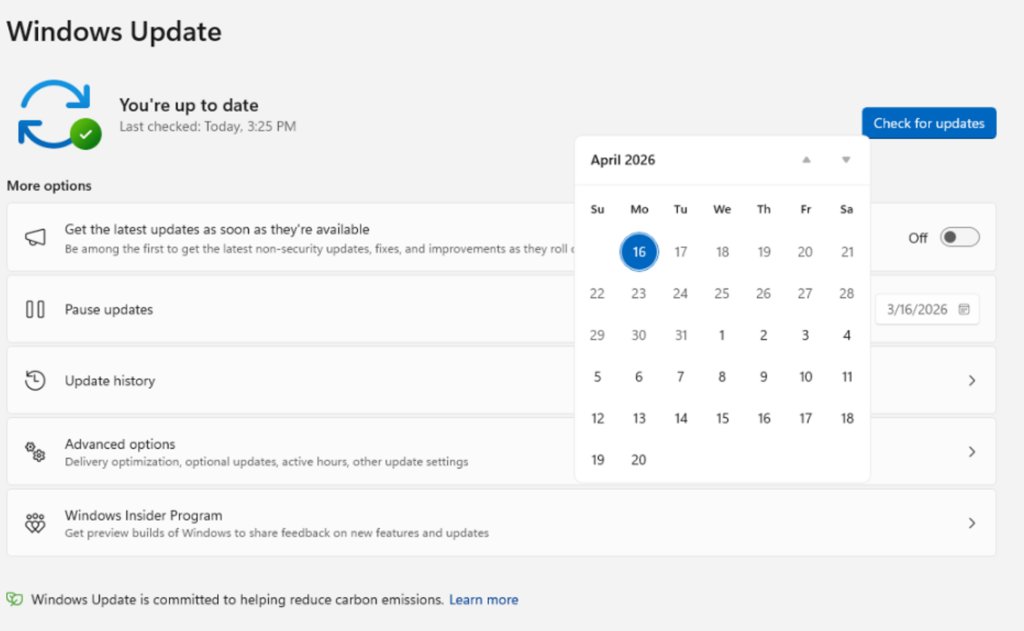
- Select Start > Settings > Windows Update.
- Find the Pause updates control on the Windows Update page.
- Select Pick a date.
- Choose the day you want updates to start again. The calendar only lets you pick dates up to 35 days from today.
- Close Settings. Windows now holds back updates that need a restart until that date.
If an update was already downloading or installing when you paused, Windows cancels it. When the date arrives, Windows checks for updates, downloads the latest ones and installs them.
Which way to stop updates fits your situation
Pausing is the only control every Windows 11 edition has. The other options solve narrower problems, so match your case to a row.
| Your situation | Use this | What it does |
|---|---|---|
| Travel, exams or a deadline in the next few weeks | Pause updates with Pick a date | Holds restart-needing updates for up to 35 days |
| You need longer than 35 days | Extend the pause with a new end date | Resets the end date to up to 35 days from today, as often as you like |
| You need to restart now but not update | Start > Power > Restart or Shut down | Restarts or powers off without installing pending updates |
| Updates keep restarting the PC while you work | Set Active hours | Keeps automatic restarts outside the hours you use the PC |
| You are on a capped mobile hotspot or data plan | Turn on Metered connection | Some Windows updates stop installing automatically on that network |
| You want to stay on 25H2 for now (Pro, Enterprise, Education) | Group Policy Select the target Feature Update version | Keeps the PC on the version you name while monthly security updates continue |
| Pause updates is missing or greyed out | Ask whoever manages the PC | An organisation can set the policy Remove access to "Pause updates" feature |
How does pausing updates on Windows 11 work
A pause delays updates to a date you choose. It does not turn automatic updates off, and Windows resumes them on its own when the date passes.
| Question | What Windows does |
|---|---|
| What is held back? | Updates that might need a restart are not downloaded or installed until the pause ends |
| Will the PC restart for updates during the pause? | No. It will not restart automatically to finish installing updates |
| What happens to an update already in progress? | It is cancelled, and may need to download again after you resume |
| How long can one pause last? | Up to 35 days from the current date |
| Can you pause again? | Yes. Pick a new end date up to 35 days from today, with no limit on how many times |
| Does unused pause time carry over? | No. The new end date is counted from today, not added to the old one |
| What if you do nothing? | Updates resume automatically when the pause expires |
| Can you resume early? | Yes. Resume manually at any time and Windows checks for updates straight away |
Older Windows 11 builds forced you to install the latest updates before pausing again. The calendar, which reached 25H2 with the June 2026 non-security preview update, removes that step, so the pause can be rolled forward indefinitely in 35-day blocks.
Extend the pause when 35 days is not enough
You can extend while updates are still paused. Each extension can reach 35 days from the day you make it.
- Select Start > Settings > Windows Update.
- Open the Pause updates calendar while the current pause is still active.
- Select a new end date. Dates more than 35 days from today are unavailable.
- Repeat before each new end date if you still need more time.
Set a calendar reminder a few days before each end date. If the date slips past, Windows starts installing the updates it held back.
Restart or shut down without installing updates
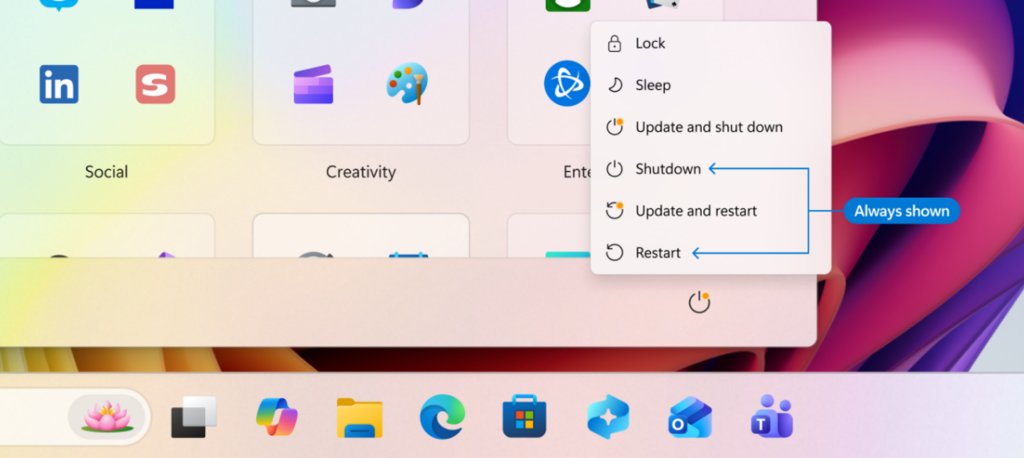
The Power menu now keeps plain Restart and Shut down next to Update and restart and Update and shut down, so a pending update no longer hijacks a quick reboot.
- Select Start, then select the Power button.
- Select Restart or Shut down to power cycle without installing the pending update.
- When you are ready to install, return to Power and select Update and restart or Update and shut down.
To choose a restart time instead, open Settings > Windows Update and select Schedule the restart. You can also let Windows restart outside your active hours, which the next section sets up.
Stop updates from restarting the PC during your working hours
Active hours do not stop updates. They tell Windows when not to restart, which is often the real complaint.
- Select Start > Settings > Windows Update > Advanced options.
- Select Active hours.
- Choose Automatically in the Adjust active hours list to let Windows learn your usage, or Manually to set the hours yourself.
The same page holds the other Windows Update settings, such as notifications and optional updates.
Set a metered connection to hold back some updates
Windows skips automatic installation of some updates on a metered network. Microsoft does not promise it blocks all of them, so treat this as a data saver, not a pause.
- Select Start > Settings > Network & internet.
- Select Wi-Fi and then the network you are connected to, or select Ethernet and your wired network.
- Turn on Metered connection.
- Turn it off again when you move back to an unlimited network.
Cellular connections are metered by default. If the Metered connection switch is greyed out, your organisation set it, and only its IT team can change it.
Hold back the 26H2 feature update with Group Policy
This policy exists on Pro, Enterprise, Education and IoT Enterprise editions, not Home. It keeps the PC on a chosen version while monthly security updates keep arriving, which is the cleanest way to block the Windows 11 26H2 update itself.
- Open the Local Group Policy Editor as an administrator.
- Go to Computer Configuration > Administrative Templates > Windows Components > Windows Update > Manage updates offered from Windows Update.
- Open Select the target Feature Update version and select Enabled.
- Enter Windows 11 as the product version.
- Enter the version you want to stay on, for example 25H2, as the target version.
- Select OK, then open Windows Update and select Check for updates.
Microsoft notes that the product and target version must both be set for the policy to work. The same folder holds Select when Preview Builds and Feature Updates are received, which defers a feature update by up to 365 days instead. Managed fleets usually set these through Intune or WSUS.
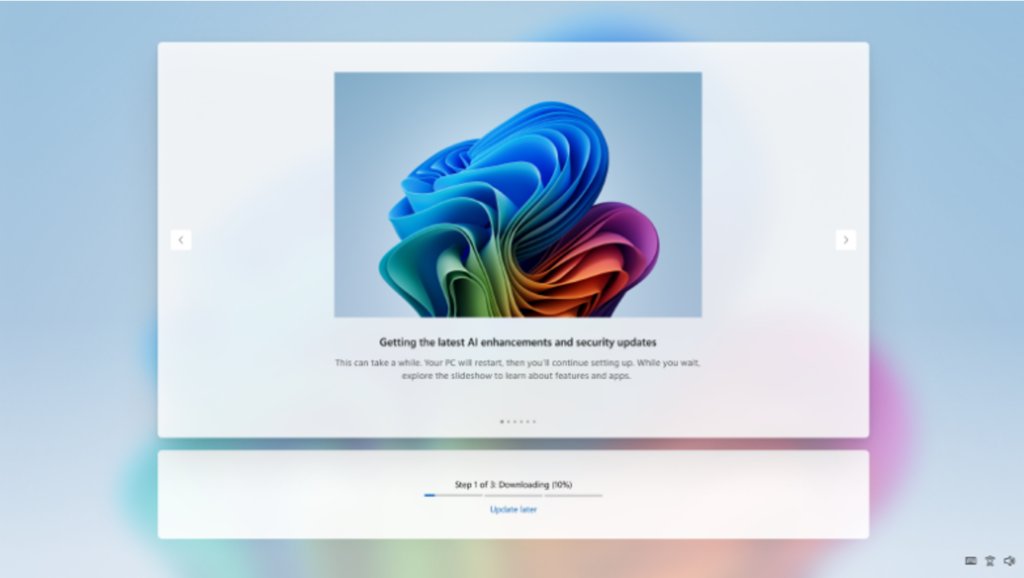
Skip updates during setup (OOBE)
Microsoft added a choice during device setup, the out-of-box experience (OOBE), to skip updates and reach the desktop first. It suits a new PC you want working now, or a setup where the network is slow.
| Point | Detail |
|---|---|
| What it does | Lets you finish setup without installing updates first, then get them later from Windows Update |
| What you give up | The latest features and security fixes are missing until you install the updates |
| Who does not get the choice | Commercial devices whose setup is managed, and cases where an update is required for the device to work |
| What to do after setup | Open Settings > Windows Update and select Check for updates once you are on a trusted network |
Setup has its own network rules too, including for installing 26H2 without an internet connection.
Update system overhaul extends even further
The new pause calendar arrived alongside wider Windows Update changes. Microsoft lists them for 26H2 and in its support note on monthly restarts.
| Change | What it means on your PC |
|---|---|
| Fewer restarts each month | From updates released on or after July 28, 2026, driver, .NET and firmware updates wait and install with the monthly security update, so they share one restart |
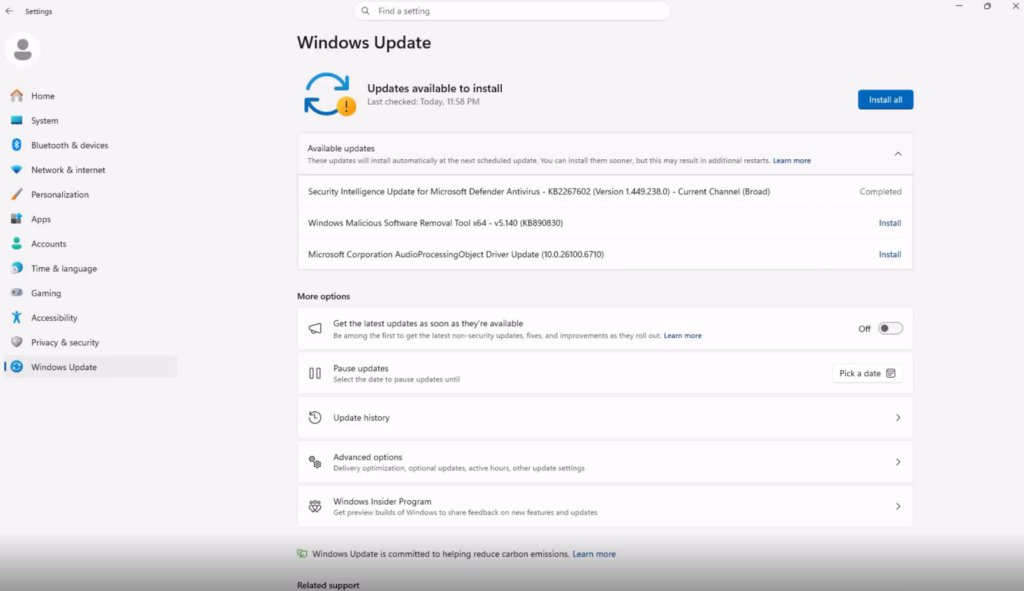
| Clearer update information | Held updates appear in one Available updates list, and driver titles now name the device class, such as display, audio or battery |
| Power options now work as expected | Restart and Shut down always do only that; update installs sit under separate update options |
| Improved reliability during installation | Windows retries failed installations automatically in the background, so some updates take longer but succeed more often |
| Sleep is respected | A PC you put to sleep returns to sleep after an update, even when automatic sleep is set to Never |
| Faster return to work | After a restart, Windows tries to reopen the apps you had open |
Microsoft says the one-restart-a-month change is rolling out gradually and might not be on every device yet. Driver updates you want sooner, such as a new graphics driver, can still be installed from Available updates or updated manually.
Security remains in place
Microsoft built the new controls so updates are delayed, not skipped. Some updates also bypass the monthly restart queue entirely.
| Update type | How Windows treats it |
|---|---|
| Microsoft Defender security intelligence | Installs as soon as it is available rather than waiting for the monthly restart |
| Critical or expedited driver updates | Install right away |
| Emergency and out-of-band fixes | Install right away, outside the normal monthly schedule |
| AI component updates | Install right away |
| Updates held for the monthly restart | Windows will not hold them indefinitely; after a long wait it installs them and restarts |
| Anything held by a pause | Installs automatically when the pause end date passes |
A long pause leaves known vulnerabilities open on the PC. Check the 26H2 known issues list before resuming if you paused to avoid a specific problem.
How to check updates are paused
- Select Start > Settings > Windows Update.
- Confirm the top of the page shows that updates are paused, with the end date you picked.
- Open Update history and confirm nothing new installed after the pause began.
- For a policy pause on a managed PC, ask IT to read PausedQualityStatus or PausedFeatureStatus under HKLM\SOFTWARE\Microsoft\WindowsUpdate\UpdatePolicy\Settings: 1 means paused, 2 means it auto-resumed.
The Local Group Policy Editor keeps a pause box ticked even after the 35 days expire, so the registry status value is the reliable check for policy pauses.
How to resume updates early
- Select Start > Settings > Windows Update.
- Select the option to resume updates at the top of the page.
- Wait while Windows checks for updates, then download and install what it offers.
- Restart when asked, or use Schedule the restart to pick a time.
Updates paused mid-download may need to download again. If an update causes trouble once installed, remove it from Update history > Uninstall updates; to go back from 26H2 itself, follow the steps to uninstall Windows 11 26H2 safely.
What this means for users
The pause calendar matters most for people who could not control update timing before. It changes less for managed PCs, which follow their IT policies.
| Who you are | Why this matters for everyday users like you |
|---|---|
| Home user | Pause for trips, exams or a busy month, and restart without an update taking over |
| Gamer or creator | One restart a month means fewer surprise reboots before a session or render |
| Laptop owner on the road | Pause plus a metered hotspot keeps large downloads off mobile data |
| PC still on 24H2 Home or Pro | Pausing cannot keep 24H2 alive: its updates end on October 13, 2026, and Windows moves PCs near end of servicing to a newer version |
| Work or school PC | Pause may be hidden by policy, and the organisation decides when 26H2 arrives |
Staying on an old version has limits; the article on what happens if you skip 26H2 sets out the dates.
Frequently asked questions
Can Windows 11 26H2 stop all updates?
No. Windows 11 26H2 has no setting that stops every update permanently. You can pause updates for up to 35 days at a time and extend that pause as often as you like, but updates resume automatically if you let the end date pass.
How long can you pause updates in Windows 11 26H2?
Each pause lasts up to 35 days from the day you set it. Before it ends, you can pick a new end date up to 35 days from that day, and there is no limit on how many times you extend.
Does pausing updates stop the Windows 11 26H2 feature update?
Yes, while the pause lasts, because the 26H2 enablement package needs a restart. To stay on 25H2 longer on Pro or higher, set the Select the target Feature Update version policy instead of relying on repeated pauses.
Can I restart Windows 11 without installing updates?
Yes. Select Start > Power > Restart or Shut down. These options no longer install pending updates; use Update and restart or Update and shut down when you want the update installed.
Why is Pause updates greyed out or missing?
Your organisation has probably applied the Remove access to "Pause updates" feature policy, which removes the pause option for users. Only the IT team that manages the PC can change it.
Does pausing updates cancel a download in progress?
Yes. If an update is downloading or installing when you pause, Windows cancels it. After you resume, Windows checks again and may need to download and install that update from the start.
Do Defender updates still install while updates are paused?
Microsoft has not stated this for the pause control. Its monthly-restart note says Defender security intelligence updates install as soon as they are available, and the pause page says only restart-needing updates are held.
Techdows' take: pause, do not block
Use the 35-day pause and plain Restart for short-term control, and the target-version policy if you need to stay on 25H2 while 26H2 settles. The pause now extends without limit and restarts no longer force installs, so there is little reason to use risky workarounds; when you are ready, the official ways to install 26H2 take a single restart.