If you don't install Windows 11 26H2, nothing breaks: your PC keeps getting monthly security updates until its current version reaches end of servicing, which is October 12, 2027 for 25H2 Home and Pro but October 13, 2026 for 24H2 Home and Pro.
What you give up is a year of extra support and a handful of switched-on features. This guide shows the deadline for your version, what 26H2 actually adds, how Home edition handles skipped updates, and how to delay safely.
What skipping 26H2 means for your PC
| You run now | If you skip 26H2 | Deadline to move |
|---|---|---|
| Windows 11 25H2 Home or Pro | Security updates continue as normal | October 12, 2027 |
| Windows 11 25H2 Enterprise or Education | Security updates continue as normal | October 10, 2028 |
| Windows 11 24H2 Home or Pro | Updates stop in two weeks and the PC is left unpatched | October 13, 2026 |
| Windows 11 24H2 Enterprise or Education | Security updates continue for another year | October 12, 2027 |
| Windows 11 23H2 Home or Pro | Already out of support; no security fixes | Past, upgrade now |
| Windows 11 26H1 (new Arm PCs) | Nothing: 26H1 is not offered 26H2 | March 14, 2028 for Home and Pro |
Staying on a supported version is what matters, not having the newest one. Past the deadline, Windows still starts and runs, but it gets no security fixes, software updates or technical support from Microsoft.
How long is Windows 11 26H2 supported?
Every annual version gets 24 months of updates on Home and Pro and 36 months on Enterprise and Education. Installing 26H2 resets that clock.
| Version | Released | Home, Pro, Pro Education, Pro for Workstations | Enterprise, Education, IoT Enterprise |
|---|---|---|---|
| 26H2 | September 29, 2026 | October 10, 2028 | October 9, 2029 |
| 25H2 | September 30, 2025 | October 12, 2027 | October 10, 2028 |
| 24H2 | October 1, 2024 | October 13, 2026 | October 12, 2027 |
| 23H2 | October 31, 2023 | Ended | November 10, 2026 |
Skipping 26H2 on a 25H2 PC therefore costs exactly one year of support under the 26H2 servicing timeline.
Home edition will not let you skip forever
On Windows 11 Home, expect Windows Update to move the PC to a newer version before your current one reaches end of servicing, whether or not you click install. Microsoft's lifecycle FAQ states that Home edition does not support deferring feature updates, so Home PCs typically receive a new version before the end-of-servicing date. Pro, Enterprise and Education can defer through policy or device management.
Microsoft has not published a date on which 25H2 Home PCs will be moved to 26H2 automatically.
What to expect in Windows 11 26H2
Most of 26H2 already sits on an up-to-date 24H2 or 25H2 PC. Monthly updates deliver the files, and the 26H2 enablement package switches the dormant features on.
| What 26H2 adds | Do you miss it by skipping? |
|---|---|
| Support reset to October 2028 (Home, Pro) or October 2029 (Enterprise, Education) | Yes |
| Windows settings backup, taskbar app actions and File Explorer changes on by default for business PCs | Yes, on managed commercial devices |
| Movable taskbar, redesigned Start menu, point-in-time restore, administrator protection | Mostly no: many features arrive through monthly updates, and some are already present before the feature update |
| Monthly security fixes | No, until your version's end-of-updates date |
| WMIC removal | WMIC is already removed from 24H2 and later |
Facts to know about Windows 11 version 26H2
| Fact | Detail |
|---|---|
| 1. Same operating system platform | 24H2, 25H2 and 26H2 share a common core with an identical set of system files |
| 2. Same set of features and improvements | New features ship in monthly updates for 24H2 and 25H2 and stay dormant until the enablement package turns them on |
| 3. Enablement Package-based installation | KB5121794 is a small master switch that installs with a single restart |
| Prerequisite | 24H2 or 25H2 with the September 22, 2026 update (KB5124010) or later |
| Download is small and it arrived early | Microsoft calls it a small, quick-to-install update and released it on September 29, 2026, not in October; it has not published a size |
| 9. Same hardware requirements | Microsoft publishes one Windows 11 requirements list (TPM 2.0, UEFI Secure Boot, 4 GB RAM, 64 GB storage) and no separate 26H2 list |
| 10. Rollout strategy will be gradual | A controlled feature rollout with safeguard holds, expanding over the coming months |
Hardware checks and supported processors are part of the 26H2 system requirements.
Direct upgrade from older versions
The small enablement package only applies to 24H2 and 25H2. Every other starting point, and every tool other than Windows Update or WSUS, means a full Windows Setup run.
| Starting point or tool | Type of upgrade | What to expect |
|---|---|---|
| 24H2 or 25H2 through Windows Update | Enablement package | Small download, one restart |
| 23H2 | 4. Full reinstallation upgrade through Windows Setup | Larger download and a longer install; apps and files can be kept |
| Windows 10 on hardware that meets the requirements | Full upgrade to Windows 11 | Windows 10 support ended on October 14, 2025; Windows Update upgrades need version 2004 or later |
| 7. Installation Assistant, Media Creation Tool or ISO on any version | Upgrade tools trigger a full feature update | Runs full Windows Setup instead of the enablement package, even on a 25H2 PC |
Each of the full-setup routes for installing 26H2 uses its own tool.
Should I upgrade to Windows 11 26H2 final release?
Yes, when Windows Update offers it, unless your PC matches one of the documented launch issues. It installs like a monthly update, adds a year of support, and Microsoft recommends it for eligible devices.
Should I install Windows 11 26H2 while it’s in preview?
There is no reason to use a preview build now: the final release has been available since September 29, 2026. Build 26300.9278 reached the Release Preview Channel on August 27, 2026. Now that 26H2 is generally available, Windows Update delivers the final build to eligible PCs without joining the Windows Insider Program.
Why should I upgrade to Windows 11 25H2?
This question matters most on 24H2 Home or Pro, where updates end on October 13, 2026. If 26H2 is not offered to your PC before then, moving to 25H2 keeps you supported.
| Option on a 24H2 Home or Pro PC | Supported until | Good for |
|---|---|---|
| Stay on 24H2 | October 13, 2026 | Nobody: no security fixes after that date |
| Move to 25H2 | October 12, 2027 | PCs that are not offered 26H2 yet or are held back |
| Move to 26H2 | October 10, 2028 | Every PC that Windows Update offers it to |
Whether 25H2 is still available and how to get it is covered in installing 25H2 now that 26H2 is out.
8. Reasons to upgrade to version 26H2
| Reason | Why it matters |
|---|---|
| One more year of updates | October 10, 2028 on Home and Pro instead of October 12, 2027 on 25H2 |
| Quick install | One restart on 24H2 and 25H2, similar to a monthly update |
| Low change risk | Same system files as 24H2 and 25H2; the update switches features on rather than replacing Windows |
| Security options | Administrator protection, Smart App Control that can be toggled without a clean install, stricter driver trust |
| Business defaults | Settings backup and other commercial features on by default |
Should I wait to install Windows 11 26H2?
Wait only if your PC fits one of the three issues Microsoft documented at launch, all marked mitigated on September 29, 2026.
You rely on a USB Audio Class 1.0 audio device
Some of these devices fail with Code 10 or produce no sound after 26H2.
- Hold 26H2 until Microsoft ships the fix it says is coming in a future update.
- Check the release health page before installing.
Domain-joined PC with Credential Guard and Machine Identity Isolation
26H2 starts honouring Machine Identity Isolation enforcement, which needs Windows Server 2025 domain controllers.
- Let IT disable Machine Identity Isolation where those domain controllers are not in use.
- Install 26H2 after that change.
Virtual desktop host showing a black screen after sign-in
Microsoft has reports from some virtual desktop environments.
- Leave the rollout to IT.
- Apply Microsoft's published mitigation before updating more hosts.
Each of these 26H2 known issues has a workaround. If Windows Update simply has not offered 26H2 yet, that is the staged rollout or a safeguard hold, and the 26H2 release reaches PCs in phases.
How to delay 26H2 without losing security updates
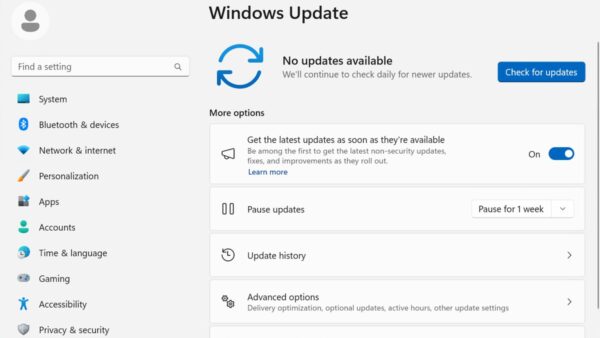
26H2 is offered as an optional Download & install item, so it does not install on a 24H2 or 25H2 PC just because monthly updates do. Leaving it alone keeps you on your current version.
- Open Settings > Windows Update.
- Keep installing the monthly cumulative updates as they arrive.
- When Windows 11, version 26H2 is available appears, leave Download & install unselected until you are ready.
- To stop all updates for a short time, choose a period next to Pause updates.
- Put a reminder in your calendar before your version's end-of-updates date.
Pausing also stops security fixes, so keep it short; the guide to pausing updates in 26H2 lists the limits. Pro and Enterprise users who need a firmer hold can block the 26H2 update with policy.
Check which version you are on
- Press Win + R, type
winverand press Enter. - Read the version: 24H2, 25H2 or 26H2.
- Match it to the support table above to find your deadline.
- Alternatively, open Settings > System > About and check Version under Windows specifications.
An OS build starting with 26300 means 26H2 is already installed.
Frequently asked questions
What happens if I don't install Windows 11 26H2?
Your PC keeps working and keeps getting monthly security updates until its current version reaches end of servicing. That is October 12, 2027 for 25H2 Home and Pro and October 13, 2026 for 24H2 Home and Pro. After that date, no more security fixes arrive.
Is Windows 11 26H2 mandatory?
Not immediately. It appears as an optional update on 24H2 and 25H2. You must move to a supported version before your current one reaches end of servicing, and Home edition, which cannot defer feature updates, is typically moved to a newer version automatically before then.
Can I stay on Windows 11 25H2 instead?
Yes. Windows 11 25H2 Home and Pro get security updates until October 12, 2027, and Enterprise and Education until October 10, 2028. Plan to move to 26H2 or a later version before those dates.
What happens when Windows 11 24H2 reaches end of support?
From October 13, 2026, 24H2 Home, Pro, Pro Education and Pro for Workstations stop receiving security and quality updates. Windows keeps running, but newly found vulnerabilities stay unpatched. Enterprise and Education editions of 24H2 are supported until October 12, 2027.
Will I lose features if I skip 26H2?
Very few. Most 26H2 features are delivered through monthly updates to 24H2 and 25H2, and the enablement package switches on a small set. The biggest loss is the extra year of support, plus commercial defaults such as Windows settings backup on business PCs.
Can I install 26H2 later?
Yes. Skipping 26H2 now does not stop you installing it later. When you are ready, open Settings > Windows Update and select Download & install next to the 26H2 offer, after installing the latest cumulative update.
Does skipping 26H2 make my PC less secure?
Not while your current version is supported, because 24H2, 25H2 and 26H2 receive the same monthly security updates. Security drops only when your version passes its end-of-updates date or when you pause updates for a long time.
Is Windows 11 26H2 safe to install?
For most PCs, yes. It installs like a monthly update with one restart, and the three launch issues Microsoft documented affect specific USB audio devices, some domain-joined PCs and some virtual desktops. All three were marked mitigated on September 29, 2026.
More resources
- Windows 11 release information — End-of-updates dates for every Windows 11 version
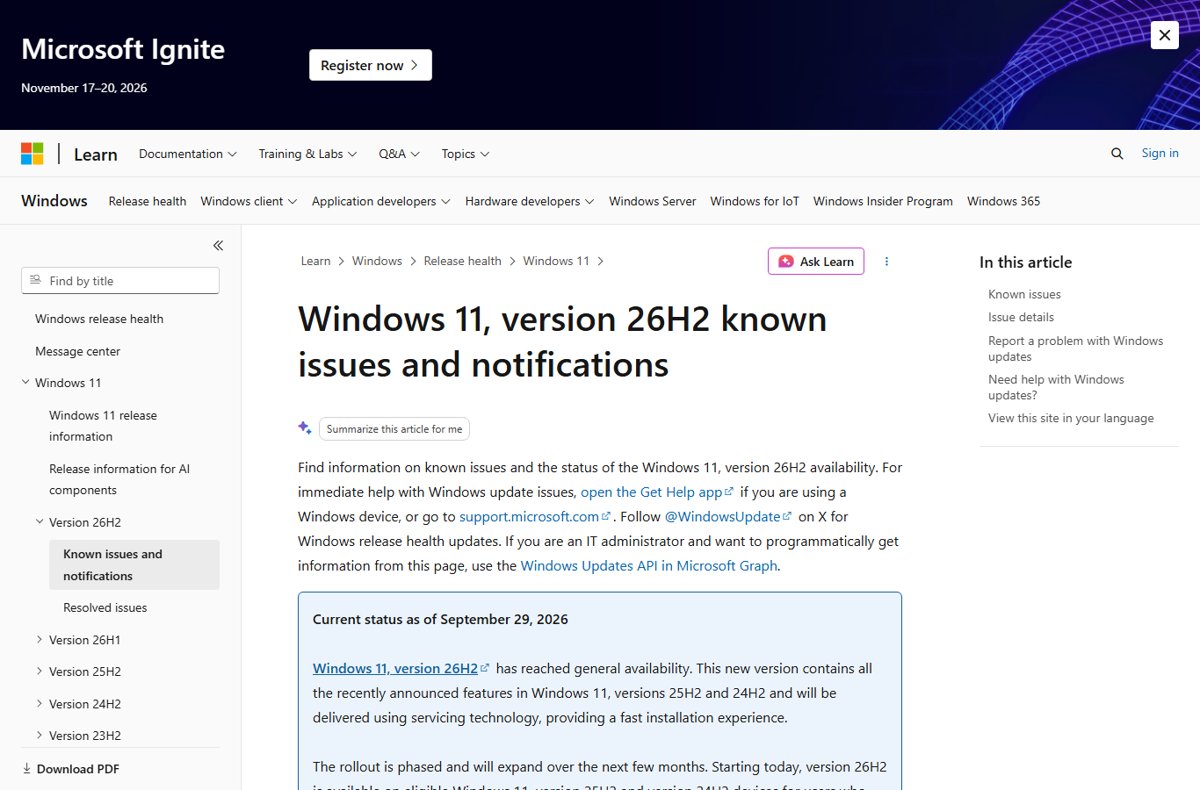
- Windows 11, version 26H2 known issues — Microsoft's release health page for 26H2
- KB5121794 enablement package — Prerequisites and install steps
- Windows lifecycle FAQ — What end of servicing means and how Home edition handles feature updates
Bottom line
On 25H2 you can skip 26H2 for now without any security cost; on 24H2 Home or Pro, move to 26H2 or 25H2 before October 13, 2026. Skipping only matters once your version's end-of-updates date passes, and 26H2 is a one-restart update when you decide to take it.