The Visual C++ Redistributable download is free, and on a 64-bit PC the file you want is VC_redist.x64.exe from Microsoft. It installs the Microsoft C and C++ runtime libraries that applications built with MSVC Build Tools need in order to start.
Microsoft keeps three permalinks live, one each for x64, x86 and ARM64. Each link always serves the latest supported v14 package, so a bookmark never goes stale.
This guide covers the official links and sizes, the install, silent deployment, the legacy 2013 and 2012 packages, the Mac answer, error codes 1603 and 1714, and clean removal.
Which Visual C++ Redistributable download do you need?
Match the package to the architecture of the application you are trying to run, not to the age of your PC. An x64 package will not install on an x86 system, and an ARM64 package will not either.
| Your case | Package | Size | Download |
|---|---|---|---|
| 64-bit Windows 11 or Windows 10, the usual answer | VC_redist.x64.exe | 17.9 MB | x64 permalink |
| A 32-bit app, or 32-bit Windows | VC_redist.x86.exe | 6.6 MB | x86 permalink |
| An ARM64 PC running a native ARM64 app | VC_redist.arm64.exe | 11.3 MB | ARM64 permalink |
| An ARM64 PC that also runs x64 apps | VC_redist.x64.exe, which carries the ARM64 binaries too | 17.9 MB | x64 permalink |
| An app built with Visual Studio 2013 or earlier | A legacy package, installed side by side | See the table below | Legacy downloads |
Installing both the x86 and the x64 package on a 64-bit PC is normal. Many applications ship 32-bit components that link against the 32-bit runtime.
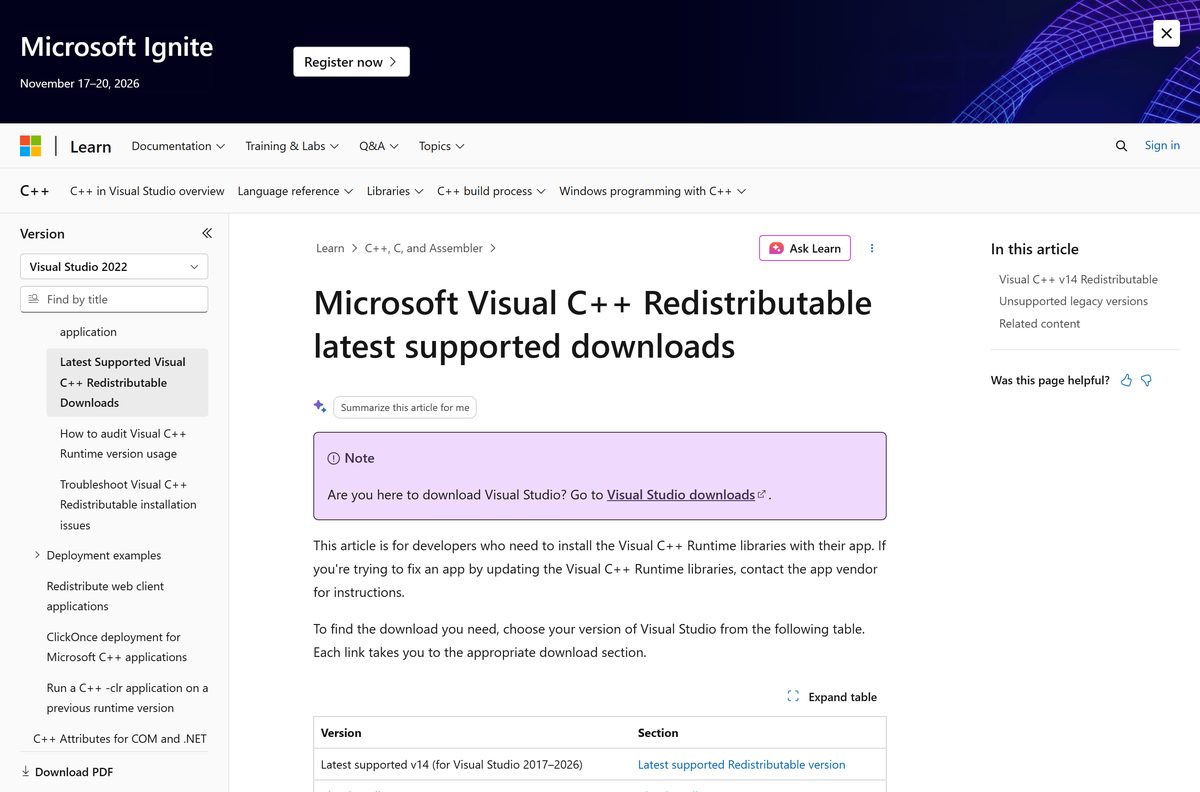
Download Visual C++ Redistributable from Microsoft’s official page
These three permalinks are the ones Microsoft publishes. Each is a standalone offline installer, so the file you save carries the runtime itself.
- VC_redist.x64.exe — 17.9 MB · Latest supported x64 package, includes ARM64 binaries
- VC_redist.x86.exe — 6.6 MB · Latest supported 32-bit package
- VC_redist.arm64.exe — 11.3 MB · Latest supported ARM64 package
- Latest supported downloads page — The page Microsoft updates, including the legacy sections
- Microsoft Software License Terms — Terms that cover the runtime
Microsoft warns against installing any Visual C++ Redistributable that did not come from a Microsoft site or that Microsoft did not sign.
Check the Visual C++ Redistributable system requirements
The runtime is small and its demands are modest. The one hard rule is the operating system list.
| Field | Value |
|---|---|
| Developer | Microsoft Corporation |
| Latest version | v14 (Visual C++ 2015-2026 Redistributable); Microsoft does not print the build number on the download page |
| Packages | VC_redist.x64.exe, VC_redist.x86.exe, VC_redist.arm64.exe |
| Download size | 17.9 MB x64, 6.6 MB x86, 11.3 MB ARM64 |
| Licence | Free to download and install; redistribution needs a Visual Studio licence |
| Supported Windows | Windows 10 and Windows 11 |
| Supported Server | Windows Server 2016, 2019, 2022 and 2025 |
| Architecture | ARM64, x86 and x64; the package must match the app’s architecture |
| Rights needed | Administrator, through a User Account Control prompt |
| Offline installer | Yes, every package is standalone |
| Build tools covered | MSVC v14.* from Visual Studio 2017, 2019, 2022 and 2026 |
| macOS | No |
| Install log | %TEMP%, files prefixed dd_vcredist_ |
| Official source | learn.microsoft.com |
| Last verified | 2026-09-22 |
Windows 8.1, Windows 7 and Windows Server 2012 are absent from that list. An older Visual Studio 2015 or 2013 package remains the only option on those systems.
How to install Visual C++ Redistributable on Windows 11 and 10
Install the runtime before the application that needs it. Setup finishes in seconds and asks for nothing beyond consent.
- Open the latest supported downloads page and pick the architecture that matches your app.
- Save the file, then open your Downloads folder.
- Right-click VC_redist.x64.exe and select Run as administrator.
- Select Yes at the User Account Control prompt.
- Tick I agree to the license terms and conditions.
- Select Install and wait for the progress bar to finish.
- Select Close, then select Restart if setup asks for one.
- Repeat with VC_redist.x86.exe when the app ships 32-bit components.
A setup that ends with a failure message instead of a progress bar usually means a newer runtime is already present. Each package checks for a more recent version and stops when it finds one.
How to install the runtime silently on many PCs
The package accepts /install , /repair , /uninstall and /layout , and the display of setup is controlled separately with /passive or /quiet .
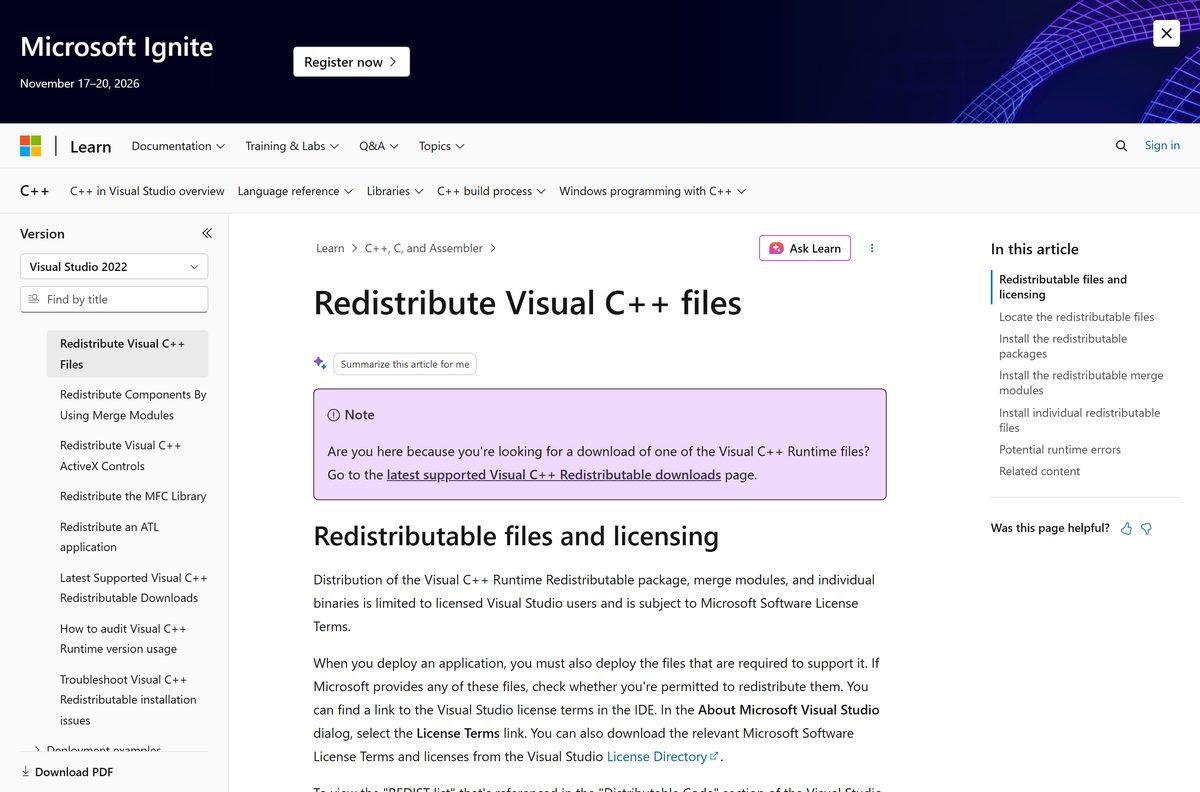
vc_redist.x64.exe /install /passive /norestart This shows a progress bar, suppresses the restart and needs no interaction. Swap /passive for /quiet to hide setup completely, add /log install.txt to write the log where you want it, and run /layout to copy the full package contents into the current folder for staging. Microsoft documents every switch on the redistribute Visual C++ files page.
A package that finds a newer runtime already installed returns an error to the caller, and /quiet hides the message. Read the registry version first and skip the install when the machine is already ahead.
Merge modules are deprecated for this runtime. Microsoft recommends central deployment of the package instead, so the runtime files can be serviced without a new build of your installer.
How to check which Visual C++ runtimes are already installed
Two places answer this. The apps list shows every package by name, and one registry key holds the exact build number per architecture.
- Press Windows + I and open Apps, then Installed apps.
- Type Visual C++ in the search box to list every installed runtime.
- Read the architecture in each entry, such as Microsoft Visual C++ 2015-2022 Redistributable (x64).
- Press Windows + R, type regedit and select OK for the exact build.
- Go to HKEY_LOCAL_MACHINE\SOFTWARE\Wow6432Node\Microsoft\VisualStudio\14.0\VC\Runtimes\x64 .
- Read the Version string value, or the Major , Minor , Bld and Rbld values.
- Swap x64 for x86 or arm64 in that path to check the other architectures.
- Download the current package and right-click it, select Properties, then open Details to compare File version.
The key stays on 14.0 for every release since Visual Studio 2015, because the current runtime is binary compatible that far back. A machine showing a higher build than the file you downloaded needs nothing.
Which runtime an application actually needs
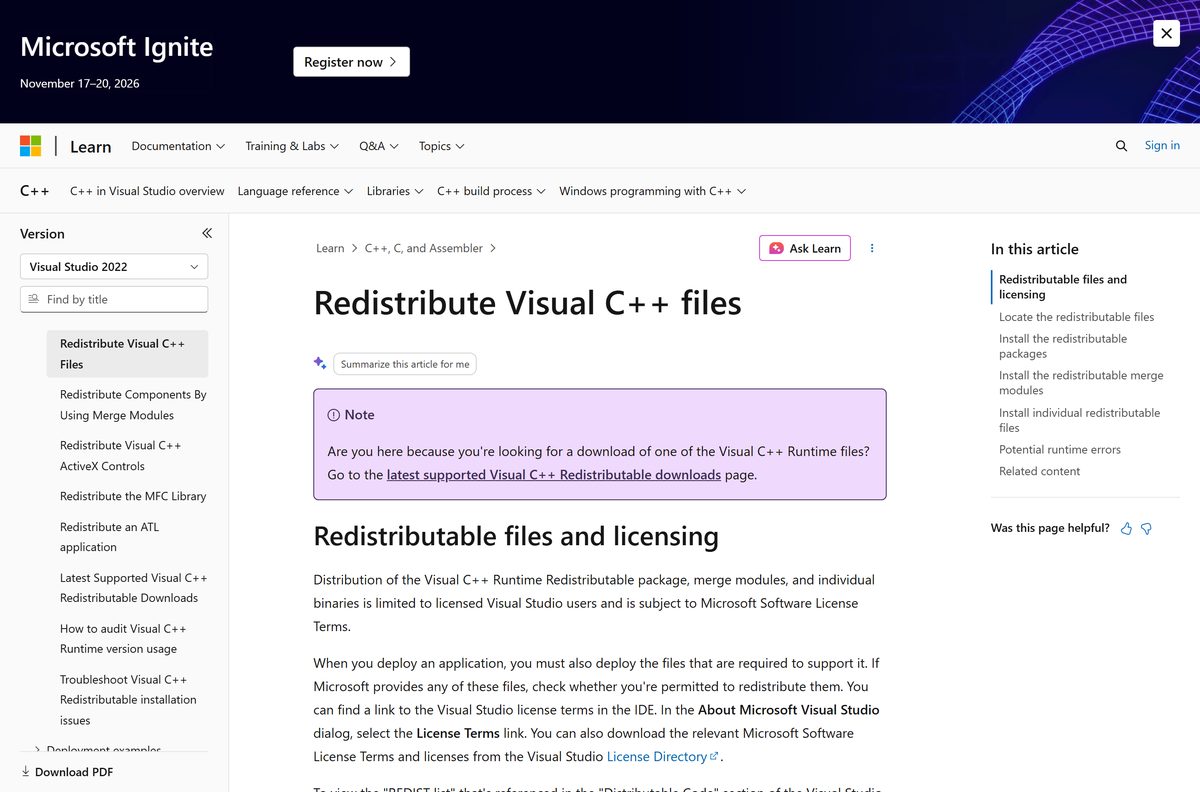
The rule Microsoft states is one line: the installed Redistributable must be the same as, or later than, the MSVC Build Tools used to compile the application.
Visual Studio 2017 and later all share one set of runtime files, so a single current v14 package covers four generations of compiler. Anything older installs alongside it rather than replacing it.
| Built with | Runtime to install | Where |
|---|---|---|
| Visual Studio 2017, 2019, 2022 or 2026 (MSVC v14.*) | Latest v14 package | x64 · x86 · ARM64 |
| Visual Studio 2015 (v14.0), support ended 15 October 2025 | Latest v14 package, which upgrades 14.0.24212 in place | x64 · x86 · ARM64 |
| Visual Studio 2013 (v12.0) | 12.0.40664.0, side by side | vcredist_x64.exe |
| Visual Studio 2013, 32-bit build | 12.0.40664.0, side by side | vcredist_x86.exe |
| Visual Studio 2012 Update 4 (v11.0) | 11.0.61030.0, side by side | vcredist_x64.exe |
| Visual Studio 2010 SP1 (v10.0) | 10.0.40219.325, side by side | vcredist_x64.exe |
| Visual Studio 2008 SP1 (v9.0) | 9.0.30729.5677, side by side | vcredist_x64.exe |
The 2015, 2012, 2010 and 2008 releases are all out of support. They are still published because software compiled against them still runs.
Microsoft Configuration Manager installs vcredist_x64.exe during its own upgrade, and the Visual Studio Installer lays the runtime down as a prerequisite. An app that fails to start with a message about a missing .dll is the everyday version of the same dependency.
Should you install the latest package or an older build?
Install the latest v14 package unless a log file names an exact older build. It is binary compatible back to Visual Studio 2015 and carries the current security and reliability fixes, so one file satisfies every app built since 2015. Older builds exist for one reason: a failed upgrade that reports error 1714 needs the exact previous version uninstalled first, and Microsoft’s own templates cover that, with builds 14.50 and later under the Visual Studio 2026 channel and 14.30 to 14.44 under the 2022 channel.
Microsoft publishes those older builds through Dev Essentials, which needs a free account. Never take an old package from a download portal.
Is the Visual C++ Redistributable free?
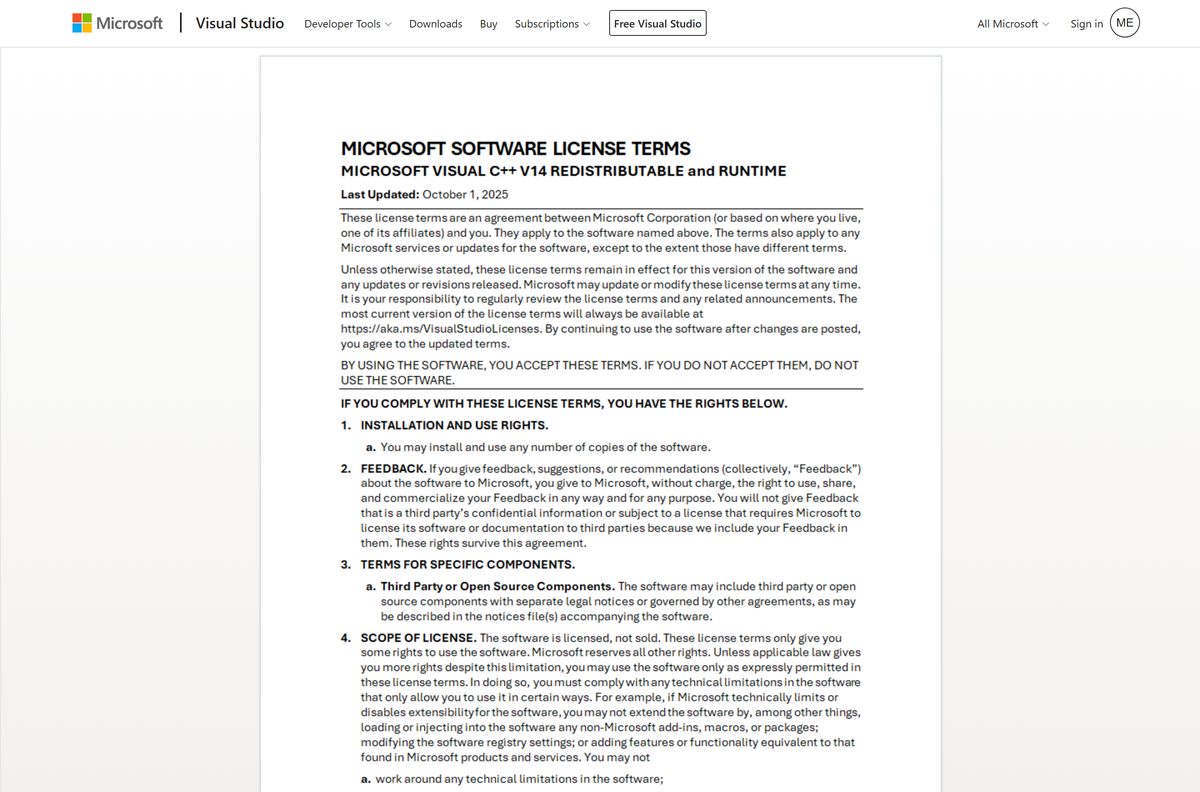
Yes. All three packages are free to download and free to install, with no account and no trial. Microsoft publishes them as permanent links so applications can list the runtime as a prerequisite. The only licensing condition applies to developers: shipping the package, its merge modules or its individual DLLs inside your own installer is limited to licensed Visual Studio users under the Microsoft Software License Terms.
Any site charging for this runtime, bundling it with a downloader, or offering a licence key is not Microsoft. The packages are signed, and Microsoft’s guidance is to install only signed packages taken from a Microsoft site.
Is there a Visual C++ Redistributable for Mac?
No macOS package exists. The supported list runs from Windows 10 to Windows Server 2025, and the files inside each package are Windows DLLs.
| On your Mac | What to do | Link |
|---|---|---|
| A Windows app asks for VCRUNTIME140.dll | Install the runtime inside the Windows virtual machine, not on macOS | Windows packages |
| You run Windows on Apple silicon in a virtual machine | Use the ARM64 package, or the x64 package for emulated x64 apps | ARM64 permalink |
| You write C++ on macOS | macOS supplies its own C and C++ runtime; nothing from this page applies | Microsoft C++ docs |
Fix Visual C++ Redistributable not installing on Windows 11 or 10
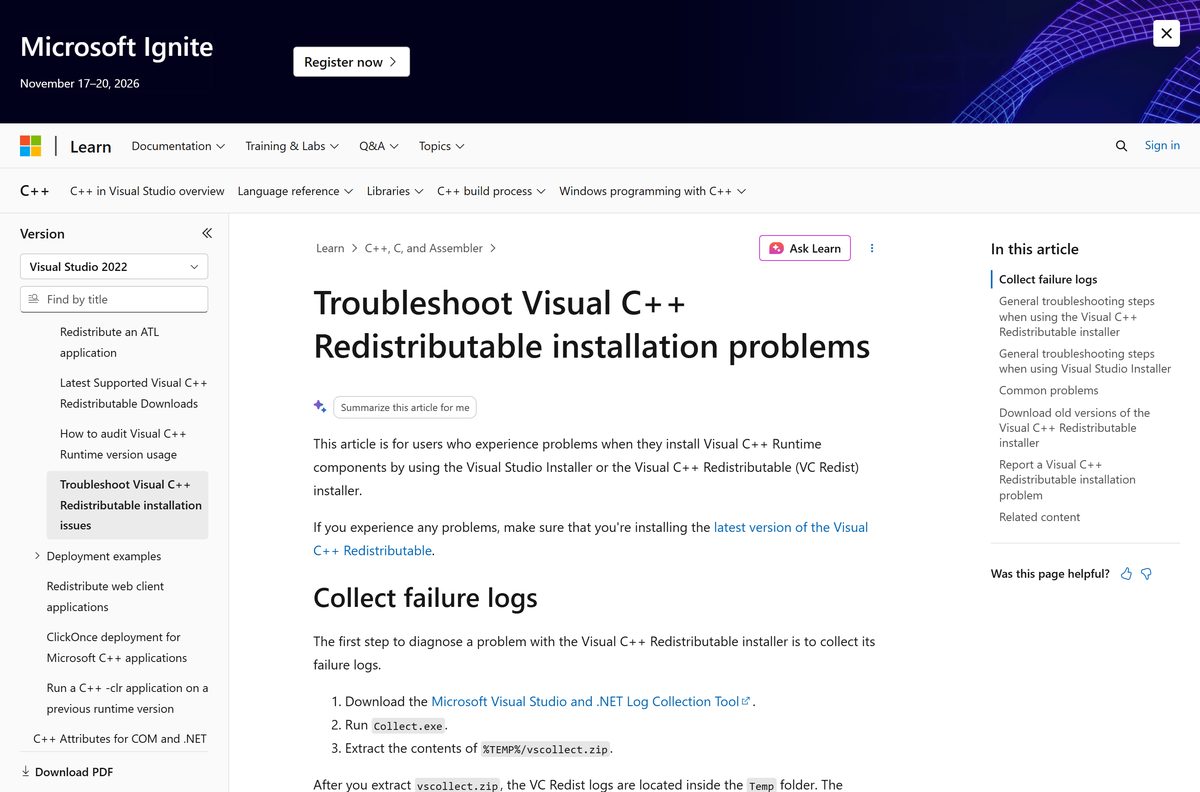
Setup writes a log to %TEMP% named dd_vcredist_
Setup fails with return code 1603
This is the generic Windows Installer failure, so the code alone identifies nothing. The log carries the real reason.
- Open %TEMP% and sort by date to find the newest dd_vcredist_ log.
- Search the log for Error and note the second code it reports.
- Follow the fix for that code in the sections below.
- Collect every log at once with the Microsoft Visual Studio and .NET Log Collection Tool when you plan to report the failure.
Setup fails with error code 5, access denied
A permissions problem. Security software and group policy both produce it.
- Turn off Windows Defender real-time protection.
- Disable any corporate endpoint protection for the moment.
- Run the package again.
- Right-click the package and select Run as administrator when it still fails.
- Turn every protection setting back on afterwards.
Setup fails with error code 32, file is locked
Another process holds a runtime file open.
- Close every running application.
- Run the package again.
- Restart the PC to release the locked files.
- Run the package once more after the restart.
Setup fails with error code 1620, 0x80091007 or 0x80070654
A corrupted package cache. The installer cannot open the MSI or its payload fails the hash check.
- Open %ProgramData%\Microsoft\VisualStudio\Packages .
- Delete everything inside that folder so the cache regenerates.
- Download the package again from the official page.
- Run the installer again.
Setup fails with error code 1714, older version cannot be removed
The Windows Installer cache for the previous runtime is damaged, so the upgrade cannot uninstall it.
- Open the log and note the version named in the 1714 line, such as 14.40.33816.
- Remove that version through the Windows Installer and accept the troubleshooter if it offers to run.
- Download that exact build from the Visual Studio release channel template when removal fails.
- Run the old package and choose Uninstall.
- Install the current package again.
An app reports a missing DLL after a clean install
The installed package does not match the application’s architecture.
- Check whether the app is 32-bit or 64-bit in Task Manager, on the Details tab.
- Install the matching package, adding VC_redist.x86.exe for a 32-bit app.
- Install all pending updates from Windows Update and reboot.
- Run the package again.
How to uninstall a Visual C++ Redistributable package
Remove a runtime only when an upgrade demands it. Applications built against it stop working the moment it goes.
- Press Windows + I, open Apps, then Installed apps.
- Search for Visual C++ and find the exact entry, including its architecture.
- Select the three dots next to it, then select Uninstall.
- Confirm Uninstall and select Yes at the User Account Control prompt.
- Run vc_redist.x64.exe /uninstall from an elevated prompt when the entry refuses to go.
- Reinstall the current package straight afterwards so dependent apps keep running.
The /repair switch fixes a damaged installation without removing it, which is the safer first move.
Frequently asked questions
Is the Visual C++ Redistributable free?
Yes. Microsoft publishes the x64, x86 and ARM64 packages as free permalink downloads with no account and no trial. Only redistribution inside your own installer carries a condition, and that is limited to licensed Visual Studio users.
What is the official Visual C++ Redistributable download page?
It is the latest supported Visual C++ Redistributable downloads article on learn.microsoft.com. It links the three permalinks at aka.ms and lists the legacy 2013, 2012, 2010, 2008 and 2005 packages further down the page.
Does the Visual C++ Redistributable work on Windows 11?
Yes. Microsoft supports the latest v14 package on Windows 10 and Windows 11, plus Windows Server 2016, 2019, 2022 and 2025. Older Windows releases need an older package instead.
How big is the Visual C++ Redistributable download?
The x64 package is 17.9 MB, the ARM64 package is 11.3 MB and the x86 package is 6.6 MB. Each one is a standalone installer, so nothing further is fetched during setup.
Is there an offline installer?
Yes. Every package is already offline: the downloaded file carries the runtime. Administrators who want the contents unpacked for staging can run the package with the /layout switch.
Is there a Visual C++ Redistributable for Mac?
No. Microsoft lists only Windows 10, Windows 11 and Windows Server 2016 through 2025 as supported. On a Mac, install the package inside a Windows virtual machine rather than on macOS.
Do I need the x86 package on a 64-bit PC?
Often yes. A 32-bit application links against the 32-bit runtime even on 64-bit Windows, so installing both packages is normal and they do not conflict.
Which package do I need on an ARM64 PC?
Install the ARM64 package for native ARM64 apps. The x64 package also contains the ARM64 binaries, so installing it on an ARM64 device covers emulated x64 apps and the ARM64 files at once.
Is the Visual C++ Redistributable safe to install?
Yes, when the file comes from Microsoft. Microsoft’s guidance is never to install a package that was not downloaded from a Microsoft site and never to install one that Microsoft did not sign.
What is the latest Visual C++ Redistributable version?
Microsoft does not print the build number on the download page because it changes often. Download the package, open Properties, then Details, and read File version to see the build you have.
Why will the Visual C++ Redistributable not install?
Check the log in %TEMP% named dd_vcredist_. Code 5 means permissions, 32 means a locked file, 1620 means a corrupted cache and 1714 means a previous version cannot be removed.
Do I need the 2015, 2017, 2019 and 2022 packages separately?
No. Visual Studio 2017 and later share one set of runtime files, and the current package upgrades the 2015 runtime in place. One v14 package per architecture covers all of them.
Can I delete old Visual C++ Redistributable entries?
Leave the 2013 and older entries alone, because they install side by side and their applications still depend on them. Removing a runtime an app was built against stops that app from starting.