SonicWall NetExtender is a free SSL VPN client you download from SonicWall and install on Windows 11 and Windows 10. It puts your PC on the network behind a SonicWall firewall or an SMA 100 appliance.
This guide covers the official download page, the 32-bit, 64-bit and ARM64 builds, silent MSI deployment for admins, the client Mac users need instead, and fixes for the errors that block a session.
The client itself costs nothing. The licence that lets a session connect sits on the appliance, not on the download.
Check the SonicWall NetExtender requirements before you download
NetExtender is a client for an appliance you already own. Without a licensed firewall and an enabled SSL VPN service, the installer runs but no session starts.
| Field | Detail |
|---|---|
| Software | SonicWall NetExtender |
| Developer | SonicWall Inc. |
| Latest version | 10.3.5 for Windows, May 2026 |
| License | Free client; the appliance carries the SSL VPN licence |
| Download size | Not published by SonicWall |
| Supported OS | Windows 11 and Windows 10; Linux on Ubuntu-based distributions |
| Architecture | 32-bit, 64-bit and ARM64 |
| macOS | Not supported; SonicWall points Mac users to Mobile Connect |
| Offline installer | Yes, as an EXE or an MSI you save and run |
| Appliance needed | SonicWall firewall on SonicOS 6.5.5.2, 7 or 8, or SMA 100 on 10.2.2.3 or later |
| Official download source | sonicwall.com VPN Clients |
| Last verified | 2026-09-22 |
Which SonicWall NetExtender download do you need?
Press Windows + Pause and read System type to see whether your copy of Windows is 64-bit, 32-bit or ARM-based. Then match that row below.
| Your machine | Build to take | Where it comes from |
|---|---|---|
| Windows 11 or Windows 10 on a 64-bit Intel or AMD chip | NetExtender 10.3.5, 64-bit MSI or EXE | VPN Clients page |
| Windows 11 on a Snapdragon or other ARM processor | NetExtender 10.3.5, ARM64 build | VPN Clients page |
| An older 32-bit Windows 10 PC | NetExtender 10.3.5, 32-bit MSI or EXE | VPN Clients page |
| An Ubuntu-based Linux desktop | NetExtender.Linux archive, extracted and installed from a terminal | Linux install guide |
| A Mac | Mobile Connect, because no Mac build of this client exists | Mac App Store listing |
Download SonicWall NetExtender from the official SonicWall page
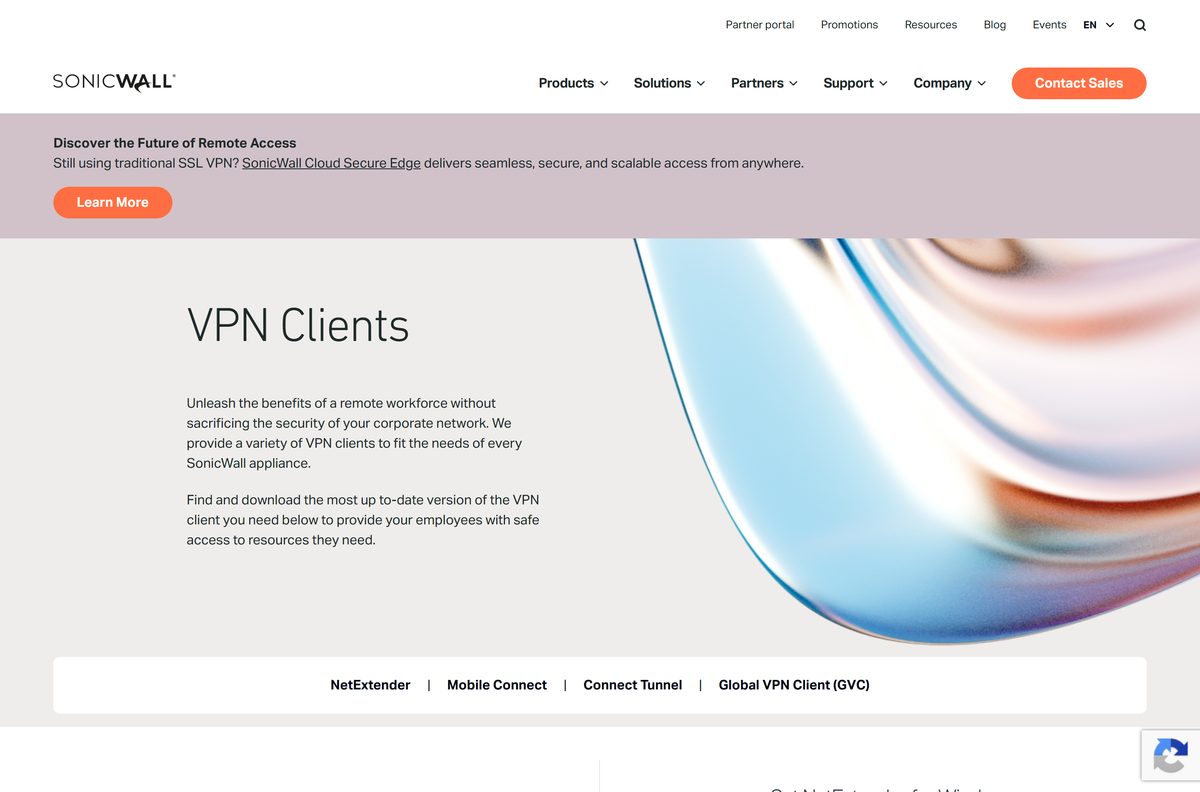
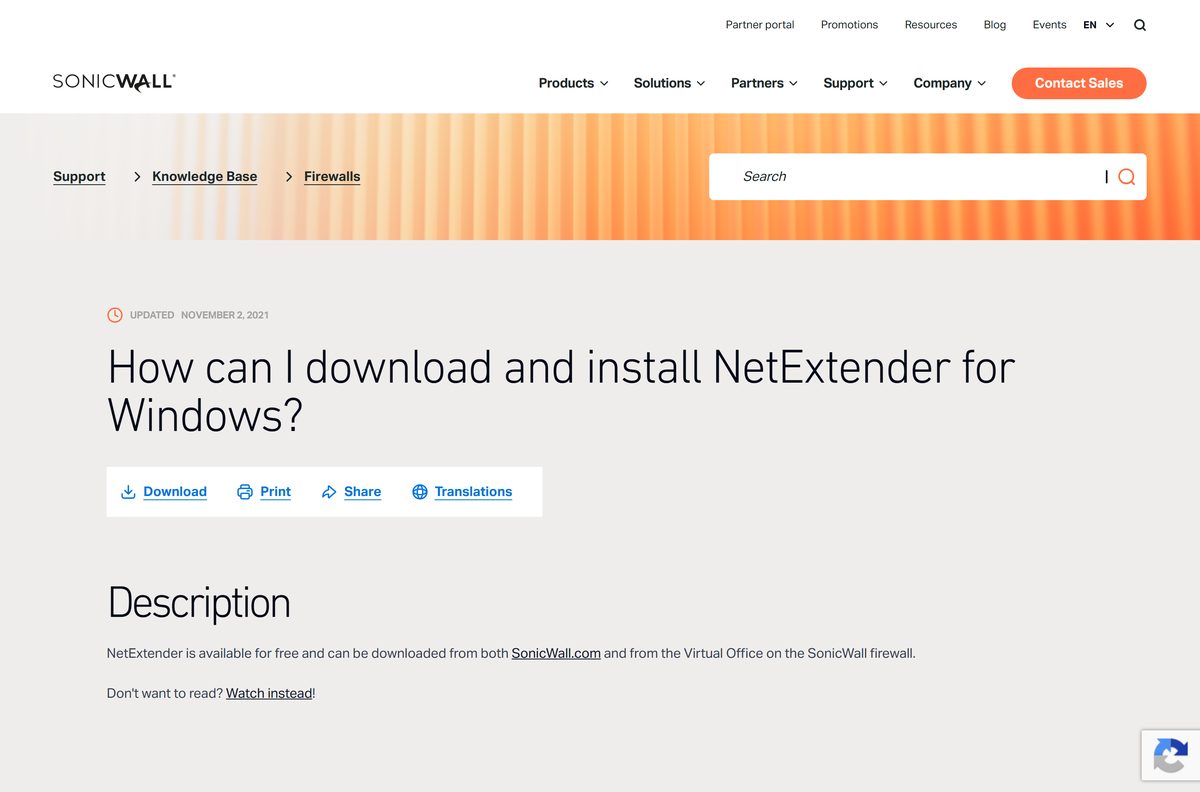
SonicWall hosts every client on one page. Select NetExtender, choose a version under Get NetExtender for Windows, then select Download.
- SonicWall VPN Clients download page — Windows and Linux builds, MSI and EXE, with a version picker
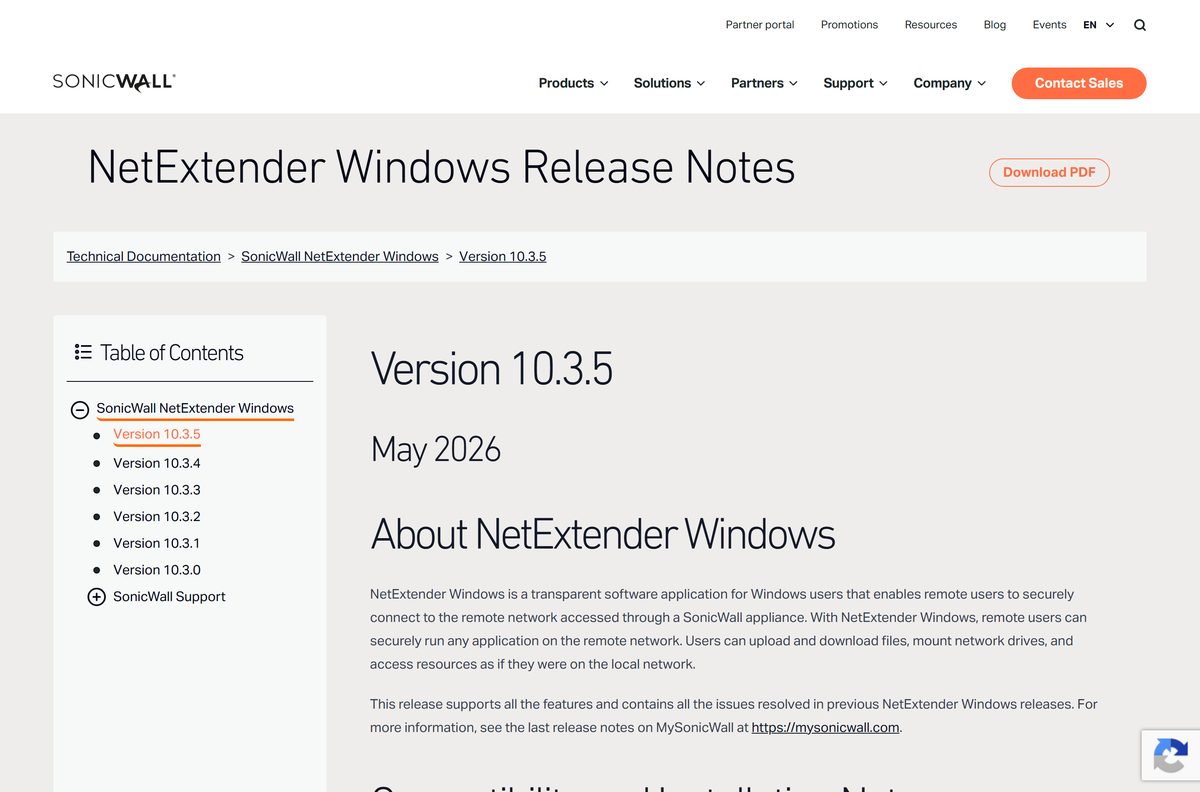
- Windows release notes for version 10.3.5 — Lists the three architectures and the firmware each one supports
- SonicWall guide to downloading and installing the Windows client — Covers the sonicwall.com route and the Virtual Office route
- Linux download and install guide — Archive extraction, Java runtime prerequisite and the install script
A second route exists when your firewall already runs SSL VPN. Browse to the appliance address with its SSL VPN port, sign in as a user in the SSLVPN Services group, then select the Windows client link on the Virtual Office page.
How to install SonicWall NetExtender on Windows 11 and 10
Have three values ready before you start: the server address, your user name and the domain. An administrator issues all three, and the client cannot guess any of them.
- Save the installer from the VPN Clients page instead of opening it straight from the browser.
- Double-click the downloaded package and select Yes at the User Account Control prompt.
- Select Next on the welcome screen of the setup wizard.
- Accept the licence agreement, then select Next.
- Leave the destination folder alone unless your build standard names another path, then select Install.
- Select Install again if Windows Security asks about the network device software.
- Select Finish, then launch the client from the Start menu.
- Type the server address, user name, password and domain, then select Connect.
Download the SonicWall NetExtender MSI and push it with Group Policy
The MSI accepts properties on the command line, so a domain rollout can arrive pre-configured with the server and domain already filled in.
| Property | What it sets | Example |
|---|---|---|
| SERVER | The firewall or SMA address the client dials | SERVER=vpn.example.com |
| DOMAIN | The SSL VPN domain on the appliance | DOMAIN=LocalDomain |
| MODE | Connection behaviour: default, onlyone or alwayson | MODE=alwayson |
| netlogon | Brings the tunnel up before the Windows sign-in | netlogon=true |
| ALLUSERS | Installs for every account on the machine | ALLUSERS=2 |
| Full syntax | SonicWall’s own command reference | Silent installation commands |
A complete line looks like msiexec.exe /i “NetExtender-x64-10.3.5.msi” /qn MODE=default SERVER=vpn.example.com DOMAIN=LocalDomain .
Test the package on one machine first. A wrong DOMAIN value installs cleanly and then fails every sign-in.
Which SonicWall VPN client do you need on a Mac?
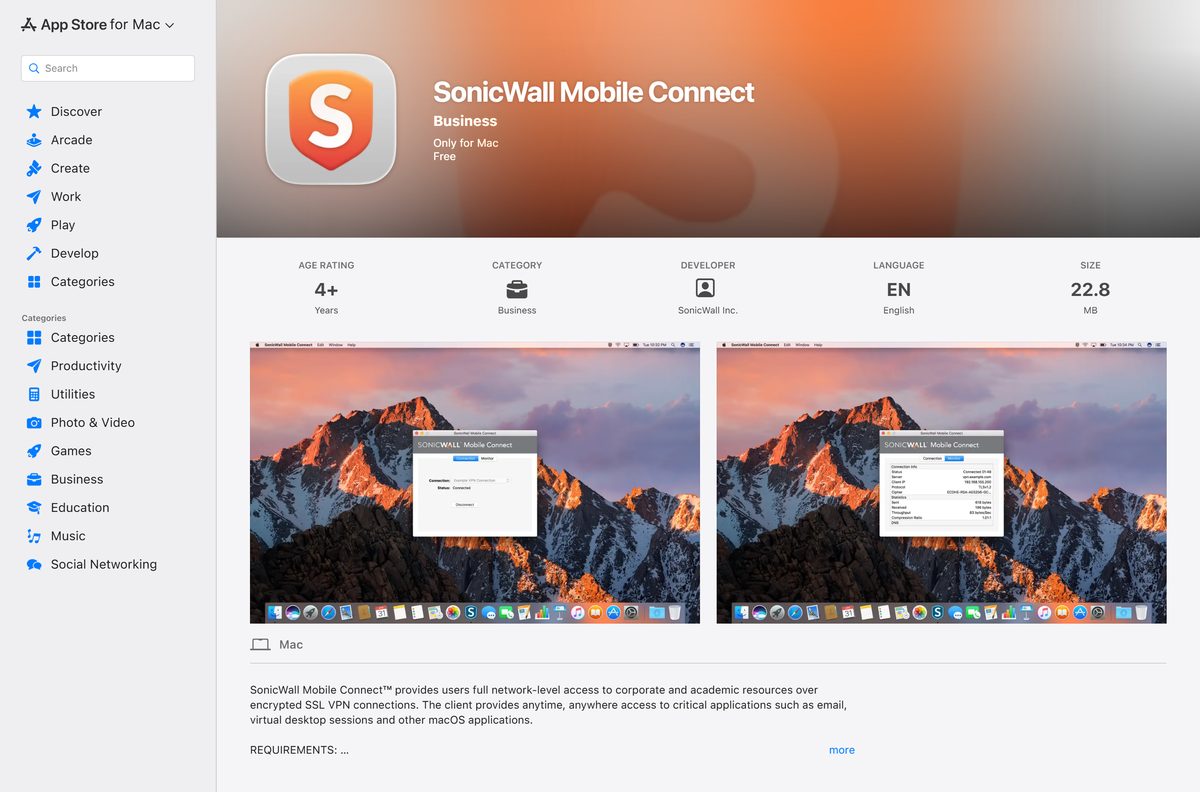
SonicWall builds NetExtender for Windows and Linux only. Its Linux guide states that macOS 10.12 and later do not support the client, and the client FAQ sends Mac users to Mobile Connect.
| Your setup | What to install | Source |
|---|---|---|
| A Mac connecting to a TZ, NSa, NSsp or NSv firewall, or an SMA 100 | SonicWall Mobile Connect | Mac App Store |
| A Mac managed against an SMA 1000 appliance | Connect Tunnel for Mac | VPN Clients page |
| A Mac that has to run this exact client | Run it inside a Windows virtual machine | Client FAQs |
Is SonicWall NetExtender free?
Two different things get confused here: the client and the service it dials.
Yes, the client is free to download and free to install. SonicWall publishes it at no cost on its VPN Clients page and repeats that in its install guide. The money sits in the appliance: the firewall or SMA 100 needs SSL VPN switched on and enough concurrent-user licences for the people connecting. Any site selling you the installer, bundling it with a download manager or charging for a licence key is not SonicWall.
Choose between NetExtender 10.3.5 and 10.2.341
SonicWall maintains two branches. The 10.2 line dates from July 2024 and still appears in the compatibility tables; the 10.3 line carries the current fixes.
Install the 10.3.5 build unless your administrator has pinned the estate to the 10.2 branch. It is the current release, it adds DTLS over UDP alongside the existing TLS transport, and it clears the error where the client service failed to respond on some systems. SonicWall also warns that firewalls on SonicOS 7.3.3 or later and SonicOS 8.2.0 or later refuse clients between 10.3.0 and 10.3.3, which surfaces as MSI is too old, please upgrade NetExtender.
How to check your SonicWall NetExtender version and update it
Windows records the installed build, so you do not need to open the client to read it.
- Press Windows + I to open Settings, then select Apps.
- Select Installed apps and search for the NetExtender entry.
- Read the version shown beside it.
- Compare that number with the current build in SonicWall’s Windows release notes.
- Open the VPN Clients page, pick the newest version under Get NetExtender for Windows, then select Download.
- Run the new installer over the existing copy; it replaces the old build without an uninstall.
- Reconnect and confirm the session assigns a client IP address.
What SonicWall appliances and firmware NetExtender connects to
The client is only half of the connection. Check the appliance on the other end before you troubleshoot the PC.
| Appliance | Firmware | Generation |
|---|---|---|
| TZ80 to TZ680 and NSa 2800 to NSa 6800 | SonicOS 8 | Gen 8 |
| NSv XS virtual firewall | SonicOS 8.2.1-8010 | Gen 8 |
| TZ270 to TZ670, NSa 2700 to NSa 6700, NSv 270 to NSv 870, NSsp models | SonicOS 7 | Gen 7 |
| TZ300 to TZ600 and NSa 2600 to NSa 9650 | SonicOS 6.5.5.2-28n | Gen 6.5 |
| SMA 100 Series | 10.2.2.3 or 10.2.2.4 | Secure Mobile Access |
Fix SonicWall NetExtender not installing or not connecting on Windows 11
Four failures account for most support calls. Work through the one that matches the message on screen.
MSI is too old, please upgrade NetExtender
The firewall enforces a minimum client version, and builds 10.3.0 to 10.3.3 fall below it on SonicOS 7.3.3 and SonicOS 8.2.0 firmware.
- Ask your administrator which SonicOS build the firewall runs.
- Open the VPN Clients page and download version 10.3.4 or later.
- Run the installer over the existing copy, then reconnect.
A damaged version of NetExtender was detected on your computer
A previous install left registry keys behind, so the setup refuses to continue.
- Close the client and any browser window showing the Virtual Office page.
- Run SonicWall’s cleanup tool with administrator rights.
- Restart the PC when the tool finishes.
- Install the current build again from the VPN Clients page.
The service does not respond
A known defect on some systems, resolved in the 10.3.5 release.
- Check the installed version under Settings > Apps > Installed apps.
- Install the 10.3.5 build if the machine is on anything older.
- Open Services, right-click the SonicWall NetExtender entry and select Restart if the message survives the upgrade.
- Reboot and connect again.
It installs but the session never starts
The appliance, not the PC, is refusing the login.
- Confirm the SSL VPN service is enabled on the firewall.
- Confirm your account belongs to the SSLVPN Services group on the appliance.
- Enter the server address with its SSL VPN port, such as vpn.example.com:4433 .
- Type the domain exactly as the administrator supplied it, including its capitalisation.
How to uninstall SonicWall NetExtender cleanly
A plain uninstall leaves a service and a folder behind often enough that SonicWall ships a separate cleaner for it.
- Select Start, open Settings, then select Apps and Installed apps.
- Find the NetExtender entry, select the three-dot menu and select Uninstall.
- Restart the PC.
- Run SonicWall’s cleanup tool with administrator rights if the entry or its registry keys survive, then restart again.
- Open Command Prompt as administrator and run sc delete SonicWall_NetExtender if the service still appears.
- Delete C:\Program Files (x86)\SonicWall\SSL-VPN\NetExtender if the folder is still on disk.
Choose between NetExtender, Mobile Connect and Connect Tunnel
SonicWall ships four clients, and the right one depends on the appliance rather than on preference.
| Client | Platforms | Connects to |
|---|---|---|
| NetExtender | Windows, Linux | TZ, NSa, NSsp and NSv firewalls, plus SMA 100 |
| Mobile Connect | iOS, macOS, Android, Chrome OS | Those same firewalls, SMA 100 and SMA 1000 |
| Connect Tunnel | Windows, macOS, Linux | SMA 1000 Series only |
| Global VPN Client | Windows | IPsec connections to TZ, NSa, NSsp and NSv firewalls |
All four sit on the same VPN Clients page.
Frequently asked questions
Is SonicWall NetExtender free to download?
Yes. SonicWall publishes the client at no cost on its VPN Clients page, and its install guide repeats that. The charge sits on the appliance instead, which needs SSL VPN enabled and a concurrent-user licence for each person connecting.
Where is the official SonicWall NetExtender download page?
It is the VPN Clients page on sonicwall.com. Select NetExtender, pick a version under Get NetExtender for Windows, then select Download. If your firewall already runs SSL VPN, the Virtual Office page on the appliance offers the same client.
Does NetExtender work on Windows 11?
Yes. Version 10.3.5 supports Windows 10 and Windows 11, and ships 32-bit, 64-bit and ARM64 builds. The ARM64 package covers Windows 11 on Snapdragon laptops, which earlier releases did not cover.
How big is the NetExtender download?
SonicWall does not publish a file size. The VPN Clients page serves the installer through a version picker with no static link, so the size only shows in your browser once the transfer begins.
Is there an offline NetExtender installer?
Yes. Both the EXE and the MSI are ordinary files you save and then run, so you can copy either one to a machine that has no internet access. The MSI is the package to use for a scripted or Group Policy rollout.
Is there a NetExtender client for Mac?
No. SonicWall builds this client for Windows and Linux, and its Linux guide states that macOS 10.12 and later do not support it. Mac users install SonicWall Mobile Connect from the Mac App Store instead.
Does NetExtender have a 64-bit or ARM64 build?
Both. Version 10.3.5 lists a 32-bit package for older Windows 10 PCs, a 64-bit package for Intel and AMD machines, and an ARM64 package for Windows 11 on ARM. Check System type in Windows before you choose.
Is NetExtender safe to install?
It is when the file comes from sonicwall.com or from your own firewall’s Virtual Office page. The client installs a virtual network adapter and a Windows service, which is why aggregator sites repackaging it are worth avoiding.
What is the latest NetExtender version for Windows?
10.3.5, released in May 2026. It adds DTLS over UDP alongside the existing TLS transport and fixes the error where the client service failed to respond. The older 10.2.341 branch dates from July 2024.
Why does NetExtender say the MSI is too old?
The firewall enforces a minimum client version. SonicOS 7.3.3 and later and SonicOS 8.2.0 and later reject builds 10.3.0 through 10.3.3, so download 10.3.4 or newer and run it over the existing copy.