The ADB download from Google is one zip file: Android SDK Platform Tools 37.0.1, 7.7 MB for Windows 11 and Windows 10. Extract it and adb.exe is ready to run.
There is no setup program and no version to choose between. Macs get a 15.4 MB archive of the same package, Linux an 8.6 MB one, and every archive carries fastboot alongside adb .
This guide covers the official files and their sizes, extracting them, putting the folder on your PATH, the Android Studio route, what the licence allows, and fixes for a phone adb cannot see.
Which ADB download do you need?
Match your computer to an archive. Google branches the package by operating system and nothing else.
| Your setup | File to download | Size |
|---|---|---|
| Windows 11 or Windows 10 PC | platform-tools-latest-windows.zip | 7.7 MB |
| Mac on Apple silicon or Intel | platform-tools-latest-darwin.zip | 15.4 MB |
| Linux workstation | platform-tools-latest-linux.zip | 8.6 MB |
| Android Studio already on the machine | SDK Manager, SDK Tools tab | Handled by the IDE |
| A build server or scripted setup | sdkmanager platform-tools | Handled by the SDK |
| Windows PC debugging a Pixel over USB | Google USB Driver, in addition | SDK Tools tab |
There is no 32-bit or 64-bit decision to make, and no separate Apple silicon archive. One file per platform is the whole catalogue.
Check the ADB system requirements and package contents
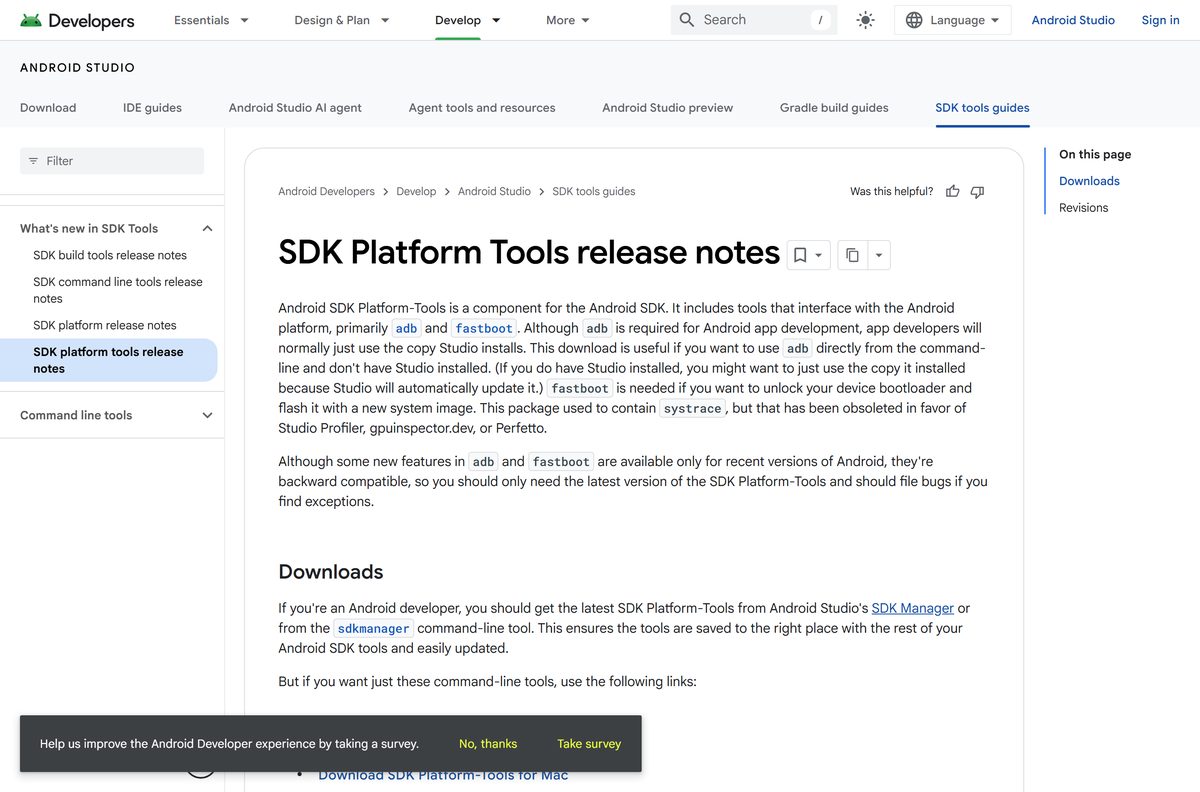
The package asks almost nothing of the computer. What it needs is a device with debugging turned on at the other end of the cable.
| Field | Value |
|---|---|
| Developer | Google LLC |
| Package name | Android SDK Platform Tools |
| Latest version | 37.0.1 |
| Released | July 2026 |
| Licence | Free, royalty-free under the Android Software Development Kit License Agreement |
| Supported Windows | Windows 11 and Windows 10, plus earlier releases carrying the Universal C Runtime |
| Supported macOS and Linux | One archive each, no version floor published |
| Architecture | One archive per operating system, with no 32-bit or 64-bit split |
| Download size | 7.7 MB on Windows, 15.4 MB on Mac, 8.6 MB on Linux |
| Installer | None. The download is a zip you extract |
| Tools included | adb and fastboot |
| Windows dependency | Windows Universal C Runtime, normally delivered by Windows Update |
| USB driver | Google USB Driver on Windows; none on macOS or Linux |
| Device requirement | USB debugging enabled under Developer options |
| Last verified | 2026-09-22 |
Disk space is the smallest line item here. The extracted folder holds a handful of executables and their support libraries.
Download ADB from the official Google source
Google publishes the pages on developer.android.com and serves the files from dl.google.com. A third domain is somebody else’s copy.
- SDK Platform Tools release page — the July 2026 release, with the full revision history
- Windows archive — 8,044,989 bytes
- Mac archive — 16,110,554 bytes
- Linux archive — 9,054,187 bytes
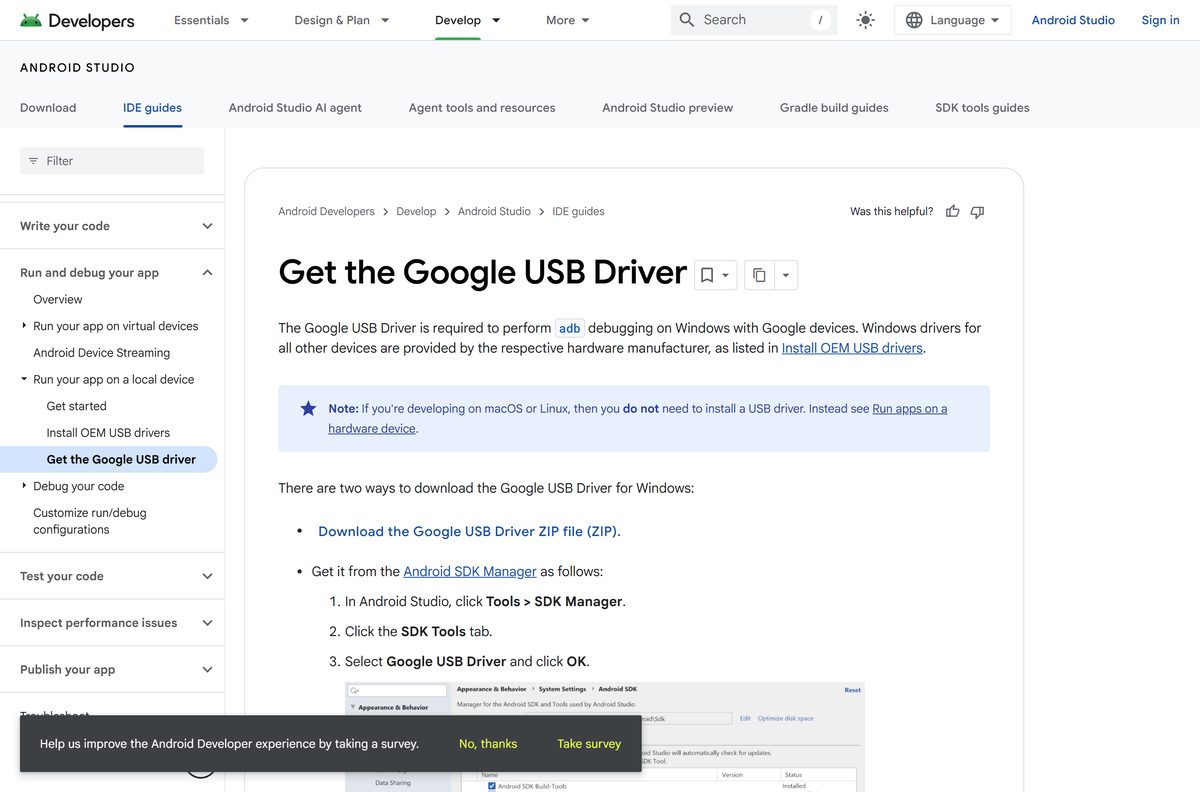
- Google USB Driver for Windows — needed for adb debugging with Google devices
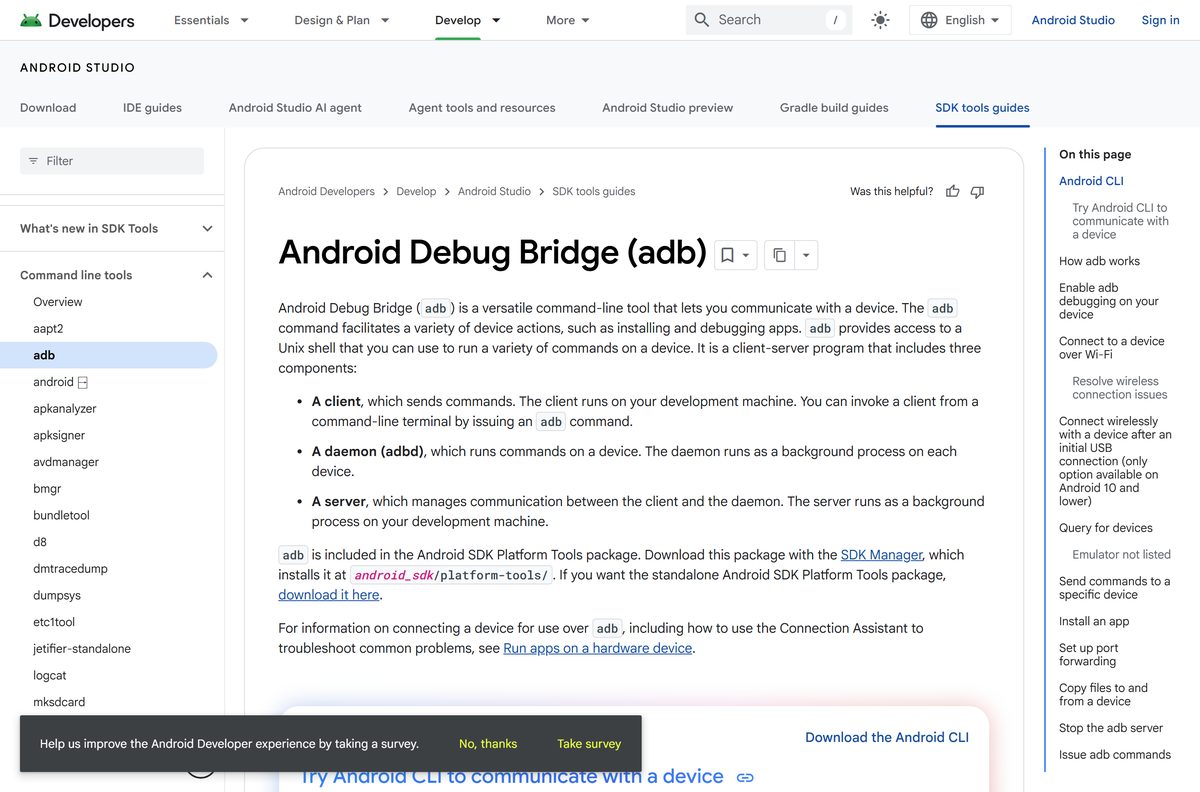
- adb command reference — every command, flag and connection mode
The word latest in each filename is literal. The address never changes, so a bookmark keeps working after the next release.
How to install ADB on Windows 11 and 10
Installing here means extracting a folder and telling Windows where it is. Skip the second half and every command needs a full path in front of it.
- Download platform-tools-latest-windows.zip from Google.
- Right-click the file in File Explorer and select Extract All.
- Set the destination to C:\platform-tools and click Extract.
- Press Windows + R, type sysdm.cpl and press Enter.
- Open the Advanced tab and click Environment Variables.
- Select Path under System variables and click Edit.
- Click New, type C:\platform-tools , then click OK on all three windows.
- Open a new Terminal window and run adb devices -l to confirm it answers.
A PATH change reaches only windows opened after it. A Command Prompt left open from before still reports adb as unrecognised.
Install ADB through Android Studio or the sdkmanager command
Android Studio keeps the package current and puts the Windows USB driver one checkbox away. On a build machine the command line does the same job without the IDE.
- Open Android Studio and select Tools > SDK Manager.
- Click the SDK Tools tab.
- Tick Android SDK Platform-Tools and click OK.
- Tick Google USB Driver in the same list if you debug a Google device over USB on Windows.
- From a command line instead, run sdkmanager platform-tools from android_sdk/cmdline-tools/latest/bin .
- Run sdkmanager –list to see installed and available packages.
- Run sdkmanager –update to bring every installed package up to date.
Android Studio extracts the tools to android_sdk/platform-tools/ and the driver to android_sdk\extras\google\usb_driver\ . Point your PATH at the first of those and both routes behave identically.
Google marks sdkmanager as deprecated in favour of the newer android sdk install command, so a long-lived script is worth revisiting.
How to verify the ADB download came from Google
Three checks take under a minute and rule out a repackaged copy.
- Check that the address you downloaded from starts with https://dl.google.com/android/repository/ .
- Right-click the zip, select Properties and read the size. The Windows archive is 8,044,989 bytes and the Mac archive 16,110,554 bytes.
- Extract the archive and confirm the folder holds adb and fastboot .
- Run adb server-status and compare the version line against Google’s release page.
- Delete the folder and download again from Google if either the size or the version disagrees.
One-click ADB installers passed around on forums are this same archive rewrapped by strangers. The zip above costs the same and carries no extras.
Run ADB without installing it
No setup program runs, so a USB stick works as well as a drive. That is the answer on a locked-down PC.
- Download the Windows archive and extract it to a folder or a USB stick.
- Open the extracted platform-tools folder in File Explorer.
- Type cmd in the address bar and press Enter to open a prompt in that folder.
- Run adb devices -l to list attached devices with their model names.
- Run adb kill-server before you unplug the stick, so no background process holds the folder open.
Copy the same folder to another computer and it runs there too. Skipping the PATH step costs you only the ability to call adb from elsewhere.
Which ADB download do you need for your Mac?
One archive covers every Mac Google supports, and macOS needs no USB driver at all.
| Your Mac | Download | Notes |
|---|---|---|
| Apple M1, M2, M3 or M4 | platform-tools-latest-darwin.zip | The same 15.4 MB archive as every other Mac |
| Intel Mac | platform-tools-latest-darwin.zip | Google publishes no separate Intel build |
| Android Studio already installed | SDK Manager, SDK Tools tab | Updates arrive with the rest of the SDK |
| Unsure about USB drivers | Google’s driver guidance | macOS and Linux need none |
Double-click the zip in Finder, then run ./adb devices from the extracted platform-tools folder in Terminal.
Add export PATH=$PATH:~/platform-tools to your shell profile to call adb from any directory.
Is ADB free?
Yes, and no paid edition exists. Google LLC licenses the SDK royalty-free under the Android Software Development Kit License Agreement, and platform-tools is part of that SDK. The grant covers using the SDK to develop applications for compatible Android implementations. No account, sign-in or trial period stands between you and the archive, and the download page carries no upsell. Any site charging for an ADB installer is selling a repackaged copy of a free Google file.
Should you install standalone ADB or the full Android SDK?
Take the standalone archive unless Android Studio is already on the machine. The zip is 7.7 MB and needs no IDE, no Java toolchain and no project. Where Android Studio is installed, use its SDK Manager instead, because a second copy on the PATH makes it ambiguous which adb a terminal picks up. Build servers are the third case: install through sdkmanager so the version is pinned in a script rather than in somebody’s Downloads folder.
How to check your ADB version and update it
Updating is a matter of overwriting a folder. Device keys and settings live elsewhere, so nothing is lost.
- Open Terminal and run adb server-status .
- Read the version line in the output, along with mdns_backend .
- Compare it against 37.0.1 on Google’s release page.
- Run adb kill-server so Windows can replace the running executable.
- Download the archive again and extract it over your existing folder, choosing Replace the files in the destination.
- Run sdkmanager –update instead when Android Studio manages the package.
Release 37.0.0 switched the default mDNS backend to libadbmdns, and 37.0.1 replaced libusb on Windows with libadbusb and dropped the openscreen backend. An older copy behaves differently the moment a device connects over Wi-Fi.
What ADB can connect to
The cable is only one of the routes. Wireless pairing depends on the Android release at the far end.
| Target | What it needs | Notes |
|---|---|---|
| Phone or tablet over USB | USB debugging under Developer options | Android 4.2.2 and higher shows an RSA key prompt on first connection |
| Phone over Wi-Fi | Android 11 or higher, platform-tools 37.0.0 or newer | Pair with adb pair ipaddr:port and the code on screen |
| Android TV or Wear OS over Wi-Fi | Android 13 or higher | Turn on Wireless debugging, then pair the same way |
| Wear OS 6 watch | ADB debugging under Developer options | The toggle carries a different name on Wear OS |
| Older phones on Android 10 and lower | A USB cable first | Run adb tcpip 5555, unplug, then adb connect ip:5555 |
| Android Emulator | Android Studio | Shows up as emulator-5554 in adb devices |
Both the computer and the device have to sit on the same wireless network before pairing works.
Fix ADB not working on Windows 11 or 10
adb is not recognised as a command
The folder is not on the PATH, or the terminal predates the change.
- Close every Command Prompt and Terminal window.
- Press Windows + R, type sysdm.cpl , press Enter, then open Advanced > Environment Variables.
- Confirm C:\platform-tools sits in the Path list under System variables.
- Open a new Terminal and run adb devices -l again.
- Run .\adb.exe devices from inside the extracted folder to rule the PATH out entirely.
adb devices lists nothing
Debugging is off on the phone, or the cable carries power only.
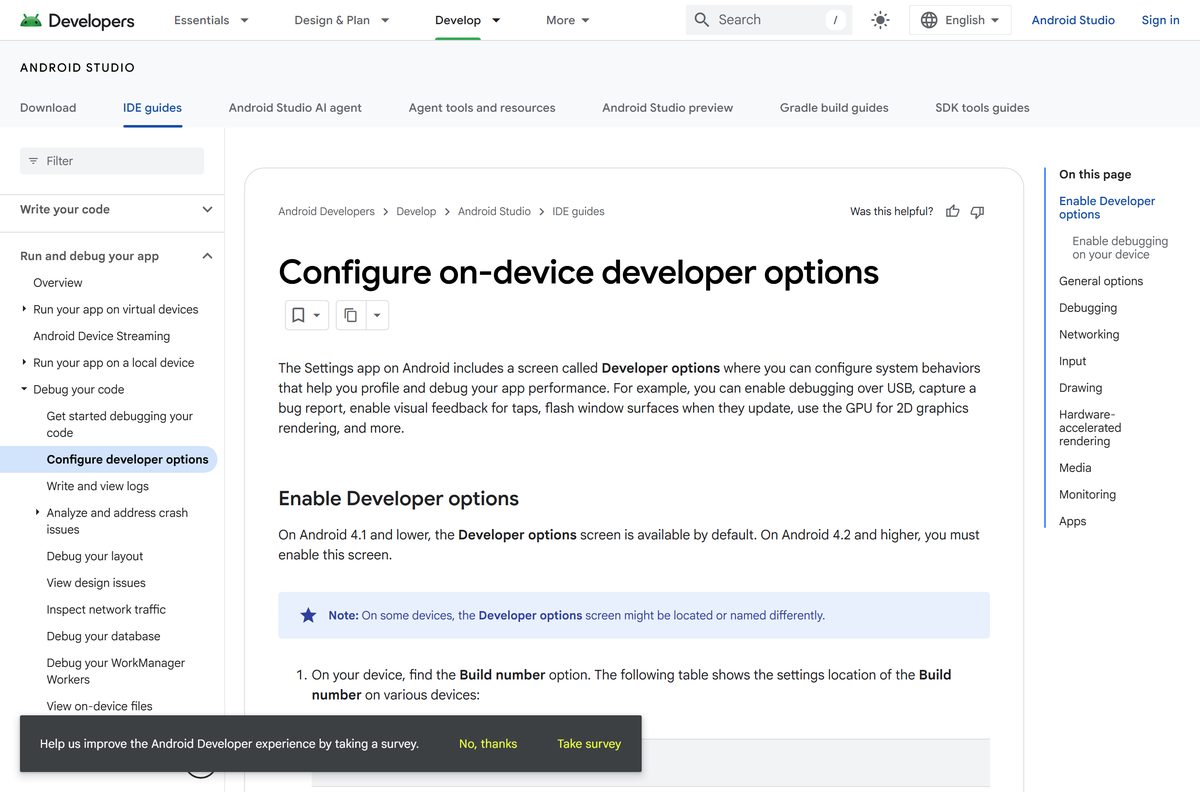
- Open Settings > About phone on the device and tap Build number seven times, until it reads You are now a developer!
- Go back, open Developer options and turn on USB debugging.
- Select the Charging this device via USB notification and set Use USB for to File transfer, as Google describes.
- Swap the cable for one rated for data rather than charging.
- Run adb kill-server , then adb devices -l to restart the server.
The device shows as unauthorized
The RSA key prompt on the phone was dismissed or never appeared.
- Unlock the phone and watch its screen while you reconnect the cable.
- Tap Allow on the Allow USB debugging? dialog, and tick the always-allow box.
- Turn USB debugging off and on again in Developer options to force a fresh prompt.
- Run adb kill-server on the computer, then reconnect the cable.
Windows never detects a Google device
Windows is missing the Google USB Driver. macOS and Linux need no driver.
- Install Google USB Driver from Tools > SDK Manager > SDK Tools in Android Studio.
- Connect the device, then open Computer Management and select Device Manager.
- Expand Portable Devices or Other Devices and find the connected device.
- Right-click it and select Update Driver Software, then Browse my computer for driver software.
- Click Browse, point at android_sdk\extras\google\usb_driver\ and click Next.
- Use the manufacturer’s own driver from Google’s OEM list for any device that is not a Google one.
adb.exe fails with a missing DLL
The Windows build depends on the Universal C Runtime, which Windows Update normally supplies.
- Run Windows Update and install every pending update.
- Install the Universal C Runtime package from Microsoft if the error stays.
- Extract the archive again, in case the first extraction stopped early.
- Keep your antivirus and SmartScreen switched on throughout; neither causes this error.
Wireless debugging will not pair
The Android release is too old for ADB Wi-Fi, or the two devices sit on different networks.
- Confirm the phone runs Android 11 or higher, or Android 13 on TV and Wear OS.
- Put the computer and the device on the same wireless network.
- Open Developer options > Wireless debugging and select Pair device with pairing code.
- Run adb pair ipaddr:port with the address on screen, then type the six-digit code.
- Update to platform-tools 37.0.0 or newer, which pairs through the libadbmdns backend.
How to uninstall ADB and clean up after it
There is nothing in Apps > Installed apps to remove. Deleting the folder and the PATH entry is the whole job.
- Run adb kill-server to stop the background server.
- Delete the C:\platform-tools folder in File Explorer.
- Press Windows + R, type sysdm.cpl and press Enter.
- Open Advanced > Environment Variables, select Path, then click Edit.
- Select the C:\platform-tools entry, click Delete, then OK on all three windows.
- Open Developer options on the phone and turn off USB debugging.
- In Android Studio, open Tools > SDK Manager > SDK Tools, untick Android SDK Platform-Tools and click OK.
On a Mac, drag the platform-tools folder to the Bin and delete the export PATH line from your shell profile.
What you can use instead of ADB
Check the job first. Half the reasons people reach for a command line are covered by something Google already ships.
| Tool | Publisher | Best for |
|---|---|---|
| Android Studio | App development, with the SDK Manager and emulator included | |
| sdkmanager | Pinning tool versions on a build server from a script | |
| Google USB Driver | Making Windows see a Google device on the USB port | |
| USB file transfer | Moving photos and files with no developer tooling at all | |
| Developer options | Toggles on the device itself, from GPU overdraw to Wireless debugging |
Android Studio bundles this same package, so installing both leaves two copies on the machine and one ambiguous PATH.
Frequently asked questions
Is ADB free?
Yes. Google licenses the SDK royalty-free under the Android Software Development Kit License Agreement, and platform-tools belongs to that SDK. There is no paid edition, no account and no trial. Any site charging for it is reselling a free file.
What is the official ADB download page?
The SDK Platform Tools release page on developer.android.com. It links three archives served from dl.google.com, one each for Windows, Mac and Linux, and carries the full revision history underneath.
How big is the ADB download?
The Windows archive is 8,044,989 bytes, which rounds to 7.7 MB. The Mac archive is 16,110,554 bytes, or 15.4 MB, and the Linux archive is 9,054,187 bytes, about 8.6 MB.
Which ADB version is current?
Release 37.0.1, published in July 2026. It removed the openscreen backend, added trace levels to ADB_TRACE, and replaced libusb with libadbusb on Windows. Check yours with the adb server-status command.
Is there an ADB installer for Windows?
No. Google ships a zip archive with no setup program. Extract it to a folder such as C:\platform-tools, add that folder to your PATH, and the command works from any terminal window.
Do I need Android Studio to use ADB?
No. The standalone archive runs on its own with no IDE and no Java toolchain. Android Studio earns its place only when you also write apps, and it installs this same package through its SDK Manager.
Is there an ADB download for Mac?
Yes. One 15.4 MB archive covers Apple silicon and Intel Macs, with no separate build for either chip. Extract it and run ./adb from the platform-tools folder in Terminal.
Why is adb not recognised as a command?
The platform-tools folder is not on your PATH, or the terminal window was opened before you added it. Close every window, add the folder under System variables, then open a fresh Terminal.
Why does adb devices show nothing?
USB debugging is off, the cable carries power only, or the USB mode is set to charging. Turn on USB debugging under Developer options, set the connection to File transfer, and try a data cable.
Do I need a USB driver for ADB?
On Windows, yes, for Google devices: install the Google USB Driver from the SDK Tools tab. Other manufacturers publish their own. macOS and Linux need no USB driver at all.
Can ADB connect over Wi-Fi?
Yes, on Android 11 or higher, and Android 13 or higher on TV and Wear OS. Turn on Wireless debugging, run the adb pair command with the address shown, and type the pairing code.
Does the ADB package include fastboot?
Yes. Every archive contains adb and fastboot. The systrace tool was dropped from the package in favour of the Android Studio Profiler, gpuinspector.dev and Perfetto.

Download Android Studio for PC, Windows 11/10 & Mac (Free) - Techdows
[…] SDK Platform Tools (separate guide) […]