To use Google Takeout, sign in at takeout.google.com, tick the products you want, choose a delivery method, file type and archive size, then create the export and download the archive from the emailed link.
This guide covers each setting on the export page, the formats you get back, how long the download link lasts, and what to do when an export fails or comes back incomplete.
The fastest way to use Google Takeout
These steps export a one-time copy of your data with the default settings. Use a desktop computer, because Google recommends downloading and viewing Takeout exports on a computer rather than a phone.
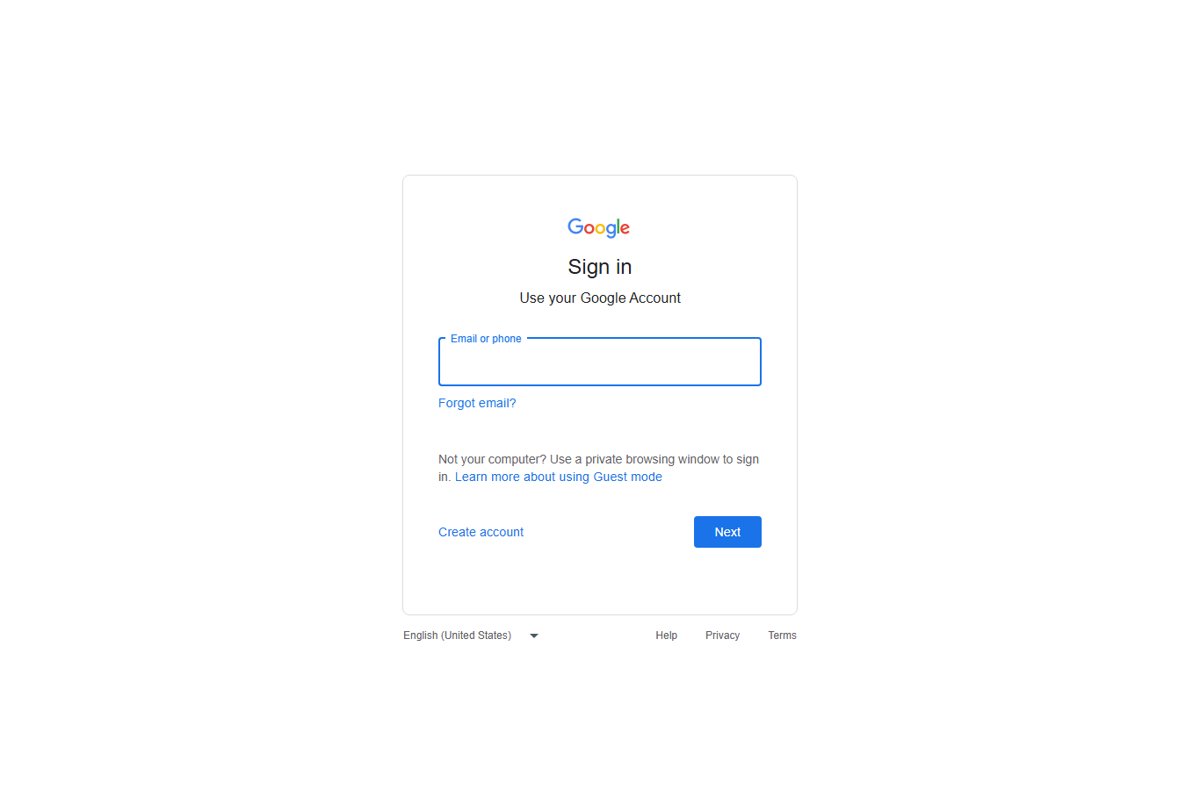
- Sign in to your Google Account and open takeout.google.com.
- Leave the products you want ticked. Every product that holds your data is selected automatically.
- Untick any product you do not want, then select Next step.
- Under Delivery method, keep Send download link via email.
- Keep One-time archive, Zip files and the default archive size, then create the export.
- Open the email from Google when the archive is ready and select the download link.
- Enter your password again if asked, then save each archive file to your computer.
Most people get the link the same day. Large accounts can take up to a few days, and the archive expires in about 7 days.
What is Google Takeout?
Google Takeout is Google's own export tool for the data in your Google Account. It runs in the browser at takeout.google.com, so there is nothing to install.
| Question | Answer |
|---|---|
| What it exports | Data from the Google products you use, such as email, documents, Calendar, Photos, YouTube videos, and registration and account activity |
| Where it lives | takeout.google.com, opened in any browser while signed in |
| Does it delete anything? | No. Downloading your data does not remove it from Google's servers |
| Does it include deleted items? | No. Photos, documents and My Activity items still being deleted are left out |
| Who can use it on work or school accounts | Only users whose Google Workspace administrator allows downloads for those products |
Why Use Google Takeout?
Takeout covers several different jobs, and each one maps to a different setting. Match your reason to a row before you start the export.
| Your reason | Use this | Why |
|---|---|---|
| Keep a personal backup of everything | One-time archive, email link or Add to Drive | A full copy you control, stored where you choose |
| Keep a rolling backup | Scheduled exports | Google builds a new archive every 2 months for one year |
| Move photos to another photo service | The Photos Transfer data option | Copies photos and videos straight to the other service without a download |
| Store the archive in another cloud | Add to Dropbox, Add to Microsoft OneDrive or Add to Box | Google uploads the files for you, so nothing lands on your PC |
| Close the account afterwards | One-time archive of every product | Download everything first, then delete the account |
| Give an app a copy of your data | Start from that app's own website | Third-party copies always begin on the third party's site, not in Takeout |
If you plan to close the account, finish the download first and then follow how to delete your Google account permanently.
Getting Started with Google Takeout
Step 1 on the Takeout page is choosing what goes into the archive. A smaller selection finishes faster and is easier to download.
- Open takeout.google.com and sign in to the account you want to export.
- Scroll the product list. Products that hold your data are already ticked.
- Untick every product you do not need in this archive.
- For a product with a button such as All data included, select it to exclude parts of that product, such as individual Photos albums.
- Select Next step at the bottom of the list to open the archive settings.
Takeout cannot export a date range. Gmail and every other product are exported in full, so trim the archive by product instead of by time period.
Choose the delivery method, frequency, file type and size
Step 2 on the Takeout page has four settings. Pick each one from this table, then create the export.
| Setting | Options | Pick this when |
|---|---|---|
| Delivery method | Send download link via email | You want the files on this computer |
| Delivery method | Add to Drive | You want the archive kept in your Google storage, which is shared by Drive, Gmail and Photos |
| Delivery method | Add to Dropbox, Add to Microsoft OneDrive, Add to Box | You want the archive in another cloud. Google transfers the files, and that provider's terms then apply |
| Export type | One-time archive | You need a single copy now |
| Export type | Scheduled exports | You want a fresh archive every 2 months for one year |
| File type | Zip files | You use Windows and want the files to open without extra software |
| File type | Tgz files | You already have a tool that opens .tgz; Windows may need extra software for it |
| Archive size | Up to 50 GB per file | Choose 50 GB to cut the number of split files; choose a smaller size if large downloads fail |
If your data is larger than the size you chose, Takeout splits it into several archive files. You need all of them for a complete copy.
Create the export and download your data
Step 3 is waiting for the archive and downloading it before the link expires.
- Create the export from the bottom of the settings page.
- Wait for the email from Google. It can take a few minutes to a few days, depending on how much data you selected.
- Open the email and select the link to the archive's location.
- Download each archive file listed there.
- Sign in again when prompted. Google asks for your password, and sometimes 2-Step Verification, to confirm you are the account owner.
- Save every part of a split archive to the same folder.
Each archive expires in about 7 days and can be downloaded only 5 times. After that, create a new export.
If you are enrolled in the Advanced Protection Program, Takeout schedules your archive two days in the future as a security measure.
How to use Google Takeout for photos and Gmail
Photos and Gmail are the two most common single-product exports. For a download, select only that product in Takeout. To copy photos to another service without downloading, use the transfer option below.
- To download Gmail or Photos only, open takeout.google.com, untick every product except the one for Gmail or Google Photos, and select Next step.
- To transfer photos instead, open your Google Account Dashboard.
- Under Recently used Google services or Other Google services, go to Photos and select Transfer data.
- To skip some albums, select All photo albums included, untick those albums and select OK.
- Select Continue and sign in to authorize Takeout.
- Under Move to, select the down arrow, choose the destination service and select Continue.
- Sign in to the destination service, then select Agree and continue to start the transfer.
Transfers support .jpg, .png, .gif, .webp, .avif and most RAW photos, plus common video types such as .mp4, .mov and .mkv. Running the transfer again can create duplicates at the destination.
Gmail exports keep each message's labels in a special X-Gmail-Labels header inside the download file.
How to check your archive is complete
- Confirm you downloaded every file if Takeout split the archive.
- Extract each .zip or .tgz file into the same folder.
- Open the archive_browser.html file in any browser. It lists the products in the export and their formats.
- Open one folder per product you selected and check that it contains files, not just empty folders.
- Open a sample photo and check its date. The original timestamp stays in the file's embedded metadata.
A product missing from the archive usually means it was unticked in Step 1 or the export failed for that product. Export that product again on its own.
Understanding Data Formats in Google Takeout
Takeout picks a format per product, and some products let you change it from their options button before you export.
| Data or file | Format you get | Open it with |
|---|---|---|
| Contacts | vCard | Any contacts app or email client that imports vCard |
| YouTube videos | Original upload format, or MP4 with H264 video and AAC audio | Any video player |
| Gmail labels | Stored in the X-Gmail-Labels header of each message | An email client that reads the export file |
| Google Photos extras such as comments | Separate JSON files next to each photo | A text editor |
| HTML files | HTML | Any standard browser |
| CSV and JSON files | CSV or JSON | A text editor |
| Whole archive | .zip or .tgz | Any archive tool; .tgz may need extra software on Windows |
Tips for Using Google Takeout Effectively
| Tip | What to do | Why it helps |
|---|---|---|
| Schedule regular exports | Choose Scheduled exports in Step 2 | You get a new archive every 2 months for a year without repeating the steps |
| Manage storage wisely | Pick the 50 GB file size, or add the archive to a cloud with enough room | Fewer split files, and no failed upload because the destination is full |
| Organize exported data | Extract each export into a folder named with its date | Scheduled exports stay separate and easy to compare |
| Use the right software tools | Use a browser for HTML, a text editor for JSON and CSV, | Takeout formats open in standard tools, so no special viewer is needed |
| Protect your data | Keep the files on a device only you use, not a shared or public computer | The archive holds your email, photos and account activity in readable form |
| Download on a computer | Start the download from a desktop, not a phone | Google recommends a computer for downloading and viewing Takeout exports |
Troubleshooting Common Issues
The export is taking too long
Large archives can take up to a few days, and Advanced Protection accounts are delayed by two days.
- Open takeout.google.com and confirm the export is still listed as in progress.
- Wait for the email instead of creating a duplicate export.
- If you need part of the data urgently, create a second, smaller export with only that product.
The download link has expired
Archives expire in about 7 days and allow only 5 downloads.
- Open takeout.google.com.
- Select the same products again and select Next step.
- Create the export, then download the new archive as soon as the email arrives.
Google Takeout is not working or the download fails
The archive is too large, or the export itself failed.
- Create a new export instead of retrying the failed one.
- Select fewer products, or export one product at a time.
- Choose a smaller archive size in Step 2 so each file is easier to download.
- Sign in again when Google asks for your password or 2-Step Verification code.
The archive has incomplete data
Changes made between the request and archive creation may be missing, and items still being deleted are excluded.
- Check archive_browser.html to see which products are included.
- Confirm the missing product was ticked in Step 1.
- Create a new export of that product to capture recent changes, such as Drive sharing edits or new photo albums.
Some YouTube videos are missing
The channel belongs to a Brand Account, not your personal account.
- Check whether your YouTube channel is linked to a Brand Account.
- Switch to that Brand Account in Takeout.
- Create the export again from the Brand Account.
Takeout will not export a work or school account
The Google Workspace administrator controls which products users can download.
- Ask your administrator to allow Takeout for the products you need.
- Sign in again and create the export once access is allowed.
Privacy Considerations
| Risk | What happens | What to do |
|---|---|---|
| Archive on a shared computer | Anyone with access to the files can read your email, photos and activity | Download only to a device you alone use, or send the archive to Drive |
| Sending to Dropbox, OneDrive or Box | Google is no longer responsible for the files once they upload; the provider's terms apply | Use only a cloud account you trust and control |
| Sharing a copy with an app | The third party manages and protects its copy, and ongoing access can last 30 or 180 days | Read the service's privacy policy and remove its access from your Google Account when done |
| Passwords | Passwords saved in Google Password Manager must be exported separately | Export them only when needed and store the file securely |
| Deleting after export | Takeout never deletes anything on its own | Delete activity or the account separately once the archive is verified |
Frequently Asked Questions
Is Google Takeout an app?
No. Google Takeout is a web page at takeout.google.com that works in any browser while you are signed in. There is nothing to install.
How do I access Google Takeout?
Open takeout.google.com in a browser and sign in to your Google Account. The page opens on the product list, with every product that holds your data already selected. It works best on a desktop computer.
How do I use Google Takeout for photos?
Open takeout.google.com, untick every product except Google Photos, and select Next step. To exclude albums, use the All photo albums included button. To copy photos to another service instead, use Transfer data under Photos in your Google Account Dashboard.
How do I use Google Takeout for Gmail and emails?
Untick every product except Gmail's at takeout.google.com, select Next step, then create the export. Gmail cannot be exported by date range, so the archive contains the whole mailbox. Each message keeps its labels in an X-Gmail-Labels header.
How do I download Google Takeout files?
Open the link in the email Google sends when the archive is ready, Download each archive file and sign in again if asked. Each archive expires in about 7 days and allows 5 downloads.
How do I use Google Takeout data after downloading it?
Extract the .zip or .tgz files and open archive_browser.html in a browser to see what each folder holds. HTML files open in a browser, CSV and JSON in a text editor, and contacts import as vCard into most email and contacts apps.
How do I use Google Takeout to transfer data?
In Step 2, choose Add to Drive, Dropbox, Microsoft OneDrive or Box as the delivery method to send the archive to a cloud. For photos, use Transfer data under Photos. If you are moving to a new account, create the new Google account first, then import the files.
Why is Google Takeout not working?
An export usually fails because the archive is too large or the job itself broke. Create a new export with fewer products or a smaller archive size. On work or school accounts, the administrator may have blocked downloads for some products.