Device encryption is a Windows 11 feature that turns on BitLocker automatically for your Windows drive and fixed drives, and it works on Windows 11 Home as well as Pro.
This guide covers how it differs from full BitLocker, what hardware it needs before and after version 24H2, where to find it in Settings, how to turn it on or off, and where your recovery key is kept.
What Is Device Encryption in Windows 11?
Microsoft describes device encryption as a simple way for some devices to enable BitLocker encryption automatically. It uses the same BitLocker engine, with fewer choices and no setup work for you.
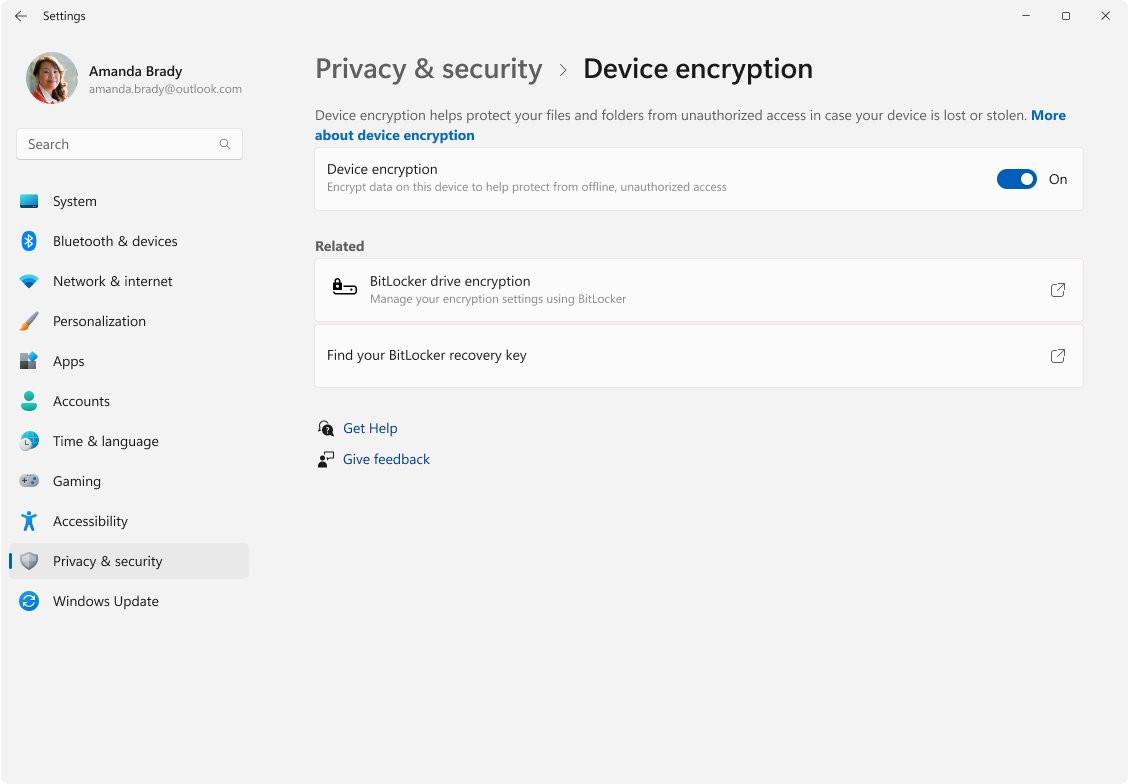
Leave device encryption on. To see its state, open Settings > Privacy & security > Device encryption; if the toggle reads On, your Windows drive and fixed drives are encrypted and the recovery key is stored in your Microsoft account or your organisation's account. Device encryption protects the files on a lost or stolen PC, because a thief who removes the drive or boots another tool cannot read it. It encrypts with XTS-AES 128-bit by default, keeps its key in the TPM, and backs the recovery key up for you, so the only cost is keeping track of that key.
It covers the OS drive and fixed internal drives only. External and USB drives are not encrypted by device encryption; that job belongs to BitLocker To Go on editions that include it.
Device encryption vs BitLocker: what actually differs
Both use BitLocker underneath. The difference is who sets it up, which editions get it, and how much control you have.
| Device encryption | BitLocker Drive Encryption | |
|---|---|---|
| Windows editions | All editions, including Windows 11 Home | Pro, Enterprise, Pro Education/SE and Education |
| How it starts | Automatically after setup on a qualifying PC, or with one toggle in Settings | Turned on manually, or by an organisation's policy |
| Drives covered | OS drive and fixed internal drives | OS drive, fixed drives and removable drives (BitLocker To Go) |
| Unlock at startup | TPM only, with no extra prompt | TPM alone, or TPM plus a startup PIN or a USB startup key |
| Recovery key backup | Automatic, to your Microsoft account, Microsoft Entra ID or Active Directory | You choose: Microsoft account, USB drive, file or printout |
| Encryption method | XTS-AES 128-bit by default | AES-128 by default, 256-bit configurable through policy |
| Where you control it | Settings > Privacy & security > Device encryption | The Manage BitLocker app and Group Policy |
On a Pro PC that qualifies, device encryption may already have switched BitLocker on for you. Microsoft notes that organisations can turn device encryption off in favour of a full BitLocker setup with their own policies.
Device encryption requirements, before and after Windows 11 24H2
Windows 11 version 24H2 relaxed the hardware rules, so many PCs that showed no device encryption option on 23H2 now qualify. Microsoft states the change does not apply to Windows IoT editions.
| Requirement | Before 24H2 | Windows 11 24H2 and later |
|---|---|---|
| TPM with PCR7 support (TPM 1.2 or 2.0) | Required | Required |
| UEFI Secure Boot and Platform Secure Boot enabled | Required | Required |
| Modern Standby or HSTI compliance | Required | Removed |
| No un-allowed external DMA ports or buses | Required | Removed; encryption proceeds even if untrusted DMA buses are detected |
| Windows Recovery Environment (WinRE) configured | Required | Required |
| 250 MB free on the system partition beyond boot files | Required | Required |
| Administrator account to turn it on | Required | Required |
Automatic encryption also needs a Microsoft account or a work or school account at setup. With a local account only, device encryption is not turned on automatically.
Check whether your PC supports device encryption
System Information reports the exact reason when device encryption is unavailable. Run it as administrator, because some devices hide the encryption line otherwise.
msinfo32Select Start, type System Information, right-click System Information in the results and select Run as administrator. Select Yes at the prompt, then stay on System Summary and find Device Encryption Support or Automatic Device Encryption Support in the Item list.
You should see: The value reads Meets prerequisites, which means device encryption is available on this PC. Any other value names what is missing, such as TPM is not usable, WinRE is not configured or PCR7 binding is not supported.
If the PC is already encrypted, the value says so instead. The troubleshooting section below maps each failure value to its fix.
Where is device encryption in Windows 11?
Device encryption has its own page in Settings, but Windows hides it in two cases. Match your situation to a row.
| Your situation | Where to look | What you see |
|---|---|---|
| Administrator account on a supported PC | Settings > Privacy & security > Device encryption | A Device encryption toggle set to On or Off |
| Standard user account | Sign out and sign in with an administrator account | Microsoft states the page may not appear for a standard user |
| PC that does not meet the prerequisites | System Information > Device Encryption Support | No page in Settings; the msinfo32 value names the missing requirement |
| Windows 11 Pro, Enterprise or Education | Select Start, type BitLocker and open Manage BitLocker | Per-drive status and the Back up your recovery key option |
How to enable device encryption in Windows 11
Use this when the PC qualifies but encryption did not start by itself, for example after setting it up with a local account. Plug a laptop into power first, because Microsoft notes encryption can pause on battery or while you are busy on the PC.
- Sign in to Windows with an administrator account, ideally a Microsoft account so the recovery key is backed up.
- Press Windows key + I to open Settings.
- Select Privacy & security in the left pane.
- Select Device encryption.
- Switch the Device encryption toggle to On.
- Keep working normally; encryption runs in the background, and Settings shows it as on only once encryption is complete.
If a PC did not qualify at first and later does, for example after you turn on Secure Boot, Microsoft states device encryption enables BitLocker automatically as soon as it detects the change.
What happens automatically after setup
On a qualifying PC, encryption starts at the end of setup whether or not you asked for it. Protection is only armed once the recovery key has somewhere safe to go.
| How you set up the PC | What device encryption does | Where the recovery key goes |
|---|---|---|
| Any account, during out-of-box setup | Encrypts the OS drive and fixed drives with a clear key, the equivalent of suspended BitLocker; File Explorer shows a yellow warning icon on the drive | Nowhere yet |
| Administrator signs in with a Microsoft account | Removes the clear key and creates the TPM protector, so the drive is now protected | Uploaded to that Microsoft account |
| Work or school device joined to Microsoft Entra ID | Creates the recovery password when you sign in, then arms protection | Backed up to Microsoft Entra ID |
| PC joined to an Active Directory domain | Creates the recovery password when the PC joins, then arms protection | Backed up to Active Directory Domain Services |
| Local accounts only | Data is encrypted but stays unprotected, because the clear key is never removed | Not backed up |
Microsoft states device encryption is initialised this way after a clean installation of Windows. If you use only a local account, turn it on manually from Settings after signing in with a Microsoft account.
Back up and find your recovery key
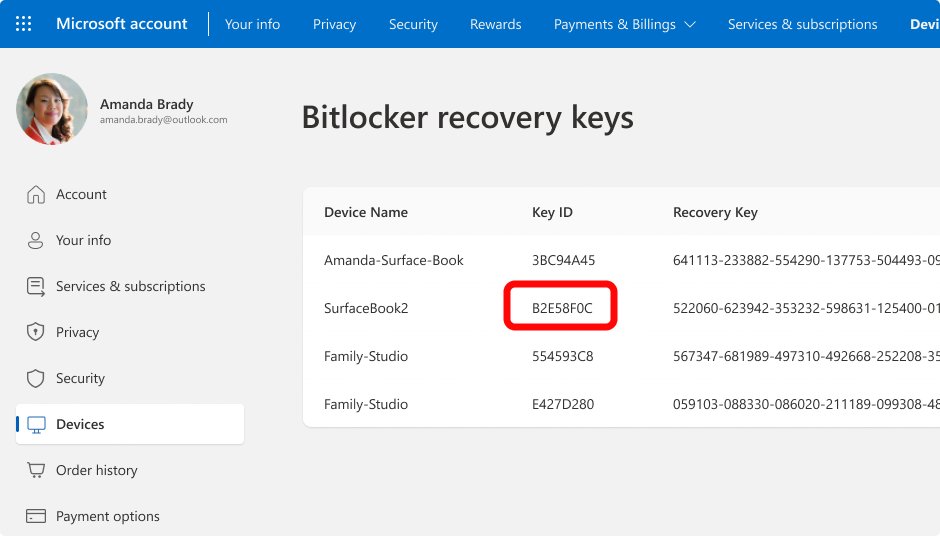
The recovery key is a 48-digit number. Windows asks for it when it cannot unlock the drive by itself, for example after a hardware change, and Microsoft Support cannot retrieve or recreate a lost key.
- On any device, open a browser and go to
https://aka.ms/myrecoverykey. - Sign in with the Microsoft account you used on the encrypted PC.
- Confirm a key is listed for that PC, and note its key ID.
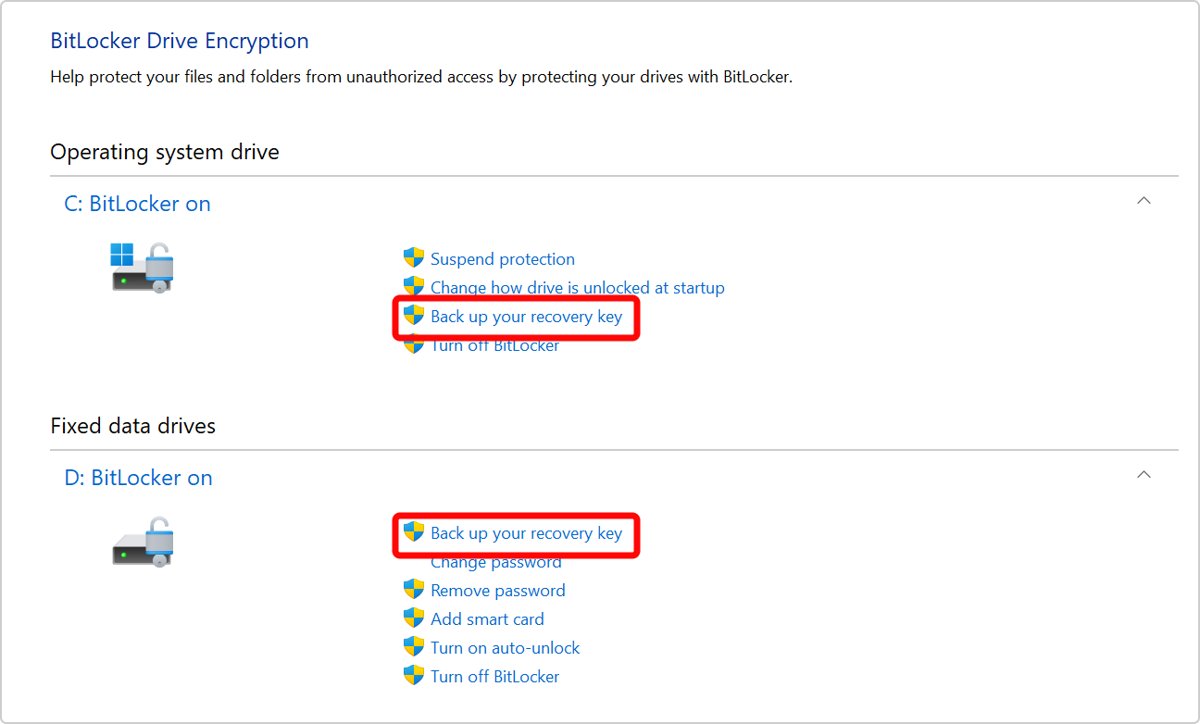
- To add a second copy, select Start on the PC, type BitLocker and select Manage BitLocker.
- Select Back up your recovery key next to the drive.
- Choose Save to your Microsoft Account, Save to a USB flash drive, Save to a file or Print the recovery key.
Keep a USB copy away from the PC, because a thief who takes both can unlock the drive. For work or school devices, the key is at https://aka.ms/aadrecoverykey under Devices > View BitLocker Keys. If someone else set up the PC, the key may sit in their Microsoft account.
How to check device encryption is on
- Open Settings > Privacy & security > Device encryption and confirm the toggle reads On.
- Open File Explorer > This PC and check the Windows drive has no yellow warning icon, which marks encryption that is not yet protected.
- Go to
https://aka.ms/myrecoverykeyand confirm a recovery key is listed for this PC. - For detail, open Command Prompt as administrator and run
manage-bde -status C:; read Conversion Status, Percentage Encrypted and Protection Status.
The manage-bde output also lists the encryption method and the key protectors, which should include the TPM once protection is armed.
How to turn off device encryption
Turning it off decrypts the drives, which leaves your files readable to anyone who gets the drive. Microsoft recommends keeping device encryption on for any system that supports it.
- Sign in with an administrator account.
- Open Settings > Privacy & security > Device encryption.
- Switch the Device encryption toggle to Off and confirm when Windows asks.
- Leave the PC on until decryption finishes; the toggle reflects the final state.
Once you turn it off, device encryption does not switch itself back on. To restore it later, turn the toggle on again manually.
Fix device encryption missing or not working
No Device encryption option in Windows 11 Settings
Microsoft names two causes: you are signed in as a standard user, or the PC does not meet the prerequisites.
- Sign out and sign in with an administrator account, then check Settings > Privacy & security again.
- If the page is still missing, run
msinfo32as administrator and read Device Encryption Support. - Fix the requirement it names using the groups below.
- On Windows 11 23H2 or earlier, install version 24H2, which removed the Modern Standby, HSTI and DMA requirements.
System Information says "TPM is not usable"
The PC has no TPM, or the TPM is turned off in the BIOS or UEFI.
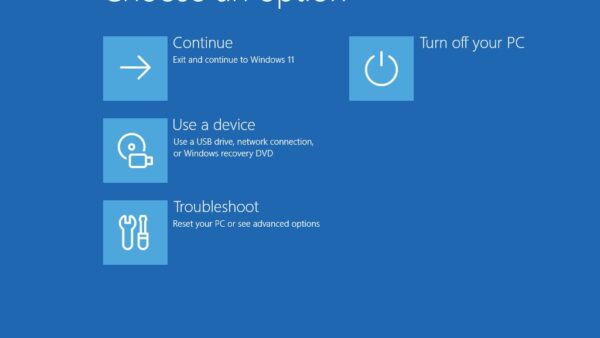
- Open Settings > System > Recovery and select Restart now next to Advanced startup.
- Select Troubleshoot > Advanced options > UEFI Firmware Settings > Restart.
- Turn on the TPM option, often named Intel PTT, AMD fTPM or Security Device, then save and exit.
- Run
msinfo32again to confirm the value changed.
System Information says "PCR7 binding is not supported"
Secure Boot is off, or a peripheral such as a docking station, specialised network card or external graphics card is connected at boot.
- Shut down and unplug docks and external devices that are not needed to start the PC.
- Start the PC, run
msinfo32and check Secure Boot State in System Summary. - If it is not On, open UEFI Firmware Settings from Advanced startup and enable Secure Boot.
- Restart and check Device Encryption Support again.
System Information says "WinRE is not configured"
The Windows Recovery Environment is disabled on this PC.
- Open Command Prompt as administrator.
- Run
reagentc /infoto see the Windows RE status. - If it shows disabled, run
reagentc /enable, which uses the default Winre.wim from \Windows\System32\Recovery. - Run
msinfo32again and confirm the WinRE message is gone.
Device encryption is not working: "Un-allowed DMA capable bus/device(s) detected"
Before 24H2, Windows refused automatic encryption when it found an external DMA-capable port.
- Check your version in Settings > System > About.
- Update to Windows 11 version 24H2 or later through Settings > Windows Update; Microsoft removed this requirement in 24H2.
- Run
msinfo32again after the update.
Drive shows a yellow warning icon and encryption never finishes protecting it
Encryption ran during setup but the recovery key was never backed up, which happens with a local account.
- Sign in to Windows with a Microsoft account that has administrator rights on the PC; Microsoft states this removes the clear key and uploads the recovery key.
- Open Settings > Privacy & security > Device encryption and confirm the toggle reads On; if it reads Off, switch it on.
- Confirm the key appears at
https://aka.ms/myrecoverykey.
What to know before you reset, upgrade firmware or change hardware
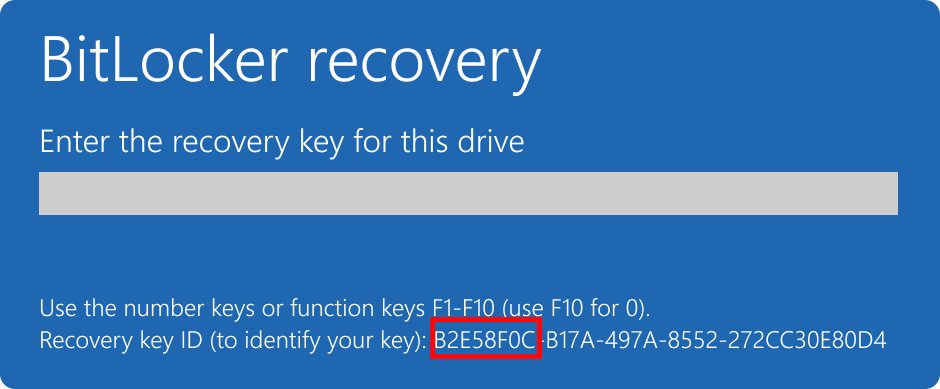
Confirm your recovery key is listed at aka.ms/myrecoverykey before any firmware update, TPM change or drive swap, and write down its key ID. Changes to the startup chain can make Windows ask for the 48-digit key at boot. Without it, Microsoft's only route is resetting the device, which removes all your files. Starting with Windows 11 24H2, the recovery screen shows a hint of the Microsoft account that holds the key, which helps when the PC was set up by someone else.
Should you keep device encryption on?
Yes. Keep device encryption on, sign in with a Microsoft account so the key is backed up, and check aka.ms/myrecoverykey once. It gives Windows 11 Home the core of BitLocker at no cost and with no setup. The one real risk is losing the recovery key, which a two-minute check removes.
Frequently Asked Questions
What is device encryption in Windows 11?
Device encryption is a Windows feature that turns on BitLocker automatically for the OS drive and fixed drives on qualifying PCs. It starts after setup, keeps its key in the TPM and backs the recovery key up to your Microsoft account or your organisation's account.
Where is device encryption in Windows 11?
Open Settings > Privacy & security > Device encryption. If the page is missing, you are signed in as a standard user or the PC does not meet the requirements. Run System Information as administrator and read Device Encryption Support to see which.
How do I enable device encryption in Windows 11?
Sign in with an administrator account, open Settings > Privacy & security > Device encryption and switch the toggle to On. Encryption runs in the background, and Settings shows it as on once encryption is complete.
Is device encryption the same as BitLocker?
Device encryption uses BitLocker, but with fewer options. It is available on all editions including Home, turns on automatically and covers only the OS and fixed drives. Full BitLocker on Pro, Enterprise and Education adds startup PINs, removable drives and policy control.
Does Windows 11 Home have device encryption?
Yes. Microsoft states device encryption is available on a wider range of devices than BitLocker Drive Encryption, including those running Windows Home. The PC still needs a usable TPM, Secure Boot and a configured Windows Recovery Environment.
What are the device encryption requirements in Windows 11?
A TPM with PCR7 support, UEFI Secure Boot, a configured Windows Recovery Environment and an administrator account. Before version 24H2, the PC also needed Modern Standby or HSTI compliance and no un-allowed DMA ports; 24H2 removed both of those.
How do I disable or remove device encryption in Windows 11?
Open Settings > Privacy & security > Device encryption as an administrator and switch the toggle to Off. Windows decrypts the drives, and device encryption does not turn itself back on afterwards until you enable it manually.
Why is device encryption not showing on Windows 11?
Either your account is a standard user, or the PC fails a requirement. System Information names the cause under Device Encryption Support, such as TPM is not usable, WinRE is not configured or PCR7 binding is not supported.
Where is my device encryption recovery key?
It is usually in the Microsoft account used to set up the PC. Go to https://aka.ms/myrecoverykey from any device and sign in. Work or school devices store it in the organisation's account at https://aka.ms/aadrecoverykey.
Does device encryption slow down gaming on Windows 11?
Microsoft does not publish a gaming figure for device encryption. From Windows 11 24H2 with the September update, BitLocker can offload encryption work to a dedicated crypto engine on supported processors, such as Intel Total Storage Encryption, which Microsoft says improves performance.