To change the taskbar location in Windows 11, open Taskbar settings, expand Taskbar behaviors, and set Taskbar alignment to Left or Center.
Windows 11 keeps the taskbar itself at the bottom of the screen, and Microsoft states there is no setting to move it to the top or sides. This guide covers alignment, the multi-monitor option, the Windows 10 location setting, and fixes for the common surprises.
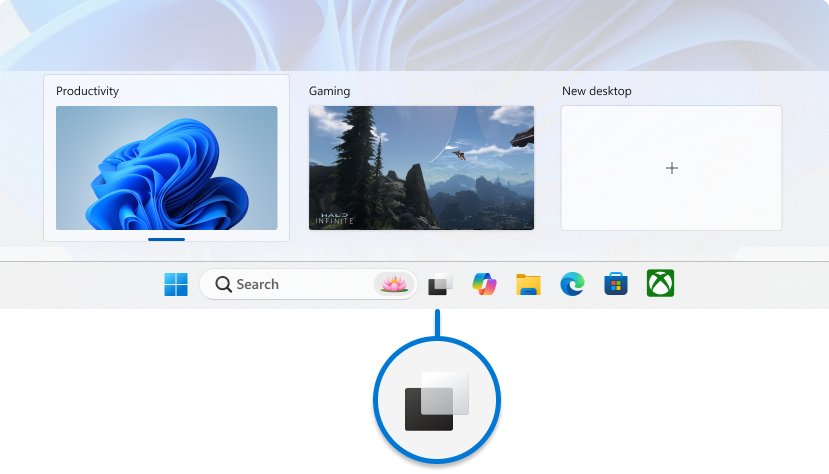
The fastest way to move the taskbar icons to the left in Windows 11
Alignment is the only position setting the Windows 11 taskbar has. It moves the Start button and app icons, not the bar.
- Right-click an empty area of the taskbar.
- Select Taskbar settings.
- Scroll down and select Taskbar behaviors to expand it.
- Open the Taskbar alignment drop-down menu.
- Choose Left to move Start and your apps to the left edge, or Center to put them back in the middle.
Only the icons move. The bar itself stays along the bottom edge of the screen.
Understanding Windows 11’s Taskbar Layout
By default, the Windows 11 taskbar sits at the bottom of the screen with its icons centered. Microsoft's own note is direct: the settings align icons in the center or on the left, and there are no settings for moving the taskbar to the top or to the side.
The table shows what each part of the default layout is and which parts you can reposition.
| Taskbar part | Default position | Can you move it? | How |
|---|---|---|---|
| The taskbar bar itself | Bottom edge of the screen | No, not on Windows 11 | No setting exists; Windows 10 had one |
| Start button | Centered with the app icons | Yes, to the left | Taskbar alignment > Left |
| Widgets, Search, Task view | Next to Start | They follow the alignment, or you can hide them | Taskbar items switches |
| Pinned and open apps | Centered group | Yes, reorder them | Drag an icon to a new spot |
| System tray, Quick Settings, clock | Right end of the taskbar | No | You can rearrange tray icons, not relocate the area |
| Show desktop corner | Far right corner | No, but you can turn it off | Select the far corner of the taskbar to show the desktop |
The limitations of Windows 11's native customization are therefore clear: alignment, visibility and multi-monitor behavior are adjustable, while the bar's edge is fixed.
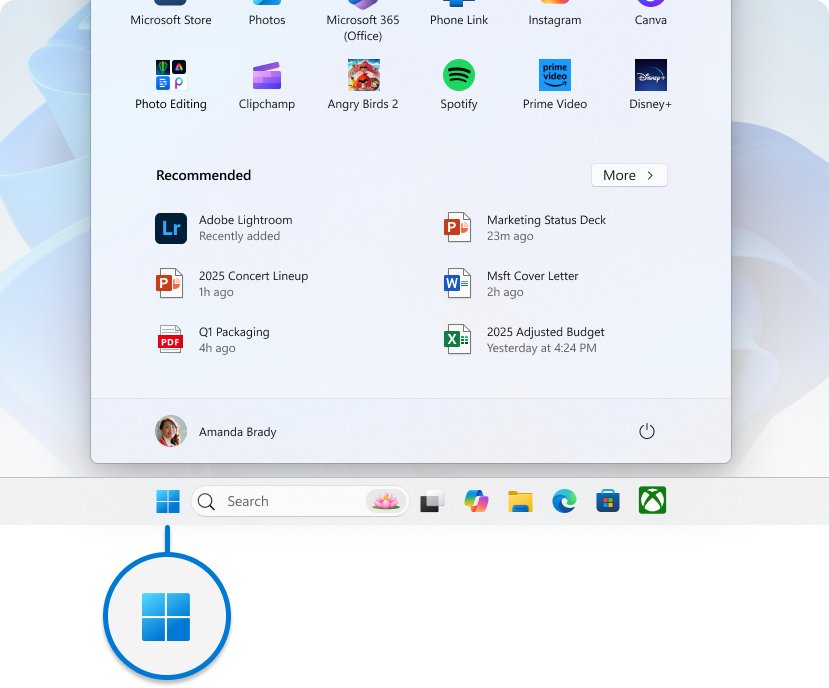
How to Change the Taskbar Location in Windows 11: Basic Methods
Method 1 changes taskbar alignment from center to left through the Settings app. Use it when right-clicking the taskbar is awkward, such as on a touch screen or with a hidden taskbar.
- Select Start and open Settings.
- Select Personalization in the left pane.
- Select Taskbar on the right.
- Scroll down and expand Taskbar behaviors.
- Set Taskbar alignment to Left or Center.
- Close Settings. Start and the app icons move straight away.
Method 2: Use built-in settings from the keyboard
Microsoft lists Win + Alt + Enter as the shortcut that opens taskbar settings when a taskbar item has focus. Win + T gives the taskbar that focus.
- Press Win + T to move focus to the apps on the taskbar.
- Press Win + Alt + Enter. Settings opens on the Taskbar page.
- Press Tab until Taskbar behaviors is highlighted, then press Enter to expand it.
- Press Tab to reach Taskbar alignment, then press Enter to open the list.
- Use the arrow keys to pick Left or Center and press Enter.
- Press Alt + F4 to close Settings.
Open Taskbar settings with a Run command
Microsoft publishes a Settings address for the Taskbar page. It skips the menus on Windows 11 and Windows 10.
ms-settings:taskbarPress Win + R, type the address in the Open box, and press Enter.
You should see: Settings opens on the Taskbar page. On Windows 11, Taskbar alignment is inside Taskbar behaviors; on Windows 10, the location options sit on the page itself.
Show the taskbar on every monitor in Windows 11
With more than one display, the question is often which screen shows a taskbar. Windows 11 lets you show it on every connected display or only on the main one.
Your displays must be extended, not duplicated. Press Win + P and choose Extend first if you only see a mirrored picture.
- Right-click an empty area of the taskbar and select Taskbar settings.
- Expand Taskbar behaviors.
- Tick Show my taskbar on all displays to put a taskbar, Start menu and system tray on each screen.
- Clear the same box to keep the taskbar on your main display only.
- Set Taskbar alignment on the same page if you also want the icons on the left.
If a second monitor is connected but missing from Windows, open Settings > System > Display > Multiple displays and select Detect.
Move the taskbar to the top or sides in Windows 10
Windows 10 still has a real taskbar location setting. Many searches for this topic come from people who used it before upgrading to Windows 11, where it no longer exists.
- Right-click an empty area of the taskbar.
- Select Taskbar settings, or open Settings > Personalization > Taskbar.
- Find the taskbar location drop-down on the Taskbar page.
- Choose Left, Top, Right, or Bottom.
- Turn on Lock the taskbar afterwards to prevent accidental moves or resizing.
For other Windows 10 screen settings such as resolution and scale, see how to change display settings in Windows 10.
Advanced Methods to Move the Taskbar in Windows 11: What Microsoft Supports
Guides that promise an advanced way to put the Windows 11 taskbar at the top or on a side rely on unsupported changes. The table sorts every option by whether Microsoft documents it.
| Option | What it changes | Supported by Microsoft? | Use it? |
|---|---|---|---|
| Taskbar alignment | Start and app icons: left or center | Yes, documented setting | Yes |
| Show my taskbar on all displays | Which monitors show a taskbar | Yes, documented setting | Yes |
| Automatically hide the taskbar | Hides the bar until you point at the bottom edge | Yes, documented setting | Yes, to reclaim space |
| Registry tweaks | Undocumented taskbar position data | No, not documented | No |
| Third-party tools | Replace or patch the Windows taskbar | No, not Microsoft software | No |
| PowerShell scripts | Change undocumented taskbar settings | No, not documented | No |
Should you use registry tweaks or third-party tools to move the taskbar?
Registry tweaks to move the taskbar edit values Microsoft has never documented for Windows 11. Third-party tools that move it hook into the Windows shell, and neither route is supported.
Feature updates can reset or break both. A broken taskbar also takes Start, Search and the system tray with it.
Skip registry tweaks and third-party taskbar tools, and use Taskbar alignment plus the multi-monitor setting instead. Microsoft states there is no setting to move the Windows 11 taskbar to the top or sides, so any hack relies on undocumented behavior that the next update can undo. The built-in options survive updates and need no extra software.
How to check the new taskbar layout worked
- Look at the Start button. With Left chosen, it sits at the far left of the taskbar.
- Press the Windows key. The Start menu should open from the same side as the button.
- With Show my taskbar on all displays ticked, move the pointer to each monitor and confirm a taskbar is there.
- Sign out and back in, then confirm the alignment is unchanged.
Additional Customizations and Tips
These settings sit on the same Taskbar page and change how the taskbar looks without moving it. For wallpaper, theme and Start menu changes, see how to change home screen on Windows 11.
| Goal | Setting | Where |
|---|---|---|
| Hide the taskbar until you need it | Automatically hide the taskbar | Taskbar behaviors |
| Remove Search, Task view or Widgets | Switch the item off, or set Search to Hide | Taskbar items |
| Shrink the search box | Search icon only or Search icon and label | Taskbar items |
| Stop app buttons flashing | Clear Show flashing on taskbar apps | Taskbar behaviors |
| Hide unread-count badges | Clear Show badges on taskbar apps | Taskbar behaviors |
| Choose which tray icons show | System tray icons and Other system tray icons | Taskbar page |
| Turn off the show-desktop corner | Clear Select the far corner of the taskbar to show the desktop | Taskbar behaviors |
| Keep the touch taskbar off a 2-in-1 | Clear Optimize taskbar for touch interactions when this device is used as a tablet | Taskbar behaviors |
| Reorder app icons | Drag an icon to a new position | The taskbar itself |
To hide the taskbar with the keyboard, see how to hide the Windows taskbar using a shortcut key.

How to put the taskbar icons back in the center
- Right-click an empty area of the taskbar and select Taskbar settings.
- Expand Taskbar behaviors.
- Set Taskbar alignment to Center.
- Tick Show my taskbar on all displays again if you cleared it earlier.
Troubleshooting Common Issues
Match what you see, then run only the fix under it.
There is no option to change the taskbar location to the top in Windows 11
Windows 11 has no top or side position; Microsoft documents only left and center alignment.
- Open Taskbar settings and expand Taskbar behaviors.
- Set Taskbar alignment to Left if you want Start in the corner.
- Turn on Automatically hide the taskbar if you want the bottom edge free for content.
- Avoid registry edits or tools that claim to move it; updates can undo or break them.
Changing the taskbar location to left moved only the icons
Left is an alignment choice for Start and the apps, not a vertical taskbar.
- Confirm the Start button now sits at the far left of the bottom bar.
- Keep the setting if icon position was the goal.
- Use Windows 10 if a vertical taskbar is essential; only its Left location option docks the bar to the left edge.
The taskbar position changed after moving from Windows 10 to Windows 11
The Windows 10 Top, Left and Right locations do not exist in Windows 11, so the taskbar returns to the bottom.
- Open Settings > Personalization > Taskbar.
- Expand Taskbar behaviors and choose the Taskbar alignment you prefer.
- Turn on Automatically hide the taskbar if the bottom bar now takes space you need.
The taskbar does not appear on a second monitor
Show my taskbar on all displays is cleared, or the displays are duplicated instead of extended.
- Press Win + P and select Extend.
- Open Taskbar settings and expand Taskbar behaviors.
- Tick Show my taskbar on all displays.
- If the monitor is missing entirely, open Settings > System > Display > Multiple displays and select Detect.
Additional Resources
These official Microsoft pages document every setting used in this guide.
| Microsoft page | What it covers |
|---|---|
| Customize the Taskbar in Windows | Taskbar alignment, taskbar behaviors, the no top or side position note, and the Windows 10 location options |
| How to use multiple monitors in Windows | Detecting, arranging and extending displays |
| Keyboard shortcuts in Windows | Win + T and Win + Alt + Enter for the taskbar |
| Launch the Windows Settings app | The ms-settings:taskbar address |
Final Recommendations
In final words: Windows 11 lets you choose where the taskbar icons sit, not which screen edge holds the bar.
Set Taskbar alignment to Left if you miss the classic Start corner, and use Show my taskbar on all displays to control multi-monitor setups. These are the only taskbar position controls Microsoft documents for Windows 11. They survive feature updates, while registry tweaks and third-party tools can break the taskbar after the next one.
Frequently Asked Questions
How do I change the taskbar location in Windows 11?
Right-click the taskbar, select Taskbar settings, expand Taskbar behaviors, and set Taskbar alignment to Left or Center. That moves Start and the app icons. Windows 11 has no setting to move the taskbar itself to the top or sides.
How do I change the taskbar location in Windows 10?
Right-click the taskbar and select Taskbar settings, or open Settings > Personalization > Taskbar. Choose Left, Top, Right, or Bottom from the taskbar location list. Turn on Lock the taskbar afterwards to stop accidental moves.
How do I change the taskbar position in Windows 11?
Use Taskbar alignment under Taskbar behaviors in Taskbar settings. It offers Left and Center. Microsoft states the taskbar is positioned at the bottom of the screen, and there are no settings for moving it to the top or to the side.
How do I change the taskbar position in Windows 10?
Open Settings > Personalization > Taskbar and pick Left, Top, Right, or Bottom for the taskbar location. The bar moves to that screen edge at once. Windows 10 is the last version with this option; Windows 11 removed it.
Can I move the Windows 11 taskbar to the top of the screen?
No. Windows 11 has no supported setting that moves the taskbar to the top. Microsoft documents only left and center alignment for the icons. Registry tweaks and third-party tools that claim to do it are unsupported and can break after updates.
How do I switch the taskbar location to the left in Windows 11?
Open Taskbar settings, expand Taskbar behaviors, and set Taskbar alignment to Left. Start and your apps move to the left end of the bottom taskbar. The bar stays horizontal; Windows 11 cannot dock it vertically on the left edge.
How do I change the location of the taskbar on a second monitor?
Open Taskbar settings, expand Taskbar behaviors, and tick Show my taskbar on all displays. Every extended display then gets its own taskbar with Start and the system tray. Clear the box to keep the taskbar on the main display only.
Is there a shortcut to open taskbar settings?
Yes. Press Win + T to focus the taskbar, then Win + Alt + Enter to open taskbar settings. You can also press Win + R, type ms-settings:taskbar, and press Enter to open the same page on Windows 11 or Windows 10.