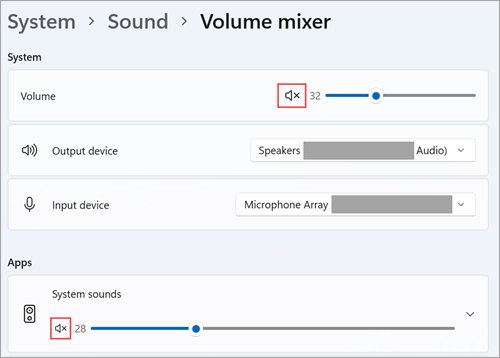
To adjust volume for individual programs in Windows 11, open Settings > System > Sound > Volume mixer and move the slider next to the app under Apps.
This guide covers the Windows 11 Settings and Quick Settings mixers, the Windows 10 app volume page, the classic Volume Mixer, a separate output device per app, resets and fixes for missing apps.
Use Volume Mixer in Windows 11 Settings
Every app that is playing sound, or played it recently, gets its own slider here. Changing one slider leaves the other apps and the system volume alone.
- Start the audio in the app you want to change, so Windows lists it.
- Select Start > Settings > System > Sound.
- Select Volume mixer.
- Under Apps, find the program and drag its volume slider left to lower it or right to raise it.
- Select the speaker icon next to the slider if you want to mute or unmute only that app.
- Leave the System slider where it is if you only want that one program changed.
Windows remembers the level. By default, an app's volume and mute setting survive a restart, so the program comes back at the level you chose.
Which volume control should you use?
All of these change the same per-app level. They differ in how fast you reach them and which Windows version has them.
| Your situation | Use this | Why |
|---|---|---|
| Windows 11, you want every app and its output device on one page | Settings > System > Sound > Volume mixer | Shows each app's slider and its Output device together |
| Windows 11, you want a quick change without opening Settings | Quick Settings mixer with Windows logo key + Ctrl + V | One shortcut opens the sound output page with the volume mixer |
| Windows 10, you want per-app volume and devices | Settings > System > Sound > App volume and device preferences | The Windows 10 page that holds per-app settings |
| Windows 10, you want the fastest slider | Right-click the Speakers icon > Open Volume mixer | Two clicks from the taskbar |
| Either version, you prefer the old desktop mixer window | Run sndvol |
Opens the system volume-control program with Device and Applications groups |
Adjust app volume from Quick Settings in Windows 11
Windows 11 added an enhanced volume mixer to Quick Settings in the November 14, 2023 update (KB5032190). It lets you set audio for each app and swap devices without leaving your work.
- Press Windows logo key + Ctrl + V to open the sound output page of Quick Settings.
- Or select the Speakers icon on the taskbar, then select the arrow to the right of the volume slider.
- Under the volume mixer, drag the slider for the app you want to change.
- Select a different device in the list if you want to swap where sound plays.
- Select the settings icon to the right of the volume mixer slider (tooltip More mixer settings) to open the full Volume mixer page in Settings.
If the Speakers icon is not on the taskbar, select Show hidden icons to find it in the overflow area.
Adjust App Volume in Windows 10 Settings
Windows 10 keeps its per-app controls on a page named App volume and device preferences, under the advanced sound options.
- Start playing audio in the app you want to change.
- Select Start > Settings > System > Sound.
- Under Advanced sound options, select App volume and device preferences.
- Find the app in the list of apps.
- Move the app's volume slider to the level you want.
- Close Settings; the new level applies straight away.
For a quicker slider on Windows 10, right-click the Speakers icon on the taskbar and select Open Volume mixer, as the next section shows.
Open the Classic Volume Mixer
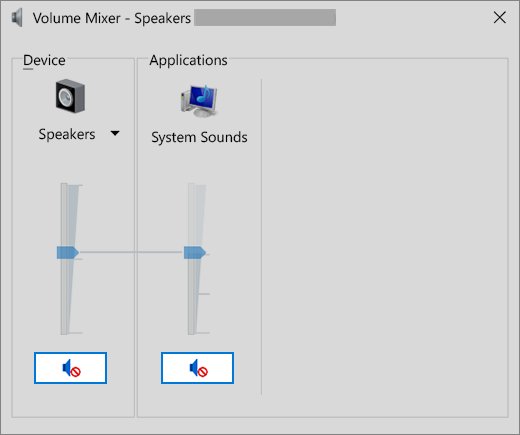
Sndvol is the system volume-control program. Its window splits into a Device group on the left, which is the master volume for the device, and an Applications group on the right with one slider per app.
- On Windows 10, select and hold (or right-click) the Speakers icon on the taskbar and select Open Volume mixer.
- On Windows 11 or Windows 10, press Windows logo key + R, type
sndvoland press Enter. - In the Applications group, drag the slider under the program you want to change.
- Select the speaker button under a slider to mute that app only.
- Use the Device slider only when you want every app on that device louder or quieter.
The classic mixer shows playback devices only, not microphones. For device settings such as the default format, use the classic Sound window instead; see 5 Methods to Open Old Sound Settings in Windows 11.
Change Output Devices for Individual Apps
Apps can use a different output device than the system default. That lets a game play through headphones while music keeps playing through speakers.
| Windows version | Steps | Useful example |
|---|---|---|
| Windows 11 | Start > Settings > System > Sound > Volume mixer, then under Apps pick the device in the app's Output device list | Send a video call app to a headset while a browser stays on the speakers |
| Windows 10 | Start > Settings > System > Sound > App volume and device preferences, then pick the app's device in the list | Set a call app's Input to Default so it follows your default microphone |
| Windows 11 or 10, default for every app | Start > Settings > System > Sound, then pick the device under Output | Selecting a device there also makes it the default output |
An app set to a specific device keeps using it even after you change the system default. Set it back to Default if you want it to follow the system choice again.
Where per-app volume lives in Windows 11 and Windows 10
| Control | Windows 11 | Windows 10 |
|---|---|---|
| Per-app volume in Settings | Settings > System > Sound > Volume mixer | Settings > System > Sound > App volume and device preferences |
| Per-app output device | Volume mixer > Apps > Output device | App volume and device preferences, per app |
| Taskbar route | Speakers icon > arrow next to the volume slider | Right-click Speakers icon > Open Volume mixer |
| Keyboard shortcut | Windows logo key + Ctrl + V | None documented |
| Classic mixer window | sndvol from the Run box |
sndvol from the Run box |
How to check the app volume change worked
- Play audio in the app you changed and in one other app at the same time.
- Confirm the changed app is louder or quieter while the other app sounds the same.
- Open Volume mixer again and check the app's slider sits where you left it.
- Check the System slider and the taskbar volume have not moved.
- Close and reopen the app, play audio again, and confirm the level held.
How app volume works alongside the master volume
| Behaviour | What it means for you |
|---|---|
| Each device has one endpoint volume, and each app has its own application volume | Lowering an app never changes the device slider, and the taskbar volume stays put |
| App volume controls can override system volume | A muted or low app stays silent even at full system volume |
| The mixer lists apps that are playing or played recently | An app that has been silent for a while drops off the list until it plays again |
| System sounds always keep their own slider | Notification sounds can be turned down without touching any app |
| App volume and mute settings persist across restarts by default | A level you set today is still there after a reboot |
| Many apps and accessories have their own volume control | Check the app's own slider and the headset's buttons as well |
Reset App Volume and Device Preferences
Microsoft documents no single reset button for per-app sound settings. Reset them by hand, one app at a time, from the same page you changed them on.
- Play audio in the app so Windows lists it.
- Open Settings > System > Sound > Volume mixer on Windows 11, or App volume and device preferences on Windows 10.
- Drag the app's volume slider back to full and make sure it is not muted.
- Set the app's output device back to Default, and on Windows 10 its Input too.
- Repeat for every app you changed.
- Restart the app and confirm it now follows the system volume and default device.
Windows saves the setting of the last copy of an app to close. If an app keeps returning to an old level, close every window of it, reset the slider, then reopen it.
Fix Apps Missing from the Volume Mixer
The app is not listed in the Volume Mixer
The mixer shows only apps that are playing sound or played it recently.
- Start playback in the app, such as a video or a test sound.
- Leave it playing and open Volume mixer again.
- Close the app completely, reopen it and play audio once more.
- If it is still missing, restart the audio services as described in the next fix.
System sounds play but the app has no sound
The app is muted, turned down, sent to another device, or the audio services are stuck.
- Open Start > Settings > System > Sound > Volume mixer.
- Under Apps, make sure the app isn't muted and its slider is turned up.
- Confirm the correct Output device is selected for the app.
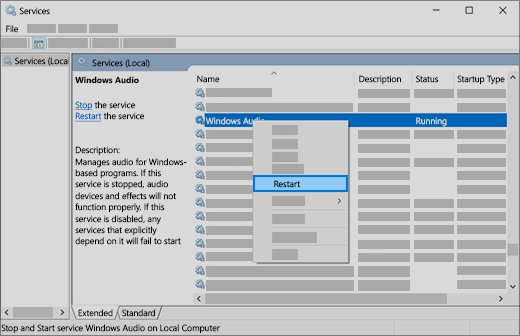
- Select Start, type
services.mscand press Enter. - Right-click Windows Audio and select Restart, then do the same for Windows Audio Endpoint Builder.
- Test audio in the app again.
One app is much quieter than the others
The app slider, an audio enhancement or the audio format is holding the level down.
- In Volume mixer, raise the slider for both System and the affected app.
- Under Output on the Sound page, select your device and turn off Audio enhancements.
- On the same device page, select Advanced and try a different Default format.
- Check the volume control inside the app itself.
The app plays through the wrong speakers or headphones
A per-app output device overrides the system default for that app.
- Open Volume mixer and find the app under Apps.
- Set its Output device to the device you want, or to Default.
- Close and reopen the app so it picks up the change.
Apps still misbehave after the fixes above
An outdated or damaged audio driver can stop apps from playing sound correctly.
- Select Start, search for Device Manager and open it.
- Expand Sound, video and game controllers.
- Right-click your audio device and select Update driver.
- Select Search automatically for drivers and follow the prompts.
- Restart your PC and test the app again.
Frequently Asked Questions
How do I lower the volume for only one app in Windows 11?
Open Settings > System > Sound > Volume mixer and drag that app's slider down under Apps. The system volume and other apps stay the same. For a faster route, press Windows logo key + Ctrl + V and use the volume mixer in Quick Settings.
How do I adjust volume in Windows 10 for a single program?
Right-click the Speakers icon on the taskbar and select Open Volume mixer, then move the slider under that program. You can also use Settings > System > Sound > App volume and device preferences, which also sets the app's audio device.
How do I adjust volume on this computer?
Select the Speakers icon on the taskbar and drag the slider, or press the volume keys on your keyboard. That changes the master volume for every app. To change one program only, use Volume mixer in Settings or the classic mixer opened with sndvol.
How do I adjust volume on a PC with the keyboard?
Press the volume-up, volume-down or mute keys if your keyboard has them. They change the master volume, the same as the taskbar slider. On Windows 11, Windows logo key + Ctrl + V opens the Quick Settings volume mixer for per-app levels.
Where is the old Volume Mixer in Windows 10 or Windows 11?
Press Windows logo key + R, type sndvol and press Enter to open the classic Volume Mixer on either version. On Windows 10 you can also right-click the Speakers icon on the taskbar and select Open Volume mixer.
Why does an app not show up in the Volume Mixer?
The mixer lists only apps that are playing sound or played it recently. Start playback in the app and reopen the mixer. If it still does not appear, close and reopen the app, then restart the Windows Audio service.
Can I make one app play through headphones and another through speakers?
Yes. On Windows 11, open Settings > System > Sound > Volume mixer and pick a device in each app's Output device list. On Windows 10, use App volume and device preferences. Other apps keep using the system default output.
How do I reset app volume settings if they are wrong or will not stick?
Open Volume mixer, drag the app's slider back to full, unmute it and set its device back to Default. Close every window of the app first, because Windows saves the level of the last copy to close and restores it next time.
Why is one app quiet when the system volume is at maximum?
App volume controls can override system volume, so a low app slider keeps that program quiet. Raise the app's slider in Volume mixer, check the volume control inside the app, and turn off Audio enhancements for your output device.
Bottom Line
On Windows 11, use Settings > System > Sound > Volume mixer for lasting per-app levels and devices, and Windows logo key + Ctrl + V for quick changes; on Windows 10, use Open Volume mixer from the taskbar. These are the routes Microsoft documents for per-app volume, they keep your level across restarts, and the Settings page also sets each app's output device in the same place.