Find your TPM by pressing Windows key + R and running tpm.msc: most Windows PCs already have TPM 2.0 built into the processor or motherboard, and it only needs to be turned on in UEFI.
This guide shows how to check for a TPM in Windows, switch on Intel PTT or AMD fTPM, and buy and fit a physical TPM 2.0 module only on the desktop boards whose makers say they need one.
Step 1: Check TPM Status in Windows
The TPM Management console answers the "do I have a TPM" question in one window. It works the same on Windows 11 and Windows 10.
- Press Windows key + R to open the Run box.
- Type
tpm.mscand press Enter. - Read the Status area. A TPM that is ready for use means you have a working TPM and nothing needs installing.
- Look under TPM Manufacturer Information and read Specification Version. It must show 2.0 for Windows 11.
- If the window says Compatible TPM cannot be found, go to Step 2. That message means the TPM is switched off in firmware, not missing.
Prefer menus? Open Windows Security, select Device security, then Security processor details, and read Specification version. On Windows 10 the route starts at Settings > Update & Security > Windows Security > Device security.
Dell documents a third check: right-click Start, select Device Manager and expand Security devices. A working TPM is listed as Trusted Platform Module 2.0.
Check TPM with PowerShell (Get-Tpm)
Get-Tpm prints the same status as a list of true or false values, which is handy over remote support or in a script. Right-click Start and open Terminal (Admin), or Windows PowerShell (Admin) on Windows 10.
Get-TpmReturns a TpmObject for the current computer. TpmPresent says whether a TPM exists, TpmReady whether it is prepared for Windows, and TpmEnabled, TpmActivated and TpmOwned show its state. ManufacturerIdTxt names the maker, for example INTC for an Intel firmware TPM.
You should see: TpmPresent : True and TpmReady : True. TpmPresent False means Windows sees no TPM, so it is either switched off in UEFI or missing.
Get-Tpm does not print the specification version. Use tpm.msc or Security processor details to confirm 2.0.
Before You Buy: Know Whether You Actually Need a TPM Module
A physical module is the last resort, not the first. Microsoft requires every new PC model released since July 28, 2016 to ship with TPM 2.0 implemented and turned on, so most machines already have one.
| What Step 1 shows | What to do | Buy a module? |
|---|---|---|
| Specification Version 2.0 and ready for use | Nothing. Continue to Step 4 to confirm Windows 11 readiness | No |
| Compatible TPM cannot be found | Turn on Intel PTT, AMD fTPM or Security Device in UEFI (Steps 2 and 3) | No, not yet |
| Specification Version 1.2 | Look for a separate PTT or fTPM option in UEFI, then check your PC maker's page for your model | Only if the maker lists a 2.0 module for your board |
| No TPM option anywhere in UEFI, desktop board with a TPM header | Check the board maker's Windows 11 support list | Yes, if the list says a module is needed |
| Laptop, all-in-one or prebuilt PC with no TPM option | Check the manufacturer's support page for a firmware update | No. Dell says a TPM upgrade depends on hardware on the motherboard |
ASUS is explicit about the limit: if a board is not on its support list, installing another TPM 2.0 module does not make it meet the Windows 11 minimum requirements.
Step 2: Check Whether Your PC Supports Firmware TPM
A firmware TPM runs inside the processor's security engine, so the name you look for depends on your CPU brand. Dell describes Intel PTT and AMD fTPM as firmware TPMs that meet the Windows 11 TPM 2.0 requirement.
| Your processor | Firmware TPM name | Labels you may see in UEFI |
|---|---|---|
| Intel | Intel Platform Trust Technology (PTT) | Intel PTT, Intel Platform Trust Technology, PTT, Firmware TPM |
| AMD | AMD firmware TPM (fTPM) | AMD fTPM switch, AMD PSP fTPM, TPM Device Selection set to Firmware TPM |
| Either, generic firmware | Security device | Security Device, Security Device Support, TPM State, Trusted Platform Module, TPM 2.0 Security |
Microsoft says these options sit in a UEFI sub-menu labelled Advanced, Security or Trusted Computing. If one of them exists, your PC supports a firmware TPM and needs no module.
Step 3: Enable TPM 2.0 in BIOS/UEFI
Save open work first, because the PC restarts into firmware setup. If BitLocker is on, have your recovery key ready, since firmware changes to the TPM can trigger BitLocker recovery.
- On Windows 11, open Settings > System > Recovery. On Windows 10, open Settings > Update & Security > Recovery.
- Next to Advanced startup, select Restart now.
- Select Troubleshoot > Advanced options > UEFI Firmware Settings, then select Restart.
- Open the Advanced, Security or Trusted Computing menu.
- Find the Intel PTT, AMD fTPM or Security Device option from the Step 2 table.
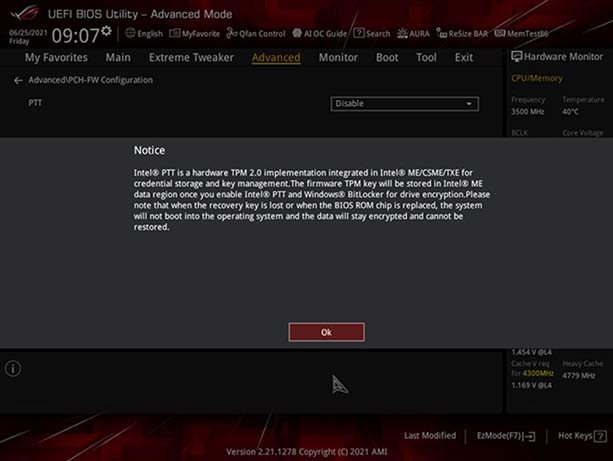
- Set it to On or Enabled. On ASUS boards, select OK on the notice that appears.
- Save and exit. ASUS boards use F10; Dell uses Apply or Save and Exit.
Firmware setup screens differ by maker, and the full set of entry keys is in How to Access BIOS on Your PC. An older walkthrough with BIOS photos is in how to enable TPM 2.0 for Windows 11 in BIOS.
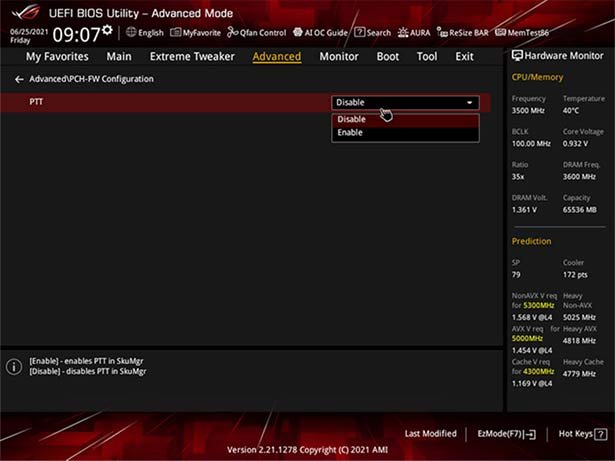
Where to Find TPM Settings on Dell and ASUS PCs
These rows come from each maker's own support pages. Menus still vary by model, so check the manual if a label is missing.
| PC or board | Enter setup | TPM setting |
|---|---|---|
| Dell laptops and desktops | Press F2 once per second at the Dell logo | Security: set Intel Platform Trust Technology, Trusted Platform Module, TPM 2.0 Security or Firmware TPM to On |
| ASUS motherboard, Intel CPU | Press Del at the ASUS or ROG logo | Advanced > PCH-FW Configuration > PTT set to Enable |
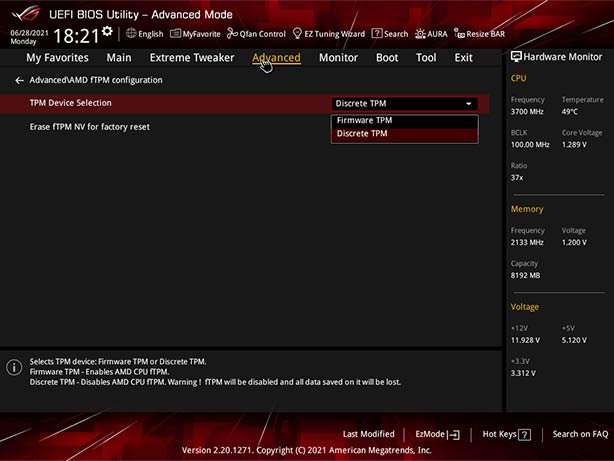
| ASUS motherboard, AMD CPU | Press Del at the ASUS or ROG logo | Advanced > AMD fTPM configuration > TPM Device Selection set to Firmware TPM |
| HP, Lenovo, Surface and others | UEFI Firmware Settings from Advanced startup | Look under Advanced, Security or Trusted Computing, then check the maker's page linked below |
ASUS also offers a shortcut: its latest BIOS for listed boards turns on Windows 11 support by default, so updating the BIOS does the same job as the manual switch.
Step 4: Confirm Windows 11 Readiness
- Let Windows start normally after saving the UEFI change.
- Press Windows key + R, run
tpm.mscand confirm the TPM is ready for use with Specification Version 2.0. - Open Windows Security > Device security and confirm a Security processor section now appears.
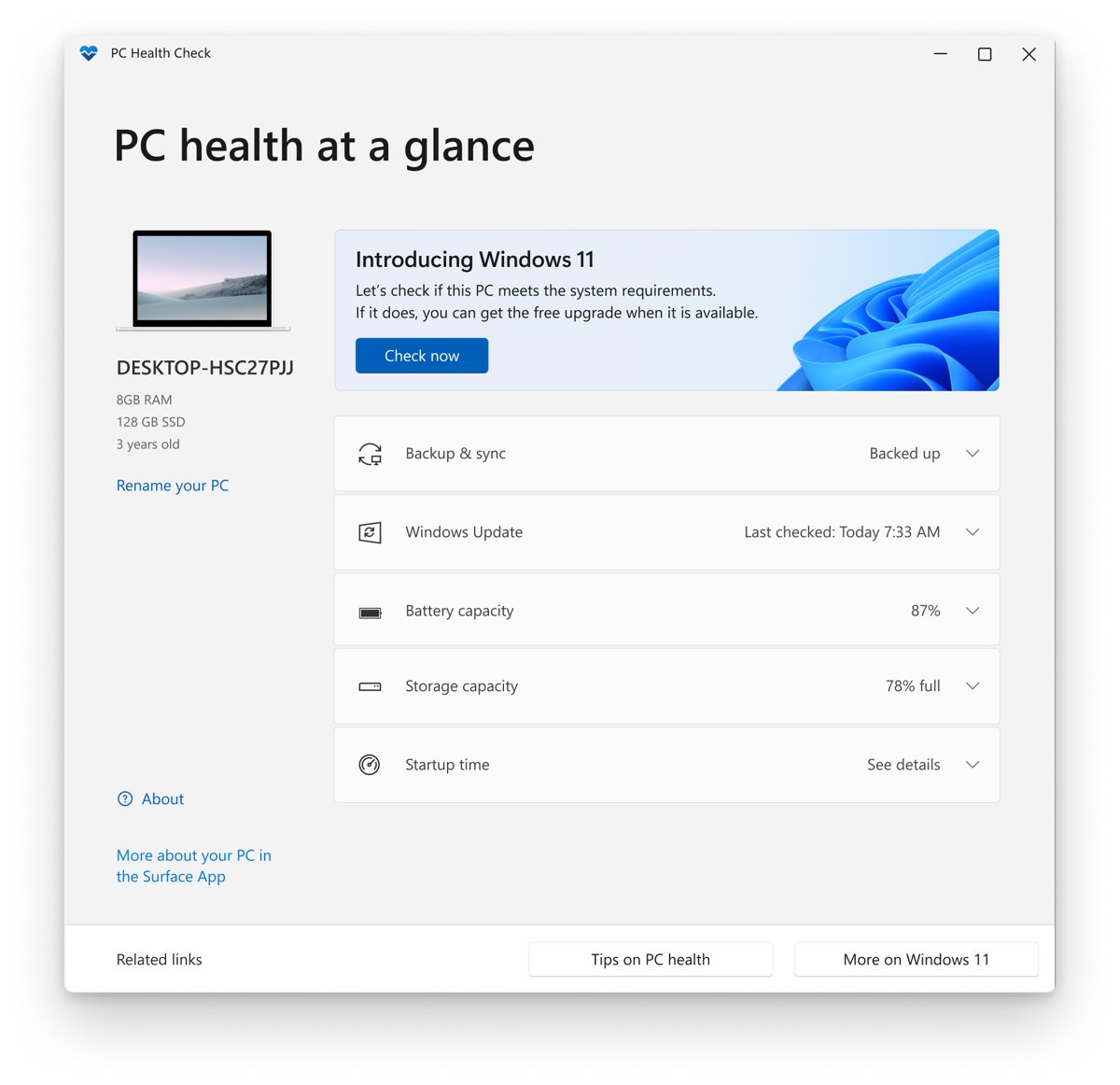
- Search the taskbar for PC Health Check, open it and select Check now.
- Read the result. It states whether the PC can run Windows 11 and names any requirement still missing.
Windows 11 also needs UEFI firmware that is Secure Boot capable. What Secure Boot does and how to turn it on is covered in TPM 2.0 and Secure Boot Explained: Is Your PC Really Secure?
Step 5: Find the Right Physical TPM 2.0 Module
Only continue if Step 2 found no firmware TPM and your board maker says a module is needed. On ASUS's Windows 11 list, workstation boards on the C621 and C422 chipsets are marked Extra Hardware Module Needed.
- Identify the motherboard model. On ASUS boards, press Del at startup and read the model in EZ Mode, or read the name printed on the board or on the box sticker.
- Open the maker's support page for that exact model and download or view the manual online.
- In the manual's board layout, find the connector labelled TPM and note the module the manual names for it.
- Check the maker's Windows 11 or compatibility list for that board. ASUS says a discrete TPM may not be compatible with a board that is not on its support list.
- Buy the TPM 2.0 module the board maker names for that header, not a generic one that only matches the pin count.
Common buying mistakes follow from skipping these steps: a module for a different header type, a TPM 1.2 module, or a module for a board the maker never listed.
Step 6: Install a Physical TPM 2.0 Module
The module plugs straight onto a header on the motherboard. Follow the orientation drawing in your board's manual, because it is the only reliable guide to which way the module faces.
- Shut down Windows fully and unplug the power cable.
- Open the case side panel as the case manual describes.
- Locate the TPM header using the layout diagram from Step 5.
- Align the module with the header exactly as the manual shows and press it straight down until it is fully seated.
- Reassemble the case, reconnect power and turn the PC on.
- Enter UEFI setup at the first logo screen and continue with Step 7.
If the module does not line up with the header, stop and recheck the manual. A module that does not match is the wrong part for that board.
Step 7: Enable the Discrete TPM in BIOS/UEFI
Some boards offer both a firmware TPM and a discrete TPM and let you pick one in UEFI. Microsoft does not support switching between two TPMs, so choose once and leave it.
- Open UEFI setup with the key your board uses, such as Del on ASUS.
- Open the Advanced, Security or Trusted Computing menu.
- Find the TPM selection. On ASUS AMD boards this is Advanced > AMD fTPM configuration > TPM Device Selection.
- Select the discrete TPM value your manual names, and make sure the firmware TPM is not also selected.
- Save and exit, then run
tpm.mscin Windows to confirm Specification Version 2.0.
If you switch from a firmware TPM that Windows already used, Microsoft's instruction is to switch, clear the new TPM and reinstall Windows. Toggling between TPMs also puts BitLocker into recovery mode.
Step 8: Initialize or Clear TPM Only When Appropriate
Windows initializes and takes ownership of the TPM automatically, so there is no setup wizard to run. Clear it only as a troubleshooting step or before a clean Windows install.
Clearing deletes every key the TPM holds and the data they protect, such as your sign-in PIN and virtual smart cards. Back up anything encrypted first, and never clear a work or school PC without your IT administrator's instruction.
- Sign in with an administrator account and open Windows Security.
- Select Device security, then Security processor details.
- Select Security processor troubleshooting.
- Select Clear TPM and confirm the restart.
- If the PC asks you to press a key during the restart, press it to confirm the clear.
- Let Windows start. It prepares the TPM for use again automatically.
Microsoft says to clear the TPM from Windows, never directly from UEFI.
Troubleshooting: TPM 2.0 Still Not Detected
tpm.msc still says "Compatible TPM cannot be found"
The TPM is disabled or hidden from Windows in UEFI.
- Reopen UEFI Firmware Settings from Advanced startup.
- Check every Advanced, Security and Trusted Computing page for the options in the Step 2 table.
- Confirm the option reads Enabled and that no setting hides the TPM from the operating system.
- Save with the correct key and run
tpm.mscagain.
No TPM option in BIOS at all
Older firmware lacks the option, or the board has no firmware TPM.
- Find your model on the PC or board maker's support site.
- Install the latest BIOS from that page. ASUS lists a BIOS update as the second fix for a TPM that is not recognized.
- Check UEFI again for the TPM option.
- If it is still missing, check the maker's Windows 11 list for a required module.
Wrong TPM mode or a module that does not show up
The firmware TPM is still selected, or the PC boots in Legacy (CSM) mode, which TPM 2.0 does not support.
- In UEFI, check the TPM selection and pick the TPM you actually intend to use.
- Press Windows key, type
msinfo32, open System Information and read BIOS Mode. - If it reads Legacy, follow the UEFI conversion steps in the TPM 2.0 and Secure Boot guide before switching modes, or Windows will not boot.
- Reseat a physical module with the power unplugged, checking the manual's orientation.
TPM driver shows a yellow triangle in Device Manager
The Trusted Platform Module 2.0 device has a driver problem, or a non-Microsoft TPM driver is loaded.
- Right-click Start and select Device Manager.
- Expand Security devices, right-click Trusted Platform Module 2.0 and select Update driver.
- Select Search automatically for drivers.
- If a non-Microsoft TPM driver is installed, remove it. Microsoft says it can stop the default driver loading and make BitLocker report no TPM.
TPM is found but not ready
Windows could not finish initializing the TPM.
- On a domain-joined work PC, connect to the corporate network so Windows can reach a domain controller, then restart.
- On a home PC you own, back up TPM-protected data and clear the TPM as in Step 8.
- Run
Get-Tpmand confirm TpmReady : True.
Firmware TPM vs Physical TPM: Which Should You Use?
Use the firmware TPM when your PC has one. Microsoft states Windows uses any compatible TPM the same way, whether it is discrete, integrated or firmware based.
| Point | Firmware TPM (Intel PTT, AMD fTPM) | Physical TPM module (discrete) |
|---|---|---|
| Cost | Free, already in the processor | A separate purchase |
| Setup | One switch in UEFI | Fit the module, then select it in UEFI |
| Windows 11 | Meets the TPM 2.0 requirement, per Dell | Meets it only on a board the maker supports, per ASUS |
| Laptops | The usual TPM | Depends on motherboard hardware, per Dell |
| When it makes sense | Almost every modern PC | Boards the maker marks as needing a module, such as ASUS C621 and C422 workstation boards |
Whichever you pick, keep one TPM selected. Microsoft strongly recommends that a system with two TPMs never changes its selection.
What TPM 2.0 Is and Why It Matters
The TPM is a security processor that keeps keys for BitLocker and Windows Hello, and Windows 11 requires version 2.0. What it does inside is covered in TPM 2.0 and Secure Boot Explained; the terms below are the ones you meet while finding or buying one.
| Term | Where you see it | What it tells you |
|---|---|---|
| Specification Version | tpm.msc, Security processor details |
2.0 meets Windows 11; 1.2 does not |
| PTT / fTPM | UEFI setup | A firmware TPM exists and only needs switching on |
| Discrete TPM (dTPM) | Board manual, UEFI TPM selection | A separate chip or plug-in module |
| TPM header | Board layout diagram in the manual | The connector a physical module plugs into |
| TpmPresent / TpmReady | Get-Tpm output |
Whether Windows sees the TPM and has prepared it |
Special Notes for Laptops and Prebuilt PCs
On a laptop, all-in-one or branded desktop, treat the TPM as part of the motherboard. Dell states that moving from TPM 1.2 to 2.0 depends on the hardware on the motherboard, and Microsoft points owners to each maker's own instructions.
| PC maker | Official TPM page | What to check |
|---|---|---|
| Dell | Dell: enable the TPM | F2 setup, Security page TPM options |
| HP | HP TPM support page | Security settings for your exact model |
| Lenovo | Lenovo TPM support page | Security settings for your exact model |
| ASUS | ASUS TPM FAQ | Support list, BIOS update, TPM status Ready |
| Any work or school PC | Your IT department | Do not change or clear the TPM without instruction |
A firmware update from the PC maker is the only documented way these machines gain a missing TPM option. Suspend or back up BitLocker first, because firmware changes can trigger BitLocker recovery.
Security Tips After Enabling TPM 2.0
Turning on the TPM changes how Windows protects keys, so a few habits prevent a lockout later.
| Tip | Why it matters |
|---|---|
| Save your BitLocker recovery key, for example in your Microsoft account | Turning off, disabling or clearing the TPM, and firmware changes, trigger BitLocker recovery |
| Set up a Windows Hello PIN | Windows Hello uses the TPM to secure the PIN |
| Check for device encryption or BitLocker | Device encryption needs TPM 2.0 and Modern Standby support |
| Keep the TPM on and leave the selection alone | Toggling between TPMs puts BitLocker into recovery mode |
| Clear the TPM only from Windows | Microsoft says never to clear it directly from UEFI |
| Keep the Microsoft TPM driver | A non-Microsoft driver can make BitLocker report that no TPM is present |
Frequently Asked Questions
How do I find the TPM on my PC?
Press Windows key + R, type tpm.msc and press Enter. The TPM Management window shows its status and, under TPM Manufacturer Information, the Specification Version. If it says Compatible TPM cannot be found, the TPM is usually switched off in UEFI rather than missing.
Where do I find the TPM version?
Open tpm.msc and read Specification Version under TPM Manufacturer Information. You can also open Windows Security > Device security > Security processor details and read Specification version. Windows 11 needs 2.0.
How do I know if TPM is enabled?
Run Get-Tpm in an administrator terminal and look for TpmPresent : True and TpmReady : True. A Security processor section in Windows Security > Device security is another sign that Windows sees an enabled TPM.
How do I access TPM settings?
The on and off switch lives in UEFI. Open Settings > System > Recovery, select Restart now next to Advanced startup, then Troubleshoot > Advanced options > UEFI Firmware Settings. Look under Advanced, Security or Trusted Computing.
Can I install TPM on my PC?
Usually you only need to turn it on, because Microsoft has required TPM 2.0 on new PC models since July 28, 2016. A physical module is an option only on desktop boards with a TPM header whose maker lists a compatible module.
How do I install a TPM module?
Identify the motherboard model, find the TPM header and the named module in its manual, and buy that module. Shut down and unplug the PC, seat the module on the header as the manual shows, then select the discrete TPM in UEFI and check tpm.msc.
How do I install a TPM driver?
Windows uses its own built-in TPM driver, so there is nothing to download. If Trusted Platform Module 2.0 shows a yellow triangle in Device Manager, right-click it, select Update driver and choose Search automatically for drivers.
How do I install TPM on Windows 10?
Turn it on in firmware. On Windows 10, open Settings > Update & Security > Recovery, select Restart now, then Troubleshoot > Advanced options > UEFI Firmware Settings. Enable Intel PTT, AMD fTPM or Security Device, then save and exit.
How do I set up TPM after enabling it?
There is nothing to set up. Microsoft states Windows initializes and takes ownership of the TPM automatically. Confirm it with tpm.msc, then save your BitLocker recovery key and add a Windows Hello PIN.
How do I check TPM support on my motherboard?
Look in UEFI for an Intel PTT, AMD fTPM or Security Device option; if one exists, the board supports a firmware TPM. For a physical module, check the board maker's support list. ASUS says an unlisted board does not meet Windows 11 requirements even with a module installed.

![How To Lock Your Windows 10 & 11 Computer Screen [Different Ways]](https://techdows.com/wp-content/uploads/2026/09/Windows-10-Sign-in-options-page-with-the-Dynamic-lock-checkbox-600x338.jpg)