You can connect AirPods to a MacBook, iMac, Mac mini, Mac Studio, or Mac Pro directly through Bluetooth. If your AirPods are already paired with an iPhone or iPad signed in to the same Apple Account as your Mac, they may already appear as an available audio device without requiring another pairing process.
For a first-time connection, turn on Bluetooth on the Mac, put the AirPods into pairing mode, and select them from System Settings > Bluetooth. The pairing method depends on your AirPods model, with newer AirPods 4 and AirPods Pro 3 using the front of the charging case instead of the setup button found on older models.
This guide covers AirPods, AirPods Pro, AirPods 4, AirPods Pro 3, and AirPods Max, along with reconnecting, automatic switching, microphone settings, and fixes when AirPods do not appear or connect to a Mac.
How to Connect AirPods to Mac
If the AirPods have never been connected to your Mac or another device using the same Apple Account, pair them manually through Bluetooth.
- Click the Apple menu in the upper-left corner of the screen.
- Open System Settings.
- Select Bluetooth from the sidebar.
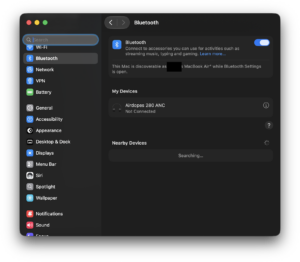
- Make sure Bluetooth is turned on.
- Put your AirPods into pairing mode using the instructions for your model below.
- Wait for the AirPods to appear under nearby Bluetooth devices.
- Click Connect.
Once connected, macOS normally selects the AirPods as the audio output automatically. If sound continues playing through the Mac speakers, you can select the AirPods manually from the Sound menu.
Which pairing method does your AirPods model use?
| AirPods model | How to enter pairing mode |
|---|---|
| AirPods 4 | Open the case with the AirPods inside and double-tap the front of the case until the status light flashes white. |
| AirPods Pro 3 | Open the case with the AirPods inside and double-tap the front of the case until the status light flashes white. |
| AirPods 1, 2, and 3 | Open the case and hold the setup button on the back for about five seconds until the light flashes white. |
| AirPods Pro 1 and 2 | Open the case and hold the setup button on the back until the status light flashes white. |
| AirPods Max | Hold the listening mode button for about five seconds until the status light flashes white. |
How to Connect AirPods to MacBook
The process is the same on a MacBook Air and MacBook Pro. All current MacBooks include Bluetooth, so you do not need an adapter or additional software.
- Open System Settings > Bluetooth.
- Turn Bluetooth on if it is disabled.
- Place your AirPods close to the MacBook.
- Activate pairing mode on the AirPods.
- Find the AirPods in the Bluetooth device list.
- Click Connect.
Keep the charging case open while pairing AirPods or AirPods Pro. Once the connection finishes, remove the AirPods from the case and start playing audio.
The same steps work on Intel MacBooks and Apple silicon models using M1, M2, M3, M4, or newer Apple chips.
Connect AirPods to Mac If They Are Already Paired with Your iPhone
If you previously paired your AirPods with an iPhone while signed in to the same Apple Account used on your Mac, you often do not need to pair them manually again. Apple can make the AirPods available across supported devices connected to that account.
Put the AirPods in your ears, then:
- Click Control Center in the Mac menu bar.
- Click Bluetooth or Sound.
- Select your AirPods.
You can also open System Settings > Bluetooth and click Connect beside the AirPods.
If the AirPods do not appear, use the manual pairing method. This can happen when the Mac and iPhone use different Apple Accounts, Bluetooth synchronization has not completed, or the AirPods were removed from the account.
How to Connect AirPods 4 to Mac
AirPods 4 use a different pairing method from AirPods 1, 2, and 3. The charging case does not use the traditional rear setup button for pairing.
- Place both AirPods 4 earbuds inside the charging case.
- Open the lid.
- Hold the case near the Mac.
- Double-tap the front of the case.
- Wait until the status light flashes white.
- Open System Settings > Bluetooth on the Mac.
- Select the AirPods and click Connect.
If nothing happens when you double-tap the case, charge the case and AirPods before trying again. The status light needs to flash white before the Mac can discover them as a new Bluetooth device.
How to Connect AirPods Pro to Mac
AirPods Pro connect through the same Bluetooth menu, although the pairing control differs between generations.
AirPods Pro 3
- Place both AirPods Pro 3 earbuds in the case.
- Open the lid.
- Double-tap the front of the charging case.
- Wait for the light to flash white.
- Open System Settings > Bluetooth.
- Click Connect beside AirPods Pro.
AirPods Pro 1 and AirPods Pro 2
- Place both earbuds in the charging case.
- Open the lid.
- Press and hold the setup button on the back of the case.
- Release it when the status light flashes white.
- Select the AirPods Pro from the Mac Bluetooth settings.
After connecting AirPods Pro, macOS also provides controls for supported listening modes such as Noise Cancellation, Transparency, and Adaptive Audio, depending on the AirPods model and macOS version.
How to Connect AirPods Max to Mac
AirPods Max do not use a charging case pairing button. Pairing mode is controlled directly from the headphones.
- Take the AirPods Max out of their Smart Case if necessary.
- Press and hold the listening mode button.
- Keep holding it for about five seconds until the status light flashes white.
- Open System Settings > Bluetooth on your Mac.
- Find AirPods Max in the list.
- Click Connect.
Compatible USB-C versions of AirPods Max can also connect to supported Macs using a USB-C cable, while Bluetooth remains the standard choice for wireless use.
How to Reconnect AirPods to a Mac
After the first pairing, your Mac remembers the AirPods. In most cases, placing the AirPods in your ears while Bluetooth is enabled reconnects them automatically.
If they do not reconnect:
- Open Control Center from the menu bar.
- Select Bluetooth.
- Find your AirPods.
- Click their name to connect.
You can also reconnect through System Settings > Bluetooth.
If an iPhone or iPad connects to the AirPods first, manually select the AirPods on your Mac or disconnect them from the other device.
How to Make AirPods Automatically Connect to Mac
macOS lets you control when paired AirPods automatically switch to your Mac, which is useful when the same AirPods are also paired with an iPhone or iPad.
- Connect the AirPods to your Mac.
- Open System Settings.
- Select Bluetooth.
- Click the information button beside your AirPods.
- Find the connection option for the Mac.
- Choose the automatic connection setting.
If your AirPods keep switching away from the device you are currently using, choose the option that connects them to the Mac only when they were last connected to it.
How to Select AirPods as the Sound Output on Mac
If the Mac says the AirPods are connected but sound still comes from the built-in speakers, select them as the output device manually.
- Open System Settings.
- Select Sound.
- Under Output, select your AirPods.
The quicker method is to open Control Center > Sound from the menu bar and select the AirPods there.
Some apps also have their own speaker setting. If Zoom, Microsoft Teams, Discord, or another calling app continues using the Mac speakers, open the audio settings inside that app and select the AirPods.
How to Use the AirPods Microphone on Mac
AirPods include microphones that work with FaceTime, Zoom, Teams, Discord, voice recording apps, and other software on macOS.
To select the AirPods microphone:
- Connect the AirPods.
- Open System Settings > Sound.
- Scroll to Input.
- Select your AirPods.
- Speak and check that the input-level meter responds.
You can also choose which AirPod supplies the microphone. Open the AirPods settings on your Mac and set Microphone to automatically switch between AirPods, always use the left AirPod, or always use the right AirPod.
Leaving this option on automatic works best for most people because either earbud can become the active microphone when you use only one AirPod.
Fix AirPods Not Connecting to Mac
If your AirPods are missing from Bluetooth settings, refuse to connect, or connect without playing sound, work through the checks below before resetting them.
Make sure Bluetooth is turned on
Open System Settings > Bluetooth and confirm that Bluetooth is enabled. Turn it off, wait a few seconds, and turn it back on if the Mac is not discovering nearby devices.
Check that the AirPods are actually in pairing mode
The status light must flash white for a new Bluetooth pairing. Opening the charging case alone does not always make the AirPods discoverable.
Use the correct method for your model: double-tap the front of an AirPods 4 or AirPods Pro 3 case, hold the rear setup button on older AirPods and AirPods Pro, or hold the listening mode button on AirPods Max.
Charge the AirPods and charging case
Place both earbuds in the case and charge them before retrying the connection. A low case or AirPods battery can prevent pairing or cause an unstable connection.
Disconnect AirPods from another device
Your AirPods may already be connected to a nearby iPhone, iPad, Windows PC, Apple TV, or another Mac. Disconnect them from that device, then select them on your Mac again.
Remove the AirPods from the Mac and pair them again
- Open System Settings > Bluetooth.
- Find the AirPods.
- Click the information button beside them.
- Select Forget This Device.
- Confirm the removal.
- Put the AirPods back into pairing mode.
- Select them from Bluetooth settings and reconnect.
This creates a fresh Bluetooth pairing and fixes many cases where the Mac remembers the AirPods but cannot establish a usable connection.
Restart the Mac
Restart macOS if Bluetooth recognizes other devices but repeatedly fails with the AirPods. After restarting, open Bluetooth settings and try the connection again before changing other settings.
Update macOS
New AirPods models can require a newer version of macOS for their complete feature set. Open System Settings > General > Software Update and install available macOS updates.
Older Macs can still use many AirPods as standard Bluetooth headphones even when some newer AirPods features are unavailable.
AirPods Connected to Mac but No Sound
If Bluetooth shows the AirPods as connected but you cannot hear anything, start by selecting them under System Settings > Sound > Output.
Then check the following:
- Increase the Mac volume.
- Increase the volume inside the app you are using.
- Make sure the output balance is centered.
- Close and reopen an app that still sends audio to the Mac speakers.
- Disconnect and reconnect the AirPods.
- Place both AirPods in the case for several seconds and try again.
- Remove and pair the AirPods again if the problem continues.
Only One AirPod Works on Mac
Place both AirPods into their charging case and confirm that each one is charging. Leave them in the case briefly, then remove them and reconnect.
You should also check the stereo balance on the Mac:
- Open System Settings > Sound.
- Select the AirPods.
- Find the Balance control.
- Make sure it is centered between left and right.
If one AirPod still does not produce sound, clean its charging contacts, charge the case, forget the AirPods from Bluetooth settings, and pair them again.
Can You Connect Two AirPods to One Mac?
A Mac can remember multiple pairs of AirPods, but macOS normally sends system audio to one selected output device at a time.
For situations where two people need to listen through separate Bluetooth headphones, macOS includes Audio MIDI Setup, which can create a Multi-Output Device from compatible audio outputs. This configuration is more involved than normal AirPods pairing and can introduce timing differences between Bluetooth devices.
Frequently Asked Questions
How do I connect AirPods to a MacBook Air?
Open System Settings > Bluetooth, turn Bluetooth on, place the AirPods in pairing mode, and click Connect when they appear. These steps work on both Intel and Apple silicon MacBook Air models.
How do I connect AirPods to a MacBook Pro?
Go to System Settings > Bluetooth and enable Bluetooth. Put the AirPods into pairing mode and select them from the device list. If they were already paired to an iPhone using the same Apple Account, you may only need to select them from Control Center.
Why are my AirPods not showing up on my Mac?
The AirPods usually are not in pairing mode, are already connected to another device, or need charging. Confirm that the status light flashes white before checking the Mac Bluetooth device list.
How do I put AirPods in pairing mode for Mac?
AirPods 4 and AirPods Pro 3 enter pairing mode when you double-tap the front of the open charging case. Older AirPods and AirPods Pro use the setup button on the back of the case. AirPods Max use the listening mode button.
Why do my AirPods connect to my iPhone instead of my Mac?
The AirPods are associated with both devices and another device took the active connection. Select the AirPods from your Mac’s Control Center, or change the automatic connection setting in Bluetooth preferences.
Do AirPods automatically connect to Mac?
Yes, once paired. AirPods associated with the same Apple Account can also switch between supported Apple devices automatically, depending on your connection settings.
Can I connect AirPods to a Mac without an iPhone?
Yes. An iPhone is not required. Pair the AirPods directly from System Settings > Bluetooth on the Mac.
Can AirPods connect to an old MacBook?
AirPods work with many older Macs that support Bluetooth, although the newest features can require a newer macOS version. Basic listening and microphone functionality can still work without every current AirPods feature.
How do I connect AirPods Pro 3 to Mac?
Open the AirPods Pro 3 charging case with both earbuds inside, double-tap the front until the light flashes white, then select AirPods Pro from System Settings > Bluetooth.
How do I connect AirPods 4 to Mac?
Open the AirPods 4 case and double-tap its front until the status light flashes white. Open Bluetooth settings on the Mac and click Connect beside the AirPods.
Can I use AirPods Max with a Mac?
Yes. Hold the listening mode button until the status light flashes white, then select AirPods Max from the Mac Bluetooth settings. Supported USB-C AirPods Max models can also connect to compatible Macs through USB-C.
Can I use AirPods for Zoom or FaceTime on Mac?
Yes. AirPods provide both audio output and microphone input. Select the AirPods in System Settings > Sound and check the audio-device settings inside Zoom, FaceTime, Teams, or another calling app when necessary.
Do AirPods need an app on Mac?
No. macOS includes AirPods pairing and configuration in System Settings, so you do not need to install an AirPods app or Bluetooth utility.
How do I disconnect AirPods from Mac without forgetting them?
Open Control Center or Bluetooth settings and disconnect the AirPods. The pairing remains saved, so you can reconnect later without going through pairing mode again.