The latest Chrome Canary version 85 is now showing captions in real-time for a video or audio that is playing in the browser.
We’ve reported Android’s captioning feature present in Pixel phones and selected other Android models, is coming to Chrome on Windows, Mac, Linux, and Chrome OS. The feature is now working.
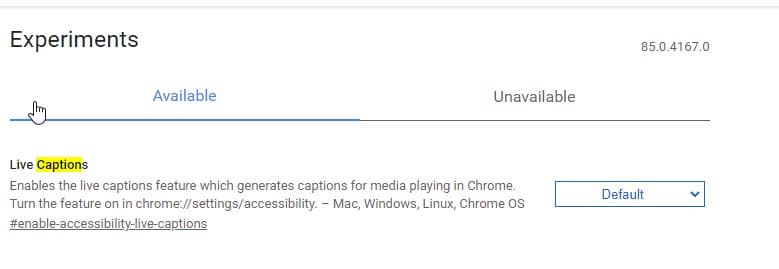
To test the Live Captions feature right-away
Here is how Live Captions work in Chrome browser on desktop
1. Launch Chrome Canary 85.0.4167.0 or later
2. Visit chrome://flags page
3. Search for ” Live Captions”
4. Select “Enabled” from the Dropdown and restart the browser.
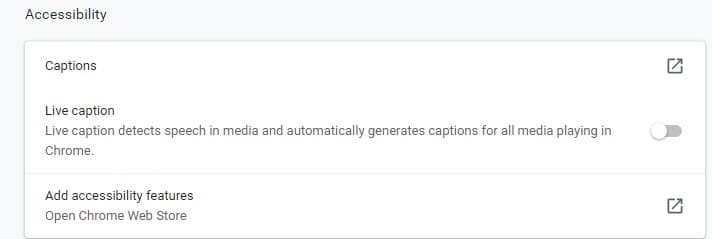
5. Click on menu > Settings > Advanced > Accessibility > Enable Live caption
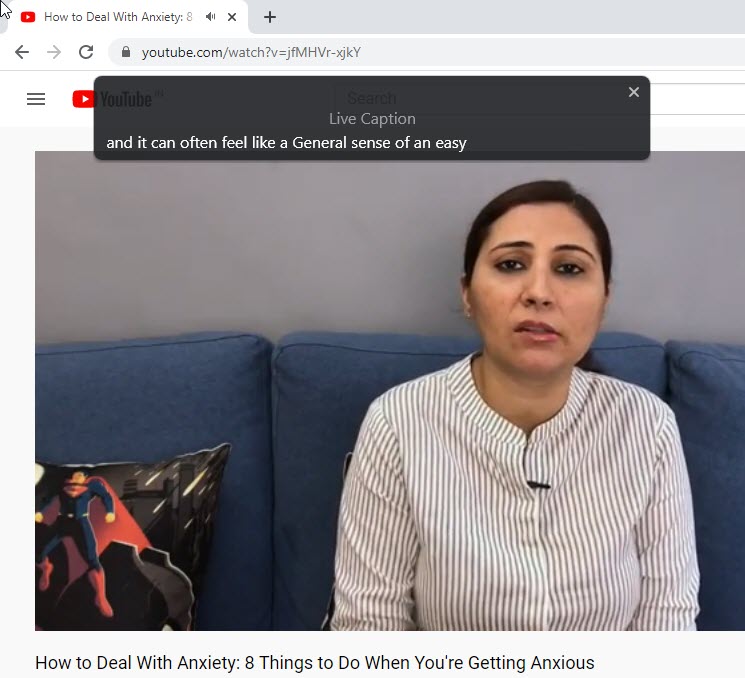
7. Visit YouTube or SoundCloud, play any video/audio, Chrome starts showing captions in the browser default language (English).
You can place the Captions dialog window anywhere on the screen by dragging and dropping.
The main aim of the feature is to display captions for media playing on the screen to hearing-impaired users.
Chrome with the live caption accessibility setting enabled detects speech in the media and converts it to text and displays on Live Captions dialog in the browser.
Chrome generates captions for all supported languages and these may not be accurate.
Related articles:
Google brings Live Caption feature to Chrome browser on desktop
Chrome is ready to generate Automatic image descriptions [Accessibility feature]
Chrome 78 adds deep links to Android and Windows 10 Captions Settings




Chrome Global Media Controls UI lets you Control Video Live Captions - Techdows
[…] is bringing the same to the desktop for Windows, Mac, and Linux platforms. Currently, the feature requires enabling the “Live Captions” flag to funciton on all […]
Chrome Global Media Controls UI lets you Control Video Live Captions - Techdows
[…] is bringing the same to the desktop for Windows, Mac, and Linux platforms. Currently, the feature requires enabling the “Live Captions” flag to funciton on all […]