The MSN homepage is https://www.msn.com, Microsoft’s free news, weather, sports and money portal. The fastest way to make MSN your homepage is to open MSN.com and select Make MSN my homepage at the top of the page, or add https://www.msn.com/ as the startup page in your browser’s settings.
Use the startup setting if you want MSN to appear automatically whenever you launch the browser. Use the homepage setting if you only want MSN to open when you click the Home button. This distinction matters because a browser’s homepage, startup page, and new-tab page are usually three separate settings. Changing one does not necessarily change the others.
What is the MSN homepage?
The MSN homepage is Microsoft’s web portal for news, weather, sports, finance, entertainment, and other personalized content. You can use it without signing in, but signing in with a Microsoft account allows MSN to remember your interests, layout, and settings on every browser and computer you use.
The official MSN homepage address is:
Typing msn.com in any browser’s address bar takes you to the same page, adjusted to your country and language. Before restoring it, decide exactly when you want MSN to appear:
| Browser setting | When MSN appears |
|---|---|
| Homepage | When you click the browser’s Home button |
| Startup page | Whenever you completely launch the browser |
| New-tab page | Whenever you open an additional tab |
If your goal is to see MSN every time you open Chrome or Edge, changing only the Home button will not be enough. You must also set MSN under the browser’s startup options.
Restoring MSN as your homepage will load the current MSN website. It cannot restore an older MSN design or layout that Microsoft has already retired.
Make MSN my homepage automatically: one-click options from Microsoft
If you would rather not dig through browser settings, Microsoft offers three ways to set MSN as your homepage for you. Each one comes directly from Microsoft, but the extension and Windows package also make Bing your default search engine, so read the description before you agree.
Use the Make MSN my homepage button on MSN.com
- Go to www.msn.com.
- Look at the bar above the news feed, next to Personalize.
- Select Make MSN my homepage and follow the prompt for your browser.
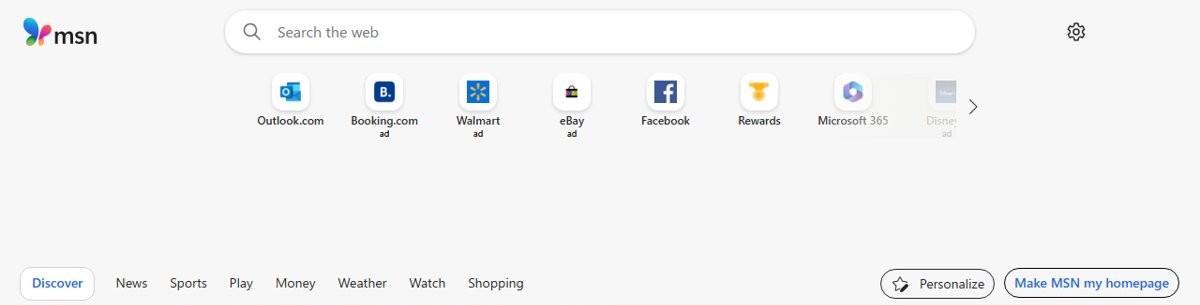
If you don’t see the button, or the prompt offers to add an extension and you prefer not to install anything, the manual browser steps further down do the same job using only built-in settings.
MSN default homepage and Bing default search engine (Microsoft Download Center)
Microsoft also lists a Windows package on its official Download Center called MSN default homepage & Bing default search engine. Its description says it will “set MSN as your default homepage and Bing as your default search engine”.
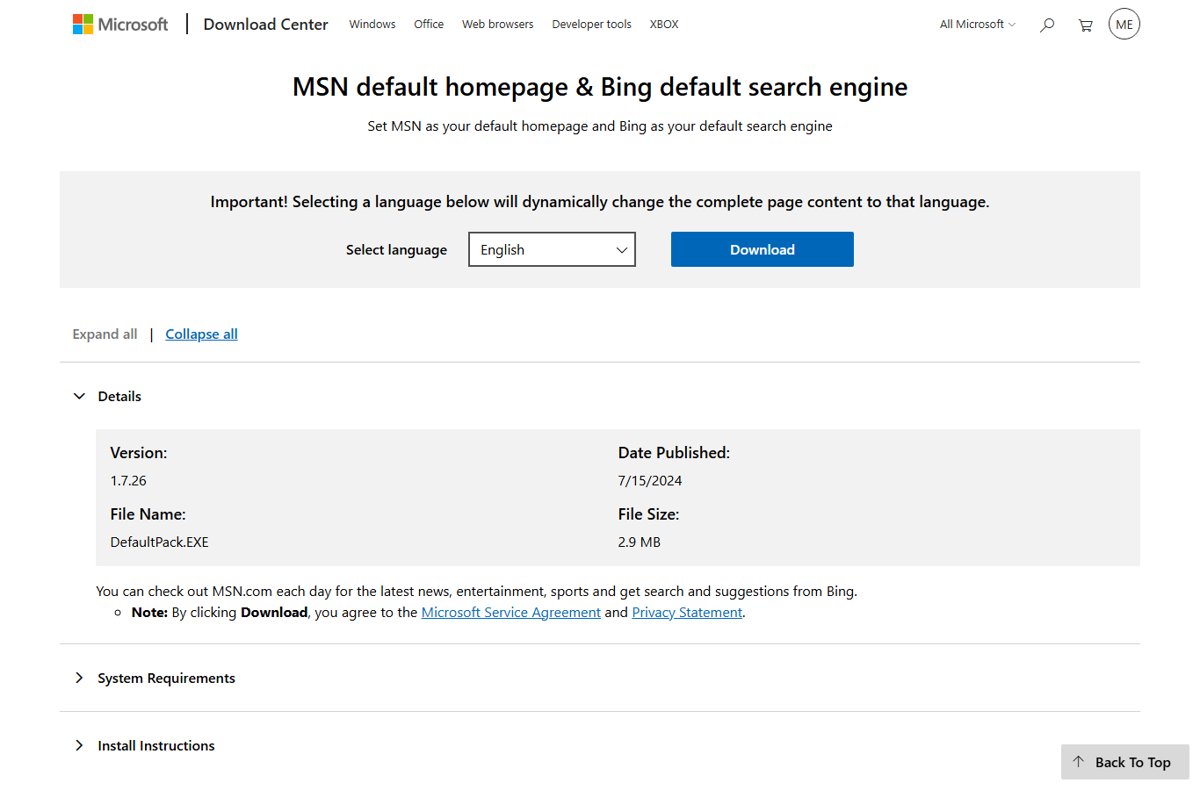
The Details section of that page lists:
- Version: 1.7.26
- Date published: 7/15/2024
- File name: DefaultPack.EXE
- File size: 2.9 MB
This is the answer to “make MSN my home page automatically” on a Windows PC, because the installer changes the settings for you instead of you entering the address by hand. Get it only from the microsoft.com page above, check the System Requirements and Install Instructions sections on that page before running it, and remember that it changes your search engine as well as your homepage. If you only want MSN and want to keep your current search engine, use the manual browser settings instead.
Install Microsoft’s MSN homepage extension for Edge, Chrome or Firefox
Microsoft publishes small browser extensions whose only job is to set MSN as your homepage, with Bing search in some versions. They are listed in each browser’s official add-on store:
- Microsoft Edge: search the Edge Add-ons store for “MSN”. MSN Homepage (“Set MSN as your homepage”) and MSN Homepage & Bing Search Engine are both published by Microsoft Corporation.
- Google Chrome: search the Chrome Web Store for MSN + Bing for Chrome, a featured listing described as “Set MSN as your homepage and Bing as your search engine”. Open the listing and confirm the publisher before you select Add to Chrome.
- Firefox: search Firefox Add-ons for “MSN homepage”. MSN Homepage and Bing Search Engine and MSN Homepage, New Tab and Bing Search Engine are both from Microsoft Corporation. The second one also puts MSN on every new tab.
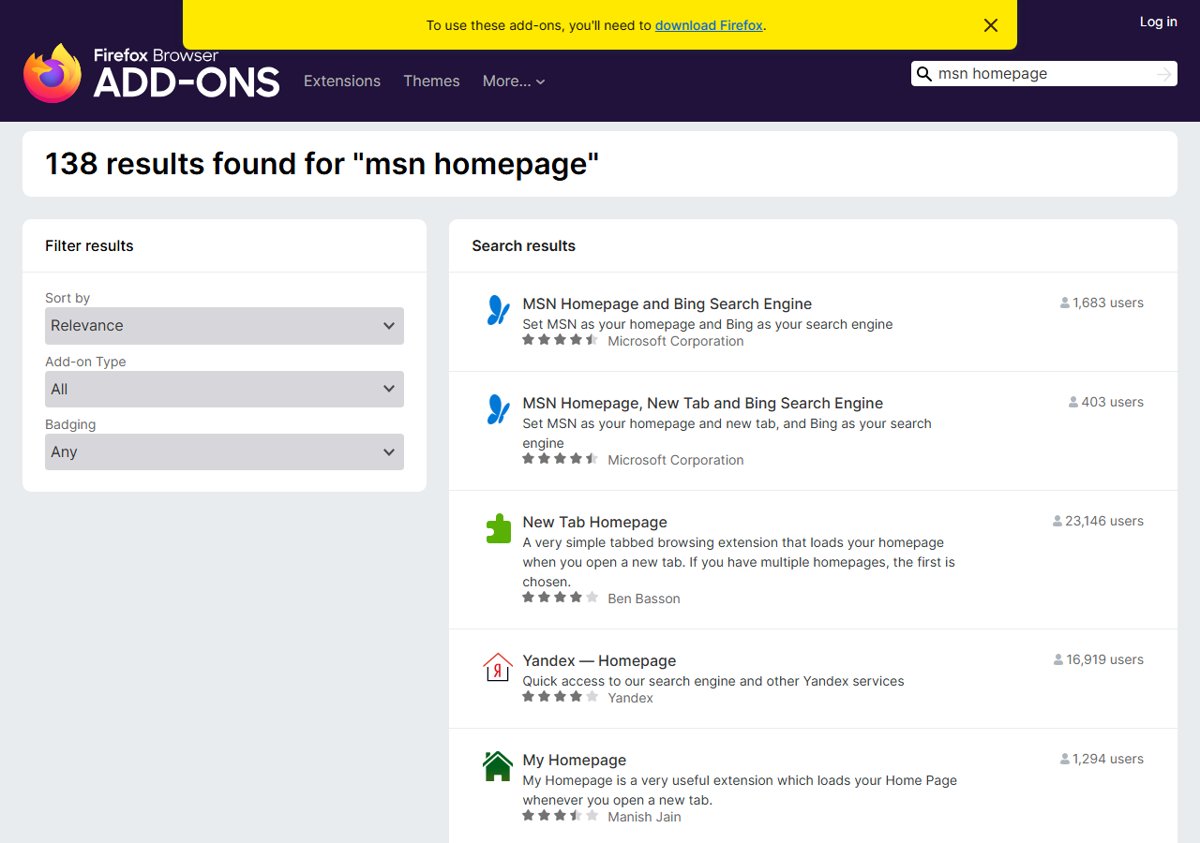
Install only listings that show Microsoft Corporation as the publisher. Many look-alike “homepage” extensions in the same stores are from unrelated developers, and some change your search engine or new-tab page to their own services. If you change your mind, remove the extension from the browser’s extensions page and set your homepage again in the browser’s settings.
How to restore MSN as homepage in Microsoft Edge
Microsoft Edge lets you configure MSN as both the startup page and the page opened by its Home button. These options are available from the same section of Edge settings.
Make MSN open whenever Edge starts
- Open Microsoft Edge.
- Click the three-dot Settings and more menu in the upper-right corner.
- Select Settings.
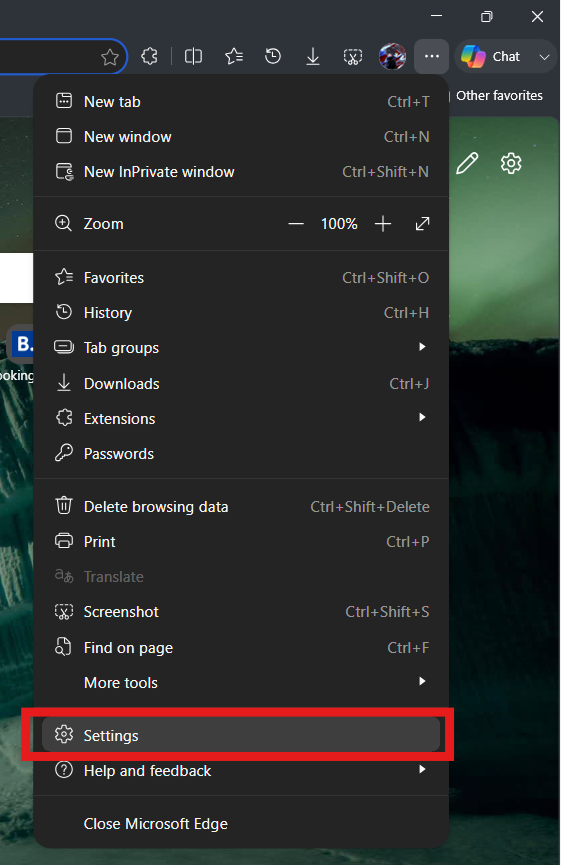
- Open Start, home, and new tab page.
- Under When Edge starts, select Open these pages.
- Click Add a new page.
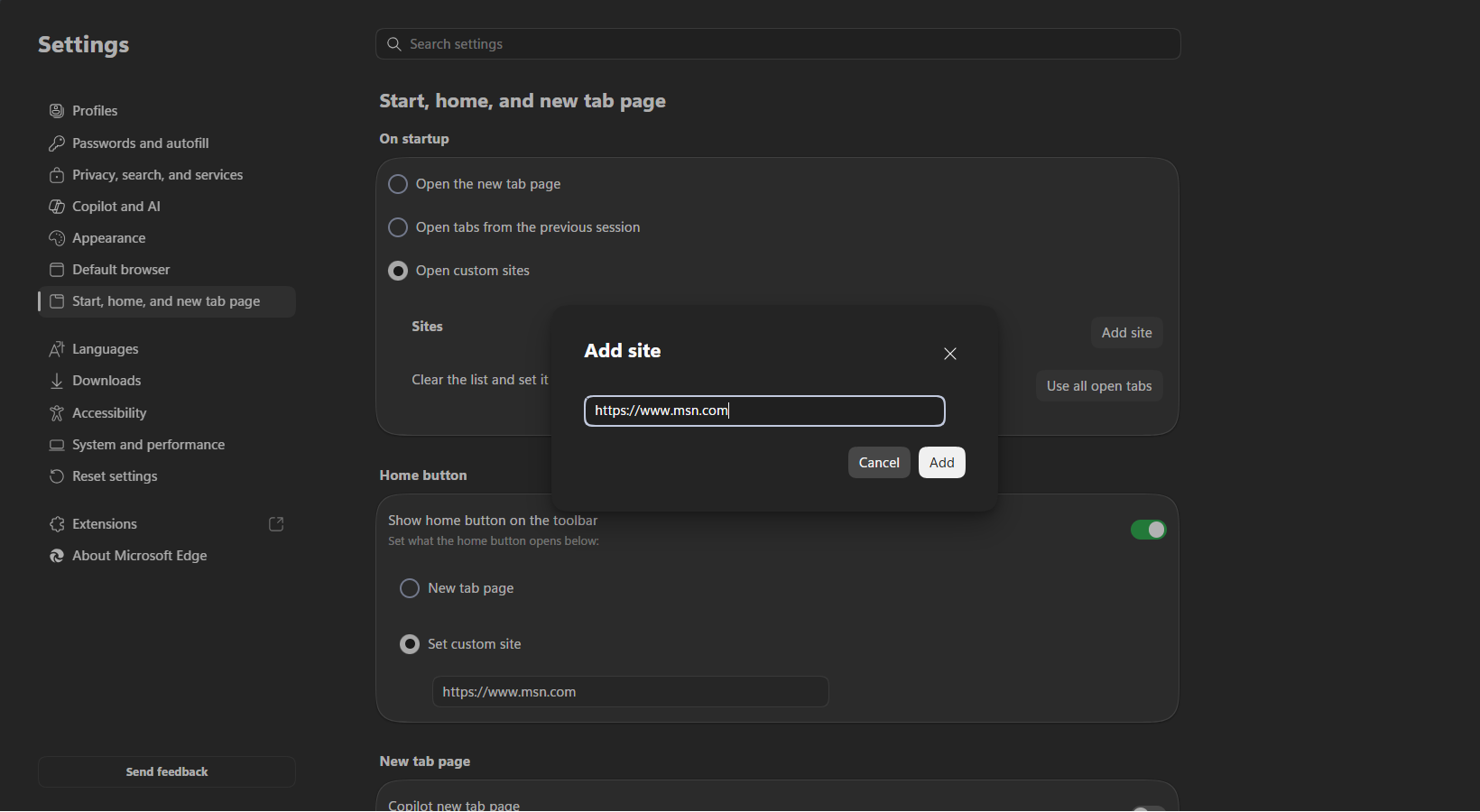
- Enter
https://www.msn.com/. - Click Add.
Close every Edge window and open the browser again. MSN should now appear as the first page.
If Edge continues reopening the tabs from your previous session, return to the same settings page and make sure Open tabs from the previous session is not selected.
Set MSN for the Edge Home button
- Open Settings > Start, home, and new tab page.
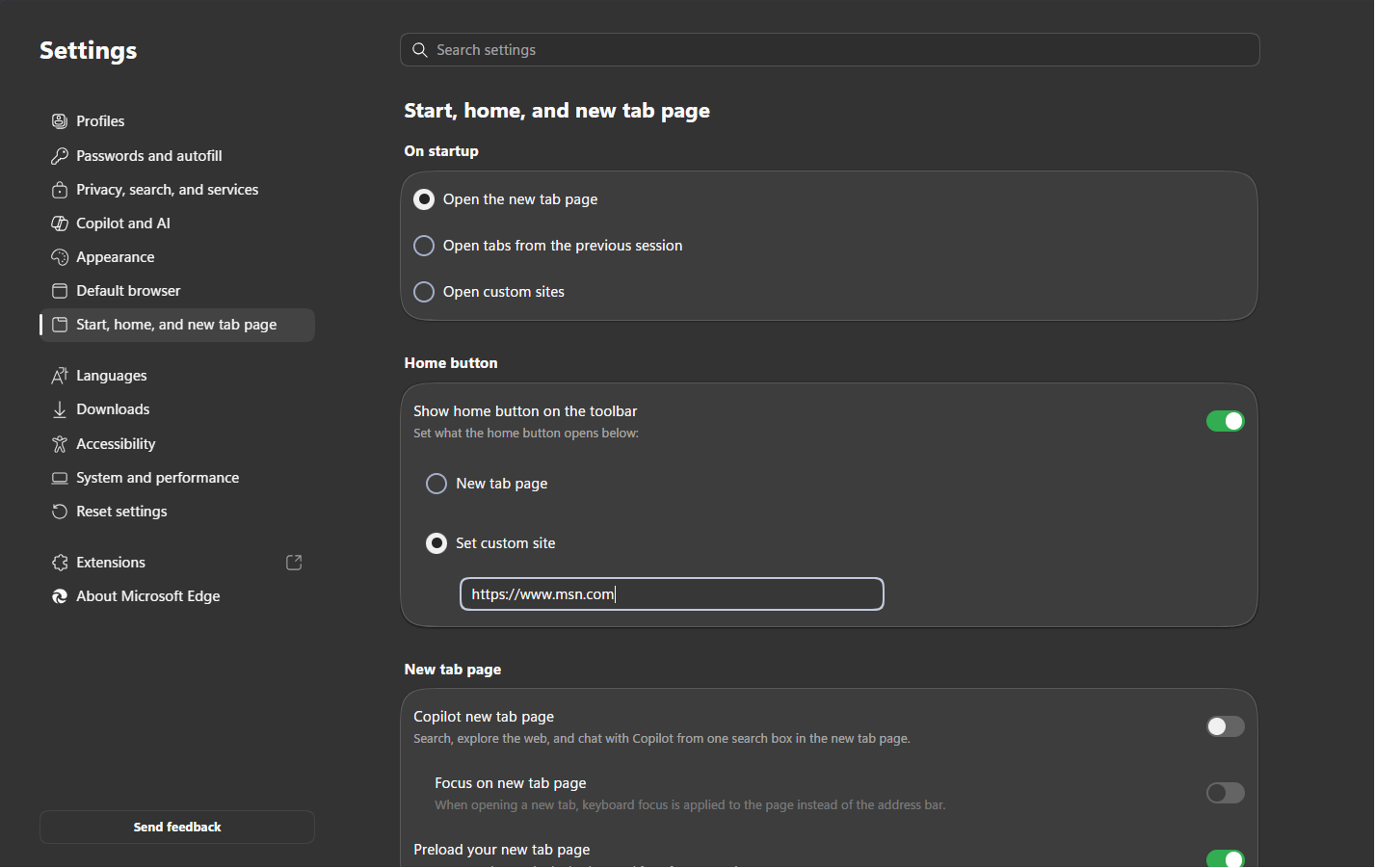
- Turn on Show home button on the toolbar.
- Select Enter URL.
- Enter
https://www.msn.com/. - Save the change.
A Home button will appear beside the Edge address bar. Clicking it will open MSN, even when your startup page is set to something else.
Edge’s default new-tab page may already display Microsoft news, weather, and other feed content. However, that page is not the same as opening the full MSN.com website. Edge does not provide a built-in setting that replaces every new tab with an arbitrary website URL.
How to set MSN as homepage in Google Chrome
Chrome also separates its startup page from its Home button. Google’s help describes the startup page as the one that shows when you first launch Chrome, and the homepage as the one you go to when you select Home. Set both if you want MSN to open when Chrome starts and whenever you click Home.
Make MSN open when Chrome starts
- Open Google Chrome.
- Click the three-dot More menu in the upper-right corner.
- Select Settings.
- Select On startup from the sidebar.
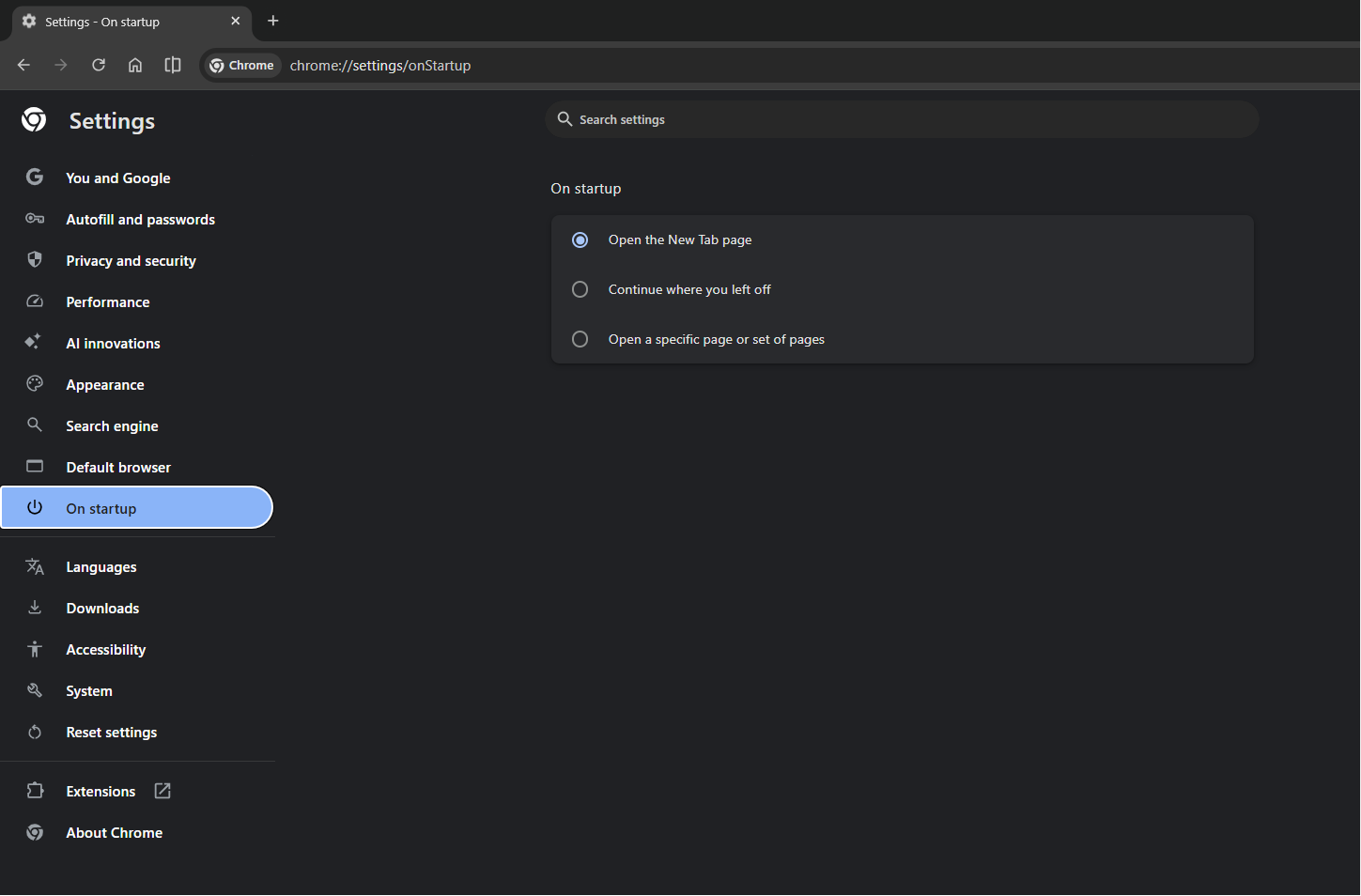
- Choose Open a specific set of pages (called Open a specific page or set of pages in older versions).
- Click Add a new page.
- Enter
https://www.msn.com/.
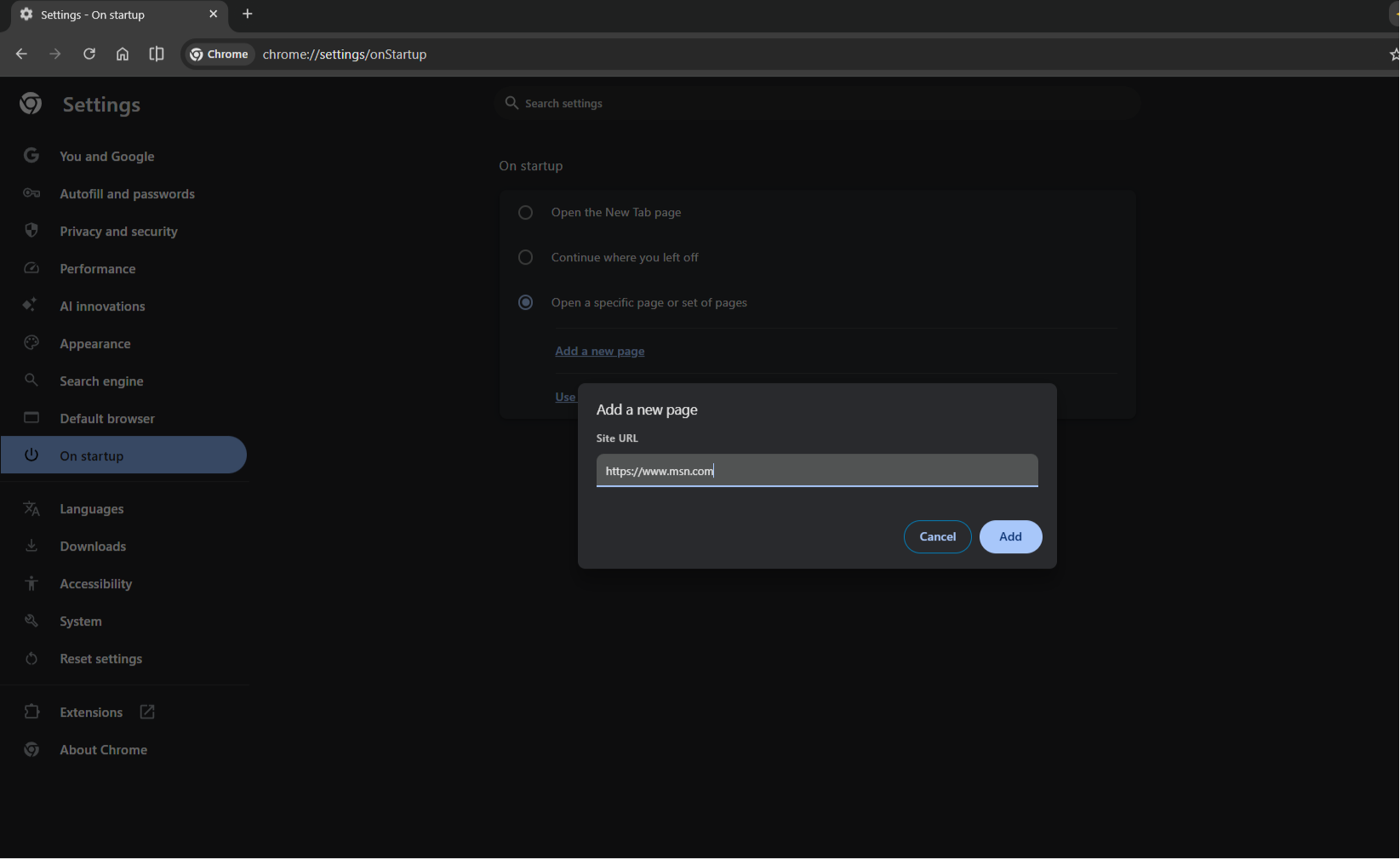
- Click Add.
Close Chrome completely and reopen it to confirm the change. Chrome will now load MSN when you begin a fresh browser session. If you already have Chrome running and open another window, its behaviour may depend on your tab and window settings.
If Chrome keeps restoring your old tabs, check the On startup section again and confirm that Continue where you left off is not selected. The other startup choices, Have a new tab open and Display Chrome profiles, also stop MSN from appearing at launch.
Add an MSN Home button to Chrome
- Open Chrome Settings.
- Select Appearance.
- Turn on Show Home button.
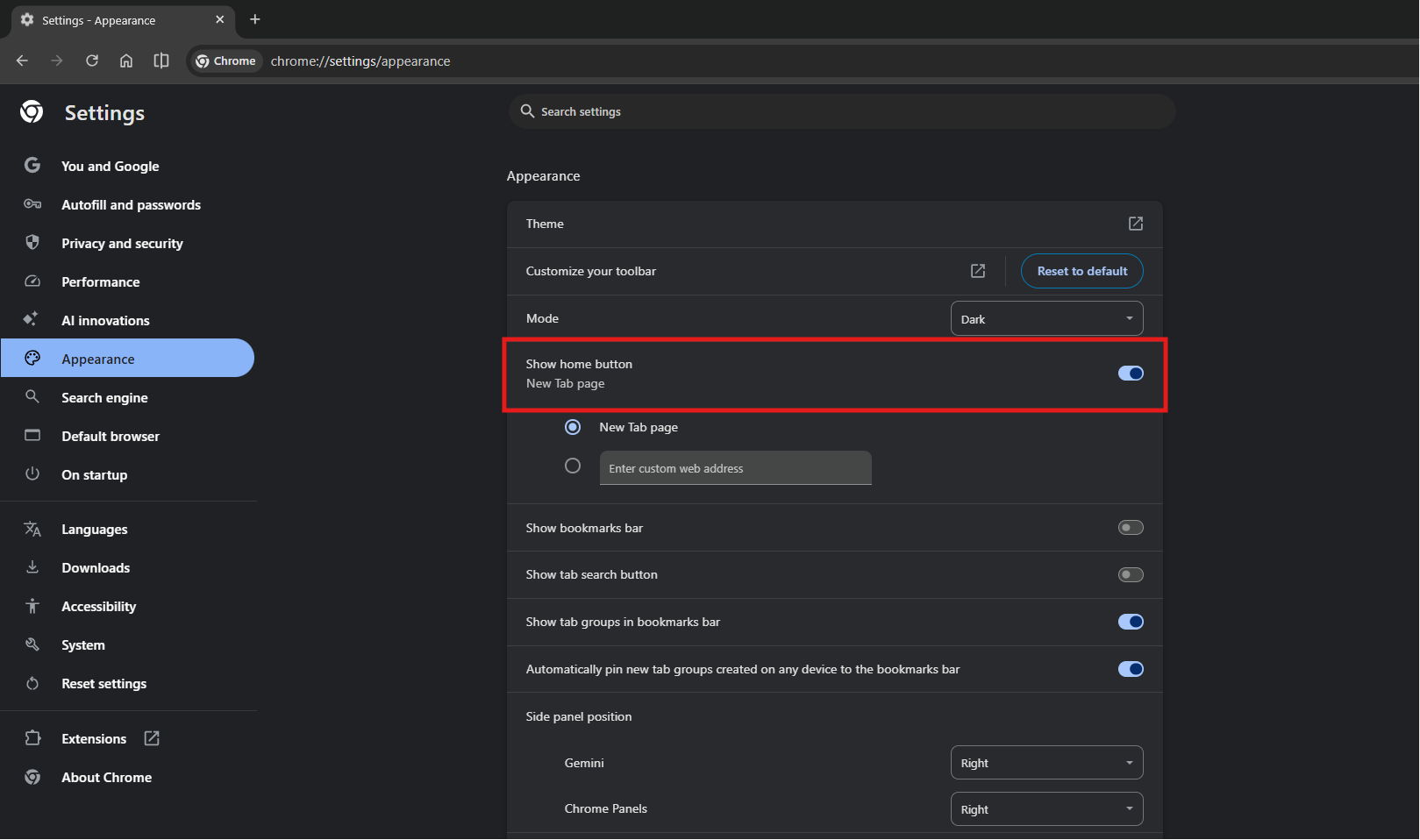
- Select Enter custom web address.
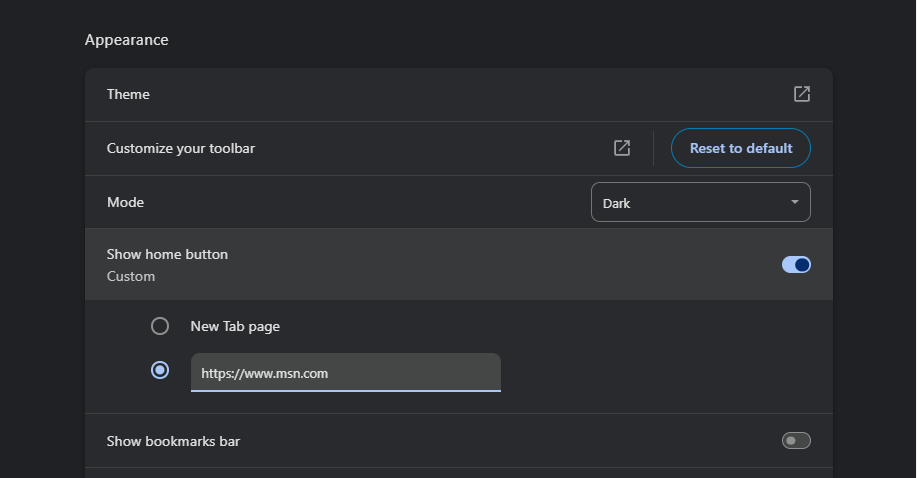
- Enter
https://www.msn.com/.
The Home button will appear to the left of Chrome’s address bar. This controls only the Home button and does not replace your startup or new-tab page.
Chrome does not include a normal setting for opening a custom website whenever you create a new tab. Extensions can modify the new-tab page, but install one only if you trust its publisher and permissions, such as Microsoft’s own MSN listing described above.
On a Chromebook managed by work or school, Google notes that you cannot choose or change the startup page or homepage, because the administrator controls them.
How to restore MSN as homepage in Firefox
Firefox lets you set a custom address for the Home button and new browser windows.
- Open Firefox.
- Click the three-line menu in the upper-right corner.
- Select Settings (called Options in older versions).
- Open the Home panel.
- Under New Windows and Tabs, open the drop-down next to Homepage and new windows.
- Select Custom URLs. The other choices are Firefox Home (Default) and Blank Page.
- Enter
https://www.msn.com/.
Firefox should now open MSN when you click its Home button or open a new browser window.
If the Home button is missing, right-click an empty area of the Firefox toolbar, choose Customize Toolbar, and drag the Home button onto the toolbar.
Firefox can also restore your previous windows and tabs when it starts. If MSN does not appear after restarting Firefox, open the general startup settings and turn off Open previous windows and tabs.
Firefox’s standard new-tab setting allows Firefox Home or a blank page rather than an arbitrary website. Setting MSN under Homepage and new windows does not replace every newly opened tab. If you want MSN on new tabs too, Microsoft’s MSN Homepage, New Tab and Bing Search Engine add-on does that.
How to set MSN as homepage in Safari (macOS)
Safari on Mac can use MSN for the Home command, new browser windows, and new tabs. Older instructions, including Microsoft’s own help page, refer to Safari Preferences, but Apple now calls this menu Settings.
- Open Safari.
- From the Mac menu bar, select Safari > Settings.
- Open the General tab.
- Enter
https://www.msn.com/in the Homepage field. - Set New windows open with to Homepage.
- Set New tabs open with to Homepage if you also want MSN on every new tab.
You can also open MSN first and select Set to Current Page instead of manually entering the address.
To open the configured homepage at any time, select History > Home from the Safari menu bar.
If Safari continues restoring your previous windows, close those windows before quitting Safari and then test it again. Restored sessions can appear instead of the homepage you configured.
How to set MSN as homepage on mobile
Mobile browsers do not all treat a homepage in the same way. On some browsers, the setting controls only a Home button. On others, it controls the first page shown when you open the browser.
Set MSN as the homepage in Chrome on Android
- Open Chrome on your Android phone or tablet.
- Tap the three-dot More menu.
- Select Settings.
- Under Advanced, tap Homepage.
- Turn the homepage option on.
- Select the custom page option.
- Enter
https://www.msn.com/.
This changes the page opened by Chrome’s Home button. It does not guarantee that MSN will appear automatically whenever you reopen Chrome, because Android may restore your previous tab.
You can also open MSN, tap the three-dot menu, select Add to Home screen, and create a shortcut on your Android Home Screen.
Set MSN as the homepage in Microsoft Edge on mobile
- Open Microsoft Edge.
- Tap the menu button.
- Open Settings > General > Home page.
- Select A specific page.
- Enter
https://www.msn.com/. - Tap Save.
Depending on the Edge version and mobile operating system, some menu names may appear in a slightly different location.
Add MSN to the Home Screen on iPhone or iPad
Chrome on iPhone and iPad does not provide the same custom homepage control available on computers and Android. Safari also does not provide a traditional browser startup-page setting.
The most reliable option is to add MSN to the iPhone or iPad Home Screen:
- Open Safari.
- Go to MSN.com.
- Tap the Share button.
- Scroll down and select Add to Home Screen.
- Turn on Open as Web App if the option is shown.
- Tap Add.
An MSN icon will appear on the Home Screen. Tapping it opens the website in its own window, similar to an app.
Set MSN as the homepage in Firefox on iPhone
- Open Firefox.
- Tap the menu button.
- Select Settings.
- Tap Homepage.
- Select Custom URL.
- Enter
https://www.msn.com/.
You can then open MSN from the Firefox menu by selecting Homepage.
Personalize your MSN homepage with sign-in, interests and settings
Once MSN opens as your homepage, a few minutes of setup makes the page far more useful. The options below come from Microsoft’s Welcome to the MSN home page help article.
Sign in to keep your MSN customizations on every device
Select Sign in on MSN and use your Microsoft account. Microsoft says signing in gives you the most personalized experience: you can customize the home page and add your interests.
If you do not sign in, MSN stores some settings in browser cookies. Those customizations appear only in the same browser on the same computer, and they are lost, including content, layout and themes, if the cookies are deleted. To see your customized MSN homepage in any browser or on any computer, always sign in.
Change MSN settings: market, language and home location
Select the settings (gear) button at the top right of the MSN homepage, then select Settings. Microsoft lists these settings you can change:
- Microsoft account
- Social accounts
- Privacy
- Market and language, which controls the regional edition and publishers you see
- Home location, which sets the local weather and news
To change the topics in your feed, use the Personalize button above the news feed on MSN.com.
Use the MSN service links, sections and search
The row of shortcuts under the search box, which Microsoft’s help calls the services stripe, keeps the services you use every day in one place, such as Outlook.com, Microsoft 365 and Rewards. Microsoft has a separate help page on rearranging, adding, removing or hiding these services.
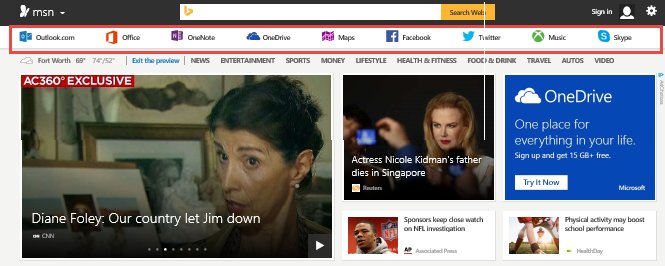
The section tabs above the feed (Discover, News, Sports, Play, Money, Weather, Watch and Shopping on the US edition) take you to each part of MSN in one click. Bing is the search engine for the MSN homepage, and a search opens in a new tab so you can return to your MSN tab when you are finished.
Some stories open on the publisher’s own website rather than on MSN. Microsoft explains that some content agreements require MSN to send you to the originating site.
Quick ways to open MSN without changing your homepage
If you do not want MSN taking over your startup page, these shortcuts put it one click away instead:
- Bookmark it: open MSN.com and press Ctrl + D (Cmd + D on Mac), or drag the tab onto your bookmarks or favorites bar.
- Create a desktop shortcut: right-click the Windows desktop, choose New > Shortcut, paste
https://www.msn.com/, and name it MSN. - Pin it to the taskbar: you can pin an MSN shortcut to the taskbar in Windows 11 so it opens from the bottom of the screen.
- Open it alongside other sites: Chrome and Edge accept several startup pages, so you can open MSN next to Outlook or your search engine each morning.
On a phone, adding MSN to the Home Screen, as described in the mobile section above, is the quickest equivalent.
Why did my MSN homepage disappear?
A browser update will usually preserve your homepage, so an update is not always the real cause. MSN may appear to have disappeared because the browser is restoring an old session, you switched to a different browser profile, or you changed the Home button without changing the startup page.
Other common causes include:
- An extension changed your startup, homepage, or new-tab settings.
- Browser synchronisation copied settings from another device.
- You signed into a different Chrome, Edge, or Firefox profile.
- A browser reset returned your settings to their defaults.
- A work or school policy controls your browser settings.
- A security or cleaning utility modified your browser configuration.
- Unwanted software changed the page without your permission.
Check whether you changed the correct setting
If MSN opens only after clicking the Home button, you have configured the homepage but not the startup page. Return to your browser’s startup settings and add MSN there as well.
If MSN appears when the browser launches but not on new tabs, the setting is probably working correctly. Chrome and Edge do not normally let you replace the new-tab page with any website you choose.
If the browser opens your old tabs instead of MSN, it is set to restore tabs from your last session. Switch the startup option back to a specific page.
Check extensions and browser profiles
Open your browser’s extension page and disable extensions you do not recognize. In Edge, you can turn extensions off one at a time to find the one that keeps overriding MSN. Pay particular attention to extensions that claim to customize search, the new-tab page, coupons, shopping, weather, or browser appearance.
You should also confirm that you are using the same browser profile where you originally configured MSN. Each Chrome or Edge profile can have different startup pages and extensions. If Chrome sync is on, it can also copy an older homepage setting back from another device.
Check whether the browser is managed
If the settings are greyed out or immediately change back, the browser may be managed by your employer, school, device manufacturer, or security software. Look for a message such as Managed by your organization in the browser menu or settings.
On a company or school computer, you may need to contact the administrator. On a personal computer, a management message you do not recognize deserves further investigation.
Scan the computer if the homepage changes by itself
If an unknown website repeatedly replaces MSN without your permission, remove suspicious extensions, reset the browser, and run a security scan. Google specifically warns that a homepage or startup page you did not set yourself can be a sign of unwanted software or malware. Our steps to remove a browser hijacker cover the clean-up in detail.
Why set MSN as your homepage?
MSN can be useful as a homepage when you regularly check news, weather, sports scores, markets, or Microsoft services. It puts several types of information on one page instead of requiring separate bookmarks.
Signing in with a Microsoft account can make the feed more relevant by remembering the interests and home location you choose. Your experience may also vary by country because MSN offers different publishers and regional content through its market and language setting.
MSN is not necessarily the best homepage for everyone. The page contains a large amount of news and personalized content, which can feel distracting if you prefer a fast, blank page. In that case, you can keep MSN as a bookmark or Home-button destination without making it open every time the browser starts.
You can also set more than one startup page in Chrome and Edge. For example, you could open MSN alongside Outlook, a search engine, or another website you check each morning.
FAQs
What is the official MSN homepage?
The official MSN homepage is https://www.msn.com/. Check the address carefully before signing in with your Microsoft account.
How do I make MSN my home page automatically?
Open MSN.com and select Make MSN my homepage, install Microsoft’s MSN homepage extension from your browser’s add-on store, or use Microsoft’s MSN default homepage & Bing default search engine package from the Microsoft Download Center. The extension and the package also set Bing as your search engine.
How do I make MSN open whenever I start my browser?
Add MSN under the browser’s startup settings. In Chrome, select On startup > Open a specific set of pages. In Edge, use When Edge starts > Open these pages.
Why does MSN open only when I click the Home button?
The homepage and startup page are separate settings. You have configured the Home button but have not yet added MSN to the browser’s startup pages.
Can I make MSN appear whenever I open a new tab?
Safari can be configured to open the homepage in new tabs. Chrome, Edge, and Firefox do not support an arbitrary new-tab URL through their standard settings. In Firefox, Microsoft’s MSN Homepage, New Tab and Bing Search Engine add-on puts MSN on new tabs; any other extension that does this introduces additional privacy and security considerations.
How do I personalize the MSN homepage?
Sign in with a Microsoft account, then use the settings button at the top right to set your market, language and home location, and the Personalize button above the feed to choose what the feed shows. Without signing in, your changes are kept only in that browser’s cookies.
Can I restore the old MSN homepage design?
No. Setting MSN as your homepage restores access to the current MSN.com website. Older layouts are controlled by Microsoft and cannot usually be restored through browser settings.
Why does Edge already show MSN news on a new tab?
Edge’s default new-tab page includes Microsoft news and feed content, but it is not identical to opening the full MSN.com website. Add MSN as the startup page if you specifically want the website.
Can I set MSN as the homepage on an iPhone?
Safari and Chrome on iPhone do not offer a traditional custom homepage setting. You can add MSN to the Home Screen from Safari, or use a mobile browser such as Firefox that supports a custom homepage URL.
Is MSN safe to use as a homepage?
Yes, MSN is operated by Microsoft. Use the official msn.com address, get extensions only from listings published by Microsoft Corporation, and get the Windows package only from microsoft.com. Avoid other download sites claiming that you need extra software to restore MSN.
How do I remove MSN as my homepage later?
Return to the same homepage or startup section in your browser settings. Delete the MSN address and choose the browser’s default new-tab page, a blank page, or another website. If you installed a Microsoft MSN extension, remove it from the browser’s extensions page as well.
Why does my browser keep replacing MSN?
Check session-restore options, browser extensions, synchronization, profiles, and management policies. If an unknown page repeatedly returns without permission, reset the browser and scan the device for unwanted software.

