If you’ve installed June Patch Tuesday Update KB5027231 on Windows 11 22H2 and noticed Google Chrome is not opening, check out the workarounds mentioned in the article below.
Windows 11 Cumulative Update KB5027231
Microsoft has released Patch Tuesday Update KB5027231 (OS build 22621.1848) for Windows 11 22H2 and is available via Windows Update.
The cumulative update is also a mandatory security update and it supports Moment 3 Update.
Apart from addressing copy paste issue, the update includes important fixes to vulnerabilities and remote code execution flaws in Microsoft products.
You can check the list of issues the update addresses here.

Fix Windows 11 KB5027231 Update breaks Google Chrome
After installing the update, some reported Chrome is not working.
Unfortunately, uninstalling and reinstalling browser doesn’t help.
“Google Chrome worked on 12 Jun 23 before the KB5027231 mandatory update. After uninstalling and reinstalling, it still won’t open. ”
Some users on Malwarebytes forum said they’ve the same issue with Google Chrome.
“Updating to June 2023 Update (KB5027231) prevents Google Chrome from displaying after loading. Chrome will be listed in task manager but you cannot get it to display. The only thing you can do is quit Malwarebytes.”
Affected users on both threads claimed turning off Malwarebytes Exploit Protection fixed the things for them.
Google Chrome doesn’t open after installing KB5027231 Update
- Open Malwarebytes
- Click on Settings > Security
- Scroll down to “Exploit Protection” at the bottom and disable it by toggling its switch to off.
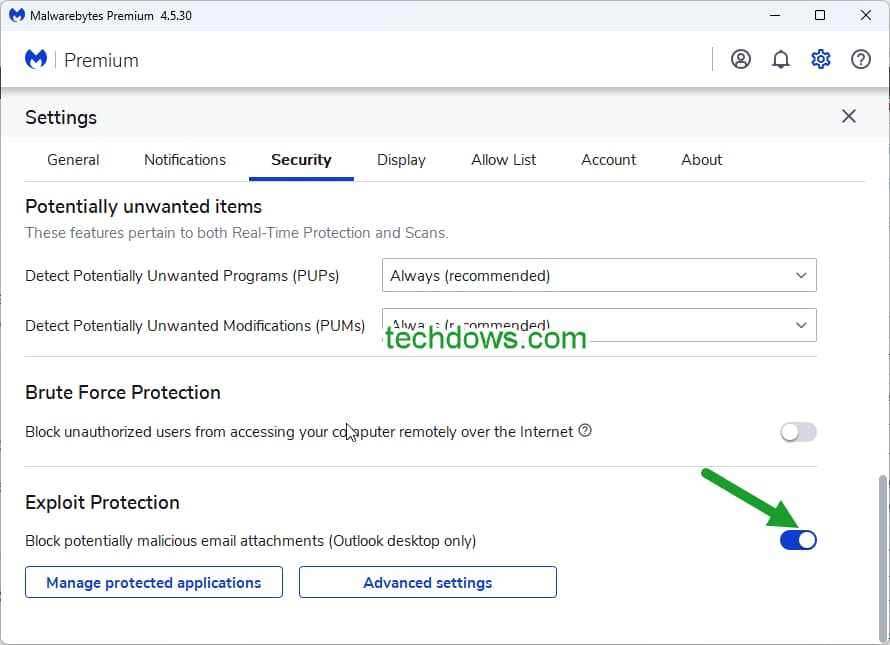
Or
Click on “Manage Protected Applications” and toggle switch for Google Chrome to disable, click Done
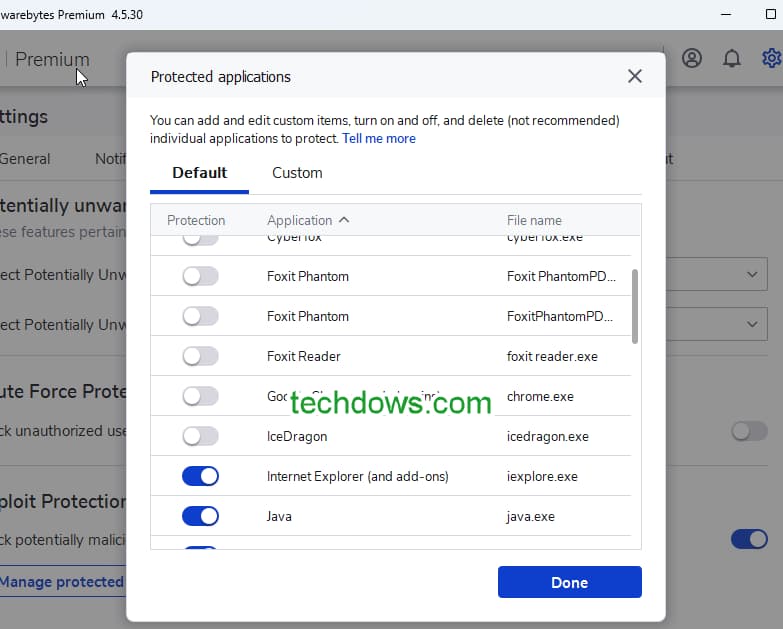
On other hand, if that doesn’t help, follow Malwarebytes workarounds below
1. Set Google Chrome as default browser
or
2. Do not use Chrome as Protected Application in Malwarebytes.
For that,
- visit Settings >Security > Exploit Protection
- Click on “Manage Protected Applications”
- Turn off Google Chrome.
This is same as disabling Exploit protection for Chrome in Malwarebytes on Windows 11 that we mentioned above.
Malwarebytes Exploit Protection has caused issues to applications in the past, now seems it has made Chrome unusable or unopenable. Disabling it resolves the issue temporarily.
Expect Malwarebytes to follow up with product update to make Exploit Protection work again on Windows 11. Meanwhile, use the instructions mentioned above.
Has your Chrome stopped working after installing Cumulative Update KB5027231 on Windows 11? Let us know in the comments below.