To fix a PDF preview handler that is not working in Windows, turn on the File Explorer preview pane, make sure Show preview handlers in preview pane is selected in Folder Options, and unblock PDFs you downloaded from the internet.
This guide covers each of those fixes for Windows 11 and Windows 10, how to install a working PDF previewer, and how to clear the Outlook error that says no previewer is installed.
Fix the PDF preview handler in File Explorer
Work through these checks in order. Most blank or missing PDF previews end at step 3 or step 4.
- Open File Explorer with Windows logo key + E.
- Select View and then Preview pane so the pane opens on the right.
- Select a PDF. If the pane says The file you are attempting to preview could harm your computer, right-click the PDF, select Properties, select Unblock and then OK, provided you trust the file.
- Open Options in File Explorer, select the View tab, and make sure Show preview handlers in preview pane is selected under Advanced settings.
- Set a PDF app that includes a preview handler, such as Adobe Acrobat Reader, as the default for .pdf files in Settings > Apps > Default apps.
- Restart File Explorer from Task Manager and select the PDF again.
What is the PDF preview handler?
A preview handler is a small add-on that draws a file's contents inside the File Explorer preview pane or the Outlook reading pane without fully opening the file. For PDFs, the handler comes from an installed PDF app or from the Microsoft PowerToys add-ons.
| Part | What it does | Where it comes from |
|---|---|---|
| Preview pane | The panel in File Explorer that shows a selected file's contents | Built into File Explorer; turned on from View |
| PDF preview handler | Renders the PDF pages inside the preview pane and Outlook | A PDF reader such as Adobe Acrobat Reader, or the PowerToys PDF previewer |
| PDF thumbnail handler | Draws the first page as a file icon in File Explorer views | The same PDF app or PowerToys add-on, as a separate component |
| Mark of the Web | Flags files downloaded from the internet; Windows blocks previews of these files | Added by browsers and other download apps |
Why PDF preview handler errors occur: the pane is hidden, no PDF app has registered a handler, a 32-bit handler is registered wrongly on 64-bit Windows, PowerToys has overridden another handler, or Windows has blocked a downloaded file. Damaged system files or a broken user profile cause the rest.
Which PDF preview fix matches your symptom?
| What you see | Fix to try first | Why |
|---|---|---|
| No preview pane at all | Enable the preview pane in File Explorer | The pane is off by default in many views |
| "The file you are attempting to preview could harm your computer" | Unblock the PDF in Properties | Since the October 14, 2025 security updates, Windows disables previews of downloaded files |
| "No preview available" for every PDF | Set a default PDF reader or turn on the PowerToys PDF previewer | No PDF preview handler is installed or registered |
| Preview pane works for other files but not PDFs | Check Show preview handlers in preview pane, then restart File Explorer | The handler option is off or Explorer has a stale handler loaded |
| Generic icons instead of PDF thumbnails | Disable "Always show icons, never thumbnails" | That option and a matching policy hide every thumbnail |
| Outlook says no previewer is installed | Match Acrobat Reader's bitness to Outlook, or turn off the PowerToys PDF previewer | Microsoft lists these two causes for the Outlook error |
Enable the preview pane in File Explorer
The preview pane must be visible before any preview handler can run. Microsoft's PowerToys documentation also names a File Explorer option that can block preview handlers even when the pane is open.
- Open File Explorer and select View on the command bar.
- On Windows 11, select Preview pane. On Windows 10, select the View tab on the ribbon and then Preview pane.
- Open File Explorer Options and select the View tab.
- Under Advanced settings, select Show preview handlers in preview pane.
- Select Apply and then OK.
- Select a PDF and check whether pages appear in the pane.
Unblock PDFs downloaded from the internet
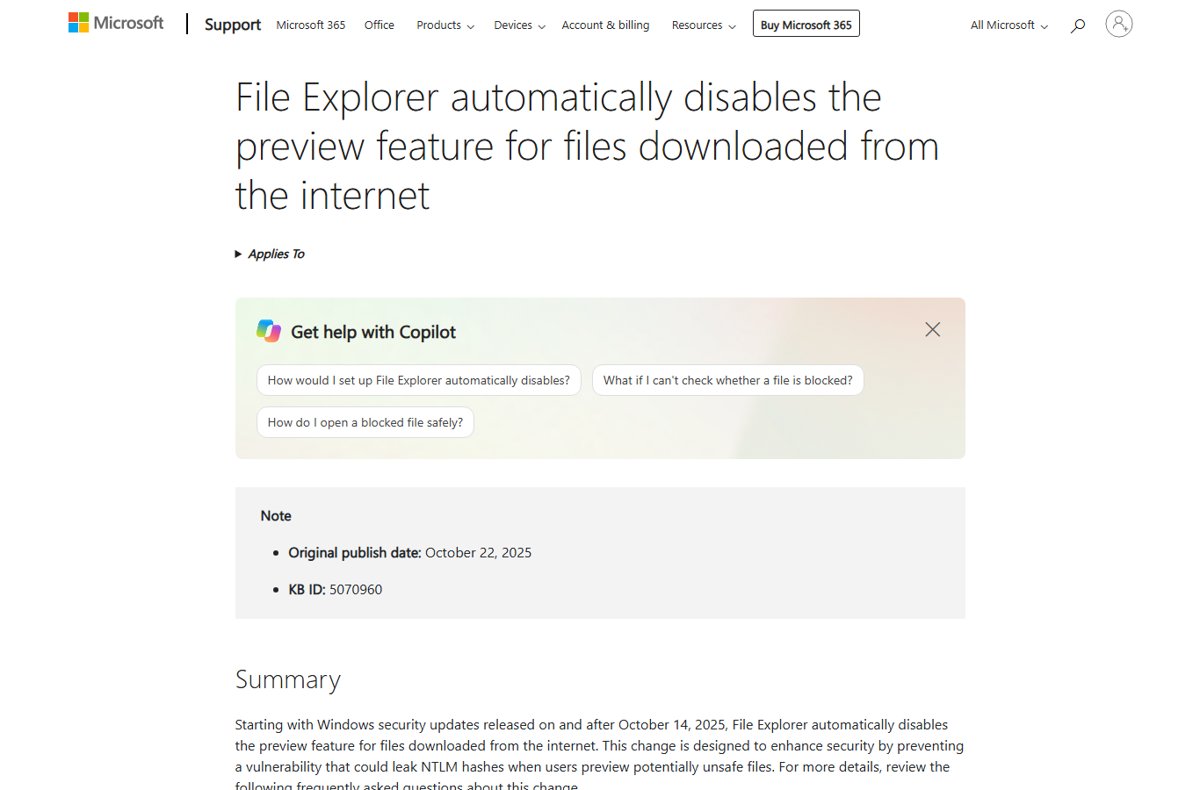
Starting with Windows security updates released on and after October 14, 2025, File Explorer disables the preview for files carrying the Mark of the Web. Microsoft made the change to stop previews from leaking NTLM hashes through files that reference external paths.
This is the most common reason a working PDF preview handler suddenly stopped showing downloaded PDFs. Unblock only files you trust from a source you trust.
- Right-click the downloaded PDF in File Explorer.
- Select Properties.
- Select Unblock at the bottom of the General tab.
- Select Apply and then OK.
- Select the file again; the preview pane should now show its pages.
Microsoft notes that the change applies after the next sign-in, so restart or sign out if previews behave inconsistently right after an update. Files on an internet-zone network share are blocked the same way.
Set a default PDF reader
The PDF app you install supplies the preview handler, and setting it as the default for .pdf files makes sure Windows associates PDFs with that app.
To make Adobe Reader the default PDF handler, pick Adobe Acrobat Reader in the last step below; the same steps work for any other PDF app that ships a preview handler.
- Open Settings and select Apps > Default apps.
- In the search box at the top, type .pdf.
- Select the .pdf result.
- Choose your PDF reader, such as Adobe Acrobat Reader, from the list of apps.
- Restart File Explorer and select a PDF to test the preview.
Enable PDF preview in Adobe Reader
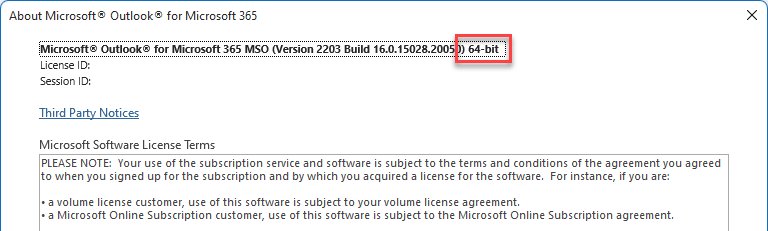
Adobe Acrobat Reader is the PDF previewer Microsoft names in its Outlook guidance. For the preview to load in classic Outlook, Reader must use the same bitness (32-bit or 64-bit) as Outlook.
- In Acrobat Reader, select Help > About Adobe Acrobat Reader and note whether it is 32-bit or 64-bit.
- In Outlook, select File > Office Account > About Outlook and note its bitness.
- If they differ, uninstall Acrobat Reader and reinstall the version that matches Outlook from Adobe's own download page.
- Open Acrobat Reader once after installing it and accept the end-user license agreement (EULA) and any other first-run prompts, then close it before you test the preview.
- Open Reader's Preferences and, if your version offers a setting for PDF thumbnail previews in Windows Explorer, turn it on.
- Set Acrobat Reader as the default .pdf app, then restart File Explorer.
Turn on the PowerToys PDF previewer
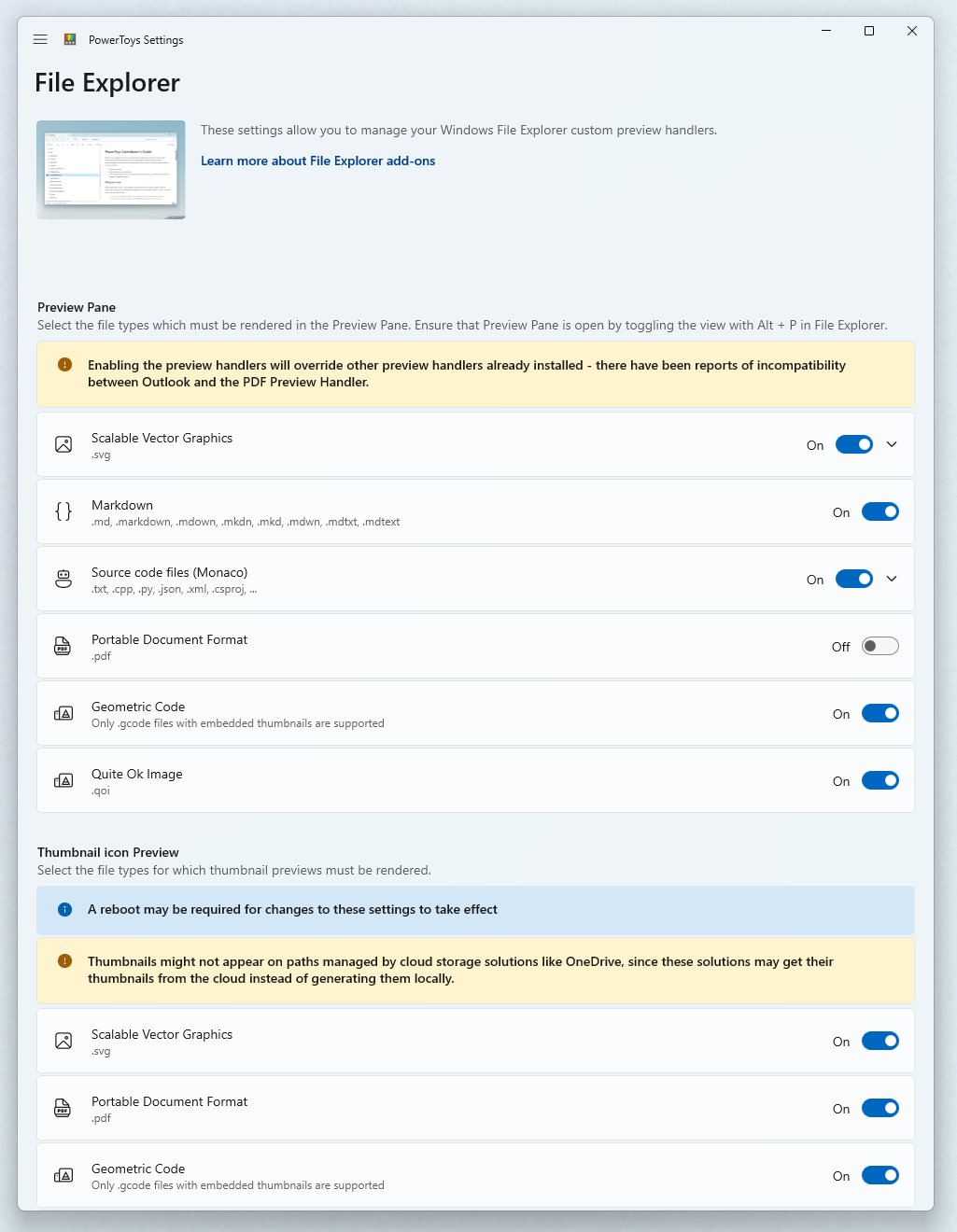
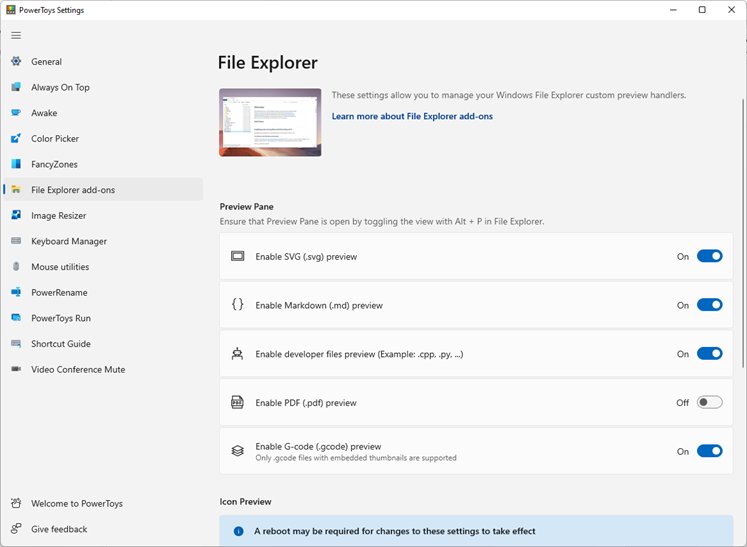
Microsoft PowerToys adds its own PDF preview pane and thumbnail handlers through File Explorer add-ons. Microsoft warns that these handlers override others already installed and have caused conflicts with Outlook.
- Install Microsoft PowerToys and open it from the Start menu.
- Select File Explorer add-ons.
- Set the PDF preview option to On for the preview pane, and the PDF thumbnail option to On for icons.
- Restart the PC if thumbnails do not appear, since a reboot may be required.
- Select a PDF in File Explorer with the preview pane open.
If Outlook stops previewing PDFs afterwards, return here and turn Enable PDF (.pdf) preview off.
Restart File Explorer
File Explorer loads preview handlers into memory. After you install a PDF app, change the default or toggle a setting, a restart makes Explorer load the new handler.
- Press Ctrl + Shift + Esc to open Task Manager.
- Find Windows Explorer in the list of processes.
- Right-click it and select Restart.
- If the taskbar does not come back, select File > Run new task, type
explorer.exeand press Enter. - Open the folder with your PDFs and select one with the preview pane open.
Disable "Always show icons, never thumbnails"
This File Explorer option replaces every thumbnail with a generic icon, including PDF first-page thumbnails. On managed PCs, the Group Policy setting Turn off the display of thumbnails and only display icons forces the same behavior.
- Open File Explorer Options and select the View tab.
- Under Advanced settings, clear Always show icons, never thumbnails.
- Select Apply and then OK.
- Switch the folder view to medium icons or larger so thumbnails are visible.
- On Pro, Enterprise or Education, open
gpedit.mscand check User Configuration > Administrative Templates > Windows Components > File Explorer > Turn off the display of thumbnails and only display icons; set it to Not Configured if your organization allows it.
Network folders show only icons by default under a separate policy, so PDF thumbnails on a network share may stay hidden even after this change.
Update your PDF reader
An outdated or half-removed PDF reader can leave a broken handler registration behind. Installing the current version re-registers the handler, and keeping Windows 11 updated brings the latest File Explorer fixes.
- Open your PDF reader and run its built-in update check.
- If the reader will not update, uninstall it from Settings > Apps.
- Download the current version from the vendor's own website, choosing the bitness that matches Outlook.
- Install it and set it as the default .pdf app again.
- Restart File Explorer and Outlook, then test a PDF preview.
- Select Start > Settings > Windows Update > Check for Windows updates, select Download & install if updates are offered, and restart when asked.
Repair or reinstall Adobe Acrobat Reader
When the preview handler error persists after an update, repair the Acrobat Reader installation. A repair or a clean reinstall re-registers the PDF preview components, so there is no need to register DLL files by hand.
- Select Start > Settings > Apps > Installed apps.
- Select the More icon next to Adobe Acrobat Reader and select Modify or Advanced options, whichever appears, then choose Repair if it is offered.
- If Settings shows no repair option, open Control Panel > Programs > Programs and Features, right-click Adobe Acrobat Reader and select Repair or Change, then follow the prompts.
- If the repair does not help, uninstall Acrobat Reader from Installed apps, restart the PC, and reinstall it from Adobe's own website in the bitness that matches Outlook.
- Open Reader once, accept its first-run prompts, set it as the default .pdf app and restart File Explorer.
Run Adobe Reader in compatibility mode
An older Acrobat Reader build can misbehave after a Windows upgrade, and its preview handler fails with it. Check the vendor's site for a current build first; if you have to keep the older one, let Windows apply compatibility settings to it.
- Select Start > Settings > System > Troubleshoot > Other troubleshooters.
- Find Program Compatibility Troubleshooter and select Run.
- Pick Adobe Acrobat Reader from the list of programs when the troubleshooter asks which app has problems.
- Follow the on-screen instructions to test and apply the recommended compatibility settings.
- Restart File Explorer and select a PDF with the preview pane open.
If the reader still misbehaves, update your device drivers through Windows Update, which Microsoft lists as the next step for apps that run with glitches.
Edit the registry to fix the PDF preview handler
Every preview handler is registered under the file type's ProgID with a subkey named {8895b1c6-b41f-4c1c-a562-0d564250836f}, whose default value is the handler's CLSID. Microsoft's developer documentation also sets the AppID a handler needs: 32-bit preview handlers installed on 64-bit Windows should use {534A1E02-D58F-44f0-B58B-36CBED287C7C}, while {6d2b5079-2f0b-48dd-ab7f-97cec514d30b} is the standard Prevhost.exe host.
A 32-bit PDF reader that registers the wrong AppID on 64-bit Windows produces the preview handler error. Back up the registry before you change anything.
- Press Windows logo key + R, type
regeditand press Enter, then select Yes. - Select File > Export, choose All under Export range, and save a backup.
- Go to
HKEY_CLASSES_ROOT\.pdfand note the (Default) value; this is the ProgID of your default PDF app. - Open
HKEY_CLASSES_ROOT\<ProgID>\shellex\{8895b1c6-b41f-4c1c-a562-0d564250836f}and note its (Default) value, the handler's CLSID. If this key does not exist, no preview handler is registered, so reinstall the reader instead of creating keys by hand. - Open
HKEY_CLASSES_ROOT\CLSID\<CLSID>and look at the InprocServer32 path; a path underProgram Files (x86)points to a 32-bit handler. - For a 32-bit handler on 64-bit Windows, double-click AppID and set it to
{534A1E02-D58F-44f0-B58B-36CBED287C7C}, then select OK. - Check that the same CLSID is listed under
HKEY_LOCAL_MACHINE\SOFTWARE\Microsoft\Windows\CurrentVersion\PreviewHandlers. - Close Registry Editor and restart File Explorer.
Disable internet auto-detect in Windows proxy settings
With Automatically detect settings on, Windows looks for proxy settings on the network. Turning it off is a workaround often suggested when previews hang on a PC that does not use a proxy. Leave it on if your organization relies on automatic proxy setup.
- Open Settings and select Network & internet > Proxy.
- Under Automatic proxy setup, turn off Automatically detect settings.
- Restart File Explorer and select a PDF with the preview pane open.
- If the preview still fails, turn Automatically detect settings back on so network settings stay as they were.
Clear the thumbnail cache to fix stubborn PDF thumbnails
If PDF thumbnails stay blank or show an old first page after the handler works in the preview pane, the stored thumbnails are stale. Windows rebuilds them after the cache is cleared.
- Select Start > Settings > System > Storage > Cleanup recommendations.
- Open Temporary files and clear every item you want to keep.
- Select the thumbnails entry if your Windows build lists one, then select Clean up.
- Restart File Explorer from Task Manager.
- Open the PDF folder in medium icons or larger and wait for the thumbnails to redraw.
Run DISM and System File Checker to repair Windows files
Damaged Windows system files can stop File Explorer from loading any preview handler. Microsoft's System File Checker procedure runs DISM first and then SFC; install the latest Windows 11 updates and restart before you start.
DISM.exe /Online /Cleanup-image /Restorehealth
sfc /scannow
Type command prompt in the taskbar search box, right-click Command Prompt and select Run as administrator, then Yes. Run the DISM line first; it may take a few minutes to start and finish. When it reports that the operation completed successfully, run the SFC line.
You should see: SFC reports Verification 100% complete. Type exit, restart the PC and test the PDF preview again.
Disable third-party File Explorer extensions
Apps that add their own File Explorer add-ons can take over the PDF handler or crash the preview host. Turn them off one at a time to find the conflict.
- In PowerToys, open File Explorer add-ons and turn off the PDF preview and PDF thumbnail options if another PDF app should supply the preview.
- Uninstall PDF editors, viewers or shell add-on apps you installed shortly before the preview stopped, from Settings > Apps > Installed apps.
- To rule out background software, type
msconfigin Search and open System Configuration. - On the Services tab, select Hide all Microsoft services, select Disable all and then Apply.
- On the Startup tab, select Open Task Manager, disable each enabled startup app, close Task Manager and select OK, then restart.
- If PDF previews work now, re-enable items in small groups to find the culprit. Return to normal with Normal startup on the General tab and Enable all on the Services tab.
Create a new Windows user profile to test PDF previews
Preview handler choices and File Explorer settings are stored per user. If previews work in a fresh account, the problem is in your profile rather than in Windows or the PDF app.
- Open Settings and select Accounts > Other users.
- Under Add other user, select Add account.
- Enter a Microsoft account email, or select I don't have this person's sign-in information and then Add a user without a Microsoft account for a local test account.
- Finish the setup, sign out, and sign in to the new account.
- Open File Explorer, turn on the preview pane and select a locally saved PDF.
- If the preview works there, move your files to the new account or reset the File Explorer options in your old one.
Check that the PDF preview handler works
- Create or save a PDF locally instead of downloading one, so the Mark of the Web block does not apply.
- Select it in File Explorer with the preview pane open; the first page should render in the pane.
- Scroll in the pane to confirm later pages load too.
- In classic Outlook, right-click a PDF attachment and select Preview; select Back to message to return.
Fix the PDF preview handler error in Outlook
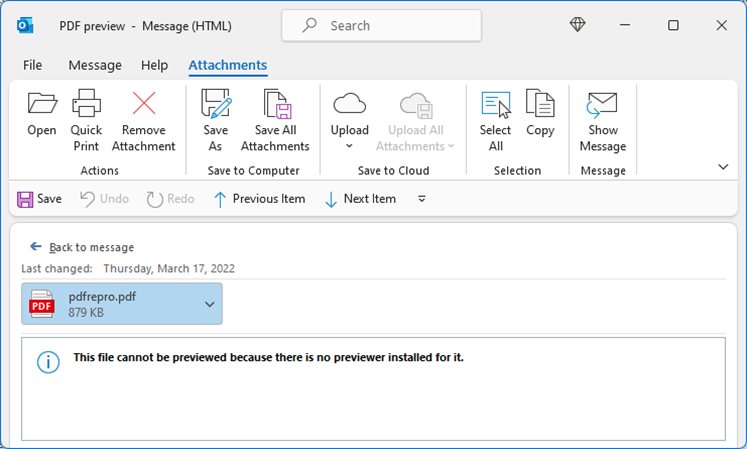
"This file cannot be previewed because there is no previewer installed for it"
Adobe Acrobat Reader and Outlook use different bitness, so Outlook cannot load Reader's previewer.
- Check Outlook's bitness under File > Office Account > About Outlook.
- Check Reader's bitness under Help > About Adobe Acrobat Reader.
- Uninstall Reader and install the version with the same bitness as Outlook.
PDF preview handler error in Outlook after installing PowerToys
PowerToys has overridden the PDF preview setting.
- Open PowerToys from the Start menu.
- Select File Explorer add-ons.
- Turn off Enable PDF (.pdf) preview and restart Outlook.
Outlook shows no preview for any attachment
Attachment previewers are turned off in the Trust Center.
- In Outlook, select File > Options > Trust Center > Trust Center Settings.
- Select Attachment Handling on the left.
- Make sure Turn off Attachment Preview is cleared.
- Select Attachment and Document Previewers, select the check box for the PDF previewer and select OK.
PDF opens in Microsoft Edge instead of previewing in new Outlook
New Outlook opens PDF attachments in the default browser when that browser is Edge.
- Open Settings > Apps > Default apps.
- Search for .pdf and choose the PDF app you prefer.
- Reopen the attachment from new Outlook.
Preview or thumbnail options are greyed out because of work PC restrictions
Your organization manages File Explorer through policy, such as Turn off the display of thumbnails and only display icons, or blocks app installs and registry edits.
- Handle these restrictions through your IT department: check with them before changing policy, registry or installed apps on a managed PC.
- Ask IT to install a PDF reader with a preview handler in the bitness that matches Outlook.
- Unblock only downloaded PDFs you trust; on managed PCs this may also be restricted.
PDF preview handler FAQs
How do I fix the PDF preview handler?
Turn on View > Preview pane in File Explorer, select Show preview handlers in preview pane in Folder Options, unblock downloaded PDFs in Properties, set a PDF reader as the default .pdf app, and restart File Explorer from Task Manager.
Why is my PDF preview handler not working?
The usual causes are a hidden preview pane, no installed PDF previewer, a disabled handler option in Folder Options, or the October 2025 security change that blocks previews of files downloaded from the internet. In Outlook, a bitness mismatch with Acrobat Reader or PowerToys also breaks it.
How do I fix the PDF preview handler in Outlook?
Make Adobe Acrobat Reader's bitness match Outlook's, then turn off the PowerToys PDF preview option if PowerToys is installed. Also confirm that Turn off Attachment Preview is cleared under Trust Center Settings > Attachment Handling in Outlook.
How do I enable the PDF preview handler?
Install a PDF app that includes a preview handler, such as Adobe Acrobat Reader, or turn on the PDF previewer in PowerToys File Explorer add-ons. Then open the File Explorer preview pane and select Show preview handlers in preview pane in Folder Options.
How do I enable the preview pane in Windows?
Open File Explorer, select View on the command bar, and select Preview pane on Windows 11. On Windows 10, open the View tab on the ribbon and select Preview pane. The pane then shows the selected file's contents on the right.
Does Adobe Reader support PDF preview in Windows?
Yes. Microsoft names Adobe Acrobat Reader as the PDF previewer that Outlook relies on for PDF attachments. For Outlook previews to work, Reader must use the same 32-bit or 64-bit build as Outlook.
Can restarting File Explorer fix preview problems?
Yes, often. File Explorer loads preview handlers into memory, so after installing a reader or changing a setting, restart Windows Explorer from Task Manager. That reloads the handlers without restarting the PC.
Why does Windows say a PDF could harm my computer in the preview pane?
Since the October 14, 2025 security updates, File Explorer blocks previews of files marked as downloaded from the internet. If you trust the file and its source, open Properties and select Unblock to restore the preview.
Is there a Microsoft PDF preview handler for Windows 11?
Microsoft PowerToys includes a PDF previewer and PDF thumbnails as part of its File Explorer add-ons. Turn them on in PowerToys, but note that Microsoft warns they override other preview handlers and can conflict with Outlook.

![Find passwords stored on this computer [3 ways]](https://techdows.com/wp-content/uploads/2026/10/Find-passwords-stored-on-this-computer-3-ways.jpg)
![7 best open-source PDF editors [Windows, Mac, Linux]](https://techdows.com/wp-content/uploads/2026/10/7-best-open-source-PDF-editors-Windows-Mac-Linux.jpg)