To stop Microsoft Edge clearing browsing data when it closes, open Settings > Privacy, search, and services > Clear browsing data > Choose what to clear every time you close the browser and turn off every toggle.
This guide covers the Settings route, the Group Policy and registry setting that can force clearing on, how to confirm the change, and fixes when the toggles are locked.
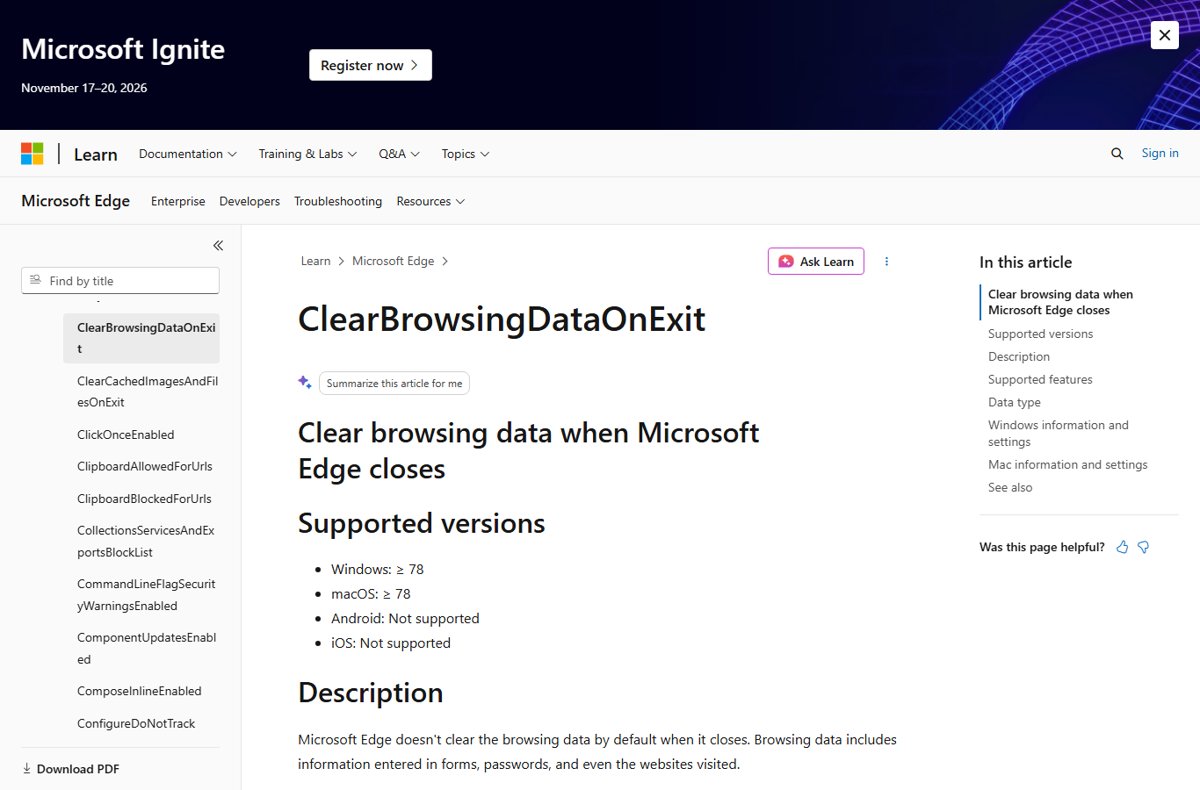
Turn off clear browsing data on close in Edge settings
Edge does not clear browsing data on exit by default, so a toggle somewhere on this page was turned on. Turning all of them off restores normal behaviour.
- Open Microsoft Edge and select Settings and more (…) > Settings.
- Select Privacy, search, and services on the left.
- Under Clear browsing data, select Choose what to clear every time you close the browser.
- Turn off every toggle that is on, such as Browsing history, Cookies and other site data and Cached images and files.
- Close all Edge windows, then open Edge again.
Your history, cookies and sign-ins now survive a restart. Data cleared before you made the change does not come back.
What clear browsing data on close deletes in Microsoft Edge
Each toggle on the close page matches one data type from the main Clear browsing data dialog. Leave on only the types you genuinely want gone at every exit.
| Data type | What is deleted at close | Effect of leaving it on |
|---|---|---|
| Browsing history | URLs of sites visited, with dates and times | Address bar suggestions and history start empty |
| Download history | The list of files downloaded (not the files) | The Downloads list is empty |
| Cookies and other site data | Site cookies and stored data | Microsoft notes this signs you out of most sites |
| Cached images and files | Copies of pages and images | Sites load more slowly on the first visit |
| Passwords | Saved site passwords | You must re-enter passwords |
| Autofill form data (includes forms and cards) | Saved addresses, emails and cards | Forms no longer fill automatically |
| Site permissions | Per-site choices such as location or camera | Sites ask for permission again |
Methods to automatically clear browsing data when closing Edge
Three controls can make Edge clear data at exit. Disabling clearing means undoing whichever one is active on your PC.
| Method | Who sets it | How to disable it |
|---|---|---|
| Settings toggles under Choose what to clear every time you close the browser | You, per profile | Turn each toggle off |
| Group Policy Clear browsing data when Microsoft Edge closes | An administrator, or you with Local Group Policy Editor | Set the policy to Not Configured or Disabled |
Registry value ClearBrowsingDataOnExit under SOFTWARE\Policies\Microsoft\Edge |
An administrator or management tool | Delete the value or set it to 0 |
| Group Policy Clear cached images and files when Microsoft Edge closes | An administrator | Set to Not Configured so the cache toggle is yours again |
Microsoft's policy page states that when ClearBrowsingDataOnExit is enabled, all browsing data is deleted at close and the policy overrides the cache policy. The Settings toggles cannot override it.
The Settings toggles turn clearing on or off for the current user's profile only. The Computer Configuration policy and the value under HKEY_LOCAL_MACHINE enable or disable it for all users of the PC.
Disable the ClearBrowsingDataOnExit policy in Group Policy Editor
Use this when the Settings toggles are greyed out and Edge shows that your organization manages the browser. The Edge policies only appear after the Microsoft Edge administrative template is installed.
- Press Win + R, type
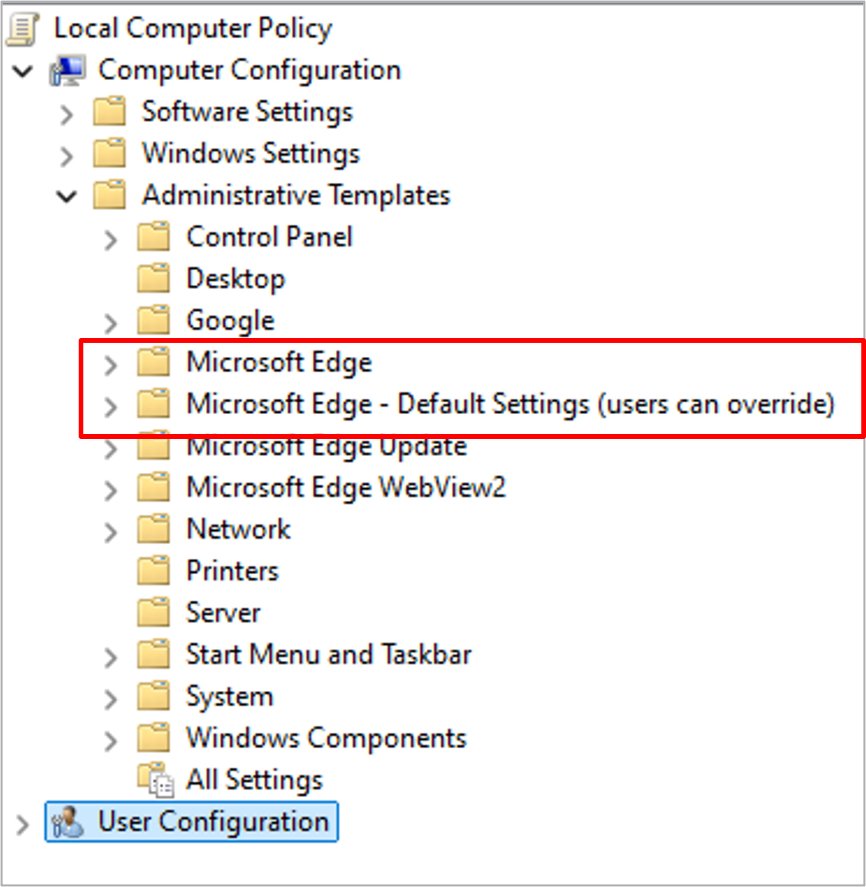
gpedit.mscand press Enter. - Go to Computer Configuration > Policies > Administrative Templates > Microsoft Edge. Check User Configuration at the same path too.
- Double-click Clear browsing data when Microsoft Edge closes.
- Select Not Configured or Disabled, then select OK.
- Repeat for Clear cached images and files when Microsoft Edge closes if it is set.
- Close and reopen Edge, because both policies need a browser restart.
Microsoft documents that disabling or not configuring ClearBrowsingDataOnExit returns control of the Clear browsing data option to users in Settings. Turn off any toggles still on afterwards.
Remove ClearBrowsingDataOnExit from the registry
Group Policy stores Edge policies in the registry. Microsoft lists HKLM\SOFTWARE\Policies\Microsoft\Edge as the policy location; a per-user copy can sit under HKCU at the same path. Back up the key before you change it.
- Press Win + R, type
regeditand press Enter. - Go to
HKEY_LOCAL_MACHINE\SOFTWARE\Policies\Microsoft\Edge. - Right-click the Edge key, select Export, and save a backup.
- Find
ClearBrowsingDataOnExit(a REG_DWORD). Delete it, or set its value data to0. - Do the same for
ClearCachedImagesAndFilesOnExitif it is present. - Check
HKEY_CURRENT_USER\SOFTWARE\Policies\Microsoft\Edgefor the same values. - Restart Edge.
On a work or school PC, a domain or Intune policy rewrites these values at the next refresh. Ask your administrator instead of editing them.
Check Edge no longer clears browsing data on exit
- Visit a couple of sites and sign in to one of them.
- Close every Edge window.
- Open Edge and check that the sites you visited still appear in your browsing history.
- Open the site you signed in to and confirm you are still signed in.
- Type
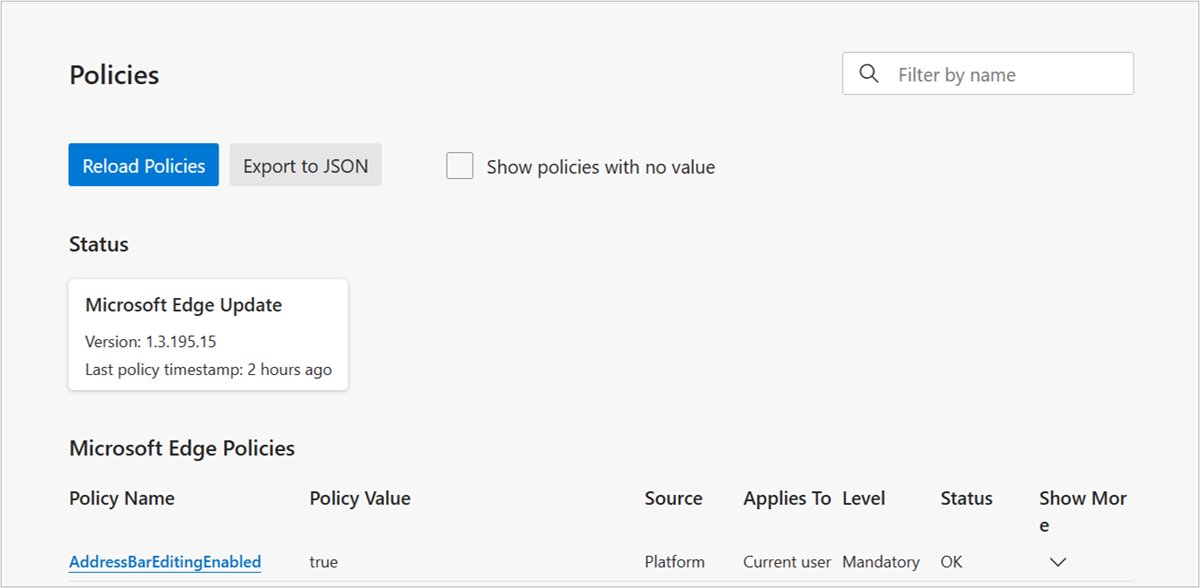
edge://policyin the address bar and confirm ClearBrowsingDataOnExit is not listed, or is not set to true.
Fix Edge clear browsing data on exit settings that will not change
The close toggles are greyed out and cannot be switched off
A mandatory policy such as ClearBrowsingDataOnExit or ClearCachedImagesAndFilesOnExit is applied.
- Open
edge://policyto see which policy is set and its source. - On a personal PC, set the policy to Not Configured in Group Policy Editor or remove the registry value.
- On a work or school PC, ask IT to change the policy.
- Restart Edge and check the toggles again.
History and cookies still disappear after the toggles are off
Edge's policy documentation states ClearBrowsingDataOnExit deletes all browsing data regardless of other settings when it is enabled.
- Check
edge://policyfor ClearBrowsingDataOnExit set to true. - Remove it as described in the Group Policy or registry section.
- Check every Edge profile, because the setting is per profile.
Edge won't clear browsing data on exit even with the toggles on
Microsoft's RestoreOnStartup policy notes that restoring the last session disables features that act on exit, such as Clear browsing data on exit.
- Open Settings > Start, home, and new tab page.
- Under When Edge starts, choose Open the new tab page or Open these pages instead of Continue where you left off.
- Close all Edge windows and test again.
Cleared data comes back on another device
Synced items are stored across your signed-in devices.
- Go to Settings > Profiles > Sync.
- Review which data types sync, or select Turn off sync to keep clearing local to this PC.
How to clear Edge browsing data manually instead
With automatic clearing off, you can still clear data whenever you choose. Edge can also show a Clear browsing data toolbar button for one-click access.
- Press Ctrl + Shift + Delete, or open Settings > Privacy, search, and services.
- Select Choose what to clear next to Clear browsing data now.
- Under Time range, pick a range from the drop-down menu.
- Check the data types you want to remove.
- Select Clear now.
Additional considerations for enterprise-level deployments
| Consideration | What Microsoft documents |
|---|---|
| Mandatory vs recommended | Both ClearBrowsingDataOnExit and ClearCachedImagesAndFilesOnExit can be mandatory or recommended; recommended sits under Microsoft Edge – Default Settings (users can override) |
| Restart needed | Neither policy refreshes dynamically; Edge must restart |
| Scope | Both apply per profile, including profiles signed in with a Microsoft account |
| Cookie setting conflict | ClearBrowsingDataOnExit takes precedence over DefaultCookiesSetting |
| Exemptions | SaveCookiesOnExit keeps cookies for listed sites; PasswordDeleteOnBrowserCloseEnabled controls password deletion at close |
| Policy conflicts | Microsoft advises not configuring AllowDeletingBrowserHistory or ClearCachedImagesAndFilesOnExit alongside ClearBrowsingDataOnExit |
| Platforms | Windows and macOS (version 78 and later for ClearBrowsingDataOnExit); not supported on Android or iOS |
Test with edge://policy on a client device after a gpupdate /force before rolling a change out widely.
Microsoft Edge clear browsing data on exit FAQ
How do I clear browsing data on Edge?
Press Ctrl + Shift + Delete, or open Settings > Privacy, search, and services and select Choose what to clear next to Clear browsing data now. Pick a time range, check the data types, and select Clear now.
How do I clear Edge browsing data every time I close it?
Open Settings > Privacy, search, and services and select Choose what to clear every time you close the browser. Turn on the toggle for each data type you want deleted when Edge closes.
Does Microsoft Edge clear browsing data on exit by default?
No. Microsoft's policy documentation states that Edge does not clear browsing data by default when it closes. If data disappears, a toggle on the close page or a policy turned it on.
Why is Edge not clearing my browsing data on exit?
Check the startup setting first. Restoring the last session with Continue where you left off disables clear browsing data on exit, according to Microsoft. Switch When Edge starts to another option.
Why can't I turn off clear browsing data on close in Edge?
A policy is managing it. Open edge://policy and look for ClearBrowsingDataOnExit or ClearCachedImagesAndFilesOnExit. Set it to Not Configured on a personal PC, or ask IT on a managed one.
Will clearing cookies on close sign me out of websites?
Yes. Microsoft states that deleting cookies every time Edge closes signs you out of most sites. Add an exception for sites where you want to stay signed in, or turn the cookie toggle off.
Does clearing browsing data on one PC clear it on other devices?
Synced items are cleared across all synced devices when you clear them. To clear data only on the current PC, turn off sync under Settings > Profiles > Sync first.
Improve data privacy by clearing browser data when closing Edge
Turn off clear on close if you rely on history and sign-ins, and instead clear data manually or use InPrivate windows for sessions you do not want kept. Clearing on exit improves privacy on shared PCs, but it signs you out of most sites and empties history every time. InPrivate deletes its history, cookies and form data when all InPrivate windows close, which gives the privacy benefit only when you need it.


![6 best free virtual webcam software for Windows [2026 update]](https://techdows.com/wp-content/uploads/2026/10/6-best-free-virtual-webcam-software-for-Windows-2026-update-600x338.jpg)