To fix Microsoft Software Protection Platform (sppsvc.exe) high CPU usage, restart the Software Protection service, then make sure Windows is activated and its licensing task can run.
This guide explains what the service does, why it gets stuck, how to check your license with slmgr, how to repair the SoftwareProtectionPlatform task, and why you should not disable the service.
![[Fix] Microsoft Software Protection Platform (sppsvc) high CPU usage](https://techdows.com/wp-content/uploads/2026/10/Fix-Microsoft-Software-Protection-Platform-sppsvc-high-CPU-usage.jpg)
Restart the Software Protection service to stop sppsvc high CPU usage
A short burst of sppsvc.exe activity after sign-in or after a license change is normal. If it keeps a core busy for long periods, a restart of the service clears the stuck licensing check in most cases.
- Press Win + R, type
services.mscand press Enter. - Scroll to Software Protection in the list.
- Right-click Software Protection and select Restart, or select Start if it shows no status.
- Press Ctrl + Shift + Esc to open Task Manager.
- Select the Details tab, find sppsvc.exe and check that its CPU value has dropped to low or zero.
If CPU usage climbs again after the next restart of Windows, work through the activation and task fixes below.
What is Microsoft Software Protection Platform service (sppsvc)?
The Software Protection Platform is the Windows licensing engine. It checks and enforces the digital licenses of Windows and of Microsoft apps that use it, so it runs on every Windows PC.
| Question | Answer |
|---|---|
| Service display name | Software Protection |
| Service name | sppsvc |
| Process name in Task Manager | sppsvc.exe on the Details tab |
| What it does | Enables the download, installation and enforcement of digital licenses for Windows and Windows applications |
| Installed by default | Yes, it is always installed |
| Account it runs under | NETWORK SERVICE |
| Command-line tool that talks to it | slmgr.vbs, the Windows licensing and activation script |
| Registry key | HKEY_LOCAL_MACHINE\SOFTWARE\Microsoft\Windows NT\CurrentVersion\SoftwareProtectionPlatform |
Microsoft's own description warns that if the service is disabled, Windows and licensed apps may run in a notification mode.
Cause of Software Protection Platform high CPU usage
sppsvc.exe does real work only when Windows or an app asks it to validate or change a license. High CPU usage means it is repeating that work, so the fix depends on what keeps triggering it.
The symptom looks the same on every PC: Microsoft Software Protection Platform Service sits near the top of the Task Manager Processes tab, and sppsvc.exe on the Details tab keeps a high CPU value for long periods instead of dropping back after a few seconds.
| Cause | What happens | Fix in this guide |
|---|---|---|
| Windows is not activated or activation keeps failing | The service retries license validation and activation over and over | Check activation and run the Activation troubleshooter |
| A product key was just installed or changed | The license store is being rebuilt; Microsoft advises restarting the PC or the service afterwards | Restart the Software Protection service |
| The SoftwareProtectionPlatform scheduled task cannot run | The service cannot schedule its own restart and logs event 16385 repeatedly | Repair the task permissions |
| Task Scheduler service is disabled | Same as above: the restart schedule fails | Turn Task Scheduler back on |
| Damaged system or license files | Validation fails and starts again | Run DISM and SFC |
| Third-party software querying licenses | Another program keeps asking for license status | Clean boot to find it |
Check Windows activation status and run the Activation troubleshooter
An unactivated copy of Windows is the most common reason the licensing service stays busy. Confirm the status first; a PC with a digital license linked to your Microsoft account can reactivate after hardware changes.
- Select Start > Settings.
- On Windows 11, go to System > Activation; on Windows 10, go to Update & Security > Activation.
- Read the status: Windows is activated or Windows is activated with a digital license means licensing is fine.
- If it says Windows is not activated, select Troubleshoot on the same page.
- Follow the troubleshooter's prompts, then restart the PC.
- If the troubleshooter cannot fix it, select Change product key and enter a key that matches your edition.
Work devices that activate against a company server need a connection to the workplace network; ask your IT team if activation fails there.
Check the Windows license with slmgr /dlv
slmgr.vbs reads licensing data straight from the Software Protection service. Reading the license does not need administrator rights.
slmgr /dlvOpens a Windows Script Host window with detailed license information for the installed edition: the edition name, partial product key, license status and activation details. Use slmgr /dli for a shorter summary and slmgr /xpr to see whether activation is permanent.
You should see: License Status: Licensed means activation is complete. Any other status, such as Notification or an error code, points to an activation problem that keeps sppsvc busy.
To retry online activation, open Command Prompt as administrator and run slmgr /ato. After you install a new key with slmgr /ipk, restart the PC or the Software Protection service, as Microsoft advises, to prevent instability in the license service.
Fix the SoftwareProtectionPlatform scheduled task and NETWORK SERVICE permissions
Microsoft documents this fix for the event "Failed to schedule Software Protection service for re-start" (Event ID 16385). When the service cannot schedule itself, it can keep running instead of stopping.
- Open
services.mscand confirm Task Scheduler shows Running. - Right-click Start and select Computer Management.
- In the left pane, expand Task Scheduler >Task Scheduler Library > Microsoft > Windows > SoftwareProtectionPlatform.
- Open the task, and on the General tab check that the security options use the NETWORK SERVICE account.
- In File Explorer, open
C:\Windows\System32\Tasks\Microsoft\Windows\SoftwareProtectionPlatform, right-click it and select Properties > Security. - Confirm NETWORK SERVICE is listed with Read permission; select Edit to add it if it is missing.
- Restart the Software Protection service in
services.msc.
Repair system files with DISM and SFC
Damaged Windows files can make license validation fail and restart. DISM repairs the Windows image, then SFC replaces damaged system files.
- Install the latest updates from Settings > Windows Update and restart.
- Type command prompt in the taskbar search box, right-click Command Prompt and select Run as administrator, then Yes.
- Type
DISM.exe /Online /Cleanup-image /Restorehealthand press Enter. - Wait for The operation completed successfully.
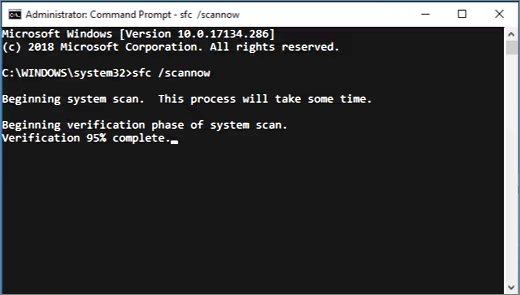
- Type
sfc /scannowand press Enter. - When you see Verification 100% complete, restart the PC.
If licenses themselves are damaged, slmgr /rilc in an elevated Command Prompt reinstalls the known-good license files Windows stored during installation. Restart the PC afterwards.
Clean boot to find the app that triggers sppsvc.exe
If sppsvc spikes only when certain programs run, a clean boot shows whether a third-party app or service is calling the licensing engine.
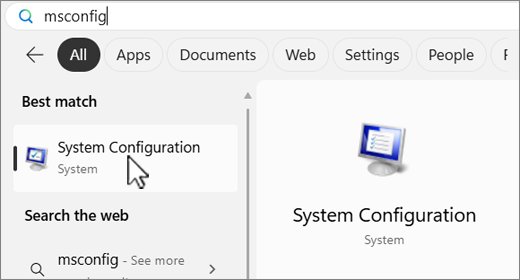
- Search for msconfig and open System Configuration.
- On the Services tab, check Hide all Microsoft services, select Disable all, then Apply.
- On the Startup tab, select Open Task Manager and disable each Enabled startup item, noting which ones you turned off.
- Close Task Manager, select OK in System Configuration and restart.
- Watch sppsvc.exe in Task Manager; if it stays quiet, re-enable services and startup apps a few at a time until the spike returns.
- To finish, choose Normal Startup on the General tab, select Enable all on the Services tab, re-enable startup apps and restart.
How to check sppsvc CPU usage is back to normal
- Restart the PC and sign in.
- Wait a few minutes, then press Ctrl + Shift + Esc to open Task Manager.
- Find sppsvc.exe on the Details tab; it should sit near 0% CPU or stop running when idle.
- Open Settings > System > Activation and confirm Windows shows as activated.
- Run
slmgr /dliand confirm License Status: Licensed.
Software Protection Platform service crashing, stuck or restarting
Event 16385: Failed to schedule Software Protection service for re-start
Task Scheduler is disabled, or NETWORK SERVICE lacks Read access to the SoftwareProtectionPlatform tasks folder.
- Start the Task Scheduler service in
services.msc. - Check the task's General tab uses NETWORK SERVICE.
- Give NETWORK SERVICE Read permission on
C:\Windows\System32\Tasks\Microsoft\Windows\SoftwareProtectionPlatform. - Restart the Software Protection service.
Software Protection Platform service restart keeps happening and CPU stays high
Activation is failing in a loop.
- Run
slmgr /dlvand note the license status or error code. - Run the Activation troubleshooter from Settings > System > Activation > Troubleshoot.
- Enter a product key that matches your Windows edition if the troubleshooter asks for one.
Software Protection service will not start
Damaged system files or license store.
- Run
DISM.exe /Online /Cleanup-image /Restorehealth, thensfc /scannow, in an elevated Command Prompt. - Run
slmgr /rilcas administrator and restart. - Start Software Protection in
services.msc.
Suspect sppsvc.exe is malware
Malware can disguise itself with the name of a Windows process.
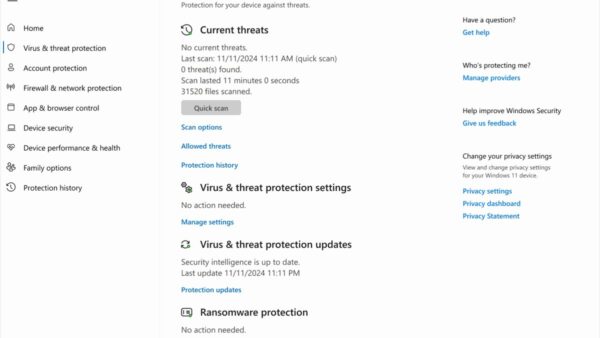
- Open Windows Security > Virus & threat protection and select Scan options.
- Choose Full scan and select Scan now.
- If anything persists, choose Microsoft Defender Antivirus (offline scan), save your files and let the PC restart.
- Review results under Protection history.
Background processes such as Microsoft Compatibility Telemetry can spike the CPU in a similar way, so confirm on the Details tab that sppsvc.exe is the process actually using it.
Can I disable the Software Protection service?
No. Leave Software Protection enabled and fix the cause of the CPU load instead. Microsoft highly recommends not disabling the service. Without it, Windows and licensed applications may run in a notification mode, and licensing commands such as slmgr and activation in Settings stop working. Disabling it also hides the activation problem that usually causes the CPU load rather than solving it.
Software Protection Platform (sppsvc) FAQ
What is Microsoft Software Protection?
Microsoft Software Protection is the Windows licensing service, listed in Services as Software Protection with the service name sppsvc. It downloads, installs and enforces digital licenses for Windows and for Microsoft apps that use the same licensing system.
What is Software Protection Platform service?
It is the background service that runs sppsvc.exe, listed in Services as Software Protection. It runs under the NETWORK SERVICE account and handles activation and license checks whenever Windows or a licensed app requests them.
What is Software Protection Platform SPP?
SPP is short for Software Protection Platform, the licensing engine in Windows. Tools such as slmgr.vbs read and change license data through it.
Where is the Software Protection Platform registry key?
Its settings live under HKEY_LOCAL_MACHINE\SOFTWARE\Microsoft\Windows NT\CurrentVersion\SoftwareProtectionPlatform. Microsoft documents values there such as SkipRearm, which stops slmgr /rearm from resetting activation timers. Back up the key before you change anything in it.
How do I restart the Software Protection Platform service?
Press Win + R, type services.msc and press Enter. Right-click Software Protection and select Restart, or Start if it is stopped. Restarting it is also what Microsoft advises after installing a new product key.
Is sppsvc.exe a virus?
No. sppsvc.exe is the Windows Software Protection service that ships with every copy of Windows. If you suspect a fake process using its name, run a full scan and then an offline scan in Windows Security.
Why does sppsvc.exe use CPU right after I sign in?
Windows checks its license and the licenses of Microsoft apps after startup, so a short burst of CPU from sppsvc.exe is expected. It becomes a problem only when the load lasts long periods or returns constantly.
Does disabling Software Protection deactivate Windows?
Disabling it stops license enforcement working properly, and Microsoft says Windows and licensed apps may then run in a notification mode. Microsoft highly recommends keeping the service enabled.